Learn how to use failure cost processing for substandard or damaged finished goods rework. You can capture costs and view reports for better monitoring and control of the rework.
Key Concept
In manufacturing environments, rework operations are usually carried out with two traditional approaches: costs are collected in the same order or in a separate rework order. With these two approaches, rework cost reporting becomes cumbersome because it requires many custom modifications. To achieve better monitoring and control of failure or rework costs and improve profitability, you can use an alternative hidden approach called failure cost processing. The SAP standard system does not show this in the SAP Easy Access menu.
Rework or scrap is a normal part of a discrete or repetitive manufacturing scenario. Goods that do not meet standard quality norms are reworked again to bring them up to salable, finished condition. When they cannot be reworked adequately, they are deemed scrap and are discarded. In an SAP system, you use two approaches to capture the rework scenario:
1. The rework operation is inserted automatically in the main production order, and the goods are confirmed at this operation.
2. A separate rework order (without material) is created, costs are captured on the rework order, and the rework order is settled to the main production order.
With the first approach, the visibility of rework costs is lost as the rework costs are collected under the same production order. With the second approach, rework costs can be tracked, but with two limitations:
- It involves period-end activity of settlement of rework orders
- Linking of rework costs with the original production order or material is possible only after settlement
The second approach presents limitations because you are not able to report on rework costs correctly at any point of time for an original order or material.
In addition, both of these approaches fail to report on:
1. What the rework inventory is (valued at standard cost) at any point of time
2. The rework expenses listed according to responsible cost center and the reason for rework (e.g., poor quality or labor error) for the reworked product
As an alternative, from R/3 4.7 onward, SAP introduced failure cost processing to address these issues. With this failure cost processing approach, you capture rework costs and expenses separately without losing the original functionality achieved by the two approaches mentioned in the beginning of the article. In addition, this approach provides a user-friendly interface to capture additional expenses (e.g., additional raw material or additional labor costs) related to rework or scrap.
Using the failure cost processing approach, you generate a failure cost document immediately after recognizing the rework or scrap quantity and valuate the failure cost document, enabling more efficient reporting. A single user-friendly interface enables you to capture additional components used in rework. After you complete the rework, you transfer the rework quantity into the finished goods or scrap location.
The failure cost processing method can be very useful, especially when your failure costs (rework or scrap) are significant, and you have no means of tracking them in real time. This method has not become widespread, however, mostly because of the unavailability of SAP help documentation. The documentation doesn’t appear in SAP’s Easy Access menu path or IMG menu path, but it is hidden in the SAP system. A separate transaction code, FCOST (Failure Cost Cockpit for Rework), is used to access this method (Figure 1). It is fully integrated with the FI/CO, materials management (MM), production planning (PP), and Quality Management (QM) modules.
In the next section, I explain the steps to be followed along with a test case for better understanding of the failure cost processing functionality.
Note
For the purposes of this article, I assume that the reader has a basic understanding of the product-cost-by-order scenario along with ordinary rework processing.
You need to make a few basic settings before you can use the functions in failure cost processing. Activate the Business Add-In (BAdI) BADI FCO_COCKPIT_FUNCT so that you can use the failure cost cockpit and report on the rework functionality. (If you are not a technical expert, to avoid errors consult your technical team for help in activating the BAdI. The activation of the BAdI is beyond the scope of this article.)
The settings for customization and end-user activities are available in a single area menu. Use transaction code FCOMENU to access the menu. The screen in Figure 1 appears.

A fully expanded view of the menu path is displayed in Figure 2, along with the related transaction codes. You need to refer to Figure 2 to access the transaction codes referred to later in this article.

Figure 2
Expanded Failure Cost Processing menu
Settings for Activating Failure Cost Processing
There are only two steps to failure cost processing activation. First, click General Settings in the menu (Figure 2), and the screen in Figure 3 appears.

Figure 3
Settings for Failure Cost Processing
If you choose the No Valuate option you are not able to valuate the failure cost documents. Therefore, you are able to report only the rework quantities, not the values. The rework values are not reflected in the reports, so I strongly recommend that you not check this box.
You can value the rework or scrap quantity either with planned scrap or without planned scrap. If you intend to value rework quantity with planned scrap, you need to set up the configuration and update the relevant scrap details in the material master. Planned scrap functionality is a huge undertaking and is beyond the scope of this article. For simplicity and easy understanding, proceed with valuation without scrap. You can refer to the following articles for an understanding of the concept of planned scrap:
Note
If you can reliably measure the scrap-generated and scrap-related costs are significant, I would recommend valuing your rework with planned scrap.
You use the Summarization option to summarize the valuation of the failure cost documents by cost element and origin. You can activate failure cost processing for production orders by double-clicking Activate for Production Orders (Figure 2). An entry screen is displayed (Figure 4). In this example, you use Plant AIND. Check the activation for Plant AIND and production order type PP01.

Figure 4
Screen for activating failure cost processing in a product-cost-by-order scenario
In a repetitive manufacturing scenario, you need to activate the failure cost processing (Figure 5) using transaction code FCOACTIV_REM in Figure 2. However, because I used the product-cost-by-order scenario to demonstrate failure cost processing, I did not check the Active box against Plant AIND in Figure 5.

Figure 5
Activate failure cost processing in a product-cost-by-period scenario
Note
If you carry out both repetitive manufacturing and lot-size production with production orders in the same plant, you can activate failure cost processing for repetitive manufacturing and production by lot scenarios for the same plant. Once you activate the failure cost processing method, you cannot use the traditional methods of rework processing (i.e., it is not possible to use both the failure cost cockpit and the traditional methods simultaneously in any plant).
Once you have completed the configuration settings, you are ready to test the scenario. Testing involves the following steps for rework and scrap separately:
1. Create a production order of type and release it (transaction CO01)
2. Confirm scrap or rework quantity (CO11N)
3. Enter the expenses or additional material used for rework processing (FCOST)
4. Enter the valuation of the rework quantity (FCOVALU).
5. Confirm the rework quantity and receive it as refurbished finished goods (FCOST)
6. Check the control reports for rework/scrap
Then you set up the failure cost processing for the rework business process followed by the process for scrap. You use the following data:
1. Finished goods (FG): Material 149
2. Plant: AIND
3. Storage location: YIN1.
4. Bill of material (BOM) of FG 149 contains one unit of raw material (147 and 148 each)
5. Routing of FG 149 contains one activity: Activity type 1420 of 3 hours
Failure Cost Processing for Rework
1. Create a production order (1000080) for finished goods material 149 (Figure 6), in plant AIND, for 3 KGs, using transaction code CO01 and release it.

Figure 6
Display of production order 1000080 for material # 149
2. Confirm (partial) quantity 2 KG and confirm 1 KG of rework using transaction code CO11N (Figure 7). The user enters the actual material consumption details in the Goods movements tab (not shown here).

Figure 7
Partial confirmation of finished goods and rework for order 1000080
3. Post material documents and accounting documents with raw materials back flush (i.e., are issued to production) and the finished goods are taken into the storage location A failure cost document 46 is automatically generated. Use transaction code FCODOC to display the failure cost document (Figure 8).

Figure 8
Display of automatically generated failure cost document # 46
4. While processing the rework, you use additional material or activity quantities. Use the FCOST transaction to enter the rework costs. The initial screen appears (Figure 9). You can enter the order number or, alternatively, the material number/plant, and then the system generates the work list automatically with all the open production orders.
Note
In case the system does not find any production orders with an open rework outward quantity, the work list is not filled. The system then displays a warning message that the work list is not filled.
Note
Maintain the number range for failure cost documents through transaction code SNRO using number range object FCO_DOC.

Figure 9
Initial screen for failure cost processing
The rework failure cost cockpit is displayed in Figure 10. The screen is divided into four parts:
1. Work list: Allows you to work with the relevant production orders one at a time
2. General data: The header data such as posting dates, responsible cost center, and so on, can be entered for better and more accurate reporting (e.g., rework costs by cost center)
3. Inward transfer: The rework quantity to be transferred inwards after processing, either as yield or scrap
4. Rework expense: The screen for entry of additional expenses (two buttons—one for activities and another for components)

Figure 10
User-friendly screen for failure cost processing
To process the material, check the Choose check box in the Worklist and enter the additional expenses (e.g., material or activity costs) to process the material. The additional expenses may be due to additional components or additional activities. In this example, you input both activities (Figure 11) and components (Figure 12) in the respective screens by choosing the Activity Entry and Component Entry buttons in the bottom appearing under the Rework Expense section. Input 2.0 (for two hours) in Activity Quantity, PRODN in Sender cost center, and 1420 in Activity Type (Figure 11).

Figure 11
Screen for entering rework expenses (Activity Entry tab)
Now you input the additional raw material required: 2 KGs of Material 148 from Plant AIND and Storage Location YIN1 (Figure 12).

Figure 12
Screen for entering rework expenses (Component Entry tab)
After inputting the additional expenses, you validate the data by clicking the Check Entries button on the standard tool bar. Rectify any errors and save the document. Errors occur due to input errors such as wrong material number, wrong plant, wrong unit of entry, or wrong storage location. Save by clicking the Save button on the standard tool bar, not shown in Figure 12. Click the Display Log button on the standard tool bar, and the log is displayed (Figure 13).
Note
You do not need to input the movement type in Figure 12. The system inputs 261 movement type (material issue to order) by default while posting, and if you enter any other movement type the system ignores it and shows only 261.

In the log shown in Figure 13, the material document (Mat. doc.) activity document (i.e., the controlling document) is posted. The failure cost documents (Figure 13) are shown in Figure 14. The corresponding material, or CO (controlling), document numbers are shown in the column Seq. No. (Figure 14).

Figure 14
Display of failure cost documents posted for order 1000080
Notice that the failure cost document number (0000000048) is displayed in the Mat. Slip field of the material document screen (Figure 15). The material slip number is also shown in the Reference field in the accounting document header (not shown here). Now at periodic intervals, say weekly, you valuate the rework documents.

Figure 15
Material document for withdrawal of material
Note
The valuation period should be decided by the business depending on various factors, such as volume of rework/scrap generation and reporting frequency. For high-volume businesses, a daily execution is recommended, whereas for others, weekly execution should suffice.
5. At regular intervals, execute the valuation of failure cost documents to valuate the rework quantity at standard cost. You now value the failure cost documents using transaction code FCOVALU first in test mode, then check the output. In Figure 16, you have executed valuation only for failure cost document 46 to 48 as they are related to order 1000080. (See Figure 14 for relevant failure cost numbers as related to order 1000080.)

Figure 16
Initial screen for valuation of failure cost documents
The output screen is displayed in Figure 17 with the valuation of failure cost documents. Notice that the rework quantity of material 149 is valued based on the BOM and routing as you specified in the beginning of the article. Over and above the standard cost, the additional activities and components used for rework are valued at their respective prices.

Figure 17
Output screen for Valuation of Failure Cost Documents
Note
After you execute the valuation in update run, if you notice any glaring errors, you can reverse the valuation. In Figure 16, under processing options, there is a check box for Reverse valuation. Do a reversal if you feel that the valuation shown in Figure 17 is wrong. Both valuation and reversal will be done with a single screen, but for reversal, the check box Reverse Valuation should be on.
Now because the valuation of the rework quantity is complete, look at the failure cost documents in Figure 18.

Figure 18
Display of failure cost documents after valuation
Because the documents are now valuated, you can see the quantity and value of the rework reports now in process in Figure 19. The additional rework costs for processing material 149 are shown in Figure 20.

Figure 19
Report output on rework in progress for material # 149

Figure 20
Report output on rework costs (components and activities) for material # 149
6. Transfer the rework inward using the failure costing cockpit. After completing the rework of the production order, you are ready to transfer the order back to the finished goods stores. Execute transaction code FCOST to transfer the rework back (Figure 21).

Figure 21
Entry screen for inward transfer of rework for order # 1000080
Note
If the inward quantity is more than the rework outward quantity, the system rejects the posting and displays the message Inward transfer quantity greater than outward transfer quantity. You can see the rework outward quantity in the work list section.
See the log for rework inward in Figure 22. Failure cost document 49 is generated as the rework quantity is now transferred inward.

Figure 22
Log for rework inward for materials after processing
The following material document is automatically posted as a goods receipt to the default storage location (Figure 23). If the storage location cannot be defaulted, process the failed material movement documents using transaction code COGI (processing of errors in goods movement).

Figure 23
Material document posted along with rework inward after rework processing
Note
You cannot input both rework expenses (Figures 11 and 12) and rework inward (Figure 21) because the system cannot generate document type RI (rework inward) and RA/RC (rework activities or rework components) simultaneously. Rework inward means transferring the processed goods into the finished goods store after processing. A detailed explanation of each document type can be found in Table 1.
Failure Cost Processing for Scrap
Scrap can be generated in two ways: directly from the production order (Figure 24) or from the rework order (Figure 28).
The process steps for generating scrap are similar to the ones shown for rework (Figure 24):
1. Create a production order (order 1000081)
2. Confirm the scrap quantity when confirming the production order (if you partially confirm with rework quantity, then a failure cost document is generated)
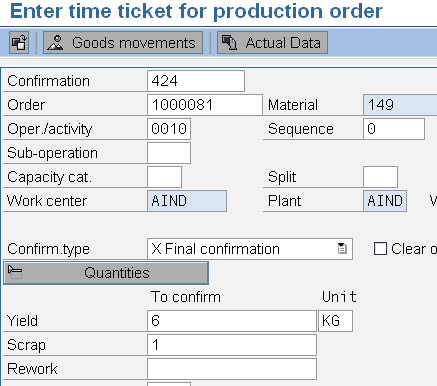
Figure 24
Confirmation of scrap during production order (final) confirmation
The failure cost document 50 is automatically generated, as shown in Figure 25.

Figure 25
Display of failure cost documents
Once the failure cost document is valuated, you can see the scrap costs. Because the goods have already been scrapped, you cannot use the rework functionality. Now you can view the reports of scrap against material 149.
Note
For scrap, at the time of confirmation, only a failure cost document is posted. No inward document is possible as it is already scrapped.
The other scenario is that during production order confirmation, you have confirmed rework and while reprocessing, you have scrapped it. This scenario is demonstrated with production order 1000082 in Figures 26 and 27.

Figure 26
Partial confirmation of rework for production order 1000082

Figure 27
Display of failure cost documents for rework outward for order 1000082
Now you use transaction code FCOST to transfer the rework to scrap because the goods cannot be reworked and are to be scrapped (Figure 28). The display log that results is seen in Figure 29.

Figure 28
Entry screen for scrapping of rework quantity

Figure 29
Display log for failure cost documents posted for rework scrap
Failure cost document 52 (Figure 29) is displayed in Figure 30.
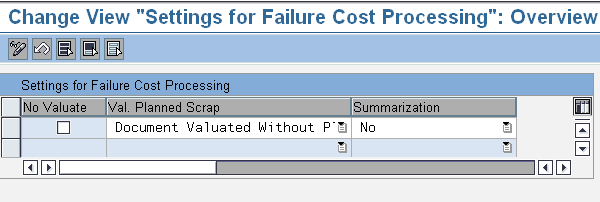
Figure 3
Settings for Failure Cost Processing
Because the rework/scrap data is updated in real time, with valuation, you can see reports based on scrap costs, rework costs, amount of rework in progress, costs by responsible cost center, for analysis and control (all the transactions for reports are available in Figure 2).
You now know the steps for rework and scrap business processes with a failure cost processing method. Table 1 explains the various document types used in failure cost processing along with their posting event and the associated posting documents.

Sivaprasad Ramachendruni
Sivaprasad Ramachendruni is a solution architect (SAP Financials and SAP S4/HANA Finance) with SAP professional certification. He is currently working for a multinational corporation in the IT sector. He has more than 17 years of functional and SAP system experience spanning across several industries. He has expertise with various modules, including FI, Controlling (CO), Funds Management (FM), Flexible Real Estate Management (RE-FX), Financial Supply Chain Management (FSCM), and SAP S4/HANA Finance. He helps companies design, implement, deploy, and streamline business processes and gain efficiency. He is an Indian cost and management accountant and has a master’s degree in financial management.
You may contact the author at sivaprasadr@rediffmail.com.
If you have comments about this article or publication, or would like to submit an article idea, please contact the editor.




 Premium
