Learn how implementing Business Add-In (BAdI) /SAPAPO/SDP_FCST4 enables you to store the results of each forecast run in the system along with the forecasting errors. Analysis of these errors helps you to improve the forecast results and thereby improve the forecast accuracy.
Key Concept
SAP Advanced Planner and Optimizer (APO) Demand Planning has an SAP Business Information Warehouse (BW) component that stores and maintains the information used for generating the demand plan. For instance, demand history for the prior 24 months is used to forecast the next three months. A forecasting run is the execution activity in SAP APO that generates forecasting results. The forecasting run results differ based on the parameters used in the execution process. The exponential smoothing factor is an example of one of the parameters. With exponential smoothing, the values from more recent periods have an exponentially greater impact on the forecast numbers than the values from the older part of the demand history.
SAP Advanced Planner and Optimizer (APO) has two univariate statistical forecasting modes: interactive, which is online, and background. Background forecasting does not store forecast results, leaving no way to measure or analyze forecasting errors. As most of the planners using SAP APO know, results of the forecasts executed in the interactive mode are available in the system. Unfortunately, the standard way in which interactive mode displays results is impractical unless the dataset is relatively small and you can afford to re-execute the forecasting run multiple times.
There is hope, however. I’m going to show you a way to use reports generated in SAP Business Information Warehouse (BW) to make forecast results analysis in either mode effective and painless. Instead of having no saved results with which to work (in background mode) or toggling manually (in interactive mode), you’ll analyze the results with a BW report. You’ll identify quickly which parameter values are generating the best forecast results.
First, I will give some background on the basics and a description of the usual, toggle-intensive forecasting comparison available in the system for runs done in the interactive mode. If you are familiar with that information, you may want to skip to the section, “Normal Forecast Comparison in Interactive Mode.”
Note
Univariate forecasting refers to forecasting based on a single variable. Multiple linear regression (MLR) is an example of another form of statistical forecasting. Statistical forecasting refers to any statistically generated forecast number. This article focuses on monitoring and improving univariate statistical forecasting run results.
Strategies, Parameters, and the Crux of the Problem
SAP APO Release 4.1 provides a choice of about 22 statistical forecasting strategies for univariate forecasting you can use to generate statistical forecast results. A forecast strategy determines the statistical method or the techniques used to generate the forecast number. An example of forecast strategy is strategy 13 (moving average, which calculates the average of the time series values in historical periods). You can further fine-tune the forecast numbers generated by using a specific strategy with additional parameters. In the case of strategy 13, for example, you define the historical period which should be considered by the system for generating the forecast number.
You can change the parameters for each strategy to improve the results, for instance, the alpha factor parameter for exponential smoothing. Results of the forecasting run for the same set of periods and based on same set of historical data vary based on the strategy and parameters used. Therefore, it is important to analyze the results of each run.
The most effective way to measure statistical errors is with methods such as mean absolute deviation (MAD). With this information, you can change parameters and then re-execute the forecast for reduced errors. You can store as many as 999 of these results for comparison. The interactive mode is less likely to be used when the forecasting run is automated with a background job at a scheduled time or event, since a forecasting run is one activity among others that an APO administrator or demand planner must execute. Generally, the forecasting run is executed in the background at the scheduled date/time when the system is not likely to have a processing load.
This is the problem. The results of the forecasting run executed in the background are not stored — you can’t use them for improving the forecasting results. In the interactive mode, the forecasting run results are available but you need to toggle among tabs in the forecast comparison screens. That’s why you need an effective, multi-dimensional method to pin down the specific change, either in the forecasting strategy or in the parameters.
Normal Forecast Comparison in Interactive Mode
What follows is an explanation of the forecasting comparison available in the system for runs done in the interactive mode. Follow this procedure in your own system or just read along, and you will see why interactive mode is only practical for small amounts of data.
Go to menu path Demand Planning>Planning>Interactive Planning and choose GOTO>Forecast Comparison. In the next screen, enter the technical name and details of the planning area, forecast key figure, planning version, and selection ID. You’ll reach the screen shown in Figure 1, which has three tabs, Forecast Error, Parameters, and Changes. The default tab is Forecast Error. When you click on the Error button, you see the results of forecast runs for various statistical errors, such as mean absolute percentage error (MAPE), mean absolute deviation (MAD), error total (ET), mean square error (MSE), square root of the mean squared error (RMSE), or mean percentage error (MPE). By selecting a specific row and then clicking on the Sel. button, you can see the details on the selection, such as APO Product and APO Location.
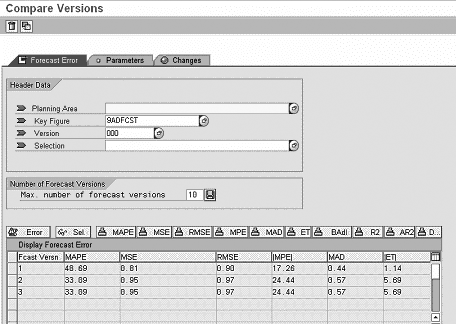
Figure 1
View forecast run results for comparison in interactive planning
The Parameters tab shows details of the parameters that each version used for the forecasting run, including whether any lifecycle profiles were used for the selection. On the last tab, Changes, you get details of each version, the planner who created the version, the date and time of the forecasting run, the profile used, and its type (univariate, MLR, or composite).
Note
Forecast strategy refers to the statistical technique used for generating the forecast, whereas forecast version relates to the sequence for generation of forecast results for each instance.
Max. number of forecast versionsYou can see the limitations of having to toggle to compare the forecast errors and the strategy/parameter values. Next, I’ll explain my solution for storing as many background results as you need. Then I’ll show you how to place all relevant details in one report to analyze and identify the specific parameter that most improves the forecast run results.
The technical process of the solution has two parts:
- Storage and availability of the forecasting results.
- Extraction of the data and report design (e.g., a report to find the least error/ deviation across multiple materials on one screen). Help from a member of your BW team would make this part of the technical process faster and easier.
Note
I have deliberately avoided mentioning the storage of the result values in an ODS or an InfoCube, which is a typical BW activity. I recommend storing the results in an ODS, as you would then be able to store the results accurately. This article focuses only on how to design the solution to store the forecast run results in the APO system regardless of whether the run was executed in the interactive mode or in the background mode.
Storage and Availability of the Forecasting Results
To enable the system to store the results of forecasting runs in the background, implement the BAdI /SAPAPO/SDP_FCST4 (save forecast versions in background). The method ACTIVATE_FCST_VERSION for the interface /SAPAPO/IF_EX_SDP_ FCST4 needs a few lines of ABAP code (Figure 2).
 method /SAPAPO/IF_EX_SDP_FCST4~ACTIVATE_FCST_VERSION. data: wa_selection type line of
 /SAPAPO/TS_IOBJ_SELECTION_TAB.
 data: wa_flag.
 clear wa_flag.
 ev_flag_active = 'X'.
 endmethod.
|
Figure 2 |
ABAP code to activate the BAdI /SAPAPO/IF_EX_SDP_FCST4~ACTIVATE_FCST_VERSION |
After you activate BAdI /SAPAPO/SDP_ FCST4, you can view the results of all available forecasting runs in various tables. When a forecast is executed in Demand Planning, the results for the forecasting errors are saved in table /SAPAPO/ FCSTACCU (Figure 3). However, the records are stored against a PROPID (pointer for forecast results), which is cryptic. Each PROPID is 22 alphanumeric characters in length and could be something like “GoWi12lh2GtX00002aWGUG,” which makes it difficult to link it to the selection ID or a specific statistical forecasting run. Moreover, a demand planner or manager is not expected to spend time downloading values from this table and then figuring out the results of a specific statistical run. If a demand planner or manager is expected to monitor results of each forecast run and change forecast parameters, he or she would need to interpret them easily and act on them quickly.

Figure 2
ABAP code to activate the BAdI /SAPAPO/IF_EX_SDP_FCST4~ACTIVATE_FCST_VERSION

Figure 3
View stored forecast error results such as MAPE, MAD in table /SAPAPO/FCSTACCU click here for a larger version of this image

Figure 4
View details of the storage run in table /SAPAPO/FCSTHEAD click here for a larger version of this image

Figure 5
Link the PLOBJ_ID and PROP_ID to the results data you need using table /SAPAPO/FCSTOBJ2 click here for a larger version of this image
Extract the Data and Design a Report
The reporting part of the solution has three steps, as follows.
Step 1. Extract the forecasting results from SAP APO tables. I have developed ABAP code (Download the link at the bottom of the article for the code) using a custom structure (ZBWFCERROR) to extract data from the tables mentioned earlier. For the sake of simplicity, I have limited the coding to extraction of forecasting runs for APO product and APO location, which are generic and should be universally applicable for any other planning levels as well.
Note
Instead of developing ABAP code, you could use these tables directly or use their views as DataSources for extraction. You could also develop a generic extractor based on an ABAP query that uses all tables mentioned in the first section. Creation of generic data source is in the domain of BW expertise, so while a BW expert is not essential here, one would certainly facilitate the early creation of a generic data source.
The coding algorithm is shown in the chart in Figure 7.

Figure 6
Use table /1APO/SXYZ000106 to ascertain the link between a selection ID and selection description click here for a larger version of this image
Step 2. Create a remote InfoCube on an InfoSource. Now you need to create a generic DataSource using an extraction program. Very broadly defined, an extraction program reads data residing in various tables in the source system, as per the program logic, and stages it to BW. This DataSource appears under the SCM source system in the data overview under the application component tree in which it is created.
Click on Administrator workbench in the menu to reach the sub-menu option Modeling, which links to pointers on individual subjects. You can then read the details of the process for the InfoCube in general or the remote InfoCube specifically. The process is in three parts as follows: replicate the data source, create the InfoSource, and create a remote InfoCube based on this InfoSource.
Step 3. Design a BW query on the remote InfoCube. Having extracted the data, you need to design a BW query for a multi-dimensional analysis. The process of designing a BW query on an InfoProvider is a typical BW activity and is well documented and available on the site mentioned earlier. I advise, however, that you keep the following in mind while designing a query for analyzing the forecasting errors. You must use the status and version field values in the row as characteristics, so that the report does not sum up the different run error results. This allows the planner to identify either the high error run or the least error run, to determine the forecast parameters that produce the best forecast numbers and therefore increase the forecast accuracy.
Figure 8 is a sample of the BW report for analyzing the forecasting errors MAD and MAPE for different strategies.

Figure 7
Relationship of forecasting runs and coding for the extraction of APO product and APO location data for each
Shreekant W. Shiralkar
Shreekant W. Shiralkar is a senior management professional with experience on leading and managing business functions as well as technology consulting. He has authored best selling books and published many white papers on technology. He also holds patents for innovations. Presently he is global head of the SAP Analytics Centre of Excellence at Tata Consultancy.
You may contact the author at s-shiralkar@yahoo.com.
If you have comments about this article or publication, or would like to submit an article idea, please contact the editor.




 Premium
