Improve Customer Interactions with mySAP CRM Interactive Scripts
The top 8 articles to help you better drive accounting, controlling and planning.
To customers, your call center, help desk, or service desk is probably the most important function in your organization. For many, this contact point is their only view of the service and professionalism offered by your department, even the whole organization. Customers demand shorter wait times, fewer transfers, and faster call resolution. Companies must satisfy these customer needs while keeping call times and the cost per call as low as possible. One tool that mySAP CRM employs to help companies achieve this is interactive scripts.
Say someone calls city hall to report ponding, or standing water, which is a breeding ground for mosquitoes. The city hall could route this problem to one of three different organizations depending on the location of the water. Not getting the right service request with the right information to the right organization is costly to the city and annoying to its citizens.
If the problem is in a park, the agent creates a service request for the parks and recreation department, including the pertinent details, such as park name and location. If the problem is in the street or on a sidewalk, the agent creates a service request for the public works street maintenance division and includes the cause of the drainage problem (if known). If the problem is on private property, then the agent creates a request for the public works storm water engineering division. While this process relies on the caller’s knowledge, an interactive script helps to increase the probability of identifying the problem correctly the first time.
Interactive scripts with clear instructions and predefined responses:
Just as it is important to document your business requirements and design your programs on paper before you code, it is important to map your call flow before you start configuring your scripts. Any process modeling software, such as Microsoft Visio, works. You must consider three elements of quality when designing scripts:
While it is difficult to apply quantitative measures for script syntax, you should consider the following:
Involve the call center agents throughout the script development. Agents communicate directly with the customer and bear the consequences of bad scripts. Experience provides them with tried and tested terms, phrases, and statements. Involving agents generates a greater wealth of ideas during script development and builds buy-in and ownership after implementation.
Write in short, grammatically correct sentences that are easy to understand and read. Simple and direct sentences with clear wording have maximum clarity and impact. This also reduces call times, as agents can articulate them easily without needing to restate and explain the question.
Avoid buzzwords and technical terms. Even though it would be apparent to a city public works employee, callers typically would not know the difference between a pothole and a base failure in the street. Instead, use commonly understood references. For example, ask the caller whether the hole in the street is bigger than the top of a standard washing machine.
Once your team has refined the script text, the order of the text and how it fits together is important.
Include frequently needed information and provide links to the rest. The script text should include important information that the agent needs to complete the call quickly. However, too much text makes the script unwieldy and degrades the agent’s performance. Include only information needed on a regular basis (value- adding) and provide quick links to Web sites or external databases for any other information agents may need. For example, the amount of information about a city park, such as facilities, structures, and roads, may be overwhelming for a script. A better solution is to provide the agent with an easily accessible external database of data about each park.
Simplify the scripts by outlining the call flow. An important tool to manage call structure is a process flow diagram. This diagram shows potentially unnecessary or complex branches. Use this tool to streamline the call flow and reduce the number of branches where possible. Figure 1 shows a script flow for automated garbage pickup questions.

Highlight key points with text formatting. Breaking up key portions of the text makes it easier for the agent to find and communicate information. For example, highlight service level agreements (the number of days to complete the request) in bold.
Standardize customer responses through predefined answers. Points in a script often require customer feedback. The agent can record this information either in free-form text fields or through standardized responses functions, such as drop-down menus and buttons. By using standard response tools where possible, the agent can record the information faster. Furthermore, the data collected is standard and uniform. By ensuring that agents cannot progress unless they select responses, it forces the agents to collect the necessary information, preventing gaps in the ability of the organization to address the request.
Not only do the quality and structure of the scripts affect agent performance, the number of questions asked does as well. While using interactive scripts offers clear benefits, increased call times and decreased customer service levels would negate them. You must set clear guidelines for an acceptable number of questions for the scripts.
Consider these two final points when developing your interactive scripts:
When the designs are complete and the appropriate stakeholders have reviewed and accepted the results, you are ready to begin configuring.
Access the Interactive Script Editor in mySAP CRM via transaction code CRMM_TM_SCRIPT. You could also follow the SAP menu path Interaction Center>Interaction CenterWinClient>Administration>Scripting>Maintain Interactive Script Structures. When the Interactive Script Editor appears, you may either edit an existing script or create a new one. We will show you how to create a new script.
In the Interactive Script Editor, click on the Create button. The system produces a blank template (Figure 2). Enter a numeric Script ID, a Description, and the valid From and To dates. The To Date is not a required field, so you can save the script. However, the system does not execute the script if the To Date field is not populated. Set the status to R (active).

A complete script consists of one or more nodes that reflects a question the agent asks or information that the script provides. The root node (the rectangle) is the first node that you create. It positions the script in the IC. The root node should be unambiguous, since it is the opening point from which the agent travels each script.
Next, you create new nodes by clicking on the hexagon-shaped node in the detail area. Move the pointer to the drawing area of the screen and click again to place the node on the template.
When you design your scripts, you map a logical flow of questions to guide the agent to the correct solution as efficiently as possible. You should link the nodes in the same manner. To connect, or link, nodes click on the Connect button. The cursor becomes a pencil when you position it over the drawing area. Position the cursor so that it touches one of the nodes you want to connect. Drag the pencil to connect that node to another node. To disable the pencil, just click on any blank area of the screen and the mouse cursor reverts back to the pointer.
Each script also has a defined conclusion symbolized by a gray node (the circle). Select the node and place it on the drawing area. To complete the script, and connect it to the last hexagon-shaped node (Figure 3). Now the interactive script is ready to accept questions and answers.

Creating Text (Questions and Answers)
In the Interactive Script Editor screen, select the node for which you want to define a question. It is a good idea to start with the root node. Double-click on the root node, or select the node and click on the Reassignment button to open the screen in which you enter the text (Figure 4). You can enter new text or select existing text. We will show you how to enter new text. If you want to reuse existing text, select the folder, select the text, and press Enter.

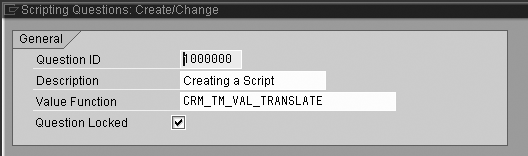
Click on the create a new question icon or press F5. The system enters the node details (Figure 5). Enter a numeric Question ID and a Description. Select the value function CRM_TM_VAL_TRANSLATE, which displays the text in scripting. Select Question Locked if you want to mark the question as read-only. Enter the text name of the question in the SAP Script Name field.
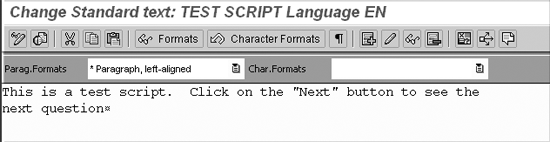
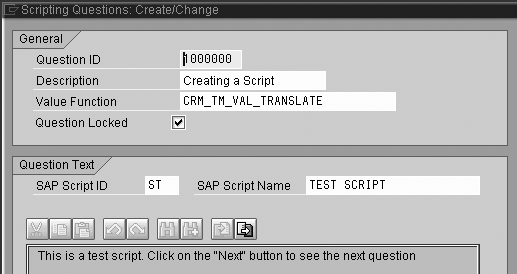
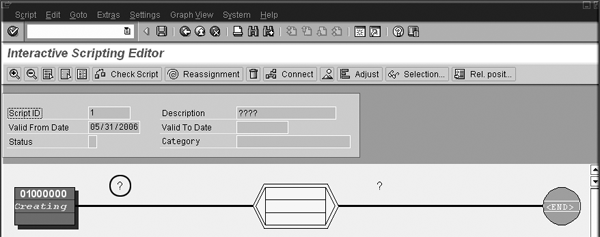
To enter the question text, click on the Go to SAP Script Editor button at the bottom of the screen. The SAP Script Editor appears (Figure 6). Enter the question text and click on the save icon. Click on the back arrow to view the results of your script (Figure 7). Click on the green check mark to save the edits to the node. When you return to the Interactive Script Editor, you see the results of entering the script question in the root node (Figure 8). Apply the same procedure to each node in the script.
Each question should have at least one possible answer. Double-click on the question mark above the existing answer connector to configure the answers to the previously created question. This action displays a pop-up window to either create a new answer or select one that you defined previously.
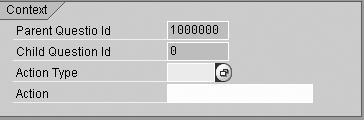
The question IDs of the linked questions should appear in the Context section of the dialog box. The Answer box displays a scroll-down menu of every answer configured in the system. If you find an existing answer that is sufficient, select it and press Enter. If not, enter the answer text and select an Action Type and an Action in the portion of the screen shown in Figure 9 that you want to trigger when the agent selects this answer in IC. Use one of the action types listed in Table 1.
|
||||||||||||||||
| Table 1 | Action types | |||||||||||||||
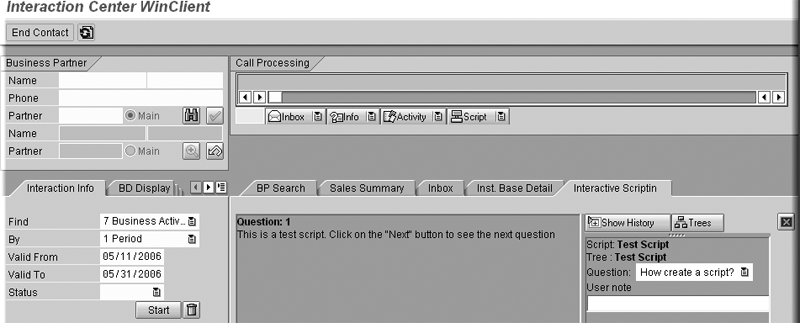
Repeat the process for every node that requires an answer. After you select the answer, click on the green check mark icon to place your answer in the script. To save the script, click on the Save button located at the top of the screen. When complete, depending upon the complexity and detail of the script, your script should look like Figure 10. In the mySAP CRM IC, the agent sees a guide that walks him through a quality customer contact (Figure 11).


Alan Smith is an assistant project manager for the IT department for the City of San Antonio. He is a former US Army captain and certified Project Management Institute PMP. Alan has worked on IT projects for nearly 10 years. He is currently working on an IT service management implementation using IT Infrastructure Library (ITIL).
You may contact the author at alan.smith@sanantonio.gov.
If you have comments about this article or publication, or would like to submit an article idea, please contact the editor.

April Lerner is an ERM specialist on the payroll/time management team in the City of San Antonio’s IT services department. April has more than five years of SAP experience in CRM and R/3 HR Time Management and is an SAP Certified Solutions Consultant in the mySAP CRM Interaction Center (IC) and mySAP CRM Service. She has worked in diverse positions in the IT industry for over 15 years.
You may contact the author at alerner@sanantonio.gov.
If you have comments about this article or publication, or would like to submit an article idea, please contact the editor.

B. J. Le Gras is a senior IT business analyst with the Tesoro Corporation. He has more than five years of SAP CRM and Materials Management (MM) experience. He has a background in integrated logistical support and currently serves on the IT supply and optimization team.
You may contact the author at BLeGras@netzero.com.
If you have comments about this article or publication, or would like to submit an article idea, please contact the editor.

You may contact the author at sburrell@sanantonio.gov.
If you have comments about this article or publication, or would like to submit an article idea, please contact the editor.

Published: 15/April/2006
Reading time: 18 mins
The top 8 articles to help you better drive accounting, controlling and planning.
You must be a member to access this content.

Published: 18/February/2010
Reading time: 12 mins
Published: 15/November/2006
Reading time: 2 mins


Published: 15/April/2003
Reading time: 7 mins
Unlimited access to thousands of resources for SAP-specific expertise that can only be found here.
Your request has been successfully sent
 Premium