Learn how to use ABAP Objects to improve your business code within transformations. This leads to reduced costs, accelerated delivery, and increased quality.
Key Concept
ABAP Objects is an object-oriented programming extension of the ABAP language. It can be used to simplify applications and make them easier to develop. Most, if not all, new functionality delivered by SAP uses ABAP Objects and the programming language is becoming much more widely used.
ABAP Objects has many purposes within SAP NetWeaver BW, but most frequently it is used to create code when a transformation maps a DataStore object (DSO) into an InfoCube. A transformation can be a simple, direct mapping of a field into a field, or it can be something far more complicated.
The standard method of approaching this, by writing code directly into the transformation, can be troublesome. However, by placing the code into a custom ABAP Object, rather than directly into the transformation, you can avoid many of the associated problems. Also, it is possible to improve many aspects of the system, which ultimately affects ongoing development and maintenance efforts.
Discussion of a Typical Approach
To map a transformation, a developer has the option of either using a graphical interface or writing code. The graphical interface is quick and easy for simple mapping but becomes impractical as the mappings grow in number.
If the developer is coding, he or she has two further options — to write the code directly into the transformation or instead to use a standard five lines of code in the transformation that calls the ABAP Object. If doing this, the developer needs to write code into the ABAP Object, which then performs the logic. In my opinion, this second option is often overlooked, because the ABAP Object program is not widely understood.
Because of this, most developers write their code directly into the transformation, which can be quick and easy as long as the code is simple. However, this code can quickly become complex and hard to maintain, particularly if there’s a lot of it. Other likely problems you might encounter include:
- Poor syntax checking. When syntax checking, the transformation’s ABAP code editor won’t necessarily take you to the line of code with the problem. It might take you to an unrelated correct line of code or just not tell you the reason the line is incorrect. Even if the code editor syntax checks correctly for 90 percent of the code (and in my experience, its accuracy can be much lower than this), finding the remaining lines of incorrect code can be a wild goose chase.
- Incorrect checking of type assignments. A type assignment problem only surfaces when the transformation crashes, generating a shortdump. The shortdump won’t tell you what’s gone wrong, or even that the problem is a due to a type mismatch. (I have spent hours tracing these problems, only to eventually find a single type mismatch in my code!)
- Tricky transportation of transformations. For you to see the effect of your transformation, you need to reload your data in the data target, which updates your InfoCube. This requires reactivating all of your data transfer processes (DTPs), transporting them into your chosen system (e.g., QA), then reloading your data. The need to go through this process is often a cause of error and rework.
- Time-consuming unit testing and code debugging. Testing and debugging code placed directly within the transformation can be time consuming. This is due to the lack of test functionality and the difficulties associated with generating test cases.
- Difficulty tracing issues in QA and Production. To debug the code contained in a transformation, you must identify data and schedule a load. This can be difficult if you don’t have suitable data or are concerned about affecting the data already loaded.
- Effort and coordination needed to reuse code in multiple transformations. Failure to reuse code in different transformations can lead to inconsistent data and excessive maintenance requirements. In a system, you should make sure that every business rule is defined in only one place. Doing this ensures that the SAP NetWeaver BW system produces 100 percent consistent results.
- Difficulty tracing assignments managed in transformations. Transformations between large structures can become very complex. The process of tracing each of the lines connecting the Source and Target fields, in the Transformation screen, is tiresome, error prone, and time consuming.
-
Mapping between source and target InfoProviders is not automatic. If you have the same fields in your source and target InfoProviders you must still configure the mappings between them within a transformation. When changing the InfoProviders, this step consumes time and is potentially the source of errors.
The Solution
If placing code directly into a transformation presents a number of project, architecture, and system issues, then what’s the solution?
In a recent project, I needed to load four InfoCubes with similar sets of data. Rather than writing code directly into the transformation, I created a single, large ABAP Object that contained all my business logic. This reduced my development and testing effort, ensured total consistency across all the InfoCubes, and solved all the potential problems I’ve mentioned above.
By taking code and carefully wrapping it up into an ABAP Object, it’s possible to remove many of the complexities associated with transformations. Our jobs are hard enough without giving ourselves additional challenges.
I will walk you through a transformation using ABAP Objects. You need to be familiar with basic ABAP, Data Dictionary, and how a transformation works.
Step-by-Step Approach
Using reference data stored within a cached table, I will look up a value and store it in an InfoCube. For my example, I will load a sales order and find the vendor stored for each material within the material master using these steps:
- Create the ABAP Object using transaction code SE24
- Define table types in transaction code SE11, to be used within the ABAP Object
- Create the table within the ABAP Object
- Populate the persistent tables using the CONSTRUCTOR method
- Create the method to be called within the transformation
- Specify the method’s import and export parameters
- Define the business code in the method
- Test and debug using the transaction code SE24 test utility
- Place code within the transformation’s start routine to call the ABAP Object’s method
-
Place code within the transformation’s end routine to pass the data onto the target InfoProvider
1. Create the ABAP Object Using Transaction Code SE24
Use transaction code SE24 and keep all the default settings when creating the class (Figure 1). Once you have created the class, you are taken to the Class Builder screen, where you can select the constructor button to create the CONSTRUCTOR method. The constructor button is next to the Class constructor button. Once selected, and when the CONSTRUCTOR method exists, this button disappears from the Class Builder screen (as in Figure 2). The code within the CONSTRUCTOR method is executed when an instance of the ABAP Object is created.
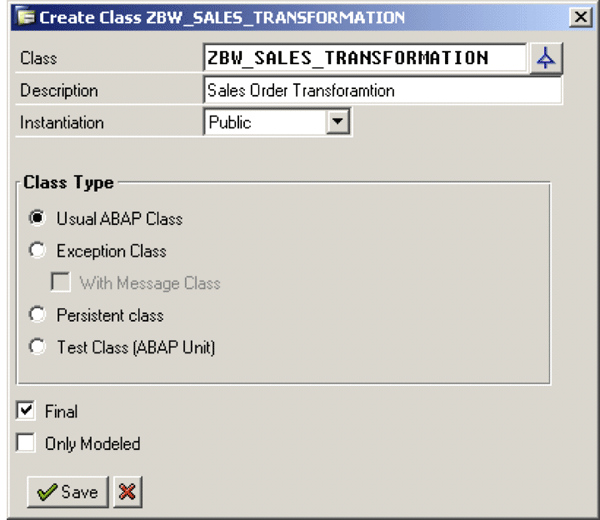
Figure 1
Create the ABAP Object
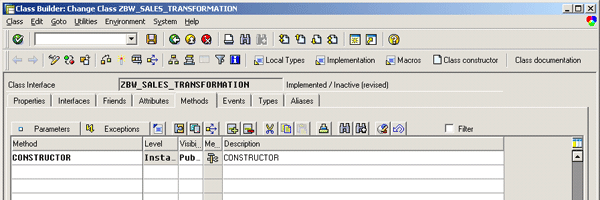
Figure 2
ABAP Object in transaction SE24, showing the CONSTRUCTOR method
2. Define Table Types in Transaction Code SE11, to Be Used Within the ABAP Object
Your method needs to look up values in some reference data. Rather than reading this data from a table in the database, it reads it from an internal table within the ABAP Object, which saves substantial execution time. Therefore, you must create a table type and use it to create the internal table that will exist within your ABAP Object.
First, create your line type in the Data Dictionary via transaction code SE11. In an ABAP Object, you must define your internal table definitions within the Data Dictionary using transaction code SE11. You must also specify the key fields and type of internal table. It is important to define your tables correctly, because this can have a substantial impact on the logic and code’s performance.
Enter the transaction code and select the Data Type. Then enter the name of your line type (ZMATERIAL_LINE in the example) and click the create icon. In the dialog box, select Structure and click the green checkmark icon, which takes you into the Maintain Structure screen. Give it a Short Description and then enter the components and component types, as shown in Figure 3. With the two components specified, you can then activate the structure, using the activate icon.
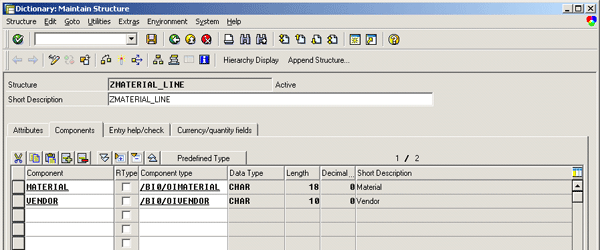
Figure 3
The structure used as the line type
Now you can create the table type that references your line type. Again, you’ll do this using transaction code SE11; then select Data Type, enter the name of your table type (Z_MATERIAL_ITAB in the example), and click the create icon. This time in the dialog box, select Table Type, and click the green checkmark icon, which takes you to the Maintain Table Type screen. Give it a name in the Short text field and then enter the Line Type that I just created (in the example, ZMATERIAL_LINE), as shown in Figure 4.
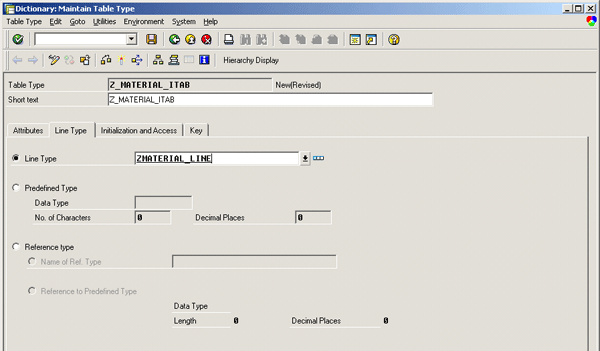
Figure 4
The table type that references the line type ZMATERIAL_LINE
Click the Initialization and Access tab and specify that you would like this table to be a Hashed Table, as shown in Figure 5.
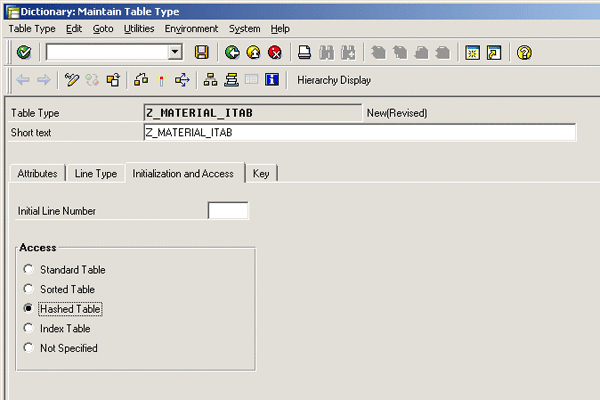
Figure 5
The table configured within transaction code SE11 as a Hashed Table
Finally, click the Key tab and select the Key definition to be Key components, with the Key category as Unique (Figure 6). Specifying the key is simply a matter of entering your chosen component into the list (in the example, MATERIAL is the only component in the key). Your table type is now fully specified and you can activate it using the activate icon.
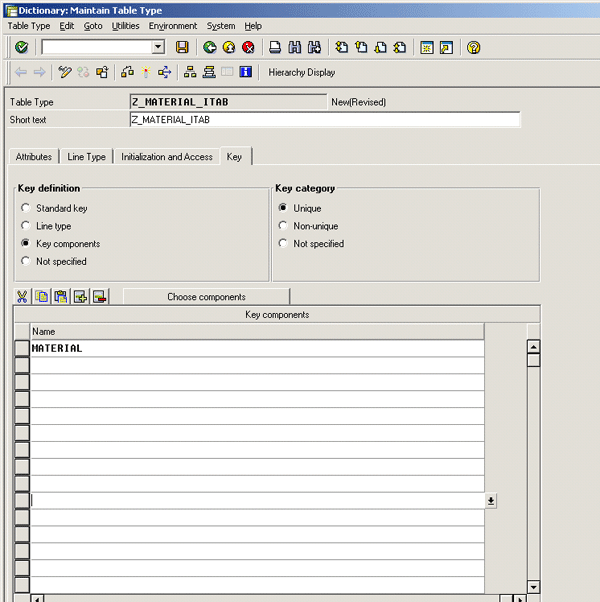
Figure 6
Configure the key fields of the table type
3. Create the Table Within the ABAP Object
The internal table exists as an attribute of the ABAP Object. Set the Level as Static Att… to ensure that the table remains populated while the ABAP Object exists (Figure 7). Set the visibility field as Private (as the table is not referenced outside of the usual ABAP class).
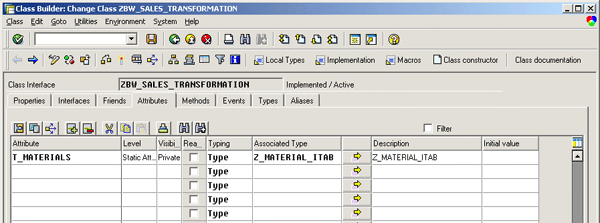
Figure 7
Setting an attribute of our Object within transaction SE24
4. Populate the Persistent Tables Using the CONSTRUCTOR Method
Place the code in Figure 8 (or code adjusted to your situation) within the CONSTRUCTOR method to populate the internal table. This code is called when the ABAP Object is created (or instantiated). The completed CONSTRUCTOR method is shown in Figure 9.
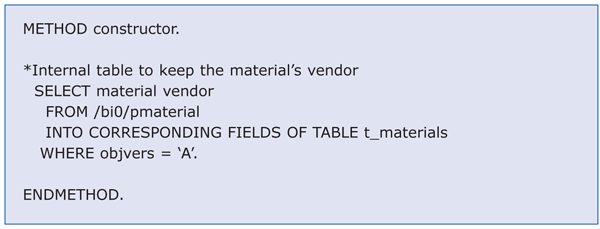
Figure 8
Code to populate the internal table
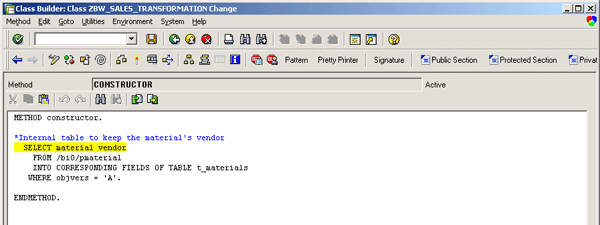
Figure 9
Code placed within the CONSTRUCTOR method, within transaction SE24
You can use the normal test icon in the toolbar to start the test process. Your breakpoint can either be created as temporary, for your session, or placed within the code using the breakpoint command. Now test this to make sure your internal table is being correctly populated. Do this by placing a breakpoint before the code and calling the test function by using the test icon within the method editor. Figure 10 shows the test function in operation.
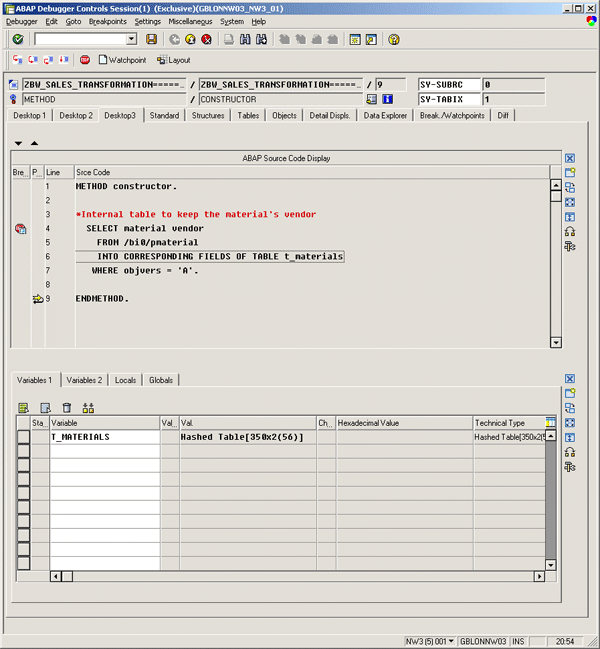
Figure 10
Test of the CONSTRUCTOR method shows that table T_MATERIALS contains 350 records
5. Create the Method to Be Called Within the Transformation
Within transaction SE24, create a new method within the Methods tab. Give your method an appropriate name and make it public so that it can be called from outside of the ABAP Object. Figure 11 shows the created method.
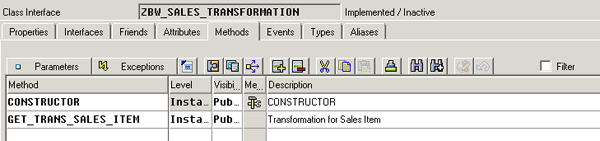
Figure 11
The public method GET_TRANS_SALES_ITEM
6. Specify the Method’s Import and Export Parameters
Next, define the parameters needed to call your method (which returns the data). Place the cursor on your new Method and click the Parameters button.
The input parameter must contain the same fields as the key of the DSO from which you will be loading. The output parameter is the structure of your target InfoProvider — in this case an InfoCube. It can be found from the InfoCube definition in the Admin Workbench (RSA1).
7. Define the Business Code in the Method
The method is very simple; it uses the import values to read the full record from the DSO, look up an additional value from the cached table, and then return the completed record for loading into the InfoCube.
Select the method and click the edit code icon to take you to the ABAP Editor (Figure 12). Figure 13 shows the code that is to be used.
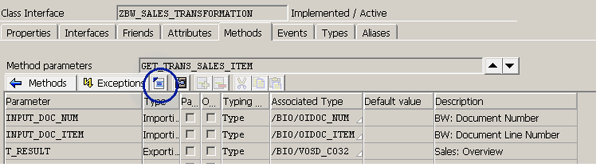
Figure 12
Specify the import and export parameters of your method in transaction code SE24 using the circled edit code icon
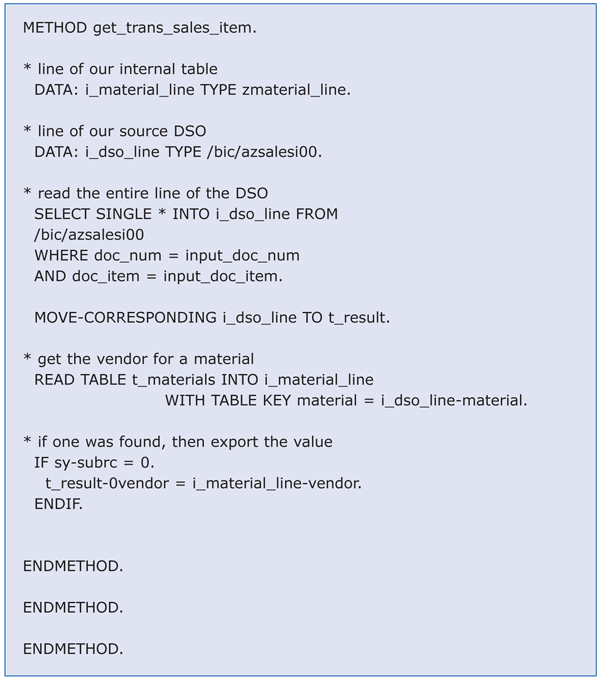
Figure 13
Code for the method that finds and populates the vendor for a material
First, the code reads the source data from your DSO using its full key. This may seem slightly inefficient, but it allows you to fully test your code outside of any SAP NetWeaver BW loading activity. In my opinion, this slight performance cost is more than offset by the improvements in developer efficiency and accuracy.
By using the MOVE_CORRESPONDING command, any fields that exist in both the source and target structures are automatically copied. You can do an automatic transfer of data between the same DSO and target structure. A MOVE_CORRESPONDING command copies values when the two fields are identical. This can save you substantial mapping and checking within the transformation. Furthermore, if you need to add an additional field into your dataflow, it is no longer necessary to maintain mappings, create new mappings, or edit code. You can now do it by changing the InfoProviders and simply reactivating the transformation and DTPs.
8. Test and Debug Using the Transaction Code SE24 Test Utility
Before you integrate your new ABAP Object into your transformation and SAP NetWeaver BW data model, check that it works. When you are confident it does, you can include it within your data model.
In my experience, developers create a minimum of one bug for every 10 lines of code they write. So if your project has a transformation with 1,000 lines of code, then you’ll have at least 100 bugs. These need to be identified and corrected during the unit, system, integration, and user acceptance testing phases of a project.
If you think these numbers are too high, next time you complete a meaningful piece of code, start a record of the number of issues you identify and correct. My bet is that you’ll be surprised at how many there are. Remember, anything you can do to identify bugs reduces the number making it through into the live environment — and that’s got to be a good thing.
Use the test function within transaction code SE24 to call your method, by using the test icon (as mentioned in step 4). Populate the input parameters with values from a sales order you know exists in the DSO. You can then watch the ABAP Object read from the DSO, debug the code, and examine the output intended for the target InfoCube.
9. Place Code Within the Transformation’s Start Routine to Call the ABAP Object’s Method
Before calling your method, you need to instantiate (or create) the ABAP Object. This needs to be done once within each set of calls made to the ABAP Object. As each packet of data is processed separately, you’ll need to create a new instance of the ABAP Object for each packet. Do this in the start routine of the transformation by declaring the object and using the Create command, as shown in Figure 14.

Figure 14
Define and create the ABAP Object in the transformation’s start routine
With the ABAP Object created, you now call the method for each line of data in the data packets. As you work through the data packets, you call the method once for each line. The method populates the output that will be written into the output table.
Once you have your output table populated, you can then release the memory occupied by the ABAP Object and temporary tables. Doing this is important, because memory problems can occur when handling large packets of data. The code for this sequence of steps is provided in Figure 15.
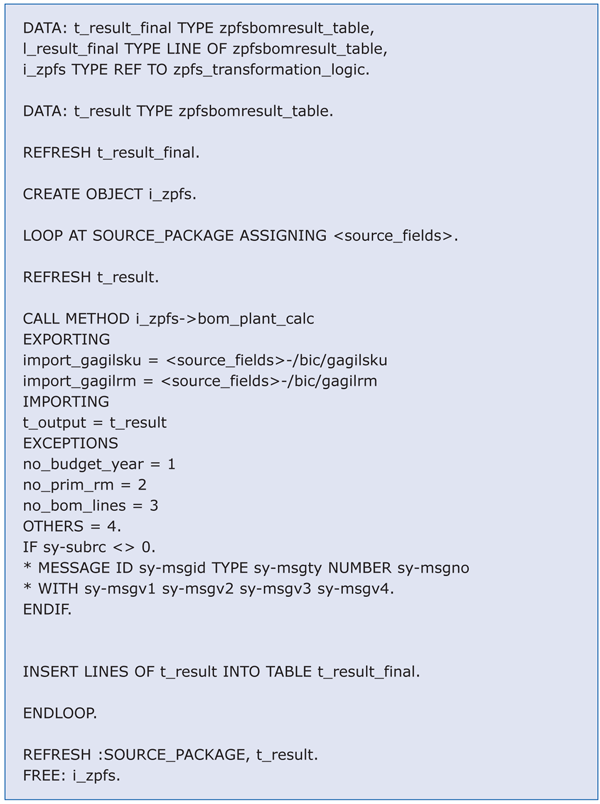
Figure 15
The ABAP code placed into the start routine
10. Place Code Within the Transformation’s End Routine to Pass the Data onto the Target InfoProvider
The end routine takes the contents of your table and writes it into the InfoCube. All the individual mappings and rules within the transformation are ignored. No matter what is configured there, this will be overwritten by the code. Figure 16 gives the code to go into the end routine.
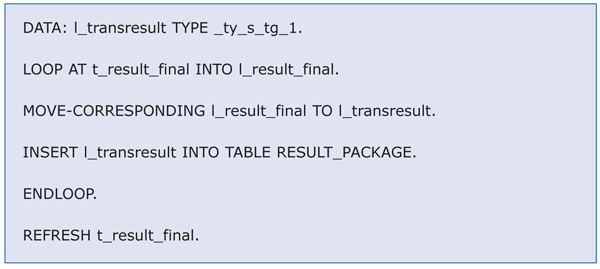
Figure 16
ABAP code placed into the transformation’s end routine
You have now fully built your ABAP Object and can successfully integrate it into the transformation. Now that the ABAP Object is in the transformation, executing it is no different from executing a simple transformation that contains no code.
First, activate your transformation in the normal way, by using the activate icon within the Transformation Editor. Then, within the Administrator Workbench, create a DTP for the transformation and activate it. Then execute the DTP to load the data into your InfoCube via the transformation.
This simple example that shows how to integrate code from an ABAP Object into a transformation uses all the basic elements that you need to deliver very complex solutions. The benefits are significant, offering improvements that affect all aspects of a project. As you gain confidence with ABAP Objects you will be able to increase the complexity of your design and make greater use of ABAP Objects capabilities.
George Campbell-Kelly
George Campbell-Kelly is a certified senior BI consultant at Bluefin, the United Kingdom’s largest dedicated SAP consultancy. Since first working with SAP BW in 2000, he has led the delivery of BW systems that operate with SAP R/3, SAP CRM, and Oracle JDE.
You may contact the author at george.campbell-kelly@bluefinsolutions.com.
If you have comments about this article or publication, or would like to submit an article idea, please contact the editor.