Make the best use of forms attached to Service Desk, change requests, and change implementations, eliminating the need for attaching additional documents. Walk through the necessary configuration to create forms and assign them for different service transactions.
Key Concept
Understanding the benefits of direct integrated forms in Service Desk and Change Request Management (ChaRM) transactions enables you to completely eliminate the need for any paper-based forms or attached documents. In turn, this allows you to have complete managed forms with flexible field design and version control available directly within the Service Desk and change management transactions.
Many activities in SAP Solution Manager Service Management require additional documents or forms to be filled out. These include Service Desk (specifically Change Request Management [ChaRM]), Issue Management, and defect management). Not many users are aware that SAP Solution Manager, based on an SAP SAP CRM backbone, offers surveys that you can use as forms. They enable users to fill out forms with flexible fields directly within the service transaction and also to manage versions of these forms.
I’ll show you how to make best use of this functionality and I’ll explain how to set up these forms to satisfy requirements while eliminating the need for paper-based forms or attached documents.
Implement and Configure Forms Using the CRM Survey Suite
You take the following three main steps to implement these forms:
- Design and implement the form with fields and answers
- Configure the screen tab layout to show the Survey tab
- Configure the transaction type to use the forms
Design and Implement the Form with Fields and Answers
The key step in the beginning is to create the form, which contains the sections, fields, and answer options you need for your requirements. The survey suite is available in transaction CRM_SURVEY_SUITE or via IMG menu path Customer Relationship Management > CRM Cross-Application Components > Survey Suite. Figure 1 shows the main screen of the CRM Survey Suite with the survey application and functions, which is available with SAP CRM 2005 and later.
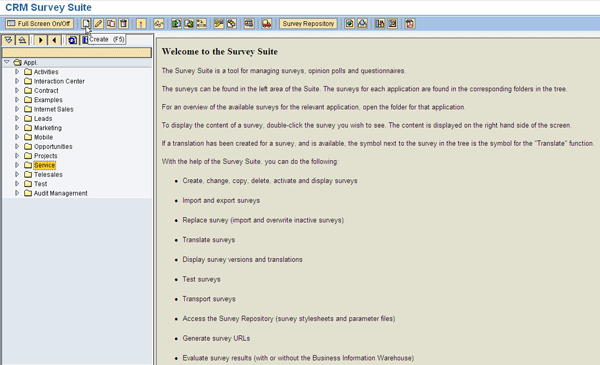
Figure 1
CRM Survey Suite main screen
To create a new form for Service Management (Service Desk, ChaRM, Issue Management, and defect management), click the Service folder on the left side and click the create icon in the toolbar. Enter an appropriate name in the pop-up screen that appears.
That takes you to the screen for your form, which is the central element of the survey builder. Figure 2 shows how you can structure the form with sections and subsections. You can add:
- The overall form title
- New sections and sub sections to your form to structure it according to your requirements
- Questions that users of the form answer
- Answers, which define what kinds of answer is expected (e.g., long text, short text, radio button, check box, or drop-down box)
- Answer options, which are the different possible answers for check boxes or radio buttons
- Pushbuttons
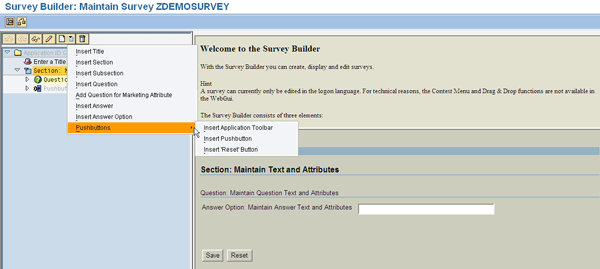
Figure 2
Structure a form and create questions, answers, and pushbuttons
You can change any form attribute by clicking a topic on the left side (e.g., click Enter a Title or Section in the left tree menu to maintain details data on the right side.). Initially, a new form has one section and one question. You can create more sections and sub sections to structure the form as needed.
As shown in Figure 3, enter the text for the first question. In my example, I do not need to consider rating factors, but if you would like to calculate, for example, a customer satisfaction index for the form, you may want to rate the question Overall satisfaction with a high rating and any secondary, less important question, with a lower rating.
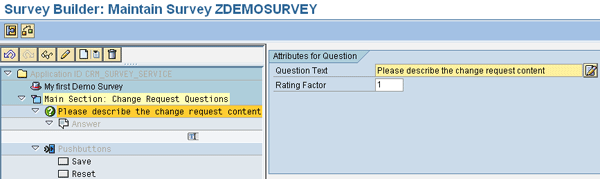
Figure 3
Define the name for the first question
With the question defined, you now select the answer on the left side as shown in Figure 4. Select the category and field type you need as well as the size of the text area and additional attributes.
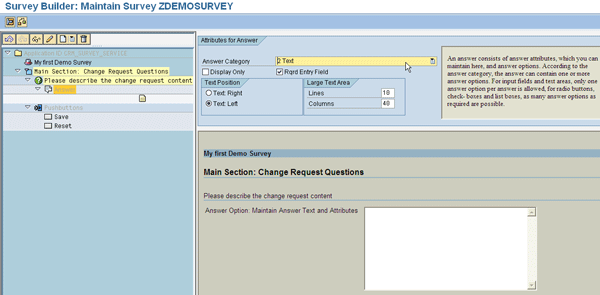
Figure 4
Define an answer for a question
You can also define details for answers. In my example, I entered default text for a text answer, which appears in the field as shown in Figure 5.
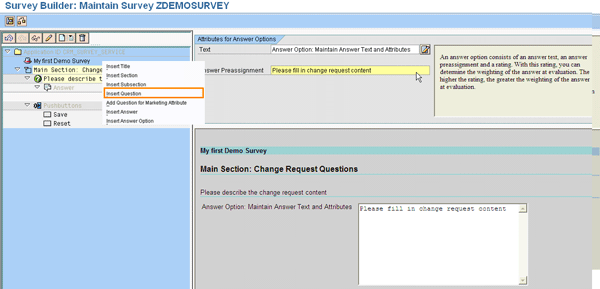
Figure 5
Enter the answer details
You can now enter a new question by right-clicking the section called Main Section on the left and selecting Insert Question. For this question you want to define an answer with multiple check boxes as shown in Figure 6.
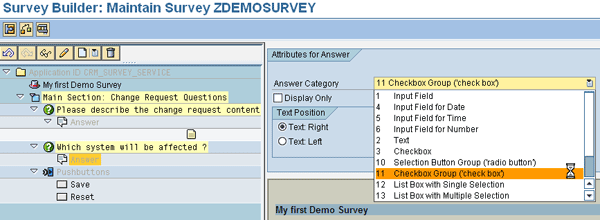
Figure 6
Select the answer type Checkbox Group
Figure 7 shows how you can now insert as many answer options as you need by right-clicking Answer and selecting Insert Answer Option. Here you also indicate if the currently selected answer option should be marked by default by clicking the Selected check box.
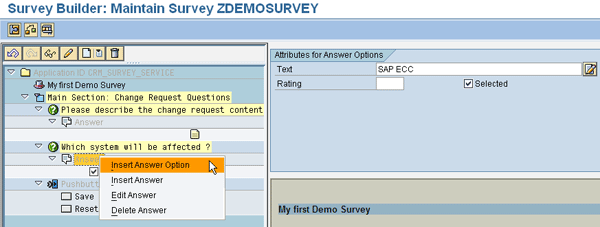
Figure 7
Insert answer options for check boxes
The buttons for saving the form or to reset the form data are automatically created and added at the time you create the form. This concludes the creation of your demo survey, as shown in Figure 8.
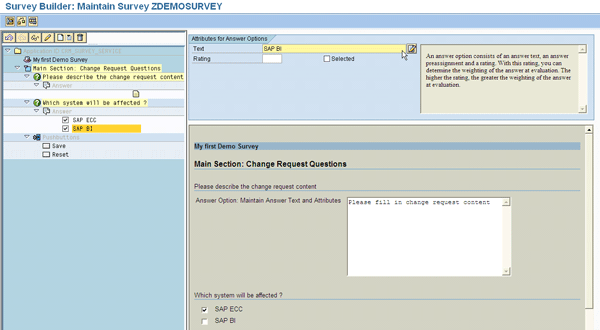
Figure 8
Final demo survey
Now save the form, go back to the main survey menu, and activate this survey by clicking the activate icon to make it available for Service Management.
Configure the Screen Tab Layout to Show the Survey Tab
Before you can use any survey or form in Service Management, you first need to enable the tabstrip in the SAP GUI. Follow IMG menu path Customer Relationship Management > Transactions > Basic Settings > User Interface Settings > Set up screen sequence control. This brings up a main screen with a number of options where you need to select Complete Tabstrip Assignments of Panel. In the screen that follows, you need to add an entry to enable the tab with surveys.
For example, to enable the surveys or forms for transaction type SDCR (change requests), you need to add an entry as shown in Figure 9. Note that all the fields in Figure 9 should be filled with data. Only the Screen Profile field content may vary if you want to use the form for something other than change requests, such as support tickets (transaction type SLFN). This adds the survey function to the change request screen as the last tab in the tab row for Transaction Data.
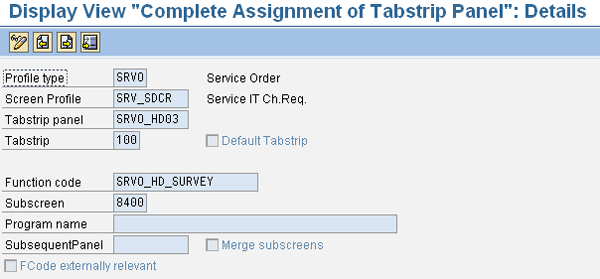
Figure 9
Add a tabstrip for change requests surveys
Assign the Survey to Transaction Types [subhead 2]
As the last step of the preparation, you assign a survey to your transaction type. Follow IMG menu path Customer Relationship Management > Transactions > Settings for Service Process > Questionnaires for Service Processes and Service Confirmations. Here you need to add an entry to link your service transaction type (SDCR in this example, for change requests) to your questionnaire (ZDEMOSURVEY, in this example) as shown in Figure 10. You also have the option of setting start and end dates as a validity period for your entry.
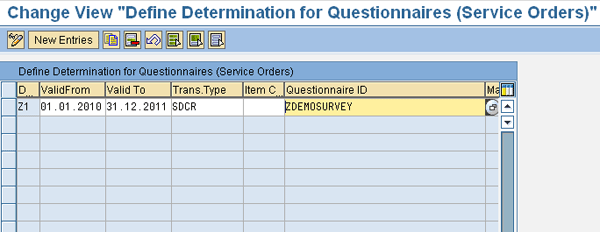
Figure 10
Assign the survey to a transaction type
This completes the required setup for forms. You can start using them in Service Management transactions.
Using Forms in Service Management Transactions
With the preparation steps taken above, you can now call transaction CRMD_ORDER to maintain your change requests and other service transactions, with the regular data. You now find the new additional tab Survey in the Transaction Data area, with the sections, fields, and answers as defined. You can fill out the fields as shown in Figure 11. Click the Save button at the end of the survey before you save the overall change request transaction. Otherwise you lose the data entered in the form.
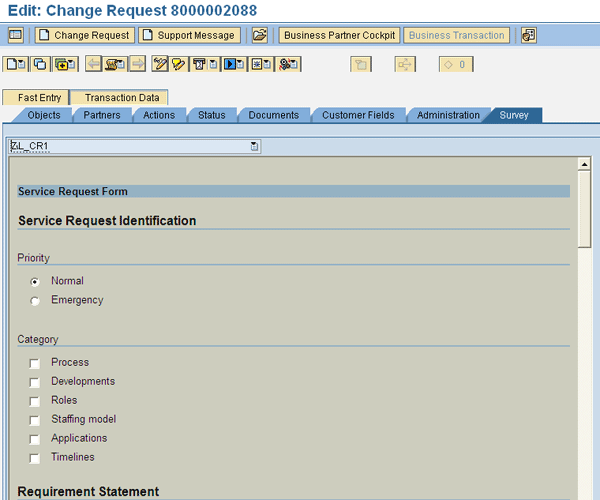
Figure 11
The Survey tab is now in the change request form
Once you make changes or update the form, you are always be able to refer to previous versions with the information about who created them and when they were created, as shown in Figure 12.
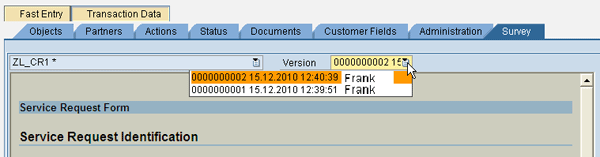
Figure 12
Version of forms
Evaluation and Analysis of Forms
Once form data is filled in within the individual service transactions, you can start to evaluate and analyze the data. To do so, start transaction CRM_SURVEY_SUITE and click the evaluation icon circled in Figure 13 from the shown survey suite overview screen.

Figure 13
Start evaluation and analysis
This shows you an overview of the field for the currently selected survey, where you find the questions and answers on the left side and the details as to how often which answer has been given on the right side (Figure 14).
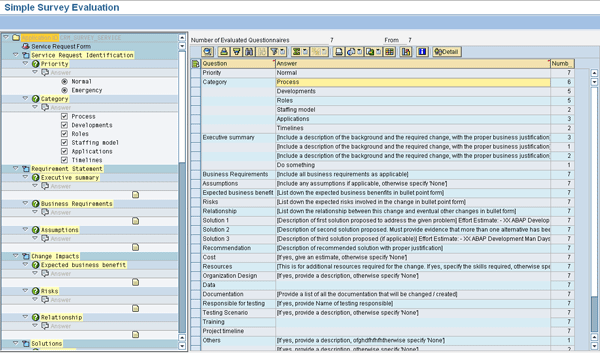
Figure 14
Questions with answers and how often each answer was selected
Frank Endrikat
Frank Endrikat has been active in SAP systems since 1989, initially focused on programming in SAP R/2 but in 1997 moving into SAP R/3 and module consulting. With a very strong functional background in logistics and finance and deep technical knowledge and understanding, he has focused on project management for global and international SAP implementations since 2000. SAP Solution Manager has become the recent focus area for Frank and his team, and since 2006 he has delivered a number of SAP Solution Manager courses at SAP academies and for customers. He has managed and implemented about 40 SAP Solution Manager projects in the US, Europe, Middle East, and Asia.
You may contact the author at FrankE@ne-pm.com.
If you have comments about this article or publication, or would like to submit an article idea, please contact the editor.



 Premium