Dealing with data load failure is an inevitable part of BW support team members’ jobs. Expedite the way you check for data loads using this standardized process.
Key Concept
Daily and monthly loads fail from time to time. If you have no process in place to identify these failures at the time of failure, then BW support team members need to readily identify these failures.
Identifying failed loads at the time of failure is a goal that all BW teams should aspire to. However, more pressing concerns overshadow this task. Consequently, BW support teams have to check loads every morning to ensure the data integrity of the warehouse. I’ve created a tool called the Daily Load Checker to speed up this process drastically.
Checking loads must be the worst task assignment a BW person can get. It is tedious, but really important because the credibility of the warehouse rests on the data being available. A cursory look at a process chain or InfoCube load is insufficient to really get the status of the load. I found that you actually have to individually check the loads to cater for the possibility of zero or overlapping loads or aggregate problems.
Having spent many hours routinely checking InfoCube and master data loads for failures or problems, I knew that there must be a better way to undertake this work. I also realized it was an important yet thankless task that was certainly worthy of some assistance.
For this reason, I created the ZDAILYLOADS transaction to:
- Check the success or otherwise of InfoCube/ODS loads including checks for duplicate or overlapping loads
- Check the status of process chains
- Check the status of the subprocess rollup for aggregate loads within a process chain load
Note
A duplicate load has the same InfoSource, DataSource, and source system as well as the same load parameters. An overlapping load has the same InfoSource, DataSource, and source system as well as a partial match of some load parameters.
This unglamorous yet vital tool is intended for technical users and BW support team members so that they can spend their time on the more glamorous side of BW. The benefits of using this program in a medium-size data warehouse certainly add up. These benefits include:
- Save one to two hours a day
- Identify load failures far more quickly
- Support the data warehouse proactively rather than reactively
Implement the Daily Load Checker
This tool consists of two programs that you need to create in your BW system. Then you link an SAP transaction code to the program that drives the tool. Once you have done this, you can safely use the tool to help you identify failed data loads and process chains.
You’ll use ABAP code, include code (common ABAP code), text symbols, and selection texts to implement the Daily Load Checker tool. You use this code in the steps that follow. I tested the Daily Load Checker on R/3 4.6C and BW 3.1.
If you have access to a person with ABAP skills, this resource could help you perform the following steps more quickly.
Step 1. Load include program ZBW_VARIANT
Step 2. Load include program ZBW_WRITE_SAPGUI
Step 3. Load ABAP program ZBW_DAILY_LOAD_CHECKER
Step 4. Load text symbols for ABAP program ZBW_DAILY_LOAD_CHECKER
Step 5. Load selection texts for ABAP program ZBW_DAILY_LOAD_CHECKER
Step 6. Load ABAP program ZBW_CHAIN_AGGR_CHECK
Step 7. Load text symbols for ABAP program ZBW_CHAIN_AGGR_CHECK
Step 8. Load selection texts for ABAP program ZBW_CHAIN_AGGR_CHECK
Step 9. Assign transaction code to run program ZDAILYLOADS
Step 1. Load include program ZBW_VARIANT. Create an ABAP include program called ZBW_VARIANT. To create the program, use transaction SE38 or follow the menu path Tools>ABAP Workbench>Development>ABAP Editor. Enter the program ZBW_VARIANT and select the Source code button. Click on the Create button (Figure 1). Fill in the Title, Type, Status, and Application (Figure 2) and click on the Save button.
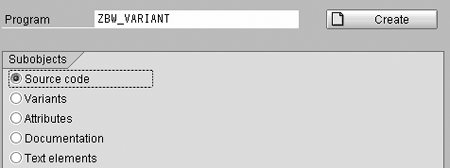
Figure 1
Create ZBW_VARIANT in the ABAP Editor: Initial Screen
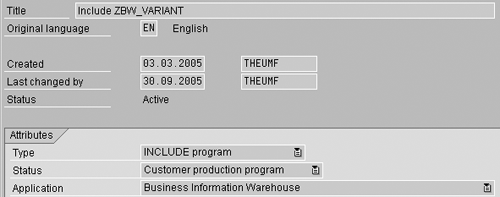
Figure 2
Populate the attributes screen
A pop-up screen appears asking for a Package code for the transport control system to use (Figure 3). Speak to your technical staff to determine what Package code to enter; otherwise, you can set this code to $TMP (local object). $TMP means that BW cannot transport this object until a technical team member reassigns a package code to this object. You can reassign a package code at a later date. Click on the save icon.
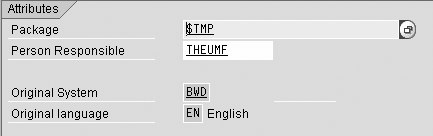
Figure 3
Enter a package code
Cut and paste the entire contents of the file zbw_variant_include_code.txt on BW Expert’s Web site into the ABAP Editor. Overwrite any text already in the editor space (Figure 4).
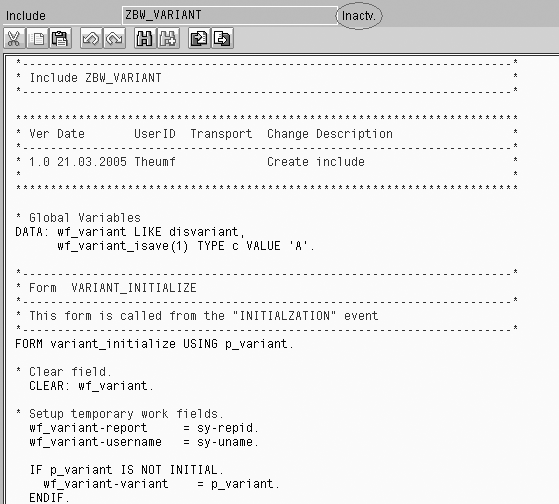
Figure 4
ZBW_VARIANT include code to implement the Daily Load Checker
The status of the include program is Inactv. Click on the activate icon in the menu bar to activate the include program. A pop-up screen appears (Figure 5). Click on the check-mark (enter) icon and the status changes to active.
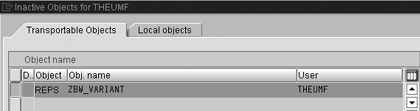
Figure 5
Activate include code
Step 2. Load include program ZBW_WRITE_SAPGUI. Repeat the instructions in step 1 using the file zbw_write_sapgui_include_code.txt on BW Expert’s Web site to create another include program for ZBW_WRITE_SAPGUI.
Step 3. Load ABAP program ZBW_DAILY_LOAD_CHECKER. To create the program, use transaction SE38 or follow the menu path Tools>ABAP Workbench>Development>ABAP Editor. This screen looks like the one in Figure 1. Enter the program ZBW_DAILY_LOAD_CHECKER and make sure to select the Source code button. Click on the Create button. Fill in the Title, Type, Status, and Application (Figure 6), and then click on the Save button.
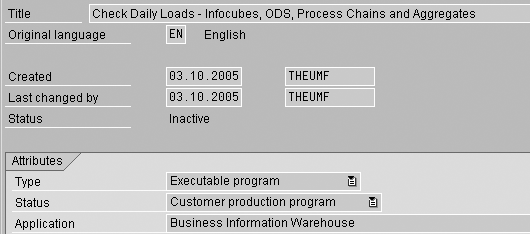
Figure 6
Fill in the attributes
A pop-up screen appears asking for a Package code as in step 1. Fill in the Package code and click on the save icon. Cut and paste the entire contents of the file zbw_daily_load_checker_abap_code.txt in the download into the ABAP Editor, overwriting any existing text (Figure 7).
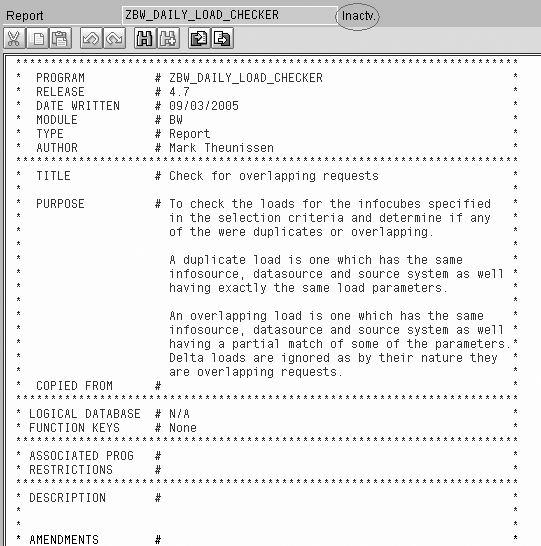
Figure 7
ZBW_DAILY_LOAD_CHECKER source code to implement the Daily Load Checker
Click on the activate icon in the menu bar to activate the include program. A pop-up screen like the one in Figure 5 appears. Click on the check-mark icon to change the status to active.
Step 4. Load text symbols for ABAP program ZBW_DAILY_LOAD_CHECKER. Click on the back icon to take you back to the initial ABAP Editor screen. Choose the Text elements button and click on the Change button (Figure 8). You’ll see a screen like the one in Figure 9, only blank. Cut and paste the contents of the file zbw_daily_load_checker_text_symbols.txt (on BW Expert’s Web site) into the Text symbols tab (Figure 10). You have to do this a page at a time.

Figure 8
Choose the Text elements button in ABAP Editor: Initial Screen

Figure 9
Text symbol lengths update automatically after you press Enter
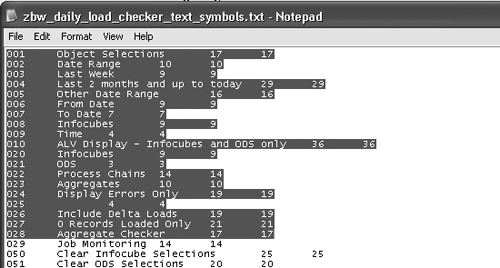
Figure 10
Cut and paste the text from zbw_daily_load_checker_ text_symbols.txt one page at a time
Initially, the dLen column contains zeroes as you enter the text symbols and you cannot edit it. Once you press the Enter key on the keyboard or click on the check-mark icon, the length changes automatically. Click on the activate icon to activate the text symbols.
Step 5. Load selection texts for ABAP program ZBW_DAILY_LOAD_CHECKER. To create the selection texts, click on the back icon to take you back to the initial ABAP Editor screen. Choose the Text elements button and click on the Change button (Figure 8). You’ll see a screen like the one in Figure 9, only blank. Choose the Selection texts tab (Figure 11). Cut and paste the matching name texts from the file zbw_daily_load_checker_selection_texts.txt on BW Expert’s Web site (Figure 12). Note that not every entry has a matching name text. Click on the activate icon to activate the selection texts (Figure 13).
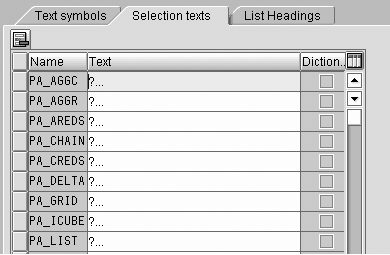
Figure 11
Selection texts tab
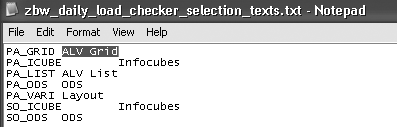
Figure 12
Cut and paste the matching name texts from the file zbw_daily_load_checker_selection_texts.txt into the Selection texts tab
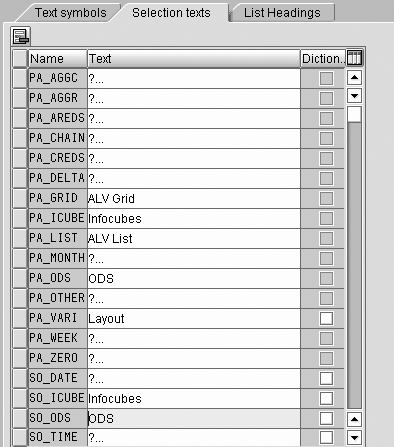
Figure 13
Activate selection texts
Step 6. Load ABAP program ZBW_ CHAIN_AGGR_CHECK. Follow all the tasks in step 3 to create the ABAP program ZBW_CHAIN_AGGR_CHECK. Make sure to use the file zbw_chain_aggr_check_abap_code.txt on BW Expert’s Web site.
Step 7. Load text symbols for ABAP program ZBW_CHAIN_AGGR_CHECK. Repeat step 4 to load the text symbols for the ABAP program ZBW_CHAIN_AGGR_CHECK. Use the file zbw_chain_aggr_check_text_symbols.txt on BW Expert’s Web site.
Step 8. Load selection texts for ABAP program ZBW_CHAIN_AGGR_CHECK. Follow step 5 to create the selection texts for the ABAP program ZBW_CHAIN_AGGR_CHECK. Locate the file zbw_chain_aggr_check_selection_texts.txt on BW Expert’s Web site.
Step 9. Assign transaction code to run program ZDAILYLOADS. Use transaction SE93 and enter ZDAILYLOADS (Figure 14). Click on the Create button. Enter the Short text and select the Program and selection screen (report transaction) button (Figure 15).

Figure 14
Create transaction ZDAILYLOADS

Figure 15
Select the transaction attributes
Fill in the program name that you are linking to this transaction, ZBW_DAILY_LOAD_CHECKER. Set the selection screen number to 1000, the default (Figure 16). Click on the Save button.
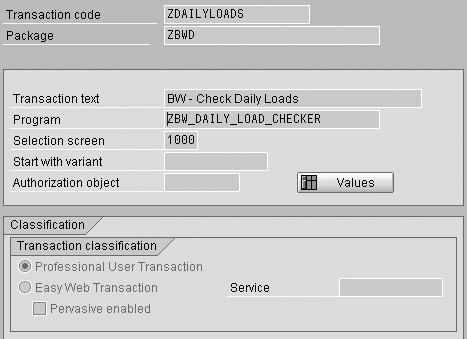
Figure 16
Set transaction attributes
A pop-up screen appears asking for a Package code as in step 1. Fill in the Package code as before ($TMP, local object) and click on the save icon.
When you enter the transaction code /NZDAILYLOADS in the command window, the Daily Load Checker tool should appear and you should see the program selection screen (Figure 17).

Figure 17
Main screen of the Daily Load Checker tool
Use the Daily Load Checker
The screen itself is straightforward to use. The BW support person chooses to search for InfoCubes, ODS objects, process chains, or aggregates by selecting the appropriate button and the date range of interest (Figure 17). The date range defaults from yesterday to today but you can select a date range for last week or for the last two months by choosing the appropriate button. Click on the execute button to run the reports.
By choosing the InfoCube or ODS options, you may include delta loads or loads with zero records only (Figures 18 and 19). Delta loads by their nature are overlapping requests. You can choose to include or exclude them in the selections by checking the Include Delta Loads check box in Figure 17. You may also apply a filter to only list loads that have loaded zero records. To do this, check the 0 Records Loaded Only check box in Figure 17.

Figure 18
InfoCube report click here to view a larger version of this image
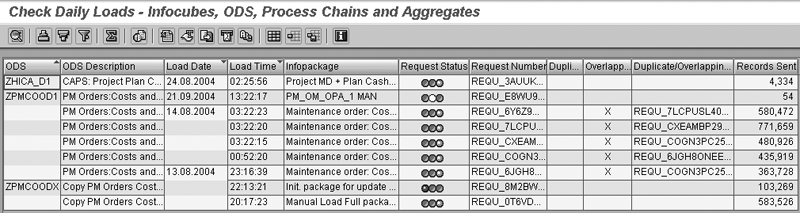
Figure 19
ODS report click here to view a larger version of this image
By choosing the process chain or aggregates options, you may choose to check all loads or just loads in error (Figure 20). The process chain report has a hot spot over the process chain name to allow the user to navigate directly to the last process chain run and take appropriate action (Figure 21).
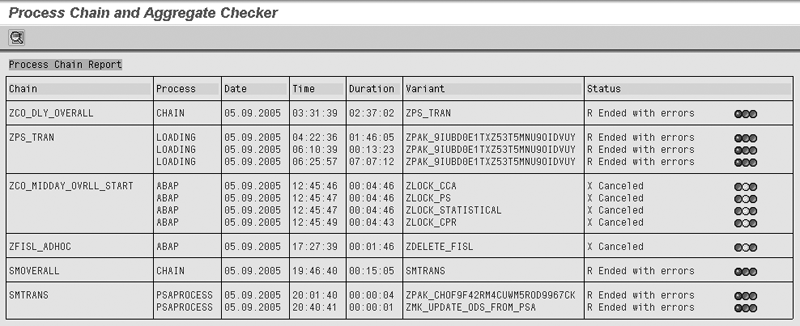
Figure 20
Process chain report click here to view a larger version of this image
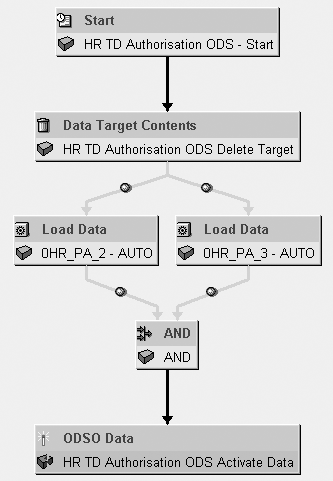
Figure 21
Last run of selected process chain
The aggregates report lists the status of the aggregates rollup subprocess for a process chain run (Figure 22). As with the process chain report, the aggregates report has a hot spot over the process chain name that allows the user to navigate directly to the last process chain run.
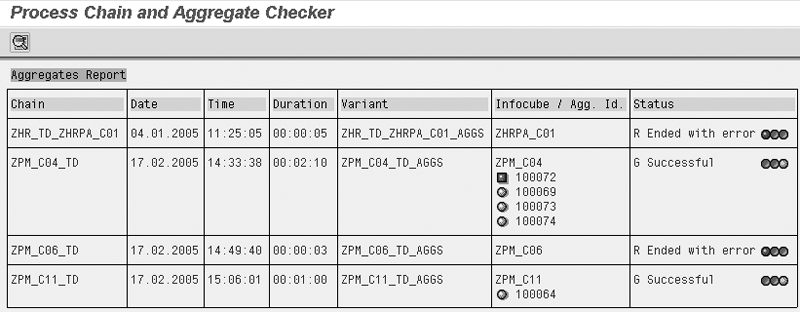
Figure 22
Aggregates report click here to view a larger version of this image
Mark Theunissen
Mark Theunissen has worked in IT since 1980, starting as a trainee programmer with Mobil Oil in South Africa in 1980. In 1990, Mark was involved in an SAP R/2 implementation with Engen Petroleum (formerly Mobil Oil) and then in 1995 migrated to Australia. Mark worked for SAP Australia for six and a half years and is currently a freelance SAP consultant living in Perth, Western Australia.
You may contact the author at Mark.Theunissen@riotinto.com.
If you have comments about this article or publication, or would like to submit an article idea, please contact the editor.



 Premium