Manager
Learn how to install SAP Solution Manager 7.1 on Microsoft Windows 2008 Server R2 x64 and Microsoft SQL Server 2008 Enterprise Edition. Follow the process step by step, starting with requirements to the completion of the installation.
Key Concept
The release of SAP Solution Manager 7.1 has multiple new and improved functionalities that change the outlook of how businesses operate. The new features and capabilities include improved reverse business process documentation, business process modeling, and technical monitoring.
You can follow a five-step process for installing SAP Solution Manager 7.1:
- Review SAP Solution Manager 7.1 requirements
- Download SAP Solution Manager 7.1 media
- Perform a prerequisite check
- Install SAP Solution Manager
- Start SAP Solution Manager
Step 1. Review SAP Solution Manager 7.1 Requirements
The technical requirements for SAP Solution Manager 7.1 are described in Table 1.

Table 1
System requirements
Step 2. Download SAP Solution Manager 7.1 Media
To install SAP Solution Manager 7.1, go to SAP Service Marketplace and click Installation and upgrade. Navigate to SAP Technology Components > SAP SOLUTION MANAGER > SAP SOLUTION MANAGER 7.1 > MS SQL Server. Table 2 shows you which files are needed to install SAP Solution Manager 7.1.
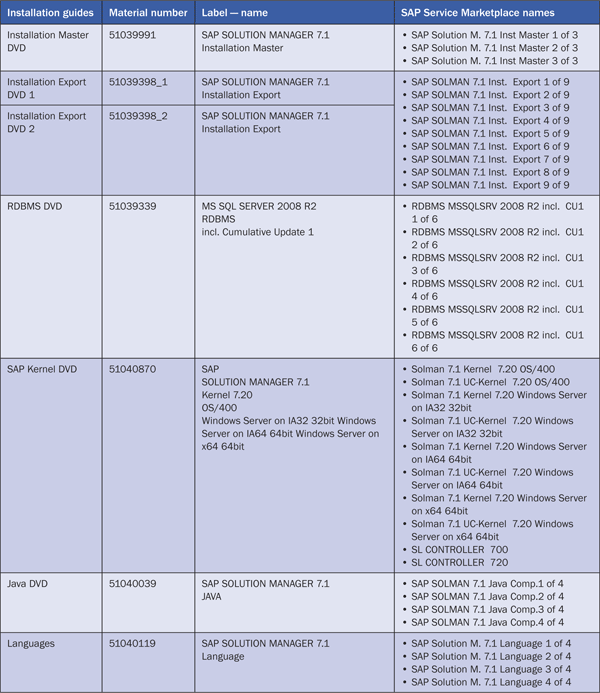
Table 2
Media needed to install SAP Solution Manager 7.1 (a downloadable version is at the bottom of this article)
After all the media has been downloaded and extracted, start SAP Solution Manager 7.1 setup by opening the SAP_Solution_M._7.1_Inst.MasterIM_WINDOWS_X86_64 folder and running SAPinst (Figure 1).

Figure 1
Double-click sapinst
Before starting setup of SAP Solution Manager 7.1, check if the system meets all prerequisites. Navigate to Software Life Cycle Option > Additional Preparation Options > Prerequisites Check and click Next (Figure 2).

Figure 2
Check your installation host for compliance with most of the prerequisites
Step 3. Perform a Prerequisite Check
By default, a Data File for Check is located on the Installation Master Folder/DVD. SAPinst automatically suggests the path of this .XML file. You can download updated versions of the Data File for Prerequisites Check through SAP Note 855498 (Figure 3).
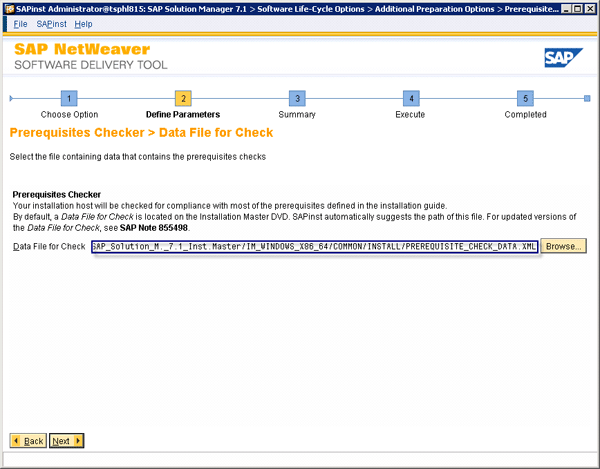
Figure 3
Data file for check
This step checks only the essential prerequisites. If you are installing SAP Solution Manager 7.1 on SAP NetWeaver application server (AS) ABAP and Java, then choose both instances (Figure 4). Note that there is no prerequisite check for Developer Workplace or additional servers, but you can select those as well if needed.
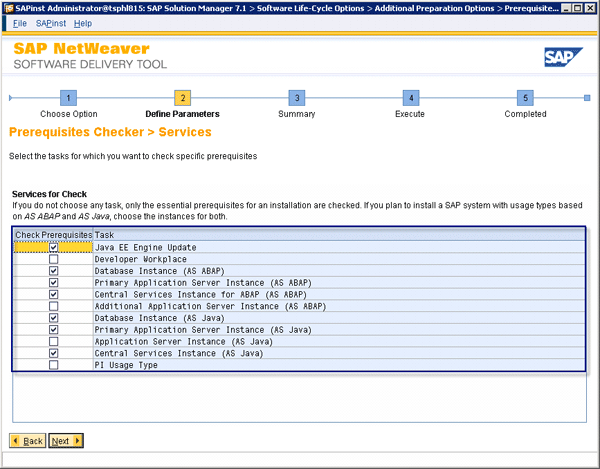
Figure 4
Choose the instances for the prerequisites check
Provide database information for SAP Solution Manager 7.1. I’ll show you how to install SAP Solution Manager 7.1 on Microsoft Windows 2008 Enterprise Edition Server using Microsoft SQL 2008 Enterprise Edition Server. Note that during the installation of Microsoft SQL, you change the Server Unicode collation to SQL_Latin1_General_CP850_BIN2 (Figure 5).
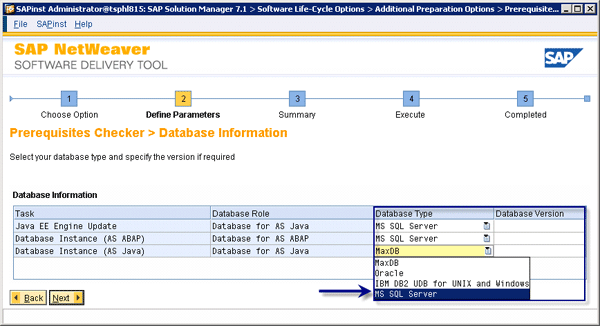
Figure 5
Database information
Then specify whether your system is a Unicode system or not (Figure 6). Click Next to bring up the Parameters Summary screen in Figure 7. This displays all the information collected during the steps. Select the parameter for change and click Revise. If there are no parameters to change (e.g., the number of jobs you want to run or the type of database), click Next to start the prerequisite check (Figure 8).
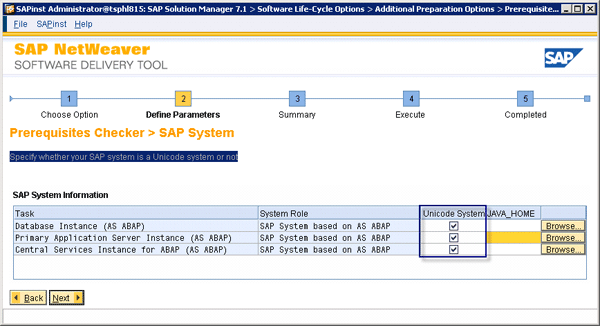
Figure 6
Select the Unicode System check box
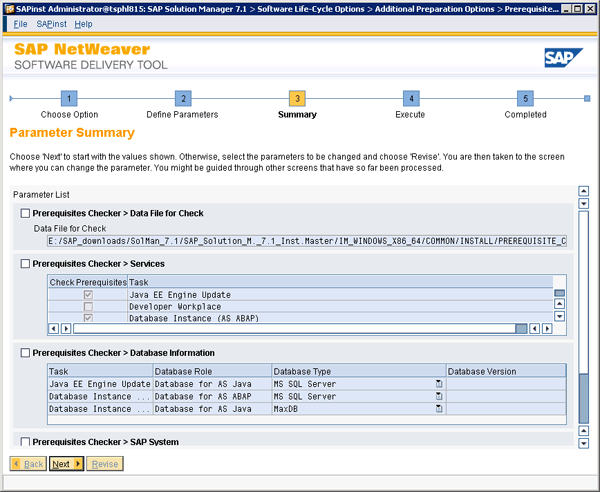
Figure 7
Parameters summary
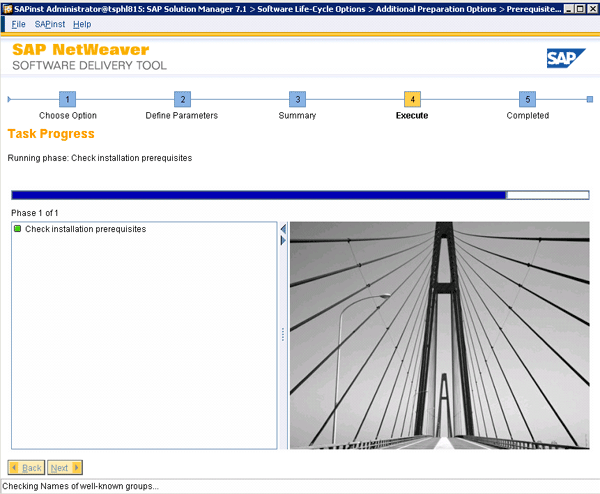
Figure 8
Execution
Figure 9 shows all the information of the prerequisites check. Red indicates that the issues are critical, meaning the installation of SAP Solution Manager will fail. Yellow indicates that there is a warning, but you can still proceed with the installation.
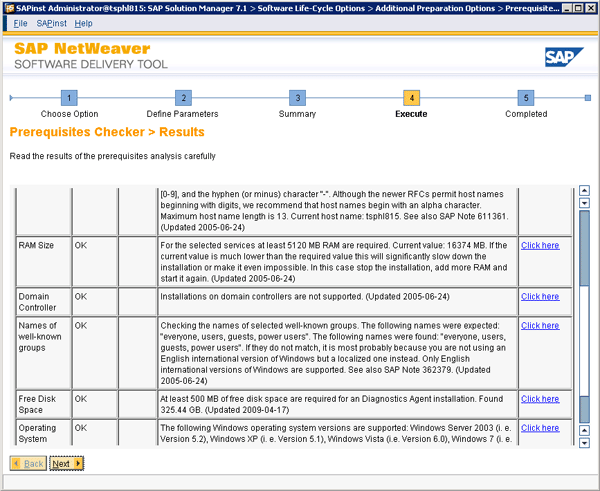
Figure 9
Prerequisites check results
Step 4. Install SAP Solution Manager 7.1
Before installation, copy media manually to local hard disks. To begin with the installation of SAP Solution Manager 7.1, open sapinst.exe and navigate to SAP Solution Manager 7.1 > SAP Systems > MS SQL Server (Figure 10). In this article, I choose Central System, but there are three options:
- Central System: You can install a central system on a single host, and install the following instances:
- Central services instance for Java (SCS instance)
- Database instance (DB instance)
- The ABAP stack and the Java stack use their own database schema in the same database
- Central instance. Optionally, you can install one or more dialog instances.
- Distributed System: In a distributed system, every instance can run on a separate host and the following instances:
- Central services instance for Java (SCS instance)
- Database instance (DB instance)
- The ABAP stack and the Java stack use their own database schema in the same database
- Central instance. Optionally, you can install one or more dialog instances.
- High-Availability System: In a high-availability system, every instance runs on a separate host with redundancy
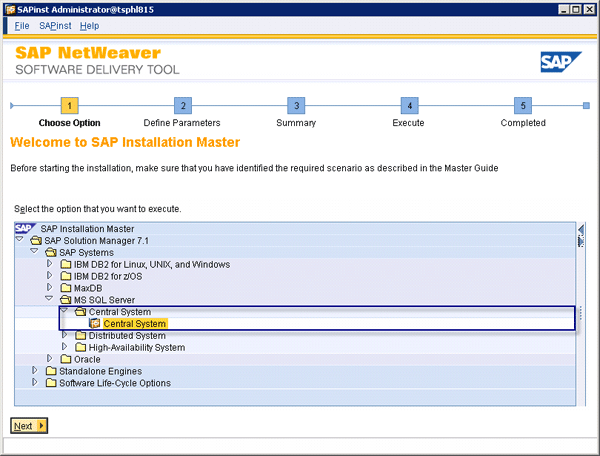
Figure 10
Choose the installation option
You can run the installation in typical or custom mode (Figure 11). In the typical mode, the option is performed with default settings and there are only small selections of prompts. In custom mode, you are prompted for all parameters. This is the option I choose in this example.
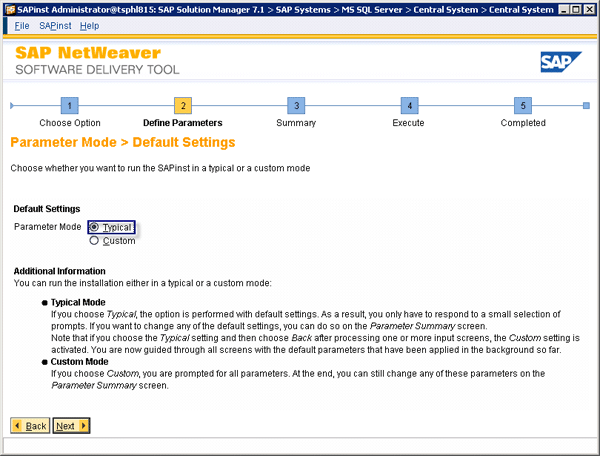
Figure 11
Choose how to run sapinst.exe
The required software packages during this installation that are available on the medium are detected using the identification files LABEL.ASC or LABELIDX.ASC. The Java component is required, so click Browse and find the Java Component folder (Figure 12).
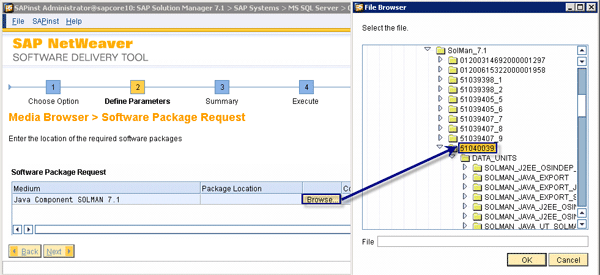
Figure 12
Java component folder
Then specify the location for Java Cryptography Extension (JCE) Unlimited Strength Jurisdiction Policy .ZIP file (Figure 13). Do not unzip the archive. SAP Note 1426759 contains information about the required JCE and about how to download it.
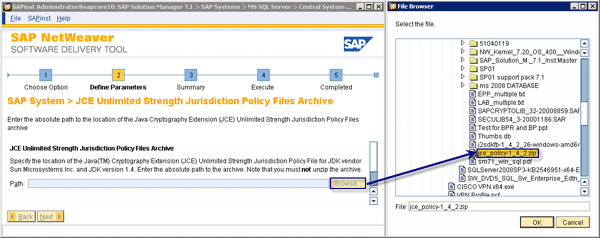
Figure 13
JCE Policy path
Enter the system ID, which must be three letters or numbers, and the installation path (Figure 14). The SAP instance resides on an application server under the directory (for Windows) C:usrsapsapsid or (for Unix/Linux) /usr/sap/sapsid. The SAP instance on an application server communicates with a database associated with this instance. The SAP instance on an application server together with its associated database is called an SAP System. The term SAP System is also known as SAP Installation.

Figure 14
Enter the system ID and Installation Drive
Enter the fully qualified domain name (FQDN) for the SAP system (Figure 15). You can set this later using transaction code RZ11. For more information, check SAP Note 654982.
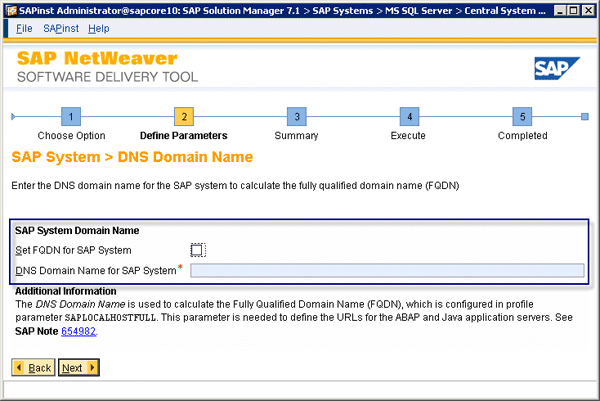
Figure 15
FQDN for the SAP system
Use a master password while logging in for the first time under user name ddic (Figure 16). The same password is used for all accounts SAPinst creates and for the secure store key phrase.
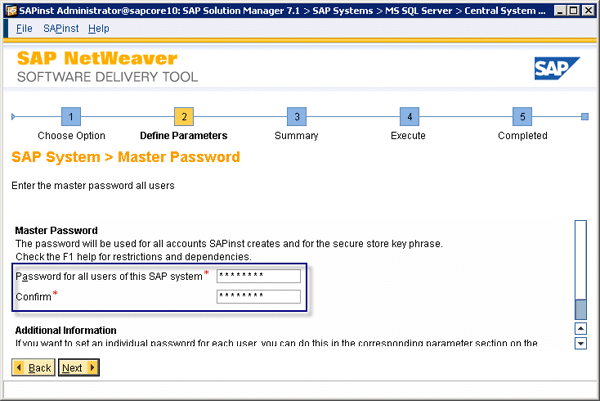
Figure 16
Enter the master password
Browse for the kernel folder (Figure 17). You can always check your kernel version from any screen by choosing System > Status and clicking the other kernel info icon (located between the navigate and cancel icons). You can also find this information at operating system level in the dispatcher trace file /usr/sap/<SID>/<instance name>/work/dev_disp.
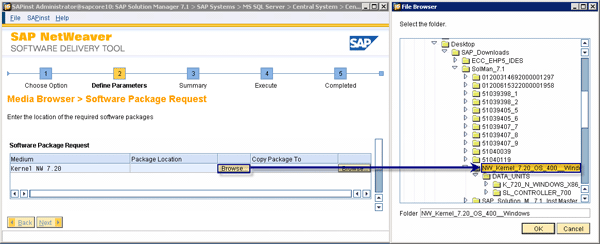
Figure 17
Browse for the kernel folder
This step required Installation Export one of two (Figure 18) and two of two (Figure 19).
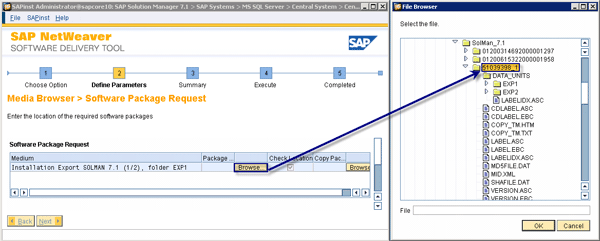
Figure 18
Export installation
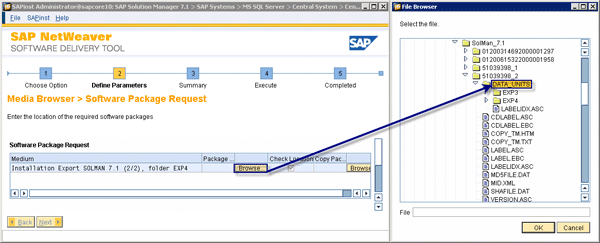
Figure 19
Export installation
New in SAP Solution Manager 7.1 is defining the Expected System Size, which is defined by the number of CPU cores on the database server (Figure 20).
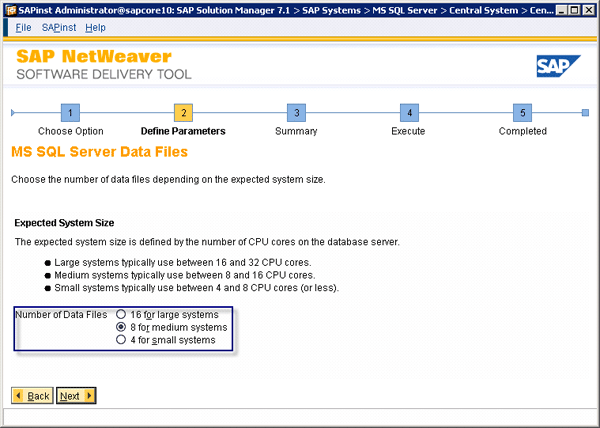
Figure 20
Define the number of data files
The J2EE is delivered by default with an export version of Java Cryptographic Toolkit, which contains digital signature functions without encryption functions. To use SSL, replace the delivered library with a complete one that you can download from the SAP Service Marketplace via service.sap.com > Installation and Upgrade > SAP Cryptographic Software > SAPCryptolib for Updates > SAPCRYPTOLIB FOR 7.20 > Windows to configure SSL in the J2EE engine (Figure 21).
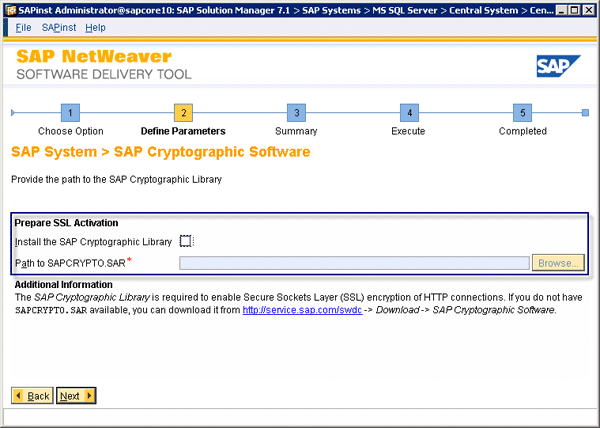
Figure 21
Installing SAP Cryptographic Library
Then you need to set up your System Landscape Directory (SLD). It is a Java application running in all the SAP Java systems and is used as the central information repository of all your system landscape. You should choose Register in existing central SLD (Figure 22). The usual case is to configure one SLD for your whole system landscape. In this example, I’m configuring a local SLD.
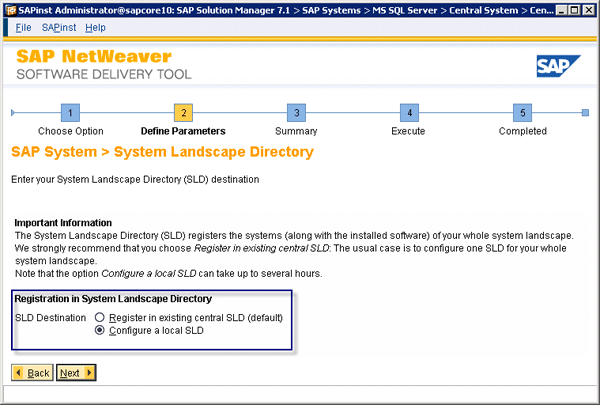
Figure 22
SLD registration
Enter the object server name (e.g., localsld) (Figure 23). SLDDUSER and SLDAPIUSER use a master password by default, but you can change that. SLDDSUSER is the default user name for the RFC user used by data suppliers to register their landscape information in the SLD and SLDAPIUSER is the default user name for the RFC user used by ABAP clients to interact with SLD, for example, to locate a target system or retrieve a list of systems.
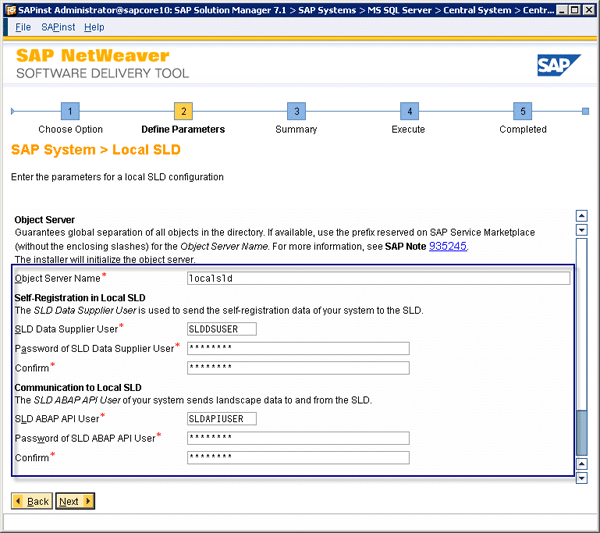
Figure 23
SLD configuration
Enter the Diagnostic Agent System ID DAA (Figure 24). A Diagnostics Agent is a standalone Java program that runs on each of the systems managed by SAP Solution Manager Diagnostics. It gathers information and reports the version of the Diagnostic Agent to the SAP Solution Manager system, which is version 7.30. Note that DAA is the SAP Best Practice Agent ID.
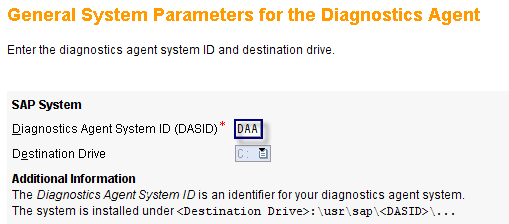
Figure 24
SAP Solution Manager Diagnostic Agent
The SAP Solution Manager Diagnostic Agent is used to carry out centralized analysis and monitoring of the SAP NetWeaver system landscape. It helps simplify the task associated with root cause analysis.
Click Next to start installation. To revise, click the appropriate step and then click the Revise button (Figure 25). Task process and running phases are shown until the installation is completed (Figure 26).
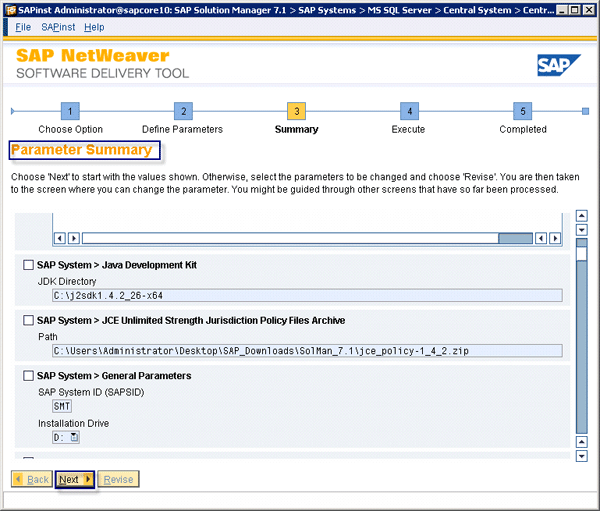
Figure 25
Parameter summary
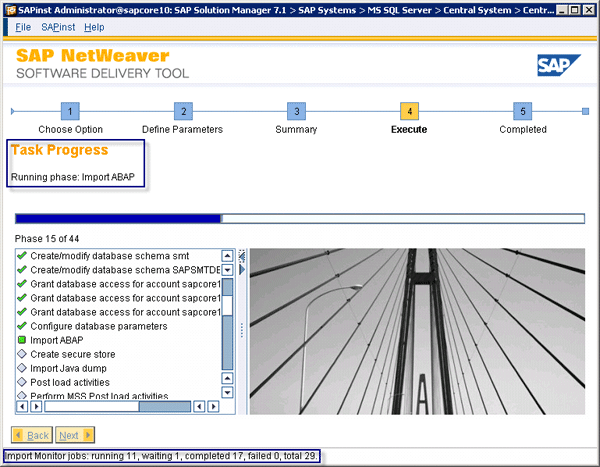
Figure 26
Task progress
Step 5. Start SAP Solution Manager 7.1
By default, after installation of SAP Solution Manager 7.1 finishes, you have an SAP Microsoft Management Console (MMC) icon from which you can start up the SAP system. All systems are listed with system IDs. Double-click the icon and MMC opens. You can first see the SAP Solution Manager diagnostic agent, as well as other SAP systems. To start all systems, right-click SAP Systems and click Start. (From here you can stop and restart systems as well.) Use SAP GUI or Internet Explorer to log in to the Java system (Figure 27).
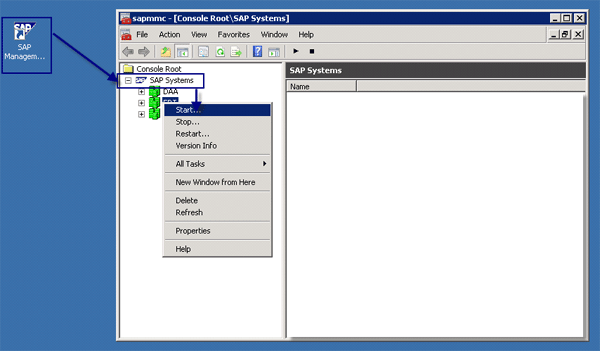
Figure 27
Starting SAP systems
Note
If there is no FQDN configured, you may have an error by trying to open SAP Workcenter. You can solve this by putting a dot after a localhost or domain name. For example, if you have an error while trying
https://localhost:8000/, instead try
https://localhost.:8000/.
Valton Berisha
Valton Berisha has more than 15 years of consulting experience in managing, developing, and implementing software solutions, including SAP solutions. He has been associated with several SAP implementations in various capacities. Valton is the co-founder of Corealm Consulting Company, specializing in SAP consulting — in particular, application life cycle management, SAP Solution Manager, and third-party solutions that are integrated with SAP Solution Manager. He is Microsoft, Red Hat Platform, and Novell certified.
You may contact the author at valton.berisha@corealm.com.
If you have comments about this article or publication, or would like to submit an article idea, please contact the editor.





 Premium