Learn a simple, elegant method for enabling the display of BEx Query results on mobile devices, saving time and money for your company. BI mobility is essential in order to accelerate and enable the anywhere/anytime visibility of your business. With the methods discussed, learn how to execute all your BEx Queries, from disparate data sources, on mobile devices without incurring additional BEx Query work or license fees.
Key Concept
The Internet Communication Framework (ICF) is an integrated component of the application server in SAP BW. ICF allows you to communicate with the SAP BW system using standard Internet protocols (e.g., HTTP, HTTPS, and SMTP). ICF is used to enable the delivery of BEx Query output as a JSON or XML file, for consumption by a JavaScript, or any other consumer web server—in other words, to present BEx Query results in a web browser or mobile display.
Many companies have invested a lot of time and money in creating new data models, data cleansing, and in ETL-related work in their SAP BW system. In addition, hundreds of BEx Queries need to be created to report on the data that is loaded daily from disparate data sources into the SAP BW system. However, most users want to be able to execute all those BEx Queries on mobile devices. Using our simple guide, learn how to go mobile by simply leveraging the investment already made in your SAP BW system.
In our guide, we show how to display BEx Query output on mobile devices, including a look at the end-to-end architecture and a description of the various technical components. This step-by-step approach enables you to create the critical mechanisms for going mobile, along with some simple code snippets to make this task easier. The sample code has been provided to accelerate your time-to-value delivery. This mobile solution requires no additional IT investment, other than some internal, fee-free development work.
Creating and Executing BEx Queries on Mobile Devices
Let’s begin with an overview of SAP BW and BEx Query creation (Figure 1). On the left side of the illustration is SAP BW. Here you see a cube and DataStore Object (DSO). These are representative objects for any existing InfoProviders you might have in your SAP BW system. Similarly, the BEx Queries shown are any existing BEx Queries in your SAP BW system. Later in this article we explain how to create the web-service components inside SAP BW that convert the output of the BEx query into a JavaScript Object Notation (JSON) file format, which will be interpreted or presented on the mobile device by the web server. In addition, we provide a snippet of the JavaScript code as well, to highlight the critical components.
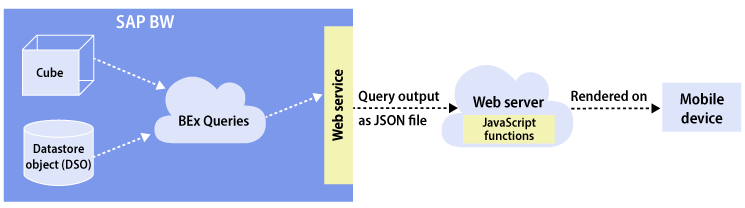
Figure 1
End-to-end high-level view of the BEx Query creation and execution process (the yellow boxes indicate the required work)
Let’s take a step-by-step look at the tasks involved in creating such a solution. We recommend that you start by identifying a BEx Query that outputs a small number of rows in a table format (e.g., some master data query that does not need any input parameters). This reduces the complexity of your web service design (e.g., ABAP code) as well as the presentation layer (e.g., JavaScript code). At a high level, here are the steps for achieving this:
- On the SAP BW system, use transaction code SE80 to create a class and the necessary ABAP code for the handler (shown as the web server in Figure 1).
- On the web server, create the JavaScript (or use another programming language) to access the JSON code provided by the web service, and present it on the mobile device (illustrated in the cloud in Figure 1).
Step-by-Step Procedures for Creating a Class for the Web Service
Begin by logging on to your SAP BW system and executing transaction code SE80 (Figure 2). This results in the screen in Figure 3.

Figure 2
Execute transaction code SE80

Figure 3
Object navigator
In the first field, choose Class / Interface from the drop-down options and enter the name of the class in the second field (in this example, Z_BEX_QRY_TO_JSON). Then click the eyeglass icon and the system opens the dialog box shown in Figure 4.
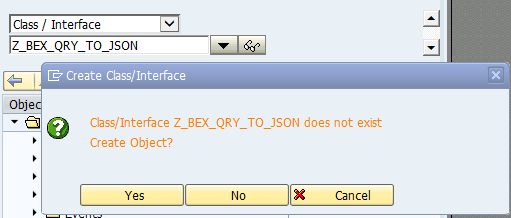
Figure 4
Create a new class
You see the message about the class/interface not existing; click the Yes button, which opens the dialog window shown in Figure 5.

Figure 5
Select the Class radio button
Make sure that the object type Name is entered correctly, select the Class radio button, and click the green checkmark icon. In the screen that opens (Figure 6) enter the Class and Description, and select Public as the Instantiation class. Select the Usual ABAP Class radio button and the Final check box. Then click the Save button.

Figure 6
Enter the class description
In the screen that opens (Figure 7), enter the appropriate Package name (Z_PACKAGE_NAME in this example) and the log-in ID of the Person Responsible. The Original System and Original language have default values per your system configuration. Then click the disk icon  to save your changes to the transport. This opens the screen shown in Figure 8.

Figure 7
Enter transport details
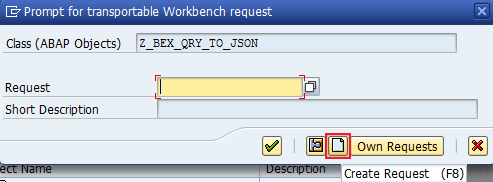
Figure 8
Create new transport
Click the page icon to the left of the Own Requests button (highlighted in Figure 8) and the screen in Figure 9 opens.

Figure 9
Enter the transport description
Enter a Short Description for the transport and click the disk icon again; this opens the screen in Figure 10 with the transport number displayed in the Request field.

Figure 10
Take note of the transport number shown against Request
Check the entries in this screen to make sure they’re correct and note the Request (transport) number for later. Click the green checkmark to save the entries, and the screen in Figure 11 opens.
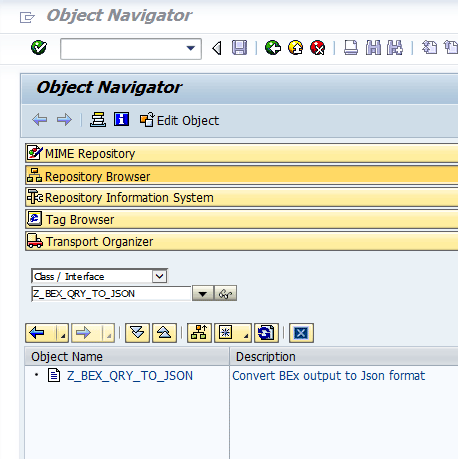
Figure 11
The new transport class is successfully created
Double-click the Object Name (in this example, Z_BEX_QRY_TO_JSON), which opens the screen in Figure 12. Click the Interfaces tab to open it.
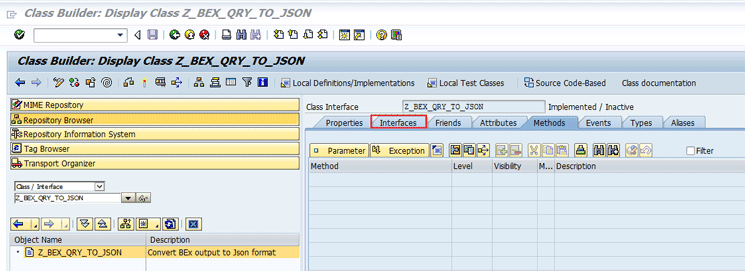
Figure 12
Open the Interfaces tab
Click the pencil icon in the ribbon (Figure 13), enter IF_HTTP_EXTENSION in the Interface column, and press Enter. Then select the Methods tab to open it (Figure 14).
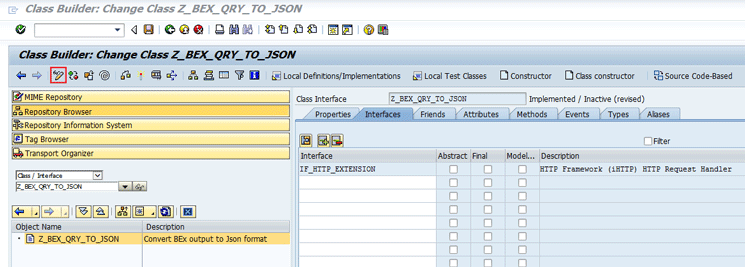
Figure 13
Switch to edit mode

Figure 14
Enter IF_HTTP_EXTENSION~HANDLE_REQUEST
Double-click IF_HTTP_EXTENSION~HANDLE_REQUEST in the Method column. In the Exit Class Building pop-up window that opens (Figure 15) click the Yes button to save your changes.

Figure 15
Save your changes and exit the class builder
In the right pane of the screen that opens (under Method in Figure 16), copy and paste the ABAP code shown in Figure 17 into the box. (Click here for copy-and-paste versions of the codes: downloads of ABAP code and z_bex_qry_json_xml_output.) Then click the disk icon in the ribbon of Figure 16 to save your changes.

Figure 16
Enter the ABAP code
The key ABAP function calls required to develop the ABAP web service are shown in Figure 17.
Function call to execute BEx Queries:
RS_VC_GET_QUERY_VIEW_DATA_FLAT
Sample code to produce the JSON file:
* when output is json, we have to make changes in the bytemode
* reason being that the transformation converts part of the string
* to the wrong format, so we change the bytes to the correct output
IF l_output_type EQ 'json'.
writer_json = cl_sxml_string_writer=>create( type = if_sxml=>co_xt_json ).
writer ?= writer_json.
writer->set_option( option = if_sxml_writer=>co_opt_linebreaks ).
writer->set_option( option = if_sxml_writer=>co_opt_indent ).
CALL TRANSFORMATION id
SOURCE retailer = t_string
OPTIONS xml_header = 'NO'
RESULT XML writer_json.
output_json = writer_json->get_output( ).
Sample JavaScript:
function httpGet(url,format,callback){
var xml_http_request = new XMLHttpRequest(),
formatted_response = null;;
function processRequest() {
if (xml_http_request.readyState === 4 && xml_http_request.status === 200) {
if(format === "json" ){
formatted_response = JSON.parse(xml_http_request.responseText);
}else if (format === "text" ){
formatted_response = xml_http_request.responseText;
}
callback(formatted_response);
}
}
xml_http_request.onreadystatechange = processRequest;
xml_http_request.open("GET", url, true);
xml_http_request.send(null);
}
Figure 17
ABAP code
Once the new method is saved, you receive a success message. Click the activate icon in the ribbon in the screen (not shown) to activate the new code. This opens a dialog window that shows the components to be activated (Figure 18). In the Transportable Objects tab, select all the relevant components and click the green checkmark icon.
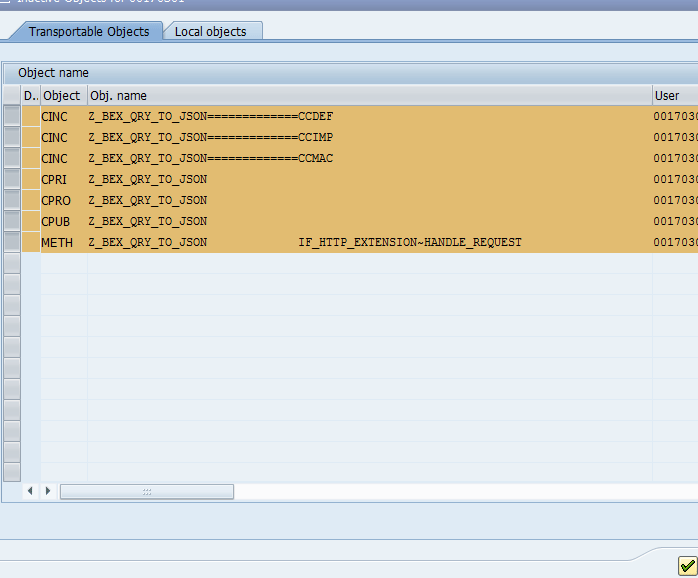
Figure 18
Compile the ABAP code
Congratulations—with these steps you have created the class that will be called from the web service.
Creating a Web-Service Definition
The next step is to create a definition for your new web service. Start at the initial screen (Figure 2) to create the web-service definition, but this time enter /nSICF in the field (to execute transaction code SICF), and press Enter. This results in the screen shown in Figure 19. Enter SERVICE as your Hierarchy Type and English as the Language. Then click the execute icon.
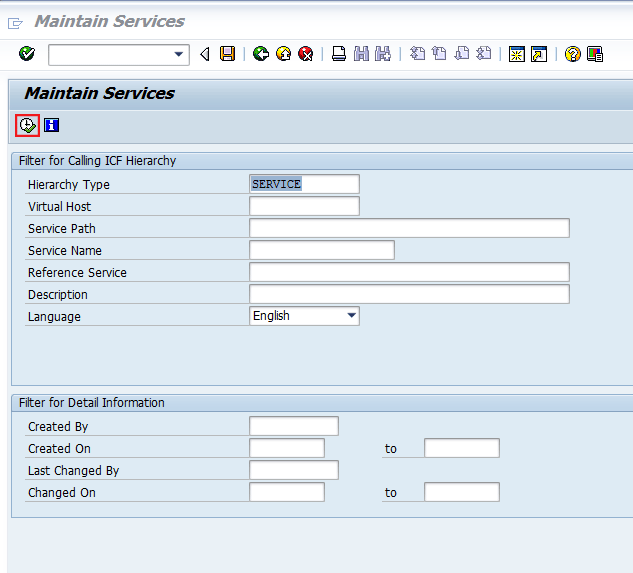
Figure 19
Start the web-service creation
This opens the screen in Figure 20. Expand the nodes at the bottom of the screen and right-click the soap option. This opens the context menu (not shown) where you select the New Sub-Element option.

Figure 20
Open the soap option
This opens a dialog box (Figure 21) with the Namespace information. Click the green checkmark icon and the screen in Figure 22 opens.
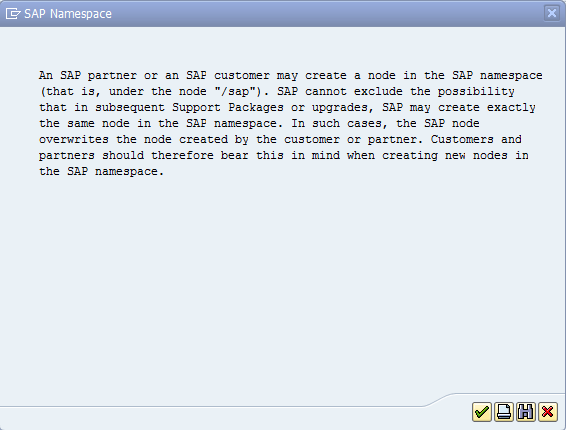
Figure 21
General warning about namespace

Figure 22
Enter name of the service
Enter the Name of the Service Element to Be Created (in this example, Bex_To_Json), select the Independent Service radio button, and click the green checkmark icon. This opens the screen shown in Figure 23, where you open the Handler List tab.
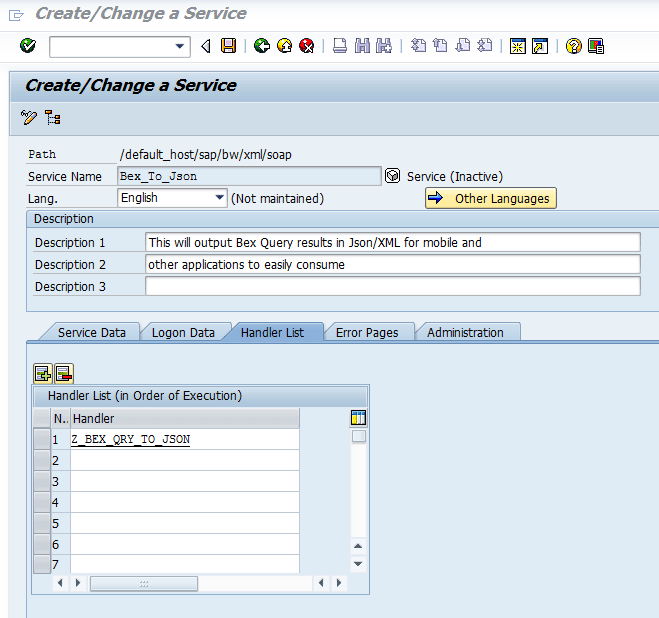
Figure 23
Assign the class to the service
Enter the Descriptions and the Handler name, and click the save icon. In the dialog box that opens (not shown) select the Yes button. This opens the screen in Figure 24 where you can start recording the changes into a transport as you did previously.
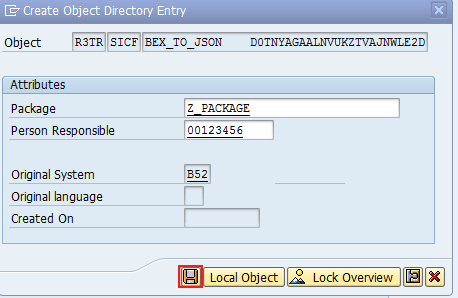
Figure 24
Save the new web service to the Package
Enter the Package name and click the disk icon. This opens a screen with the transport number (Figure 25). Click the green checkmark icon and you should receive a success message that the new service has been saved (not shown).
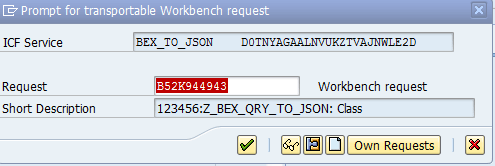
Figure 25
Save the new service to the same transport number
Click the back-arrow icon (not shown) to return to the previous screen. Notice that the new service is now listed (Figure 26), but it’s displayed in light gray to indicate that it is not yet activated.

Figure 26
The inactive web service
To activate the service, right-click the service name and select Activate Service from the context window that opens. This opens a dialog window that asks if you want to activate the service (not shown). Click the Yes button. In the next screen that opens, notice that the service name is now displayed in solid black instead of gray (Figure 27).

Figure 27
The new web service is successfully activated
To test the service, right-click the service name and from the context menu that opens select Text Service. This opens the dialog window in Figure 28 that shows the URL that needs to be used by the JavaScript.
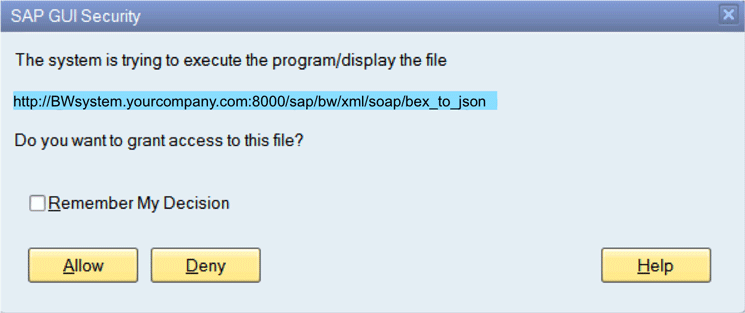
Figure 28
The URL for the web service
Click the Allow button. This opens the pop-up window in Figure 29 where you enter your SAP BW User Name and Password; then click the Log In button.
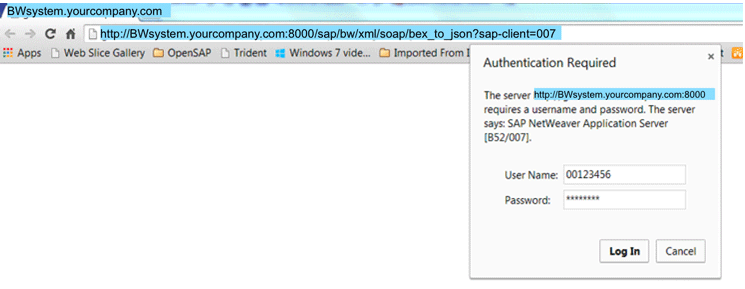
Figure 29
Test the web service
This opens the screen in Figure 30 that shows you’re on the right track. It displays an error message that no BEx Query was presented to the web service.
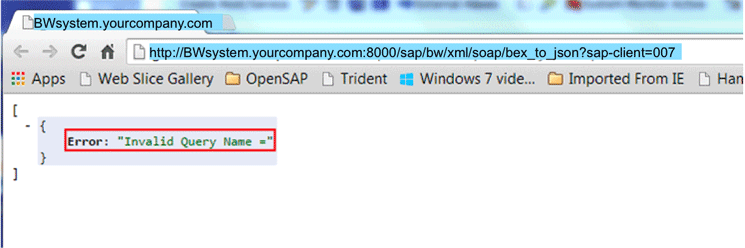
Figure 30
Output that shows the web service works
If you see the Error: Invalid Query Name message (as shown in Figure 30), you know that you have successfully completed the BW side of the work.
To review the output of the web service, you need to select a BEx Query in your BW system and build a new URL as shown in Figure 31. The figure shows a sample URL using a BEx Query in the BW system, with each component identified (Request Handler, Data output format [JSON], Query technical name, and Display format).

Figure 31
A sample URL to call the web service with BEx Query and other parameters
To confirm that the JSON output is created, copy and paste the URL into a web browser (e.g. Chrome or Internet Explorer). Figure 32 shows a sample output of the JSON code created by the URL in the system.
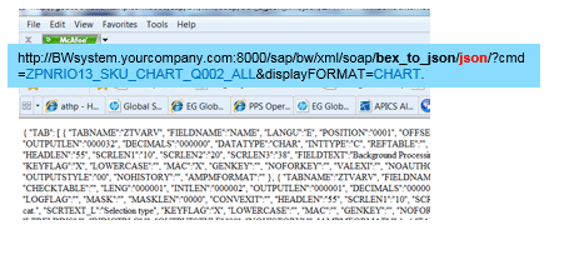
Figure 32
Sample output
Once you’ve completed these steps, you can hand off the URL to your mobile development team to use and create the code necessary to decode the JSON file and present to the necessary UI components on mobile devices. You need to work with them to explain the output of the BEx Query.
Figure 33 shows an example of what the display of this kind of data looks like on a mobile device. In this case, it displays the point-of-sale actual and point-of-sale forecast data. Assuming you have the right data flows and frequency of data updates, users will be able to track the progress of actual sales versus forecasted sales on their mobile devices using the methods outlined above.
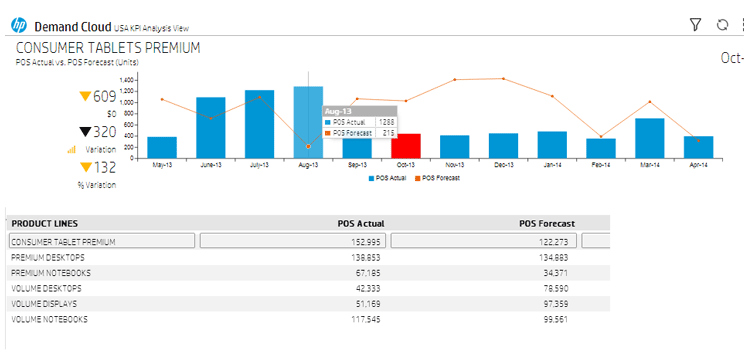
Figure 33
The BEx Query data is displayed on the mobile device
I am confident that more specific business use cases will become evident once you enable such visibility of BEx Query output via mobile devices.
The Benefits of Using This Method
Here is a quick reference list of the benefits of using this approach.
- No additional license fee for the mobile solution.
- Minimal infrastructure cost (web server).
- Requires only in-house ABAP coding.
- The ABAP web service—an ABAP program—can be easily copied over to another SAP BW system (i.e., it is pretty easy to take the solution and enable queries from other BW systems in your environment to have the same capability).
- The ABAP web service can be expanded to process queries with filter criteria. Filter criteria will appear as additional name/value pairs on the URL (i.e., the filter values can be passed to the web service as parameters).
- You can start with a few pre-determined display formats and then the solution can be expanded to include as many formats as needed.
- No changes are required to the existing data models and queries—they can be used as they are.
- No on-going maintenance for either the ABAP or the JavaScript.
- JavaScript modules can be developed to display JSON data based on display format. Hence, on-boarding additional queries will be easy, as long as the new query can be displayed using one of the existing formats (e.g., table or bar charts).
- Data from multiple SAP BW systems can be combined in the front end. Might need additional JavaScript work. In fact, data from multiple data sources can be combined/displayed on the same mobile page.
- Since data display in mobile device needs to be very fast, using SAP BW on SAP HANA would definitely help. The query performance on SAP BW on SAP HANA is far better.
Venugopal Kambhampati
Venugopal Kambhampati has 19 years of experience working with Hewlett-Packard supply chain IT systems. Recently, he has been engaged as the Supply Chain IT Architect for planning systems, focusing on the desktops and notebooks for both consumer and commercial businesses in the Americas region. Venugopal is a Certified Supply Chain Professional (CSCP) with an in-depth understanding of the supply chain business. Combining this business knowledge with a keen interest in learning new technologies allows him to deliver cost-effective IT solutions using innovative methods.
You may contact the author at venugopal.kambhampati@hp.com.
If you have comments about this article or publication, or would like to submit an article idea, please contact the editor.

Jimmy Rubio
Jimmy Rubio is an IT Developer/Engineer II at Hewlett-Packard, with nearly four years of SAP experience. He has extensive knowledge of ABAP and BW development. Jimmy is a graduate of the University of Houston’s C. T. Bauer College of Business.
You may contact the author at Jimmy.e.rubio@gmail.com.
If you have comments about this article or publication, or would like to submit an article idea, please contact the editor.

Jimmy Le
Jimmy Le is a Supply Chain Developer/Engineer II at Hewlett-Packard. He helped develop and implement a mobile web app that allowed Hewlett-Packard to understand how its products were fairing in retailer stores against competitors and how promotions impacted Hewlett-Packard product sales. Jimmy is responsible for working with designers to implement interactive dashboard designs using HTML5 and CSS3, optimizing JavaScript using jsPerform, designing optimized data structures, and implementing JAVA web services with a backend team and demo tool.
You may contact the author at Jimmy.le@hp.com.
If you have comments about this article or publication, or would like to submit an article idea, please contact the editor.



 Premium