Discover how to detect cross-system risk between SAP ERP and SAP Business Planning and Consolidation (BPC). See how BPC task profiles map to business functions and understand how to create cross-system connector groups and assign appropriate connectors to that group.
Key Concept
Cross-system groups logically define what connectors are involved in cross-system risk analysis. Task profiles correspond to activity levels within the BPC application.
Many companies use the SAP Business Planning and Consolidation (BPC) environment to generate financial statements of record. For those companies with Sarbanes-Oxley obligations, this means materiality of the financial statements can be affected by a lack of sufficient controls in the BPC environment.
Specifically, BPC allows for top-side journal entries to be entered. Whether these flow back to the financials system, top-side journal entries can significantly affect the materiality of financials. Consequently, high-risk segregation of duties (SoD) conflicts can exist across the ERP and BPC environments, specifically around the ability to modify general ledger (G/L) master data within the SAP ERP Central Component (ECC) environment and the ability to make top-side journal entries within the BPC environment.
I explain the key steps needed to configure your SAP Access Control environment and your BPC environment to detect cross-system risk between your ERP and BPC environments.
Note
I assume that you’ve already followed the instructions in the pre- and post-SAP Access Control implementation guides and are able to run single-system Access Risk Analysis (ARA) analyses in your existing ERP and SAP Business Warehouse (SAP BW) systems, including BPC environments.
An Overview of BPC
Companies with ERP, BPC, and SAP Access Control deployed can leverage their SAP Access Control investment to systematically detect, identify, and manage cross-system SoD risk associated with creating top-side journal entries in BPC. The systems in scope for this process are:
- SAP R/3 4.6C to SAP ERP 7.0 (up to SAP NetWeaver 7.31)
- BPC for SAP NetWeaver version 10.x
- SAP Access Control 10.x
- The SAP Access Control 10.x Plugin installed on back-end systems to be scanned, including in the BPC for SAP NetWeaver landscape
Generally speaking, BPC access is controlled via task and data profiles. Depending on the activity, task profiles are what allow users to affect the materiality of data.
It’s important to keep in mind that the integrity of financial statements generated in BPC can be affected by modifications to the underlying SAP BW system, because BPC relies on InfoObjects within the underlying SAP BW. Changes to these objects or to the data extraction processes can affect the materiality of the financial statements generated within the BPC environment as well.
Fortunately, the SAP-delivered rule set generated on Business Configuration Set (BC Set) activation during your SAP Access Control configuration includes administrative functions within your SAP BW environment. Transaction code RSA1, for example, is classified as a Basis configuration action. Therefore, for many organizations, when it comes to extending standard SAP Access Control rule set functionality to complete the picture of SoD issues affecting the materiality of financials within the BPC environment, the primary focus is on mapping task profile actions to BPC functions within the SAP Access Control rule set.
For SAP Access Control users running BPC, task profiles map to tasks within the SAP NetWeaver authorization object UJ_BPCTASK (Task) field UJ_TASK (“BPC: Task ID”). Task profiles and assignments to users and teams within BPC result in the automatic generation of SAP roles within the ABAP stack, and the automatic assignment of those roles to the appropriate user masters within the ABAP stack. These roles follow the naming convention ZBCP_XXXXXXXXX, where XXXXXXXXX consists of an automatically generated alphanumeric string value.
BPC on SAP NetWeaver task profile assignments immediately generate and assign roles containing the UJ_BPCTASK authorization object to the user master records within the ABAP stack. Therefore, companies can use the standard SAP NetWeaver plug-in to map task profiles to functions within the SAP Access Control rule set. The GRCPINW plug-in imports user-to- -role and user-to-profile assignments within the ABAP stack. With adjustments to the rule set, one workbench transport, and a bit of customization, you can detect cross-system SoD risk without developing a custom Access Control plug-in for BPC.
Configure Cross-System SoD Risk Detection
The following process outlines the steps needed to configure cross-system Access Risk Analysis between your ERP and BPC landscapes in your SAP Access Control environment. Each step includes commentary explaining what that step does and, if appropriate, an explanation about why it is needed. This scenario assumes an SAP ERP landscape, an SAP BW or BPC landscape, and an SAP Access Control landscape as shown in Figure 1.
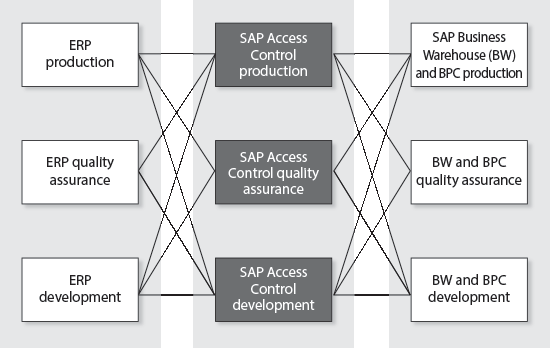
Figure 1
SAP Access Control scenario landscape
Caveats, Quid Pro Quos, and Addenda — the Fine Print
In the process that I describe I assume that you already have configured Access Risk Analysis to run in your ERP and SAP BW landscapes and that you have connectors defined for your relevant ERP and BW systems. The process that I explain only enables you to detect one cross-system risk: between the functions posting journal entries (in BPC) and general ledger (G/L) master data maintenance (in ECC or R/3).
These two functions in combination result in a risk identified in the SAP-delivered SAP Access Control rule set as risk G010, “AP/AR/GL master data creation and financial posting functions should be kept separate from Consolidations.”
In the standard SAP Access Control rule set, this is the only high-risk access risk associated with the posting of journal entries. That said, if your organization wants to detect additional cross-system risks between ERP and BPC, this basic process can be followed to create additional custom BPC-specific risks and functions to detect those risks.
Of course, considering that any changes that you make to the rule set are made to your development system (the system of record for your Access Control rule set), it’s an excellent idea to get a complete backup of your development SAP Access Control system and rule sets prior to following this procedure.
Step 1. Create a Custom Transaction Code
The first step in the process is to work with the development team to create a custom transaction code on the SAP BW or BPC system (e.g., Z_BPC). This transaction code should not have any executable code behind it.
One feature of SAP Access Control 10.x is that a detectable risk must consist of a set of conflicting actions (i.e., transaction codes) or a set of conflicting actions and permissions (i.e., transaction codes and authorization object values). SAP Access Control cannot detect risks based on a set of conflicting permissions. In fact, you cannot add a permission to a function within an SAP Access Control rule set without that permission having an associated action. This custom transaction code is a step toward allowing you to make that action to permission association within the SAP Access Control functions.
Step 2. Assign the UJ_BPCTASK Object to Your Custom Transaction Code in SU24
In your SAP BW or BPC system, execute transaction code SU24. In the screen that appears, assign the authorization object UJ_BPCTASK to the custom transaction code Z_BPC. In this reference system running on SAP NetWeaver 7.31, this is accomplished by selecting Object > Object > Add Authorization Object (Figure 2).

Figure 2
Assign UJ_BPCTASK to the custom transaction code
In your SAP Access Control system, run transaction code GRAC_AUTH_SYNC against the BW or BPC connectors to the system for which you just made modifications using transaction code SU24. This is also accessible by executing transaction code SPRO and following menu path Governance, Risk and Compliance > Access Control > Synchronization Jobs > Authorization Sync.
This action pulls all transaction code to authorization object relationships maintained in transaction code SU24 over to your SAP Access Control system. You cannot assign UJ_BPCTASK values to functions with the SAP Access Control system until your authorization master data synchronization job successfully completes.
By default, there is no authority check statement for UJ_BPCTASK in a transaction code within BPC on the SAP NetWeaver, so pulling this authorization object up within SU24 shows no values. Furthermore, because the transaction code GRAC_AUTH_SYNC syncs transaction code and authorization object relationships maintained within SU24 from your back-end system to the SAP Access Control system, the UJ_BPCTASK object does not show up as a selectable permission within a GRC function.
So how can an organization owning SAP Access Control associate UJ_BPCTASK values to an action within a GRC function? A solution I use that has met my business requirements to date is to associate UJ_BPCTASK to the custom transaction code and assign it to a role that all BPC and SAP BW users receive. The transaction code selected must be in a role assigned to all users so that any instance of UJ_BPCTASK within a user’s buffer contains an instance of S_TCODE with a value of the transaction code related to UJ_BPCTASK (e.g., Z_BPC).
Figure 2 shows the SU24 maintenance done for Z_BPC to set up the relationship between the custom transaction code Z_BPC and the UJ_BPCTASK authorization object. Note that adding UJ_BPCTASK to your custom transaction in SU24 by default generates a transport request. To detect a cross-system SoD risk between your productive ERP and BPC environments, this transport must be imported throughout your BPC landscape.
A limitation of this approach is that organizations must rely on a procedural control to ensure that all BPC users receive the UJ_BPCTASK-related transaction code assignment (e.g., Z_BPC) via an ALL_USERS type of role. Care should be taken that the role to which this custom transaction code is assigned should have dummy values so that additional BPC task profile access is not inadvertently granted.
In this approach, each SoD review needs to ensure that the Z_BPC transaction code assignments are made to all users within the BPC systems being evaluated prior to a user-based Access Risk Analysis being run against the BPC users. That said, because the SoD review is itself process driven, it is relatively easy to add a step to the existing periodic SoD review process that ensures all BPC users receive a role with the UJ_BPCTASK-related transaction code before running the SoD analysis within Access Risk Analysis.
Step 3. Create a BPC/ERP Cross-System Connector Group
In this step a cross-system logical group needs to be created, as well as all the relevant connectors associated with that cross-system group. To create the connector group, execute transaction code SPRO on your SAP Access Control development system and follow menu path IMG Activity Governance, Risk and Compliance > Common Component Settings > Integration Framework > Maintain Connectors and Connection Types. Click the execute icon beside Maintain Connectors and Connection Types.
Under the Connection type definition dialog structure, double-click the Define Connector Groups folder (Figure 3). Click the New Entries button and create a cross-system connector group (e.g., Z_CROSS) by entering Z_CROSS in the Conn.Group column. In the Connector Group Text column, enter your explanatory text. Finally, in the Con.Type column set the connection type as SAP. Click the save icon to save your new connector group.

Figure 3
Define the cross-system connector group
With the new connector group selected (Figure 4), double-click the Assign Connector Groups to Group Types folder. From the drop-down list in the screen that opens on the right, assign the new connector group to the connector group type Cross System Group.

Figure 4
Define the connector group type for the new connector group
Now double-click the Assign Connectors to Connector Groups folder and click the New Entries button. Add the connectors already defined for your ERP and BW/BPC landscapes (refer back to Figure 4). These connectors should be assigned the SAP Connection Type (Figure 5).
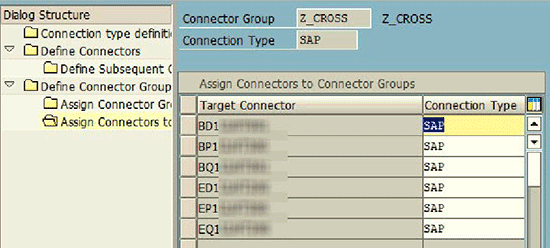
Figure 5
Assign connectors to connector groups
There are two main types of ARA reports: as-is reports for roles, users, and profiles, and simulation reports. There are circumstances in which you might want to evaluate cross-system risk between different tiers of different landscapes. An organization may want to run a cross-system risk simulation for a new role currently in a quality assurance environment against a production role or user. This approach gives organizations that flexibility.
The default connector groups configured with the SAP-delivered GLOBAL rule set are configured as logical groups. Logical groups cannot be used to detect cross-system risk by design. Detecting cross-system risk is extremely hardware intensive, and converting an existing logical group to a cross-system group has the potential to substantially increase your access rule generation program run time in transaction code GRAC_GENERATE_RULES. I have seen rule set generation times go from 30 minutes to over 30 hours if too many risks are identified as cross-system risks.
Because of the potential performance impact, you want to narrowly define those functions and systems that require cross-system risk analysis. Creating this new cross-system connector group helps limit that scope.
If Access Risk Analysis is already configured in your SAP ERP and SAP BW/BPC landscapes, you should already have configured your integration scenarios for your SAP BW and SAP ERP connectors and completed other configuration steps necessary to perform Access Risk Analysis. With the configuration complete, you are now ready to modify your rule set to detect cross-system risk.
Step 4. Create Custom Functions in SAP Access Control
In this step, you set up cross-system functions to detect cross-system risk. Note that cross-system risks (that is, risks containing cross-system functions) can be used to detect both cross-system and single-system risks.
Before completing this step, you should back up your rule set (via transaction code GRAC_DOWNLOAD_RULES) to tab-delimited text files and back them up to a safe location. Make sure to download the rule set for every currently existing logical group so that you don’t miss functions-to-actions or functions-to-permissions relationships specific to a given logical group.
Note also that it is an excellent idea to keep the SAP-delivered GLOBAL rule set as a reference and copy the GLOBAL rule set to a custom ZGLOBAL rule set in which organization-specific rule set modifications can be made. The step-by-step instructions that I outline, however, assume that you are using the GLOBAL rule set. Therefore, the procedure outlined takes the path of least risk and preserves your existing SAP-delivered functions until you can ensure the newly defined risk adequately detects risk using both single- and cross-system Access Risk Analysis.
First, create a new version of function GL01 with the updated BPC-specific actions and permission combinations required to post a top-side journal entry within the BPC system.
Copy the GL01 risk to ZGL01. In the Setup tab of the SAP NetWeaver Business Client (NWBC), follow menu path Access Rule Maintenance > Access Risks. Select the row title GL01 – Post Journal Entry and click Copy (Figure 6).

Figure 6
Copy function GL01 to ZGL01
In the next screen change the Function ID to one that won’t be overwritten in future Access Control rule set releases. SAP will never release an access control function starting with Z*. Therefore, naming this ZGL01 ensures SAP won’t overwrite this custom function in a future release of SAP Access Control or the SAP Access Control rule set. Change the Description to incorporate the new function name (e.g., ZGL01- Post Journal Entry). Set the Analysis Scope field to Cross System and click Save (Figure 7).

Figure 7
Copied function settings
In the new ZGL01 function, add the Z_BPC action and permission values corresponding to the values identified in the UJ_TASK field as being relevant to posting top-side journal entries (Figure 8). Note that for different organizations, UJ_TASK values can map to different business functions.
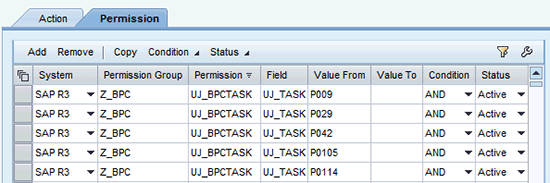
Figure 8
Additional ZGL01 permissions
This association between function and system is made by associating this as a cross-system risk. Once done, this function and the associated risk are automatically associated by SAP Access Control with the connectors in the custom connector group created in step 3 of this article.
Repeat the process for the function EC01. Copy function EC01 to function ZEC01. Change the description, set the analysis scope to Cross System, and click the Save button (Figure 9).
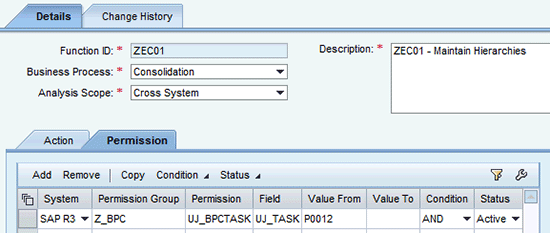
Figure 9
Define ZEC01 settings
Note that the obvious UJ_TASK value that maps to the EC01/ZEC01 function (Maintain Hierarchies) is value P0012 – Manage Dimensions. Other actions could theoretically map to this business function within your BPC environment. It’s important that these task profiles in UJ_TASK be mapped to the appropriate functions within your SAP Access Control rule set as part of the blueprint or functional requirements definition of your BPC risk detection project.
Note
In this procedure I assume that you are using the SAP-delivered SAP R/3 logical group. If you are using custom logical groups for your R/3 systems (or a subset of your R/3 systems), you need to set the system in the Permission and Action tabs of the function definition as the name of your custom logical groups.
Step 5. Create Custom Risk for Cross-System Detection
After your custom functions are created and updated with your additions to account for task profiles in BPC, you are ready to associate them with a custom risk.
Create a custom risk Z_G010. This risk should be set up similarly to risk G010. AP, AR, G/L master data creation and financial posting functions should be separate from consolidations. The risk functions should be those custom functions defined in step 4 (ZGL01 and ZEC01). Click the Save button to save the risk (Figure 10).
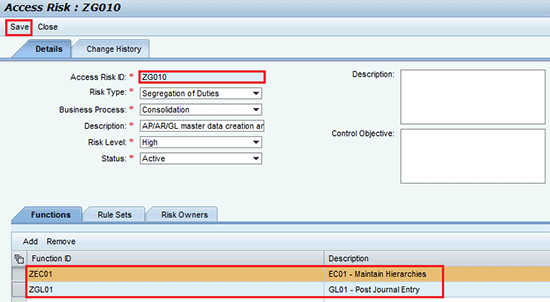
Figure 10
Create the custom risk
Note
This risk is cross-system risk by virtue of the fact that the associated ZGL01 and ZEC01 functions are cross system. Because these functions are identified as cross-system functions, they will be automatically associated with the connectors in the cross-system connector group defined in step 3.
Step 6. Generate Rules
After you create the custom risk, you need to regenerate your SAP Access Control rules to reflect your rule set modifications. In the SAPGUI of your SAP Access Control system, execute transaction code GRAC_GENERATE_RULES to generate the rule detail needed to run your cross-system Access Risk Analysis reporting. In the screen that appears enter the name of the newly created risk (e.g., ZG010) in the Risk Id field. Click the execute icon to update the access rules to reflect this newly created risk (Figure 11).

Figure 11
Generate access rules
Step 7. Test
At this point you’re ready to run your GRAC commands on the GRC system to sync and test your rule set. You should be able to test the following scenarios:
- Test single-system risk against a test role containing both transaction code CX1S (Create Hierarchy) and transaction code FBV0 (Post Parked Document) on the ECC system. Our newly created risk ZG010 should flag a user or role having this combination of transaction codes as a high risk (if run against all risks, both G010 and ZG010 should flag).
- Test cross-system SoD risk with transaction code KS01 in a role on the ECC system and a second role on the BW or BPC system containing S_TCODE Z_BPC and appropriate UJ_TASK values (e.g., P029 – Post Journals). For example, in the SAP Access Control system, I navigated to Access Management > Access Risk Analysis and clicked the Role Level Simulation link. I ran my role simulation against two roles: one in my ERP environment and one in my BW/BPC environment. Simulation details were as shown in Figure 12.
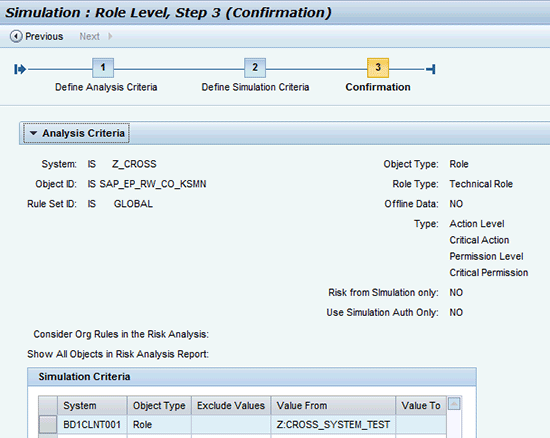
Figure 12
Set up the role simulation criteria
In Figure 12 note the following:
- SAP_EP_RE_CO_KSMN is an SAP-delivered role in the ERP landscape containing Controlling master data transaction codes, and to which I added transaction code CX1S (Create hierarchy). In the SAP-delivered SAP Access Control rule set, CX1S is considered part of function EC01 (Maintain Hierarchies).
- Z:CROSS_SYSTEM_TEST is the test role in the BPC landscape containing transaction code Z_BPC with the BPC task IDs assigned (Figure 13 shows the task IDs assigned to the UJ_BPCTASK Z:CROSS_SYSTEM_RISK role in my BW landscape). In this test, I assigned both BPC task P0004 (Manage Journals,) and P009 (Post Journals) to the Z:CROSS_SYSTEM_TEST role. Both of these tasks would be considered BPC tasks that belong in the GL01 – Post Journal Entry function in the SAP Access Control rule set
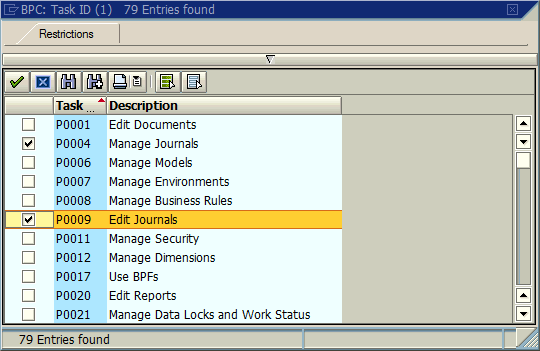
Figure 13
Detailed BPC task settings for cross-system role test
Note
Figure 13 shows the screen after you execute transaction code PFCG (SAP role maintenance) for the ABAP stack. After executing this code, you can use the profile generator to maintain roles.
I finished the role level simulation report by clicking the Run in foreground button (not shown). The results of this simulation are shown in Figure 14. In this example test, I successfully identified one high-risk cross-system SoD issue between a role containing Controlling Hierarchy transactions in the ERP landscape and a role containing a BPC task profile that allows the editing of top-side journals in BPC.

Figure 14
Results test of cross-system SoD test
After you’ve confirmed that both G010 and ZG010 flag risks in cross-system and single-system scenarios, you’re ready to deactivate the SAP-delivered G010 risk to avoid detecting duplicate risks in your Access Risk Analysis reports. You can deactivate this risk by editing your GL010 risk, changing the Status field to Inactive, and clicking the save icon.
For companies that have implemented BPC on SAP NetWeaver or are planning to do so, the above procedures outline a relatively simple way to customize and modify your SAP Access Control rule set to detect SoD risk across the ECC and BPC landscapes. This ability to configure SAP Access Control environments to detect cross-system ERP and BPC SoD risk without custom plug-in development makes it relatively simple to detect that risk.
Note
For more information refer to these resources:
Gary Prewett
Gary Prewett is the security practice lead for NIMBL, North America’s SAP Technologists. An active SAP security thought leader and author with more than 12 years of ERP implementation experience and 15 years of information security focus, Gary has driven and delivered technical and process-based controls on multiple complex SAP implementations. He has worked with clients in implementing security strategy essential to operating in high risk environments, and has implemented comprehensive information security initiatives encompassing SAP solutions for clients in the financial services, energy, manufacturing, and service sectors.
You may contact the author at gary.prewett@benimbl.com.
If you have comments about this article or publication, or would like to submit an article idea, please contact the editor.