Use work schedule variants to make your work schedule rule more flexible by specifying different rules for different daily work schedules. Learn how to identify the holiday class of a public holiday, create a daily work schedule, add a daily work schedule variant, create work schedule variant rules, and define period work schedules and work schedule rules.
Key Concept
SAP configuration specialists create work schedule variants using the IMG to handle the change in work schedules when a holiday is approaching. For example, in some workplaces, the day before a holiday is automatically considered a half day. Work schedule variants help you configure these types of rules and use SAP standard functionality. Many other variations of this example are possible: the day before a holiday is only a half day if the holiday is on a Saturday, or the day before a holiday is a six-hour day instead of an eight-hour day.
Work schedules change throughout the year due to national, observed, and public holidays. Depending on your organization’s business requirements, you need to create rules that take these holidays into consideration when creating the work schedule. Using standard SAP functionality, you can create daily work schedule variants, which makes configuring these rules easier to manage.
Work schedules in the SAP system are composed of the following: holiday calendar, break schedule, daily work schedule, period work schedule, and a work schedule rule. To create a work schedule variant, you need to identify the holiday class and create the daily work schedule variant and work schedule rules. The holiday class triggers the work schedule variant rule. Once the rule is triggered, the daily work schedule variant replaces the daily work schedule (Figure 1).
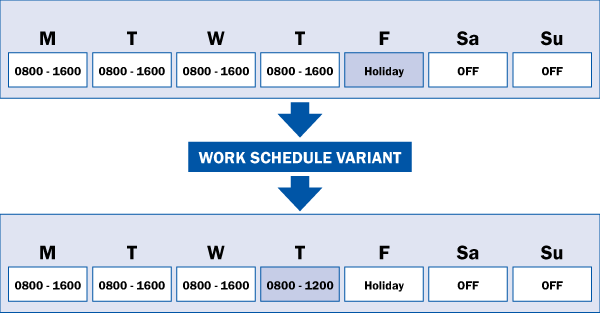
Figure 1
Work schedule variant outline
Determine the Holiday Class
First, you need to determine the public holiday class of the holiday to which you want to apply the variant. Holiday class is one of the triggers that call the work schedule variant rule. (Other triggers include the day of the week and the holiday class of the next day.) Public holiday class is a characteristic of the public holiday. Make sure that this holiday class is unique to the holiday you want to use. For example, if all your holidays have holiday class 1, then the public holiday to which you want to apply the work schedule variant should be any number other than 1.
The public holiday class might affect overtime calculation. You can create rules in the schema to read the public holiday class and assign the hours worked to different overtime wage types based on the public holiday class. For example, all hours employees work on a holiday with holiday class 1 might be valuated at 1.5 times the hourly rate and all hours employees work on a holiday with holiday class 2 are valuated at double the hourly rate.
Public holiday class can also affect time wage type selection rules in table T510S (the time wage type selection rules has public holiday class as part of the wage type selection criteria). Before you change the holiday class, make sure you check the proper tables, rules, and schema for potential effects on overtime and wage type generation.
Tip!
Look at the schema portion that deals with overtime calculation (for custom overtime rules) and the portion with the function GWT (for the time wage type selection rules).
To change or create a holiday class, follow IMG menu path Time Management > Work Schedules > Define Public Holiday Classes > Public Holidays. Figure 2 shows the attributes of a public holiday. In this example, the public holiday class is 1. If you write a work schedule variant rule that affects holidays with holiday class 1, this holiday triggers that rule. The holiday class is a single-digit number, so only nine possible unique holiday classes are available (0 or blank in the variant and wage type selection rules means that it is not a holiday).

Figure 2
Public holiday attributes
Create a Work Schedule Variant Rule
Once you determine the holiday class, select a one-letter identifier for your daily work schedule variant (normally A is used as the first variant, B for the second variant, and so on). You can use any letter to indicate a variant as long as you use the variant name consistently in the configuration. For example, the work schedule variant rule that calls variant A does not work if you create a daily work schedule variant B.
After you select the identifier, you need to create the work schedule variant rule to call the variant. In the IMG, follow menu path Time Management > Work Schedules > Daily Work Schedules > Define Rules for Variants. Figure 3 shows a sample of a work schedule variant rule.
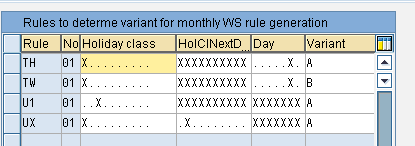
Figure 3
Work schedule variant rule
The first column in Figure 3 is the rule name. This is a two-character code that is assigned to the work schedule variant. The second column is a sequential number that you can use if multiple cases exist for a certain variant (e.g., the same variant applies if the holiday class for the next day is 1 and today is a Monday or the holiday class for the next day is 2 and today is a Wednesday). Normally, there should only be one line per rule unless the work schedule changes that occur during a holiday are complicated and based on many factors (e.g., the type of holiday or day of the week) If there is more than one line in the rule, make sure that it does not conflict with the other lines of the same rule. Otherwise, the entire rule does not work.
The next column indicates the Holiday class of the current day. This is denoted by marking an X on the space corresponding to the holiday class. The first space is for 0, the second is for 1, the third is for 2, and so on, all the way to 9. In the Figure 3 example, looking at the rule UX, the rule is triggered only if the holiday class today is 0 (not a holiday). The next column (HolClNextD) indicates the holiday class of the next day. Following the rule logic, this rule is triggered if the holiday class today is 0 (not a holiday) and the holiday class of the next day is 1.
The next column (Day) indicates what day of the week the rule is applicable. This column has spaces that represent each day of the week. The first space is for Sunday, the second space is for Monday, the third space is for Tuesday, and so on. To indicate which days the variant rule applies, you mark an X in the space that corresponds with the day of the week. If there are Xs on every day, then this rule applies from Sunday to Saturday. There are some rules that are created to apply only to work days or even specific days.
The last column (Variant) indicates the return value if all the initial conditions are satisfied. Therefore, if the system reads rule UX, it only triggers the rule if today is not a holiday, and the next day is a holiday, with a holiday class of 1. If this case is satisfied, the system substitutes daily work schedule variant A for the current daily work schedule. This determines the new number of hours worked, which can affect pay. I discuss creating daily work schedule variant A in the next section.
Define the Daily Work Schedule Variant
To create variant A, follow menu path Time Management > Work Schedules > Daily Work Schedules > Define Daily Work Schedules (Figure 4). The daily work schedule code should be the same as the normal daily work schedule. Enter the variant name (A) in the field beside the daily work schedule code and then enter the Planned working hours for this variant. Figure 4 shows an example of a daily work schedule variant with four planned working hours.
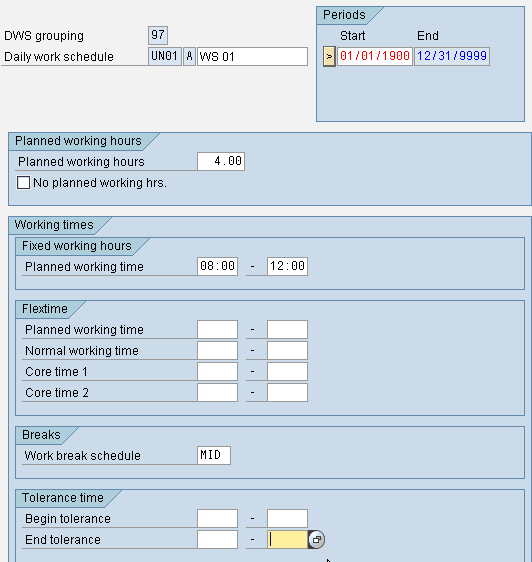
Figure 4
Daily work schedule variant
Assign the Work Schedule Variant Rule to the Daily Work Schedule
You need to assign the work schedule variant rule needs to the daily work schedule so the system knows which rule to use with each work schedule. To assign the work schedule variant rule, edit the normal daily work schedule (not the daily work schedule variant). Add the work schedule variant rule into the DWS selection rule field. Figure 5 shows a sample of a daily work schedule with work schedule variant rule UX in the DWS selection rule field. This means that daily work schedule UN01 calls rule UX, which returns variant A if the conditions in rule UX are satisfied.

Figure 5
Normal daily work schedule with a work schedule variant rule
Create a Period Work Schedule
After finalizing the daily work schedule and the variant, create the period work schedule. Follow IMG menu path Time Management > Work Schedules > Period Work Schedules > Define Period Work Schedules. Create a period work schedule containing the regular daily work schedule you want to use (Figure 6). The columns 01-07 indicate the days of the week with 01=Monday and 07=Sunday. In this example, Monday through Friday have the daily work schedule UN01 and Saturday and Sunday have the daily work schedule FREE (no planned working hours).
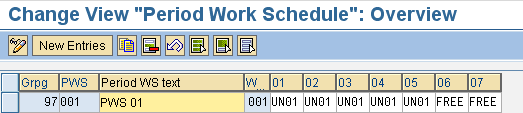
Figure 6
Period work schedule
After you complete the daily and period work schedules, create the work schedule rule. Follow IMG menu path Time Management > Work Schedules > Work Schedule Rules and Work Schedules > Set Work Schedule Rules and Work Schedules. Create the work schedule rule using the period work schedule (Figure 7).
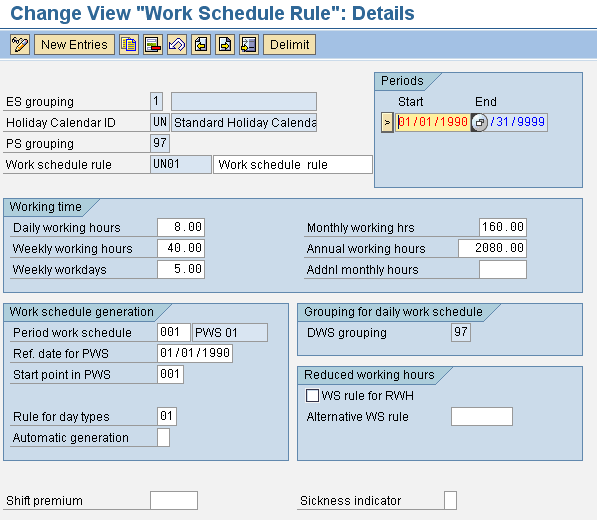
Figure 7
Work schedule rule
After you’ve created the work schedule rule, generate the work schedule. Follow menu path Time Management > Work Schedules > Work Schedule Rules and work schedules > Generate Work Schedules Manually. Enter the groupings, holiday calendar, and the work schedule rule and period you want to generate (Figure 8).
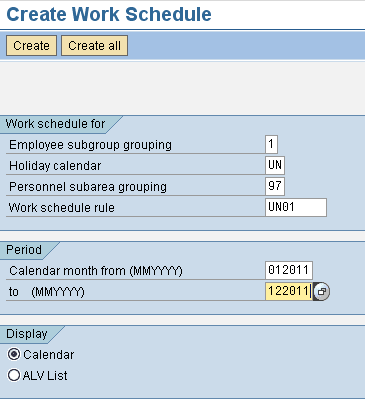
Figure 8
Generate work schedule
Figures 9 and 10 show an application of the work schedule variant rule UX. Note that variant A was applied to the day before Christmas (December 24) and the day before the end of the year (December 31), which you can see in the box beside the daily work schedule in Figure 9. If you double-click that particular daily work schedule, you see the day has reduced hours (Figure 10).

Figure 9
Monthly calendar of work schedule
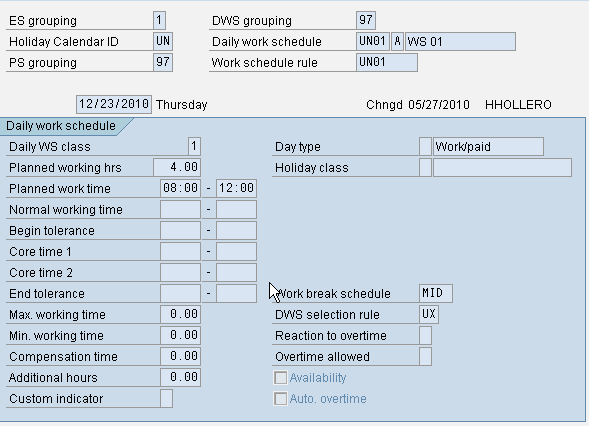
Figure 10
Daily work schedule for December 23, 2010
You can create work schedule variants with this process for many holiday scenarios such as the ones mentioned at the beginning of the article.
Harold Hollero
Harold Hollero has been an SAP HR consultant for more than 11 years. He started out as a time and payroll consultant in the Philippines, and after six years, moved to the United States, where he has been doing time management projects.
You may contact the author at hhollero@gmail.com.
If you have comments about this article or publication, or would like to submit an article idea, please contact the editor.