Organizations often offer new skills or technology training to their employees. One question that comes up regarding this is how can companies safeguard their investment in these employees? One way companies can protect their exposure is requiring employees to sign employee service agreement bonds that specify how long they must stay employed with the company after they’ve been trained. Learn a simple and straightforward approach for configuring company-specific employee service agreement bonds in standard SAP ERP HCM.
Key Concept
An employee service agreement bond is a binding agreement signed by the employee and employer that guarantees the employee will stay and work for an agreed-upon period after training, or be liable to pay back the cost of their training to the company. In the US, a comparable example would be a non-compete clause in an employee contract.
If even 30 percent of the trained resources leave the organization after this initial investment has been made and before the employee has worked a certain amount of time—usually a year— this loss heavily affects the organization both in terms of service (to clients and internally) and money invested in that employee.
Highly skilled employees and people with niche skills tend to move around for career and monetary growth, causing staffing consistency issues and lost revenue. To protect their investment in these employees, the employees are required to sign employee service agreements. Some common examples are:
- New graduate hires. These are employees who are recruited out of college and who are highly educated, but may require more intensive IT training, which costs the company more money at the outset.
- Cross hires. These are employees who have experience in another industry, but are hired for entry-level IT jobs and are trained by organizations, which results in higher training expenses at the outset.
- Technology shift hires. These are experienced workers who commonly move from one technology to another to keep up with the latest technology. As a result, they can cost companies a lot of money for training, and then they move on to the next big thing.
These bonds are commonly structured as follows for employees who fall under any of the three types of scenarios (listed previously):
- The employee agrees to serve for the stipulated time period (usually a year after the training ends).
- If the employee voluntarily leaves before the agreed-upon time period has elapsed, the employee is required to reimburse the company for the training costs incurred for teaching the employee new technology. (Generally, if the employee is terminated by the company, the employee is not required to pay back the cost of their training.)
- Employees are required to have co-signers on the contract bonds to protect the company’s investment. This way, if the employee fails to repay the company’s training expenses, the guarantor is responsible for the employee’s debt (the guarantor in this case would be a friend, family member, or spouse).
- A non-compete clause. This restricts employees from immediately going to work for a competitor company, under threat of having to pay a penalty or being sued for breach of contract. The length of time between switching jobs to work for a competitor varies, but these clauses generally restrict employees from going to work for a competitor within two years. These non-compete clause terms vary from country to country, and industry to industry.
Note
In this article I do not go into detail about the legality of such
agreements, in India or elsewhere, nor do I endorse or recommend any
particular terms for the types of employment agreements discussed.
However, for more information about these types of agreements in India,
you may refer to the
Indian Contract Act of 1872, which is still valid.
.Case Study: Organization A
Organization A has a full-fledged SAP ERP HCM system with Personnel Administration, Time Management, and Organizational Management, as well as a well-integrated payroll system with SAP Finance. Organization A has a policy of requiring employee service agreements for cross hires and for those who undergo expensive external training paid for by the company.
In this scenario, the employment service agreement has the following terms:
- Employees are expected to execute a service agreement before they attend any external training.
- Employees are required to work for the organization for a period of at least one year from the last date of training.
- Employees who leave the company voluntarily before the year is up are required to settle the expenses incurred by external training (including any travel, accommodation, and training fees) as well as any internal training costs.
- The service agreement bond expires automatically in one year from the last date of training.
In addition, Company A needs to store the following information in the SAP ERP HCM system:
- The employee service agreement bond validity dates
- The details for the employee service agreement bond guarantors (including their national IDs)
- An automatic alert notification to be sent to personnel administrators when the termination date is approaching for such service agreement bonds
- The details for the employee non-compete clause.
Next, I show how to customize the employee service agreement bonds in the SAP ERP HCM system to meet these requirements. The configuration is made up of the following eight steps:
- Create the employee service agreement bond in infotype 0035 (company instructions) as a subtype
- Create the service/training bond guarantor details in infotype 0021 (family/dependents) as a subtype
- Create a drop-down value for the Permanent Account Number (PAN) in infotype 0703 (document on dependents) for guarantors.(PAN is one of the national identification cards for the citizens of India)
- Create dynamic actions between infotypes 0035 and 0021 (subtype guarantor)
- Create dynamic actions between infotypes 0021 and 0703
- Include the infotype 0035 (company instructions) in the termination action configuration
- Store the non-compete clause details for employees
- Test the final configuration
Here are the details for my configuration example:
Employee Rajaraja Chozhan is working with organization IN01. He is taking training courses from 01/02/14 to 01/15/2014. The cost of the training is $2000. Rajaraja has an employee service agreement with the organization with a start date of 01/01/2014, which is valid until 12/31/2014. His friend Vandhiya Thevan has signed as his guarantor, and his PAN number is AFCPR9876C. (The PAN is the permanent account number in India that is equivalent to a Social Security Number in the US.)
Here are the configuration steps for storing these details in the SAP ERP HCM system for the personnel administrator.
Step 1. Create the Employee Service Agreement Bond in Infotype 0035
In this step, you create a subtype called employee service agreement bond for infotype 0035 (company instructions). This is the base subtype for storing the agreement dates and expiration date and so forth. Follow menu path SPRO > Personnel management > Personnel administration > Contractual and Corporate agreements > Company instructions > Determine instruction types, and in the screen that results click the execute icon  . This opens the screen shown in Figure 1.
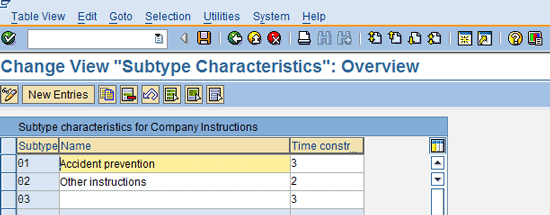
Figure 1
Change the subtype characteristics for infotype 0035
Click the New Entries button. This opens the screen shown in Figure 2, where you enter the new subtype details (e.g., subtype code and subtype name). Once entered, click the save icon  and the exit icon
  . Use report RDDKOR54 to check your changes to ensure compatibility with the SAP system’s name space limitation.
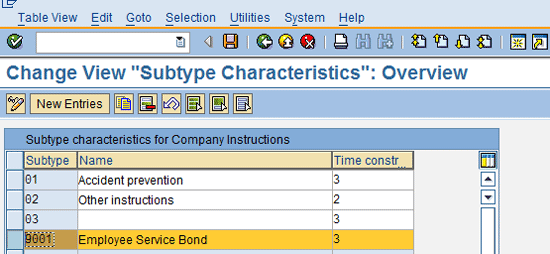
Figure 2
The new infotype 0035, employee service bond subtype
Note
In the screen in Figure 2, ensure that you use the proper
subtype code for the customer name space (for that reason, I use 9001 in
the example), and that the new subtype name doesn’t contain more
letters than are allowed in the name space. This is important because
the SAP system has reserved a name space for its future upgrades in all
infotypes and tables. To do this, select only the customer name space
(stored in report RDDKOR54). Otherwise violated configurations will be
affected in future releases and will not be supported by the SAP system
when it is upgraded. You can find out more about subtype number ranges
in report RDDKOR54.
Also, choose the Time Constraint class 3, which allows you to
maintain multiple master records on this subtype for an employee with
gaps in their time of employment.
The bond guarantor is the person who agrees to co-sign the bond and is liable for repayment in case the employee defaults on their agreement. Follow menu path SPRO > Personnel management > Personnel Administration > Personal Data > Family > Personal Data > Define Family Types, and in the screen that results click the execute icon. This opens a pop-up screen (Figure 3) where you enter the infotype number; in this case, 0021. Then click the green checkmark icon  , which opens the screen shown in Figure 4.

Figure 3
Enter the infotype
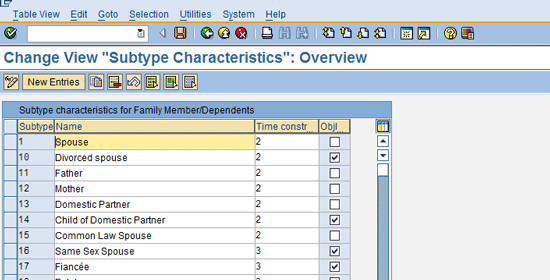
Figure 4
Check the entries for the subtype of infotype 0021
Click the New Entries button, which opens the screen in Figure 5. Enter the details (e.g., the new subtype code and subtype name), and then click the save and exit icons.

Figure 5
Family types – subtypes entry screen
Step 3. Create a Drop-down Value for the PAN in Infotype 0703
In this step, you create a subtype in infotype 0703 (document on dependents) to store the PAN details of a guarantor. You can create this subtype using a relevant government ID instead of the PAN. (Again, the PAN is the permanent account number in India that is equivalent to a Social Security Number in the US.)
Note
Make sure you do not check the Obj… check box in Figure 5 or you will encounter problems when creating the PAN card details in infotype 0703, discussed later in this article.
Follow menu path SPRO > Management of Global Employees > Assignment Preparation > Define Checklist items and Documents, and in the screen that opens click the execute icon. This opens the screen shown in Figure 6.
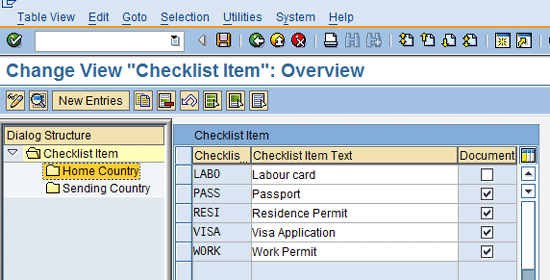
Figure 6
Initial change screen to add the new drop-down details
Choose the Home Country folder on the left of Figure 6 and click the New Entries button. This opens the screen in Figure 7 where you enter the new Checklist item text for the PAN card and activate the Document check box.

Figure 7
Add the new drop-down option details
Once you have entered the above details, click the save and then the exit icons.
Step 4. Create Dynamic Actions between Infotypes 0035 and 0021 (Subtype Guarantor)
In this step you synchronize the employee service agreement bond process so that when the details are entered in infotype 0035 and saved, the system automatically prompts for entering the data in infotype 0021 (subtype guarantor). This way, personnel administrators don’t need to manually enter data in two different screens as they have been aligned via a dynamic action.
Follow menu path SPRO > Personnel management > Personnel administration > Customizing Procedures > Dynamic Actions, and click the execute icon. This opens the screen in Figure 8.

Figure 8
Overview screen for dynamic actions
Click the New Entries button and enter the details as shown in Figure 9 for the new dynamic action.
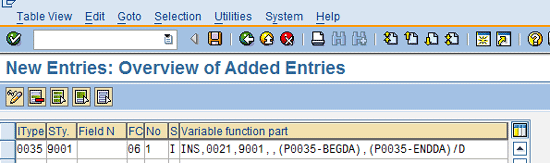
Figure 9
The dynamic action with the configuration code
I am not going to go into detail about the functionality of dynamic actions, but in a nutshell, I am writing a condition to the system that if a record is created in infotype 0035, subtype 9001, when it’s saved, it should trigger the screen of infotype 0021 with the subtype 9001. In addition, the start and end dates of infotype 0021 should be copied from infotype 0035.
Step 5. Create Dynamic Actions Between Infotypes 0021 and 0703
In this step you create a dynamic action for infotype 0703 (documents on dependents) that results in an automatic pop-up screen once you create an employee record in infotype 0021, subtype 9001, and save it. For the data entry between infotypes 0021 and 0703, make entries as shown in Figure 10.
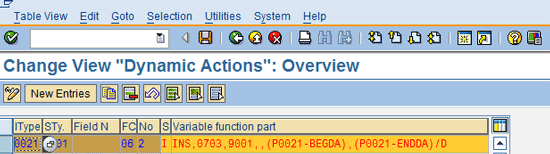
Figure 10
Dynamic actions configuration view
Here you are writing a condition to the system that if a record is created in infotype 0021, subtype 9001, when saved, it should trigger the screen of infotype 0703 with a subtype 9001, and the start and end dates of infotype 0021 should be copied from infotype 0021.
Step 6. Include Infotype 0035 at the Time of the Termination Action
In this step you add infotype 0035 to the employee termination action. This ensures that personnel administrators see the employee service agreement bonds during the employee termination action, so that they can initiate the recovery process.
This part of the configuration helps determine how to configure the system for the personnel administrator who is supposed to get an alert during termination of an employee. Follow menu path SPRO > Personnel management > Personnel Administration > Customizing Procedures > Actions > Define Info groups > Info Group.
Note
The details for the configuration of actions is beyond the scope of this article. For more details about this, refer to the
HR Expert article, “
Configure HR Actions/Events to Improve Your Reports,” by Danielle Larocca.
For the edification of readers, Figure 11 shows how to include infotype 0035 in a termination action. I have selected the generic leaving infogroup for demonstration. Here, when you add infotype 0035, when the termination action is performed in the SAP ERP HCM system, the system prompts the screen of infotype 0035 (if anything is stored), so that HR admin is alerted to the recovery process.

Figure 11
Change the infogroup view
Step 7. Store the Non-Compete Clause Details for Employees
In this step, you store a non-compete clause for your employees on the standard SAP ERP HCM system. Many users may use infotype 0016 to store this HR master data for employees, but for those who didn’t go through the screen, I show a screenprint of an employee with a non-compete clause condition in Figure 12.
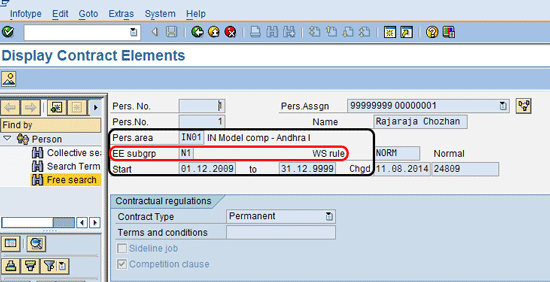
Figure 12
Create the details for HR master data infotype 0016 (contract elements)
I recommend that users include this field when writing an ad hoc query for generating employee service bond agreements, even in cases where there is no non-compete clause. Go to SAP EASY Access > Personnel management > Administration > HR Master data > Display (transaction code PA40) and in the screen that opens (not shown) enter the personnel number, infotype number (in this case, infotype 0016), and click the Display button.
Step 8. Test the Final Configuration
Now that you have completed the first seven steps, it’s time to test the configuration.
Follow menu path SAP EASY Access > Personnel management > Administration > HR Master data > Maintain (transaction code PA30). In the screen that opens (not shown) enter the personnel number, infotype number (e.g., 0035), and subtype number (e.g., 9001) and click the create icon. This opens the screen in Figure 13 where you enter the start date, end date, and bond executed date details.
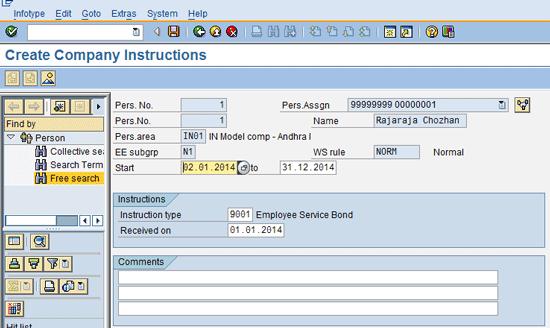
Figure 13
Create company instructions (infotype 0035, subtype 9001)
Once you’ve made your entries, click the save icon and the system dynamically takes you to infotype 0021, subtype 9001 (Figure 14).
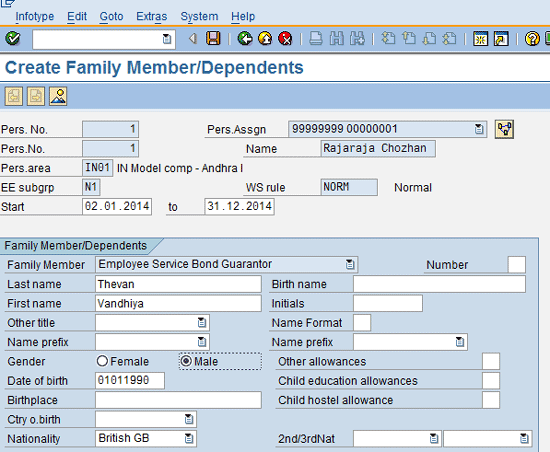
Figure 14
Create Family Member/Dependents (infotype 0021, subtype 9001) view
Check your entries, and then click the save icon. The system dynamically takes you to infotype 0703 (Figure 15). Enter the mandatory details, and then click the save and exit icons.

Figure 15
Store the employee service bond guarantor details (infotype 0703)
Note
I have not included the details for recovery of training costs here.
This can be done through non-payroll because it can be directly handled
by the FI department by collecting a check, money transfer, or demand
draft from employee.
Raghavendran Parthasarathy
Raghavendran Parthasarathy works for Hexaware Technologies as a Principal Consultant,where he manages SAP solution design for customers across the globe. He has worked in SAP ERP HCM for over 14 years in various capacities, including payroll projects in the Middle East, Europe, and Asia/Pacific. In addition to payroll, Raghavendran has experience in negative time management, personnel administration, and recruitment. He has also been a part of portal implementations. Currently, he is involved with cloud-based HCM applications such as SAP SuccessFactors and Workday.
You may contact the author at raghs99@yahoo.com.
If you have comments about this article or publication, or would like to submit an article idea, please contact the editor.