Auditing in SAP BusinessObjects is an area that is not very well understood. Learn about the concept of auditing in SAP BusinessObjects with a focus on configuring audit settings in the Audit Dashboard in BI 4.x.
Key Concept
Starting with SAP BusinessObjects BI 4.0, you can configure your audit settings in the Audit Dashboard. The Audit Dashboard is the one-stop shop for all your audit configuration activities.
With so much activity happening on your BusinessObjects servers, you would expect a lot of auditing activity to be taking place. Unfortunately, not a whole lot is known about the auditing capabilities in BusinessObjects, and therefore, either not much auditable information is being collected or, even if it is being collected, little to no auditing of this information is taking place. This situation holds true for both internal and external IT audit personnel.
If you have spent many years in the security, audit, access, or administration areas of SAP systems, be advised that auditing in BusinessObjects is different from auditing in either the SAP ERP Central Component (SAP ECC) or SAP NetWeaver environments. The BusinessObjects technical framework is much different from SAP’s. If you are installing BusinessObjects in your environment for the first time, you need to understand that BusinessObjects does not have a standard template or accelerator such as the Audit Information System (AIS) in SAP systems. Therefore, I explain the key concepts of auditing in the BusinessObjects realm and, in particular, the Audit Dashboard, which is the portal to all your audit configuration activities.
Auditing in the BusinessObjects Enterprise (BOE) Server
So what exactly constitutes auditing in the BOE Server? Auditing allows you to keep track of and record important events that take place on your BOE servers. It answers the key questions that an internal or external auditor is likely to ask (e.g., who, what, and when). This information is recorded in a database called the Auditing Data Store (ADS). Once the data is in the ADS, you can report off it for the operations performed in the system.
Bear in mind, however, that auditing is a double-edged sword. The deeper the level of your audit, the more overhead you add to your servers, resulting in slower processing. You therefore have to make decisions about the level of auditing you want to enable. In fact, the SAP system provides you with the option of excluding the auditing database from even being installed. A best practice that SAP recommends is to keep the audit database separate from the Central Management Server (CMS) database if you decide to install the audit database. This is intended to reduce the overhead on the CMS. Data that you collect as part of the BusinessObjects audit process can be used to access the following information:
- Data about all users accessing the system and the documents with which they are interacting
- Instances of successful logins, logoffs, and invalid attempts
- All changes to objects in reports by customers
- Usage analysis on objects in universes
- Successful and unsuccessful jobs
- Event information
- Access privileges
The CMS acts as the system auditor, and each BOE server that controls the events acts as the entity being audited. In some cases, the CMS may act as both the auditor and as the audited.
As the auditor, the CMS is responsible for collecting events and writing them to the auditing database. When an audited event is triggered, the server responsible generates a record and stores it in a local temporary file. At regular intervals, the CMS communicates with the servers of the audited to request copies of records from their local temporary files. When the CMS receives these records, it writes the data to the auditing database.
In BusinessObjects, the concept of events is closely related to auditing. BusinessObjects treats every action on the BOE server as an event, and every activity is tracked as an event. Activities on the BOE server, such as logging in or refreshing, are all events.
Note
In this article I focus on BusinessObjects 4.1 version. The auditing capabilities in BI 4.0 and higher have been significantly expanded and improved compared with those of version 3.0 and higher. This includes the ability to carry out all the configuration activities for all servers in one place, the Central Management Console (CMC).
The Audit Dashboard in the CMC
BI 4.0 introduced the ability to configure audit settings in one place using the audit dashboard. It is now available in the CMC. It is the one-stop shop for configuring your audit settings for all the BusinessObjects servers and applications in your landscape. To access and configure your audit settings, you log in to the CMC. Figure 1 shows the default view of the CMC.
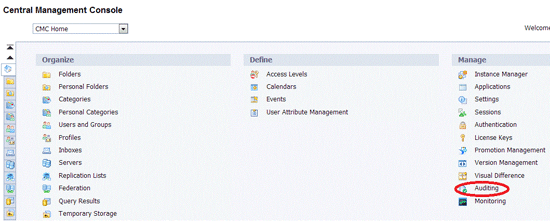
Figure 1
CMC home (default view)
To go to the audit dashboard, click the Auditing link under the Manage section of the CMC default screen or select the option from the drop-down menu on the top left of the screen.
The first section of the dashboard is the Status Summary (Figure 2). It provides a snapshot of key information such as when the ADS was last updated, the CMS auditor, the database connection and user name, and the amount of time the CMS spends before collecting audit information, also known as polling. The ADS stores the audit information generated by the CMS audit in the form of log files.
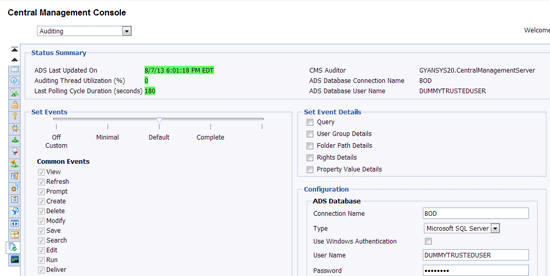
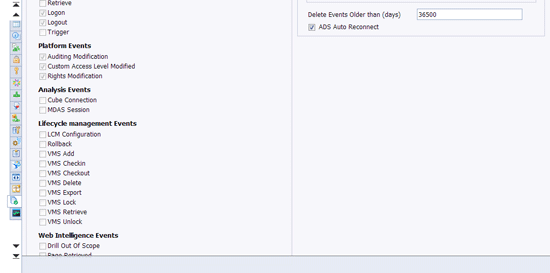
Figure 2
The audit dashboard
The ADS Last Updated On field (Figure 2) is green because the latest audit has taken place within the last two hours. The system reverts to yellow if more than two hours have elapsed since the last audit took place. It is important to note that the default time interval for polling is three minutes. Prior to BI 4.0, this was an adjustable parameter. This parameter is no longer manually adjustable because by setting a low interval some events were not being recorded. Now, the onus is put on the CMS to adjust the polling interval automatically (from the default of three minutes) based on usage. This interval cannot be changed. The status summary may also include any alerts such as when it cannot access the audit database. It displays these alerts in yellow.
You need to activate the events that you want audited in the Set Events section of the audit dashboard. A slider bar helps you set the audit level. In Figure 2 notice that it is currently set to default. When this level is set, all events listed under Common Events and Platform Events are activated for audit. If you move your slider bar to minimal, a handful of events are activated for audit (including logon and logoff Common Events, and all the Platform Events). Moving the slider bar to Complete ensures that every event is activated and setting it to Off turns auditing off completely. Finally, setting it to Custom allows you to selectively activate those events you are interested in auditing. If you have installed the audit database, it is not a good idea to turn auditing off. You probably want to set it to Custom and then select a very few events to be audited.
As an auditor, you want to review audit files. Assuming that you are not writing these log files to a database, these files are saved to a temporary location on your BOE server. To access these files, you first need to select Servers (under the Organize section) from the home menu (Figure 1), click Nodes, and click Placeholders from the context menu of the server name. To access these files follow menu path SAP BusinessObjects > SAP BusinessObjects Enterprise XI 4.0 > Auditing. With the knowledge of the directory path, you can now access these files on your BOE server and browse the contents.
In the Set Event Details section of the audit dashboard (Figure 2), you configure the level of details that the system captures for each of the available areas; namely, Query, User Group Details, Folder Path Details, Rights Details, and Property Values Details. Checking one or more of these boxes specifies the level of detail that is captured in the audit files for each event whose details you capture. You may consider checking the User Group Details box at a minimum, because auditors like to review user access information at the onset of an audit. The system then records the group name and group ID of the user for the events that you capture in your audit. Keep in mind that the trade-off to receiving such a deep level of detail is the overhead you introduce in having the system capture this information for each event. Therefore, plan judiciously on which of these boxes you should be checking.
In the Configuration section, you enter the parameters needed to allow an auditor to connect to the ADS database (e.g., the connection name, connection type, user ID, and password). Auditors need access to this database to see the audit files stored in the database. The connection type tells you the type of database in which your audit resides. In my example, it is the Microsoft SQL Server. There’s another parameter that is often overlooked — the Delete events older than… parameter. This parameter controls the number of days that audit data is retained in the audit database. The SAP-supplied default is 36,500 days (roughly 100 years). You probably don’t need to retain data for that long. A smarter way of retaining audit data is to keep it in the database for about 10 years and archive any data that is older than 10 years.
Reporting on the Audit Database
Once the information is stored to your database, you review this information. BusinessObjects has limitations with regard to enabling users to review audit information. Readers who have worked for years in the SAP Business Warehouse environment may find it surprising that you cannot access the technical content or the tables containing statistical data as easily in the BusinessObjects environment. The ability to run audit reports out of the box is not a preconfigured capability in BusinessObjects 4.x. You have to do some work yourself.
The SAP system provides you with a mechanism to reduce the amount of manual work you would otherwise need to do. It provides you with sample universes for the different database types. (A universe is the business or semantic layer that allows you to model your metadata coming in from multiple data sources). These universes allow you to bring together the various fields in the different tables in the audit database so that you can run reports on these universes. The most important table is the ADS Event table because this is the one that contains all relevant information for every event.
To make your task of reporting easier, SAP provides you with a few sample reports that can run off these universes. All these reports are built on Crystal Reports and help you get audit information on areas such as a list of successful and unsuccessful login attempts, failed jobs, users by day or hour, and event information.
Join Tracy Levine of itelligence for a discussion on a three-phased approach to prepare for an SAP security audit on November 20 at 1:00 p.m. EST; register at
https://bit.ly/1b9USz8
Anurag Barua
Anurag Barua is an independent SAP advisor. He has 23 years of experience in conceiving, designing, managing, and implementing complex software solutions, including more than 17 years of experience with SAP applications. He has been associated with several SAP implementations in various capacities. His core SAP competencies include FI and Controlling FI/CO, logistics, SAP BW, SAP BusinessObjects, Enterprise Performance Management, SAP Solution Manager, Governance, Risk, and Compliance (GRC), and project management. He is a frequent speaker at SAPinsider conferences and contributes to several publications. He holds a BS in computer science and an MBA in finance. He is a PMI-certified PMP, a Certified Scrum Master (CSM), and is ITIL V3F certified.
You may contact the author at Anurag.barua@gmail.com.
If you have comments about this article or publication, or would like to submit an article idea, please contact the editor.