Learn the steps to create a new work center (Launchpad) or change an existing one in SAP BusinessObjects Access Control. Discover how to customize predelivered tabs or links to suit your business needs.
Key Concept
SAP BusinessObjects Access Control 10.0 is predelivered with four tabs: My Home, Setup, Access Management, and Reports and Analytics. These tabs are part of the work center (Launchpad). Each tab contains different sets of predefined links.
SAP BusinessObjects GRC 10.0 is based on Web Dynpro ABAP, and the presentation layer works through SAP NetWeaver Business Client (NWBC). NWBC is SAP’s desktop client using the latest smart client technology. NWBC can host existing user interfaces (UIs), including SAP GUI and Web Dynpro, as well as any other Web-based content.
In Figure 1, My Home, Setup, Access Management, and Reports and Analytics are different work centers or Launchpads predelivered with SAP BusinessObjects Access Control 10.0. Each work center or Launchpad contains different links. Figure 1 shows different links (e.g., Work Inbox, Approver Delegation, My Profile, Request Status, and Access Request). These links are part of the My Home work center.
SAP BusinessObjects GRC 10.0 is based on Web Dynpro ABAP, and the presentation layer works through SAP NetWeaver Business Client (NWBC). NWBC is SAP’s desktop client using the latest smart client technology. NWBC can host existing user interfaces (UIs), including SAP GUI and Web Dynpro, as well as any other Web-based content.
In Figure 1, My Home, Setup, Access Management, and Reports and Analytics are different work centers or Launchpads predelivered with SAP BusinessObjects Access Control 10.0. Each work center or Launchpad contains different links. Figure 1 shows different links (e.g., Work Inbox, Approver Delegation, My Profile, Request Status, and Access Request). These links are part of the My Home work center.
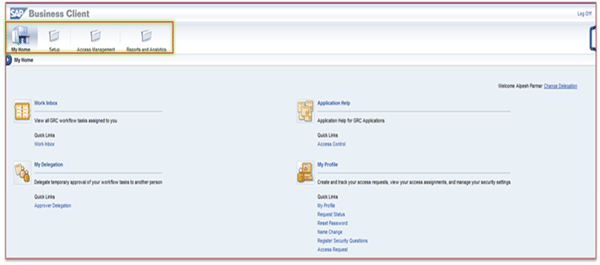
Figure 1
The SAP Access Control 10.0 Launchpad
GRC administrators can add, remove, or move links on the SAP BusinessObjects Access Control 10.0 Launchpad or work center. I walk you through all the steps that you need to know to complete this process. First, you need to know how to create a new Launchpad.
Step 1. Configure a New Launchpad
Open the Launchpad configuration screen. Execute transaction SPRO and follow IMG menu path Governance, Risk and Compliance > General Settings > Maintain Customer Specific Menus > Configure Launchpad for Menus or execute transaction code LPD_CUST. This activity brings you to the Overview of Launchpads screen (Figure 2).

Figure 2
Data listed in the Overview of Launchpads screen
Table 1 explains what each column in Figure 2 means.
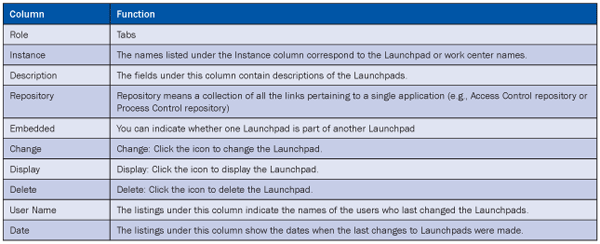
Table 1
Explanations of column headings in the Overview of Launchpads screen
To create a copy of an existing Launchpad or work center, double-click an existing work center. For example, if you want to create a work center similar to My Home, double-click GRACHOME (Figure 2). Copy GRACHOME to the new Launchpad by clicking the Launchpad button in Figure 3.
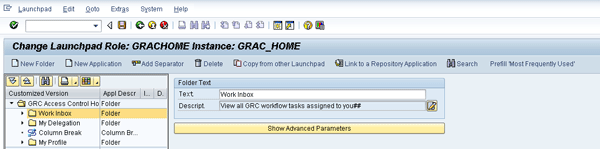
Figure 3
Open the GRACHOME work center to copy its contents
Choose Save as … from the list of options (Figure 4).
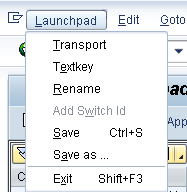
Figure 4
Copy GRACHOME to the new Launchpad
Enter values in the fields for Role, Instance, and Description (Figure 5). Adhere to the customer naming convention to show this is a custom object.
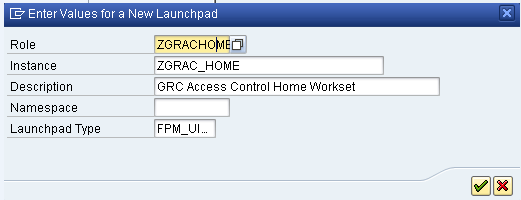
Figure 5
Populate fields with values for the new Launchpad
Now you’re ready to open the newly created Launchpad. Click the enter icon (the green check mark) to create the work center. The work center screen (Figure 2) appears again. Select the newly created work center by clicking the Change button for the newly created Launchpad.
You can now add, remove, or move links to this Launchpad by clicking the buttons located at the top of the screen (Figure 6).

Figure 6
The new Launchpad
Remove a link from the My Profile section located under the My Home work center by right-clicking the Access Request Webdynpro link. Select Delete from the list of options (Figure 7).
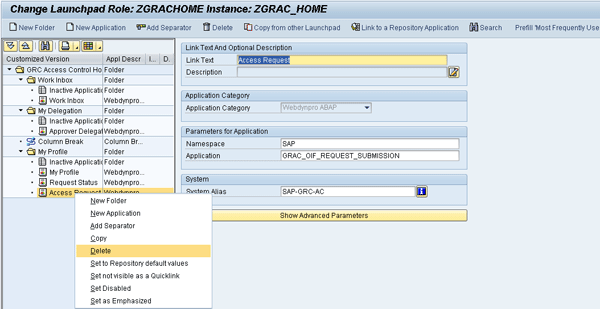
Figure 7
Delete an existing link
Click the New Folder button and then name the folder (Figure 8).
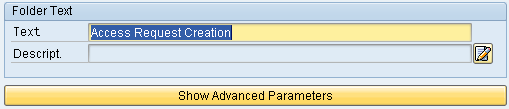
Figure 8
Enter a name for the new folder
Click the Show Advanced Parameters bar, and in the field named Icon Path, enter a value for an image (Figure 9). This image appears to the left of this folder on the SAP BusinessObjects Access Control screen.
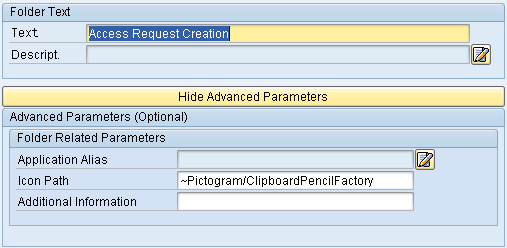
Figure 9
Enter a value for the image path
After you click the save icon, this folder appears in the left navigation menu (Figure 10).
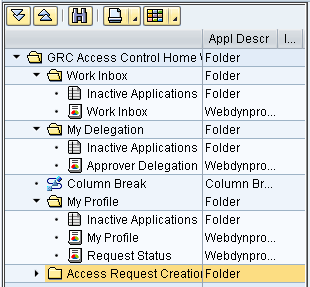
Figure 10
The newly created folder
Now add a link from the SAP BusinessObjects Access Control Repository. You can actually use the predelivered link, but this step enables you to move links to the work center or Launchpad as you prefer. Click the Link to a Repository Application button, located right next to the Copy from the other Launchpad button (Figure 5). Under the Role column in the screen, click the name of a link to a repository application to choose a Launchpad. Double-click the first name listed in Figure 11 (GRCIAREPOS). This name stands for the predelivered SAP BusinessObjects GRC Application Repository.
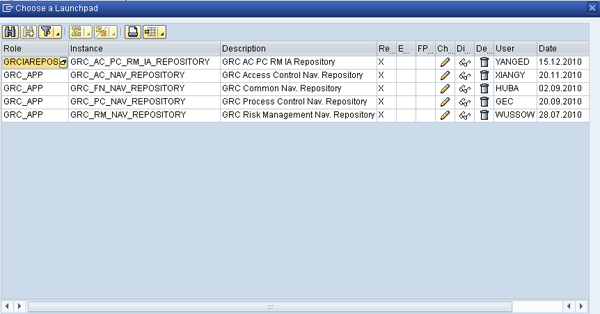
Figure 11
Add a link from the SAP GRCIAREPOS Repository
In the next screen expand GRC Access Control for links related to SAP BusinessObjects Access Control. Click the expand icon that is located on the left of GRC_AccessControl (Figure 12).

Figure 12
Expand the GRC_AccessControl folder
You now see the expanded view of the GRC_AccessControl folder (Figure 13).
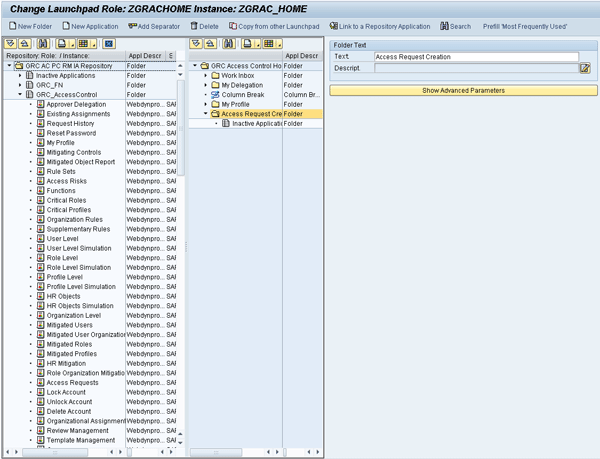
Figure 13
An expanded view of the GRC Access Control Repository and Access Request Creation folder in the ZGRAC_Home work center
Now drag and drop an application link from the SAP BusinessObjects Access Control repository into the new Launchpad. In my example, I drag and drop the Template Based Request link to the Access Request Creation folder of the ZGRACHOME Launchpad Role screen (Figure 14).

Figure 14
Drag and drop the Template Based Request to the new Launchpad
Click the save icon to save the custom Launchpad.
Add static links to a folder by clicking the New Application icon located next to the New Folder button at the top of the screen in Figure 13. I showed earlier how you can add or remove predelivered links to a custom Launchpad. I now show you how to add custom links to the Launchpad. Here I add a custom link (End User Training), which points to www.google.com (Figure 15).
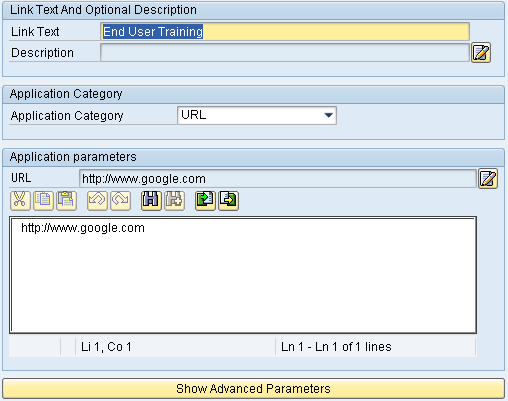
Figure 15
Add a custom link
Note
The link to
www.google.com is a random example. Users can add any links to their folders or point to the links that are in the company’s network.
The final folder structure looks like the screen shown in Figure 16.
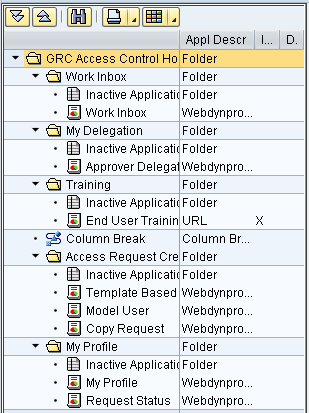
Figure 16
Folder structure for a new Launchpad
Step 2. Create Web Dynpro Components
Execute transaction code SE80 and open the GRAC_UTILITIES package (Figure 17). Expand Web Dynpro.
Note
Remember to customize objects in the customer package. Do not use the GRAC_UTILITIES package. This is a standard SAP package and it’s a common practice to use a customer package for all the customization.
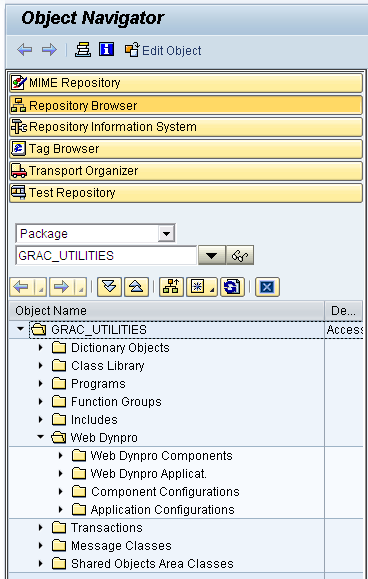
Figure 17
The GRAC Utilities Package
Create an FPM (Floor Plan Manager) UIBB (UI Building Block) component. FPM is a Web Dynpro ABAP application that provides a framework for developing new Web Dynpro ABAP application interfaces consistent with SAP UI guidelines. NWBC needs the FPM UIBB component to be able to draw the work center in the UI. Double-click the corresponding existing component (e.g., GRAC_FPM_UIBB_LPD_HOME) as shown in Figure 18.

Figure 18
Predelivered FPM UIBB component
Click the Start Configurator button to open a new browser window. Click the Copy button to copy this UIBB component to a custom UIBB component (Figure 19).
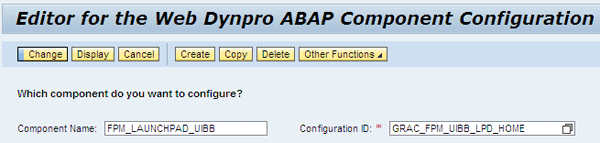
Figure 19
Predelivered component and configuration ID relationship
Click OK to associate to a transport (Figure 20). For any changes users make to standard SAP components, the SAP system asks for a transport request. This request is to make sure that you can move your changes to another system (e.g., quality assurance or production) in the transport path via transports.

Figure 20
Copy predelivered component configuration to the new custom component configuration
Click the Change button to modify properties for the newly created component (ZGRAC_FPM_UIBB_LPD_HOME) as shown in Figure 21.
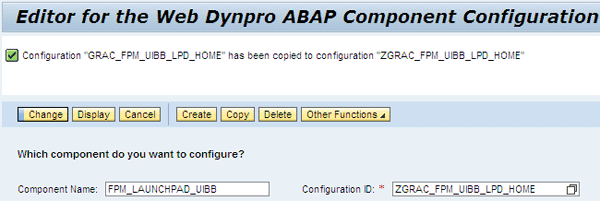
Figure 21
Modify the properties for the new component
Go to the Component-Defined tab and double-click the Launchpad (Figure 22).
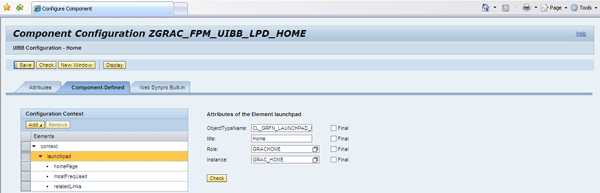
Figure 22
Role and Instance values are displayed on the right
Change the role and instance values to pick up the custom role and instance you created earlier. First choose ZGRACHOME by pressing F4 while in the Role field (Figure 23).
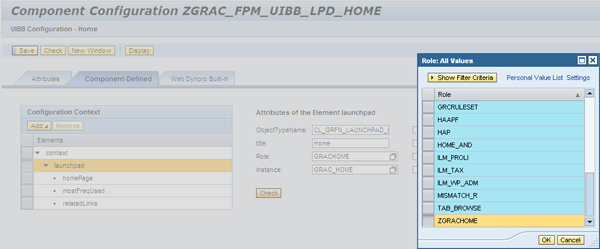
Figure 23
Choose ZGRACHOME
Now choose ZGRAC_HOME by pressing F4 while in the Instance field (Figure 24).
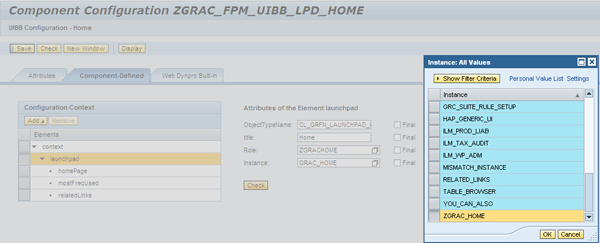
Figure 24
Choose ZGRAC_HOME
Save the components by clicking the Save button and close the browser window. In the next screen, you see a message indicating that the Launchpad configuration is saved (Figure 25).
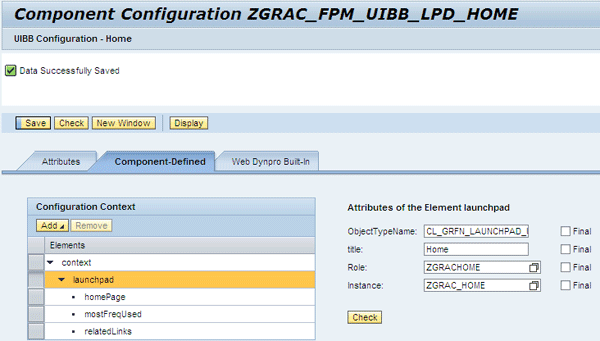
Figure 25
Launchpad component configuration is saved
Refresh the tree in transaction SE80, and it displays the newly created component (Figure 26).
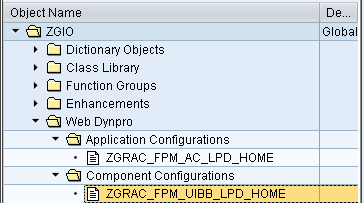
Figure 26
The newly created application and component configurations are displayed
Now double-click ZGRAC_FPM_UIBB_LPD_HOME. The next screen appears (Figure 27).
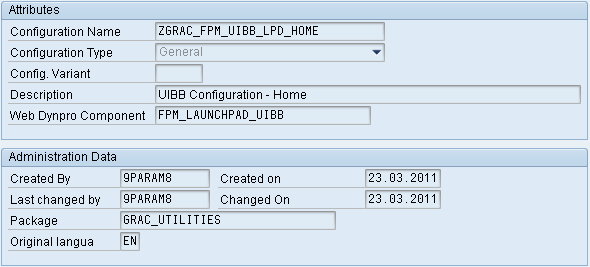
Figure 27
The custom FPM UIBB object
Create FPM CC (configuration component) by following the same steps as you did when creating the UIBB component. Open an existing component controller such as GRAC_FPM_CC_LPD_HOME to create ZGRAC_FPM_CC_LPD_HOME. First, double-click GRAC_FPM_CC_LPD_HOME (Figure 28).
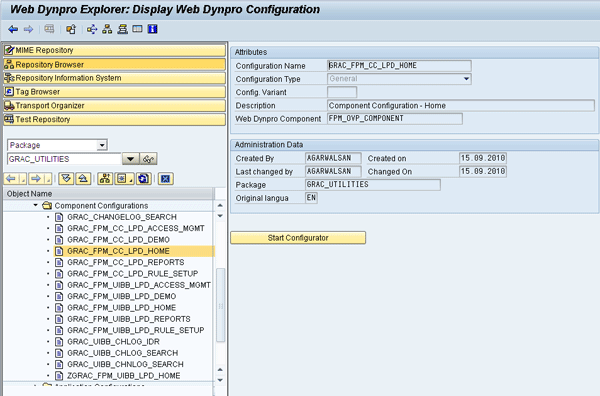
Figure 28
The predelivered FPM CC component
Click the Start Configurator button to open a new browser window. Click the Copy button to copy this CC component to a custom component (Figure 29).
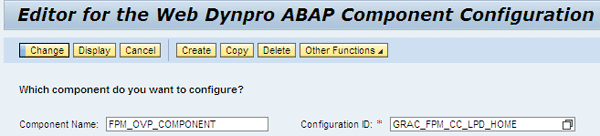
Figure 29
Component configuration for GRAC_FPM_CC_LPD_HOME
Click OK to associate to a transport (Figure 30).

Figure 30
Copy a component to the ZGRAC_FPM_CC_LPD_HOME component
Click the Change button (Figure 31).

Figure 31
Saved ZGRAC_FPM_CC_LPD_HOME configuration component
Modify properties for the newly created component (ZGRAC_FPM_CC_LPD_HOME) as shown in Figure 32.
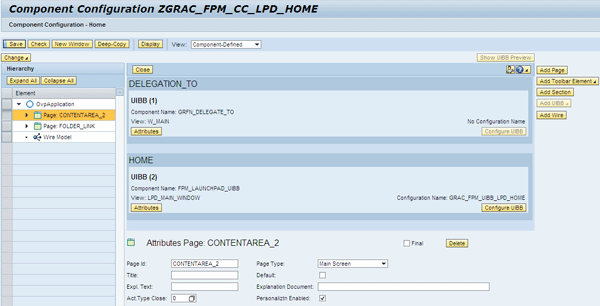
Figure 32
Change view of ZGRAC_FPM_CC_LPD_HOME
Click the Attributes button under the Home section in the right panel (View: LPD_MAIN_WINDOW) as shown in Figure 33.
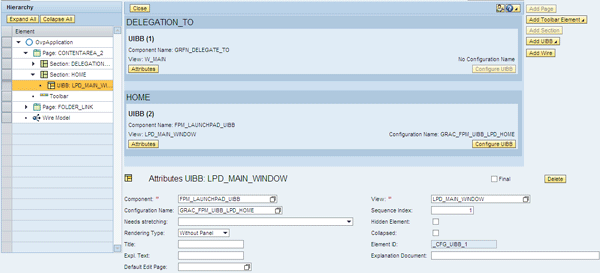
Figure 33
Attributes for LPD_MAIN_WINDOW
Change the configuration name to ZGRAC_FPM_UIBB_LPD_HOME. Save the component by clicking the Save button located at the top left of the screen (Figure 34). Close the browser window.
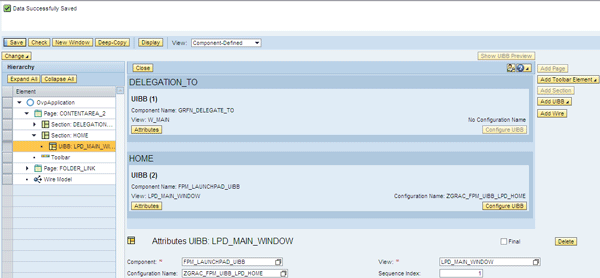
Figure 34
Change the configuration name
After you refresh the tree in transaction SE80, the newly created component appears (Figure 35).
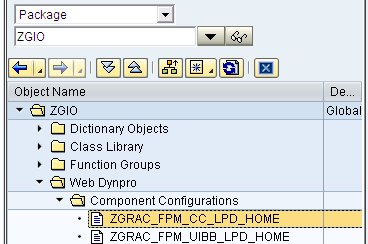
Figure 35
The newly created component
Create an application component. Expand the Application Configurations folder and double-click an existing component such as GRAC_FPM_AC_UPD_HOME to create ZGRAC_FPM_AC_UPD_HOME (Figure 36).
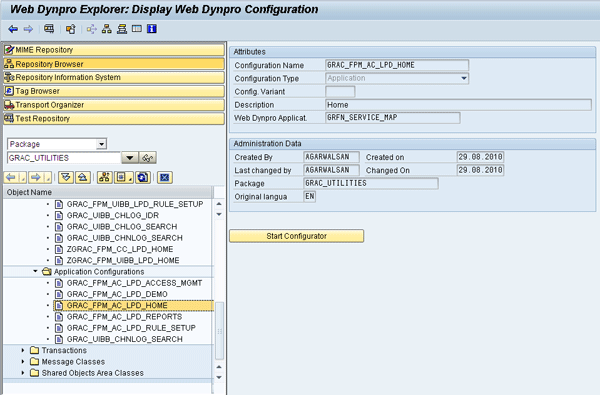
Figure 36
Open GRAC_FPM_AC_LPD_HOME
Click the Start Configurator button to open a new browser window. Click the Copy button to copy this application component to a new component (Figure 37).
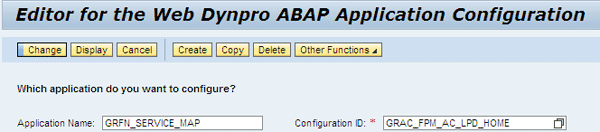
Figure 37
Configuration screen for GRAC_FPM_AC_LPD_HOME
Click the OK button (Figure 38).

Figure 38
Copy GRAC_FPM_AC_LPD_HOME to ZGRAC_FPM_AC_LPD_HOME
Now associate ZGRAC_FPM_AC_LPD_HOME with a transport request (Figure 39).
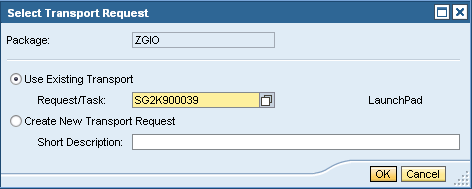
Figure 39
Associate the change with a transport request
Click the Change button (Figure 40) to modify properties for the newly created component (ZGRAC_FPM_AC_LPD_HOME).

Figure 40
The configuration ID copied to a new component
Change the configuration from GRAC_FPM_CC_LPD_HOME to ZGRAC_FPM_CC_LPD_HOME (Figure 41).
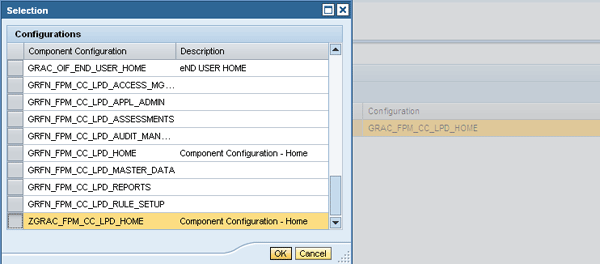
Figure 41
Change the configuration ID to ZGRAC_FPM_AC_LPD_HOME
Click the Save button (Figure 42) and close the browser window.
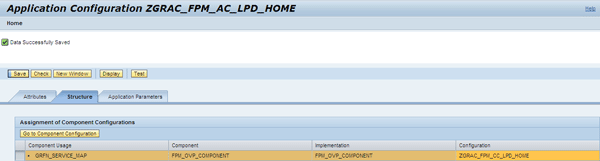
Figure 42
Save the configuration
Refresh the tree in transaction SE80 to display the newly created component (Figure 43).

Figure 43
The custom application component
Step 3. Create a Role and Assign It to the User
Execute transaction PFCG and copy the predelivered SAP_GRAC_NWBC role to ZGX_GRAC_NWBC1_MY_HOME (Figure 44).

Figure 44
Copy the predelivered role to a new role
Click the Copy All button and then click the Change button. Go to change mode for ZGX_GRAC_NWBC1_MY_HOME role (Figure 45).

Figure 45
Change view for ZGX_GRAC_NWBC1_MY_HOME
Remove unnecessary folders by right-clicking whichever folder you want to remove (E.g. Setup etc.) and selecting Delete file from the list of options (Figure 46).
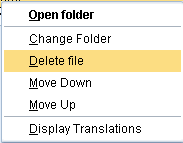
Figure 46
Remove unnecessary folders
Remove unnecessary links by right-clicking the links you want to remove (e.g., Rule Setup) and selecting the Delete node from the list of options (Figure 47).

Figure 47
Remove unnecessary links
The final role with only the Home tab looks like the screen shown in Figure 48.

Figure 48
The role with a Home work center
Assign the role to the user with other necessary roles (Figure 49).
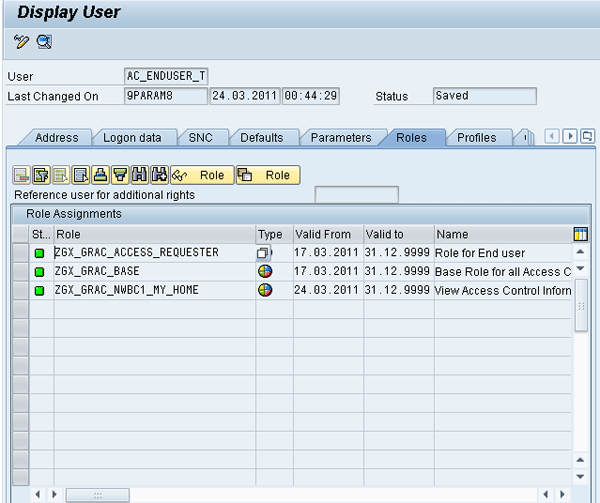
Figure 49
Role assignment to the user
Log in to your GRC server by going to https://<server>:<port>/nwbc/ as the end user. You should be able to see the modified My Home work center (Figure 50).
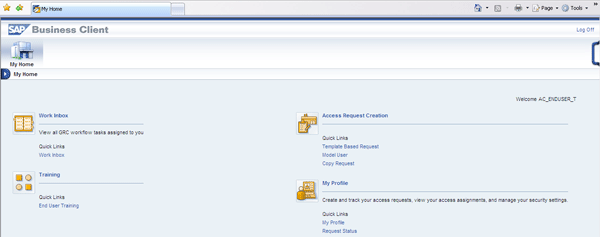
Figure 50
Modify My Home work center (notice the Template Based Request link under the Access Request Creation section and the End User Training link under the Training section)
Click End User Training to open the custom link that you added when you created the custom Launchpad (Figure 51).
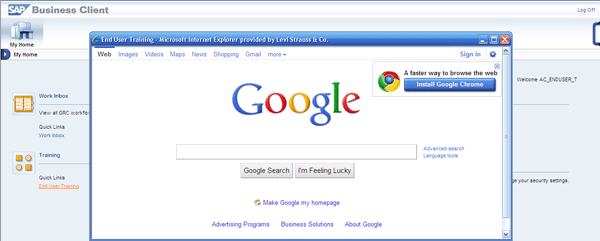
Figure 51
The custom link

Alpesh Parmar
Alpesh Parmar is the managing partner at ultimumIT, Inc. He has over 11 years of experience in the IT field and led many SAP implementations. He is an internationally recognized and a renowned subject matter expert for SAP GRC solutions and has been speaking at different SAP conferences. His articles have been published in SAP forums, SAPinsider, and the SAPexperts GRC hub. Before founding ultimumIT, Inc., he was at Levi Strauss & Co. for almost three years serving as GRC architect/advisor. Prior to joining Levi, he was a manager at PricewaterhouseCoopers and led multiple SAP GRC engagements. He also served as implementation team lead at SAP Labs and as senior software developer at Virsa Systems. Alpesh holds a bachelor’s degree in control engineering (B.E.I.C.) from Gujarat University, in India, and a master’s degree in computer science (M.S.C.S.) from Monmouth University, in New Jersey.
You may contact the author at alpeshparmar@ultimumit.com.
If you have comments about this article or publication, or would like to submit an article idea, please contact the editor.



 Premium