Learn how to connect the basic SAP order-to-cash and purchase-to-pay cycles in SAP Cash Management to manage your organization’s working capital. This working capital is further efficiently used by connecting SAP Treasury and Risk Management and SAP In-House Cash to SAP Cash Management.
Key Concept
SAP Cash Management is a sub-component of SAP Financial Supply Chain Management that helps you maintain the liquidity and monitor the cash position of a company on day-to-day basis.
Data Flow in SAP Cash Management
SAP Cash Management provides two reports:
• A liquidity forecast (for the long-term cash health of the company)
• Cash position (for the short-term cash health of a company)
Working capital is monitored with the help of these two reports. Figure 1 diagrams how SAP order-to-cash cycles, purchase-to-pay cycles, SAP In-House Cash, Treasury, and Risk Management modules are linked to SAP Cash Management.
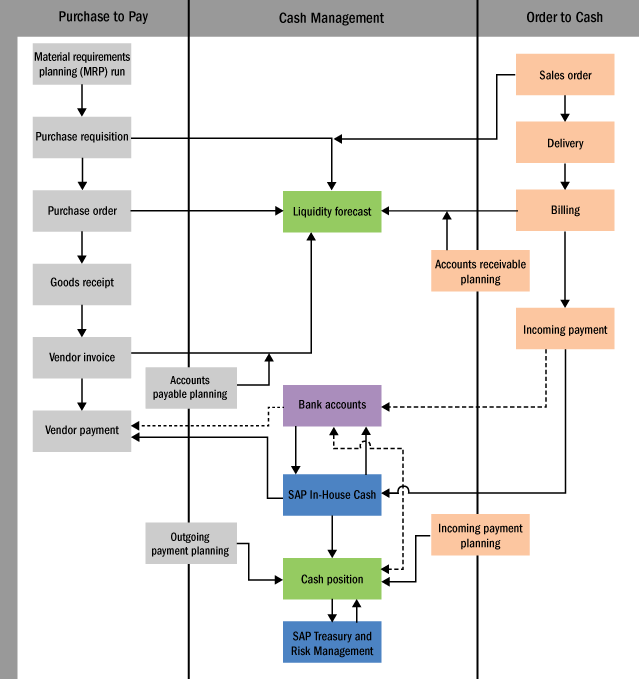
Figure 1
Data flow in SAP Cash Management
I have experienced that finance or treasury, being back-room departments, sometimes act as auditors with all the correction of business process responsibility lying in their hands. For example, say the purchase order (PO) is generated, but goods receipt (GR) is not done. The purchasing department is not worried, but a vendor inquires about pending invoices. The finance department now follows up about the GR and searches for the lost item because the finance department can’t post the invoice receipt (IR) without a GR.
Similarly, the cash management department has an open PO that appears in the liquidity forecast report as planned outflows, although ideally it should be either confirmed liability for the vendor cash management group (assigned in the vendor master data) or cash position report as outflows from the bank account. Businesses also need more visibility in terms of cash outflows and inflows. The Cash Management module helps businesses to monitor cash right from the start of each business cycle.
In a manufacturing environment, there are three cycles:
• Purchase to pay
• Production cycle
• Order to cash
Only purchase to pay and order to cash are relevant for cash management. The production cycle is internal to an organization and not directly related to cash management.Before I discuss the data flow in SAP Cash Management, I first need to explain how to activate the module. To activate SAP Cash Management, execute transaction code SPRO and follow menu path Financial Accounting (New if in ECC 6.0) > Company Code > Enter Global Parameters > Select the Company Code > Check the Activate CM. Populate the fields as shown in Figure 2 and select the Activate CM check box. Click the save icon  to save your data.
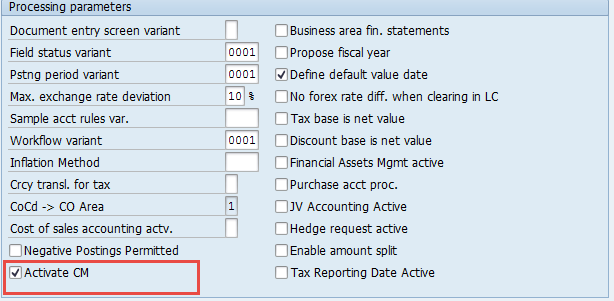
Figure 2
Cash management activation
The Purchase-to-Pay Cycle
The purchase-to-pay cycle starts with a Material Requirements Planning (MRP) run. The MRP creates the purchase requisitions (PRs). The diagram in Figure 3 defines how the data flows in the SAP Cash Management liquidity forecast reports for the PR.

Figure 3
Data flow in an SAP liquidity forecast report for PRs
- Create the source symbol
- Assign a planning level to the source symbol
- Assign a planning level and planning group to a liquidity forecast report (explained in more details in latter section about executing the liquidity forecast report)
To create the source symbol, execute transaction code SPRO and follow menu path Financial Supply Chain Management > Cash and Liquidity Management > Cash Management > Basic Settings > Define Source Symbols. This action opens the screen shown in Figure 4. Enter the values as shown in Figure 4 and click the save icon.
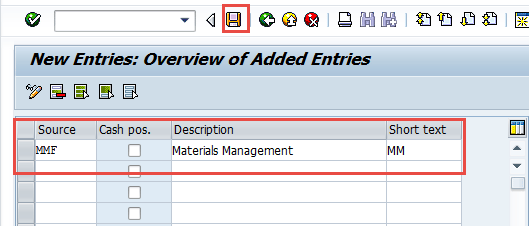
Figure 4
Create the source symbol for materials management
To assign a planning level to the source symbol, execute transaction code SPRO and follow menu path Financial Supply Chain Management > Cash and Liquidity Management > Cash Management > Master Data > Subledger Accounts > Define Planning Levels. This action opens the screen shown in Figure 5.
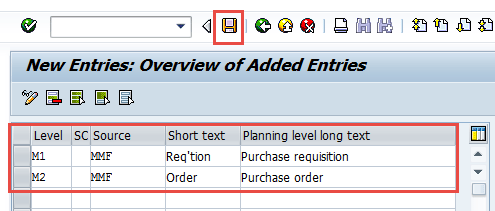
Figure 5
Assign a materials management planning level to a source symbol
To assign a logistics planning level to an internal code, execute transaction code SPRO and follow menu path Financial Supply Chain Management > Cash and Liquidity Management > Cash Management > Structuring> Define planning levels for Logistics. In the screen that appears (Figure 6), you assign logistics planning levels to internal codes. These internal codes are standard in the SAP system and are used for automatically bringing the data to SAP Cash Management through planning levels whenever a sales order, PO, or PR is created. There are no separate settings other than this in the SAP system. To assign logistics planning levels to internal codes, enter values in the fields under the Int code and Level columns as shown in Figure 6. Enter descriptions in the Planning level long text and Definition of Internal ID columns and then click the save icon to save your data.
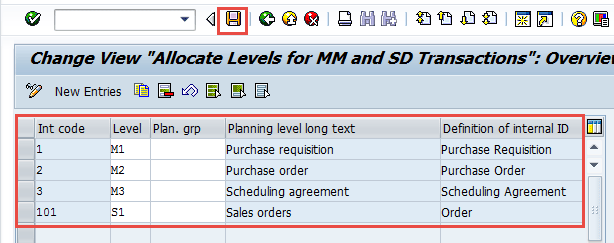
Figure 6
Assign logistics planning levels to internal codes
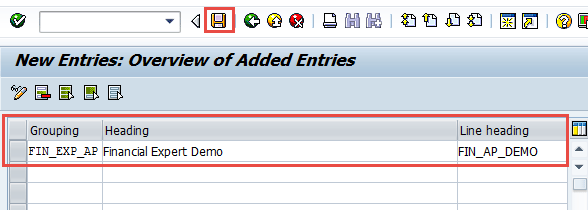
Figure 7
Create an accounts payable report group
Now you assign the planning level to the report group created above. To complete this step, execute transaction code SPRO and follow menu path Financial Supply Chain Management > Cash and Liquidity Management > Cash Management > Structuring> Groupings > Maintain Structure. In the screen that appears, planning levels and planning groups (planning groups are explained in more detail later) are assigned to the report created in the previous step. SAP provides you with flexibility to build your own set of reports and populate the data based on planning levels and planning groups as shown in Figure 8. After you have entered all your data, click the save icon.

Figure 8
Assign planning levels and planning groups to a report
When cash managers see the PR in the liquidity forecast report, they can see that they have to be ready for an expense. The PR is converted into a PO and that is reflected in the liquidity forecast report with a different planning level. Thus, the cash manager can differentiate between a PR and PO. The PO is a legitimate document that the buyer sends to a vendor for an order of the goods.
The cash manager at every month end can also monitor how many POs are opened and investigate the reason behind POs that remain open for a long time. The open POs are monitored by executing transaction code FF7B (liquidity forecast).The PO is shown in the liquidity forecast report through planning level M2.
The Cash Management liquidity forecast report provides the health checkup of a company in terms of purchasing, the amount of time to get the goods (although these don’t appear directly in the report), and the vendor invoice. The GR does not affect cash management (refer back to Figure 1).
After the GR, the vendor sends an invoice. After the vendor invoice is posted in the system, the system creates the cash management entry in the liquidity forecast. The vendor invoice is posted using transaction code MIRO (if the vendor invoice is posted with reference to a PO) or can be directly posted as a finance invoice in the SAP system through transaction code FB60 without reference to a purchase order. The vendor invoice also shows the outgoing flow based on the payment terms. The values in cash management flow through the planning group, which is assigned in the vendor master data.
The example outlined in Figure 9 is for the vendor invoice created through the purchasing cycle, but it also applies to the vendor invoice created directly in the FI module. The planning group can be created according to the business needs. For example, if a business wants to see the liquidity forecast report in terms of geography, then it makes the planning group domestic or international.
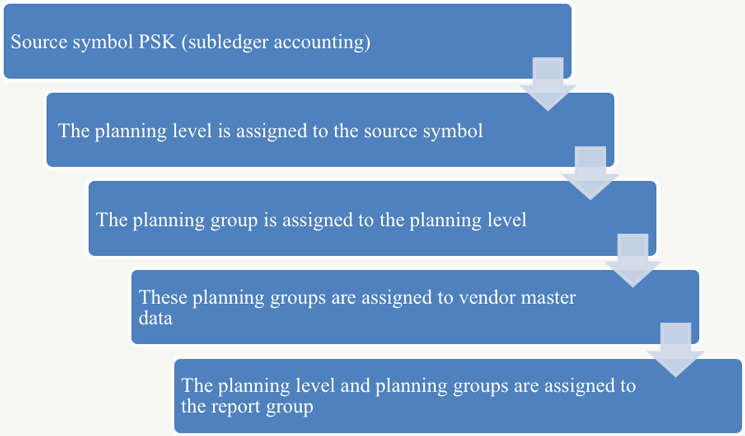
Figure 9
Data flow in an SAP liquidity forecast report for a vendor invoice
First, you create the source symbol for subledger accounts. To complete this step, execute transaction code SPRO and follow menu path Financial Supply Chain Management > Cash and Liquidity Management > Cash Management > Basic Settings > Define Source Symbols. In the screen that appears (Figure 10), enter source symbol PSK (for accounts payable and accounts receivable subledger accounts) in the field under the Source column. Populate the fields under the Description and Short text columns and then click the save icon to save your entries.
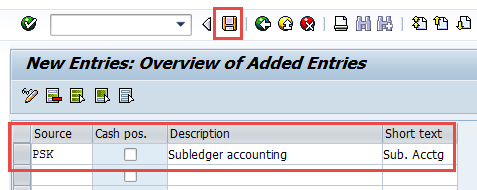
Figure 10
Create the source symbol for subledger accounts
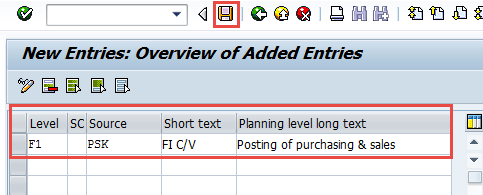
Figure 11
Assign a subledger planning level to a source symbol
If you want to separate the postings of accounts payable and accounts receivable at the planning level, then create two different planning levels for accounts payable and accounts receivable:
- F1: Accounts payable planning level
- F2: Accounts receivable planning level
Click the save icon to save your data.
The next step is creation and assignment of the planning group to a planning level. To complete this step, execute transaction code SPRO and follow menu path Financial Supply Chain Management > Cash and Liquidity Management > Cash Management > Master Data >Subledger Accounts > Define Planning Groups.
In the screen that appears (Figure 12), in the fields under the Plan. grp column assign values for the planning groups (called cash management group in vendor master data) to a planning level (the values entered in the fields in the Level column). Click the save icon (not shown) to save your data.

Figure 12
Assign a planning group to a planning level
Now you assign planning groups (called cash management group) in the vendor master data. To complete this step, execute transaction code FK02 or follow SAP Easy Access menu path Accounting > Financial Accounting > Accounts Payable > Master Records > FK02 – Change. In the screen that appears (Figure 13), the planning groups (configured in Figure 12) are assigned in the vendor master data company codes in the accounting information view.
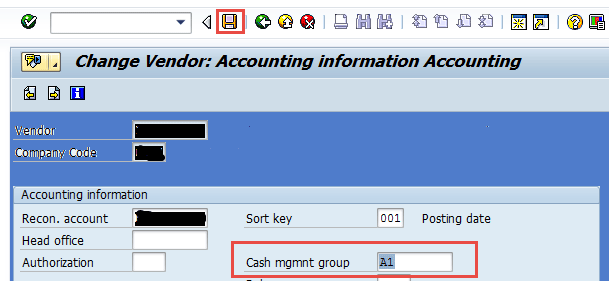
Figure 13
Assign the cash management group in the vendor master data
Select the vendor account group and go to company code data. Double-click the Account management folder and in the screen that appears (Figure 14), make the cash management group as either an optional or a required field based on the requirement. It is convenient to make the field optional in case the business doesn’t want to bring some of the vendor’s posting in the cash management report (for example, an intercompany clearing vendor). If you are using a different vendor (e.g., an account group for intercompany clearing vendor), then the point explained above is not relevant.
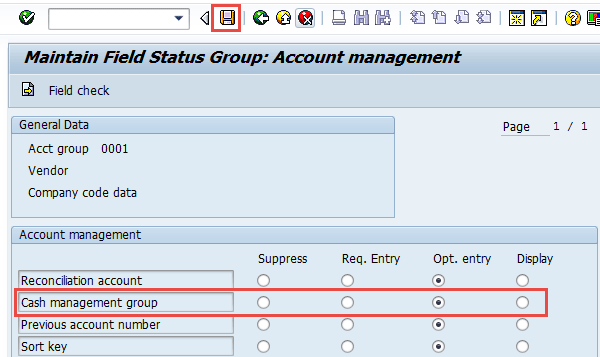
Figure 14
Activate the Cash management group field in the vendor master data
The last step in the process is vendor payment. The cash management report helps in identifying the total liability of a company in terms of vendor payment. Until the PO, liability is in terms of planning, but once the invoice is posted, it becomes part of the financial statement. The payment can be made through different tenders, such as credit cards, bank transfers, SWIFT (Society for Worldwide Interbank Financial Telecommunications), cash payments, traveler’s checks, debit cards, or checks.
Companies also use the SAP In-House Cash module for making the payments. The vendor payment clears the open items of the vendor and now the payment appears in the cash position in a bank, cash, or credit card clearing account.
The Cash Management module has two very important reports:
- Liquidity forecast report (= accessed through transaction code FF7B)
- Cash position report (accessed through transaction code FF7A)
There are different transaction codes for these reports, but both the reports can be accessed through either of the transaction codes. To complete this step, execute transaction code FF7B or FF7A or follow SAP Easy Access menu path Accounting > Financial Supply Chain Management > Cash and Liquidity Management > Cash Management > Information System > Reports for Cash Management > Liquidity Analyses > FF7A - Cash Position or > FF7B - Liquidity Forecast.
The report can be seen in days, weeks, and months. The reports can also be seen through different currency as well as thousands or millions. The example shown in Figure 15 is a liquidity forecast report in days (Figure 15).

Figure 15
Liquidity forecast in days

Figure 16
Liquidity forecast in weeks

Figure 17
Liquidity forecast in months
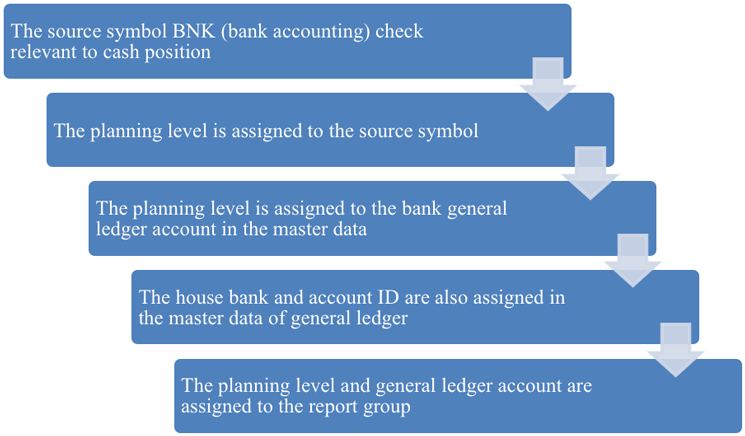
Figure 18
Data flow in an SAP cash position report for a vendor payment
To make the source symbol BNK (bank accounting) check relevant to cash position, execute transaction code SPRO and follow menu path Financial Supply Chain Management > Cash and Liquidity Management > Cash Management > Basic Settings > Define Source Symbols. This action opens the screen shown in Figure 19. Populate the fields as shown in Figure 19 and select the check box in the Cash pos. column to make the source symbol relevant to the cash position. Click the save icon to save your data.

Figure 19
Create a source symbol for the cash position and mark it as relevant to the cash position
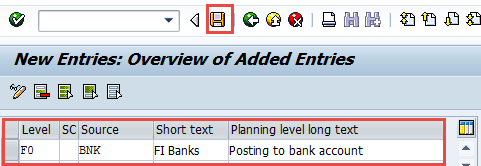
Figure 20
Create and assign a bank-related planning level to a source symbol
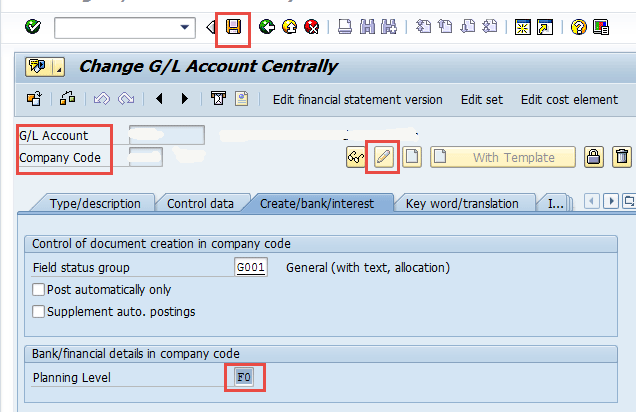
Figure 21
Assign a planning level in the bank general ledger account

Assignment of the house bank and account IDs is done in the master data of the general ledger account. To complete this step, execute transaction code FS00 or follow menu path Accounting > General Ledger > G/L Accounts > Individual Processing > FS00 – Centrally or FSS0 - In Company Code. Enter the general ledger account number and company code and select general ledger master data – Create/bank/Interest view. Enter the house bank and account ID and click the save icon to save the data.
The planning level and general ledger account are assigned to the report group. To complete this step, execute transaction code SPRO and follow menu path Financial Supply Chain Management > Cash and Liquidity Management > Cash Management > Structuring> Groupings > Maintain Structure. In the screen that appears (Figure 22), the general ledger account is assigned to a report through masking symbols (++++++). This masking is equivalent to the number of digits in the general ledger account. The masking helps in generalizing the assignment. Now, all six-digit general ledger accounts are assigned to the cash position report.
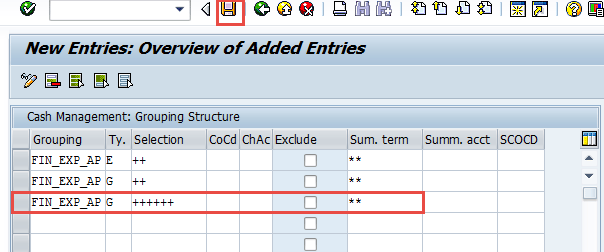
Figure 22
Masking of the general ledger account in the cash position report

Figure 23
Cash position report in currency US dollars

Figure 24
Drill down to the planning level from the currency in cash position report
The Order-to-Cash (O2C) Cycle
O2C is the most important cycle for any company. This cycle generates the revenue and is the lifeline of the business. Negotiating payment terms for vendors and customers can shorten the payment terms for customers and increase them for the vendor. In the real world this objective is difficult to achieve because for the vendor’s company you would be the customer and for customer’s company, you would be vendor. Both the business partner (your customer and vendor) would also be applying the same logic. When cash is hard to get, everybody in the market is trying to squeeze it.
The best way to control this is to implement the best practices in the O2C cycle to minimize the days sales outstanding (DSO) and quickly convert the sales order into billing by streamlining the delivery (shipping) process.
The O2C cycle starts with a sales order. The sales order creates the entry in SAP Cash Management as shown in Figure 1. The only difference between order to cash and purchase to pay in SAP Cash Management is the source symbol SDF for a sales order. The sales order helps the company to know the planned incoming cash flow. After the sales order, a delivery document is created, and goods are shipped to the customer. There is no cash management link for this process, as cash is not moving in. A billing document is generated based on the quantity of goods shipped to the customer and sent for payment. A single billing document can have multiple sales orders. The billing document creates the entry in cash management as shown in Figure 1. The only difference between order to cash and purchase to pay is that the transaction is with the customer instead of vendors.
The customer planning group can be designed based on a business requirement, such as high-, medium-, and low-risk categories. To create customer planning groups, execute transaction code SPRO and follow menu path Financial Supply Chain Management > Cash and Liquidity Management > Cash Management > Master Data > Subledger Accounts> Define Planning Groups. In the screen that appears (Figure 25), the planning groups (called cash management group in customer master data) are created and assigned to a planning level. Populate the fields as shown in Figure 25 and then click the save icon. All the accounts receivable postings such as billing document values flow in SAP Cash Management through the planning group assigned in the customer master data.
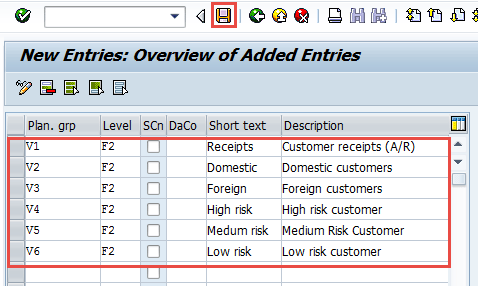
Figure 25
Create a planning group (called cash management group in customer master data)
Figure 26 is an example of what the data looks like in the SAP system when the billing document is posted for the customer.

Figure 26
The liquidity forecast report for the billing document
Payment from the customer is received through different tenders, such as a credit or debit card, PayPal, or a direct debit system (a system through which an open receivable file is sent to a bank and the bank transfers the cash from the customer’s bank account to the business bank account).
There is a strong business urge to shorten the receivable cycle. For example, when a direct debit system is used, a file can be sent to a bank for processing the payment. The bank can transfer a percentage of the total payment on the same day and the rest on approval the next day. This all depends on how the partnership is established with the bank and the business. It always makes more business sense to do business with a few banks as opposed to multiple banks because you have more bargaining power.
SAP Cash Management is also updated through direct FI transactions, such as a vendor or customer invoice created directly in FI or special general ledger (G/L) transactions (e.g., a down payment request, a down payment, bill of exchange, bad debt, or guarantee).
Planning is another very important and strong feature of SAP Cash Management reports. The planning is done through memo records in both liquidity forecast and cash position reports. The memo records are created through a planning type, which is assigned to a planning level. The memo records are seen in the reports through the planning level assigned to a reporting group. You can create the memo records directly in the SAP liquidity forecast or cash position report by using transaction code FF7A or FF7B. You can also create the memo records independently via transaction code FF63 or FF6B.
To configure the planning types, execute transaction code SPRO and follow menu path > Financial Supply Chain Management > Cash and Liquidity Management > Cash Management > Structuring > Manual Planning > Define Planning Types. In the screen that appears (Figure 27), the planning types (the values in the fields in the Plg Type column) are created and assigned to planning levels (the values in the fields in the Plan. Lvl column). The planning types are created to post a direct entry in SAP Cash Management without any affect to accounting general ledger postings. The planning types postings are also called memo records.

Figure 27
Create a planning type and assign it to a planning level
Similarly, the outgoing and incoming payment planning can be done in the cash position through memo records. The process is similar to the one I already explained (Planning Type > Planning level > Planning Level to report group). The planning level assignment to source symbol (check box for relevant to cash position in the setup) distinguishes that it is designated for liquidity forecast or cash position. The best example is that if a customer calls and promises to send the check next day, then payment can be planned in the cash position. Few business clients upload the intra-day bank statement through memo records. An intra-day bank statement shows the hourly transactions of the company in the bank.
The regular practice is to import an entire day’s transaction. Standard SAP transaction code RFTS6510 can be used to upload the file. This transaction code can also be used to import the file to create memo records (transactions that are posted outside the SAP system). An automated process can also be set up to do the above explained process.
For example, the file can be imported in directory and then the program RFTS6510 runs through the batch job to pick the file from the application server. The batch job has a list of email IDs to send the report for the details of memo record update. This whole process is automated, and the business can see in email about the memo records update through the log created by the program when it runs in the background.
Before I move to the next section, there are a few points to remember:
- SAP Cash Management is activated for the company codes
- Make sure that value date default is clicked for the company codes
- Make sure that Cash Management group field is activated in all the customer and vendor master data
- The Planning level field is activated in general ledger master data that is relevant for cash position.
- Do not assign the same planning level to the general ledger account and planning type. Otherwise, the system always fetches the data either related with planning types or general ledger, whichever is posted first.
- Based on my experience, sometimes the logistic transactions such as PO or sales order are not transferred to SAP Cash Management. You have to implement SAP Notes 9859 and 45877.
- Check the customizing and data reconciliation through transaction code FDFD (Prepare Production Startup and Data Setup). Execute transaction code SPRO and follow menu path Financial Supply Chain Management > Financial Supply Chain Management > Cash Management > Tools > Prepare Production Startup and Data Setup).
SAP In-House Cash
SAP In-House Cash is also part of the IT ecosystem that helps in efficient monitoring of cash flow. The SAP In-House Cash module is explained by the name itself; this module opens an in-house bank in the SAP system that does all the work of the bank. A bank is used by the business to send the payments to the vendor, get the payments from the customer, create the bank statement, do the intercompany transfer and netting, and finally reconcile the bank statement. It provides numerous benefits to organizations that use it, including saving the cost to create banking interfaces and transferring cost. It concentrates the money in one account. Global companies operate in a number of countries, and some of the countries have volatile currency as well as political environments. The businesses in these countries want to operate from the headquarters or from a more stable country. The SAP In-House Cash module is best suited in these business environments because it safeguards the volatility of banking.
The in-house cash center could be designed as centralized (only one in-house cash center for the company), decentralized (multiple), or mixed (such as one for North America, Europe, EMEA), or both. The mixed design is for a combination of company codes, such as all the company codes in a continent. The decentralized design is for a small group of company codes or one for each company code.
SAP In-House Cash values are updated in SAP Cash Management by creating a new source symbol (IHC) and assigning this source symbol as relevant to cash position.
To configure this setting, execute transaction code SPRO and follow menu path Financial Supply Chain Management > Cash and Liquidity Management > Cash Management > Basic Settings > Define Source Symbols. In the Change View Source symbols for Cash Management: Overview screen, click the New Entries button. Then make the entries as shown in Figure 28 and click the save icon.

Figure 28
Create a new source symbol to identify the SAP In-House Cash entry
Level
|
SC
|
Source
|
Short text |
Planning level long text |
I1
|
|
IHC
|
Ext. Prov. |
Provisionally posted – Ext. |
I2
|
|
IHC
|
Int. Prov. |
Provisionally posted – Int. |
I3
|
|
IHC
|
Fin. post |
Finally posted |
Table 1
Planning levels for SAP In-House Cash in SAP Cash Management
Figure 29
Figure 29
Assign an In House Cash Planning Group to a planning level
The settings for integration of SAP cash management is integrated with SAP in-house cash is explained in below section. To configure this setting, execute transaction code SPRO and follow menu path Financial Supply Chain Management > In-House Cash > Periodic Tasks > Transfer Financial Status to SAP Cash Management > Set up Financial Status (Figure 30). This setting is done in different steps and saved in the last step.
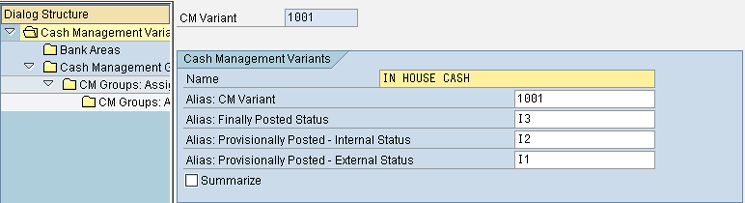
Figure 30
Create the Cash Management variants in SAP In-House Cash and assign the planning level
Step 1. Click the Cash Management Variant folder and enter the values in the fields shown in Figure 30.
Step 2. Select the Bank Areas folder in the Dialog Structure section (Figure 30) and click the New Entries button (not shown). In the refreshed screen enter IHC in the field in the BkAr column and ICH Bank in the Description Bank Area field (Figure 31). Click the save icon.
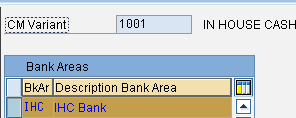
Figure 31
Create the bank area in the SAP Cash Management variant
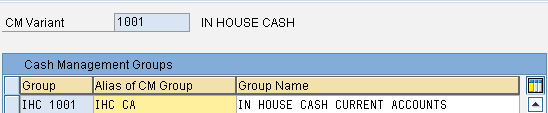
Figure 32
Assign the Cash Management group to the Cash Management variant
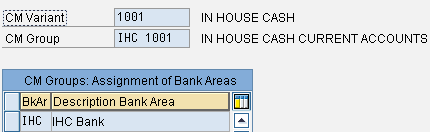
Figure 33
Assign the bank area to the Cash Management group and the Cash Management variant
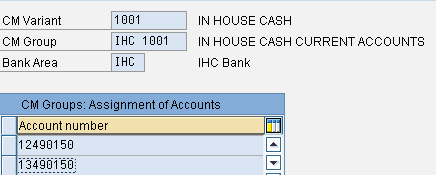
Figure 34
Assign an account number to the Cash Management variant, group, and bank area
Note
Cash pooling is an SAP Cash Management technique to concentrate or transfer the cash from multiple bank accounts to a single bank account.
Treasury and Risk Management
The money from cash pooling is invested by the business in transaction management, such as securities, bonds, foreign exchange, derivatives, and money markets. There are different products in which this money is invested, such as commercial paper, fixed term deposits, and loans.
The investments are monitored in SAP Cash Management reports through planning levels. The planning levels are assigned to a product type, and the update type is checked as SAP Cash Management relevant.
The update type works as a building block of SAP Treasury and Risk Management configuration settings, which connect the two islands of Transaction Manager (different sets of configuration settings) and money market or foreign exchange securities (different sets of configuration settings) and also decides the type of postings.
The linkage of SAP Treasury and Risk Management with SAP Cash Management is shown in Figure 35.
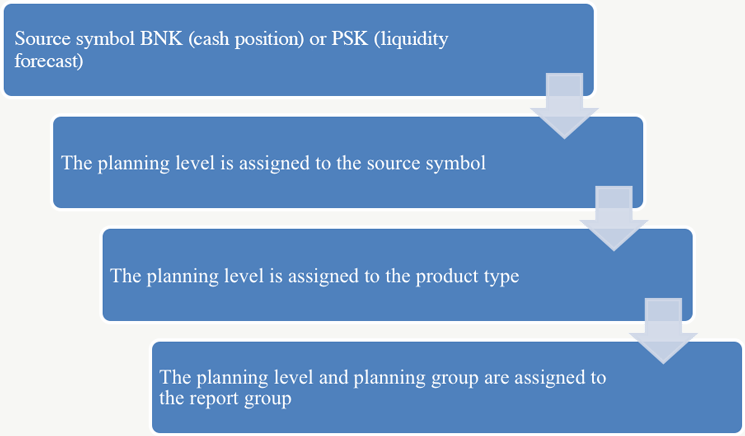
Figure 35
Data flow in the SAP cash position or liquidity forecast report for SAP Treasury and Risk Management
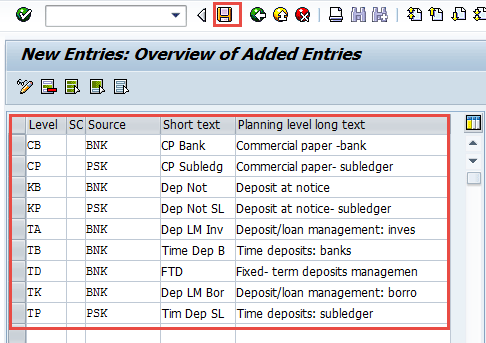
Figure 36
Create and assign a treasury planning level to a source
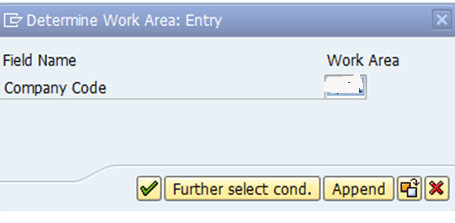
Figure 37
Select the company code for the mapping of the product type and the planning level
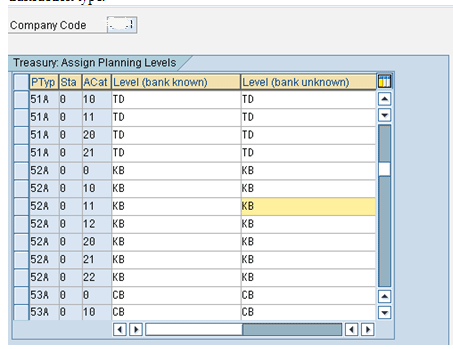
Figure 38
Assign a planning level to a product type based on activity category
Product type
|
Status
|
Activity category
|
Level (bank known) |
Level (bank unknown) |
51A
|
0
|
10
|
TD |
TD
|
51A
|
0
|
11
|
TD |
TD
|
51A
|
0
|
20
|
TD |
TD
|
51A
|
0
|
21
|
TD |
TD
|
52A
|
0
|
0
|
KB |
KB |
52A
|
0
|
10
|
KB |
KB |
Table 2
Configuration settings to link product types to planning levels
The activity category means what type of transaction is performed on the product type, such as creation of a contract or settlement. The configuration settings for this category tell the system what planning level to update in SAP Cash Management. For example, activity category 20 is for contract creation and 30 is for settlement. It is important to assign the right combination of product type, planning level, and activity category. For example, if activity category 20 is missing in the above table, then SAP Cash Management is not updated even though you have processed the contract for the long-term deposit product type.
The SAP system provides the functionality of updating the different planning level if the bank (business partner) through which a treasury transaction is done is unknown as shown in Figure 38.
To link an update type to SAP Cash Management, execute transaction code SPRO and follow menu path Financial Supply Chain Management > Treasury and Risk Management > Transaction Manager > General Settings > Link to Cash Management > Specify Update Types for Cash Management (Figure 39).
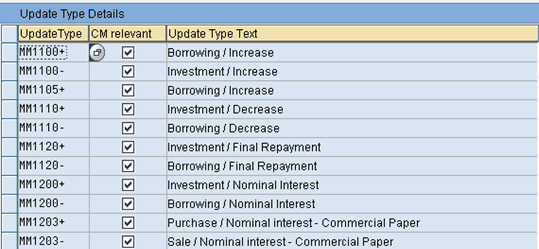
Figure 39
Mark the update type relevant to cash management
Update type
|
SAP Cash Management relevant
|
Update type text
|
MM1100+
|
X
|
Borrowing/increase
|
MM1100-
|
X
|
Investment/increase
|
MM1200+
|
X
|
Investment/nominal interest
|
MM1200-
|
X
|
Borrowing/nominal interest
|
Table 3
Identify the updates type for SAP Cash Management
- 51A: Long-term deposit
- 52A: Float loan
- 51C: Spot loan
- 51D: Repo
Table 4 lists planning levels that are relevant to transaction management.
Planning level
|
Source symbol
|
Description
|
CB
|
BNK
|
Commercial paper - bank
|
CP
|
PSK
|
Commercial paper - subledger
|
KB
|
BNK
|
Deposit at notice
|
KP
|
PSK
|
Deposit at notice - subledger
|
TA
|
BNK
|
Deposit/loan management: investment
|
TB
|
BNK
|
Time deposits: banks
|
| TD |
BNK |
Fixed-term deposits management |
| TK |
BNK |
Deposit/loan management: borrow |
| TP |
PSK |
Time deposits: subledger |
Table 4
Treasury planning levels in SAP Cash Management
Table 4
Recommendations
Although there is non-SAP software available in the market to address the need of working capital to monitor and do the investments, I recommend SAP Cash Management for the following reasons:
1. The working capital monitoring puts the finance department at the forefront. Seeing how the cash is flowing in the company is an important requirement.
2. It will help management to assign and monitor the responsibility of the departments because the cash flow is transparent. For example, management can decide what the responsibilities of the finance and treasury departments are.
3. The business user will find the process more efficient and easy to adapt.
4. This helps management to spend less on IT (fewer systems to manage).
5. It will also help external business partners to interact with fewer systems in the company and thus helps to build a better relationship with banking partners as well as vendors and customer IT system landscape.
6. SAP as a system complies with all global accounting requirements, such as International Financial Reporting Standards (IFRS), US Generally Accepted Accounting Principles (GAAP), or local country GAAP.
7. Follows Sarbanes-Oxley and Basel 2 norms.
8. Simplified IT architecture where everything is one box and platform.
9. Better bargaining power with the bank to have one single format for electronic banking, such as XML.
10. Good return on investment.
11. The economies of BRIC (Brazil, Russia, India, and China) are rising, so most of the developed countries started their operations in these countries, but the financial and treasury operations are still managed by headquarters based out of the US or Europe. These countries are still evolving in terms of electronic banking for bank to business. The single platform helps faster cash flow.
12. Greater visibility of cash flow helps in changing the strategy if loss occurs in trading.
13. Foreign exchanges such as the US dollar and euro will be easily available to a subsidiary because of in-house cash functionality
14. Easy to identify the need of worldwide markets based on financial products such as treasury bills, short- or long-term loans, spot rate, interest rate, and hedging.
15. Parallel valuation areas set up for complying with IFRS and US GAAP.
16. Improvement in transparency, quality, faster processes, and increased flexibility, greater efficiency owing to streamlined straight-through processing with a high degree of automation.
Gyanendra Mishra
Gyanendra Mishra is a business system analyst at an optical manufacturing company. Gyanendra is a certified functional consultant with more than 10 years of experience in SAP Financial Supply Chain Management (FSCM), Finance (FI), and Managerial Accounting (CO) and integration with other modules of manufacturing business. He worked across the globe in various industries that allow him to understand the global requirements of cash management and a strong need for effectively managing the working capital in a global business environment.
You may contact the author at gyani.mishra@gmail.com.
If you have comments about this article or publication, or would like to submit an article idea, please contact the editor.


 Premium