Manager
Learn how to make the best use of Learning Maps in SAP Solution Manager. This functionality enables end users to generate HTML-based Web pages from hosted training material and documentation that can then be shared internally or externally. Discover the configuration required for creating custom Learning Maps and tips on how to manage and share the material that can be hosted.
Key Concept
If you are using SAP Solution Manager for managing the implementation of new SAP solutions or to make changes to existing business processes, you will no doubt be making use of the blueprint and configuration functionality in SAP Solution Manager. This naturally creates the need for training your end users in the new functionality. This is what Learning Maps are designed for in SAP Solution Manager. You can use the existing project structure to assign training material and other help documentation that is presented to users in a Web browser. This can be further customized based on specific roles and end-user assignments.
If you are using SAP Solution Manager as your repository for implementation or template projects to document your blueprint and configuration, you will be familiar with the business process structure. This is the foundation for representing your SAP solutions and associated business processes in a structured way within SAP Solution Manager. Additionally, it provides the base to enable other functionality in SAP Solution Manager and as such is also the foundation for creating Learning Maps.
However, it may be the case that you are not using SAP Solution Manager to implement new business processes or to manage changes in your landscape. Regardless, the need for training end users in the new functionality still arises. You can choose to manage this in SAP Solution Manager using Learning Maps.
You can create a dummy structure against which to base the associated training material. Therefore, the storage of training material and help documentation is independent of how you manage the introduction and implementation of new functionality in your SAP solutions. However, for the sake of better management and readability, I recommend that this storage be referenced back to the business process structure rather than to a dummy structure.
I’ll show you how to set up Learning Maps in your SAP Solution Manager system. I will cover the prerequisites, step-by-step technical configuration, and maintenance. Then I will explain how to share and publish your Learning Maps and provide useful scenarios to make best use of this feature.
Learning Maps
A Learning Map in SAP Solution Manager is a collection of structured end-user training material based on a specific role or end-user assignment. The presentation format can be determined by the project or author of the material, although most of the time it remains consistent.
In addition, you can customize and tailor Learning Map views based on end-user roles and, best of all, you can host them on a Web page, which requires no direct access to SAP Solution Manager or an SAP account. This means that anyone with access to a Web browser can be given access to the training materials or documents located in SAP Solution Manager while removing the need for an SAP account into the system. Of course, security still applies and read-only access is specified by default in Learning Maps. This ensures the integrity and relevance of the material. Any update to the material or document in SAP Solution Manager is instantly reflected in the Learning Map, so it only needs to be maintained in one area of the project structure.
Documentation associated to a Learning Map is not restricted and you are free to include written documentation, HTML links, presentations, test cases, diagrams, and even SAP eLearning material in the form of SAP Tutor files. Refer to https://service.sap.com/saptutor for more information on SAP Tutor and links to download the player and editor.
This is a great benefit for project managers and end users alike as SAP Solution Manager can be used as a central repository to host this material. Learning Maps link directly to the Business Process Structure created as part of a project and use all of SAP Solution Manager’s documentation functionality.
Prerequisites to Configuration
In this section, I outline any technical prerequisites required before being able to create and publish the Learning Maps.
The most basic prerequisite is an understanding of SAP Solution Manager and its concepts with regard to the business process structure, a solution, and a project. Also relevant is the understanding of user roles and assignments and technical configuration.
Ensure your SAP Solution Manager system meets the following minimum requirements:
- SAP Solution Manager 7.0 with at least enhancement package 1 and Support Package 18
- The system is configured to a basic level using transaction SOLMAN_SETUP
- Basic Web services are activated (which I’ll describe later)
- Background user is set up to fetch and display Learning Map contents (which I’ll describe later)
Now let’s look into this third bullet point in more detail.
Note
All screenprints in this article are based on SAP Solution Manager 7.0 with Support Package 25 and may appear slightly different in your system.
Activate Required Web Services
The primary service that needs to be activated is /sap/bc/bsp/sap/learning_map. In addition to this, I recommend you activate all relevant services by going to transaction SPRO and following IMG menu path SAP Solution Manager > Basic Settings > HTTP Services > Activate Solution Manager Services. Follow the instructions given in the IMG documentation for this activity and ensure the service /sap/bc/bsp/sap/learning_map has been activated by testing it.
Create Background User for Content
Next you need to create a background user to be able to display documentation that is hosted via Learning Maps. This is used for secure public login to SAP NetWeaver Application Server (SAP NetWeaver AS), which then needs to be assigned to the Learning Map service. Follow IMG menu path SAP Solution Manager > Basic Settings > HTTP Services > Create Alias for Documentation Services. Then follow the documentation for this activity.
This concludes the prerequisites to enable users to effectively display the Learning Map and included content from a Web browser.
Transaction SOLAR02 and the Training Materials Tab
The actual inclusion of your training materials (e.g., written documentation, presentations, eLearning links) is done in transaction SOLAR02 in the Training Materials tab. This means that all actual content management is handled in the familiar transaction SOLAR02 and not directly in any Learning Map-related transaction. It also means that you can use all the SAP Solution Manager documentation functionality available for blueprint management, such as checking in and checking out the documentation, attributes, direct editing, copying, and moving. Therefore, you can assign relevant training-related material against an existing business process structure associated with a project in transaction SOLAR02. Figure 1 shows an example of an existing project with a business process structure.
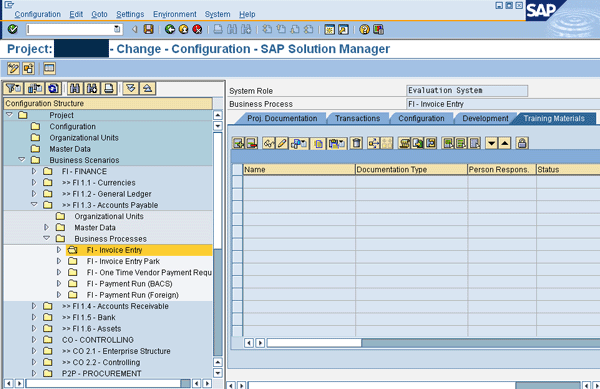
Figure 1
An existing project with a defined business process structure
SAP recommends you assign process-specific training materials against the process in the Training Materials tab. Other documentation should be assigned at other structure levels decided in your blueprint and configuration plans.
However, if you have not used SAP Solution Manager for documenting your SAP project, then you can still create a new project and structure against which you can store training materials. In this article, as an example I will create a new dummy structure and assign relevant content to it.
The creation of a project is outside the scope of this article. Once you have created it, navigate to transaction SOLAR01 and open the project you have created. Expand the Business Scenarios folder and in the Structure tab on the right side, you can create new nodes (e.g., Accounting, Sales) to suit the training materials available (Figure 2).

Figure 2
Create folder nodes to assign training materials in transaction SOLAR01
Once you save your modifications, the nodes are visible on the left side in the structure. Navigate to transaction SOLAR02 and then you can make use of the Training Materials tab to which you assign the content. In this example, I assign content into the Training Materials tab at this level of the structure, rather than the business process level. To do this, click the insert document icon, browse to the file, and upload it by selecting the Upload File radio button and clicking the green checkmark icon (Figure 3).
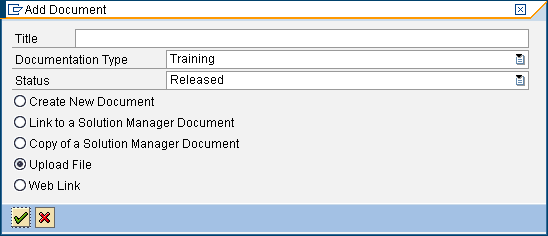
Figure 3
Upload file screen
Figure 4 shows example documentation, an HTML link, an eLearning file, and a presentation that has been uploaded to the Accounting scenario created in the screen in Figure 2. You are free to choose the relevant training materials associated with the business process or scenario and can thereby manage your content directly in transaction SOLAR02.
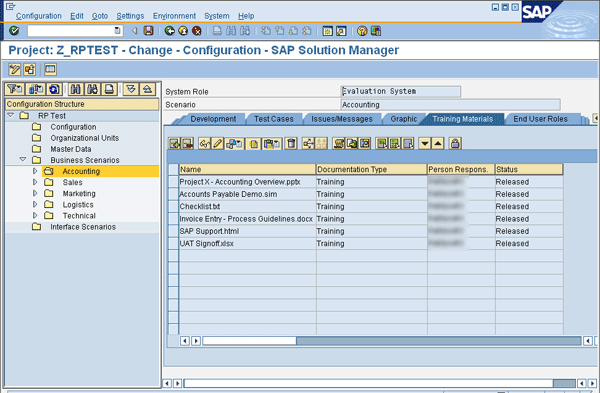
Figure 4
Example training documentation uploaded
Once you have built up your repository of training materials in the SAP Solution Manager Knowledge Warehouse, you can move on to sharing this with end users by creating a Learning Map.
Transaction SOLAR_LEARNING_MAP
Transaction SOLAR_LEARNING_MAP is the main transaction for creating and editing Learning Maps. Here you define the layout and contents of the Learning Map and customize it with a logo and end-user roles. To get started, navigate to the transaction and click the create icon. Enter a title and choose the relevant project where the training material is stored (Figure 5).

Figure 5
Create a new Learning Map
After this, the Learning Map opens in change mode and you can begin the design. The right pane has a list of six useful, self-explanatory points that describe how to modify the Learning Map. I cover this in more detail below.
The first action you should take is to save the Learning Map by clicking the save icon. By default, in a new Learning Map, you see two defined chapters, each with two subunits and a Learning Map Header node. Initially, you can add some text to introduce the Learning Map or reference the project and assign a logo. To do this, click the Learning Map Header node on the left and type the text into the blank area on the right. To add a logo, right-click the Learning Map Header node and select Logo. In the URL field, enter the location and click the save icon (Figure 6).
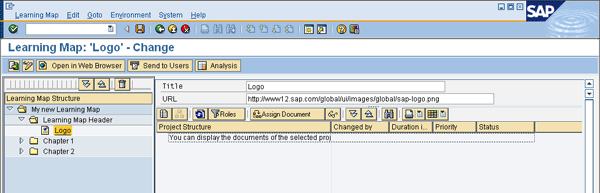
Figure 6
Assign a logo
For this example, I create a simple structure for the Learning Map based on the dummy business process structure in the screen in Figure 2. I use the chapter node as the main header and the units to represent the business scenarios. You can, however, choose your own layout, but for this article I intend to keep things simple.
Delete the Chapter 2 node by right-clicking it and selecting Delete. Next, click the Chapter 1 node and rename it to the Project name (e.g., Project X) (Figure 7). Then you can create subunits, such as Accounting, Sales, and Technical, by right-clicking the parent node and selecting Create Unit. I’m using these in my example because they are the only areas for training I want to share.
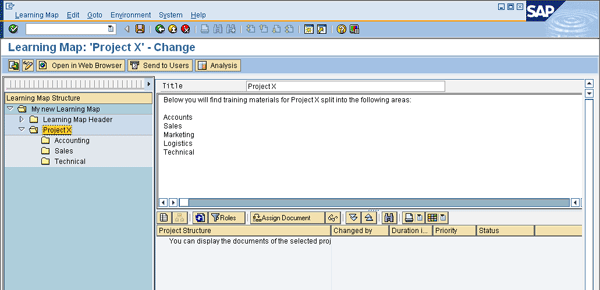
Figure 7
Updated Learning Map for Project X (an example)
With the logo added and the structure created, now you assign the actual content. Browse to the first subunit, which is Accounting in my example. To display the associated training material, click the refresh icon and expand the nodes (Figure 8).
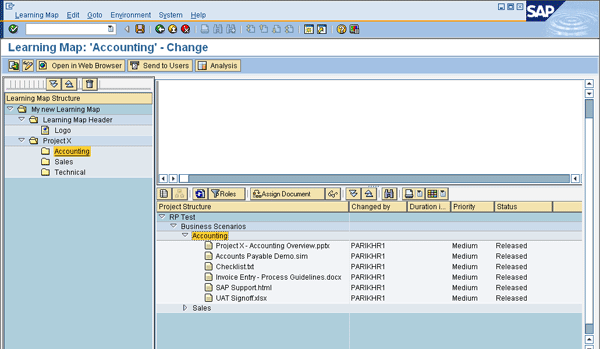
Figure 8
Associated training materials from transaction SOLAR02 for Accounting
To select which training materials should be included in the Learning Map, drag and drop the materials from the list on the right to the subunit on the left side. Figure 9 shows an example of assigning training content to the Learning Map structure.
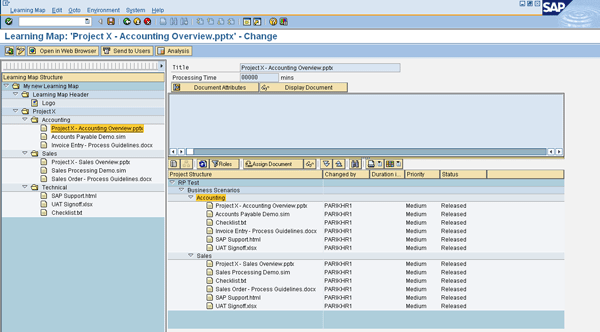
Figure 9
Completed Learning Map with assigned content
In this way, you can choose which documentation is included from transaction SOLAR02 into the Learning Map and customize the layout based on Chapters and Units. Don’t forget to click the refresh icon any time you modify the documentation in transaction SOLAR02 and to save regularly.
Publish Learning Map
At any point, you can click the Open in Web Browser button in the screen in Figure 9 to view the Learning Map in real time. Figure 10 shows the result, using the example in this article.

Figure 10
Learning Map displayed in a Web browser
Click the Open all link to expand the subunits and reveal the associated training materials. End users can click the link and the document and link are displayed. There is also a Feedback button against each document. This can be disabled by selecting the Display Feedback Buttons in Learning Map check box in the main Learning Map screen (Figure 11). You would disable it if you did not want users to submit comments back to you regarding the material.

Figure 11
Disable feedback check box
To simply publish the Learning Map to end users, you can send them the long URL displayed in the Web browser. However, a tidier option is to use the Send to Users button (Figure 9), which uses end-user roles that I have not yet covered.
Filter Material by End-User Roles
You can define end-user roles based on specific jobs or organizational units and assign these in transaction SOLAR02 in the End User Roles tab. In doing so, you can filter the relevant documentation in transaction SOLAR_LEARNING_MAP according to assigned end-user roles. This way, only those users assigned to the role see the associated training materials in the Learning Map. It is a very convenient way to restrict training materials to those users and groups to which it is relevant.
Analyze Feedback and Learning Maps Use
You can analyze feedback using the Feedback button shown against each training document type in the Web browser (if enabled). You can also see the number of hits per training document. To do this, click the Analysis button in the main Learning Map screen to open the Learning-Map-Analyse screen (Figure 12).
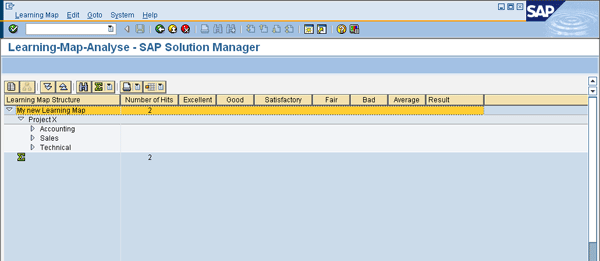
Figure 12
Analysis of Learning Map
Useful Scenarios
In this final section, I aim to cover an overview of useful scenarios for Learning Maps based on my experience.
Of course, the most important use as SAP intended is for the storing and publishing of training material in the Realization phase of an SAP project. This can be tailored to specific users or groups. As you have seen, you can access it through a Web browser without the need for an SAP Solution Manager login.
The material also remains up to date and centralized with one area (transaction SOLAR02) for maintenance. Training material can also quickly be distributed using Learning Maps after a project, after an implementation, or after change in operations or functionality.
I have also come across an example where a dummy project has been set up quickly with one node and documentation uploaded to it. Then a Learning Map has been created to quickly distribute the documentation to users without SAP access.
In my company, I have created a Learning Map to distribute interface documentation to other business units outside of our department that interface with our SAP systems. This ensures they have the most up-to-date documentation when required and any changes to interfaces are documented and shared immediately with them once uploaded into transaction SOLAR02. The development team is aware of this process and regularly updates the documentation, which in turn updates the Learning Map.
Rohan Parikh
Rohan Parikh is the SAP Solution Manager lead in the SAP Competency Center for the UK’s largest integrated energy company, Centrica Plc. He holds a BSc(Hons) in computer science from King’s College — University of London, and is SAP certified in SAP Solution Manager operations. He has experience across the entire SAP Solution Manager domain but focuses on the landscape and operations management area of SAP Solution Manager. He has practical experience in implementing, configuring, and detailing a tailored SAP Solution Manager roadmap to deliver project-specific, business-related, and operational value from using SAP Solution Manager to its potential. He is enthusiastic about promoting the use of SAP Solution Manager to all end users.
You may contact the author at rohan@logify.co.uk.
If you have comments about this article or publication, or would like to submit an article idea, please contact the editor.



 Premium