GuiXT is the standard SAP solution for SAP R/3 screen customization. Learn how to integrate images and screen tips using GuiXT without any ABAP code changes or IMG customization.
Key Concept
GuiXT is free SAP software for users starting with R/3 4.0. In R/3 Release 4.6 and up, GuiXT comes standard with SAPGUI. It is a flexible tool that applies to all SAP transactions and allows you to customize SAP screens using scripts without changing ABAP code. To restrict your SAP Note search by application area, use BC-FES-GXT /Basis Components – Frontend Services – GuiXT/.
GuiXT is compatible with SAP R/3 releases from 3.0 to 4.7 as well as SAP NetWeaver Portal. The GuiXT scripting language remains constant for all versions; however, you may need to adapt these scripts for new releases. For an overview of the GuiXT versions available, see www.synactive.com and choose Download>Version Info>Click here to display all previous versions. The current GuiXT version is 2006 Q4 2, released in November 2006.
GuiXT allows you to perform many functions without using ABAP code. Through GuiXT scripts, you can customize your screen layout, add buttons, include office applications and tips, start applications, and insert photos and data- dependent images. You can find more about the screen modifications that you can make with GuiXT at www.synactive.net/site/products/guixt_overview.htm.
Let’s focus on a few uses of GuiXT: adding a picture, displaying data-dependent images, starting PC applications by clicking on an image, and adding tips. I tested the techniques in this article in R/3 4.6C, although GuiXT works in ERP Central Component (ECC) as well.
Introduction to GuiXT
When using GuiXT, you do not have to write ABAP code; GuiXT is based on user-friendly GuiXT scripts. To use GuiXT, you do not have to use IMG customization (transaction code SPRO), where other configuration settings are made. You do not have to modify standard SAP programs, which makes your next ERP upgrade easier.
Knowing which GuiXT parameters to use gives you a big opportunity to design the layout of your own SAPGUI screens. To know which parameters to use, you should read the documentation and practice using them. You can move or hide fields, buttons, and table columns; change field texts; simultaneously modify texts; introduce data-dependent images; or insert default values in fields. GuiXT parameters let you modify SAPGUI screens and data in a more convenient way because they don’t require ABAP coding.
You can use GuiXT scripts in transaction variants and screen variants. GuiXT allows you to create simple, easy-to- use screens for end users. You can activate or deactivate GuiXT on the fly. For example, users who work in the SAP Help Desk might need to activate and deactivate GuiXT quickly to provide help to both GuiXT users who work with simplified transactions in R/3 and non-GuiXT users.
GuiXT’s Architecture
Figure 1 illustrates SAP R/3’s architecture. GuiXT is part of the presentation layer, also called the front end, which provides the interface to users and includes SAPGUI. The application layer processes the business logic and the database layer stores the enterprise’s business data.

Figure 1
SAP’s three-tier architecture with GuiXT in the presentation layer
Display Data-Dependent Images
Data-dependent images include personnel images and product images. The image-supported standards are BMP, JPG, and GIF. As a general rule, you should use the BMP format for small images such as icons and the GIF or JPG formats for large images.
In this scenario, you want to update the Personnel Administration (PA) records of all employees to add their photos. In my example, I’ll add HR data-dependent images in transactions PA20 (display HR master data) and PA30 (maintain HR master data).
This is a quicker way to include pictures than using the respective IMG customizing and ArchiveLink functionality. However, it is difficult, though possible, to integrate this solution with Employee Self-Service (ESS) and Manager Self-Service (MSS). To enable GuiXT to work in this environment, you need to change the Internet Transaction Server (ITS) directories. If you’re using ESS or MSS, you might want to take the extra effort to use ArchiveLink functionality and IMG customization. For more information about ArchiveLink, see https://help.sap.com/saphelp_ erp2005vp/helpdata/en/5e/566039b85f9443e10000000 a114084/frameset.htm. The overall advantages of GuiXT compared to ArchiveLink depend on the company’s policy, budget, and requirements.
Note
You can find additional information about GuiXT at https://service.sap.com/guixt. You also can visit the Synactive (the developer of the GuiXT software component) Web site for a question and answer database: Go to www.synactive.com and choose Support>Q&A. The Synactive pages provide additional information at www.synactive.com and www.synactive.net. For more information about GuiXT for Web GUI, visit www.synactive.net/site/products/guixt_its.htm and www.synactive.com (choose Documentation and search for GuiXT in “SAP GUI for HTML”).
Additionally, Synactive offers a drag-and-drop tool called GuiXT Designer that automatically writes scripts for every screen modification. This Synactive product requires a license.
Tip!
Install the current version of GuiXT. The version is part of the current SAPGUI patch or you can download it from
www.synactive.com. You need to copy the files
guixt.exe and
guixt.dll to the SAPGUI program directory.
My process consists of nine steps. You can reach transactions PA20 and PA30 by following SAP menu path: Human Resources>Personnel Management>Administration>HR Master Data. For the initial screen, transactions PA20 and PA30 use the same program, SAPMP50A (HR Master Data: Initial Screen), screen 1100.
Step 1. Activate GuiXT. Users of GuiXT may activate or deactivate it using the SAPGUI options menu (Figure 2). From SAPGUI Release 4.6B, click on the menu bar icon  or select the customizing of local layout (Alt+F12) icon in the standard toolbar. Scroll down and choose Activate GuiXT.
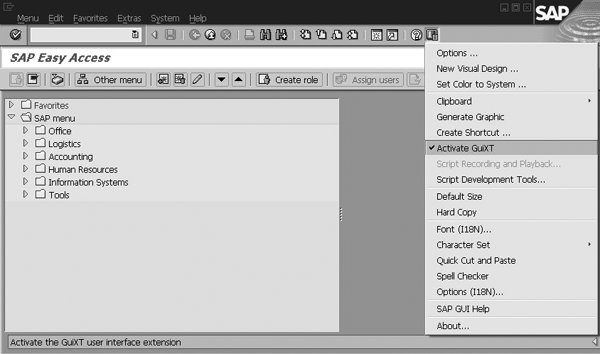
Figure 2
Activate/deactivate GuiXT
If you cannot find the Activate GuiXT option in the menu, then check the values in Windows Registry Editor for the setting: HKEY_CURRENT_USERSoftwareSAPSAPGUI FrontSAP Frontend ServerAdministration. Search for the DisappearItems string (Figure 3). If Activate GuiXT is the value of the string (DisappearItems=Activate GuiXT), then Activate GuiXT remains invisible in the SAP menu. To delete other menu items, enter the corresponding texts one after the other, separated by a semicolon. You can hide these entries: Clipboard, Activate GuiXT, Hard Copy, Quick Cut and Paste, and Spell Checker.
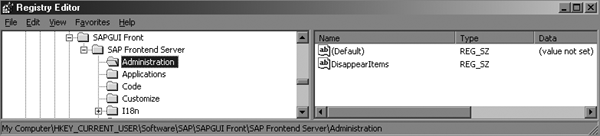
Figure 3
Use Windows Registry Editor to troubleshoot if you can’t find the Activate GuiXT option in the menu
Step 2. Start SAP logon. GuiXT starts automatically.
Step 3. Start transaction PA20.
Step 4. Choose Edit>Script in the GuiXT window. GuiXT Editor opens and proposes a script name. You can download the current version of GuiXT Editor from www.synactive.com, Installation>Download. If you do not want to install and maintain GuiXT Editor, you can edit the scripts via Notepad’s text editor.
Step 5. Write the GuiXT script. Go to the Synactive GuiXT script screen that appears after choosing Edit>Script in the GuiXT window. Enter the code shown in Figure 4.
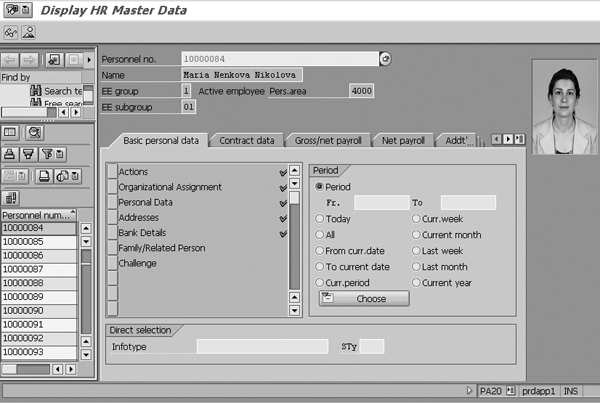
Figure 4
Code to insert a personnel photo using GuiXT
In Figure 4, the format of the code is: image (row1,column1) (row2, column2) “Path and Name of image file”. In this code, (row1, column1) is (0,87) — the upper left corner of the screen. Likewise, (row2, column2) — (6,100) in my example — is the lower right corner. With the image command, you can display image files in a standard R/3 screen. To keep the image height/width ratio of the original image, include the option “-nostretch”. The central server directory path \Ntsrv1All_SharePersonnel_Photos stores the images. The example variable for data-dependent images is &F[Personnel no.] . The character F stands for field.
Note
Some text files are language dependent. For example, SAPMP50A.D1100.txt is the script for German, SAPMP50A.E1100.txt is the script for English, and SAPMP50A.I1100.txt is the script for Italian. The language ID is the one- character language ID from R/3. If adjusted transactions are used in several languages, you must recreate your GuiXT scripts for each language. If the language ID does not appear in the file name, then the script applies to all language types.
Step 6. Save the script. GuiXT suggests the file name SAPMP50A.1100.txt. The format of the script file includes the SAPGUI program name (SAPMP50A), the one-character language ID (none in this case because the script is language independent), and the four-character screen number that this script modifies (1100) in that order with no spaces, followed by .txt.
SAP stores GuiXT scripts as normal ASCII text files. For most user-specific GuiXT modifications, the script directory is C:guixtsripts. For non-user-specific GuiXT scripts, the directory path should be on the network server, not on a local PC. The name of the path includes the name of the network server.
Note
You can use GuiXT in two different ways: user-specific or non-user- specific. If you want to make GuiXT available to a large number of users who should not be allowed to change scripts, then you should install GuiXT on a network server. That is the non-user-specific GuiXT concept. The specific needs of a company dictate which concept to use. Most applications are probably not user-specific, which ensures that all users get the same GuiXT settings when you change something in the script centrally.
Step 7. Save the images in the relevant folder specified in the script. Go to the specified folder and directory in the script and save the employee images. Name the photos after the employees’ personnel numbers (e.g., 10000084.jpg). As a result, if you enter 10000084 in the Personnel no. field in PA20, then image 10000084.jpg appears (Figure 5). The HR personnel image appears on the SAPGUI initial screen of transaction PA20. At runtime, GuiXT merges the screen scripts with the R/3 standard screen layout, the so-called SAP dynamic program (Dynpro).

Figure 5
DatDisplay HR Master a screen (transaction PA20)
Note
If you install GuiXT on a network server, you must hide the GuiXT window from end users by means of guixt.ini profile parameters StartMinimized=Yes (start with a minimized window) or StartHidden=Yes (start with a hidden window). You should hide it so that end users do not make unnecessary changes. When the file guixt.ini specifies these parameters, the GuiXT window starts with a minimized or hidden window. File guixt.ini is a GuiXT configuration file with the central purpose of deployment. You must store GuiXT scripts and install files guixt.exe, guixt.dll, and guixt.ini on a central SAPGUI directory.
Note
The GuiXT Profile in Directories contains fields Scripts 1, Scripts 2, Scripts 3, and Scripts 4 where you specify the path name of the directories that store the GuiXT scripts. SAP R/3 searches these directories for GuiXT scripts. You can include company-wide scripts and your own scripts. You can store scripts in central file servers, local file servers, ftp and http servers, and SAP Web Repository (R/3 database). Usually, the administrator defines the location where you store the scripts. The administrator is responsible for providing access to a network folder where you can put employee images. If you modify user-specific screens, then you can choose a folder on your PC.
Step 8. Restart transaction PA20. The GuiXT script executes whenever you call its corresponding screen, so you need to refresh the SAPGUI screen by starting the transaction again.
Step 9. Monitor GuiXT screen messages. To simulate receiving a GuiXT message, you have to switch on the trace. Click on the Trace button in the GuiXT screen and run the script you just created. To clean the screen, you can click the Trace button off and on again to monitor and analyze the logic of the script. It is important for GuiXT script developers to keep an eye on the messages in the GuiXT script screen and the trace screen. Switch on the trace subscreen via the GuiXT menu path View>Trace. The message subscreen of the GuiXT screen (View>Messages) notifies you if any errors appear in the script.
You do not need to perform the same steps for transaction PA30 because SAPGUI and the initial screen are the same as in transaction PA20.
Start PC Applications by Clicking on an Image
Next, let’s use GuiXT to start files ending in .doc when you click on a personnel image in transactions PA20 or PA30. In this example, I’ll use transaction code PA20 and a document called 10000084.doc that contains details about an employee. The first four steps are the same as those mentioned in the “Display Data-Dependent Images” section.
Step 5. Write the GuiXT script. In the GuiXT script screen, enter the code shown in Figure 6. The variable for the .doc file is &F[Personnel no.].
image (0,87) (6,100)
“\Ntsrv1All_SharePersonnel_Photos&F [Personnel no.].jpg” –
nostretch
Start=\Ntsrv1All_SharePersonnel_Photos&F[Personnel no.].doc
|
| Figure 6 |
Code to allow users to active a document by clicking on an image |
Step 6. Save the script. For language-independent scripts, GuiXT suggests the file name SAPMP50A.1100.txt.
Step 7. Save the Microsoft Word document 10000084.doc in the relevant folder specified in the script.
Step 8. Restart transaction PA20.
Step 9. Monitor GuiXT screen messages.
As a result, clicking on the personnel image takes you to the detailed personnel information depicted in file 10000084.doc.
Add Tips
You may want to insert a hint for personnel administrators who work with employee data. Let’s say you want to add the text: “Please, insert a personnel image for every employee.” Perform the first four steps as mentioned in the “Display Data-Dependent Images” section, except use PA30 in step 3 rather than PA20. The files involved are the image file above and SAPMP50A.1100.txt.
Step 5. Write the GuiXT script. In the GuiXT script screen, enter the code shown in Figure 7. The name of the text file for language-independent script is SAPMP50A.1100.txt. This tip is in English, but you could use other text. The code if Q[Language=E] specifies the language. The tip appears on the user’s screen if the logon language is English. RP50G-PERNR is the name of the screen field.
image (0,87) (6,100)
“\Ntsrv1All_SharePersonnel_Photos&F[RP50G- PERNR].jpg” -
nostretch
//English
if Q[Language=E]
Tip [RP50G-PERNR] “Please, insert a personnel image for every employee.”
endif
|
| Figure 7 |
Code to add tips |
Note
// means that a comment follows, just as * means the same in ABAP code.
Figure 8 shows the GuiXT screen with the screen elements for the active SAPGUI screen on the left. The right part of the screen shows the contents of the GuiXT script file. You can use the scripts in this article as a template to implement your own tips and texts.

Figure 8
Synactive GuiXT screen displays screen elements and a GuiXT script
See Figure 9 for technical details of the Personnel no. field. To get to this screen, place the cursor on the Personnel no. field, press the shortcut key F1, and a Performance Assistant screen pops up. Select the technical information icon  to open the technical details screen.

Figure 9
Figure 9 Technical details for Personnel no. field
Step 6. Save the script. For language-independent scripts, GuiXT suggests the file name SAPMP50A.1100.txt.
Step 7. Save the image and the text file in the relevant folder specified in the script.
Step 8. Restart transaction PA30.
Step 9. Monitor GuiXT screen messages.
Figure 10 shows the result after you perform the above steps. The tip Please, insert a personnel image for every employee. appears in front of the text of the Personnel no. field when you move the mouse over the tip icon.

Figure 10
Maintain HR Master Data screen with an employee’s image and a screen tip (transaction PA30)
Display Multiple Data-Dependent Images
Some companies archive multiple images per employee. Using GuiXT, you can set up your system to review that data with just a mouse click. The images I use for the example are 1000008401.jpg and 1000008402.jpg. The first four steps are the same as those mentioned in the “Display Data-Dependent Images” section.
Step 5. Write the GuiXT script. In the GuiXT script screen, enter the code in Figure 11. The symbol &## replaces the sequence number.
image (0,87) (6,100)
“\Ntsrv1All_SharePersonnel_Photos&F [Personnel no.]&##.jpg”
– nostretch
|
| Figure 11 |
Code to display several data-dependent images |
Step 6. Save the script. For language-independent scripts, GuiXT suggests the file name SAPMP50A.1100.txt.
Step 7. Save the images in the relevant folder specified in the script.
Step 8. Restart transaction PA20.
Step 9. Monitor GuiXT screen messages.
As a result, if you enter 10000084 in the Personnel no. field in PA20, the image 1000008401.jpg appears first (Figure 12). When you click on the image with the left mouse button, then the next relevant file, 1000008402.jpg, displays (Figure 13).
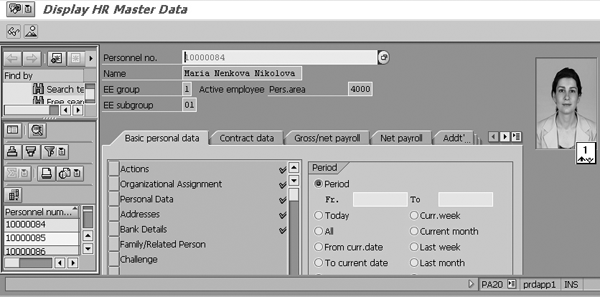
Figure 12
Display HR Master Data screen displays the first employee photo

Figure 13
Display HR Master Data screen displays the second employee photo
Troubleshooting
If you have problems setting up and using GuiXT tool, the SAP Notes and instructions in Table 1 might help.
| 387348 |
GuiXT: ... component could not
be found |
The message “The GuiXT component could not be found” is displayed if GuiXT is activated in the SAPGUI options, but you cannot load guixt.dll because it is neither in the SAPGUI directory nor in the Windows system directory.
As a solution, copy guixt.exe and guixt.dll into the SAPGUI directory.
|
| 166876 |
GuiXT and SAPGUI 4.6A: … GuiXT component could not be found |
To resolve this problem, you have to copy guixt.dll into the SAPGUI directory. |
| 339766 |
GuiXT: Termination error of front.exe when closing R/3 session |
As a solution, download the current GuiXT and copy files guixt.exe and guixt.dll into the corresponding SAPGUI directory. |
| 315565 |
GuiXT is not exited when exiting SAPGUI session |
As a solution, download the current GuiXT. |
| 139773 |
Screen layout deviates from standard R/3 (GuiXT) |
Deactivate and activate GuiXT. |
| 180807 |
GuiXT and shortcut |
Prevents you from logging into R/3. As a solution, download the current GuiXT. |
| 165980 |
GuiXT License Check dialog box |
As a solution, download the current GuiXT. |
| 145929 |
GuiXT: Termination error formatting |
Usually occurs when pressing F-keys. As a solution, download the current GuiXT. |
| 161489 |
GuiXT, Quickinfo for pushbuttons |
If you have implemented a pushbutton, then the quickinfo for the relevant button does not display in releases such as SAPGUI 4.0B and 4.5. This error does not occur in older (4.0A) and newer (4.6A) SAPGUI releases. |
| 184281 |
GuiXT: Installation and activation |
Solution depends on release. |
| 184291 |
GuiXT: Information on the delivery |
Responds to frequently asked questions. |
| 139775 |
GuiXT: Tips & tricks |
Discusses languages, default values, and screen elements. |
|
| Table 1 |
Useful SAP Notes relating to GuiXT |
Maria Nikolova
Maria Nikolova has worked as a senior SAP expert for the National Electricity Company (NEK) in Bulgaria since January 1999. Maria has a master’s degree in telecommunications as an engineer from the Technical University in Sofia, Bulgaria. She has experience with an MIS project implementation of SAP R/3 (headquarters and rollout), the authorization concept and user administration, SAP Customer Competence Center (SAP CCC) , SRM, and the SD, HR, CO, Asset Management (AM), MM, and PM modules. Prior to joining NEK, she worked as a manager of Equipment Engineering Ltd. for four years.
You may contact the author at searchsapmnikolova@yahoo.com.
If you have comments about this article or publication, or would like to submit an article idea, please contact the editor.



 Premium
