Find out how you can use Xcelsius, SAP BusinessObjects Live Office, SAP NetWeaver BW, and Crystal Reports to provide compelling data visualizations and dashboards. For example, you can add simple drop-down selection boxes to your charts to allow users to easily manipulate the data views in real time.
Key Concept
With the current BI roadmap, Xcelsius is becoming the flagship product for simple dashboarding and data visualization. Crystal Reports, SAP BusinessObjects Web Intelligence, and universes can be data sources for your analytics. For complex composite applications, SAP recommends SAP NetWeaver Composition Environment and SAP NetWeaver Visual Composer in combination with Xcelsius.
Say you need to build a dashboard that shows the revenue for a variable period of time broken down by month in a dashboard. In addition, you want the functionality to allow users to select a country and specify start and end months to allow them to view a more detailed report created with Crystal Reports — for example, to view open orders by country for a given period of time. The dashboard retrieves the data from an SAP NetWeaver BW system via SAP BusinessObjects Live Office and via Query as a Web Service (QaaWS).
I’ll show you how you can set up this dashboard using Xcelsius, Crystal Reports, SAP BusinessObjects Live Office, and SAP NetWeaver BW. I’ll explain the three SAP NetWeaver BW queries you need to set up and demonstrate what you need to do to set up the Crystal Reports report. I’ll then show you what you need to do to set up connections between SAP NetWeaver BW and SAP BusinessObjects Live Office and Xcelsius and SAP Business Objects Live Office. (For information about the data connections involved, see the sidebar “Data Connectivity in SAP BusinessObjects XI 3.x.”)
Technical Prerequisites
To follow the process, you need the following software deployed and configured:
- Client side
- SAP Frontend 7.x with SAP BI Add On 7.x
- Crystal Reports 2008
- SAP BusinessObjects Live Office XI 3.1
- SAP BusinessObjects Integration for SAP Solutions XI 3.1 – client components
- Server side
- SAP BusinessObjects Enterprise XI 3.1
- SAP BusinessObjects Integration for SAP Solutions XI 3.1 – server components
- SAP server
- ABAP transports for Crystal Reports connectivity
You should also know how to create a Crystal Report based on an SAP NetWeaver BW query. You can find step-by-step guidelines for this process in “SAP NetWeaver BI and BusinessObjects: Integrate Crystal Reports with SAP NetWeaver BI for Enhanced Report Formatting.”
SAP NetWeaver BW Queries
To follow the steps in the described scenarios, you need three SAP NetWeaver BW queries:
- SAP NetWeaver BW query to provide the data from the InfoCube
- SAP NetWeaver BW query to provide the data from the DSO layer
- SAP NetWeaver BW query to provide the values for the prompting dialogs
Query to Provide the Data from the InfoCube
The first query is a very simple SAP NetWeaver BW query based on the InfoProvider 0D_SD_C03 in which I include the characteristic Country and the key figures Open orders and Open orders qty. For the characteristic restrictions, I am using a variable for the Calendar Year/Month, which is an optional interval variable (Figure 1).

Figure 1
SAP NetWeaver BW query based on InfoCube 0D_SD_C03
Query to Provide the Data from the DSO Layer
The second query is based on the more detail-oriented DSO layer 0D_SD_O01. It includes the characteristics Region and Material and the key figures Open orders, Open orders qty, and Net val. in statCur (Figure 2).

Figure 2
SAP NetWeaver BW query based on 0D_SD_O01
The second query also includes a variable for the characteristics Country so that when the user navigates from the Xcelsius chart to the Crystal Report object, the country value is passed to the variable, performing a server-side selection.
Query to Provide the Values for the Prompting Dialogs
The third query enables the SAP NetWeaver BW query to retrieve a valid list of members for the Calendar Year characteristic (Figure 3). You can then use this list in Xcelsius to allow the user to select a time interval. The query is based on the InfoCube, but only contains the single characteristic Calendar Year.

Using SAP BusinessObjects Live Office with Crystal Reports
In this example, the report contains the two key figures from the SAP NetWeaver BW query. It also has a grouping based on country with subtotals for the two key figures.
I am using an existing Crystal Reports object that is based on my first SAP NetWeaver BW Query in Figure 1. The Crystal Report object contains the Open orders value and the Open orders qty (by country). Follow these steps to now leverage the Crystal Report object in SAP BusinessObjects Live Office so that Xcelsius can leverage the data.
Note
When using SAP BusinessObjects Live Office with Crystal Reports and SAP authentication, ensure that you can view the Crystal Reports document with your SAP credentials and Single Sign-On (SSO) down to the SAP system. Otherwise, the SSO workflow from Xcelsius via SAP BusinessObjects Live Office to Crystal Reports will fail.
Import Data from Crystal Reports into SAP BusinessObjects Live Office
Step 1. Log on into your SAP system via SAP BusinessObjects Live Office. Start Microsoft Excel and go to LiveOffice > Options. Click the Enterprise tab and select the Use specified logon criteria check box.
Enter the Web service URL for your SAP BusinessObjects Enterprise system (Figure 4). The standard syntax for the web service URL is https://APPSERVER:PORT/dswsbobje/services/session.

Figure 4
Enter the SAP BusinessObjects Enterprise Web service
As soon as the system verifies the Web service URL, you can select SAP for the Authentication. Click the OK button. This allows you to use SSO to log in to your SAP system inside of SAP BusinessObjects Live Office.
Step 2. Access Crystal Reports through SAP BusinessObjects Live Office. In Microsoft Excel go to LiveOffice > Insert > Crystal Reports Content. Use your SAP credentials in the format [System ID]~[Client]/[Username] (for example, PS3~800/i123456 for the system ID PS3 with the client 800 and the username i123456) to authenticate (Figure 5). Select the previously created report from your SAP BusinessObjects Enterprise system and click the Next button (Figure 6).
Note
Using your SAP credentials requires that the SAP authentication is installed and configured on your SAP BusinessObjects Enterprise system.

Figure 5
Log on to SAP BusinessObjects Enterprise

Figure 6
Insert Crystal Reports content into Excel
Step 3. Provide values for the parameter fields in Crystal Reports. Your underlying SAP NetWeaver BW query contains a variable, so SAP BusinessObjects Live Office asks you for parameter values. For now, use the option Set to Null so that you receive all the data. This generates the report in Figure 7, which contains the content of the Crystal Report object.

Figure 7
The Insert Wizard allows you to choose data from the report or switch to a fields view
Click the Switch to Fields button to retrieve a list of the underlying fields from the data source. You can then use them in SAP BusinessObjects Live Office. Double-click the fields to add them to the list of Selected Fields (Figure 8). When you are finished adding fields, click the Next button, and then click the Next button on the following screen. Then, click Finish. The data from your report appears in the Excel spreadsheet (Figure 9).

Figure 8
Select the fields you need for your report

Figure 9
SAP BusinessObjects Live Office with data retrieved from Crystal Reports
Add SAP NetWeaver BW Variables to SAP BusinessObjects Live Office
In these steps you put the variable values that you included in your SAP NetWeaver BW query into the SAP BusinessObjects Live Office document. This allows you to send the values that a user selects in the Xcelsius dashboard to the variable and refresh the data based on the changed variable values. To do so, you need to configure the parameter that was created for the variable in Crystal Reports to bind the value to a cell in the Excel spreadsheet.
Step 1. Set the variable values. In Excel go to LiveOffice > Properties for all objects. Click the Prompts tab and then click Parameter Values. In Figure 10, select the Choose Excel data range option. Then select a cell on a separate sheet in your Excel document. In my example, I am using cell F2 for the start of the range and cell F3 for the end of the range.

Figure 10
Select the Choose Excel data range option
Select the Append parameter list to the dropdown of the binding cell option. This option makes the list of values from your Crystal Reports parameter available in the SAP BusinessObjects Live Office document. Click the OK button and then click the OK button again on the following screen.
Step 2. Save the LiveOffice document. Go to LiveOffice > Publish to BusinessObjects Enterprise > Save to BusinessObjects Enterprise. Enter the File name and click the Save button. Close Excel.
You have now created an SAP BusinessObjects Live Office document that shows data from a Crystal Report document. The report includes the parameters from the underlying source on the Excel spreadsheet so that in the next step you can go to Xcelsius and pass values from any selector in your dashboard to those cells. You can then update the data based on new variable values.
Tip!
When you have to retrieve a large volume of data, you might want to consider scheduling the report. If you also have a large user audience, you could also set up a publication. In SAP BusinessObjects Live Office, go to LiveOffice > Properties for all objects. Click the Refresh tab to set the report to refresh on demand or to set up a scheduled report.
Xcelsius and SAP BusinessObjects Live Office
In the previous section, you used SAP BusinessObjects Live Office to retrieve data from SAP NetWeaver BW via Crystal Reports. For the next part of the process, you use the SAP BusinessObjects Live Office document as a source for the Xcelsius dashboard.
Step 1. Ensure that Xcelsius is set up for SAP BusinessObjects Live Office. Start Xcelsius Designer by going to Start > Programs > Xcelsius > Xcelsius Designer. Xcelsius Designer checks for SAP BusinessObjects Live Office compatibility upon startup. If you have not switched on the compatibility mode, follow menu path File > Preferences > Excel Options.
Step 2. Sign in to SAP BusinessObjects Enterprise. In Xcelsius Designer, go to Data > Import from Enterprise. You need to enter your SAP BusinessObjects Enterprise credentials for the authentication. After the system authenticates you, the folder structure from your SAP BusinessObjects Enterprise system appears.
Note
At this point you do not need to use the SAP authentication because Xcelsius Designer asks for credentials when you actually execute the dashboard and try to refresh the data.
Step 3. Add the Excel SAP BusinessObjects Live Office document created in the previous section. After completing step 1, select the document and click the Add button. The data from the spreadsheet appears inside Xcelsius Designer.
Go to Data > Connections, click the Add button, and select Live Office Connections (Figure 11). The system creates a new SAP BusinessObjects Live Office connection (Figure 12). Xcelsius Designer recognizes the connection to the SAP BusinessObjects Live Office document that you opened from the SAP BusinessObjects Enterprise system.
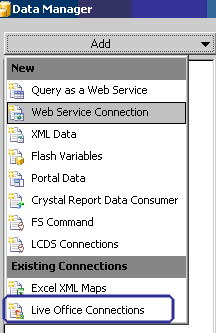
Figure 11
Select Live Office Connections

Figure 12
The new SAP BusinessObjects Live Office connection
Step 4. Set up the new SAP BusinessObjects Live Office connection. Click the new connection and then click the Definition tab (Figure 13). In the Session URL field, replace the entry with the name of the application server based on your own installation of SAP BusinessObjects Enterprise.
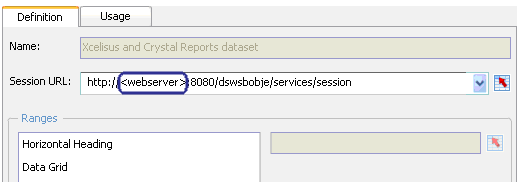
Figure 13
Define the new connection
Click the Usage tab (Figure 14). Select the Refresh On Load check box so that each time you load the dashboard your data connectivity refreshes using the SAP BusinessObjects Live Office document and the Crystal Reports document.
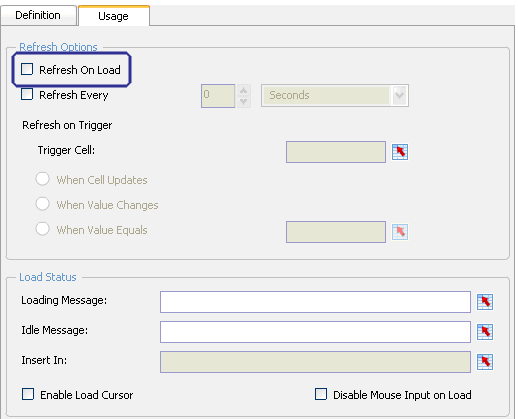
Figure 14
Select the Refresh On Load check box
Step 5. Add a chart based on the Excel data to your dashboard. Navigate back to the empty canvas in Xcelsius Designer. Go to View > Components and drag and drop a column Chart component on to the Xcelsius canvas. Double-click the chart to access its properties.
Click the selection icon  and select the range of data in the embedded spreadsheet. For this example, select the country description and the two key figures from the result set as shown selected in Figure 15. After you select the data, select the Data in Columns option on the right side of the screen. (The grayed out area becomes visible after the user has selected the data.)
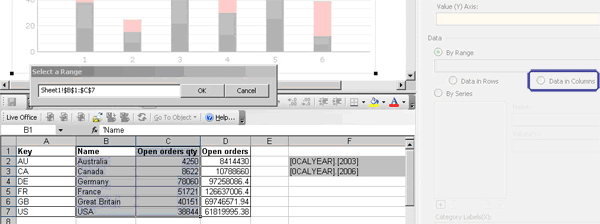
Figure 15
Select the data range
The two series now appear in your chart. Because the two key figures have very different scales, configure the values on two different axes by making one of them a plot on the secondary axis. Click the Preview button in the toolbar to see a preview of your dashboard (Figure 16).

Figure 16
Chart preview in Xcelsius Designer
Step 6. Enter your SAP BusinessObjects login information. You just configured the SAP BusinessObjects Live Office document to refresh on load, but you are not authenticated against SAP BusinessObjects Enterprise at this time. A logon screen appears and asks for your SAP BusinessObjects Enterprise credentials. Use the SAP authentication and your SAP credentials to sign in from the Xcelsius Dashboard to SAP BusinessObjects Live Office and Crystal Reports via SSO.
Note
The logon screen does not provide a UI to allow you to enter the SAP system ID and the SAP system client number separately. You need to enter you SAP user credentials in the syntax [SAP system ID]~[SAP Client number]/[SAP user name], for example R37~800/IHILGEFORT. For the System field, you need to enter the name of your Central Management Server (CMS).
As you can see, you can refresh the data, but you cannot influence the actual parameter values for the variable in the SAP NetWeaver BW query. I will explain how to solve this problem in the next part of this article. For now, Xcelsius uses the values that are in the SAP BusinessObjects Live Office document and refreshes the data based on those variable values.
Step 7. Make the dashboard available on the SAP BusinessObjects platform. Go to File > Export > BusinessObjects Platform. When exporting to the SAP BusinessObjects platform, the system stores the actual Xcelsius document on the platform as a .swf file. You can also use File > Save as to save the actual Xcelsius design document to your SAP BusinessObjects Enterprise system.
Select a folder on your SAP BusinessObjects Enterprise system and provide a name for the Xcelsius file. Now you should be able to open InfoView, log on with your SAP authentication, and view the Xcelsius dashboard with SSO.
Xcelsius, Universe, and QaaWS
So far, I have shown you how to create an Xcelsius document that contains a chart based on data retrieved via SAP BusinessObjects Live Office and Crystal Reports on top of SAP NetWeaver BW. In the following steps, I’ll show you how to create a universe on top of an SAP NetWeaver BW query and then use QaaWS to create a Web service on top of the universe. You can then use the Web service to retrieve a list of values — in my case for the calendar year — and use the values in a selector in your dashboard.
If you have read my previous articles, you should now be able to create a universe based on an SAP NetWeaver BW query. If this topic is new for you, take a look at “SAP BusinessObjects Web Intelligence Plus SAP NetWeaver BW Equal Empowered Users.” I assume that you have created a universe on top of the SAP NetWeaver BW query as shown in Figure 3.
QaaWS
Here are the steps to use QaaWS to create a Web service on top of the universe.
Step 1. Set up QaaWS authentication. Start QaaWS by going to Programs > BusinessObjects XI Release 3 > BusinessObjects Enterprise > Query as a WebService. If this is the first time you’ve used QaaWS, you see an empty list of hosts. You first need to set up your system to use QaaWS. Click the Add button to start the process of configuring a new host.
In the screen that appears, enter a name for the system (Figure 17). As soon as you start entering the name, the system starts creating the URL entry and therefore you should enter the name of your application server as the name. Then enter the CMS name. You can leave the user field blank if you have multiple users so that each time the tool starts, you can select the user credentials that you want to use.
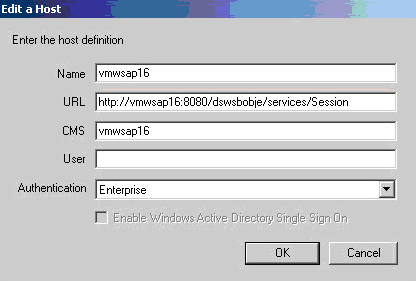
Figure 17
Set up the host for QaaWS
After you enter the details, your system appears in the list of hosts. Select SAP as Authentication and enter your SAP credentials (Figure 18). Remember the syntax for your SAP credentials here is the same as you used to enter your SAP credentials in SAP BusinessObjects Live Office.
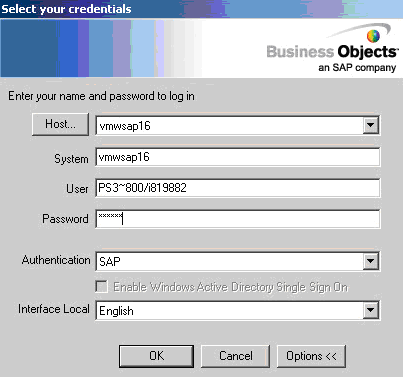
Figure 18
Enter your SAP credentials
Step 2. Set up your Web service parameters. After you authenticated, you see a list of available Web services (if this is your first time through, the list is empty). Click the New button or go to Query > New > Query. Enter a name for your Web service and click Advanced Parameters to specify the authentication for the Web service (Figure 19). Select secSAPR3 (SAP authentication) for the Authentication mode and click the OK button. Click Next to move to the next step.

Figure 19
Advanced parameters for QaaWS
Step 3. Select the universe for the Web service. In Figure 20, select the universe that you created. In my example I select the universe SAP_LOV. Click Next to navigate to the next screen.
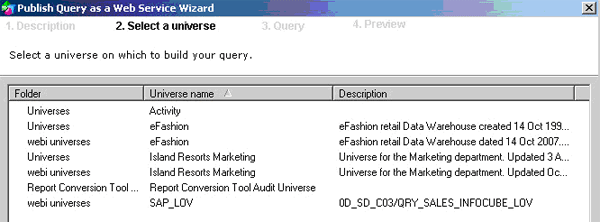
Figure 20
Select the universe for your Web service
Step 4. Use the query panel to select the elements from the query that should become part of the Web service (Figure 21). In my example, I need to add the Calendar Year key and Calendar Year description to the result set. L01 Calendar Year on the right contains the dimension objects and the L01Calendar Year Key contains the detail objects.

Figure 21
Enter the result objects for the universe
Note
When your value has a description and a key value—and you are planning to use the object for a list of values for a variable—make sure you include the description and key in the Web service. This enables you to send the key value to SAP NetWeaver BW. Also, the description value could be language dependent, so you want to ensure you are sending a unique value to SAP NetWeaver BW.
Step 5. Preview the query results. When you finish step 4, click the Next button to continue. The system shows you a preview of the result set and you should see the data from your SAP NetWeaver BW system (Figure 22).

Figure 22
Preview the query results
Step 6. Publish the Web query. Click the Publish button at the bottom of the screen to finalize your Web service. The system provides you with a summary of your Web service (Figure 23). Click the copy to clipboard icon to copy the Web service URL to the clipboard. This allows you to paste the URL to the data connectivity settings in Xcelsius Designer. Close the wizard.
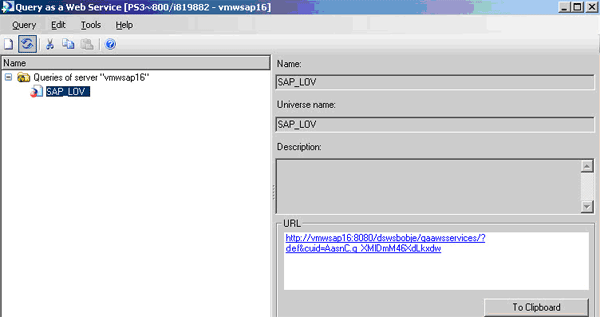
Figure 23
Copy your new Web service to the clipboard
Xcelsius and QaaWS
You have now created a Web service that allows you to retrieve a list of values from the underlying SAP NetWeaver BW system. You also have the Web service URL. You can now edit your previously created Xcelsius dashboard to provide the flexibility of a year selection to the user.
Step 1. Define the new Web service connection. Start the Xcelsius Designer and open the Xcelsius file from the previous part of this article. Go to Data > Connections and click the Add button. The screen in Figure 11 appears. This time, select the Query as a Web Service option under New.
Click the Definition tab and paste the URL from the Web service you created into the WSD URL field (Figure 24). Click the Import button and you see the Web service details.
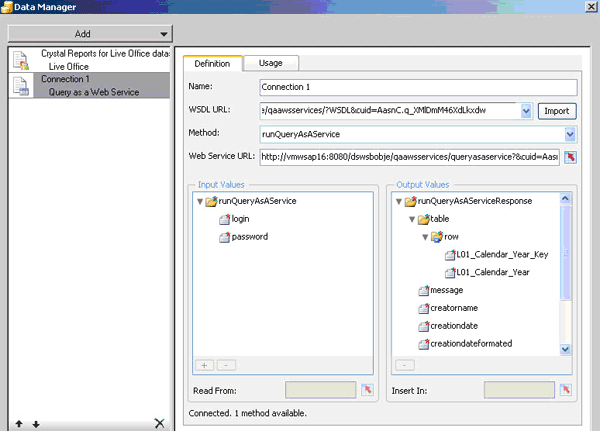
Figure 24
Define the new QaaWS connection
Step 2. Enter the values for the spreadsheet. Click the row folder in the output values and click on the selection icon next to Insert. Next, select the range in your spreadsheet that contains the data from the Web service (Figure 25). The data is not stored in the spreadsheet, but you need to configure a range because Xcelsius uses the spreadsheet for the design-time environment. Keep in mind that your Web service contains the calendar year key and description value. In this case, you need to select several rows (the number does not need to be exact) and two columns.
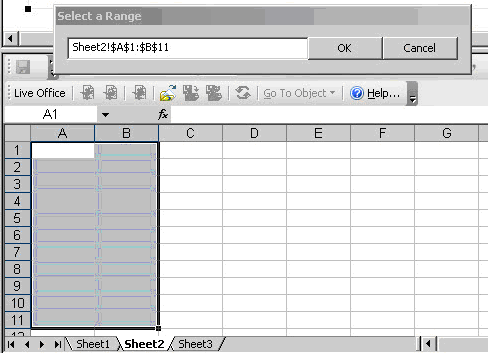
Figure 25
The embedded spreadsheet in Xcelsius
After you select the data range, navigate to the Usage tab (shown in Figure 14). Click the Refresh On Load check box and then click the Close button to exit the Data Manager.
Step 3. Add a parameter input to the Xcelsius dashboard. Select the menu View > Components. Select the combo box component from the list of available components and add it to the Xcelsius canvas by dragging and dropping the component on to the canvas. This combo box allows users to set the start value for the time range.
Double-click the list box component to open the properties (Figure 26). Set the Insertion Type option to Value. Then click the selection icon next to Source Data and point it to the columns of the previously selected key value cells for the Web service — in my example, this is column A from Sheet2 in Figure 25.
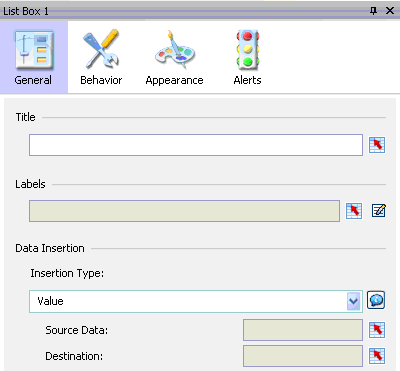
Figure 26
Select Value for the Insertion Type
Next, click the selection icon next to Labels and select the cells that represent the description. In my example, this is column B from Sheet2 in Figure 25. Then click on the selection icon next to Destination and select the cell that represents the FROM parameter inside the SAP BusinessObjects Live Office document. In my example, this is cell F2 on Sheet1.
Note
In performing these steps, you configured the combo box to show the description and to use the key values for the values that the system inserts into the destination cell.
Repeat step 3 to add another combo box. This time, use the TO value in the Live Office document for the Destination. In my example, this is cell F3 in Sheet1.
Step 4. Set the trigger cell. Go to Data > Connections and select the Live Office connection from the list. Click the Usage tab (Figure 14). Click the selection icon next to Trigger Cell and select the cell that contains the parameter value for the SAP BusinessObjects Live Office document. In my example, these are cells F2 and F3 from Sheet1. Set the option When Value Changes and click Close to close the Data Manager.
Step 5. Preview your dashboard. Click the Preview button in the toolbar to see a preview of your dashboard (Figure 27). Your dashboard now includes a column chart and two simple list boxes with calendar years. Each time you select a different time range, the dashboard passes the value to the SAP BusinessObjects Live Office document and refreshes the underlying Crystal Report document based on your SAP NetWeaver BW query.
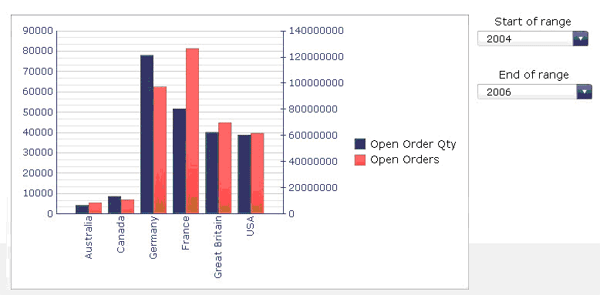
Figure 27
Dashboard preview
Data Connectivity in SAP BusinessObjects XI 3.x
As shown in Figure A, Xcelsius leverages a universe via Query as a Web Service (QaaWS), Crystal Reports, SAP BusinessObjects Web Intelligence, and universes via SAP BusinessObjects Live Office. For your SAP landscape this means that:
- You can use Crystal Reports with SAP BusinessObjects Live Office to provide SAP ERP and SAP NetWeaver BW data to Xcelsius
- You can use SAP BusinessObjects Web Intelligence and universes with SAP BusinessObjects Live Office to provide SAP NetWeaver BW data to Xcelsius
- You can use universes with QaaWS to provide SAP NetWeaver BW data to Xcelsius
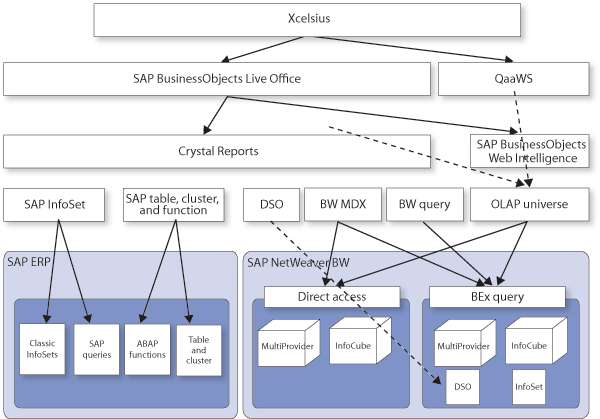
Figure A
Data connectivity for Xcelsius
In addition, you can also use these tools to connect to non-SAP sources, such as Microsoft SQL Server, Oracle database, or a MaxDB database to mention just some examples. Starting with SAP BusinessObjects XI 3.1, you can use Data Federator to connect to SAP NetWeaver BW and combine your data from SAP NetWeaver BW with another data source. Then you can use QaaWS to provide this combination of data sources to Xcelsius as well.

Ingo Hilgefort
Ingo Hilgefort started his career in 1999 with Seagate Software/Crystal Decisions as a trainer and consultant. He moved to Walldorf for Crystal Decisions at the end of 2000, and worked with the SAP NetWeaver BW development team integrating Crystal Reports with SAP NetWeaver BW. He then relocated to Vancouver in 2004, and worked as a product manager/program manager (in engineering) on the integration of BusinessObjects products with SAP products. Ingo's focus is now on the integration of the SAP BusinessObjects BI suite with SAP landscapes, such as SAP BW and SAP BW on SAP HANA, focusing on end-to-end integration scenarios. In addition to his experience as a product manager and in his engineering roles, Ingo has been involved in architecting and delivering deployments of SAP BusinessObjects software in combination with SAP software for a number of global customers, and has been recognized by the SAP Community as an SAP Mentor for SAP BusinessObjects- and SAP integration-related topics. Currently, Ingo is the Vice President of Product Management and Product Strategy at Visual BI Solutions, working on extensions to SAP’s product offering such as SAP BusinessObjects Design Studio and SAP Lumira. You may follow him on Twitter at @ihilgefort.
You may contact the author at Ingo@visualbi.com.
If you have comments about this article or publication, or would like to submit an article idea, please contact the editor.



 Premium