Follow these 11 tips to avoid errors when you use extended Computer Aided Test Tool to test your end-to-end business scenario transactions.
Key Concept
SAP extended Computer Aided Test Tool (eCATT) caters to the testing of SAPGUI-based transactions. You use another tool for testing Web-based SAP transactions. There is an easy interface in eCATT and test cases are ready as reusable automated scripts. If changes in the transaction behavior in an SAP system lead to an error during automated test case execution, you must reautomate. Possible errors include a test script recording error, invalid test data, changes in configuration, a master data error, an SAPGUI-based tester user ID settings error, custom development as a part of user exit or Business Add-In, or custom development involved in changes to a standard SAP program. Reautomation is the process of recording the SAP transaction again due to an error that occurred in the original automated transaction.
SAP extended Computer Aided Test Tool (eCATT) is a cost-efficient automation tool for business testing. However, automated tests can fail even if the test data is correct, leading to the need to reautomate the test case. The main reason for failure is an incorrect sequence of dependent test cases during execution. It is my experience that you can reduce reautomation by 60% by following my tips. If you are not familiar with eCATT, see the sidebar “What is eCATT and When Do You Use It?”
eCATT is an SAP testing tool that you can use to automate and test business scenarios in your SAP system. You create and execute eCATT scripts based on business processes mapped in the SAP system. You can then test these scripts before go-live to the production server. After testing, eCATT generates a detailed log depending on the processes executed. If the testing is smooth with a success mode, this means the business scenarios mapped in the SAP system are correct. If the test results in errors then you can analyze the problems from the generated error log. CATT will no longer be supported for the creation of new development so those using CATT must update to eCATT. Compared to manual testing, automated eCATT reduces testing time, manpower requirements, and manual errors. It is useful in rollout projects because of the reusability of the automated scripts.
Tip 1. Two modes of recording are available: TCD and SAPGUI. TCD is used when no controls are involved in the transaction. There is no GUI involved during TCD execution. The SAPGUI mode is used when controls that require GUI for replay are involved in the transaction. TCD is comparatively faster than SAPGUI mode. SAP Enjoy transactions, which include control frameworks such as tree controls and SAP List Viewer (ALV) controls, need the SAPGUI mode for recording and replay. Usually transactions ending with N are Enjoy transactions, such as ME21N and VL02N.
The feature of passing runtime values to subsequent screens is available only in SAPGUI mode. You can record and replay error messages only by using the SAPGUI recording mode. In the case of TCD mode, the test case fails if an error message appears either during recording or replay time.
Warning messages are automatically handled by TCD mode during execution. In SAPGUI recording mode they need to be handled while recording if they require user intervention for further processing (e.g., pressing the Enter key enables all the fields after a warning message). In SAPGUI recording mode, you need to capture warnings explicitly during recording. Doing so allows SAPGUI to handle these warning messages successfully at execution time.
If an unexpected pop-up or warning screen appears during replay, you can make them optional for execution in SAPGUI mode. These optional screens are handled automatically at runtime. Then the test case will be successful. TCD mode does not have this feature.
Tip 2. Ensure that each test case contains all of the prerequisite transactions specific to the scenario to avoid dependency errors because of other test cases during execution. A manual test case is a series of transactions pertaining to one business scenario. It serves as the base for an automation project. An automated test case involves recording SAP transactions with step-by-step details about the transaction code along with explanations of business scenarios and test data by referring to this manual test case. An incorrect sequence of dependent test cases during execution causes the automated test cases to fail even though the test data is correct. Therefore, I recommend that you have all the prerequisite transactions in the same manual test case so that the automated script also has all the prerequisite transactions recorded in them.
For example, a sales order cycle may involve the transaction for quotation creation. A manual case of this sales order cycle includes a mention of the process create order from quotation. While executing this manual case, the business analyst creates the quotation manually and then executes the complete sales cycle. This input data creation involves considerable time in the case of automated testing. Not including the time for the data creation for dependent transactions may lead to an inappropriate estimation of the time required for the automated testing execution. Therefore, it is a good idea to include the quotation creation transaction in the sales cycle manual case to save time for the business analyst. You might need to do several reviews of the test case to ensure that the manual test case has all the required transactions, but no sequence dependencies of other test cases that could lead to the need for manual work.
Tip 3. Always work with the test case on an SAP QA system with valid test data and execute the test case manually at least two or three times with the same set of data. From the second time onward, the system prompts you with error and warning messages, usually for duplicate data. On the first execution, the data is new for the transaction so there are no messages. You should correct the data only for the error messages and ignore the warning messages and pop-ups. Warning messages are taken care of by eCATT and don’t throw the script in error.
eCATT automates the behavior of transactions such as screen sequences, messages, pop-up, fields, and default data. The automated transactions must match the automated execution. In most cases, a failure is due to input of incorrect test data to the automated script.
Recording should include the extra pop-up and warning messages. Making these screens or pop-ups optional in SAPGUI mode allows seamless test case execution. eCATT automatically takes care of warnings but only with TCD recording mode. In case of the SAPGUI recording mode, warnings need to be captured explicitly during recording. Doing so allows SAPGUI to handle these warning messages successfully at execution time by making them optional.
Tip 4. Avoid unnecessary parameterization in the test case because including a large list of parameters is time consuming. You should first verify the correctness of the recorded script before starting parameterization. Parameterization includes identification of fields whose values are provided by the business analyst and automation consultant based on the business scenario needs as input to the automated script before execution and then placement of the variables for those fields in the automated script. These are the fields that constitute the input data variants for the recorded script. It enables great reusability of the automated script by allowing different sets of input values for these data variants during execution.
To save time, you should first check your recording for error-free execution, then you can take care of parameterization (e.g., in an MM01 recording, parameterization for material long text). If the recording fails, make the necessary test case corrections by rerecording before parameterization.
Tip 5. Before automation and execution, the desktop-based SAPGUI client and user ID-specific settings should be the same for every user who is involved in automation and execution. These settings affect the user-specific behavior of transactions. If the settings are not uniform, it results in failure and hence the need for reautomation.
Tip 6. Recording and replaying of drop-downs in SAP transactions require special attention. The system records the position of the item in a drop-down menu such as the one shown in Figure 1.

Figure 1
Options from menu for locating drop-down key settings
It seeks the position when the test case runs. If the recording and replay time positions do not match, the test case fails. To avoid this situation, you can use settings to assign a key to each item in the drop-down. To obtain the position of the settings of the SAPGUI scripting, use any transaction in an SAP ERP system. Click the customizing of local layout icon from the application toolbar (or press Alt-F12). Select Options > Expert. In the Controls section of the Expert tab, select the Show Keys in All Dropdown Lists and Sort Items by Key check boxes (Figure 2).

Figure 2
Setting for displaying the keys for the drop-down items
As an example, Figure 3 shows transaction MM01 with a drop-down list without a key setting. Only values appear in the drop-down list.

Figure 3
Drop-down items without key values
Figure 4 shows the same MM01 transaction with drop-down key settings. The keys appear on the left side of the values. If the keys appear in the drop-down list, the system records these key values instead of the position of the drop-down items. At runtime, the system starts looking for the value rather than the position. This assures the success of the script irrespective of the item’s position in the drop-down list.
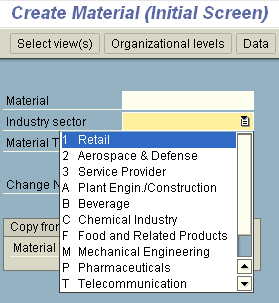
Figure 4
Drop-down items with the key values display to the left
Tip 7. If the recording includes the addition of a particular value to a table, do not scroll up to search for a blank line. Recording and replay of the scroll effect results in failure of the script. Instead, click the create item icon to add new values to a table (Figure 5).

Figure 5
Table with create item icon for adding new line items
Tip 8. Similar to creating new items, searching for some known value from the ALV grid may also involve scrolling during recording, resulting in failure during replay. To avoid this situation, use the search icon from the ALV toolbar (Figure 6). Once the search item is found, click the item for further processing. This value is then pointed at the appropriate location on the ALV grid and you may then avoid the scrolling effect to search for it.

Figure 6
Screen displaying the find icon on the ALV toolbar
Tip 9. Another failure caused by scrolling is reduced size of screens during recording. If the field to be captured is at the bottom and you have to scroll to reach it, use the Tab key until that field is located rather than scrolling. This avoids recording a random position due to scrolling and hence the failure during replay is also avoided.
Tip 10. It is not possible to capture a value from a dynamically generated list, so recording and replay using automation become difficult. If the recording includes a dynamically generated list and a particular field’s value (which is not known until execution) from this list needs to pass to the subsequent screen, then use the SAPGUI recording mode as its foreground mode of execution. It allows user intervention during execution. Use a WAIT XXX statement after this screen’s recording (containing a dynamically generated list), which allows you to capture the value from the generated list manually and pass it to the subsequent screen during this XXX time. To use a WAIT statement, go to the eCATT editor from the Pattern button. You see a list of commands. Select WAIT and mention the time. The command is automatically inserted. It puts the test execution on hold for the time mentioned in the WAIT command.
Tip 11. A pop-up stating SAPGUI Confirm Popup: Notification appears whenever a SAPGUI-based script is executed on a QA system. The tester is expected to press the OK button to proceed (Figure 7). This interrupts the flow of a large pool of automated scripts execution.

Figure 7
SAPGUI notification pop-up window
To avoid the pop-up for SAPGUI recording, use the following method. Click the customizing of local layout icon in the standard toolbar on any transaction of a satellite SAP system or press Alt-F12. Select the Options menu (Figure 1). Follow menu path Options > Scripting. Uncheck the Notify When a Script Attaches to a Running GUI check box (Figure 8). Click the Apply button and then click the OK button. The pop-up window shown in Figure 7 does not appear afterward.
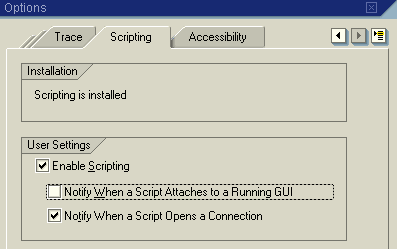
Figure 8
Setting for enabling SAPGUI scripting and avoiding notification pop-up window when a SAPGUI script runs

Sapna N. Modi
Sapna N. Modi has 13+ years of experience in the software industry including SAP software in the areas of solution architecture, consulting, presales, and project management. Sapna has multiple SAP and non-SAP certifications. She is an integral part of the team in setting up the SAP Solution Manager practice at L&T Infotech (www.lntinfotech.com) and has participated in consulting and advisory roles for multiple projects. She has global exposure with experience in the US, Canada, Denmark, Sweden, Germany, the Netherlands, and Kuwait. She is instrumental in and is dedicated to an extreme automation initiative of SAP projects across verticals at L&T Infotech (LTI). Her goal is to accomplish automation-driven efficient operations and to formulate an automation platform for optimized TCO for customers as well as for her organization. Her focus is on innovation to leverage SAP products and non-SAP products involving Robotic Process Automation (RPA), Artificial Intelligence (AI), and Machine Learning (ML) to help customers standardize their portfolio so that it is simplified, automation ready, and able to easily migrate to the SAP S/4HANA platform.
You may contact the author at sapna.modi@lntinfotech.com.
If you have comments about this article or publication, or would like to submit an article idea, please contact the editor.