Manager
The number of monitor tree elements is astounding in the Computing Center Management System. It often leads to an overload of alerts being triggered, so much so that operators simply ignore them, not being able to keep up with the volume of alerts triggered. Examine this issue and define a concise, important set of alerts. This way, the system only triggers alerts that are meaningful and need to be addressed, reducing the volume of alerts sent to the operators.
Key Concept
The Computing Center Management System (CCMS) allows you to assess the well-being of SAP systems. It is fast, easy to configure, reliable, and — if correctly configured — highly effective. It has saved many SAP Basis technologists from embarrassment by providing advance warning of problems in their landscape. Using centralized monitoring in transaction RZ20 in the SAP Solution Manager system is a must in any SAP environment, even if you use only the basics, such as availability monitoring.
The core of system monitoring lies in providing you with an understanding of how well your system is performing. By setting up the proper monitor tree elements (MTEs), you can be sure that the alerts in your system are acting properly. For instance, with critical batch job monitoring, when a critical job fails, an automated process is triggered that informs the responsible person. This can be either if the job fails or is successful.
In my article “Set Up Your SAP System to Monitor and Alert on Its Base Elements” I explained how to implement this framework into transaction RZ20 using SAP Solution Manager as the centralized monitoring system (CEN). In that article I followed the first five actions in this eight-step process:
- Understand your landscape and determine which systems require monitoring
- Build a spreadsheet of your base monitors and decide on the thresholds
- Ensure all your agents are correctly installed, updated, stable, and running
- Create your monitor sets based on the spreadsheet and set the permissions for them
- Expand on each monitor set, creating rule nodes and virtual nodes to accurately describe the monitors
- Create your auto-reaction methods for alerting
- Use alert management to allow flexibility for sending out alerts
- Use the Generic Request and Message Generator (GRMG) for Java monitoring
In this article, I complement step 5 in the section on MTEs and explain the last three steps after that. This article is intended for system administrators and technical managers, and requires no prerequisites beyond using an SAP Solution Manager system prior to 7.1. First, I show you a spreadsheet with the required MTEs that I mentioned in the first article.
Tip!
There is a new monitoring, alerting, and reporting infrastructure starting with SAP Solution Manager 7.1 Support Package 1 called Technical Operations. Go to https://service.sap.com/solutionmanager and select the Release Notes for SAP Solution Manager complete overview link to learn about the new functionality in the 7.1 release and also what Technical Operations is and how it differs from previous versions. You can also learn more about it at this SAPexperts podcast. This article is more suited for systems up to SAP Solution Manager 7.0, enhancement package 1, Support Package 26.
Monitor Tree Elements
In my previous article, I presented the concept of developing a spreadsheet with the required MTEs listed (step 2). I had said that in this article I would populate the spreadsheet. Table 1 shows the MTEs that you can use. I will explain the reasons for using some of these MTEs and provide reference links after the table. These MTEs are based on my own experience and are not exclusive. There may be monitors that I have not included that are important to your environment, but this I cannot know. What I am hoping is that after reading this article, you understand the concepts. With your own knowledge of your environment, you can adapt the monitors to suit your requirements and capacity.
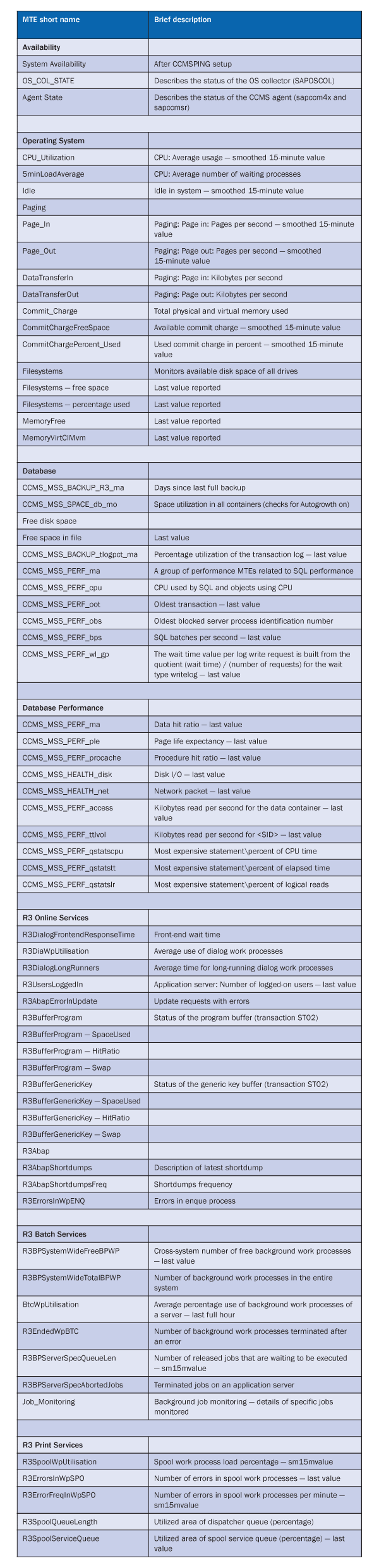
Table 1
Monitors using the CCMS_GET_MTE_BY_CLASS name used to populate transaction RZ20
Not all the elements listed should be assigned to an alert or use the default thresholds because from time to time systems undergo stress (e.g., peak load times) that cause thresholds to be breached and alerts to be triggered. It is not necessary to raise alerts in these instances and not useful information as it is normal behavior in systems. The trick is to assign and set the alerts and thresholds of the alerts so that Basis administrators are informed when the system is becoming overstressed so that there is time to take preventative action.
Without examination of the system concerned, it is not possible to advise or predict this. It is really a question of the chief Basis administrator being able to set up and judge when the alerts are of sufficient urgency to warrant a change in the system. Normally this would involve adding or adjusting capacity to accept the workload. For this reason I have not tried to include a threshold value into the spreadsheet shown.
Note
For clarification on the metrics used, see
this SAP Help page. In most cases, the name used is in fact the MTE. You should be able to copy and paste the name directly into your monitor using the class CCMS_GET_MTE_BY_CLASS as described in my previous article.
Tip!
If you are not able to determine the meaning of a listed metric, then often you are able to do so by going to the relevant transaction that also reports on the particular MTE and using the help there to determine the meaning. For instance, in the case of the MTE CCMS_MSS_PERF_wl_gp for SQL server performance, you can go to transaction DBACOCKPIT, identify the corresponding performance metric listed, and press F1 for help. It then displays the meaning of that metric.
Now I’ll look through each of the categories of MTEs.
Availability
There are three key MTEs in the availability section:
- System Availability. The primary objective of system monitoring, even if nothing else is monitored, is system availability. This is your most critical alert and should be top of the list. I do not go into CCMSPING setup in this or the previous article, because CCMSPING setup warrants an article all to itself, but there is very good documentation from SAP on this topic at this SAP Help page.
- OS_COL_STATE. The operating system collector SAPOSCOL must run on every SAP host. This agent collects operating system information, which is then used in a number of ways. One of the most important uses is in transaction ST06 or ST06N. If this agent is not running, then limited data is available there. Also, EarlyWatch Alert (EWA) reports on the system do not reflect vital operating system information. In the latest versions of SAP, SAPOSCOL is included with SAPHOSTAGENT and no longer appears as a separate entity. Therefore, if you have SAPHOSTAGENT installed and can see SAPHOSTEXEC and SAPHOSTCONTROL running in your services, then SAPOSCOL is included. The ultimate test is to use transaction ST06 on the host system and ensure that you can see all the operating system information.
-
Agent State. The CCMS relies completely on the stability of the agents working in the satellite systems. Satellite systems are those that surround SAP Solution Manager and are connected to it via Remote Function Call (RFC) or direct communication via the SAPCCMS agents. If a CCMS agent is not running, then the central monitoring system (i.e., the system to which the agent connects) does not raise an alert. It is important to ensure that all your installed agents are stable and up and running. This should be part of daily checks.
Operating System
You can find a description of the metrics used in the templates at this SAP Help page. I’d like to talk about the two most important metrics for the operating system:
- CPU_Utilization. From time to time it is expected that CPU usage will peak. This is normal behavior, but what is not normal behavior is if CPU usage is consistently high. During times of load, if usage is consistently high, the system drastically slows down or stops all together. Because of this, the CPU utilization MTE reports by default a 15-minute average. One of the most important metrics to understand is when a system eventually runs out of CPU. It should also be used in conjunction with EWA reports.
-
5minLoadAverage. This metric is used universally to estimate CPU capability. It is defined in broad terms as the average number of processes that are ready for execution, but that need to wait to be processed by the CPU. More simply, it defines how many processes are queued for running, including the one that is currently being processed. For instance, if in a 1CPU system, the 5MinLoadAverage is reported as 2.8, it means that in the last five minutes, an average of 1.8 processes were waiting for their turn to run — or that the CPU was overloaded by 180 percent.
Database
The two most important MTEs for the database are database backup and transaction log space. These must be set up as critical alerts. The remaining metrics should be discussed with the database administrator.
R3 Online Services
If you are not familiar with what the SAP online services are composed of, or what makes up the runtime of an online dialog service, then read this SAP Help page. It shows you what to watch out for during online processing. Note that there can be many causes for a slow-down on the system, so defining the correct metrics in your monitors (which is what I try to do in this article) can help you eliminate what is not related to the problem instantly. By doing this, you can focus more on what might be causing the issues.
R3 Batch Services
I think the most important metrics here are related to determining if sufficient capacity of the batch environment is available to carry out the work required. There are a number of metrics available to you to determine this, and I have listed in my spreadsheet just a few basic ones.
Note
If you find that you are getting alerts based on your current metrics monitored, but are not entirely sure of the cause, try looking for and adding more metrics to transaction RZ20 to identify the cause. Often it is not possible to trap the error or the cause because examination of the fault always takes place after the event. By understanding how the CCMS and alerting work, you can better debug complex problems.
The first thing to consider if you find that there is not sufficient batch capability is to look at your operation modes, and to see if by switching to more batch processes during the batch period (overnight) relieves the issue. Operation modes are accessed via transaction RZ04.
R3 Print Services
A common problem with printing is always deletion of old spool requests. Generally, if you make sure that the correct maintenance jobs are scheduled to delete old spool requests and that they run well, there are no issues. You should regularly review temporary sequential storage (TemSe) to ensure adequate free space is available and that redundant prints and job logs are being removed.
Now let’s continue the process started in the earlier article with steps 6 through 8.
6. Create Your Auto-Reaction Methods for Alerting
At this point, all or most of your monitors should be defined and populated according to the structure laid out in the first article and populated with the MTEs listed in Table 1. Now you need to create an auto-reaction method that links to the MTEs later. This auto-reaction method is triggered when the threshold for the MTE is breached.
To create an auto-reaction method, execute transaction /nrz21 (Figure 1). In the Methods group box, select Method definitions and click the Display overview button.
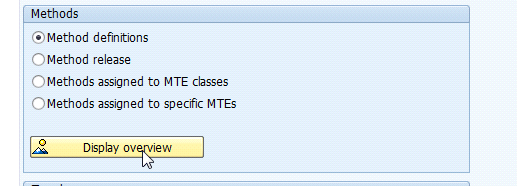
Figure 1
Display overview of methods on method definition
Select the method CCMS_Send_Alert_to_ALM_V2 and choose Copy on the header menu. Create a new auto-reaction method and choose an appropriate name, such as CCMS_Send_Alert_to_ALM_CPU if you are creating an auto-reaction method that attaches to the MTE monitoring CPU. Switch to change mode and go to the Execution tab (Figure 2).
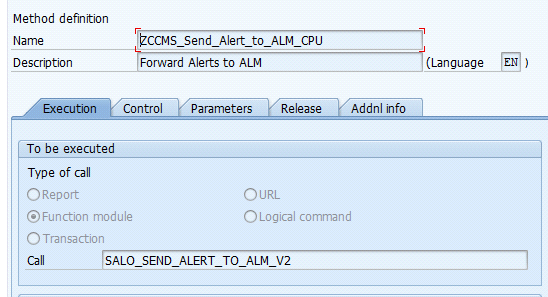
Figure 2
Auto-reaction method setup — Execution tab
Then go to the Parameters tab to ensure that the correct ALM Category name is set (Figure 3). In this example, I am monitoring the CPU, so I use the ALM Category CCMS_CPU. If it were memory, I would use CCMS_MEMORY.
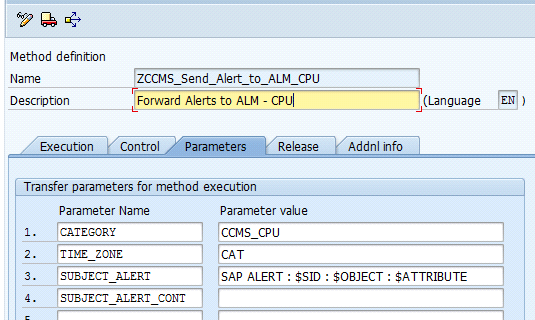
Figure 3
Auto-reaction method setup — Parameters tab
Ensure that the method is triggered by a CCMS agent on the central system under the Control tab. Then under the Release tab, ensure that the method is an auto-reaction method. Remember to change the description to something suitable and then save.
Once the auto-reaction method has been created, you need to link it to the MTE. Use transaction RZ20 and perform these steps:
- Activate the maintenance mode from the Extra drop-down menu
- Select the MTE for which you wish to raise an alert
- Follow menu path Edit > Nodes (MTE) > Assign methods > Central Auto-Reaction (Figure 4)
- Assign the auto-reaction method that you created from transaction RZ21, and select the Assign button
- Check in the transaction RZ20 overview by selecting the View > Method Allocation tab that it has in fact been assigned
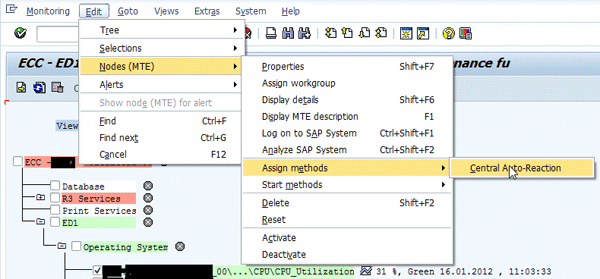
Figure 4
Navigate to the auto-reaction assignment screen from transaction RZ20
Note
You are also able to copy and change auto-reaction methods in the assignment screen. You do not necessarily have to create all your auto-reaction methods in transaction RZ21 first.
7. Use Alert Management to Allow Flexibility for Sending Alerts
Alert management gives you more flexibility to manipulate how the alert is processed. It also enables the alert to be displayed via the Internet — and you can subscribe to and from these alert lists. Alert management is a broad topic, so I will only discuss what is needed to send an email to fixed recipients, but it will give you some idea of the functionality.
Note
It is important to stick to a standard naming convention that doesn’t lead to confusion. As much as possible, I try to use the same name here as I do in my auto-reaction methods. In this way, when I view the alert categories, I can see at a glance how they are related.
Create the alert category in transaction ALRTCATDEF (Figure 5). Switch to change mode.
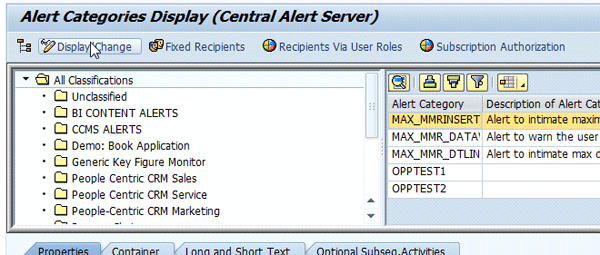
Figure 5
Example of transaction ALRTCATDEF
Choose the alert category CCMS ALERTS by double-clicking it. Select the existing category CCMS CONT and copy the alert category by selecting Copy on the header menu. Enter the name of the alert category that you originally entered when you were creating the auto-reaction method (e.g., CCMS_CPU) in the parameter box available and save. Once copied, double-click the newly created alert category and set the various parameters, including dynamic text (Figure 6). Ensure the Dynamic Text check box is selected so that text can pass from the auto-reaction method to the alert category definition.
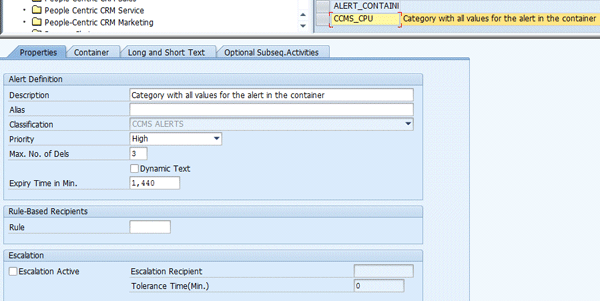
Figure 6
Properties of the alert category definition
Then ensure that the Fixed Recipient (on the header menu tabs) of the alert category is set so that Alert Management knows who to send an email to when the alert is triggered.
8. Use the Generic Request and Message Generator (GRMG) for Java Monitoring
I have concentrated completely on ABAP monitoring and not yet mentioned the Java stack. However, there is a simple way to monitor the technical infrastructure of the Java stack using GRMG.
On the Java stack, you can activate what’s called heartbeat monitoring. Essentially, this activates a local monitor and passes the status on to SAP Solution Manager using the SAPCCMSR agent.
Using transaction GRMG, you can poll the agent to retrieve the heartbeat monitor information from the Java stack. This information is then displayed under the local SAP Solution Manager system in transaction RZ20 because monitoring information is local to transaction GRMG. To set up alerting for this, you need to define an auto-reaction method that is local. For example, it is not triggered by a CCMS agent, but by a central monitoring job. When alerts of this nature are scheduled, then the existence of the relevant job is checked before assignment.
Jim Baxter
Jim Baxter is an independent SAP Basis consultant with a wide variety of experience in SAP Solution Manager setup and functionality. He is certified in the Implementation Tool and Root Cause Analysis and has worked on Service Desk setup for SAP value-added resellers.
You may contact the author at jim.baxter@ulapha.co.za.
If you have comments about this article or publication, or would like to submit an article idea, please contact the editor.



 Premium
