The G/L code block in FI is not static. Customer-defined fields can be added to provide for reporting functions that SAP did not envision. Learn how to use a standard SAP transaction to add fields to the G/L code block, how to ensure that the field is properly populated, and how to report on the data once it is populated.
Key Concept
The G/L code block is composed of the company code, G/L account, cost center, profit center, and other commonly used fields to help identify and classify transactions. Sometimes the vast range of fields offered by SAP as standard may not fit a business requirement (e.g., the most suitable field is already used or a suitable field has SAP processes around it that make it too cumbersome to use). In these cases SAP provides the option to expand the standard code block with customer-defined fields. This functionality is little known, but can add great flexibility to FI reporting. The functionality is available in both the classic General Ledger and the SAP General Ledger (formerly known as the new G/L).
In the SAP General Ledger or classic General Ledger the code block comprises all the fields that can be used to identify or categorize a G/L posting (e.g., company code, account, business area, or profit center). Users most often come across the G/L code block when they enter FI line-item details using a transaction such as FB01. There is even a special G/L code block pop-up (Figure 1) that you can access by clicking the More button in line-item data entry.
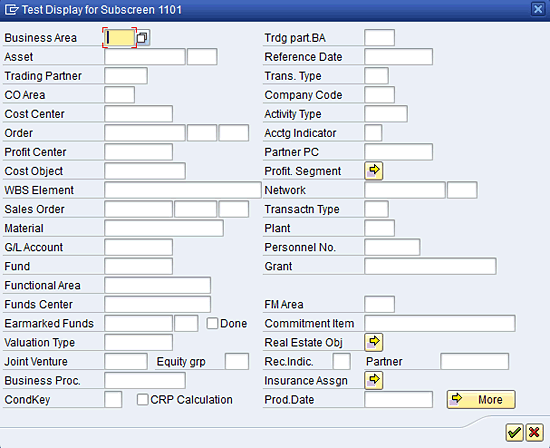
Figure 1
Fields in the G/L code block
A full list of fields is in structure COBL, which can be displayed using transaction SE12. These fields represent a key component of G/L reporting. They also allow a great deal of flexibility in slice-and-dice reporting or providing alternative views of the same financial data. An additional way to view all the fields in the SAP standard code block is to expand the SAP Standard Account Assignments Node in transaction OXK3.
Why Extend the Code Block?
Extending the code block enables more detailed and flexible reporting of financial data. Consider these two business process examples.
Line-of-Business Reporting
An SAP user wanted to enable reporting by line of business. A natural candidate to enable this reporting would have been profit center, using the profit center assignment in the material master. However, the user was already using profit centers to generate business segment reporting. A new field Line of Business was created and enabled in the sales order account assignment, and a user exit was enabled in the sales order to determine the line of business based on material and sales area. The Line of Business field was added to an existing Profitability Analysis (CO-PA) operating concern, so the field was populated both in G/L and CO-PA. This allowed profit-and-loss (P&L) reporting by line of business using CO-PA drill-down reporting.
Expense Classification
Another SAP user wanted a special categorization of expenses to enhance the expense monitoring process. Some of the more obvious choices for additional expense categorization such as internal orders, statistical internal orders, and statistical Work Breakdown Structure (WBS) elements were already in use for other processes, so a new field was required. The user created a new field named Campaign to record the expense type. The field was activated in the purchase order account assignment to allow the field to be populated. The G/L data was extracted to SAP NetWeaver Business Warehouse (SAP NetWeaver BW) and reporting by Campaign was delivered using SAP NetWeaver BW.
How to Extend the Code Block
Before attempting any of the steps I discuss in this article, I recommend you do the following:
- Read all the steps outlined below first
- Become familiar with the SAP Data Dictionary or consult with someone in your organization who is
- Test in a sandbox system; note many activities are cross client, so you need a different system, not just a different client
The changes to the code block described in this article directly affect the BSEG table G/L line-item data, one of the largest tables in your SAP system. SAP provides a warning on the impact of this transaction when you first start it (Figure 2). With the correct planning and technical expertise, this change to your SAP system is perfectly safe and supported by SAP.
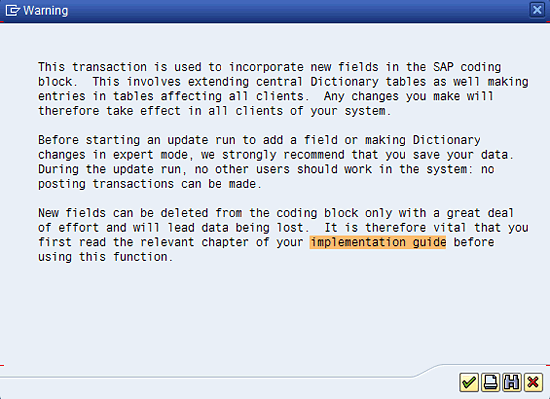
Figure 2
A configuration warning from SAP
Edit Coding Block – Basic Mode
The key configuration transaction is OXK3, Edit Coding Block. This can be found in two places in the IMG. In the SAP General Ledger follow menu path Financial Accounting (New) > Financial Accounting Global Settings (New) > Ledgers > Fields > Customer Fields > Edit Coding Block. In the classic General Ledger follow menu path Financial Accounting > Special Purpose Ledger > Basic Settings > Edit Coding Block.
These paths take you to the initial screen of OXK3. This screen has a tree structure. When you expand the Customer-Defined Account Assignments node, there is one node, Customer APPEND Structures, in yellow (Figure 3). Despite the node’s name, it actually displays SAP-defined fields. Once you add your own fields, this node changes to a new green node called Customer Include Structure.

Figure 3
The initial screen of the edit code block in transaction OXK3
To add a new field choose the menu option Account Assignment Fields. A pop-up dialog box appears to enter the field data (Figure 4). The field name has to start with YY or ZZ.
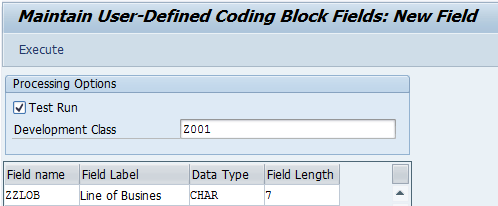
Figure 4
New field definition for basic mode
Once you run the update in the test mode, the following test log is displayed showing the Data Dictionary objects, configuration tables, and standard reports that are updated to include the new field (Figure 5).

Figure 5
A test activation log
In a live update run a very similar log is displayed (Figure 6).
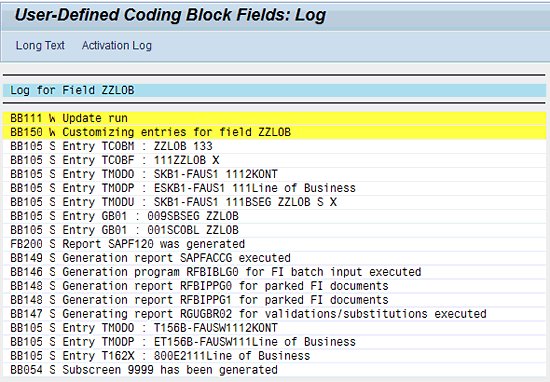
Figure 6
Live run activation log
Once you add your own field it appears in a new green node Customer Include Structure in the main display of OKX3 (Figure 7).

Figure 7
Coding block display with new custom field ZZLOB added
Once the live run is complete, display table BSEG in transaction SE11 and you see the new field (Figure 8).
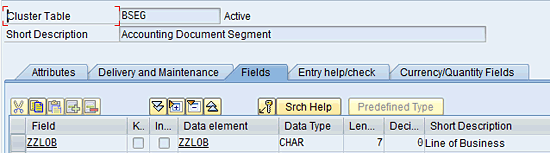
Figure 8
Field ZZLOB added directly to table BSEG in transaction SE12
Working in basic mode requires a developer key and a modification access key for table BSEG (Figure 9). You can use expert mode to avoid the modification access key requirement and use an append structure for BSEG instead. Your company may want to avoid using a modification access key as it marks the table as being modified in the SAP system, which may cause upgrade issues. The modification access key also opens the table for other developers to make changes to the table. You need to understand the difference in the two approaches to adding a field to BSEG. In general using an append structure is preferred as it makes upgrades simpler and does not allow additional changes to technical settings of the table.
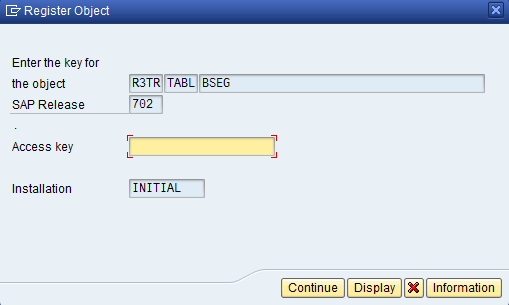
Figure 9
Modification access key for table BSEG
Expert Mode
In addition to the basic mode the modify code block functionality provides an expert mode. Expert mode breaks down the activation process step by step. Some advantages for expert mode are:
- It allows the creation of a CHAR data element with conversion exist ALPHA, zero fills numbers like the G/L account field (adds leading zeros to numbers to allow better sorting)
- It allows the addition of a master data table to the field, via the domain
- It allows additional field descriptions and F1 help text for the field, via the data element
- You can use an existing data element or domain for a custom field
- It allows the addition of a field to BSEG using an append structure
Expert mode still requires a developer key to perform activities. You need to work with an ABAP developer to complete the steps.
To enter expert mode choose the menu option Account Assignment Field > Expert Mode. In expert mode there is an enhanced set of menu options (Figure 10).

Figure 10
Expert mode menu options
Using expert mode, or directly using the SAP Data Dictionary, you can create an append structure for table BSEG to add fields. This does not require a developer key or a modification access key, but you need transaction SE12 security access. Start by going to table BSEG in display mode and clicking the Append Structure button. A pop-up appears with existing append structures, if any and you can click the New button (the icon image is a white piece of paper) to create a new append structure. At this point a pop-up appears in which you enter the append structure name (Figure 11).
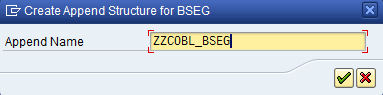
Figure 11
Create append structure
Add the new field into the append structure. There are many options such as chosing the data element or component type for the field, assigning search help, or adding a foreign key to link to a master data table. Your technical team will understand these options. Once you have added the field to the append structure (Figure 12), you can save, check, and then activate the append structure.

Figure 12
Add fields in append structure
Activation takes some time as it adds a field to the physical table structure of BSEG in the database, which is a very large table. You should do this only when no FI transactions are posting in the system. In a productive system you need quite a lot of time to do this. The process can be as long as several hours. After a succesful activation the append structure and field are visible at the bottom of table BSEG in SE12 display (Figure 13).
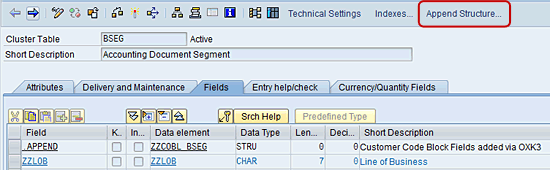
Figure 13
Field added to BSEG using an append structure with requiring a modification access key
Data Dictionary Settings
Using expert mode you can access the SAP Data Dictionary and add a master data table, via the domain, to your new field (Figure 14), the same as with SE11 access.

Figure 14
Value table attached to domain ZZLOB
This assists end users in selecting entries with a drop-down list, (Figure 15), and ensures all entries are validated against the master data list.
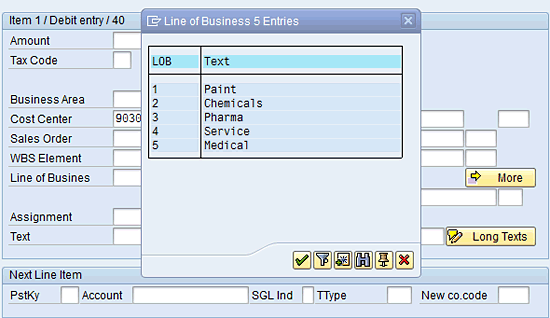
Figure 15
Drop-down list (F4 help) implemented using a value table
Using the Data Dictionary functionality you can also do the following to assist end users:
- Write F1 help text for the field, via data element
- Update the display texts for the field in short, medium, and long lengths, via data element
- Add custom search help to the field, via data element or table
Security
As mentioned already you need to have developer access to make changes using OXK3. In addition, due to the critical nature of this functionality SAP has created a special security object that you require, X_COBLMOD, Coding Block: Add New Field.
Note
Some points to keep in mind during your project. The following points would apply to any major SAP system change:
Perform the test in a sandbox outside your normal transport pipeline
Perform the test in your development or QA system with realistic data volumes to estimate conversion times
Field activation takes time, especially the addition to BSEG. This may be the largest table in your system. Do work closely with your Basis and DBA teams to prepare for the conversion and ensure they are available for the production cutover
Back up your production system prior to conversion
Stop all transactions in the system when the conversion occurs
A maximum of 18 customer fields can be added to the code block
Data Entry Screens
Once you add your new field to the code block it does not automatically appear for data entry in FB01 and other FI transactions. Several configuration steps are required to make the field available for end users.
Field Status Group Activation
The new field needs to be made available in the field status group assigned to G/L accounts. Use transaction OB14 or OBC4 to update the field status group. You will know the field status variant from your company code configuration and the specific field status group from G/L account master data (transaction FS03). Once you select your field status variant, go to the group Additional account assignments. When the field list is displayed, page down to page 2 or 3 to see the new field at the bottom of the list (Figure 16).

Figure 16
Activate the new field in the field status group using transaction OB14 or OBC4
Posting Key Activation
You need to update the configuration using transaction OB41 for each posting key for which you want the field to be active. Typically this is for posting keys 40 and 50 (G/L DR and CR). Consider if the field is required for customer, vendor, asset, and material postings. Consider also the types of business transactions for which you need to capture data for the new field. The configuration steps are the same as for the field status group (Figure 16).
FI Document Sub-Screens
The FI document sub-screens control the display of code block fields for FI documents (e.g., FB03). Standard SAP always has sub-screen 9999, which contains all code block fields, similar to sub-screen 1101 (Figure 1). This type of large code-block screen can be accessed by clicking the More button in G/L line-item display in Figure 15. In actual use only the fields selected in the field status group and posting key are displayed.
However, if you want to display the new field more prominently in the initial line item display, then you need to create a custom sub-screen with a maximum of 10 code block fields using transaction OXK1 (Figure 17).
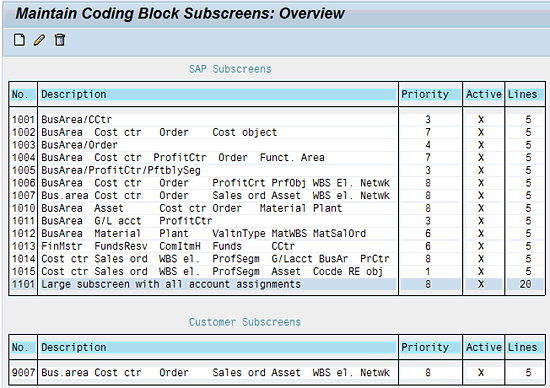
Figure 17
Overview of all sub-screens in transaction OXK1
The large sub-screen 9999 always shows the new field (Figure 18). Note that sub-screen 9999 does not appear in transaction OXK1 (Figure 17), but it always exists and is automatically generated by the SAP system. To access this screen click the More button (Figure 15).

Figue 18
Large sub-screen 9999, as it appears when displayed from an FI document after pressing the More button
To show the new field in the main line-item entry field a customized sub-screen is required (Figure 19). This sub-screen has 10 or fewer fields.
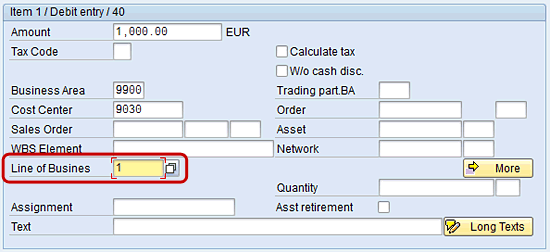
Figure 19
A customized five-line sub-screen as it appears directly in the FB03 line item detail screen
Enjoy SAP Transactions
If you use the Enjoy SAP transactions (e.g., FB50 or FB70) instead of the classic SAP transactions (e.g., FB01 or FB02) then you have to add the new code block file to the Enjoy SAP line layouts (Figure 20).

Figure 20
Add customer code block field to an Enjoy SAP line layout
You can add a maximum of five customer code block fields to Enjoy transactions line layouts. The configuration is in the IMG only at menu path SAP Customizing Implementation Guide > Financial Accounting (New) > Ledgers > Fields > Customer Fields > Include Customer Fields in Enjoy Transactions (Figure 3).
Additional Tables
The new field in the code block is only appended to BSEG out of the major FI table. It is not automatically added to FAGLFEXA, FAGLFEXT, BSIS, or BSID. For full details on the key tables for SAP General Ledger and classic general ledger, see the article “SAP GL Data Sources: Which Tables Should You Use?” Use the table append structure concept discussed for BSEG to add the fields.
Extend SAP General Ledger Totals Table
For the SAP General Ledger totals table FAGLFEXT follow IMG menu path SAP Customizing Implementation Guide > Financial Accounting (New) > Ledgers > Fields > Customer Fields > Include Fields in Totals Table.
Extend Secondary Index Tables
For other tables such as the FI secondary index tables (e.g., BSID and BSAD), use the append structure process outlined for BSEG to add fields.
How to Populate the New Field
Now that the new code block field is activated you need to populate the field. Keep in mind that the majority of FI transactions originate from other modules (e.g., sales and distribution [SD], materials management (MM), or SAP ERP HCM). For effective use of your new field it needs to be populated in the source transactions.
SD Transactions
In the sales order item account assignment tab the new field can be made available for manual input (Figure 21).

Figure 21
Line of Business field added to the sales order item Account assignment tab
In this case a custom code block sub-screen was developed to display the field in the main screen of the tab (Figure 18). If this is not done, a More button appears and a pop-up sub-screen with all account assignment fields is displayed. To activate the new field enter custom code in the form USEREXIT_COBL_SEND_ITEM in include MV45AFZB (Figure 22).
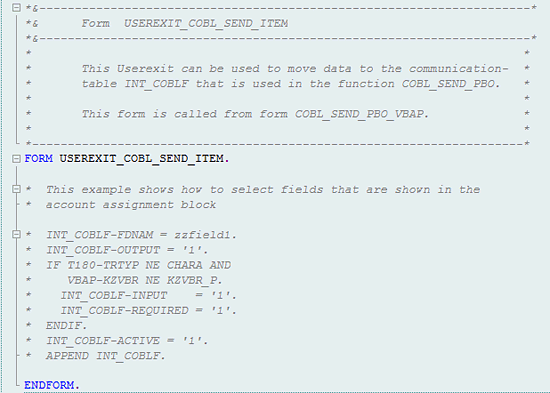
Figure 22
Use form USEREXIT_COBL_SEND_ITEM to activate the new field for SD line items
Often it is simpler to derive your new field using existing data in the sales order rather than having the user manually enter the value. Custom code to do this can be entered in a range of user exit forms such as MV45AFZBs. The following list includes some of the user exits specifically designed for code block changes:
- USEREXIT_MOVE_FIELD_TO_COBL: Populate field in the code block display
- USEREXIT_COBL_RECEIVE_VBAP: Move data entered into the new field into VBAP
- USEREXIT_MOVE_FIELD_TO_VBAP: Directly populate the new field in VBAP
Note that to support this entry method the new field has to be appended to table VBAP.
Purchase Orders
Purchase order account assignment is controlled by the account assignment category. Follow IMG menu path SAP Customizing Implementation Guide > Materials Management > Purchasing > Account Assignment > Maintain Account Assignment Categories or use transaction OME9. Activate the field for each account assignment category for which you want the new field to be visible (Figure 23).
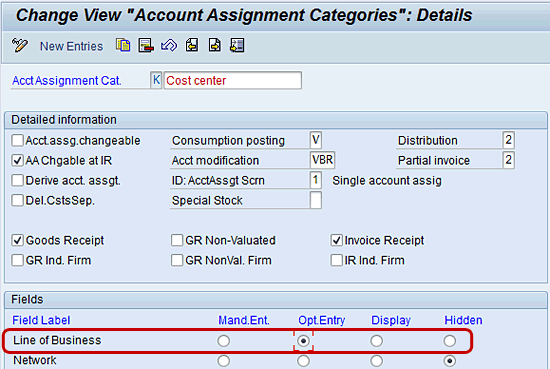
Figure 23
Activate the new field in the PO account assignment category
The new field appears in the More pop-up of the PO line-item account assignment tab (Figure 24).
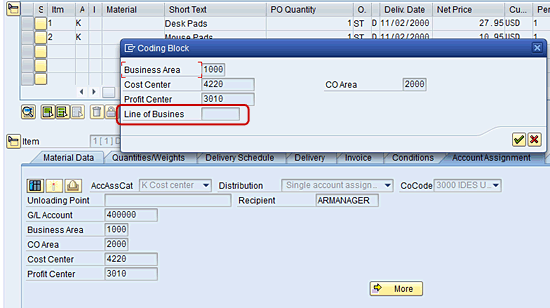
Figure 24
The new Line of Business field appears in the PO item account assignment pop-up
Inventory Management Transactions
For Inventory Management (MM-IM) transactions, the new field needs to be activated in the relevant movement types so that user entry is possible. This requirement is for Warehouse Management (MM-WM) transactions as well (Figure 25).

Figure 25
The new Line of Business field in goods movement posting
Follow IMG menu path SAP Customizing Implementation Guide > Materials Management > General Settings for Materials Management > Inventory Management and Physical Inventory > Movement Types > Copy, Change Movement Types or use transaction code OMBQ. In the configuration choose the view Field selection (from 201)/Batch search procedure (Figure 26). Then double-click the movement type and special stock indicator combination to be updated. You are taken to the same set of screens as the field status group configuration (Figure 16).
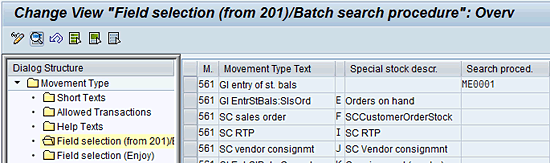
Figure 26
Activate the new field for a movement type using transaction OMBQ
When posting MM-IM transaction you may get an error message stating an inconsistency between the MM movement type field selection and the underlying inventory account field selection. Use report RM07CUFA to help resolve these issues. If you activated the new field for all inventory G/L accounts’ field status group this does not occur.
Substitution Rules
Probably the best way of populating your new field is deriving the value from existing data in the FI document. To do this using substitution rules use transaction code OBBH or follow IMG menu path SAP Customizing Implementation Guide > Financial Accounting (New) > Financial Accounting Global Settings (New) > Financial Accounting Global Settings (New) > Tools > Validation/Substitution > Substitution in Accounting Documents. The functionality is highly flexible and even contains options for adding custom coding. The new field is available in the substitution step selection (Figure 27).

Figure 27
New field ZZLOB is available for step selection in substitution rule creation
See the article “Improve Your G/L Postings by Enabling Substitution of Relevant Fields” by Kees van Westerop for more detail on creating a substitution rule.
Manual Data Entry
Previously, I showed you the field status group and posting key configuration required to open the new code block field for manual input in transactions such as FB01 and FB50.
Historic Data
When a new field is created no values are entered for historic data. The field will be blank for historic data and populated for new transactions based on the configuration you define. Should it be required to populate historic data, this is possible using services such as SAP System Landscape Optimization (SLO) or specialist consulting firms. I have been involved at a detailed level in this type of historic data population project.
Reporting on the New Field
Once the new field is correctly populated in new transactions you are close to the final goal of adding the new field that provides more detailed financial reporting.
G/L
After the new code block field is added, it is available for use both new and existing G/L Report Writer reports. Existing reports need to be modified before the data is visible to end users.
CO-PA
The new field can be added as a new characteristic to the existing CO-PA data structures and is then available for addition in new and existing CO-PA reports.
Make the New Field Available in SAP NetWeaver BW
The new field is not available in SAP NetWeaver BW automatically. You need to update both the SAP NetWeaver BW data structures and the SAP ECC data extractors to accommodate the new field, before it is available to add to new and existing reports.
Delete Custom Fields
Deletion of custom fields is not part of the OXK3 transactions. It is a time consuming activity to correct all Data Dictionary objects and configuration while ensuring no required data is lost. A detailed understanding of the Data Dictionary, database behavior, and FI configuration is required. I have undertaken this activity in the past and it is definitely a more complex project than adding a field, but not impossible.
Extending the code block provides a highly flexible way to meet custom reporting requirements, especially if you have multiple requirements that may need to use a similar existing field (e.g., profit center or internal order). Adding the field using the standard SAP tool set makes the field ubiquitous in the same manner as profit center or cost center.
Adding a new code block field needs to be tested in a comprehensive manner, similar to a technical upgrade of SAP ECC, with a strong focus on financial transactions.
Consider some of the existing SAP options for adding extra categorization of transactions such as internal orders, statistical internal orders, WBS elements, statistical WBS elements, functional area, and segment prior to adding a custom code block field.
Now you're ready to watch a video demonstration
Extend the G/L Code Block with an Additional Field

Rohana Gunawardena
Rohana Gunawardena heads the SAP practice division at Exium Inc. Exium is a leading business and technology consulting firm that enables companies to achieve their strategic business goals. Exium specializes in delivering superior IT solutions using ERP systems, with a special focus on SAP products. Rohana has been working with SAP since 1992. During his career he has assisted multiple clients on detailed system correction projects, such as correcting inventory balances, controlling area reorganizations, retrospectively activating group currency, and optimizing inter-company accounting transactions. He has spoken at many SAP conferences and has published more than 20 articles in Financials Expert, SCM Expert, and SAPtips on various aspects of SAP. His presentations have focused on Financials module selection, the order-to-cash process, global rollouts, business segment reporting, cross-module integration, and the financial impact of SCM transactions. Rohana is widely acknowledged as a leading SAP expert. Rohana is a Fellow of the Institute of Chartered Accountants in England & Wales. Previously Rohana has worked with the consulting practices of Accenture, Deloitte, and PwC.
Rohana will be presenting at the upcoming SAPinsider Financials 2018 conference October 16-18 in Prague. For information on the event, click
here.
You may contact the author at Rohana@Exium.com .
If you have comments about this article or publication, or would like to submit an article idea, please contact the editor.


 Premium
