SAP NetWeaver BI 7.0 introduces new functionality for error handling, such as the error Data Transfer Process and error stack. Find out how to use these new options.
Key Concept
SAP NetWeaver BI 7.0 contains a modified data staging and distribution process, called the Data Transfer Process, as a part of the extraction, transformation, and loading process. This element provides an efficient mechanism for error handling because it splits the staging, distribution, and loading process. In addition, a request-based database table called the error stack isolates erroneous records.
During design time or day-to-day operations, the error handling features in extraction, transformation, and loading (ETL) ensure the quality of data by eliminating data-related errors. This is important when your data warehouse acquires data from different source systems. The cleansing and transformation (technical or semantic) of data before loading it to the data targets should be a regular activity.
When you acquire and load data from varied source systems, data load errors are normal. The options available in your system determine how it processes and responds to errors. Regardless of which option you use, you must separate the error records from the entire data set for correction before loading them to the intended data target.
In this first article of a two-part series, we discuss the different options available in SAP NetWeaver BI 7.0 for error handling. We explain the Data Transfer Process (DTP) by using a scenario in which an InfoCube is the data target. In the second article we’ll show an example that involves a DataStore object (DSO) as the data target.
Note
The ETL processes in SAP NetWeaver BI 7.0 always contain a Persistent Staging Area (PSA).
The New Data Flow Concept in SAP NetWeaver BI 7.0
To appreciate the importance of error handling and the error stack, we will briefly go over the enhanced data flow process features introduced in SAP NetWeaver BI 7.0. In previous versions of SAP BW, InfoPackages governed the data acquisition and loading process from the source system to the data targets.
With SAP NetWeaver BI 7.0, you manage the process of data acquisition and loading in two steps — first data acquisition and then data distribution. InfoPackages continue to govern data acquisition, in which you source the data and stage it to the PSA, which is tagged to a specific DataSource.
Next, the system distributes it to different data targets using the new DTP. This two-step process adds transparency, traceability, and performance improvement in the ETL process and provides an efficient way to handle errors and debugging. Figure 1 compares the new and old processes.

Figure 1
Data flow comparison between SAP BW 3.x and SAP NetWeaver BI 7.0
Error Handling Options in DTP
Identifying and trapping erroneous records during the ETL process is important to a data warehouse. Features that enable efficient identification and post processing are equally important. For instance, in one option the system suspends the ETL process when it identifies an erroneous record. In another option, the ETL process isolates the error records while continuing to process the correct records for further reporting. In SAP NetWeaver BI 7.0, you govern the ETL process using various options while defining a DTP.
Figure 2 shows the four options that are available. In the following section, we'll explain the three options applicable for active error handling:
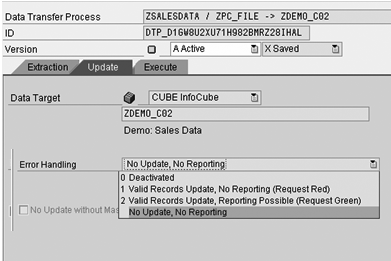
Figure 2
Error handling options
- 1 Valid Records Update, No Reporting (Request Red): When you select this option, you tell the system to isolate erroneous records in a data packet from the data load and to load the valid records into the data target. The data upload request remains in red status in the data target and is unavailable for reporting. With this option, the data administrator can check the error records and then manually turn the uploaded request to green, making the data available for reporting.
- 2 Valid Records Update, Reporting Possible (Request Green): When you select this option, you tell ETL to make the valid data available immediately for reporting in the data target.
- No Update, No Reporting: When you select this option, you tell the system to suspend data processing to the data targets if it encounters an erroneous record, preventing further data from loading into the data target. The system keeps scanning the remaining data packages for erroneous records.
The Error Stack
Another important aspect of error handling is the process to deal with the erroneous records. In SAP NetWeaver BI 7.0, the error handling process identifies the erroneous record from the original data upload request and isolates it by storing the records in a separate container called the error stack. After you correct or modify the erroneous records, you can then load them to the original intended data target by using a special DTP called the error DTP. This helps to ensure data consistency.
Figure 3 shows the positioning of an error stack in the data flow using DTP. When a DTP loads the data from the PSA (e.g., DataSource) to the specified data target, the system checks the records for the errors during the flow. These checks can either be standard system checks, such as master data checks, or custom checks that you code in the transformation.
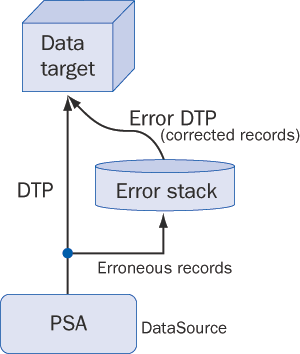
Figure 3
Error stack data flow
The system marks all the records that fail to clear the inspections or validation tests as error records. The system separates these from the main DTP flow and stores them in the error stack. Subsequent to corrections of the errors (such as manual editing of the records) or other corrective actions (such as loading the required master data), load the records from the error stack to the originally intended data target using an error DTP.
An important aspect of the error stack is the key field definition, which determines the records the system should route through the error stack. We’ll explain this in more detail in part 2.
To illustrate how to use the error stack, we will show the entire error handling process in a DTP, including error tracking and correcting, creating an error DTP, and loading the data from the error stack to the data target. To cover all variants we chose two scenarios. First we’ll show you a typical scenario in which you encounter an error while loading the data to an InfoCube. Then in part 2 we’ll show you a scenario that covers the entire process for a DSO, which includes the enhanced error handling option using the error stack key field definition.
Scenario 1: Working with an Error Stack (InfoCube)
You define the error handling when you create the DTP. You can create the DTP by using transaction code RSA1 (Data Warehousing Workbench). Follow menu path InfoProviders>Select Specific Target>Context Menu>Create Data Transfer Process>Select source>Creation of Data Transfer Process. In the DTP Update tab, select the system’s response when the error occurs in the data load by clicking on the appropriate option from the drop-down menu in the Error Handling field (Figure 4). In our example, we chose option 1, which enables the error stack in the data flow. You can also define the maximum number of error records the system should tolerate. In our example, we set the maximum to 100.
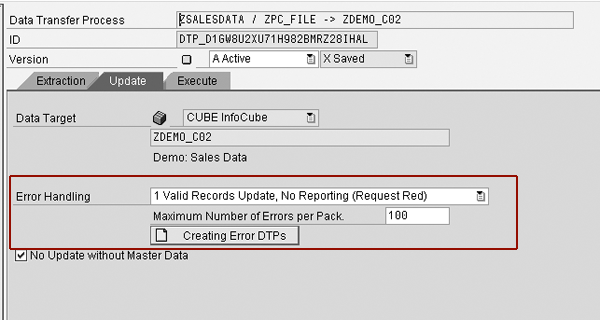
Figure 4
Error handling settings in DTP
In the example shown in Figure 5, we are loading sales order data to the data target. The master data for one customer (customer 1000) is not loaded. In the figure, you can see Data Package 1 and that only 41 out of 54 records loaded. The remaining 13 records for this customer are in the error stack.

Figure 5
Load sales order data to the data target
To see the error stack, click on the Error Stack button. Then select the data package to display the error records. In Figure 6, you can see the 13 erroneous records for customer 1000. Double- click on the status icon  for these records to see the details about the error (Figure 7).
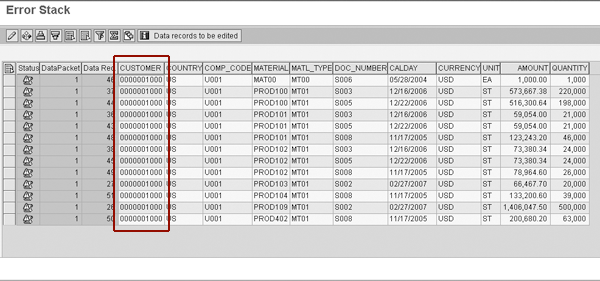
Figure 6
Records in the error stack
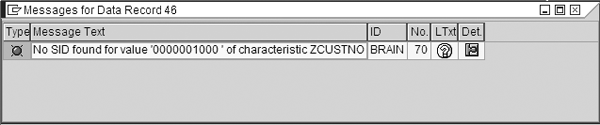
Figure 7
Error message for the records in the error stack
In this example, we can correct the error by loading the master data for customer 1000. If the error is due to a special character or incorrect format, you can edit the records in the error stack to correct the error (just like editing records in a PSA).
The next step is to load the corrected records to the data target using an error DTP. In the Update tab for the original DTP, click on the Creating Error DTPs button shown in Figure 4. The system enables this option as soon as you activate error handling.
An error DTP is just like a normal DTP, except that its source is the error stack. You can display the error DTP by following menu path InfoProvider>Data Transfer Process in the Data Warehousing workbench (transaction RSA1). Figure 8 shows the additional field DTP Type, which is visible with value EDTP Error DTP. This error DTP always has a reference to the original DTP, as shown in the InfoCube data flow in Figure 9. Here you can see the error DTP along with the original DTP. The error DTP is always associated with a specific DTP and system maintains the hierarchical relationship, as shown in Figure 9. This provides an end-to-end visibility of the data flow. This is another new feature available in SAP NetWeaver BI 7.0. Use transaction RSA1 and select InfoProvider. In the pane on the right side, you can expand the specific node in the hierarchy and the lower node expands, providing the details of the connected data flow objects.
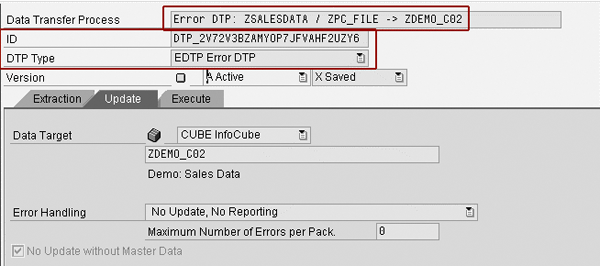
Figure 8
Create an error DTP
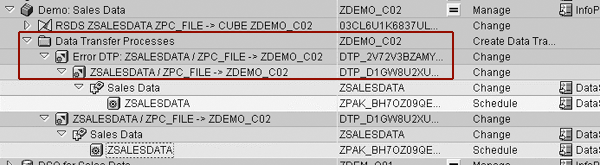
Figure 9
Error DTP in transaction RSA1 data flow
Execute the error DTP after correcting the error. This picks up the data records from the error stack and loads them to the data target. Figure 10 shows the data load monitor details. You can see that the extraction of 13 records from the error stack is successful.

Figure 10
All data records loaded successfully from the error stack
In the data target, this data load for the error DTP remains as a separate request. Figure 11 shows two separate requests that are visible in the data target administration screen. From the DTP screen follow menu path Goto>DTP Monitor to view the monitor screen. Click on the Details tab to see the monitor details.

Figure 11
Data target administration
Note that the source of the error DTP (Name of Source) is the original DTP and the source system (Source System Descript ...) is the SAP NetWeaver BI logical system. This is an important concept. The error DTP is related to the error stack that resides in the SAP NetWeaver BI system. It does not have any dependency on the DataSource of the original DTP.
Amol Palekar
Amol Palekar has worked on BI implementations for various Fortune 500 companies. He is currently principal consultant at TekLink International, Inc., and focuses on institutionalizing the global delivery model and processes for application development, maintenance, and support engagements. He is also a trainer, author, and regular speaker on the subject of BI. He is recognized for his popular and best-selling books: A Practical Guide to SAP NetWeaver BW (SAP PRESS) and Supply Chain Analytics with SAP BW (Tata McGraw-Hill).
You may contact the author at amolpp@yahoo.com.
If you have comments about this article or publication, or would like to submit an article idea, please contact the editor.
Bharat Patel
Bharat Patel is experienced in managing data warehouse technology for the petroleum industry. He is an SAP-certified BW and ABAP consultant, has authored a book on SAP BW, and teaches courses on BW and ABAP at the Sapient Academy and SAP Labs India. Bharat has presented papers about BW at Business Intelligence India Group (BIIG) conferences. He presently manages the SAP BW system at Bharat Petroleum, India.
You may contact the author at patelb@bharatpetroleum.com.
If you have comments about this article or publication, or would like to submit an article idea, please contact the editor.

Shreekant W. Shiralkar
Shreekant W. Shiralkar is a senior management professional with experience on leading and managing business functions as well as technology consulting. He has authored best selling books and published many white papers on technology. He also holds patents for innovations. Presently he is global head of the SAP Analytics Centre of Excellence at Tata Consultancy.
You may contact the author at s-shiralkar@yahoo.com.
If you have comments about this article or publication, or would like to submit an article idea, please contact the editor.