Bills of materials and routings that most companies use as a basis for product costing build on the standard values per lot size manufactured. However, businesses often need to perform allocations based on quantities calculated in a more flexible way using dependencies inherent in their mySAP ERP systems. You can use a template to enhance the estimates derived straight from the logistical structures that are not covered by the operations in the routing — for example, for distribution or cleaning costs.
Key Concept
A template is a set of rules used in the Controlling (CO) module that allows you to create a quantity structure that you can use in the allocation of costs between CO objects. You can use templates for plan data and actuals, for the allocation of costs to cost centers, production orders, profitability segments, and for cost estimates in product costing (among others). By using predefined functions, you can implement complex logic with a lot of flexibility without any programming.
Most companies that implement product costing in R/3 or mySAP ERP Central Component (ECC) desire close integration between logistical (master) data and financial calculations. When trying to calculate meaningful and detailed cost estimates, however, these companies often want more information and detail in their cost estimates than is necessary from a manufacturing control point of view.
The cost of quality assurance, cleaning, or logistics can be significant, but traditionally these costs are not included either in the bill of materials (BOM) or the routing of the materials, as they focus only on the steps required to manufacture the product. That is because dummy materials or operations would bloat the master data and cause confusion on the shop floor or, worse, add extra operations that you need to confirm.
Using a template as part of your costing setup, you can achieve two important goals while maintaining transparency and accountability:
- Make optimal use of already existing (logistical) master data
- Add the necessary data without encumbering logistics, either in the master data setup or the administrative processes
I will quickly outline what a template is and how it works, and then focus on real-life examples of how you can use a template.
What Is a Template?
A template is a set of calculation rules that you can use to allocate costs between CO objects, using predefined functions and with reference to relevant attributes of the objects involved. You can use templates in several places in CO. Technically that is reflected in several environments, predefined by SAP — such as 001 for production orders, 005 for work breakdown structure elements, 009 for process orders, PAC for Profitability Analysis (CO-PA), and so on. Each environment limits the available functions. For example, it would not make sense to allow a function that looks up the standard lot size of a material, when the environment is used to allocate costs from cost centers to profitability segments. In my example, I’ll be using functions from environment 001 (production orders). Each environment also limits the master data tables that you process to look up attributes (e.g., the cost center master data table in the environment for allocations from cost centers to PA).
If you use production orders created with transaction CO01, you only need to use environment 001. When you use the Production Planning-Process Industries (PP-PI) module, you create process orders with transaction COR1. To allocate costs to actual orders you then use environment 009.
You can take a look at the environments and up to a certain extent customize the available functions in transaction CTU6. The examples in my article do not require customizing of standard environments.
Maintain the templates via transaction CPT1 (create template), CPT2 (change template), and CPT3 (display template). You can find these transactions in the IMG by following menu path Controlling > Product cost controlling > Product cost planning > Basic settings for material costing > Templates. Conceptually, the template is similar to an overhead costing sheet. It is also treated by standard SAP as a transportable current setting (i.e., something that you can transport, but also change directly in a productive client). If you have large and complex templates, use transport function 0KWT (on the Templates tab) to transport them from your development system to your production environment. You can also adjust your templates in the productive client directly without having to allow customizing, which can be useful for a quick correction without going through a heavy transport procedure. However, for complex templates that need thorough testing and that can have a high impact on the results of your cost estimates, transport requests from the development system are preferable.
Within an environment, you can create as many templates as necessary. The assignment of a template to the material for which you create a cost estimate or production order takes place in transaction KTPF. You can go there through the path mentioned above or via transaction CPT3 with Environment > Assignments. You can use the costing sheet from the costing variant, possibly in combination with overhead keys from the material master, to assign different templates to different materials. In my experience, it is useful to assign just one template to all materials. For example, you could assign it via an entry with overhead key <blank> and the costing sheet <blank> — because you can call up one (sub-)template from within another, using freely defined logic. Instead of assigning several different templates via the assignment transaction KTPF, you could assign just one master template that calls up several other templates, depending on certain conditions you need to fulfill.
The template consists of one or more lines, each of which answers four questions:
- What kind of line is this? You can find this in the Type column. In Figure 1, you can see that this is an allocation of activity types (Cost Center/Activity Type). In the environments relevant for product costing, you can distinguish between lines that you use to call up another template (which is then known as a sub-template), that you use to allocate activity types from a cost center, or to allocate processes from Activity Based Costing (CO-ABC). Because activity types are more common, I’ll focus on these. You also can include comment lines for documentation and transparency.
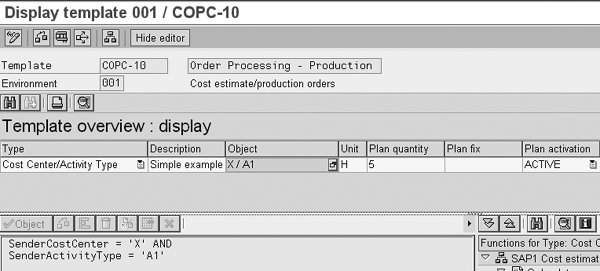
Figure 1
Template overview with detail screen of Object column
- What should be allocated? You can find this in the Object column. X / A1 shows that you should allocate activity type A1 from cost center X.
- How many should be allocated? You can answer this in the Plan quantity column, which shows 5 hours in this example. The unit of measure is taken from the master data of the activity type you want to allocate.
- Depending on which condition should I allocate them? You can find this in the Plan activation column. The ACTIVE distinction denotes that you should allocate them always.
After you maintain the assignment of the template to the material in transaction KTPF, when you create a cost estimate via transaction CK11N the template adds five units of activity type A1 from cost center X (valued at the relevant activity price) to the other elements of the cost estimate. Also while performing period-end closing for production orders, in transaction CPTD the system posts 5 units of activity type A1 from cost center X to each production order of the material in question.
Note
The quantity and activation columns appear twice, once for plan (Plan quantity and Plan activation) and once for actual data (Actual quantity and Actual activation). In the environments for process orders there is also an Event column that you use to check the confirmation status of the production orders, which is beyond the scope of this article.
Adding Complexity to the Template via Functions
With a template, instead of using concrete values, you can use complex functions that are part of the standard software and therefore don’t need any programming. If you double-click on a cell in the template, you are taken to the detail screen of that cell. There you can drag and drop functions from a list of available functions on the right. The system prompts you to fill in any necessary parameters. Though the examples may resemble programming statements, very little typing is involved.
In the Object column, select all activity types that start with an A and that are planned on one of the cost centers that belong to the department QA. These might be two different cost centers, each of which carries out different types of inspections, valuated through different activity types. The detail screen of the Object cell would look like the screen in Figure 2.
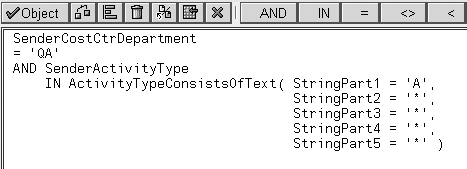
Figure 2
Detail screen of Object column with complex formula
In the Plan quantity column, the formula should calculate the number of units of the material 100-310 in the BOM. This might refer to the component of a material that triggers the need for inspections. The detail screen of the Plan quantity cell would look like the screen in Figure 3.

Figure 3
Detail screen of Plan quantity column with complex formula
In the Plan activation column, you can put together the most complex conditions, such as only if the material is in material group 001, but not if the work center is 1115. This might distinguish materials of a certain type (e.g., only the high-end product range, but with no need for inspections if processing takes place on the new production line). The detail screen of the Plan activation cell would look like the screen in Figure 4.
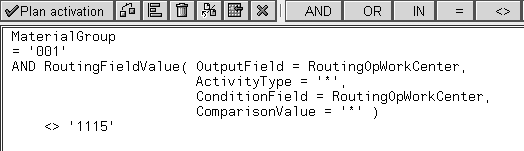
Figure 4
Detail screen of Plan activation column with complex formula
Now I’ll show you some real-life examples of templates I’ve built at customer sites to access data the customers already had in their material masters, BOMs, and routings.
Integration with Material Master
I’ll detail a few examples about integrating with the material master from personal experience.
- Net weight. One of my customers produced cheese. For production handling reasons, up to the packaging production phase where the wheels of cheese would be cut up to the smaller pieces and slices actually sold, the base unit of each semi-finished product cheese was “piece.” However, the company allocated overhead costs based on weight. For production planning reasons, the system already maintained the net weight field in the material master. By using a template with the quantity function MaterialNetWeight, the company easily allocated net weight overhead costs via activity types. This made for a much more sophisticated allocation than the percentage overhead that many companies use to charge out this sort of costs.
- Product group. Another example of how to reuse data from the material master is an activation function of the type Product group in (1; 3; 25), which directs the system to allocate only if the material in question is in either product group 1, 3, or 25. That way, you can assign costs only to semi-finished goods or to a certain product range that requires specific indirect costs by reusing master data already maintained in the system. If you wanted to achieve the same result with a costing sheet, you would need to maintain different overhead keys in the costing view of the material master. If you have more than one dimension by which you differentiate the overhead surcharge (e.g., high/low inspection requirements and high/low logistical complexity), the definition and assignment of just one overhead key becomes a nightmare. On the other hand, you can assign all materials to the same template via the <blank> overhead key and carry out the differentiation by product group in the template itself. Be aware, however, that the integration of costing and logistics becomes tighter still, so that clear ownership of the master data and clear procedures for changing the master data become very important. If the product group assignment changes, so does the cost estimate of the product.
- Alternative unit of measure. For assigning distribution and logistical costs, you can use alternative units of measure, if they are already maintained in the material master. In the cheese company, the cost of external warehouses was dependent on the number of pallets stored in combination with the length of time the storage took place. The base unit of measure was still “piece,” but the alternative unit of measure “pallet” was also maintained because not every wheel of cheese is the same size. There is a standard function to look up the conversion factor so you can assign costs per pallet for the materials in question. If you don’t maintain an alternative unit of measure, the function returns a 0 value, so it is necessary to check in the Activation column that the alternative unit of measure is actually maintained.
What do you do if through master data maintenance problems the necessary alternative unit of measure is not maintained in the material master, though it ought to be? There is no specific error handling in the template functionality. You can check plausibility and completeness of the cost estimates from the results of the costing run (e.g., check that cost components for storage costs are within expected percentage ranges of the total costs). Or you can create template lines that result in an error message when a certain condition is not fulfilled. For example, if the alternative unit of measure “pallet” must always be maintained, create a rule to assign one unit of an activity type without a price, under the activation condition that the conversion factor is 0. The cost estimate then produces an error.
Now I’ll go through an example demonstrating the use of the alternative unit of measure that should familiarize you with the template maintenance transaction CPT2 (Figure 5). Double-click on the cell in the Object column to bring up the screen shown in Figure 6.
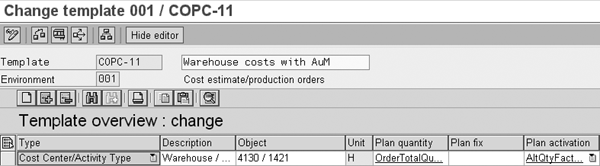
Figure 5
Template overview in transaction CPT2
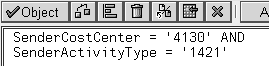
Figure 6
Detail of the Object column
In this example, assign the activity type 1421 (wage hours) from the cost center 4130 (warehouse). Confirm the details by clicking on the green check box. This takes you back to the overview, where you double-click on the cell in the Plan quantity column to reach the screen in Figure 7.

Figure 7
Detail of the Plan quantity column
Here you can see how the system derives the activity quantity by taking the lot size in the order (OrderTotalQuantity) or the calculation lot size in a cost estimate, converting it into pallets (AlternativeQuantityUnit) by reading the factor in the material master of the material that the system costs or produces (OrderMaterialNumber). Confirm the details by clicking on the green check box. This takes you back to the overview, where you double-click on the Plan activation column to reach the screen in Figure 8. In Figure 8, I define that the system should only allocate if the alternative unit of measure for unit “pallets” is maintained in the material master (represented as smaller or larger than 0).

Figure 8
Detail of the Plan activation column
In the example, the system costs material 100-300. The alternative unit of measure in the material master is maintained with a conversion factor of six pieces (ST) = one pallet (PAL). The planned price for activity type 1421 is set at 10 EUR/hour (H). As you can see in Figure 9, when costing 12 pieces, the system allocates 2 hours of activity type 1421 from cost center 4130.
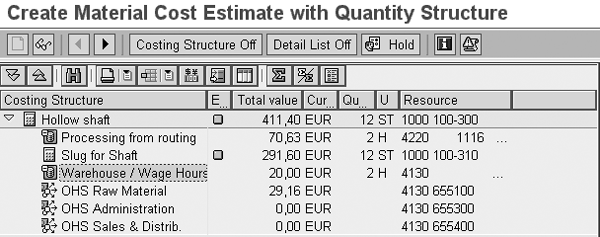
Figure 9
Result of the template in a cost estimate
Integration with Routing
In classic product costing without templates, often you see activity types (machine hours) allocated based on the standard values in the routing operation (production time, setup time, and so forth). The main drawbacks of this approach are twofold:
- You are limited to a maximum of six standard values and six activity types per operation. You can only allocate these from the cost center linked to the work center of the operation.
- When allocating actual costs to concrete production orders, the system uses the quantities entered in the confirmations
I will explain how this can be a problem with an example relating to standard values from the routing operation.
Another one of my customers produced dried milk powder in bulk on large installations. The production planning strategy was make-to-stock, and from a costing point of view the main focus was on covering the total costs of the installation by the total production of a year. The production variances on a specific production lot were not relevant. The cost accountant was therefore interested in debiting actual production orders with the standard quantity of hours, based on the actual quantity produced.
The production manager, however, wanted to be able to follow the exact use of the installation for idle-time analysis. The confirmation transaction CO19 (CORZ for process orders) only used start- and end-time for a certain order to determine the actual hours spent on processing (time-event based confirmation). This resulted in detailed, varying confirmation of hours, with a certain risk of data entry errors as well.
This conflict of requirements was solved in the following way. The system valuated the production hours allocated through classic product costing (i.e., through the multiplication of routing standard values and the actual confirmed hours, at 0.01 EUR/10,000 hours). They were practically without costs but still visible in CO reports to satisfy the information needs of the production department. Through a template, I set up the Actual and Plan quantity columns with the formula shown in Figure 10.
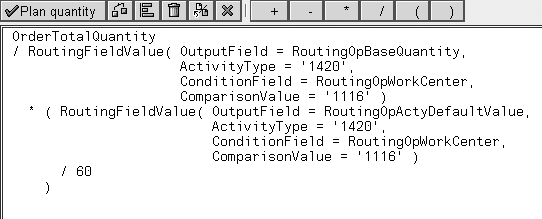
Figure 10
Detail of the Plan quantity column with routing standard values
To see how many of the product the system allocates, divide the quantity that the company produces by the base quantity of the routing operation (i.e., the quantity in the routing that the standard production time refers to) that is identified by work center 1116 (i.e., the work center of the powder drying installation) and the activity type 1420. Then multiply with the standard value of the same operation (i.e., the standard production time), converted to hours from minutes through the division by 60. Assign this quantity of the activity type in the Object column. This results in the situation shown in Figure 11 in the calculation and the allocation to actual production orders.
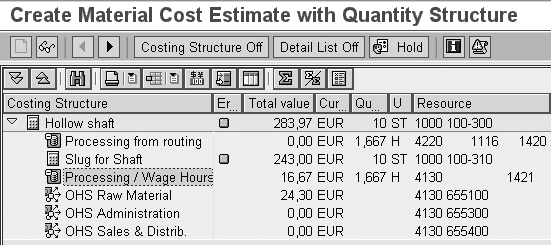
Figure 11
Cost estimate with processing hours allocated twice
The classic allocation based on the production time in the routing takes place in the second line, with 1.667 hours being allocated from cost center 4220 (linked to the work center) and activity type 1420 (filled in at the routing operation level). These hours, however, are not valuated. The template using the formula described the results shown in the Processing/Wage Hours row in Figure 11. The system allocates the same quantity based on production time in the routing and the actual quantity costed or produced, valuated against planned price, with cost center 4130 and activity type 1421, derived through the Object column in the template.
Note
Is a template better than a costing sheet? In product costing implementations without the use of templates, you sometimes see overhead or utility costs allocated via costing sheets. If these are quantity based and based on the cost element that you use to allocate production hours via the routing, the result can approach what you can achieve with a template. However, you need to calculate rates for the surcharges outside of SAP and maintain the surcharges manually, which can be time consuming. By allocating activity types for these kinds of costs, you can make use of the activity price calculation in your SAP system to clearly document how you arrive at the rates (e.g., planned costs divided by planned activity quantity).
Integration with BOM
Here are two examples of how to allocate costs based on the data already maintained in the BOM.
- Pick up the quantity of a component. Similar to the use of alternative units of measure as discussed above, sometimes you find materials in the BOM that are directly proportional to logistical costs incurred (e.g., pallets and crates as part of the BOM). With a formula in the Plan quantity column, you can read how many units of a certain material you need for producing the calculation quantity of a material, which you then use to allocate logistical costs accordingly (Figure 3).
- Check whether an ingredient is part of the BOM. You can also check in the BOM whether a certain ingredient is present and include costs based on that check. The milk-powder producer I mentioned above added vitamins to the semi-finished state of certain products. While the (mixing) work center was the same for all products of a certain group, the system charged additional costs for the use of specific equipment to the products containing the vitamins. The necessary formula in the Plan activation column is shown in Figure 12. This formula shows that the system allocates if the required quantity of material 100-310 is not equal to 0, so it is part of the BOM.
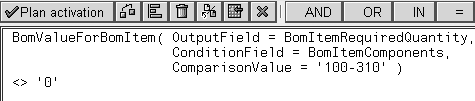
Figure 12
Check for the existence of a component in a BOM
Unlimited Creativity via Classification
As I’ve shown, there are many ways to reuse existing master data from material master, routings, and BOMs for your product costing. From a master data maintenance point of view, this is surely the preferred option, because you can profit in more than one way from a master data field that is already maintained in the system.
At some point, you may run out of logistical data to reuse for your cost allocations. Eager cost accountants insist it is necessary to distinguish between products based on whether they necessitate a lot of cleaning, whether they have higher-than-average quality problems, or even, in one extreme example I experienced, that special interest costs of a loan taken only to finance a certain line of products should be reflected in the full costs of these products. By using material classification, you have almost endless possibilities to include all of these elements in a cost estimate. This might encourage questionable allocations. However, this procedure is even then more transparent than the equally flexible spreadsheet on the desk of the cost accounting wizard.
I’ll go through the steps needed to set up classification data for a material and show how to use this data in a template formula.
First use transaction CT04 and create a characteristic to reflect different cleaning intensities (high, medium, and low). These can be numerical — in this case, you can use the numerical value in the Plan quantity column, possibly in combination with a formula — or alpha-numerical — so you can use the values as part of your logical checks in the Plan activation column.
Then in transaction CL02, create a class for materials, which must be of class type Material class (001). Here you also need to assign your new characteristic. Finally, you need to assign the class to the relevant materials you want to charge costs to. You can do this, for example, via transaction CL20N. In my example, the material 100-300 falls in the category Medium. Your template could then have the structure shown in Figure 13.
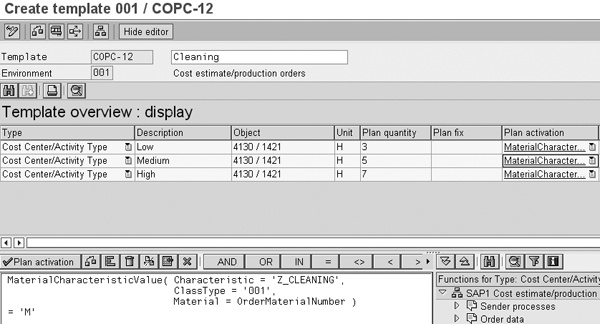
Figure 13
Figure 13 Cleaning template, with detail screen of Plan activation cell
The important column here is the Plan activation column. The cell displayed in Figure 13 distinguishes that the system allocates only if the material it is costing is assigned to the characteristic Z_CLEANING with value M (for medium). So, all materials that the system classifies as being in group M activate the second line of the template. The activation cells in the first and third line are exactly the same, only they check that a material has been classified as low or high, respectively.
The Object cells are all the same. Once again, you need to assign cost center 4130 and activity type 1421 (Figure 6). The Plan quantity cells are also very simple. I have put in fixed values, to be allocated in one lump sum to the calculation. Three hours should correspond to low, five to medium, and seven to high cleaning intensity.
It should come as no surprise that when you now calculate the cost estimate for material 100-300, the system allocates 5 units of activity type 1421 from cost center 4130 (Figure 14).
I have used this kind of template for the customer stocking cheese on pallets in an external warehouse to depict the price list of the external service provider, based on the size of pallet involved and the medium storage period.
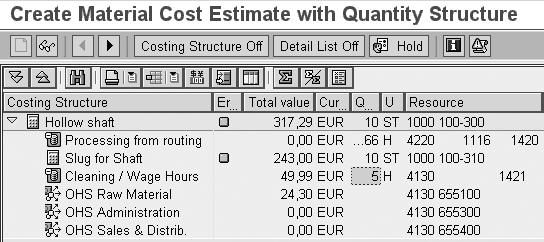
Figure 14
Cleaning costs in the calculation
Daniel Svejda
Daniel Svejda has been working as a financial SAP consultant for more than 10 years, mainly in full cycle implementations. Apart from product costing, he is also very interested in the Treasury functionality of the mySAP ERP system.
You may contact the author at daniel.svejda@capgemini.com.
If you have comments about this article or publication, or would like to submit an article idea, please contact the editor.



 Premium
