Solution Manager 7.1 has some new features to help you perform end-to-end testing with or without advanced test automation and management tools. Testing plans, test packages, email notifications, and work centers help you plan, execute, and manage testing for your SAP solution.
Key Concept
Solution Manager test planning and management provides reusable test assets for future enhancements, break fixes, and upgrades. Proper setup of test plans, packages, and sequences can help your testers know when to test what, and to communicate test results in a central repository.
First I’ll define the following terms and concepts:
Test case – A test case describes the object to be tested. Conceptually there are two classes of test cases: the business test case and the referred test case. The difference is in the scope of the test, not the structure of the test content. The business test case models a complete business or administrative process with all its prerequisites for a particular test. For example, Create standard order requires Create customer, Create material, and Specify conditions. The referred test case usually tests a small testable entity, which is usually a transaction such as Create customer. It modularizes a test case and makes individual tests reusable.
Note
For manual test cases that use the Computer Aided Test Tool (CATT) or
extended CATT (eCATT), it is common to build test cases that refer to
other test cases. For the purposes of this article, I focus on these
more granular test cases to illustrate how test packages can combine
tests into logical execution groupings rather than combine them into
larger test cases.
Test case type – There are several types of test cases available. For more information about test case types, see Test Case Types. Table 1 gives a brief description of the different test case types. I use the manual test case type for all examples because the focus is on test planning and work coordination during testing rather than on the details of test execution, whether manual or automated.
Table 1
Test case types in the Solution Manager Test Workbench
Test package – Assignment of test cases to testers. A test package can contain more than one test case.
Test plan – A collection of test packages to identify the scope of a planned testing session or purpose. It is used to identify when testing should begin and end for a collection of test cases related by a business process or processes needing to be tested together.
Preparation for Test Planning
So that you’ll have all the component parts you’ll need to do test planning and management, it is ideal to add your test cases to the BPH early in your project. In the beginning, these can be simple placeholders to identify the number and scope of test cases as you move through the design and build of your solution. Later, as you get nearer to testing, you can choose to augment or replace the placeholder documents with fully developed manual test case scripts or change them to some form of automated tests.
You begin in transaction code SOLAR02 (configuration) on the Test Cases tab for each of the business process steps in scope for the project. Figure 1 shows the Test Cases tab for my sample project within the Delivery Processing business process on the process step Schedule Delivery. You can see that the Test Document OTC-Create Delivery for Hazardous Materials has been assigned. This is a manual test script assigned as a test case for the business process step Schedule Delivery.
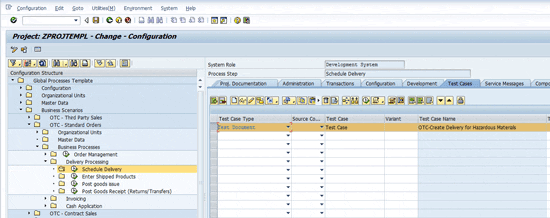
Figure 1
Test case assignment on the Test Cases tab for a process step
Note
Through configuration via transaction code SOLAR_PROJECT_ADMIN, you can
make the Test Cases tab available in transaction SOLAR01 (Business
Blueprint). This can be helpful because you can create placeholders for
test cases during the design phase when business owners are involved
more prominently than during the configuration of the system. This helps
you identify early on the number of tests you need to develop, as well
as beginning to identify which tests are good candidates for automated
testing.
On the Transactions tab (Figure 2) you can see the transaction for creating the delivery for the business process (VL01). This is the transaction that will be tested in the test case shown in Figure 1.
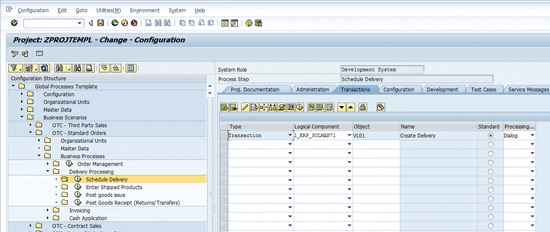
Figure 2
Transaction tab for the process step Schedule Delivery
I use the two object types (transaction and test case) as I build out test packages in the test plan. By repeating these steps for all the business process steps in the BPH, you will have all the necessary detail components to build any number of tests for unit, end-to-end integration, and user acceptance testing.
These component parts can be assembled in a myriad of combinations in Test Plan Management to meet all the testing scenarios without having to write separate test cases for each combination of components needed to do thorough testing.
Test Plan Management
Now that all the BPH content is loaded into the project, it is time to begin planning for testing the solution.
Note
It is my opinion that test planning can and should be an ongoing
activity as part of an iterative design-and-build approach. Coordinating
the testing planning in the design-and-build activities has many
advantages, such as raising awareness of needed test data, identifying
process integration points, designing with the end in mind, and
supporting a culture of agile development.
There are many approaches to defining the scope of individual test plans. For the purpose of this article, I focus on setting the scope of the example test plan to be a single business scenario and I touch on a few of the process steps for the processes within the scenario.
The example that follows is for a variation of the order-to-cash scenario for the return of hazardous materials. The test begins with the creation of a return order for the customer, followed by receiving the returned items, and concluding with the processing of the credit memo to clear the receivables for the previously shipped goods. Start transaction code STWB_2 to begin to build test plans for testing the to-be solution.
Note
A test catalog is a set of test cases in a hypertext structure.
This structure can be augmented by links to supplementary documents. How
these are built and maintained by your project is defined as Test
Catalog Management. Test Catalog Management is beyond the scope of this
article.
Figure 3 Figure 4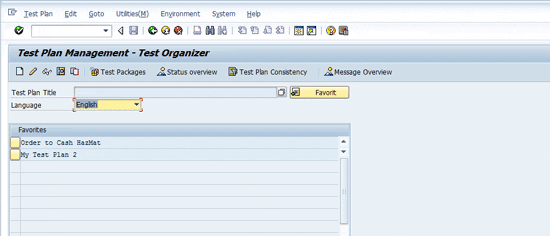
Figure 3
Initial screen of Test Plan Management
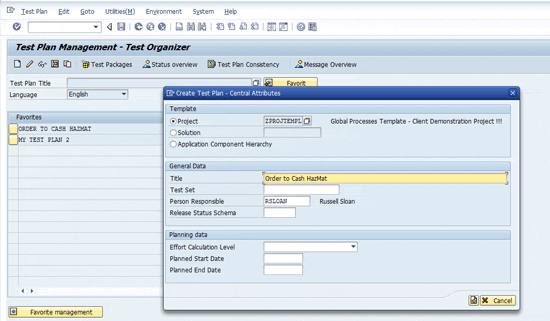
Figure 4
Pop-up for creating a test plan
For my example, I’ll reference a project (BPH) to get the scope of the test plan. In Figure 4, the radio button for Project is selected and the project name ZPROJTEMPL is selected from the Project drop-down selection as the template project for building the test plan. The processes for building a test plan are quite similar when choosing to use a solution as the source for the scope, but using the application component hierarchy is beyond the scope of this article.
Enter the Title of the test plan in the General Data portion of the pop-up. By default, the person responsible is your user ID. You may change it if necessary. Click the next icon  on the current and next screens to go to Figure 5.
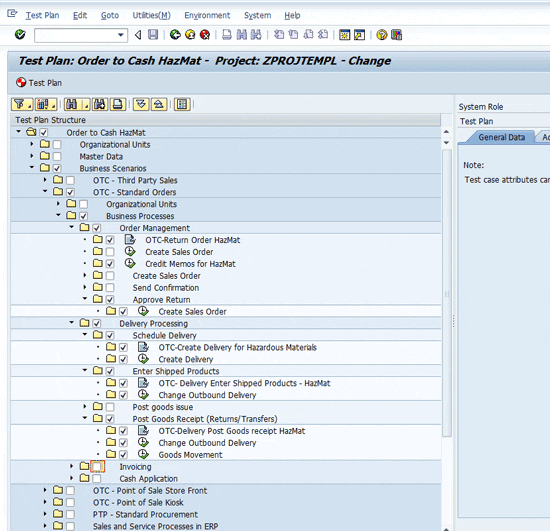
Figure 5
Test Plan change screen with the ZPROJTEMPL project expanded for the processes and steps in scope for the test plan
The project structure is displayed in the test plan change screen (Figure 5). Expanding the nodes and selecting the specific test cases (document icon  ) and transactions (execute icon
  ) needed to complete the business process includes these components in the test plan.
Next, create test packages to group testing components into logical bundles of related test cases. Go to the main Test Plan Management – Test Organizer screen using transaction STWB_2. Select a Test Plan Title row from the table displayed on the main screen. Click the Test Packages button. Figure 6 shows the main Test Plan Management screen with the Order to Cash HazMat test plan selected.
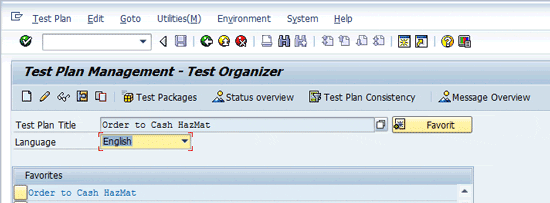
Figure 6
Test plan for Order to Cash HazMat selected
When you click the Test Packages button, Solution Manager opens the Test Package Management – Test Organizer screen, which shows any existing Test Packages assigned to the test plan. Figure 7 shows the Order to Cash HazMat test plan with some example Test Packages already created for the test plan.
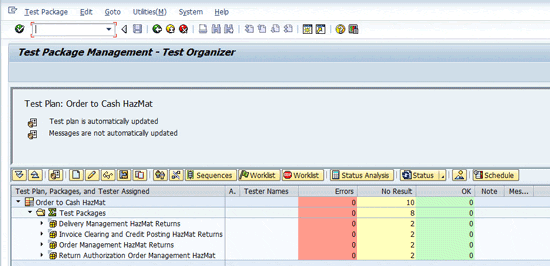
Figure 7
Test plan shown with text packages
To create test packages for the test plan, click the create test package icon  . This opens the Test Package: - Create screen with the subset of content of the ZPROJTEMPL project selected during the building of the test plan. Figure 8 shows the Test Package: - Create screen with the Test Plan content fully expanded.
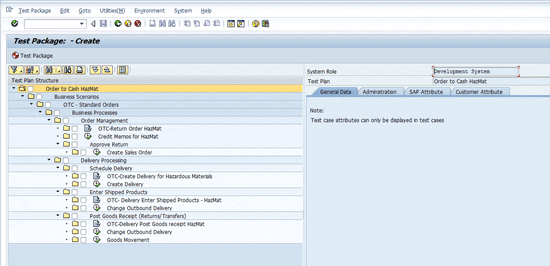
Figure 8
Expanded screen for the Order to Cash HazMat plan
Select the content that should be contained in the test package. Remember to include both the test documents and the related transactions used to execute the tests. (Note the icons next to the texts on the structure nodes. The document icon indicates a test document and the execute icon indicates a transaction.)
Once all the appropriate nodes have been selected, click the Generate Test Package button to create the test package. The Test Package Information pop-up appears. Enter the test package title and, optionally, the priority and planning data. Click the execute icon to create the test package. Figure 9 shows the Test Package Information pop-up along with the node selections for the test package.

Figure 9
Test package information pop-up displayed
Repeat this process until all the nodes in the test plan have been assigned to test packages. When you’ve completed your selections, the Test Package Management – Test Organizer screen should look similar to Figure 10. You reach Figure 10 via transaction STWB_2 (Test Packages). It shows an example set of test packages for the Order to Cash HazMat test plan.
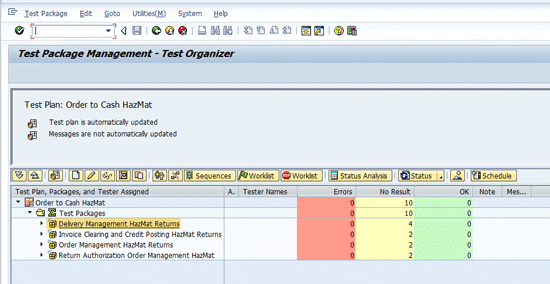
Figure 10
Example set of test packages for a test plan
Next, assign testers to the packages so the correct test packages appear on the tester’s work center. Start by selecting a test package and clicking the assign tester icon  . A user selection pop-up appears (Figure 11). Select the users who are accountable for performing the tests within the test package and press Enter. This assigns the users to the Test Package. Figure 11 shows the Restrict Value Range pop-up. For my example, the search is narrowed to include only the test user IDs, which all begin with Tester*.
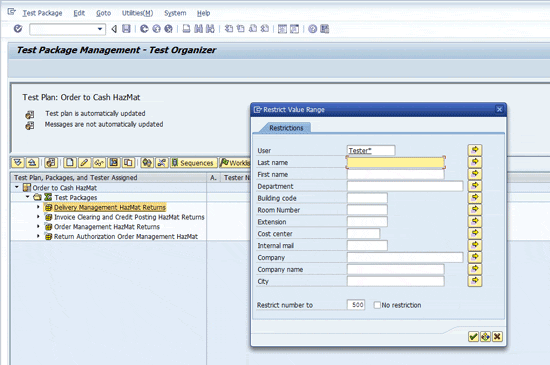
Figure 11
Restrict the value range for user selection for tester assignments to the test package
After you select the testers (Figure 12), press Enter (or click the OK icon) and the Test Package Management screen is updated with the assigned testers.
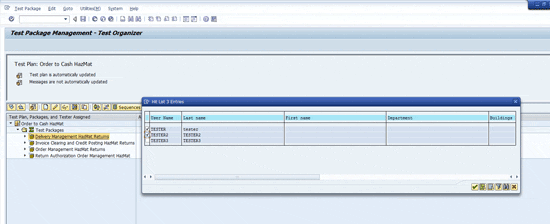
Figure 12
Tester user ID selection
Figure 13 shows the updated Test Package Management display with the selected user assignments.

Figure 13
Test Package Management screen showing tester assignments to the test package
TESTER2 or tester can log into Solution Manager, open the Test Management work center, and see the Test Package on the Tester Worklist (Figure 14).
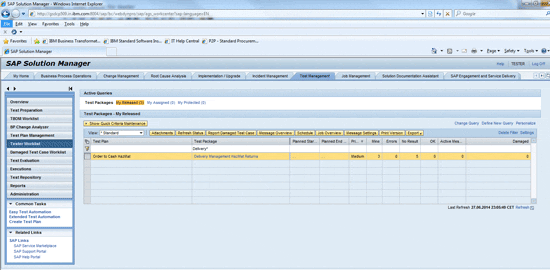
Figure 14
Test Management Workcenter tester worklist
Figure 15 shows the test plan with TESTER3 assigned to the test package Invoice Clearing and Credit Posting HazMat Returns. When tester or TESTER2, assigned to Test Package Delivery Management HazMat Returns, completes testing, Solution Manager can send an email to TESTER3 to say it’s his or her turn to test the assigned test package.
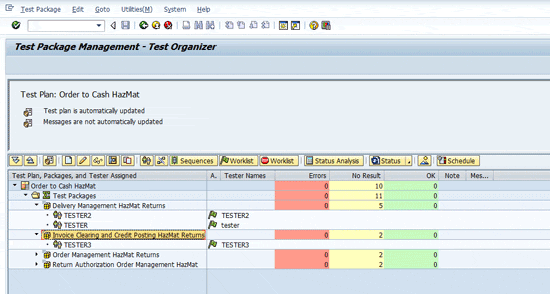
Figure 15
Multiple test packages with user (tester) assignments
I’ve covered just a few of the features available in Solution Manager for Test Management. Take the time to experiment with these features so that you can establish good project standards for their use. By applying these capabilities consistently, your organization is able to deliver consistent testing processes across multiple test phases and projects.
D. Russell Sloan
D. Russell Sloan is a specialist in project and program governance for IBM. He focuses on the use of SAP Solution Manager for global rollout projects for IBM’s largest customers, having worked with SAP software since 1996. Russell has degrees in accounting and information systems and has been a team and project leader for SAP projects for more than 14 years. He has been developing and deploying software systems for over 30 years.
You may contact the author at solmanruss@gmail.com.
If you have comments about this article or publication, or would like to submit an article idea, please contact the editor.