SAPexperty/SCM
Save time and eliminate the need for manual input by giving users authorization to copy master data information about materials stored in multiple plants.
Key Concept
Use transaction PFCG (Profile Generator) to control authorization management. Companies employ this transaction to give a user in one factory the authorization to create materials with reference in the master data of another plant. As a result, the user can copy master data from one plant to another plant in Materials Management.
Companies often store specific materials at several storage locations. For example, say you work in plant A
and need to use the master data for material B for a warehouse movement from plant B. Rather than manually entering
material B’s data, with the Copy from … functionality, you could access material B’s
data from plant B and transfer it to the master data at plant A. This reduces the possibility of introducing data errors
and enhances efficiency.
However, you must have the proper authorizations in place to copy material master data. I’ll walk you through
the process to set up these authorizations. You can give a single user or a group of users access to copy materials from
other plants, depending on your company policy. I suggest only giving access to users who are responsible for creating
materials. To do this, assign them the job role that grants the access by combining the proper authorizations:
authorizations 1 and 2, in my example.
Create the Authorizations
Suppose your company has users who work in plant 4000 and the authorization manager
defines their role so that it includes transaction code MM01 for field WERKS (plant
4000). Authorization 2 at the plant organizational level field WERKS is different from
the defined plant authorization levels in the user role. In my example, I’m assuming that the user who needs the
authorizations works only in plant 4000.
You set up organizational levels, such as company code, plant, purchasing group, and purchasing
organization in Profile Generator (transaction PFCG) to meet the various security requirements of the
organizational units in your enterprise. To control authorization management, use transaction PFCG or
follow IMG menu path Logistics – General>Material Master>Tools>Maintain Authorizations and
Authorization Profiles. The authorization object M_MATE_WRK controls access to the Copy
from … functionality and regulates users’ access to create and copy materials.
Table 1 shows the values that the authorization manager must enter for M_MATE_
WRK. Both authorizations 1 and 2 are required to give users access to copy materials defined for other plants.
| Authorization 1 |
M_MATE_WRK |
Activity |
ACTVT |
* |
| |
|
Plant |
WERKS |
Specify the plants for which data may be processed |
| Authorization 2 |
M_MATE_WRK |
Activity |
ACTVT |
No values maintained |
| |
|
Plant |
WERKS |
* |
|
| Table 1 |
Authorization object M_MATE_WRK
authorizations |
- Authorization 1 allows users to create materials via transaction MM01 (without the
Copy from… functionality)
- Authorization 1 combined with authorization 2 permits users to use the Copy
from… functionality. Without this combination, the system generates the error message No
authorization to display data for plant.
Note
You can obtain the list of authorization objects and field values required for transaction code MM01 in table USOBT in both R/3 and SAP ERP Central Component (SAP ECC). You access tables via transaction SE16 (data browser) or transaction SE16N (general table display).
Run transaction PFCG and press F1 in the Activity field to view object M_MATE_WRK activity values, which defines if the user is authorized to enter (01), change (02), display (03), delete (06), or display change documents (08) for a specific plant.
Next, in transaction PFCG, follow menu path Edit>Insert authorization(s)
>Manual input or press Ctrl-Shift-F9 to enter the customized authorization object for the user role
(Figure 1). Press F1 in the Activity field for object M_MATE_WRK. In my
example, the authorization manager provides the values ACTVT=* and WERKS=4000 for
authorization 1, and values ACTVT=[No value] and WERKS=* for authorization 2.
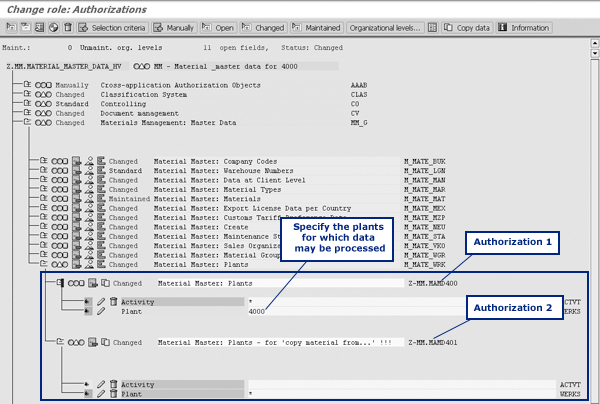
Figure 1
Change role: Authorizations screen via transaction code PFCG
Transport the User Role
After you make the customization via transaction PFCG for the user role, you have to
transport it from the development system into the production R/3 or ECC system via transaction PFCG.
In the main screen of transaction PFCG, go to menu path
Role>Transport. Fill in the roles that you want to transport. Go to menu path
Program>Execute or press F8. The system shows a screen in which you select the objects that you want
to use when transporting the role (e.g., user assignment or personalization). Press Enter and the system prompts you to
enter a change request.
Create a new request by pressing F8 or by clicking on the create request icon. Enter a description for
the request. If you are transporting just one role, you can enter the name of the role in the Description
field. If you are transporting several roles, you can give a general description for the roles, such as purchasing expert
roles for all plants in company A.
Next, enter the name of the system in which you want to insert the changes. For example, enter PRD if this is the definition of the system that your system administrator gives you. Save the
request by clicking on the save icon or by pressing Enter. Go to transaction code SE10 to find your
request. You’ll see that the system has created a task for your request. Release the task first and the request
second by pressing F9, or by following menu path Request/Task>Release>Directly. Transport the
request via the standard transport system using transaction code STMS. You might need the help of a
transport manager for this step.
Now the user can copy materials defined for other plants by using the Copy from …
section in transaction MM01 (Figure 2).
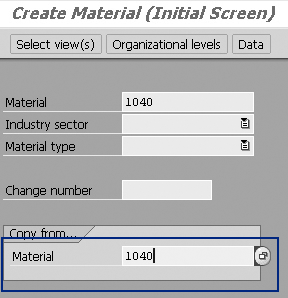
Figure 2
The Copy from … area enabled for the user via transaction code MM01
Maria Nikolova
Maria Nikolova has worked as a senior SAP expert for the National Electricity Company (NEK) in Bulgaria since January 1999. Maria has a master’s degree in telecommunications as an engineer from the Technical University in Sofia, Bulgaria. She has experience with an MIS project implementation of SAP R/3 (headquarters and rollout), the authorization concept and user administration, SAP Customer Competence Center (SAP CCC) , SRM, and the SD, HR, CO, Asset Management (AM), MM, and PM modules. Prior to joining NEK, she worked as a manager of Equipment Engineering Ltd. for four years.
You may contact the author at searchsapmnikolova@yahoo.com.
If you have comments about this article or publication, or would like to submit an article idea, please contact the editor.