Learn how to integrate the Balanced Scorecard with HR to compare goals of the employees with company objectives. You can tie employees’ personal scores from the Balanced Scorecard to their salary.
Key Concept
Strategic Enterprise Management (SEM) defines strategies, scorecards, perspectives, objectives, measures, and initiatives. You can also form scorecard hierarchies and groups. In addition, you can assign scorecards to organizational structures, create performance overviews, and calculate personal scores.
Strategic Enterprise Management (SEM) Balanced Scorecards and HR appraisals are common functionality. However, integrating the two is not a well-known process. I’ll illustrate the integration capabilities between the Balanced Scorecard (part of Strategy Management and Performance Measurement [SEM-CPM], formerly the Corporate Performance Monitor) and HR (from R/3). The steps in the process are sequential and the existing documentation doesn’t mention the complete sequence. Therefore, I will walk you through the necessary steps to realize the solution. I’ll introduce the personal score in the Balanced Scorecard and go into details of integrating it with HR.
Note
The integration between the Balanced Scorecard and HR is available with SAP HR 4.5B and SAP SEM 3.0.
First, let me provide some background about what you can accomplish with this integration:
- Automatically administer compensation for the performance-based component of compensation (for example, a bonus if employees attain sales targets for a combination of a particular region, product, and revenue within specific time frames).
- Automate synchronization between the HR and SEM/BW metrics.
- Administer this automated compensation to any part of the org structure.
Note
Typically, SEM configuration team members configure SEM and HR team members configure appraisals. If you use the Balanced Scorecard to evaluate performance, HR will have a lot of input about how to configure the measures, their vetting, and performance overviews within the Balanced Scorecard. They typically work with the BW and SEM teams to accomplish this.
The Balanced Scorecard’s Personal Score
Using the Balanced Scorecard, you can set up a dashboard to examine the overall goals of the company. You can then compare the employees’ goals to the company goals. Figure 1 shows the conventional view of the balanced scorecard with four perspectives and objectives within those perspectives. You can also see the status of each objective as well as perspective in this overview. You can use SEM to create a scorecard based on the overall goals of the company, giving you the ability to tie company goals to individual performance.
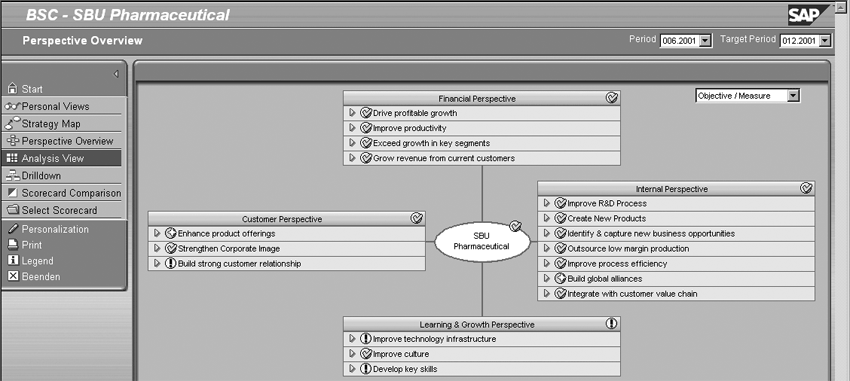
Figure 1
Balanced Scorecard overview with four perspectives
SEM determines a personal score after configuring a performance overview and assigning it to a person or a group. You can calculate the personal score from the key performance indicators (KPIs) used in the Balanced Scorecard. For example, sales growth target can be one of the KPIs that the scorecard uses. The sales growth targets may vary by product group, market segments, and promotions. Managers decide how much weight to give each KPI assigned to one or more employees.
For example, manager X wants to use sales growth targets as measures to evaluate the performance of his sales teams A, B, and C. He bases the targets on actual data figures in BW for sales by region, product mix, and net margin.
Manager X evaluates team A’s performance by equally weighting total regional sales, sales by product mix, and sales by margin. However, the manager gives more weight to product mix for team B since the sales product mix in B’s region is chronically skewed. Manager X hopes to give more incentive to team B to homogenize the mix.
Team C faces stiff product competition in its region, so those employees have to spend considerably more money on promotions than other teams to achieve same sales revenue. For this reason, manager X wants to give team C more incentive to increase the net margin. Although manager X has the same benchmarks to measure performance, he can weight each measure differently and award different compensation for the same sales growth numbers. The Balanced Scorecard and HR integration can handle this type of situation automatically.
You can integrate the personal score with the HR module. When you integrate mySAP SEM and mySAP HR, you can transfer the personal score from the Balanced Scorecard to individual appraisals in mySAP HR. To accomplish this, you have to integrate both SEM-HR as well as configure either the SAP HCM Appraisal Systems or Objective Setting and Appraisal (OSA) functions. Although you cannot automatically create an appraisal, you can include results from the Balanced Scorecard in an appraisal form if you appropriately configure the form.
Then, you can configure the system to compensate employees based on desired performance. For example, you can then use the result from a single criterion (like the sales growth target above), the score of the complete HCM appraisal, or the result of a criteria group to configure guidelines and default proposals for payments in HCM Compensation Management or Enterprise Compensation Management. This is not an automatic process; it is similar to configuring Appraisal forms or Compensation Management, and you must design it to support the business results of the Balanced Scorecard.
Some of the views of the scorecard’s elements include:
- Overview to display the perspectives defined in the selected scorecard in graphic form
- Analysis to check the current status of the elements, assess current values, etc.
- Cause-effect chain to define the cause-effect-relationship between the objectives of a scorecard and present them graphically
- Drill-down in the scorecard to display and monitor the interrelationships defined between the elements of a scorecard
- Comparison of several scorecards to contrast several scorecards across a time period
Integrate the Personal Score
Next, I’ll show you how to integrate the personal score in the Balanced Scorecard with the HCM appraisal. In general, you have to perform the following steps:
Step 1. Create a distribution model in R/3
Step 2. Create basic HR integration settings in SEM
Step 3. Create a performance overview
Step 4. Assign the performance overview
Step 5. Access the personal score
Step 6. Create an appraisal in HR
Step 7. Access the personal score from the appraisal
Note
When integrating the Balanced Scorecard with HR, data flows from SEM to HR in batch mode. The business can choose how often to send the data. The performance overview and personal scores go from SEM to HR, whereas information such as org changes and new employees go from HR to SEM.
Step 1. Create a Distribution Model in R/3
Enter transaction SPRO and follow the IMG menu path Basis Components>ALE>Sending and Receiving systems>Define Logical systems. Define the SEM system by making a new entry if necessary.
Ensure that the Remote Function Call (RFC) destinations were previously set up in the R/3 and SEM systems. Using transaction SM59, check that the names of the logical system and the RFC connection match (Figure 2).
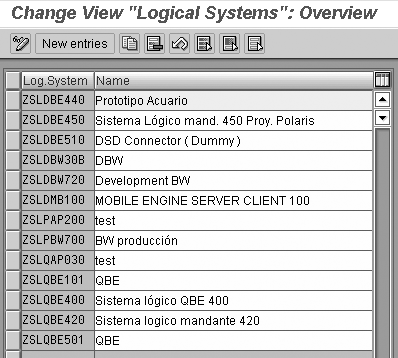
Figure 2
Select the SEM system
Next, use transaction SPRO to create a new model view by following menu path Basis Components>Application Link Enabling (ALE)>Modeling and Implementing Business Processes>Maintain Distribution Model and Distribute Views. Enter the two new message types HRMD_A and HRMD_ABA by selecting the HR system as the server and the SEM system as the client (Figure 3).

Figure 3
The new model view with HR as the server and SEM as the client. Notice the two new message types HRMD_A and HRMD_ABA
Create filter groups for the distribution model and include them in the system. Type each item in Table 1 into the appropriate field in Figure 4 (type the infotypes in the Infotype field, subtypes in the Subtype field, and so on).
| Filter group |
Infotype |
Object type |
Subtype |
| Relationships |
1001 |
C, S, O |
A002, A003, A007, A008, A012, B002, B003, B007, B008, B012 |
| Organizational objects |
1000, 1002, 1028 |
C, S, O |
– |
| Employees |
0000, 0001, 0002, 0006, 0009, 0105 |
P |
– |
|
| Table 1 |
Create these filter groups |
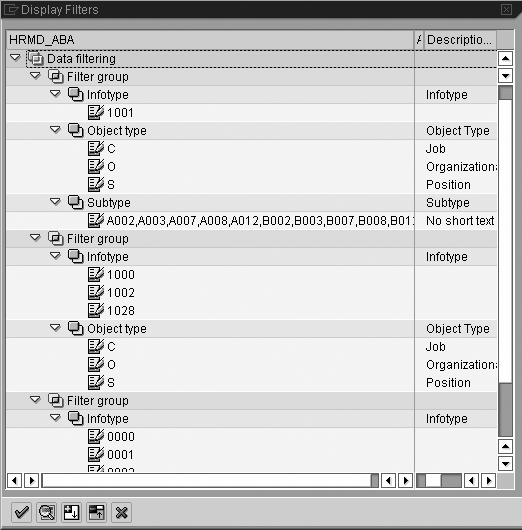
Figure 4
How the distribution model should look after entering the filter values from Table 1
Generate partner profiles for the model view created in Figure 4. Distribute the model view by following menu path SPRO>Basis Components>Application Link Enabling (ALE)>Modeling and Implementing Business Processes>Maintain Distribution Model and Distribute Views, then choose Edit>Model view>Distribute.
Next, generate partner profiles via transaction SPRO and follow the menu path Basis Components>Application Link Enabling (ALE)>Modeling and Implementing Business Processes>Partner Profiles and Time of Processing>Generate Partner Profiles.
Users can maintain the partner profiles manually if necessary, but most of the time, you’ll want to use the partner profiles generated using the above menu path. Figure 5 shows the generated partner profiles.

Figure 5
Generate the partner profiles
Step 2. Create Basic HR Integration Settings in SEM
Go to transaction OO_UGHR_CENTRAL_PERS and enter the values shown in Figure 6. Make necessary adjustments to the data formats so that the business partner settings in HR equal the central business partner settings in SEM. The adjusted settings may include assignment of marital status, assignment of title, name formats (transaction SA13), bank details (transaction FI01), or internal grouping (transaction BUC2). Refer to SAP note 336547 for more details about these settings.

Figure 6
Enter these values using transaction OO_UGHR_CENTRAL_PERS
Step 3. Create a Performance Overview
You must configure your scorecard before configuring a performance overview. Assemble the performance overview using transaction UMB_CM_MAINTAIN. Drag items from left side of the screen that lists scorecard components (a performance overview, perspective, strategy, objective, measure, or initiative) to the right side to assemble performance overview components. When you finish, your screen should look like Figure 7.

Figure 7
The assembled performance overview
Step 4. Assign the Performance Overview
You can assign the performance overview to one or more employees. Assign the central person (CP) type ID. You can only assign one performance overview per employee for a given date range, but you can assign the same performance overview to multiple employees. Assign the user ID using transaction UMB_CM_MAINTAIN. Click on the Assignment of Person button or press Shift+F4 (Figure 8).
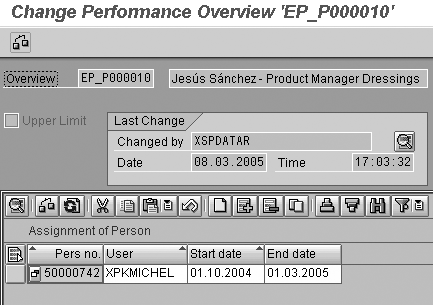
Figure 8
Assign the performance overview to the central person
Step 5. Access the Personal Score
Managers and employees can access the personal score using SEM from the Web (Figures 9 and 10). Depending on your configuration, you may use an intranet or SAP NetWeaver Portal. You can also access the personal score from your SAPGUI in the presentation view of the Balanced Scorecard with menu path Goto>Personal Score. The scorecard may look like the one shown in Figure 11.
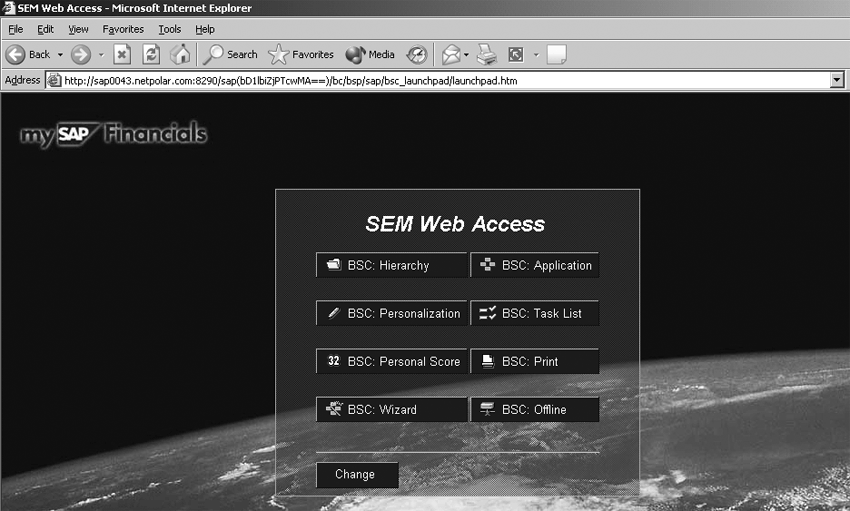
Figure 9
Access the personal score via the Web
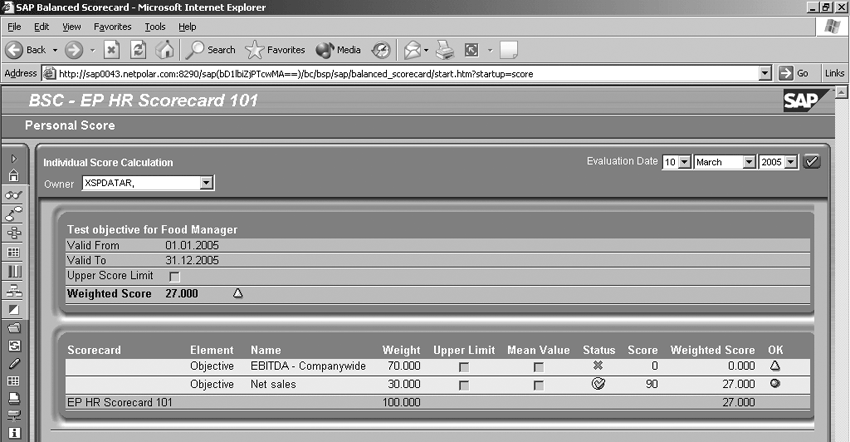
Figure 10
An example of a personal score
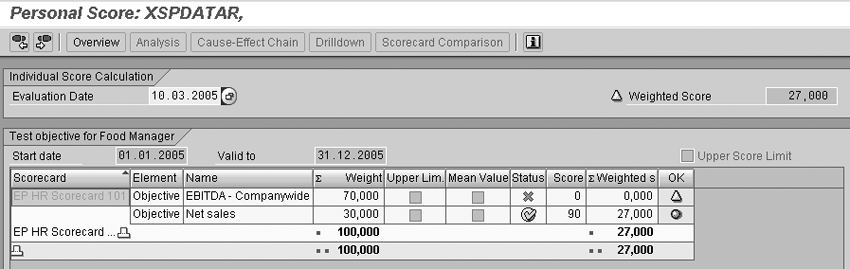
Figure 11
Breakdown of the personal score
Step 6. Create an Appraisal in HR
Note that this HCM appraisal function is the Appraisals systems function and not the more recent Objective Settings and Appraisals (OSA) function. Use transaction APPCREATE and select the Management by objectives object (Figure 12).
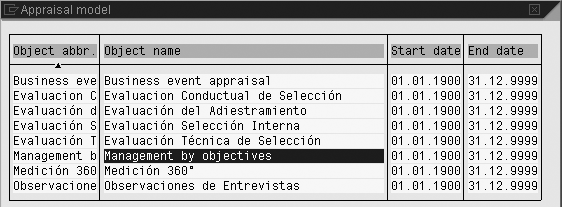
Figure 12
Select the Management by objectives object
In the resulting screen, select the supervisor and employee (appraiser and appraisee) as shown in Figure 13. The appraisee is the same person to whom you assigned to the performance overview and whose personal score you viewed in step 5.
At least one date for the appraisal should fall in the date range that you set while assigning the performance overview in step 4. Populate the Period appraised and to date fields shown in Figure 14.
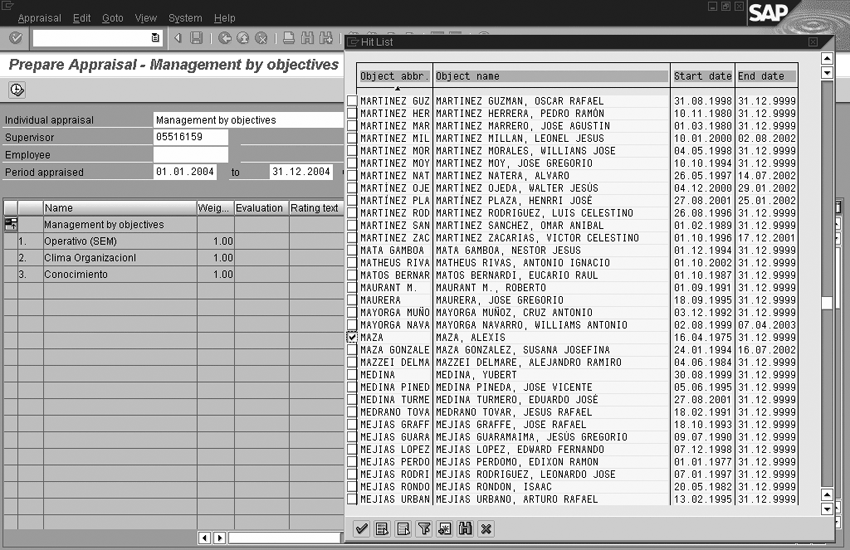
Figure 13
Select the appraiser and appraisee

Figure 14
Set the date range
Step 7. Access the Personal Score from the Appraisal
Select the perform icon to read the performance overview and related scorecard elements from the appraisal. The personal score now appears in the appraisal. Click on the note icon in the Note column for details of the score (Figure 15).
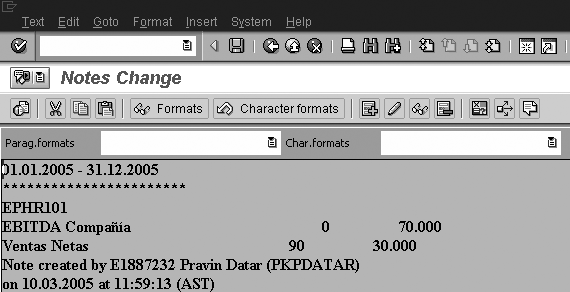
Figure 15
The details of the score
You can now use this appraisal result in Compensation Management or Enterprise Compensation Management functions in HCM. Compensation configuration will define the business rules for utilizing the appraisal result.
Pravin Datar
Pravin Datar works as director in the Enterprise Performance Management (EPM) Solution Management team at the SAP BusinessObjects Division. He has more than 20 years of business experience that includes management consultancy, ERP project management, and SAP SEM, BPC RIG, and EPM solution management. He holds a master’s degree in industrial engineering and an MBA from University of California.
You may contact the author at editor@BI-expertOnline.com.
If you have comments about this article or publication, or would like to submit an article idea, please contact the editor.




 Premium