For a configurable product, the options chosen during the sales order process can influence both the price of the product and the cost to manufacture it. Once the product options have been selected, they are used to create a cost estimate, which the system saves on the sales order item. The cost estimate is subsequently treated as a standard cost for the valuation of the cost of goods sold of the product and the calculation of the true manufacturing variances. Creation of the cost estimate is accomplished through a combination of configuration and master data leveraging variant configuration.
Key Concept
A cost estimate is a summary of all costs that make up the expected cost of manufacturing a product. These costs include the components as represented in a bill of material (BOM), the steps requiring labor or machine resources as represented in a routing, and overhead that is calculated using a costing sheet. For a configurable product, you can generate the cost estimate based on the product options chosen in the sales order process and treat it as a standard cost for the valuation of the cost of goods sold.
Many products in the market — from desktop computers to cars — allow customers to choose from a series of options to personalize the product. In SAP ERP, products that have such options are represented by configurable materials that use variant configuration to determine the rules governing the selection of the options. For example, if you are selecting options for a vehicle, some are mutually exclusive — you can only choose one engine for a car. On the other hand, other options can be selected together, including leather seats, an upgraded stereo system, and sports car tires. Taking the example even further, several options may have dependencies — you can only choose a convertible top color for a convertible body style, not for a coupe.
To report on true variances of the manufacturing process for product costing, it is essential that you do not simply write off a more expensive option as a variance. For example, a V8 engine costs more to produce than a V6 engine, so the variance should be calculated based on a standard cost that takes the more expensive component into account. This standard cost is calculated dynamically on a sales order item, based on the product options chosen, to ensure that only true inefficiencies in the manufacturing process (e.g., using more components than planned due to inadequate material quality) are written off as variances.
To illustrate the concepts in this article, I use the example of an automobile. Using the engine option as an example, the more expensive option results in a surcharge — a more expensive price for the customer. In addition, it also results in a more expensive cost of goods sold. I cover the steps necessary to ensure that the planned cost of a sales order item is accounted for as a standard cost for that order, through a combination of configuration and master data settings in FI, CO, and sales and distribution (SD), as well as the central logistics functions of variant configuration and the classification system. The process I describe assumes the use of valuated stock, available as of SAP R/3 4.0. Menu paths in this article are from an SAP ECC 6.0 system.
Configure the Sales Order Item for Valuated Stock and Costing
The configuration for the costing of a sales order item is determined in a series of logical steps. The combination of the sales order item category and the material requirements planning (MRP) type determines the requirements type used in the sales transaction. The requirements type is linked to the requirements class. It is the requirements class that determines whether valuated stock is used for a product and whether that sales order item is relevant for costing.
To configure the requirements class, follow IMG menu path Controlling > Product Cost Controlling > Cost Object Controlling > Product Cost by Sales Order > Control of Sales-Order-Related Production/Product Cost by Sales Order > Check Requirements Classes. Figure 1 illustrates the configuration of the requirements class to enable costing on the sales order item. The fields within the requirements class that are relevant to costing include:
- Costing: <blank> allows the sales order item to be costed, meaning a cost estimate is created, which becomes the standard cost for the sales order item
- Costing ID: B indicates that a cost estimate for the product is calculated and automatically marked in the sales order item for use in production, inventory, and cost of sales postings
- Costing Method: 1 indicates that product costing, not unit costing, is used for the sales order item cost estimate
- Costing Variant: PPC4 is standard delivered, or you can create your own costing variant to contain the rules for calculating the cost estimate for the sales order item
- Acct Assignment Cat.: M specifies that costing of products from customer requirements (sales orders) occurs without sales order item controlling, meaning that controlling processes are not carried out on the sales order; instead, they are carried out on the production order that drives the manufacture of the product with the selected options
- Valuation: M specifies that valuated stock is used in the make-to-order scenario, which mirrors the accounting entries in a make-to-stock manufacturing process. In addition, this setting ensures that the product being produced is handled as sales order stock, so that the product being manufactured to the order specifications cannot be sold to another customer.
- Without Val. Strategy: When this setting is off, the standard cost of the product is not used to value the sales order item. Instead, the sales order item cost estimate is used first. If it does not exist, the planned production order costs are used. The standard cost of the product is used only if these costs do not exist. Remember that for a configurable product (e.g., KMAT), no accounting view is created in the material master, so there is no standard cost available.
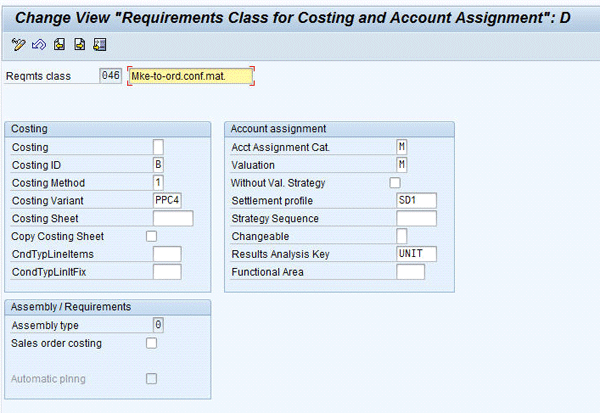
Figure 1
The requirements class controls the costing options of the sales order item
While the cost estimate is created on the sales order to determine the standard cost, the controlling processes are carried out on the production order; therefore, no sales order controlling takes place on the sales order item. For this reason, the costing sheet, results analysis key, and settlement profile are not read here, as costing takes place on the production order that is linked to the sales order.
Note
The configuration presented assumes the use of valuated stock. When turning on valuated stock, even though the sales order item drives the calculation of a standard cost, it is not a controlling object. Therefore, month-end processes take place against the production order, and the accounting entries are made in the same way the accounting entries are made for a make-to-stock scenario. The use of valuated stock for sales orders unifies the month-end processes to avoid a split between sales order item and production order controlling processes, and ensures a more consistent view for analytics. The option to turn on valuated stock has been available since SAP R/3 4.0.
Create a Classification Structure and Variant Configuration Rules
The classification system is used to represent the different options available for the automobile, and variant configuration is then used to define the rules that govern the relationship between these options, such as which options can be ordered together. For an overview of classification and variant configuration concepts, refer to the sidebar “Use Variant Configuration to Represent Product Options in Sales and Production Processes.”
A characteristic represents a product option. To describe a product fully, you need to create multiple characteristics. However, if a component is always the same and cannot be selected, such as a car trunk that is standard in all vehicles in this example, creating a characteristic is not necessary.
To create a characteristic, use transaction CT04 or follow menu path Cross-Application Components > Classification System > Master Data > Characteristics. On the Basic data tab, you need to determine whether one value or multiple values can be selected for the characteristic. Using the engine as an example, turn on the Single Value indicator in the Value Assignment frame, which ensures that only one value (or engine type) can be selected (Figure 2). Next, you must determine whether an entry must be made for the option. Since a car requires an engine, turn on the Entry Required indicator, ensuring an engine must be selected during the ordering process. The values and the description of the values are maintained in the Values tab. You can define one value as the default for the option.
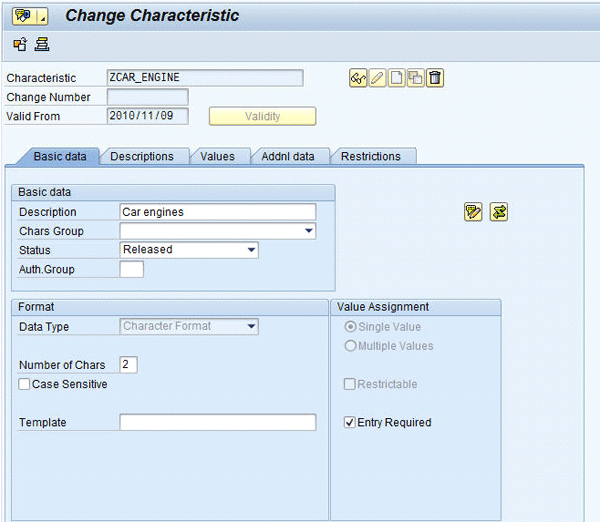
Figure 2
The characteristic represents the option of engine types that are available for the automobile
In addition to the car options, you need to create one more characteristic that is used to calculate a surcharge for more expensive options. When creating this characteristic, on the Addnl data tab, in the Reference to Table Field frame, enter SDCOM in the Table Name field and VKOND in the Field Name field (Figure 3). Press Enter and the field properties are automatically copied into the characteristic from the ABAP Dictionary. One of these properties is the Not Ready for Input indicator in the Procedure for Value Assignment frame, which is also automatically turned on since this characteristic is used to store system-calculated values. In a productive environment, the No Display indicator would also be turned on, but in this article, the characteristic is displayed during the order process to show that the system correctly adopts the high-end engine value to calculate the surcharge.
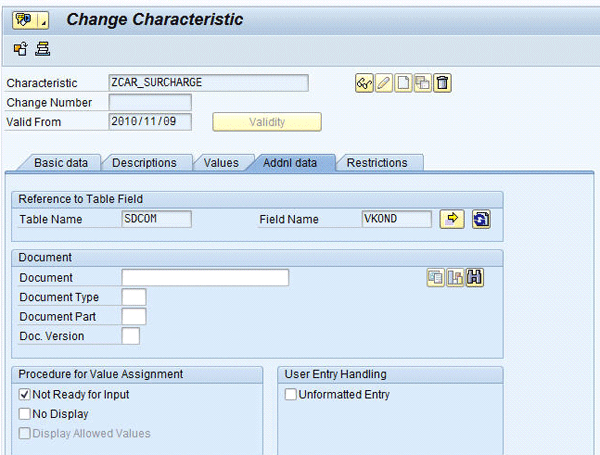
Figure 3
The surcharge characteristic is linked to the condition field in the sales and distribution (SD) communications structure
A class is a master record that collects all the options available for a product or product line. To create a class, use transaction CL02 or follow menu path Cross-Application Components > Classification System > Master Data > Classes. The Class type should be 300, which indicates that it is used for variant configuration. On the Char. tab, you enter all characteristics that are relevant to the class (Figure 4).

Figure 4
The class for the automobile contains all the characteristics, or options, available for the product, plus the surcharge characteristic
In variant configuration, dependencies are the rules that allow for the successful modeling of configurable products. In addition, a dependency is used to ensure that a surcharge is calculated for the higher-end options. To create a dependency, use transaction CU01 or follow menu path Logistics > Central functions > Variant Configuration > Dependency > Single Dependency > Create (Figure 5). In the Dependency Type frame in the Basic Data view, select Procedure. This triggers the reading of a value that is passed to the pricing condition. You enter the code for the dependency using menu path Goto > Dependency editor. The code for this surcharge is $SELF>ZCAR_SURCHARGE = ‘V8’, where ZCAR_SURCHARGE is the characteristic and V8 is the characteristic value. Once the code has been created, set the Status field to 1 to represent released.
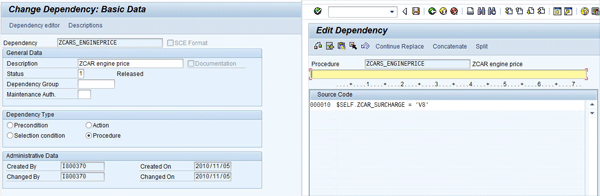
Figure 5
The dependency ensures that the surcharge for the engine price is captured in the surcharge for the characteristic
Now you need to assign the dependency to the value that triggers it. To change the engine characteristic, use transaction CT04 or follow menu path Cross-Application Components > Classification System > Master Data > Characteristics. From the Values tab, select the engine value V8, then follow menu path Extras > Object Dependencies > Assignments. Assign the procedure dependency to the value to trigger the surcharge. After the assignment, on the Values tab, the O check box is turned on by default, indicating the existence of an object dependency (Figure 6).
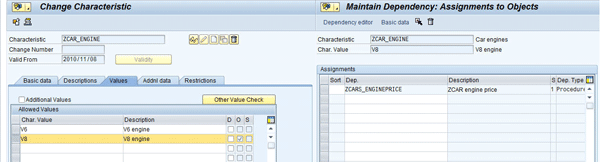
Figure 6
The dependency that triggers a surcharge is assigned to the value that represents a higher-end option, the V8 engine, within the characteristic master data
Material and Production Master Data
The master data for a material controls how that product is processed in subsequent transactions. Use transaction MM01 or follow menu path Logistics > Materials Management > Material Master > Material > Create (General) > Immediately. You need to create the material master with the following parameters:
- Material type: Create the material as a KMAT, or a configurable material. Note that the KMAT material type does not have an accounting view, since the standard cost and valuation type fields are not required. Configurable materials are manufactured based on options defined in a sales order and are not stored in inventory. Therefore, they do not have a standard cost for inventory valuation and do not require the account determination for inventory accounts that is defined by the valuation class.
- Material is configurable: The material type defaults this radio button to be turned on in the Client-specific frame in the Basic data 2 view
- Classification assignment: The class that contains the selectable options (i.e., characteristics) for the car is assigned to the material in the Classification view
- Item category group: In the Sales: sales org 2 view, the item category group must allow configuration. It determines the sales order item category in the sales document, and ultimately the requirements type that ensures the sales order item for the material allows the creation of a cost estimate. The standard-delivered item category group for this purpose is 0002.
- MRP Type: In the MRP 1 view, this field is the second element in determining the requirements type for sales order item costing
- Costing 1: In this view, the With Qty Structure radio button is on, ensuring that the cost estimate on the sales order item is calculated based on the manufacturing master data, including the bill of material (BOM) and routing.
To create the cost estimate, the appropriate manufacturing master data must also be created, which includes a BOM and a routing.
The BOM contains all the components that are required to manufacture a product. For a configurable material, all components that you can choose are included in this “super BOM.” In this automobile example, this means that both the V6 engine and the V8 engine are part of the super BOM. Once the customer chooses the engine, in this example the V8 engine, the V8 component is used to create the cost estimate. It is also selected for the resulting production order to manufacture the car.
- Create a dependency in variant configuration that selects the correct engine component from the BOM for the order. Use transaction CU01 or follow menu path Logistics > Central Functions > Variant Configuration > Dependency > Single Dependency > Create. The dependency should be a Selection Condition because it causes a selection of an item within the BOM. Then follow menu path Goto > Dependency editor to create the code. The dependency code to select the V8 engine component is $parent.ZCARS_ENGINE='V8' where the characteristic name is ZCARS_ENGINE and its value of the component is V8.
- To create the BOM, use transaction CS01 or follow menu path Logistics > Production > Master Data > Bills of Material > Bill of Material > Material BOM > Create. Enter all components into the BOM, as well as the quantity required (Figure 7).
- Assign the dependency to the V8 component. From within the BOM, select the V8 component, follow menu path Extras > Object dependencies > Assignments, and assign the dependency created earlier. Once the assignment is made, the component shows that the check box in the OD column is turned on (Figure 7). Any component that does not have a dependency attached is automatically defaulted into the production order.
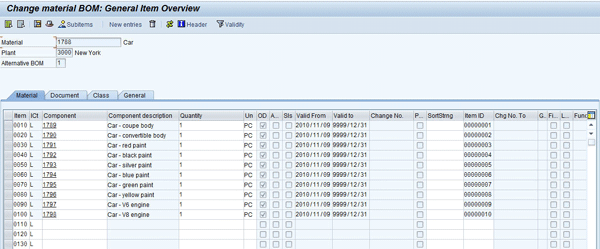
Figure 7
The super BOM contains all components that may be necessary to assemble a product with the options chosen during ordering
Note
Alternatively, you can create dependencies within master records, such as directly within a characteristic, or directly within a BOM, using the dependency editor. As shown in the previous step, the recommended process is to create a dependency with its own master record. The benefit is that you can maintain and reuse the dependency centrally — in this example, for other car models that have a V8 engine option.
A routing contains all the steps executed on the production floor to manufacture a product. For a configurable material, differences in the operations may be necessary depending on the components chosen. You can again create dependencies and assign them based on these differences. All relevant operations are included in this “super routing.” To keep this automobile example simple, the operations are kept the same, regardless of the engine size chosen during ordering. To create the routing, use transaction CA01 or follow menu path Logistics > Production > Master Data > Routings > Routings > Standard Routings > Create. Enter all the steps and resources required, including setup, labor, and machine time (Figure 8). Additionally, in each operation enter the time required for each resource to execute that step. Activity types, which default from the work center assigned to each operation, are used to capture the time taken for the operation. Activity rates for each unit of time have been defined through the cost center assigned to the work center, which in turn results in a cost calculation of each operation.

Figure 8
The super routing contains all steps or operations that may be necessary to manufacture the product
Finally, a configuration profile determines how the configuration options of the configurable product are processed. To create a configuration profile for the product (e.g., the car), use transaction CU41 or follow menu path Logistics > Central Functions > Variant Configuration > Configuration Profile > Create. Select Material from the pop-up screen. You can create multiple profiles for different purposes. For processing in the sales order, select the configuration profile, then follow menu path Goto > Profile detail. Click the Confign initial screen tab and choose the Confign Parameters subtab to access the following settings (Figure 9):
- Process: This indicator determines where the BOM components are exploded. Selecting Plnd/Prod. Order means that the BOM components will not be itemized in the sales order, but will be exploded for the manufacturing process in the resulting production order.
- BOM Explosion: Sing-Level (single level) means that the BOM explosion is for the immediate level maintained in the BOM. If any of the components have their own BOM, these components are not exploded.
- Application: PP01 is the standard-delivered indicator for production BOMs. It is possible to create additional BOMs for different purposes, such as separating the sales BOM and the production BOM. Since the explosion takes place in the production order in this setting, the production BOM should be used.
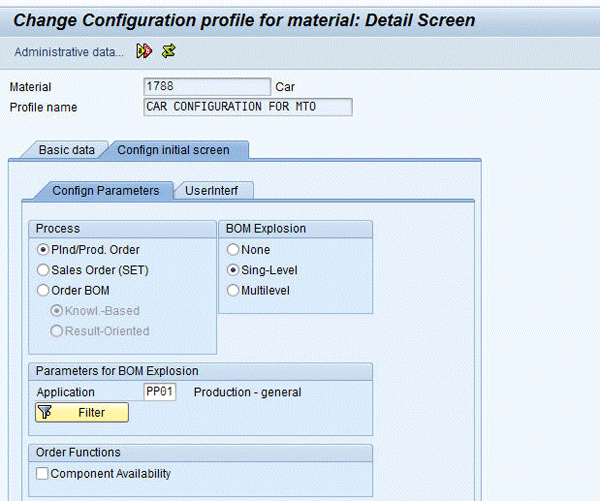
Figure 9
The configuration profile determines how the components in the BOM are handled during the creation of the sales order
Maintain the Product Prices
Next, create the prices for the base price, in this case for the car, as well as for any options that require a surcharge, such as the V8 engine.
To create the base price, use transaction VK31 or follow menu path Logistics > Sales and Distribution > Master Data > Conditions > Create. Follow menu path Prices > Material Price and enter the price for the automobile master record (Figure 10). The condition type PR00 is used to capture the base price of the product.

Figure 10
The price for the base product is defined
For the surcharge, use transaction VK11 or follow menu path Logistics > Sales and Distribution > Master Data > Select Using Condition Type > Create. Enter the condition type VA00, the material number, the value of the option that will result in a surcharge (e.g., V8), and the surcharge price (Figure 11).
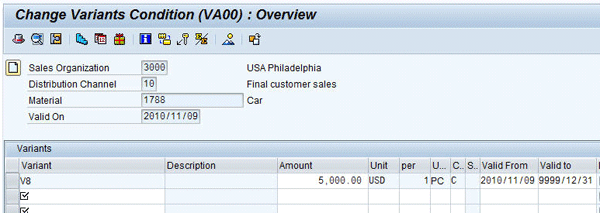
Figure 11
The price for the higher-end option is defined and will be added to the base price of the product if the option is selected
Note
The process described in this article, using a characteristic (ZCAR_SURCHARGE) to manage the surcharges of option values, is the most flexible method, allowing a combination of characteristics (such as all options in a package or bundle) to result in one surcharge.
Configure the Pricing Procedure to Reference the Surcharge
If a configuration option that is associated with a surcharge is selected in the sales process, you need to include the surcharge in the calculation of the pricing for the sales order in the pricing procedure. Follow IMG menu path Sales and Distribution > Basic Functions > Pricing > Pricing Control > Define and Assign Pricing Procedures. From the pop-up screen, select Maintain pricing procedures.
Select the standard-delivered RVAJUS or your own pricing procedure. The base price of the product is represented by the standard pricing condition PR00. You need to include a condition type that represents surcharges based on configuration in the pricing procedure. The standard condition type for this functionality is VA00. The surcharge price (VA00) is added to the base price (PR00), and both are included in the Gross Value subtotal of the pricing procedure (Figure 12).

Figure 12
The condition type VA00 is included as part of the gross price of the product in the pricing procedure of the sales document
Create the Sales Order
The material can now be ordered as part of the sales order process. To create the sales order, use transaction VA01 or follow menu path Logistics > Sales and Distribution > Order > Create. After you enter the material number and quantity, the system automatically brings up the configuration screen. Select the options of the car. By selecting the higher-cost engine option, the surcharge characteristic is populated with the value V8 (Figure 13).
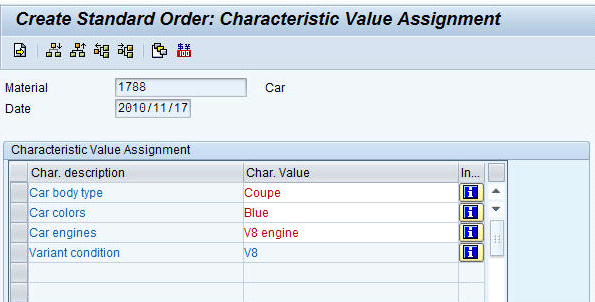
Figure 13
Select the option values among the characteristics
Once the product has been configured, the system brings you back to the sales order overview screen (Figure 14).
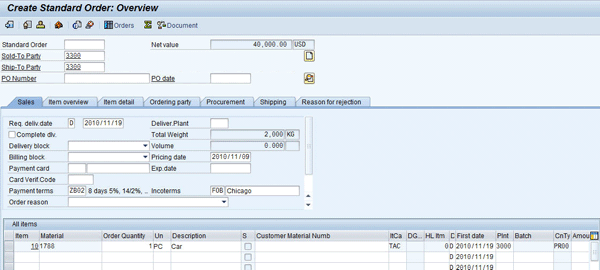
Figure 14
The product is shown as a line item on the sales order overview screen
The value of the higher-cost engine option, V8, is then used to calculate the selling price of the item. To view the pricing, from the overview screen of the sales order (Figure 14), select the item and follow menu path Goto > Item > Conditions. The price is calculated as the sum of the base price plus the surcharge (Figure 15).

Figure 15
The price of the product is increased through the surcharge, as determined by the configuration of the product with the higher-priced option in the sales order
You can automatically save a cost estimate as the sales order is saved. To calculate the cost estimate during the data entry process, follow menu path Extras > Costing either from the overview screen of the sales order (Figure 14) or directly from the item price screen (Figure 15). The options chosen and the corresponding cost breakdowns are shown in Figures 16, 17, and 18. The standard cost of the configurable product is calculated on the sales order item based on the options chosen, and the corresponding cost of the BOM components, routing activities, and overhead rates in the costing sheet (Figure 16). The cost estimate is created and includes a summary of the cost of goods sold with the categories of costs based on the cost component layout (Figure 17). The line items that make up the cost estimate are shown on the same screen by scrolling down from the cost component view, and are listed by resource and by cost element (Figure 18).

Figure 16
Options for a configurable product
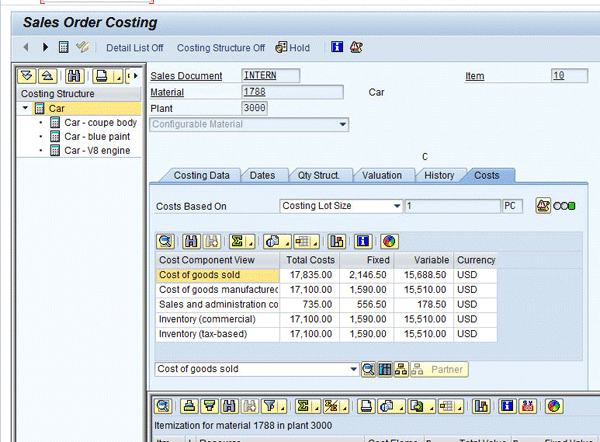
Figure 17
The summarized cost estimate
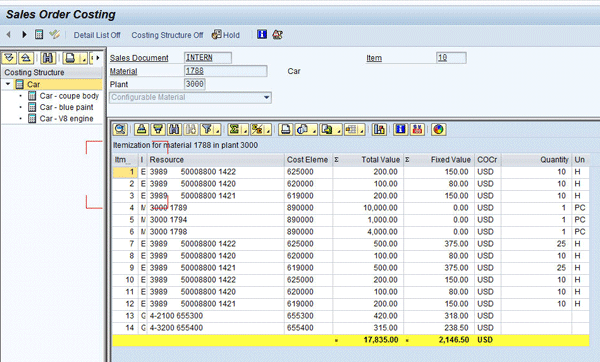
Figure 18
The line items of the cost estimate
Once the sales order is saved, the configurable product is produced and delivered to the customer. Configurable products are commonly used in an assemble-to-order or make-to-order environment, in which the final product is not manufactured or assembled until there is the appropriate customer demand. When a customer chooses a particular combination of options, the sales order is created in SAP ERP Central Component (SAP ECC). Through follow-on MRP processes, a production order is created to drive the production of the finished product. The configured automobile is represented as sales order stock, which is linked directly to the sales order created for the customer. This ensures that the configured product is not inadvertently delivered to another customer.
Use Variant Configuration to Represent Product Options in Sales and Production Processes
Variant configuration allows you to use one material number to manage a product with many different options. Without variant configuration, the logic of a product and its options are embedded in the short descriptions of multiple material numbers. In my automobile example, without variant configuration, you need to create a different material number for each possible combination of options, and use text descriptions to provide insight into the options chosen, such as “red coupe with V8 engine,” “red convertible with V8 engine and white top,” and “red convertible with V8 engine and black top.” This approach could potentially result in hundreds of different material numbers. In addition to the effort involved in maintaining the master data, reporting across options becomes difficult because, for example, the number of V6 engines versus V8 engines is not explicitly called out.
The classification system and variant configuration allow you to create only one material master in such a situation, as illustrated in Figure A. The various options available for the automobile are represented using the classification system in SAP ERP. Each option is represented by one characteristic in the system. Each characteristic can have multiple values, such as the different colors, or the various engine types available. The characteristics are grouped together into a class.

Variant configuration is then used to define the rules, or dependencies, that regulate the relationships between the various option values. These rules define which combinations of options a customer can choose. For example, you can create a rule that the option of the convertible top color can only be chosen if a customer chooses a convertible, but it cannot be chosen if the customer selects a coupe. Dependencies also allow surcharges to be defined for one or more high-end options. In addition, the dependencies are used to choose the components that are required to manufacture or assemble the end product from a single bill of material (BOM) or “super BOM.”
Through the use of dependencies, variant configuration increases efficiency by reducing the master data that must be created to manage multiple options available for a product. It also simplifies reporting on customers’ choices because the data is centralized.

Birgit Starmanns
Birgit Starmanns is a senior director in solution marketing at SAP for EPM (Enterprise Performance Management) and Finance solutions. Birgit has more than 20 years of experience across solution marketing, solution management, strategic customer communities, and consulting. Her functional experience is in finance, including core SAP ERP and enterprise performance management, as well as customer relationship management, which has allowed her to focus on the integration of cross-functional business processes. Prior to joining SAP, she was a principal in management consulting organizations, redesigning business processes and implementing SAP R/3 and R/2 for numerous Fortune 500 and SME companies, with a focus on management accounting. Birgit holds a BA and an MBA from the College of William and Mary.
You may contact the author at birgit.starmanns@sap.com.
If you have comments about this article or publication, or would like to submit an article idea, please contact the editor.