Essential information about customers, products, and services cannot always be accessed quickly and isn’t always searchable. See how SAP Embedded Search helps you query and find business information more efficiently in your SAP CRM system.
Key Concept
Embedded Search (also called simple search) is a standard SAP CRM functionality available as of SAP CRM version 7.0 that enables you to make business objects such as accounts, contacts, and activities searchable based on your own defined search fields. SAP NetWeaver Search and Classification (SAP TREX) is used as the back-end search technology. It is based on in-memory search technology that enables fast access to SAP information. The front-end functionality is delivered by SAP as a Web service that can be accessed via the standard CRM WebUI. You can personalize the search functionality by defining your own frequently used search query templates and lists. SAP delivers more than 40 ready-to-use search templates for the most commonly used CRM business objects. However, you can define your own search templates when needed.
Many business users working with line-of-business systems spend a significant amount of their time searching for the information they need for their daily work. SAP CRM users are no exception for a couple of reasons.
One is the explosive growth of information, which impedes users’ searches for the information they need. Another aspect leading to less efficiency in finding, relating, and using business information is that people search for information in various ways, depending on their specific roles in an organization. For example, a sales manager would search and access SAP information in a way that is completely different from a method a finance manager would use.
However, it can be easy to find the structured information residing in SAP CRM. All you need is sufficient knowledge about the SAP transactions and reports needed to unlock this information. With the help of tools such as Embedded Search, even occasional SAP users can find and access SAP information more easily.
SAP’s Answers for Finding Business-Related Information
Embedded (or simple) Search has been available standard since SAP CRM 7.0, partly as a successor to the Search Engine Service (SES) that can be used in older SAP CRM releases. The capabilities of Embedded Search are limited to the indexing and searching of information within a single SAP system (such as an SAP CRM or SAP ERP instance). To extend and consolidate the reach of searches across two or more SAP systems, SAP NetWeaver Enterprise Search (a separate licensed appliance from SAP) is necessary.
Note
When you start the Embedded Search cockpit transaction in SAP CRM, you
see the term Enterprise Search used on the screen. SAP often applies the
term Enterprise Search to Embedded Search despite the fact that they
are different products and concepts.
The Concept of Embedded Search
Embedded Search uses a different search approach than other Web search engines in that it is more enterprise and business process centric. Business users who have an SAP system can be considered as information workers who use search functionalities in the context of business processes. They need search results as a reliable basis for action or for further investigation from a business process point of view based on their roles and authorizations. SAP Embedded Search is designed to find and provide information based on:
- Business processes (e.g., SAP CRM processes)
- The users’ roles and authorizations (e.g., SAP CRM roles)
- The ability to act on information found (jump to transactions and creating, changing, or deleting data)
- Navigation to context-related business data and information
Using Embedded Search in SAP CRM
You can use Embedded Search (also referred to by SAP as simple or central search) to search for SAP CRM business objects in the stand-alone SAP CRM Web Client UI, as well as in the SAP CRM Web Client integrated in SAP NetWeaver Portal.
Embedded Search enables you to act on the results of your queries via convenient links to related actions. These links enable you to access not only SAP CRM information but also a wide range of transactions. You can also use knowledge management search functionality to find relevant documents. An example of this type of search is shown in Figure 1.
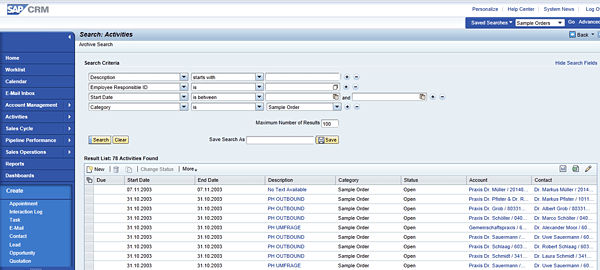
Figure 1
Search for activities related to sample orders (stored as saved search)
If the Embedded Search functionality has been activated for your specific business role, it becomes visible in your navigation bar when you log on to the SAP CRM WebClient UI. When you open the Embedded Search menu (see the navigation bar in the top right corner of your WebClient UI screen), you see Saved Searches as the first menu item. The second item is All Objects, and below it is a hierarchical list of business objects that have been enabled as search objects. Click the Go button to execute the selected search.
You can save your frequently used search queries with default search criteria as a saved search. When you select Saved Searches, a menu containing your saved searches appears. You can select the saved search you need, preserving the search templates you frequently use. In the following section, I explain the basic steps for implementing the Embedded Search functionality.
Installation and Configuration Steps for Embedded Search
When you want to implement Embedded Search in SAP CRM, installing TREX is required as the first technical prerequisite for further configuration of embedded search (Figure 2). If you already have TREX installed, keep in mind that you need a special installation (script) of TREX to make use of Embedded Search. You can find details in SAP Note 1249465.
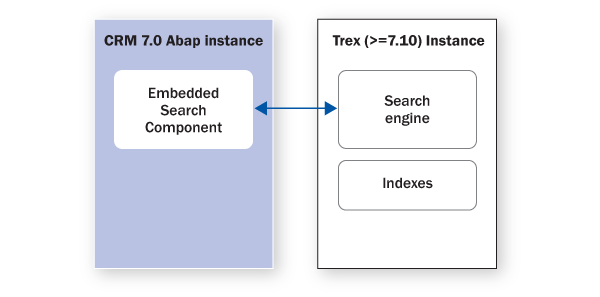
Figure 2
Landscape components of Embedded Search in SAP CRM 7.0
Embedded Search uses a TREX instance to store, update, and retrieve the search indexes you activate in the SAP CRM back end. TREX loads the index files that are stored on disk into random access memory (RAM), thereby enabling you to quickly access indexed SAP CRM information. Therefore, it is important to consult the sizing documentation for productive TREX instances when fast access to SAP CRM data is needed (see SAP Note 1266024 for details). When you want to set up a TREX test installation, a small server is sufficient to test the embedded search functionality.
Initial Installation of TREX and Activation of Embedded Search in CRM 7.0
I now outline the steps you need to complete to install, configure, and activate Embedded Search in CRM 7.0. I highlight information you find in SAP Notes and installation guides. More detailed information can be found in the installation manual SAP NetWeaver Search and Classification (TREX 7.1) – Single Host.
Step 1. Install the TREX 7.1 instance.
- Consider TREX sizing aspects for productive environments. Consult SAP Note 1266024 (TREX sizing for Embedded Search).
- Install TREX according SAP Note 1249465 (TREX 7.1: Installing TREX for Embedded Search). Do not install a regular TREX instance. You need to use the specific TREX installation template for Embedded Search.
- Set up a Remote Function Call (RFC) connection from TREX to the SAP CRM system, including, for example, the definition of the SAP CRM RFC user (Figure 3).
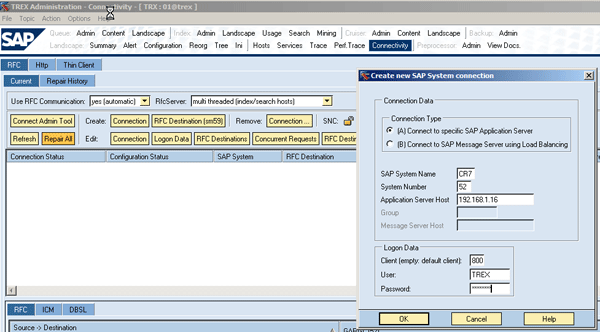
Figure 3
Set up an RFC connection
- Document the RFC connection name created by TREX (you need this name during an activity in the SAP CRM system that you execute later).
- Specify the RFC destination name according to the steps in the TREX installation guide
- Check the RFC connection created in the previous step using transaction TREXADMIN, which is used to administer TREX.
Step 2. Assign the Embedded Search Administrator role to the relevant SAP user. Assign the role SAP_ESH_LOCAL_ADMIN to the users who execute Embedded Search administration activities (such as maintaining connectors and scheduling and monitoring indexing). You do not need to assign this role to users who are just using the search (Figure 4).

Figure 4
Assign the SAP role to the user who administers Embedded Search
Step 3. Activate the Enterprise Search package in SAP CRM. As a prerequisite you must have completed the TREX installation and configuration as described briefly in step 1. Start the Switch Framework Customizing transaction using transaction code SFW5 in your SAP CRM system. In the ENTERPRISE_BUSINESS_FUNCTIONS section, find and activate object ERP_ENTERPRISESEARCH.
To activate this object, go to the Switch Framework Customizing screen using transaction code SFW5. Look for ERP_ENTERPRISESEARCH in the ENTERPRISE_BUSINESS_FUNCTIONS section. Check the selection box in the Plann… [Planned status] column and click the Activate Changes button (Figure 5).
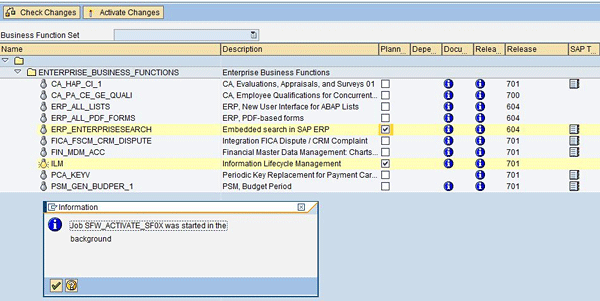
Figure 5
Activate the Embedded Search functionality in the Switch Framework
Step 4. Activate the Enterprise Search Web services. Use transaction code SICF in SAP CRM. Navigate to the service default_host > sap> es > cockpit and activate the link in case the Web service is not active (it is grayed out if the Web service is inactive). To activate an inactive Web service, select the row of the relevant Web service and click the right mouse button. A context menu appears. Now select the activate service option.
Step 5. Activate the RFC link to the TREX system via report ESH_ADM_SET_TREX_DESTINATION. Use transaction code SE38 to access the report. Enter the name of the RFC connection (created by TREX) in the RFC destination of TREX field (Figure 6). Click the Execute button.
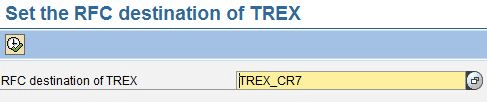
Figure 6
Name the RFC connection
Step 6. Test access to TREX from within SAP CRM using the RFC connection created in TREX (Step 1). You can use the TREXADMIN transaction in SAP CRM to administer TREX remotely from within SAP CRM and to see if the SAP CRM system is connected to the TREX instance without any problems.
Click the Create button, and the Create Search Object Connector window opens. Verify that component BBPCRM is selected at the top of the window. This component contains all the standard SAP CRM search connectors.
At the top left of the Template table click the Table selection menu button and select the Select All option. Now click the Create Connector button. The SAP NetWeaver waiting icon appears for a few seconds, and then you should be returned to the main Embedded Search Cockpit screen with all the Search Connector objects listed. They should all have the status of New.
Step 7. Create the search object connectors in SAP CRM (Figure 7). After you start transaction code ESH_COCKPIT, the CRM WebClient UI screen opens in your browser.
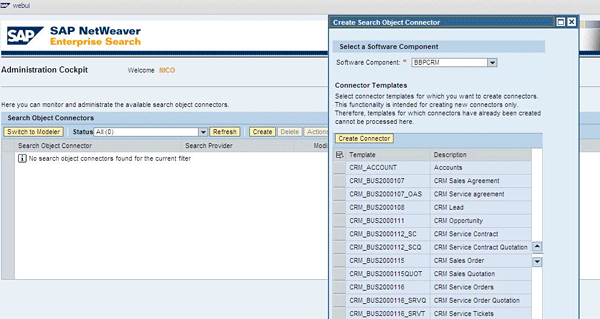
Figure 7
The Embedded Search Administration Cockpit – create a search connector
Log on to the SAP CRM WebClient UI with the SAP user who has the Embedded Search Admin role assigned to his or her user profile (see Step 2 for how to assign this role). Click the Create button, and the search connector creation dialog pops up. Select the software component BBPCRM and select the relevant search connector. Click the Create Connector button. A waiting icon appears for a few seconds, and then you are returned to the cockpit screen. If the creation of the search connector has been successful, the search connector is visible in the screen.
Step 8. Create TREX indexes for each activated search object connector. Now that the search connectors of your choice have been activated, you probably want to use them. In this step you build the indexes for the first time. Select the search connector you just created in the Administration Cockpit by selecting the row of the relevant search object and clicking the Actions button. In the menu that appears, select the Schedule Indexing option.
A pop-up screen appears so that you can execute the indexing process directly or at a certain point in time or frequency. Click the Refresh button to update the indexing status if needed.
In the Administration Cockpit (transaction ESH_COCKPIT), you now can schedule the initial indexing of the search connector by selecting the row of the particular search object in the screen, clicking the Actions button, and selecting Schedule Indexing in the menu that appears (Figure 8). You have the option of executing the initial indexing immediately or later (Figure 9). You could even determine the period interval for the future reindexing of the search object by defining, for example, the periodic interval you want to use to reindex the object data.
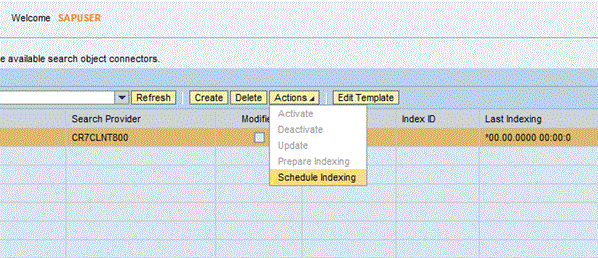
Figure 8
Schedule the initial indexing
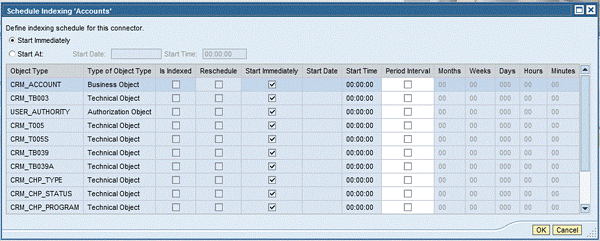
Figure 9
Schedule the indexing of the individual search connector
After scheduling the indexing jobs, return to the ESH cockpit screen. If you click the Refresh button in the cockpit screen, you see that the status of some of the Search Object Connectors has changed to either Scheduled for Indexing or Indexing.
Keep the Search Indexes Up-to-Date
Now that you have initially created the Search Object Connectors you need to reindex them occasionally. Indexing the objects allows the searches to work. Usually any problems with missing objects or searches are due to the indexes either being out of date or needing to be reindexed. The following steps describe how you keep the indexes up to date and how to monitor them on a daily basis
Step 1. Schedule automated indexing (delta extraction). Search indexes need to be updated frequently. Also verify the job log. Use transaction SM37 of the delta indexation report mentioned in this section and transaction SM21 (the system log) frequently to check for indexing errors or termination of the indexing jobs when you schedule the indexation reports in an automated way.
Schedule regular indexing of the Search Object Connectors (Figure 10). It is necessary for the Search Object Connectors to be delta indexed periodically to make sure they have the latest data available in searches. I recommend scheduling the delta reindexing on at least a daily basis or more frequently if the search object-related CRM data changes more frequently. You have to figure out for yourself how frequently you should update your search indexes.
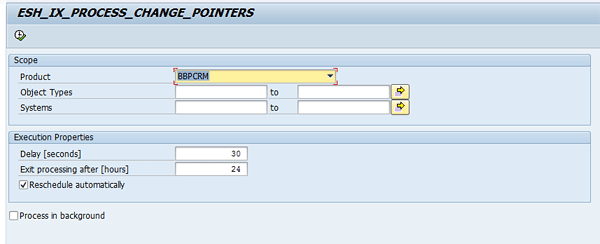
Figure 10
Schedule a delta indexing job in SAP CRM to update the indexes frequently
Execute report ESH_IX_PROCESS_CHANGE_POINTERS in SE38. In the main screen of this report (see Figure 10) make sure the product BBPCRM is selected, which represents the CRM-relevant search connectors, and that Exit processing after [hours] is set to blank. This step prevents the job from terminating after the aforementioned time. Enter a time in seconds in the Delay [seconds] box for the interval in which each Search Object Connector will be reindexed. Check the option Process in the background. Click the execute icon to trigger a delta indexing job in the SAP CRM system.
Step 2. Monitor the Embedded Search connectors. Start transaction code ESH_COCKPIT and log on to the CRM Web UI. Check if all connectors are active and check that no connectors have the status Error. If errors occurred, click the Job Log tab for more details.
Step 3. Monitor TREX from SAP CRM (Figure 11). Start transaction TREXADMIN in SAP CRM to monitor the TREX instance from within the SAP CRM instance. Check the TREX documentation for more details about TREX system management and monitoring at help.sap.com or contact your SAP NetWeaver administrator for more details.

Figure 11
Monitor the TREX instance from the SAP CRM system
Assign Search Objects to Business Roles
Now that you have installed and configured Embedded Search and built up the initial search indexes initially, the next step is to make search objects available to end users and to specific CRM Web UI roles. Search objects belonging to a business object are assigned to a navigation bar profile (Step 1). The navigation bar profile is assigned to the business role so that specific business roles inherit the search objects belonging to the assigned navigation bar profile. To assign specific search objects to business roles, follow these steps.
Step 1. (optional). To make business objects available in central search start the IMG customizing transaction SPRO. Choose Customer Relationship Management from the menu. Follow menu path UI Framework > Technical Role Definition > Define Central Search. In this IMG activity, you can define the search objects that become visible in the navigation bar profile of the technical role. Normally this is already pre-customized in standard SAP, so you don’t have to do much here unless you want to adapt this according your needs.
The navigation bar is assigned to a specific business role (see Figure 13, which shows the relation between business role and navigation bar profile). Due to this navigation bar profile – business role assignment, the specific search objects that are assigned to the navigation bar profile become visible in the header area (navigation bar) when you log on with a specific business to the SAP CRM WebClient.
Step 2. Assign search objects to business roles. Start the IMG customizing transaction SPRO. Follow menu path UI Framework > Business Roles > Define Business Role or use transaction CRMC_UI_PROFILE. Select the row with the relevant business role for which you want to adjust the search connectors. In the left pane (named Dialog Structure) choose the Adjust Central Search Objects folder. In this folder you can activate or deactivate the individual search connectors that are assigned to the business role.
Look at the following example. Start transaction CRMC_UI_PROFILE (Figure 12), and in my example select the row for business role CHM-CM (that has been assigned to navigation bar CHM-CHANNELMANAGER). You can select or deselect the search objects that are relevant for this business role by selecting the Adjust Central Search folder.
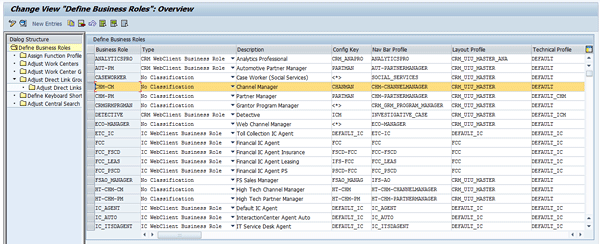
Figure 12
Select the business role CHM-CM
If you select that role and choose the Adjust Central Search folder in the Dialog Structure, you see a list of the search objects assigned to the related navigation bar profile CHM-CHANNELMANAGER (Figure 13).
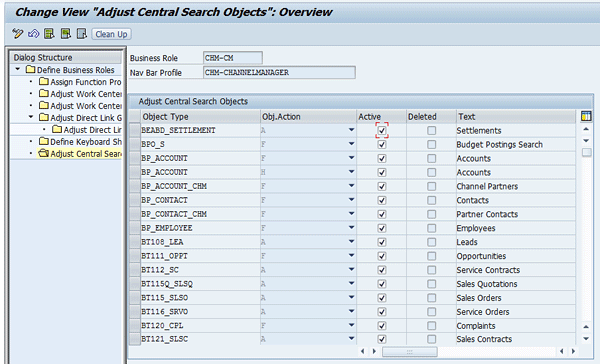
Figure 13
Activate the search objects that are relevant to the business role CHM-CM
You can deactivate the search objects for the business role/navigation bar profile by de-selecting the check boxes in the Active column if needed. Based on this concept you can influence the search objects that are available in the Web UI for different business roles.
Useful Resources
The following resources can be helpful to you as you install and configure Embedded Search in SAP CRM. Table 1 shows some relevant SAP Notes.
SAP Service Marketplace at https://service.sap.com/crm-inst
SAP CRM 7.0 -> Operate-> Configuring CRM Enterprise Search 7.0

Table 1
SAP Notes
Nico J.W. Kuijper
Nico J.W. Kuijper is an archiving/ILM solution specialist for ST- Addons, a company specializing in SAP-certified solutions for ILM, automated SAP system management, and IT cost controlling. Based in the Netherlands, ST-Addons specializes in the process of aligning IT and business needs in relation to SAP decommissioning, data archiving, and data integration. Nico has worked in the ICT industry since 1989 and with SAP technology since 1995. He has conducted more then 25 SAP data archiving projects for large companies and multinationals in Europe. His archiving experiences cover archiving in R/3, SAP ERP, APO, CRM, IS-Utilities (IS-U), and SAP NetWeaver BI/SAP BW. He also developed overall archiving concepts for SAP environments with more then 10 terabytes of data.
You may contact the author at nico.kuijper@st-addons.nl.
If you have comments about this article or publication, or would like to submit an article idea, please contact the editor.




 Premium