Using these step-by-step instructions, you can customize a user exit macro to perform tasks not offered by standard functionality, such as calculating deviations from actual sales.
Key Concept
Macros are an essential component of Demand Planning and Supply Network Planning planning books, as they facilitate a planner’s job by performing tasks in the planning book. For example, macros can calculate the difference between the values in two cells, copy planning figures from one row to another, or change the cell colors based on threshold values. In addition, macros can trigger pop-up messages for cell values that fall below a threshold value.
Either planners or the system can activate macros. Planners execute macros directly in interactive planning. The system executes them automatically at a predefined point during a background job or when a user performs a task such as opening the planning book or saving the planning entry.
To figure out this difference, you cannot use a standard macro, so we designed a macro with a user exit to create macro functions unavailable with standard macros. (For more information about standard macros, refer to the sidebar, “Two Macro Books in APO.”) In user exit macros, you can code user exit answers to complex requirements (such as an include) as needed.
We will explain the step-by-step process for designing such a macro. Not much documentation is available about this process, so we experimented quite a bit to figure out how to use this feature. The technique essentially has two steps. We added an extra debugging step to check if the user exit code is performing the task correctly.
Step 1. Note the components’ technical information.
Step 2. Write the exit code and develop its logic.
Step 3. Debug the user exit.
Step 1. Note the Components’ Technical Information
The logic for the user exit code for the macro requires that you know technical information about the components of the planning table and data view. It is therefore important that you know how to find this information so that you can add it to the ABAP code for the user exit macro. We have detailed the process in four sections:
• Macro’s technical details
• Planning book’s and data view’s technical details
• Key figure’s technical details
• Characteristics’ technical details
First, you must create a macro using Macro Workbench. This process is standard, so we will just share a few tips about this process. In Macro Workbench, you choose to create a macro with a user exit. Since this is a macro with a user exit, you do not need to set up anything else.
Macro’s Technical Details
Start Macro Workbench using the transaction code /SAPAPO/ADVM. From the list of macro books available, select your macro and click on the Start MacroBuilder button in the top left corner of the screen. This opens the APO MacroBuilder screen for the selected macro as shown in Figure 1.
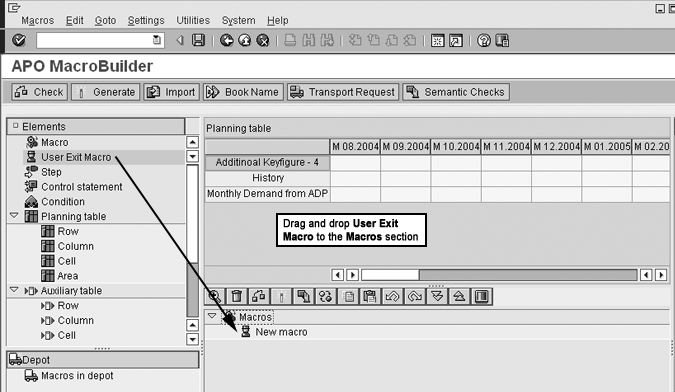
Figure 1
Create a new macro with a user exit click here to view a larger version of this image
Select User Exit Macro from the Elements section on the left side of Figure 1. Drag and drop it to the Macros section at the bottom of the screen. The pop-up screen in Figure 2 appears. Here you name the macro and define its properties.
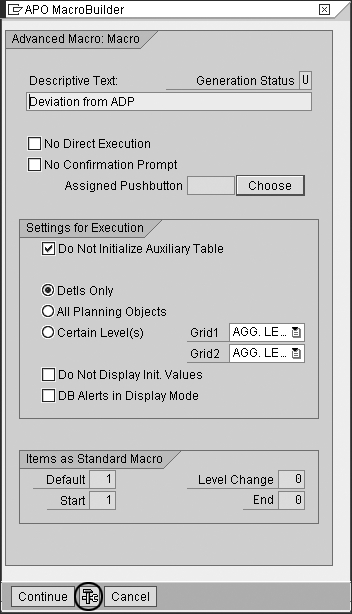
Figure 2
Macro named Deviation from ADP
After you have named the macro, you can view the technical information by clicking on the technical information icon circled in Figure 2 or by pressing Shift-F9. The technical information appears in the pop-up screen shown in Figure 3.
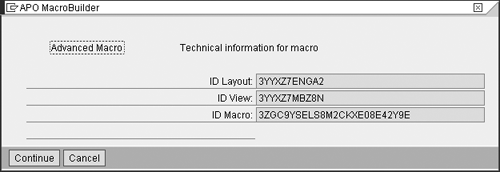
Figure 3
Technical details of the macro
This screen contains the basic elements required for the user exit code to relate the macro to a specific planning book and data view. The user exit for the macro is the same for all the macros. Therefore, to execute only the required ABAP code associated with the macro, you need to add this technical information. The ID Layout field contains the technical ID of the planning book and the ID View field contains the technical ID for the data view.
Planning Book’s and Data View’s Technical Details
After you obtain the technical details for the macro, you find the technical details for the planning book/data view to which the system attaches this macro. To access this information, refer to Figure 1. Select Edit from the top menu bar, then click on Book Information to display the screen shown in Figure 4.
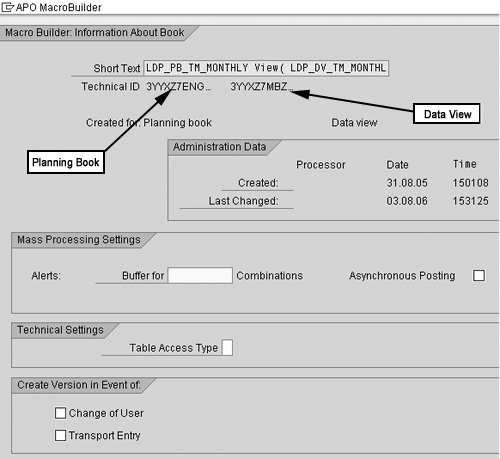
Figure 4
Find the technical information about the planning book and data view
In this screen, you see that the macro is attached to planning book LDP_PB_TM_MONTHLY and data view LDP_DV_TM_MONTHLY. You can also cross-check the Technical ID from Figure 3 for each of these under the Short Text field.
Key Figure’s Technical Details
Next, go to the planning book design section by following menu path Demand Planning>Environment>Current Settings>Define Planning book and open the planning book design dialog, or use transaction code /SAPAPO/SDP8B. Here you find out the technical details of the key figures. In the planning book design, place the cursor on the specific key figure in the Key figures section and double-click to access the key figure’s technical details (Figure 5).
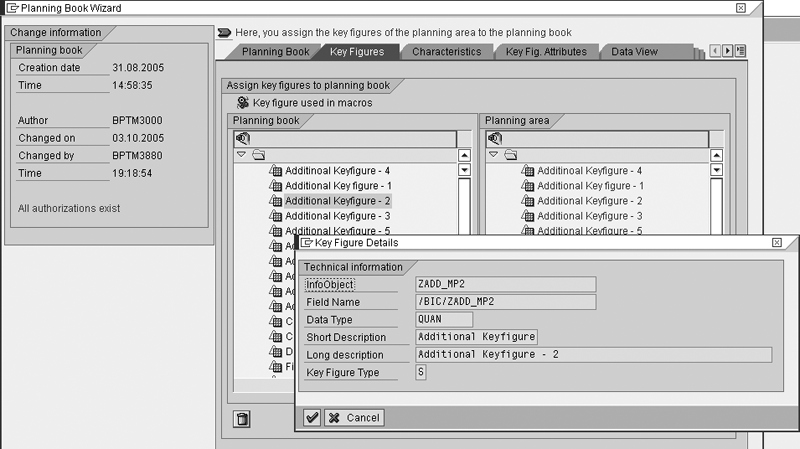
Figure 5
Technical details of the key figure click here to view a larger version of this image
For this example, the technical name of key figure Additional Keyfigure – 2 is ZADD_MP2. For the key figure History, the technical name is 9AVHISTORY.
Characteristics’ Technical Details
Finally, you find out the technical details of the characteristics. Go back to the planning book design dialog or use transaction code /SAPAPO/SDP8B. In the planning book, place the cursor on the specific characteristics in the Characteristics tab as shown in Figure 6.
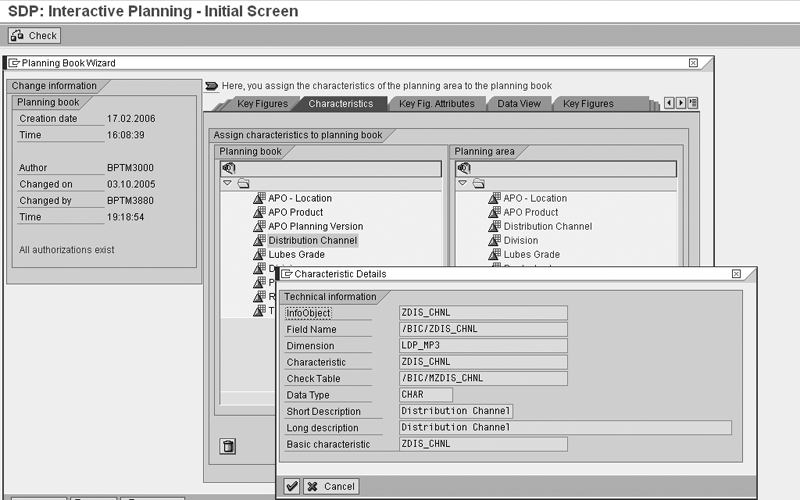
Figure 6
Technical details of the characteristics click here to view a larger version of this image
Double-click on the selected characteristic to access the Characteristic Details pop-up screen with the characteristic’s technical details. In this screen, you use the information in the Field Name field in the user exit code.
After you note all the technical details you need to code the macro, move on to step 2. In this step you access the user exit and then the logic to code the macro to perform the desired task.
Write the Exit Code and Develop Its Logic
Most experienced ABAP programmers know that you need to create a project the first time you use a user exit. Use transaction code CMOD to create the demo project ZAPMOD05 (Figure 7). Under this project, select Enhancement Assignment and click on the Display button to view the screen in Figure 8. In this screen you can see the standard SAP user exit APODM005, which you use to write user exit code for the macro.
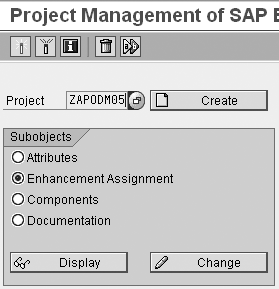
Figure 7
Create the demo project ZAPODM05

Figure 8
View the user exit APODM005
Keep your cursor on APODM005 and click on the Components button in Figure 8 to view the available components for this user exit (Figure 9). In this screen you see that the function module EXIT_/SAPAPO/SAPMMCP6_ 005 is available for APODM005.
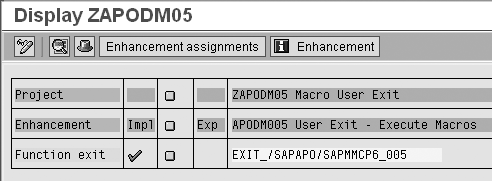
Figure 9
Function module EXIT_/SAPAPO/SAPMMCP6_005
This function module has the include where you can write the user exit code for the task that you want the macro to perform. Double-click on the function module EXIT_ /SAPAPO/SAPMMCP6_005 to access this code (Figure 10). The include program ZXDMUSERU05 contains the ABAP code in which you can code your user exit routine for your macro.
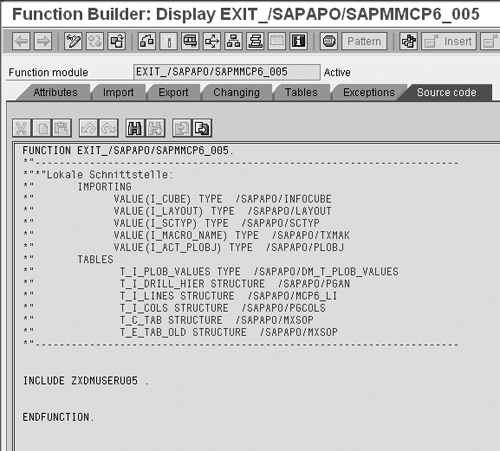
Figure 10
User exit ABAP code in the include program ZXDMUSERU05
Now we will show you how to write the code for the user exit so that the macro performs the desired task. The ABAP code for the include for user exit ZXDMUSERU05 details the task the macro needs to perform. Download the link at the bottom of the article for the full code for our example scenario. You need to customize the code with the particular technical details for your case.
To understand how we code in this program to make the macro calculate the deviation from actual sales, see the sample data shown in Table 1. In this table, the numbers represent planning numbers in the planning unit, which could vary from company to company.
History
(HISTORY_TOTAL) |
10
|
20
|
25
|
28
|
30
|
Annual demand
(DEMAND_TOTAL) |
40
|
50
|
55
|
58
|
60
|
| Deviation |
|
60
|
|
|
|
| |
| Table 1 |
The deviation from actual sales for the current month is 60 |
When a user executes your macro, the system reads data from each of the cells contained in the annual demand key figure from April of the current year to the previous month and totals it (e.g., if today’s date is June 28, 2006, the system should read data from the annual demand line for the months April 2006 to May 2006, since the current month is not complete). We gave this total the name DEMAND_TOTAL.
The system now reads the data from the history line for the same months (April 2006 to May 2006 for the system date June 28, 2006) and totals it. Let’s give this total the name HISTORY_TOTAL.
Once you obtain these two totals, the system subtracts HISTORY_TOTAL from DEMAND_TOTAL and enters the result in the deviation line under the current month (in our example, June 2006). In our example, the DEMAND_TOTAL is 90 and the HISTORY_TOTAL is 30, so the difference is a deficit of 60, as shown in Table 1.
Now we’ll describe the process from the start logic of the example code that you can download here. First, the system reads the system date. Next, using the system date, it calculates START_DATE and END_DATE. For example, if the system date when the system executes the macro is June 28, 2006, the START_DATE is April 1, 2006 (the first day of the financial year which is April to March).
The logic for the END date is: from the current month, the system subtracts one month. For example, the current month in this case is June, so in our case the end date would be in May. The system takes the first date of May for the same month, so it would be May 1, 2006.
Then, from the internal table T_I_LINES, which the system maintains, we get the number for HISTORY_LINE (technical name 9AVHISTORY), DEMAND_LINE (technical name ZDMD_ANDP), and DEVIATION_LINE (technical name ZADD_MP4).
Next, from the internal table T_I_COLS and using the values of START_DATE and END_DATE, we determine the COLUMN values, in which the system stores data for the months April 2006 and May 2006. Since we are executing the macro in the month of June 2006, the system needs to read the data for these two months only.
Finally, using the internal table T_C_TAB and the values of HISTORY_LINE and DEMAND_LINE for April 2006 and May 2006, the system reads the required data and derives the DEVIATION_LINE value for the month of June 2006.
Debug the User Exit
You must check the user exit include code for the significant subtasks that you expect the macro to perform. Figures 11, 12, and 13 from the debugging demonstrate the influence of the code. In these figures, we use three different internal tables that the system maintains to read the data stored in the planning book. Figures 11-13 show the sample data available from each of three internal tables. You can click on the Table tab in these figures to view the contents of the internal tables. In the Internal table field at the bottom of the screen, enter the name of your internal table to view the data.
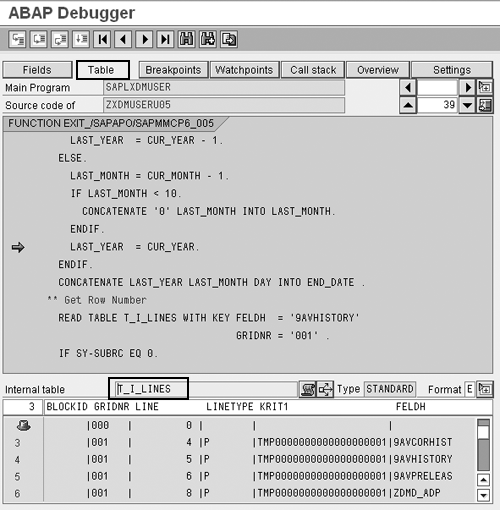
Figure 11
Debug the internal table T_I_LINES
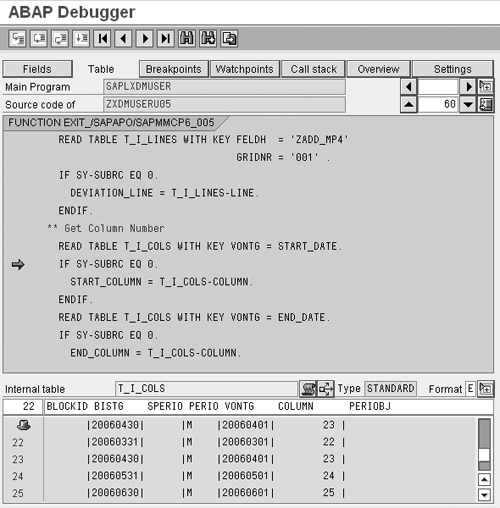
Figure 12
Debug the internal table T_I_COLS
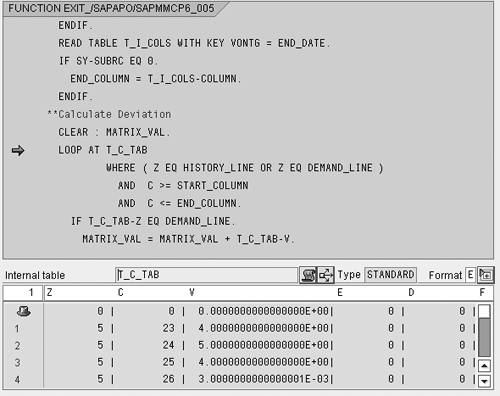
Figure 13
Debug the internal table T_C_TAB
Figure 11 shows internal table T_I_LINES, It stores the LINE value that stores data for HISTORY and DEMAND. Figure 12 shows internal table T_I_COLS, in which you find the value for START_COLUMN and END_COLUMN.
As shown in Figure 13, internal table T_C_TAB contains all the values the system stores in the planning book. Column Z contains the line values (e.g., 5 shows values for the history line). Column C stores column values (e.g., 23 is the value for April 2006 and 24 is value for May 2006).
Column V stores the actual values, for instance, at the intersection of row (e.g., line, such as history line) and column (e.g., month value). The combination of 5 (Z) and 23 (C) gives the value 4.0 (V), which you can see in the planning book for April 2006 for HISTORY_LINE.
Two Macro Books in APO
Macros for most of the generic planning tasks are delivered in the standard Advanced Planning and Optimization (APO) system within two macro books: SAP Example and Template Macros, and SDP Book 9AEXAM VIEW (SALES DATA). You access these macro books via SAP menu path Demand Planning>Environment>Current Settings>Macro Workbench.
In SAP Example and Template Macros, you can look at the examples, but you cannot execute the macros. To execute these macros, you need to import them to your created macro book. After importing them, you may need to alter their definition to fit the rows of the planning book where you are going to use them. However, in SDP Book 9AEXAM VIEW (SALES DATA), you can simulate the tasks the macros perform.
Planning activities and situations within each company may vary and include tasks that you cannot perform by using the delivered macros. In this case, you need to define your own macro using Macro Builder. You can define a macro either for an entire planning book or for a specific data view.
Shreekant W. Shiralkar
Shreekant W. Shiralkar is a senior management professional with experience on leading and managing business functions as well as technology consulting. He has authored best selling books and published many white papers on technology. He also holds patents for innovations. Presently he is global head of the SAP Analytics Centre of Excellence at Tata Consultancy.
You may contact the author at s-shiralkar@yahoo.com.
If you have comments about this article or publication, or would like to submit an article idea, please contact the editor.
Bharat Patel
Bharat Patel is experienced in managing data warehouse technology for the petroleum industry. He is an SAP-certified BW and ABAP consultant, has authored a book on SAP BW, and teaches courses on BW and ABAP at the Sapient Academy and SAP Labs India. Bharat has presented papers about BW at Business Intelligence India Group (BIIG) conferences. He presently manages the SAP BW system at Bharat Petroleum, India.
You may contact the author at patelb@bharatpetroleum.com.
If you have comments about this article or publication, or would like to submit an article idea, please contact the editor.






 Premium