One of the biggest problems facing demand planners is spotting trends and errors in large volumes of data. You can use the alert functionality in SAP APO Demand Planning module to spot discrepancies, allowing your demand planners to "manage by exception." We explain the different ways in which you can use alerts to help create a more accurate demand forecast.
Demand planners are often faced with the task of converting large
amounts of data into an accurate forecast. This becomes more difficult
the shorter the planning horizon. The planner has to react quickly
and often under intense pressure to understand a vast array of data
and to identify trends and errors.
You might have implemented the Demand Planning (DP) module of
SAP's Advanced Planner and Optimizer (APO) application to
help you with this task. DP offers “consensus-based,”
Internet-enabled forecasting tools such as Collaborative Demand
Planning and Promotional Planning, and interactive and statistical
forecasting functionalities. These tools allow customers, demand
planners, marketing and sales teams, and corporate decision-makers
to interact and build an accurate demand plan in real time.
Information overload is still a potential problem, but APO provides
help here in the form of alerts. Alerts enable management by exception,
and they have many guises in the APO modules. As an exception-based
management tool within DP, an alert is an effective way of providing
the input used to modify both historical sales data and future forecasts.
Whether the aim is to smooth and negate the impact of outliers,
correct the impact of seasonal trends, account for the effect of
promotions, or include the influence of product life-cycle changes,
alerts provide early warning signals that some action is necessary.
I'll explain the different types of alerts and show you
how you can use them as a forecasting aid. First, let me show you
how alerts work within APO.
Alerts and the APO Demand Plan
Let's review the building blocks of an APO demand plan:
1. Define an InfoSource and map an APO InfoCube to the DataSource.
2. Define a planning area. Raw data is retrieved and stored in
an InfoCube or live cache and moved in and out of live cache during
the planning process. The planning area is defined using an InfoCube,
and it uses updates from SAP Business Information Warehouse (BW)
InfoCubes, legacy, or R/3 systems. Updated data is written to live
cache and the InfoCubes (Figure 1).
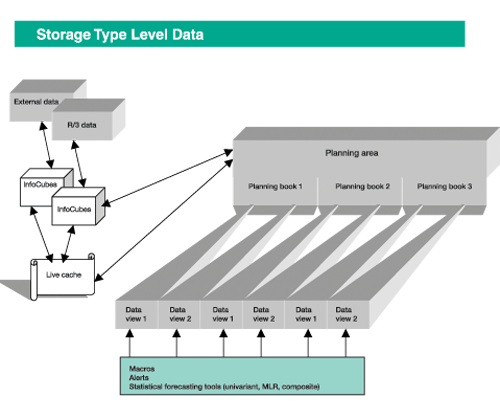
Figure 1
APO DP components relevant to generating an alert
3. Define units of measure, currency, and currency conversion
parameters for the planning area.
4. Assign key figures and characteristics to the planning area.
5. Determine aggregation and disaggregation factors to be applied
to the key figures and characteristics.
6. Create a planning book with a data view and select relevant
key figures and characteristics as well as statistical forecasting
methods to be used. Remember, each planning book can have multiple
data views.
7. Make promotions and product life-cycle assignments to the data
view.
8. Use the Macro Builder to assign macros and alerts to the data
view. Macros and alerts can be accessed directly in the data view.
Alerts can be created and amended depending on the requirement.
9. Assign a user profile to the planning book and data view.
10. Assign an alert profile to the planning area.
Alerts come into play during step 8, assigning macros and alerts
to the data view. I'll describe this process later, but first
a little more background would be useful.
Create Multiple Views of the Same Data
Within the APO planning book, an administrator can create any
number of data views specific to a user's requirements. This
focused view of the data allows the user to identify trends and
errors in either historical or forecast data. Even more important,
the ability to switch between statistical and interactive forecasting
modes allows different analyses of the same data.
APO's statistical forecasting tool uses statistical error
analysis to determine forecast accuracy. A series of previous forecasts
for a particular period is stored, and each deviation from this
series is compared to the actual cell values for the same period.
The deviation can then be projected into the future. Switching between
different forecasting modes allows the user to see the expected
deviation, placing the forecast in context and enabling “what
if” planning. For example, it enables your company to evaluate
future scenarios for maximizing production throughput or sales revenue,
minimizing inventory levels, and helping to provide positive cash
flow.
Here, alerts are the core method of illuminating and solving forecast
errors. You improve the accuracy of your statistical forecast by
monitoring predefined tolerance thresholds for the standard errors.
With each iteration of the forecast, the model is adjusted where
any of these thresholds are exceeded.
APO DP uses two types of alerts: dynamic alerts for interactive
forecast planning and database alerts for batch processing of larger
data volumes. Dynamic alerts reflect the current plan and are viewed
as the data is being planned; the alert is not stored in any long-term
database. Dynamic alerts are also macro-dependent. They can be automatically
executed when entering or leaving the demand plan or manually triggered
from within the forecast plan. The dynamic alert is used to evaluate
the current plan or results, and these values are stored in live
cache. This interactive alert type is not suitable for dealing with
large volumes of data because of performance issues that occur when
dealing with large arrays of data.
Database alerts are used to show the forecast as it was during
the planning run. When dealing with large data volumes, it is best
to perform the analysis as a background job using SAP's batch-processing
technology to evaluate the data. The results of the planning run
show the situation as it was at the time of the run. In other words,
with database alerts you see a snapshot of the plan during runtime.
You have the option of creating customer-specific dynamic or database
alert types to be used with DP macros.
The Alert Monitor provides a reporting tool with which planners
can monitor the state of any APO plan to see if its conditions have
been violated. Database alerts are generated in the planning run,
and alerts are created when a threshold is exceeded. You can define
multiple alerts and assign them to a plan to report on inconsistencies
most relevant to the needs of a user.
Using the Alert Monitor, the planner can view alerts and interactively
change data. Forecast errors, sales trends, seasonal factors, promotions,
and “phase-in/phase-out” products can be isolated and
identified, allowing the planner to take appropriate action to validate
and correct distortions as he finalizes the demand plan.
You can view alerts in a number of ways. Interactive or collaborative
DP alerts can be accessed directly in the interactive mode. Follow
the menu path Planning> Interactive Demand Planning or
Interactive Collaborative Planning.
You can access alerts through the Supply Chain Cockpit (SCC) control
panel (transaction /SAPAPO/SCC01), where you can
also see application-specific alerts as well as alerts for individual
products, locations, and resources (Figure 2).
From the SCC, you can resolve problems through direct access to
the corresponding transactions via context menus. You can also resolve
problems through the Alert Monitors for the respective applications.
Alerts can also be accessed via the Alert Monitor window as standalone
components, which you can access using menu path Supply
Chain Monitoring>Alert Monitor or transaction /SAPAPO/
AMON1. Alerts are assigned to the data view created from
an APO DP planning book.
Clicking on the Display/Change button at the
top of the Change Profile screen (Figure
3) toggles between display and change modes depending on
your authorization level. Select Forecast after
clicking on Display/Change to view statistical alerts for a planning
area, planning book, and data view. For example, at the bottom of
Figure 3 you see:
Planning area: ZDP_PA_DDC01
Planning book: ZPB_DDC_01
Selection description: DDC 7040
The selection description DDC 7040 represents
a predefined selection variant used in the Forecast Planning
screen. This variant is a subset of the data view CO_01.
Users are most likely interested in a specific product line, customer,
or sales organization, so the alert would be applied to this subset
of data. If necessary, a user may also define a variant for all
values in the data view.
Figure 4 shows a typical result
of an alert. To analyze an alert, right-click on the appropriate
row. Then select the Supply & Demand Planning
option. This puts you in the forecast planning book/data view (Figure
5), and from here you manually take necessary
corrective actions.
Figure 6 shows a macro used
to trigger a dynamic alert in interactive DP. In this example, if
the value in the Preliminary Final Forecast cell
is greater than the value in the Target Stock Level
cell for the same period, then it sends a status alert that both
the Preliminary Final Forecast and Target
Stock Level are under-covering the demand based on the
values in Preliminary Final Forecast.
Figure 7 shows an example of a database alert
that has been updated in the Alert Monitor. You can compare dynamic
and database alerts in Supply and Demand Planning interactive planning.
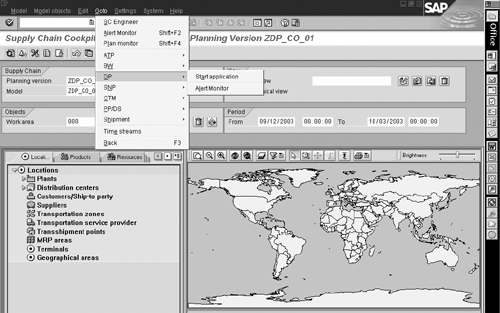
Figure 2
Alert view from the Supply Chain Cockpit
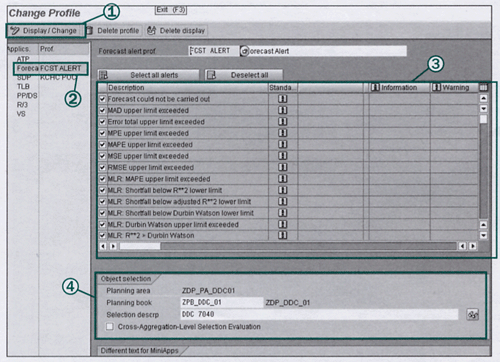
Figure 3
Select Display/Change (1) and then Forecast (2) to view alerts (3) for Planning area, Planning book, and the appropriate subset of the data view (4).
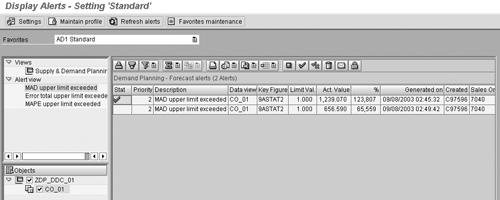
Figure 4
A typical result of an alert
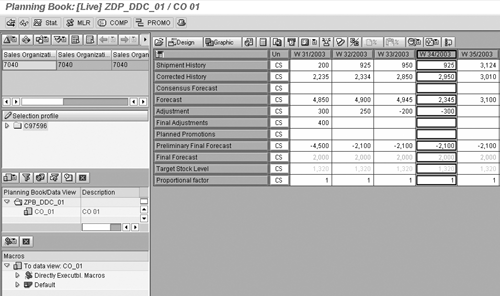
Figure 5
The forecast planning book
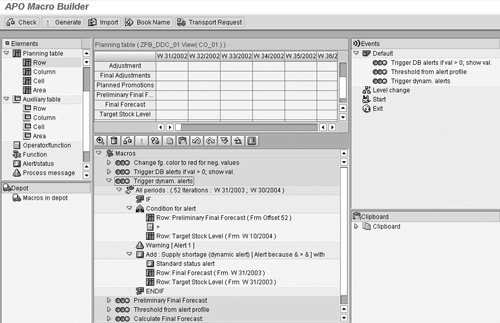
Figure 6
A dynamic alert macro
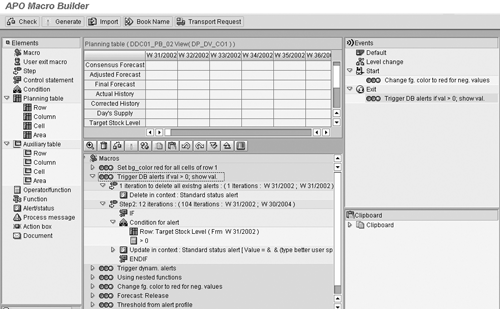
Figure 7
Example of a database alert
Statistical Forecasting Alerts
Univariant and multiple linear regression (MLR) forecasting use
alerts to determine forecast error. The composite forecast method
combines forecasts from alternative forecasting methods including
judgmental and mathematical models. Each forecast is based on the
same historical data, and a weight is applied to the significance
of each forecast.
Univariant forecasting. A forecast profile uses
a diagnostic group to determine upper threshold limits, and it is
assigned to a planning area. During interactive or background planning,
you are able to use the statistical error analysis to improve the
accuracy of your forecasts by monitoring these predefined tolerance
thresholds for the standard errors. An alert is issued whenever
a threshold is exceeded. The forecast is then manually adjusted
when any of these thresholds are exceeded. Alerts indicate which
cell entry requires a correction. Making iterative changes allows
you to adapt the plan to remove forecast errors.
The accuracy of the forecast is measured using any one of six
forecast error measurements and tested against a normal distribution
(Figure 8). The basic technique involves storing
a series of forecasts for a particular period and comparing each
deviation of this series to the actual values for the same period
or previous period. Whenever a deviation occurs, an alert is triggered.
The six forecast error measurements available in SAP's APO
are mean absolute deviation (MAD), mean absolute percentage error
(MAPE), error total (ETl), mean percent error (MPE), mean square
error (MSE), and root of the mean square error (RMSE).
MLR forecasting. Unlike univariant forecasting,
an upper and lower limit are set in a diagnostic group, which is
assigned to the MLR forecast profile. This profile is assigned to
the planning book and planning data views. The measure of fit defines
the upper and lower limits of the threshold, and an alert is issued
if either of these thresholds is breached (Figure 9).
You use alerts to monitor the MLR measures of fit in two situations.
The first is to run MLR interactively or in the background, and
the results are calculated automatically. The process is to run
the forecast, check the alerts, and change the model until you are
satisfied that you have optimized the model. MLR allows you to compare
one dependent variable to many independent variables. The second
situation is when you have already created the MLR model and are
running MLR with mass processing. The aim here is to see no alerts.
This happens if the model you built was a good one. The models used
include R square, adjusted R square, Durbin-in, Durbin Watson, and
T-test.

Figure 8
Univariant statistical forecast alerts
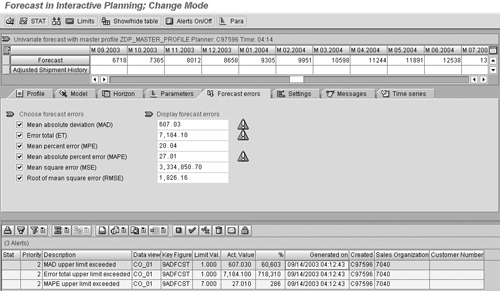
Figure 9
MLR statistical forecast alerts
Alerts are assigned a specific priority, and in statistical forecasting
it is necessary to define separate diagnosis groups in the univariant
and MLR forecasting profiles. Diagnosis groups contain the threshold
values that cause an alert to be triggered. For univariant forecasting,
these are always maximum values when determining the accuracy of
the forecast using forecast errors. Forecast errors are determined
by storing a series of forecasts for a particular period and comparing
each deviation of this series to the actual values for the same
period. Whenever a deviation occurs, an alert is triggered.
For MLR, the diagnosis groups define the upper or lower limits,
depending on the nature of the measure of fit. When using MLR to
compare two models, it is important to always use the same dependent
variable.
When combined with APO DP's interactive and statistical
forecasting tools, alerts provide your organization's planner
with a clearer vision of disruptive factors that are difficult to
discern when using traditional forecasting tools. The improved accuracy
of the forecast and clearer vision of the past and future will enable
your organization to plan with confidence.
David Ducray
David Ducray has a bachelor of commerce degree, majoring in economics and business administration. He is also CPIM- and SAPcertified. As the manufacturing information technology director for a high-tech electronics manufacturing organization, David was responsible for re-engineering forecast-to-stock, replenishment-to-procurement, and order-to-cash strategies, as well as implementing these systems. He has spent the past two and a half years consulting for a leading consumer products organization in the fields of order-to-cash and forecast-to-stock and implementing SAP R/3 in these fields in 19 countries. Prior to this engagement, David spent more than three years consulting for a leading electronic components and systems.
You may contact the author at david.ducray@esccg.com.
If you have comments about this article or publication, or would like to submit an article idea, please contact the editor.