You can use transaction OAVI to create your own sort versions for standard Asset Accounting reporting, adjusting for business scenarios that aren’t covered by your system’s standard sort versions. Also, see some SAP Notes that are useful for troubleshooting.
Key Concept
The Asset Accounting (FI-AA) module contains a sort version (formerly called a sort variant) that you can use to set your sort values for most asset reports. You use sort versions not only for sorting but for totaling the data records in report lists in FI-AA. Sort versions do not alter the data. They are not selection parameters and do not serve as items to query the asset database. They are simply presentation tools to subtotal asset values by the data elements that are most applicable for that particular report. You can execute a report with different sort versions, and you’ll receive the same number of asset records and the same total values. They’ll just be ordered and totaled differently.
All Asset Accounting (FI-AA) experts need to be familiar with the process for creating their own sort versions for FI- AA reporting. SAP provides 23 standard sort versions to accommodate various business scenarios, but sometimes you need to create new sort versions that are in accord with the reporting needs of your company. The customer namespace for this table is X, Y, and Z. Customer-defined sort versions should begin with these letters.
To maintain sort versions, use the standard SAP menu path Accounting > Financial Accounting > Fixed Assets > Information System > Tools > Sort Variants or transaction OAVI. You can also define them in the IMG by following menu path Financial Accounting > Asset Accounting > Information System > Define Sort Versions for Asset Reports.
Currently, not enough information is widely available about creating sort versions for FI-AA reporting. I’ll show you the process of creating sort versions based on my experience. This article is valid for SAP R/3 and SAP ERP Central Component (ECC) systems.
Business Scenario
In our company, the sort version we needed was not one of the standard 23 provided by SAP. As a result, we had to create a new one that matched our requirements. It had to include the asset master data fields that are shown in Figure 1.
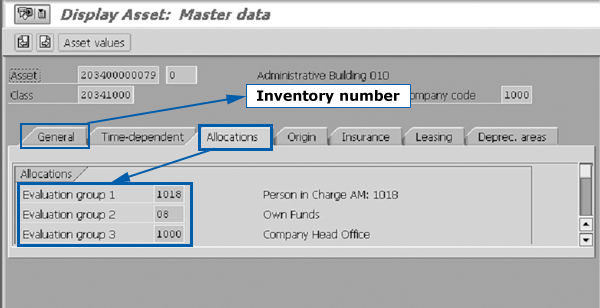
Figure 1
Fields needed in the example sort version
The first part of the process for creating a sort version is identifying technical fields and defining which fields you want to include in the sort version. In my example, I start transaction AS03 (Display Asset: Master data screen) because it contains the fields I want to use in the sort version. Specifically, I want to include four fields:
- Allocations tab: Evaluation group 1 (technical name ORD41)
- Allocations tab: Evaluation group 2 (technical name ORD42)
- Allocations tab: Evaluation group 3 (technical name ORD43)
- General tab: Inventory number (technical name INVNR)
Press F1 and click on the Technical Information button to see the technical information for every field (Figure 2).

Figure 2
Technical information for field ORD41
Next you need to start transaction OAVI for maintaining sort versions for FI-AA reporting, or use transaction SM30 and maintain table view V_T086N. Click on the New entries button and give a text description for your sort version.
The given sort version example is named ZMN1 and has the text description: Sort Version: Ev1/Ev2/Ev3/Inventory number (Figure 3). In the Sort levels section of the screen, enter the tables with the respective fields that you want to include in your sort version. For this scenario, you can see the values in the Table and Field name columns.
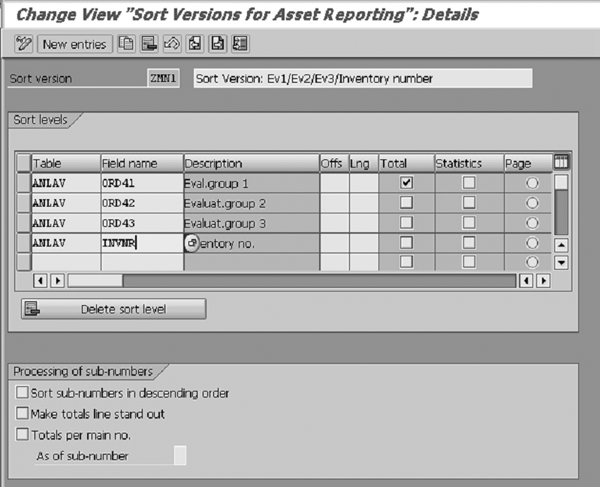
Figure 3
Provide a text description for the sort version
In the Table column, you can insert a table from a list. Click on a drop-down marker to see a list of the allowed values. All the fields from the asset master record are available, including its address information. You can also see the fields from the asset’s Periodic Values and Asset Values tables.
Enter the field by which you want to sort in the Field name column. After you fill the table name in the Table column, the system suggests the list of fields for the respective table. After you enter the field name, the system automatically fills in the field’s description. The SAP system limits sort versions to a maximum of five fields.
In the next columns, you may enter an offset (Offs) within the field (in this example it is not defined) and a length (Lng) of the field in the sort key. The example business scenario does not include these columns, but you might need them in some common situations. For example, a common requirement in the US is to report on state taxes. You could specify the tax jurisdiction code (ANLAV-TXJCD) but limit it to a length of two so that it only outputs the first two characters.
In the Total column, you enter a check for the field by which you wish to have totals. In my example, I put a check mark for the field Eval.group 1. In the next column, you may enter an indicator for a statistical outline (in the example it is not defined). By setting this indicator, you can further break down the totals in a sort level. Though it does not apply to this business scenario, it does apply to some. It is only relevant for a few reports. The most notable one is the US mid-quarter alert report (RAUSMQ10) (transaction AR21), which you use to further break down asset balances by the fiscal quarter in which they were capitalized. It is also applicable to the cost of origin report (it further breaks down items related to cost elements) and transaction reports (it further breaks down values by transaction type). The last column has a radio button for setting an indicator for the sort level at which you want a page break in the printed version of the list.
In the Processing of sub-numbers section, you can set three indicators. The business scenario I’m using doesn’t require them, but you might want to use them in some situations:
- Sort sub-numbers in descending order. By default, the system sorts in ascending order. Check this indicator if you want to display the most recently created sub-number first.
- Make totals line stand out. This indicator creates a blank line after the total for the main number. Mostly, you should use this option for printed reports.
- Totals per main no. You set this indicator if you want the system to provide additional totals per asset main number.
The next thing you need to do is start the FI-AA report. For this example, I’ll start the FI-AA report for listing asset balances, report AR32N.
Then fill in the selection parameters in the sort version you created earlier. For this example, it is ZMN1. You should enter the sort version as a parameter before running the report. Enter all other selection parameters, such as company code, report date, and depreciation area, afterwards.
After you fill in the selection screen parameters, execute the report by pressing F8. In this case, you start the report with transaction code AR32N. You see the result screen of your report, which resembles the screen shown in Figure 4. In this example, you can see the totals by field Evaluation group 1. In this case, this field is Person in Charge (for) AM (asset management). In this screen, you can choose additional columns by clicking on the change layout icon (circled in Figure 4). This opens the screen in Figure 5 where you can choose and save your new column set. The fields defined in the sort version are available to be displayed in the columns of the report. The list of available fields you can display in standard asset reports is very limited.
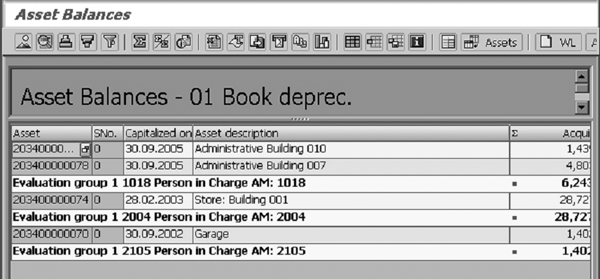
Figure 4
Execute the report to see the Asset Balances screen
To see how to add asset fields to the columns of an asset report on a permanent basis, see Nathan Genez’s article, “How to Add Fields to Any Fixed Asset Report.”
If you have any problems when you maintain sort versions via transaction OAVI, refer to Table 1 for a list of SAP Notes that may help.
|
SAP Note
|
Description
|
Symptom
|
|
42636
|
Sort version: New page is ignored
|
When you process a report, no paging is made although the paging is specified in the sort versions used.
|
|
205095
|
No offset and length specifications with ALV (SAP List Viewer)
|
Reports that work with ALV do not take offset and length specifications into account.
|
|
21719
|
Sort versions: Which tables can you use?
|
The system generates error message AB066 or AB067.
|
|
419663
|
OAVI: error TK430 in the production system
|
When you maintain sort versions in the production system, the system issues the message: TK430 Client &1 has status “not modifiable.”
|
Maria Nikolova
Maria Nikolova has worked as a senior SAP expert for the National Electricity Company (NEK) in Bulgaria since January 1999. Maria has a master’s degree in telecommunications as an engineer from the Technical University in Sofia, Bulgaria. She has experience with an MIS project implementation of SAP R/3 (headquarters and rollout), the authorization concept and user administration, SAP Customer Competence Center (SAP CCC) , SRM, and the SD, HR, CO, Asset Management (AM), MM, and PM modules. Prior to joining NEK, she worked as a manager of Equipment Engineering Ltd. for four years.
You may contact the author at searchsapmnikolova@yahoo.com.
If you have comments about this article or publication, or would like to submit an article idea, please contact the editor.




 Premium