When it’s time to go live with your SAP implementation, it is important that you have a clean handover of your project content to your operational solution. D. Russell Sloan shows how to minimize disruption to operational support and coordinate the release of the new functionality with things that may already be happening in production support,such as break fix or minor enhancements.
Key Concept
Solution Manager provides a storehouse for production-ready content. It combines project content with system and technical information that describes the production landscape known as the solution. The solution must be populated with production-ready content when you are ready to cut over from your project phase to a production support phase as part of your go-live activities.
You and your project team have worked hard to build and test a solution for your enterprise. Now it’s time to move it into production to allow the business to realize the benefits. There is much to do in terms of business readiness — releasing all the transports, confirming final data loads, and ensuring all the technical parts are working together. It is imperative that you look beyond the go-live day to the future to provide your operations team members with what they’ll need to support the business.
A critical part of the arsenal needed to support the business is the clean handover of all the project content your team has created over the course of your implementation. Fortunately, Solution Manager provides a set of capabilities for doing just that.
To begin, it’s important to understand the component parts. By now, you’re surely familiar with a project (either template or implementation) and you’re well versed in the concepts of a good business process hierarchy (BPH) and all the component parts that should be mapped to it as you build out your to-be enterprise solution.
Note
You need to have a Solution Manager 7.0 SP1 or higher system up and
running and authority to create and manage solutions and projects.
During your project, you identified key system landscape components in the form of logical components. These identified which parts of SAP software were in scope for your implementation. Typically, these include components such as SAP ERP Central Component (ECC) or Customer Relationship Management (CRM).
As you move from project mode to operations mode, the content of your project is transferred to a solution and the logical components identified in the project are aligned to the physical infrastructure definitions to form a solution. The solution also contains detailed information about the technical activities going on in the different systems in your system landscape. Information from the Landscape Management Database and the Service Data Control Center is integrated into the solution as well.
By combining the content from your project with these other technical components, you make the solution the single point of truth for all aspects of your enterprise solution.
Creating the Solution
Before you can transfer your project to a solution, the solution must first exist. You use the Solution Manager work centers to create and maintain solutions. Solutions are created using the Solution Manager Administration work center.
Execute transaction code SOLMAN_WORKCENTER and choose the Solution Manager Administration tab (Figure 1).
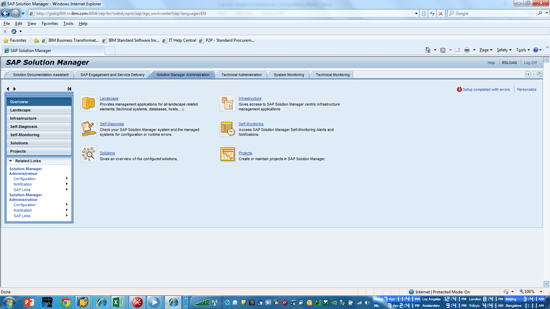
Figure 1
Solution Manager Administration work center
Click the Solutions bar in the left navigation bar in Figure 1 to open the Solutions view in the Solution Manager Administration work center (Figure 2). From here you can create and maintain your solutions.

Figure 2
Solution view of the Solution Manager Administration work center
Click the New button to create a new Solution. The Create Solution window appears (Figure 3) in which you can enter a name for the solution and assign the solution language. Once you’ve entered the name and set the language, click the Save solution button to create the solution.

Figure 3
The Create Solution window
That’s all there is to it. You have now created a solution and are ready to transfer your project to it.
Copying Content from the Project
To copy content from your project into the solution, use the Solution Directory tools. You access the Solution Directory through transaction code SOLMAN_DIRECTORY.
Note
You can perform many of the tasks for the Solution Directory through the
work centers, but I prefer to use SOLMAN_DIRECTORY for this task
because I find it to be a bit faster than the work centers.
Figure 4 shows the Solution Directory with Production Solution – Standardized Solution highlighted. This is an empty solution I created to illustrate this process.
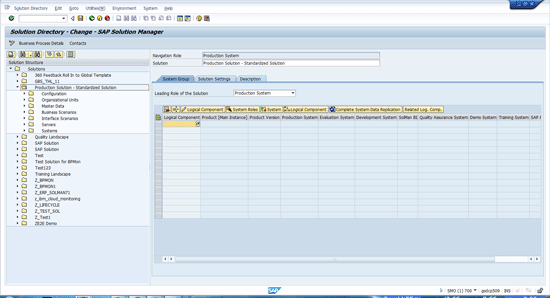
Figure 4
Production solution - standardized solution shown in the Solution Directory
Note that there are several different content areas created by default when the solution was created. For my purposes, I focus just on the Organizational Units and Business Scenarios sections.
Just as you can build a project by selecting content from the SAP Business Process Repository or other projects, you can populate a solution by selecting content from your template or implementation project.
Note
You can also import content from Upgrade and Maintenance projects, but those are beyond the scope of this article.
By opening up the Organizational Units section to the Structure tab (Figure 5), you can see that the solution defaults to Project as the source for the configuration section of the solution. The reason for this default setting is that the solutions are designed to receive finished projects. However, you can also augment your solution by selecting content from the Business Process Repository.

Figure 5
The Structure tab for the Organizational Units
Select the first row in the Structure tab and prompt the system by pressing F4 or clicking the dropdown icon. The Project Selection window opens to the Organizational Units section. Figure 6 shows the selection of the three Organizational Units I want to import into my solution from project ZPROJTEMPL.
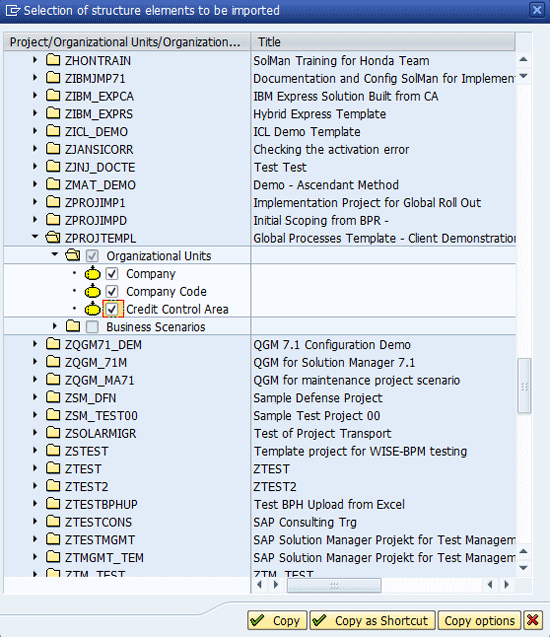
Figure 6
Select the Organizational Units from the project
Before I continue, it’s important to address the topic of Copy options.
By default, the content copied from projects makes certain assumptions:
- Solution Manager assumes you wish to copy documents from the source project into the target solution.
- By default, Solution Manager ignores key attributes of documents coming into the solution, such as status and person responsible.
- Documents in any status can be copied by default.
- Solution Manager defaults to assuming that content is being copied from an implementation project. Therefore, it looks to the Project Documentation tab for the documentation that is to be imported into the solution.
- All document types are marked for copy to the solution by default.
With the above information in mind, I make the following recommended changes to the default copy options. After you have selected the items you wish to import (Figure 6), click the Copy options button to show the default copy options (Figure 7).
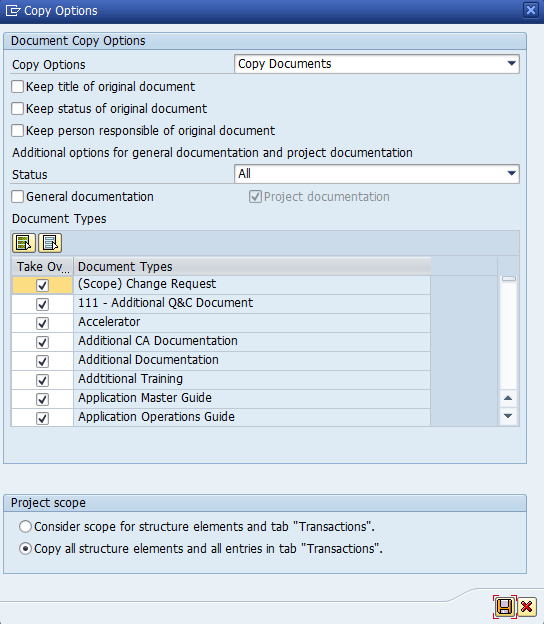
Figure 7
Default copy options
First, I recommend switching the copy options selection to Refer to Documents by clicking the dropdown option to the right of the words Copy Documents in the first input field of the Copy Options view. This has the advantage of having your solution point to the document where it is stored in the source project. This makes the reference to the documentation dynamic, which means your solution always points to the most current version of the documentation. If you wish to have your solution always point to the version of the document at the time you import the content from your project, use the Copy Documents option.
If you choose the Copy Documents option, there are some other options to consider.
Figure 8 shows three check boxes that can help you further tailor how Solution Manager copies documents from your project into the solution.

Figure 8
Additional copy settings
- The Keep title of original document check box preserves the original name of the copied document in the solution. If you leave this check box blank, Solution Manager prepends the document name with Copy from. If your document originally had the name Company Definition in the source project, it would appear as Copy from Company Definition in the target solution.
- The Keep status of original document check box preserves the status of the document as it was represented in the source project. If you leave this check box blank, the document in the target solution is set to the initial default status of the document based on the Document Status Schema assigned to the document type.
- The Keep person responsible of original document check box preserves the user ID assignment from the source project. Leaving this check box blank assigns your user ID to every document copied into the project.
By default, the option to take documents in All statuses is selected. You may not wish to bring across documents that are still work in process. However, you can only select 1 status value or All. You can’t select multiple status values, so a little advance planning is required to get all the documents you want to migrate to the solution into the proper status.
The next section in the Copy Options pop-up allows you to control which documentation tabs are used to source the design-related documentation from the project. By default, Solution Manager looks for content only on the Project Documents tab. If you want to get documentation from the General Documentation tab, you must select the check box for the General documentation. Be aware that choosing this check box could result in duplicate documents in the solution if the source project has the same document on the General and Project tabs.
The Document Types section lets you choose specific document types from the source project to bring across into the solution. By default, all document types are selected.
Figure 9 shows the setting I prefer to use when transferring from a project to a solution. These settings are based on a few assumptions:
- The project is complete. This example is for when you know you want to migrate all the components and contents from select project structure elements.
- The project will have little or no change after release, but you want any changes to the documentation to be immediately reflected in the solution.
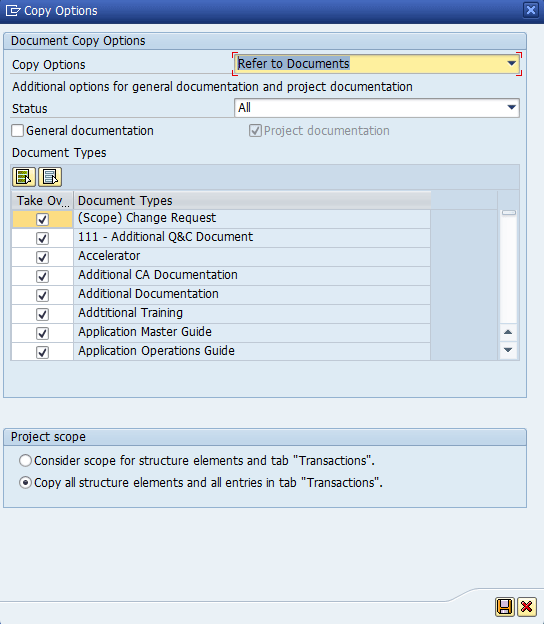
Figure 9
Copy options settings
Once you have the copy options set, you can import the content from the project using either the Copy or Copy as Shortcut button. Copy copies the structure and content into the project, while Copy as Shortcut simply creates pointers to the source project into the solution. I recommend using Copy as Shortcut sparingly because it makes for more difficult navigation to the actual content from the solution and can make authorizations more complex to manage.
For my example, I used Copy. Since my target solution is currently just the default empty shell, there are no logical components assigned to it. Therefore, as I request to import the Organizational Units, Solution Manager prompts me to add their related logical components. The logical component shown in Figure 10 is the one that was assigned to the Organizational Units in my source project ZPROJTEMPL. Click the enter icon  to confirm the import/assignment of the logical component to the solution.

Figure 10
Confirm the assignment of logical components to the solution
Figure 11 shows the structure content copied to the solution for the organizational units.

Figure 11
The Structure tab after copy of the organizational units
Navigating to the other tabs, you can review the other content copied in from the project.
Figure 12 shows the documentation (note that the Company node is selected).

Figure 12
Documentation for company organizational unit
Figures 13, 14, and 15 show the transactions, test cases, and training materials, respectively.
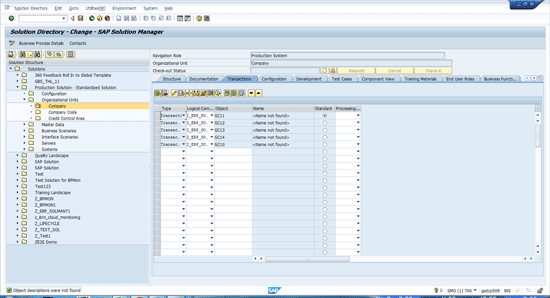
Figure 13
Transaction assignments transferred from the project
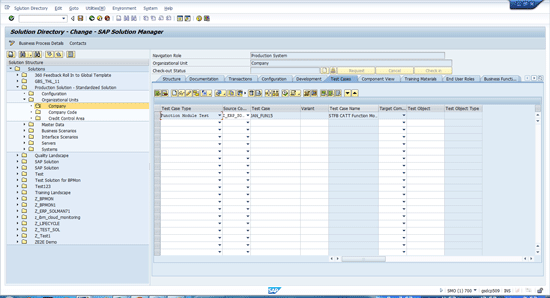
Figure 14
Test case for Company

Figure 15
Training materials transferred to the solution
You can repeat the steps above to copy content for the Business Scenarios. Start by selecting the Business Scenarios node on the Solution Structure (Figure 16).
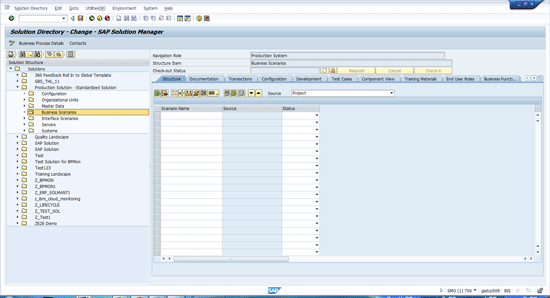
Figure 16
Select the Business Scenarios for a solution
As with the Organizational Units, the Business Scenario structure selection defaults to Project as the selection source. Remember to set the copy options because they return to the default settings each time you select new content. Figure 17 shows the results of selecting several scenarios from the project.
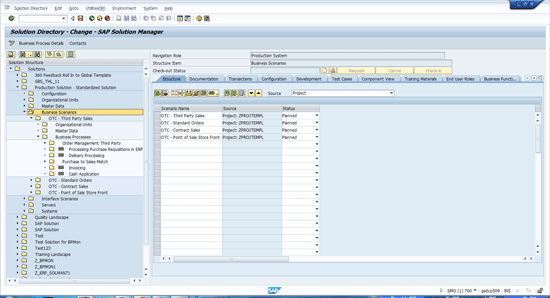
Figure 17
Several scenarios copied into the solution from the project
Continue importing content from one or more projects until you’ve transferred all the content that represents the scope of what is about to go live.
I recommend you plan to have the operations team members involved in preparing this transition so that they will be familiar with all the content in the solution as part of the cutover to production. As always, take some time to experiment with the different options at your disposal and take the time to plan your transition. You’ve worked long and hard to get ready for go-live, so go that extra mile to practice your cutover to help enable a smooth transition to a productive environment.
D. Russell Sloan
D. Russell Sloan is a specialist in project and program governance for IBM. He focuses on the use of SAP Solution Manager for global rollout projects for IBM’s largest customers, having worked with SAP software since 1996. Russell has degrees in accounting and information systems and has been a team and project leader for SAP projects for more than 14 years. He has been developing and deploying software systems for over 30 years.
You may contact the author at solmanruss@gmail.com.
If you have comments about this article or publication, or would like to submit an article idea, please contact the editor.



 Premium