Find out how to create a custom program and use it to transport SAP NetWeaver BW integrated planning (IP) lock characteristics from one system to another. This process helps you avoid manually creating the lock characteristics in multiple systems. Sample code is included.
Key Concept
If you use SAP NetWeaver BW integrated planning (IP) as your planning tool, you need to customize your lock characteristics to avoid concurrent users locking each other using the same application.
If you have an SAP NetWeaver BW integrated planning (IP) planning application, multiple users should be able to use it at the same time. To allow concurrent users in IP, the system defines all the characteristics of the transactional InfoCube as the lock characteristics. This considerably slows down the planning application because of the extended lock arguments. To avoid this and make things quicker, you have the option to customize the InfoCube with a few selected characteristics such as lock characteristics using transaction RSPLSE. Otherwise you need to maintain these lock characteristics settings manually in all the systems.
My method will help you to transport your IP transactional InfoCube lock characteristics settings from one SAP NetWeaver BW system to another. This method involves finding the standard SAP table that is updated while creating lock characteristics, downloading these tables from the source system to a local desktop file with the correct format, and uploading them to the target system. You can use this method with SAP NetWeaver BW 7.x. Users need standard authorization to execute programs as well as to upload and download files from the desktop.
Create the Custom Application
The first step is to create the application ZBW_IP_LOCK_CHARS_TRANSPORT in your SAP NetWeaver BW system. I provide the code for this program through this link. This a global program that you can use across all your SAP NetWeaver BW systems. If you have SAPLINK already installed in your SAP NetWeaver BW system, you can upload the nugget file NUGG_ZBW_IP_LOCK_CHARS_TRANSPORT.nugg. After you have created the program, follow the process from step 4 to transport the program to all the destination systems and use it.
If you do not have SAPLINK, use transaction SE38 (ABAP editor) and follow steps 1 to 3 to create the executable program ZBW_IP_LOCK_CHARS_TRANSPORT in your SAP NetWeaver BW system. Then continue to step 4.
Step 1. Create the ABAP program in transaction SE38 with the attributes shown in Figure 1. Select Executable program for the Type. Then choose the status (in this example, I chose Test Program). Choose your Application (e.g., Business Information Warehouse as shown in Figure 1). You want to use this program in all the SAP NetWeaver BW systems in your BI landscape, so use your transportable package (not $TMP as shown here).
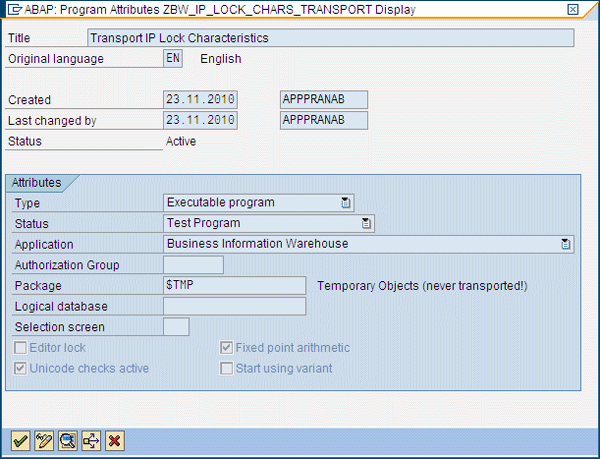
Figure 1
Create the program ZBW_IP_LOCK_CHARS_TRANSPORT
Step 2. Upload the sample file. Download the text file ZBW_IP_LOCK_CHARS_TRANSPORT. Then, in transaction SE38, follow menu path Utilities > More Utilities > Upload/Download > Upload. Upload the text file from your local desktop into the program ZBW_IP_LOCK_CHARS_TRANSPORT.
Step 3. Create the selection texts and text symbols for the program
Selection Texts (Figure 2).
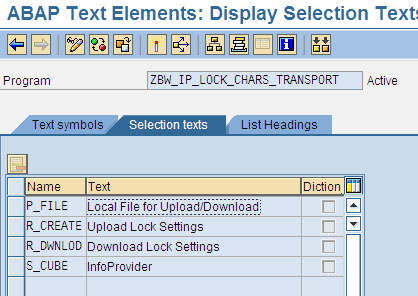
Figure 2
Create selection texts
After you finish entering the selection texts, go to the Text symbols tab on the same screen (Figure 3). The application uses these text symbols for the selection screen. After you finish this step, go back to the program and activate it by clicking the activation icon. Now your program is ready to use.
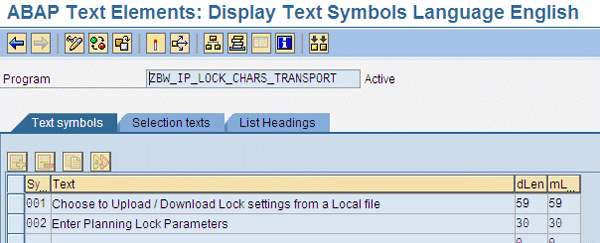
Figure 3
Create text symbols
Step 4. Transport the program. Now you are ready to use the created custom program to download and upload IP lock characteristic settings of a transactional InfoCube from one SAP NetWeaver BW system to another.
Use transaction RSPLSE – Lock Characteristics Tab to define the lock characteristics for your IP transaction InfoCube (Figure 4). In my example for the transactional InfoCube ZGMEC20M, I am defining InfoObjects (ZG_AREA and ZG-BUSUNT) as lock characteristics in the source system.
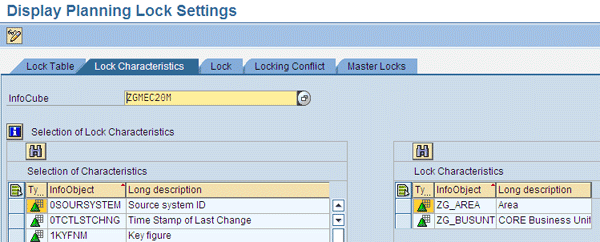
Figure 4
Lock Characteristics settings
Use transaction SE38 or SE80 (object navigator) — it doesn’t matter which one you choose. I am using transaction SE38 in my example to execute the newly created program ZBW_IP_LOCK_CHARS_TRANSPORT (Figure 5).
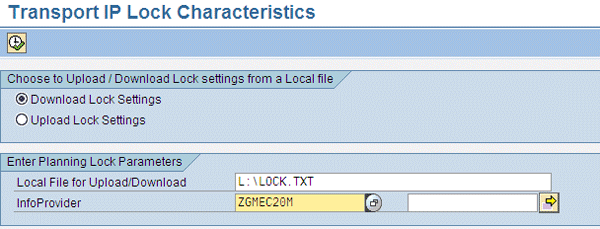
Figure 5
Program selection screen
Select one of the following:
- Choose the Download Lock Settings option to download the lock characteristic settings to a local file from the source system. This exports the lock settings.
- Choose the Upload Lock Settings option to upload the lock characteristic settings from a local file to the destination system. This imports the lock settings.
For the InfoProvider you must set the same parameters for upload and download. Enter a valid SAP NetWeaver transactional InfoCube name as defined in the data warehousing workbench tool, such as ZGMEC20M. The program checks for the valid transactional InfoCubes. The table that the system writes the transactional InfoCube lock settings to is RSPLS_CHAS_LOCK. The application does not create a trace while updating this table.
You can also use this program to transport plan lock settings of multiple transactional InfoCubes. The lock settings that you have created in the source system are replicated in the destination system. For the local file you can use F4 help to select a text file from your desktop. The same file must be used to upload/download for the same set of InfoCubes. Otherwise the destination system tables are not updated.
Step 5. Perform a final result check. If you are downloading existing lock settings from the source SAP NetWeaver BW system, then after maintaining the selection parameters for the program and executing it you can see the file created in your desktop in the selected directory with all the lock characteristic details. Don’t change the file format. Otherwise, the program does not update the destination system table and the program does not give the desired results.
If you are uploading the lock settings from the file on your desktop to your destination SAP NetWeaver BW system, then after maintaining the selection parameters for the program and executing it, you can see the same lock settings in the target system (Figure 4) created for the transactional InfoCube in transaction RSPLSE (Lock Characteristics tab) in your destination SAP NetWeaver system. When everything looks good, you can ask multiple users to use the same IP application at the same time. You can see a sample upload/download Lock.txt file through this link.

Pranab Parhi
Pranab Parhi is a senior SAP NetWeaver BW and planning consultant who has been involved with multiple full-life cycle SAP NetWeaver BW reporting and planning implementations. He has 10 years of SAP consulting experience in various industries, including pharmaceutical, oil, public sector, aviation, consumer packaged goods, services, and retail in multinational environments. He is currently working as a senior associate for Bluefin Solutions. Pranab is an SAP-certified SAP NetWeaver BW 7.0 and SAP NetWeaver BW 3.5 consultant with six years of BI experience. In addition, he is an SAP-certified ABAP consultant with more than four years of ABAP experience. He also holds a bachelor’s degree in engineering (computer science).
If you have comments about this article or BI Expert, or would like to submit an article idea, please contact the BI Expert editor.
You may contact the author at pranab.parhi@yahoo.com.
If you have comments about this article or publication, or would like to submit an article idea, please contact the editor.



 Premium