Gain an overview of the fundamentals of the Explorer application in BusinessObjects 4.1. Learn how to create and manage Information Spaces, Exploration Views, and Exploration View Sets.
Key Concept
The foundation of the Explorer application in BusinessObjects 4.1 is the Information Space. An Information Space is a pre-defined dataset that connects to a BusinessObjects Universe, selects data fields from the Universe, and enables the presentation of data within the Explorer application. Additionally, an Information Space is a collection of data fields that maps to organizational data for a specific business operation or activity (for example, sales, employee performance, inventory, orders, or fulfillments). Two other components of the Explorer application are Exploration Views and Exploration View Sets. An Exploration View is a saved exploration on an Information Space that can be used to expose and explore a specific part of the data within the Information Space. An Exploration View usually represents a targeted part of the Information Space that is related to a specific business question. An Exploration View Set is the container for one or more Exploration Views. Exploration Views contained within an Exploration View Set can use either the same or a different Information Space.
SAP BusinessObjects Explorer is a relatively new application within the BusinessObjects 4.1 suite that provides data discovery and query capabilities. Fundamentally, Explorer allows users to rapidly explore data in a highly graphical and intuitive format. The Explorer application can be accessed by users through the BI launch pad portal, which is the common user interface (UI) for all of the BusinessObjects applications. Explorer enables users to rapidly and intuitively find the information they are looking for without having to create and format reports. Users can combine multiple data perspectives into a single view and quickly go from data discovery, to at-a-glance dashboards, to details of the data.
Note
A basic understanding of the BI launch pad application and of
BusinessObjects Universes by readers is helpful before reading this
article.
The foundation of Explorer is known as an Information Space. Basically, the Information Space is an intermediary or middleware component that connects a BusinessObjects Universe to a BusinessObjects Explorer application. Two other fundamental components of BusinessObjects Explorer that aid in the use of the application and enable re-use are Exploration Views and Exploration View Sets. Exploration Views and Exploration View Sets were introduced in BusinessObjects 4.0 and were not available in previous releases.
In this article, I describe how to create and manage Information Spaces, Exploration Views, and Exploration View Sets as the foundations for using the Explorer application in BusinessObjects 4.1.
Getting Started with Information Spaces and Exploration View Sets
In order to create and manage Explorer Information Spaces, an administrator of BusinessObjects must satisfy the following prerequisites:
- Have access to the BI launch pad application
- Create and manage access rights to the Explorer application
- Have access rights to create and edit Information Spaces and Exploration View Sets
Connect to the BI launch pad application with an internet browser using the URL for the BI launch pad application (Figure 1).
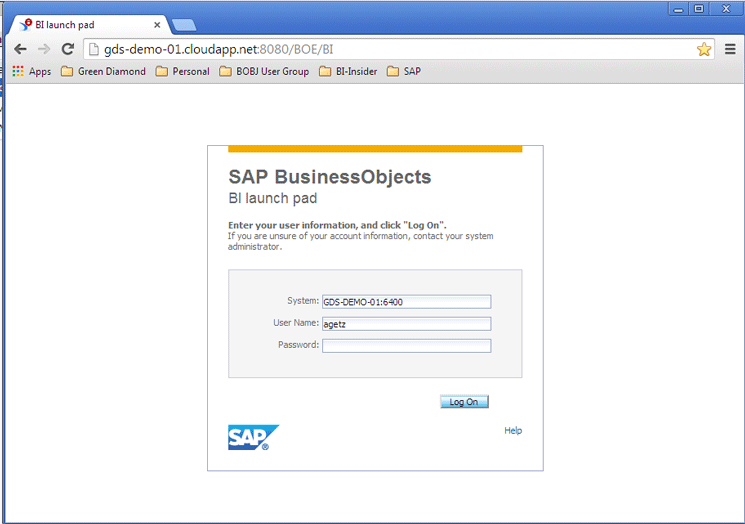
Figure 1
Connect to the BI launch pad
After connecting to the BI launch pad application, click Applications > Explorer at the top of the screen or the Explorer button under My Applications (Figure 2). This opens the BusinessObjects Explorer Management Home tab (Figure 3), where you can create and manage Information Spaces and Exploration View Sets.
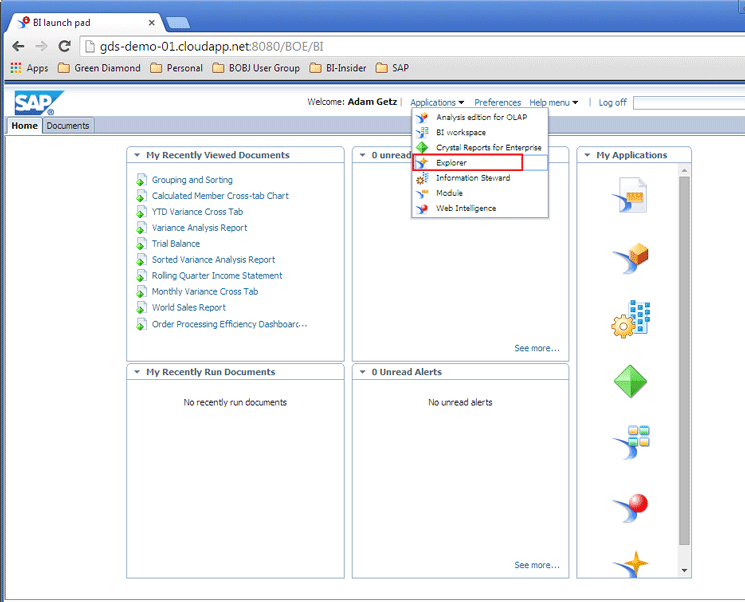
Figure 2
Open Explorer from the BI launch pad
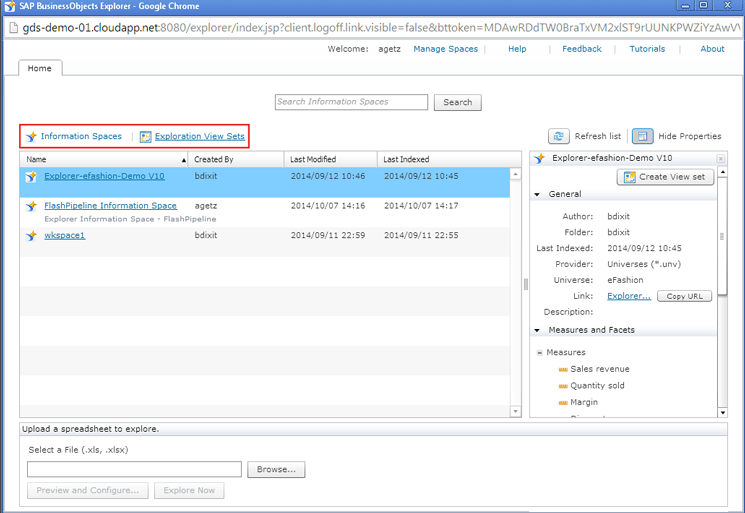
Figure 3
Initial screen for creating and managing Information Spaces and Exploration View Sets
This Home tab has two sub-page offerings: Information Spaces and Exploration View Sets (highlighted in Figure 3). Click on each to open their respective subpage. Figure 4 shows the Information Spaces subpage with a list of the Information Spaces that currently exist within the BusinessObjects system. Figure 5 shows the Exploration View Sets subpage with a list of the Exploration View Sets that currently exist.
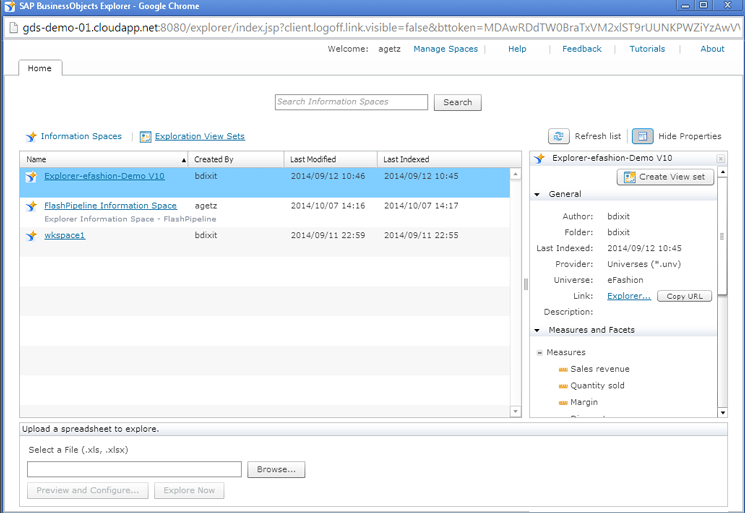
Figure 4
The list of Information Spaces that already exist
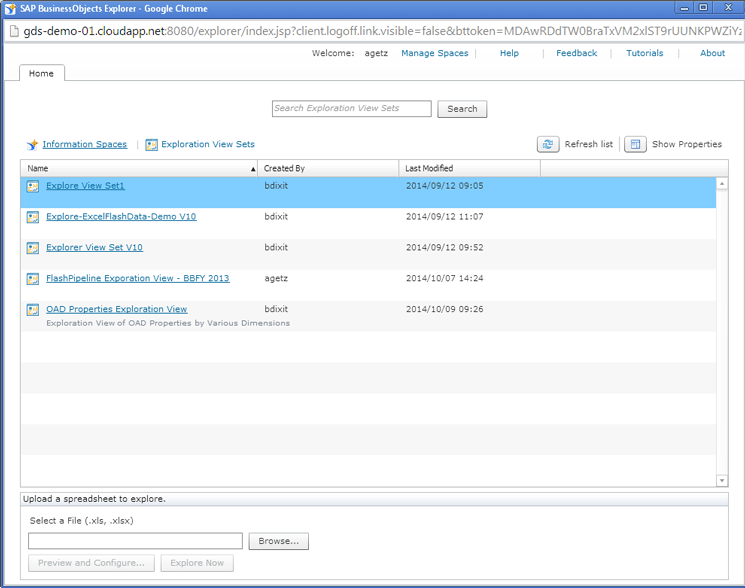
Figure 5
The list of Exploration View Sets that already exist
Creating and Managing Information Spaces
To create and update Information Spaces, click the Manage Spaces link at the top of the screen as shown in Figure 6.
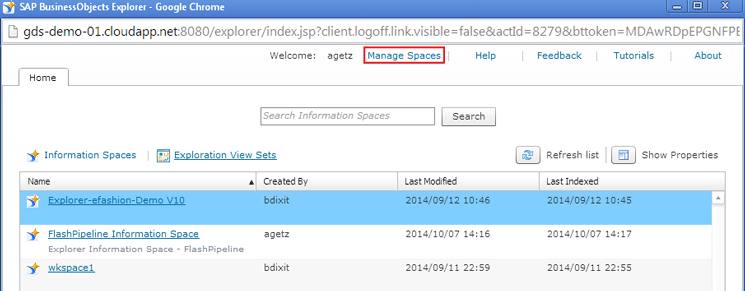
Figure 6
Manage Information Spaces
Once you click the link, the Manage Spaces tab appears (Figure 7). In the Source pane (on the left) all the existing data sources within the BusinessObjects system (existing .unv universes, .unx universes, or Microsoft Excel spreadsheet files) appear. In the Information Spaces pane on the right, all the Information Spaces that correspond with the selected data source are shown. In my example, it is called Explorer-eFashion-Demo v1.0.
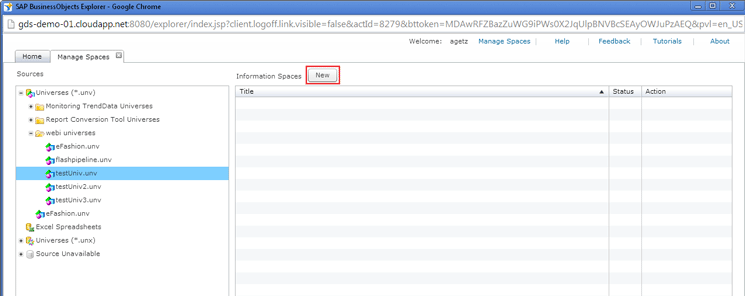
Figure 7
View the existing data sources and their corresponding Information Spaces
To create a new Information Space, click the New button at the top of the Manage Spaces screen (highlighted in Figure 7.) A new Information Space window opens, with the Properties page selected by default (Figure 8). All the fields on the page are blank.
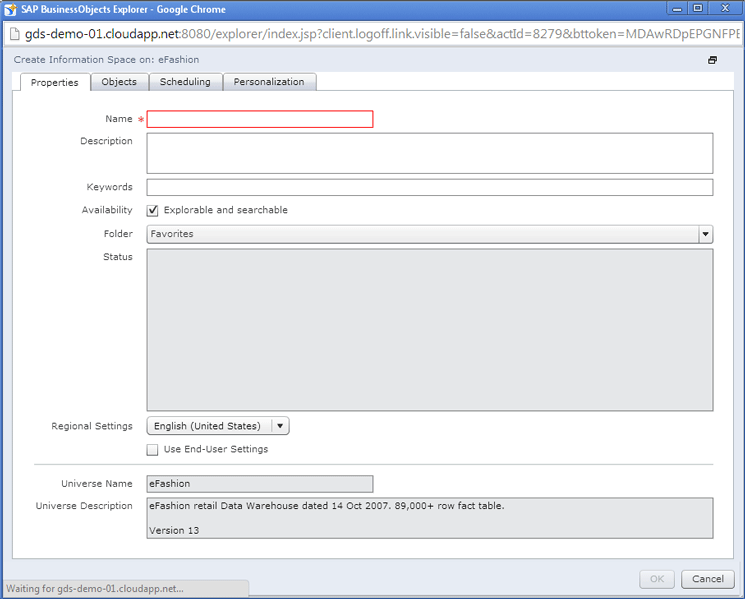
Figure 8
The blank Information Space Properties screen
For your reference, all the names, descriptions, required fields of each of the properties included within the Information Space’s Properties tab are included in Table 1.
| Property |
Description |
Is this a required field?
|
Name field
|
The unique name of the Information Space. The name can exist only once in an entire BusinessObjects system.
|
Yes
|
Description field
|
The comments about the Information Space that provide more details.
|
No
|
Keywords field
|
The words that enable the search of the Information Space by an Explorer user.
|
No
|
Availability check box
|
The flag that determines if the Information Space is visible on the Home tab. If not selected, the Information Space is available in the Manage Spaces section, but not listed on the Home tab.
|
No
|
Folder drop-down options
|
The saved location of the Information Space within the BusinessObjects system.
|
Yes
|
Status box
|
This is a system-generated field that provides details of the last indexing of an Information Space. This includes the status, the start date/time, the end date/time, and any error messages associated with the last index.
|
System generated
|
Regional Settings drop-down options
|
The language and locale of the Information Space. The default setting is English. This property should be changed if the Information Space is used outside of the United States.
|
No
|
Use End-User Settings check box
|
This flag determines whether the language and locale of the Information Space should be the same as the user creating the Information Space.
|
No
|
Table 1
Information spaces properties
Figure 9 shows the same screen as in Figure 8 with all of the required field entries.
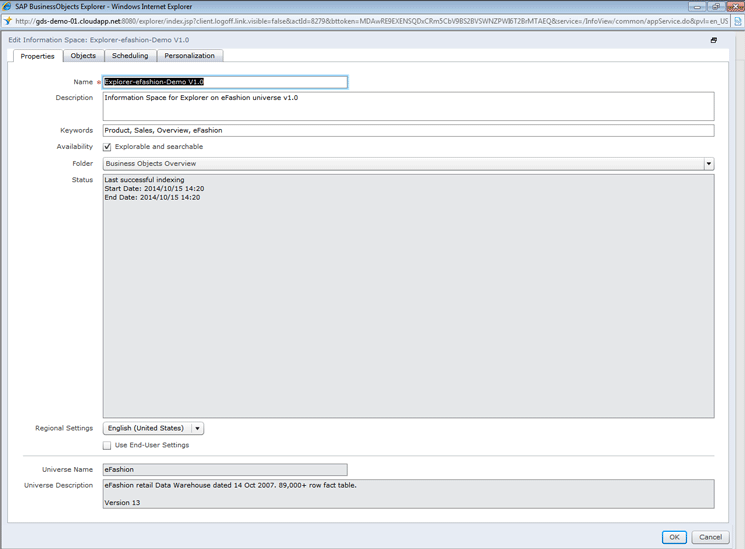
Figure 9
The Information Space Properties screen with entries
The Objects tab (Figure 10) determines the data fields that will be included in the Information Space. Data fields are broken down into measures (numeric fields), facets (text-based or describing values), and filters (values that limit the available records).
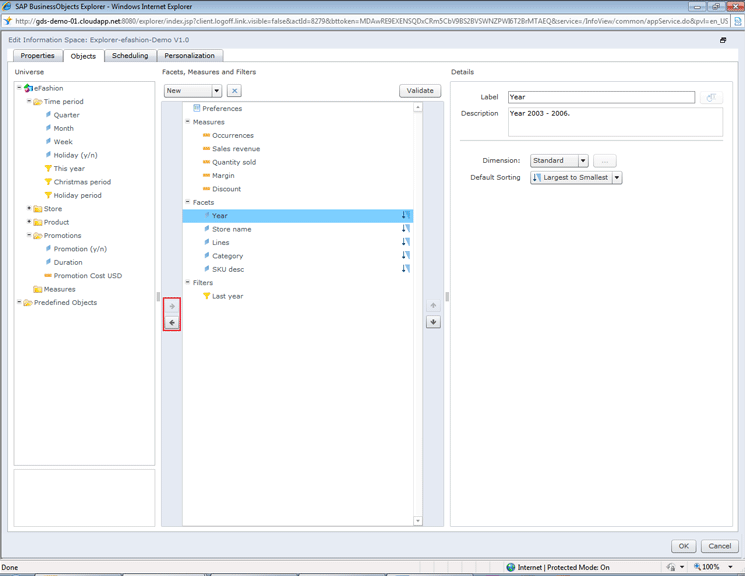
Figure 10
The Objects tab data fields
The Objects tab contains three panes:
- Universe (i.e., the data source fields): This pane (on the left) contains the dimensions, measures, and filters that exist within the Universe or Excel data source.
- Facets, Measures and Filters: This pane (in the center) contains the facets, measures, and filters selected and included in the Information Space.
- Details: This pane (on the right) contains the updatable properties of the measure or facet selected in the central pane.
Before you can add objects to the Information Space, you must expand the Dimensions, Measures, and Filter folders in the left pane. Then you can add facets, measures, or filters (in the center pane) to objects in any of the following ways:
- Double-click an object
- Select an object, then click the add arrow between panes (the right-pointing arrow, highlighted in Figure 10). To remove objects from the central pane, click the remove arrow (the left-pointing arrow in Figure 10).
- Drag and drop objects into the central pane from the left pane. You can use the same drag-and-drop method to remove objects from the central pane.
All the measure and facet properties in the Information Space can be viewed and updated. It is also possible to edit the name, description, dimension, or measure types and the sorting and facet display preferences, depending on the type of object selected. You can view and update an object’s properties by double-clicking a measure or facet in the central pane. This opens the Details pane on the right (Figure 11).
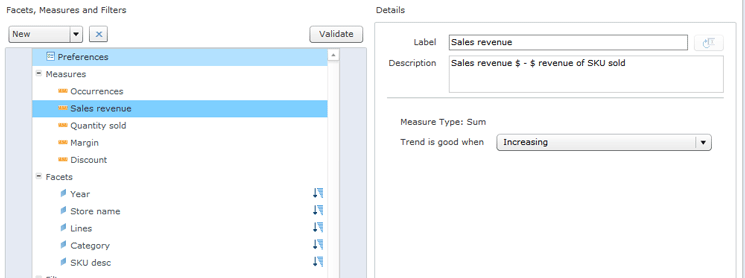
Figure 11
Properties of a measure object
The property options that can be set for measure objects include Label, Description, Measure Type, and Trend is good when, as shown in Figure 11.
The properties that can be set for facet objects include: Label, Description, Dimension Type, and Default Sorting (shown in Figure 12).
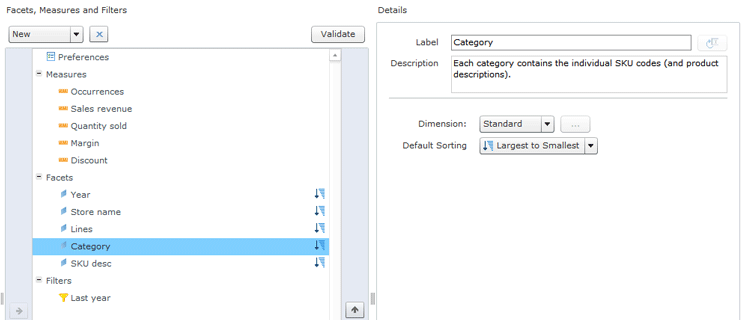
Figure 12
Properties of a facet object
The Scheduling tab of the Information Space screen is shown in Figure 13. This tab includes the settings for scheduling the indexing of the Information Space.
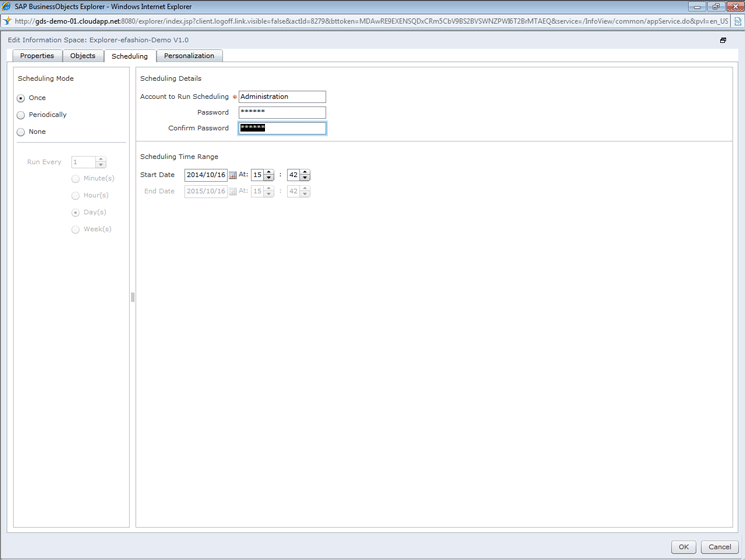
Figure 13
Schedule indexing of the Information Space
Indexing updates the data and metadata included in an Information Space. Before the Information Space can be made available to users and appear on the BusinessObjects Information Spaces subpage, it must be indexed. Information Spaces should be also be indexed after any editing so that the modifications are included. If an Information Space is not re-indexed after reconfiguration, the Information Space is not updated on the Home tab.
Scheduling the indexing allows for synchronization of the data within Information Spaces with its data source by specifying when indexing is to occur. Scheduling options include:
- None: No indexing will occur on the Information Space. (It is recommended that you not choose this option because if you choose None, the Information Space is not indexed and objects are not updated within the Information Space.)
- Once: Indexing occurs once, at a specified date or time.
- Periodically: Indexing occurs at a regular interval. Interval options include minutes, hours, days, or weeks.
In the Scheduling Details section (to the right in Figure 13), users are required to enter a valid user ID in the Account to Run Scheduling field and the corresponding Password twice. Note that the user entered here needs to have the authorization to schedule indexing.
In the Scheduling Time Range section of the screen, there are fields that specify the Start Date/time and End Date/time of the index schedule. Note that if the Once radio button is selected (under Scheduling Mode), then only the Start Date/time can be entered. If the Periodically radio button is selected, then both the Start Date/time and End Date/time have to be entered. If using this option, SAP recommends that you choose an End Date/time that is far in the future. (This is recommended because automated index creation only occurs within the specified time range. Once the End Date/time is in the past, the automated index creation will not execute and the Information Space no longer is updated.) If the None radio button is selected, then only the Start Date/time and End Date/time fields are disabled.
The next (and last) tab on the Information Space screen is the Personalization tab (Figure 14). Included in this tab are the settings for restricting exploration for specified facet values. Personalizing an Information Space enables Information Space administrators to control what data can be explored by different users of the Information Space.
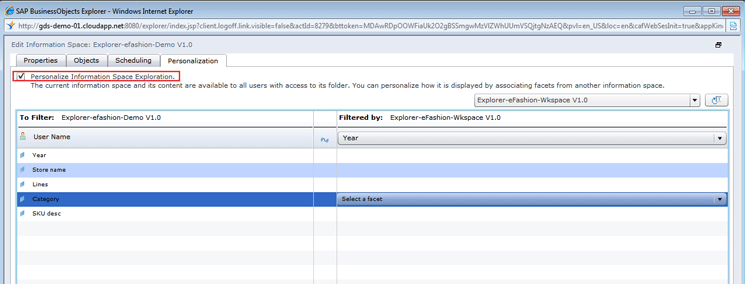
Figure 14
Personalize an Information Space
The first step for personalizing an Information Space is to check the Personalize Information Space Exploration check box at the top of the screen. Then in the drop-down field options on the right, select the Information Space that you created to personalize the current Information Space. The facet filters for the personalized Information Space appear in the left pane, and the facet filters for the referenced Information Space appear in the right pane. Then click the User Name object in the left pane and select the user name facet in the right pane.
Once all the new Information Space settings have been entered and the Information Space is ready to be saved, click the OK button (Figure 15). The OK button is available in any of the four tabs on the Information Space screen (e.g., Properties, Objects, Scheduling, and Personalization).
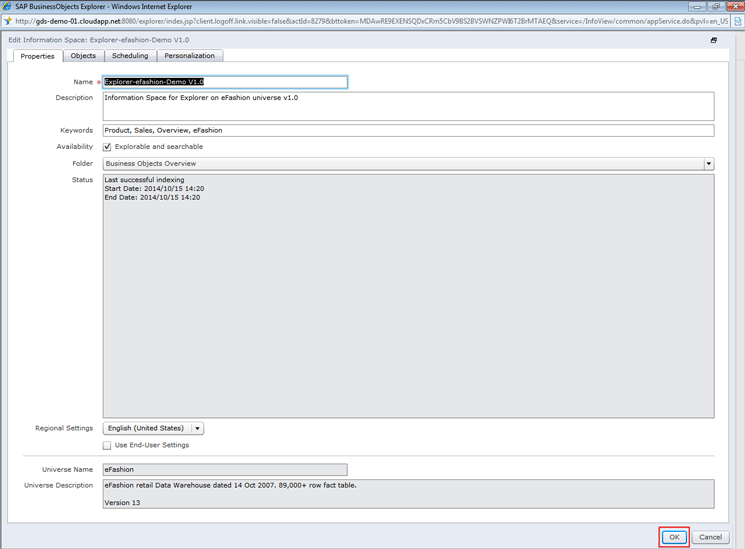
Figure 15
Save your Information Space personalization settings
After you click the OK button, the Manage Spaces tab re-appears as shown in Figure 16, and shows the newly created Information Space under the webi universes folder.
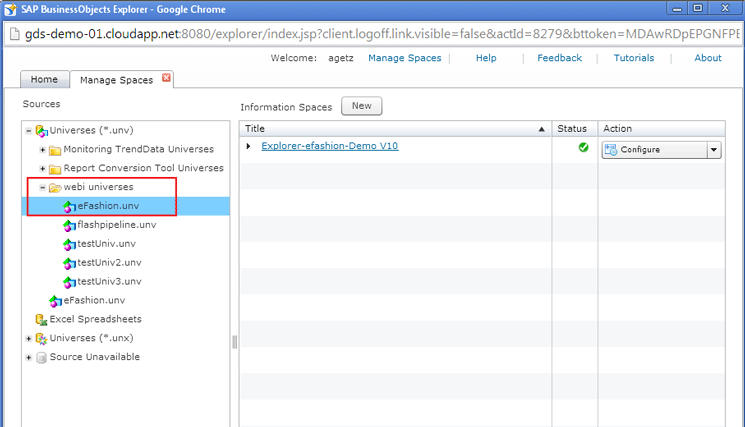
Figure 16
The new Information Space appears
In the Manage Spaces tab, on the right, is an Action drop-down field for each of the Information Spaces listed under the Title section (Figure 17).
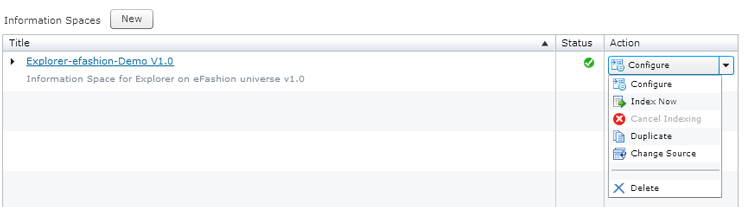
Figure 17
The Action drop-down Field on manage spaces tab
The Action drop-down field options are:
- Configure: Enables the editing of the settings and properties of the selected Information Space
- Index Now: Immediately refreshes the data and metadata within a selected Information Space
- Cancel Indexing: Stops the indexing process. (Note that this option is only enabled if indexing processing is currently executing.)
- Duplicate: Creates a copy of the selected Information Space
- Change Source: Enables a different Universe or MS Excel file to be chosen as the data source for the selected Information Space
- Delete: Permanently removes the selected Information Space
Additionally, if you double-click the name of the Information Space in the Title section, editing is enabled for the settings and properties of the selected Information Space.
To use the newly created Information Space, return to the Home tab of the BusinessObjects Explorer Management screen (Figure 18). By default the Information Spaces link is activated and a list of available Information Spaces is displayed. The newly created Information Space does not appear on the list until you click the Refresh List button.

Figure 18
The new Information Spaces screen
Click the Name of the Information Space on the Home tab to open the Information Space in a new Explore tab (Figure 19). The Explore tab contains an instance of BusinessObjects Explorer with the facets, measures, and filters identified within the selected Information Space.
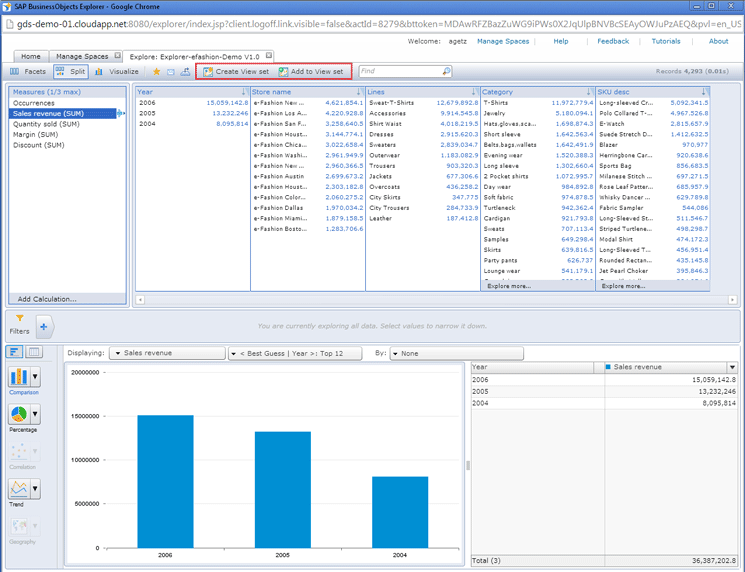
Figure 19
The Explore tab of the BusinessObjects Explorer Management screen
Creating and Managing Exploration Views and Exploration View Sets
At the top of the Explore tab are two buttons that enable the management of Exploration View Sets (boxed in Figure 19): Create View Set and Add to View Set. Click the Create View Set button, and a New view set tab appears (Figure 20). This tab includes an Exploration View with a visual element, and the Exploration View is based on the filters and measures chosen from the source Explorer application.
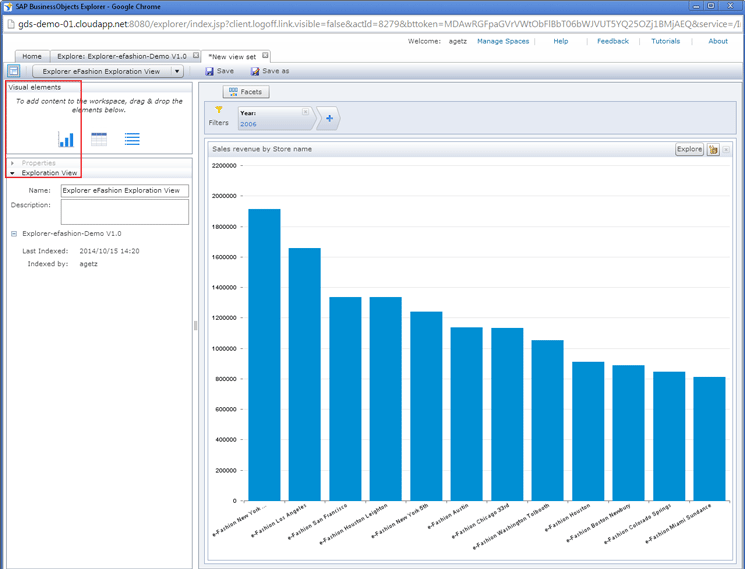
Figure 20
The New view set tab
On the left side of the screen are two options: Visual elements and Properties. When opened, the Visual elements pane allows users to drag-and-drop new visual components (charts, tables, and lists) to the Details pane. Figure 21 shows the Exploration View after a new visual element has been added. In this case, a table element has been added. A chart element already existed on the right-side details pane. Thus multiple Exploration Views now exist within the current Exploration View Set.
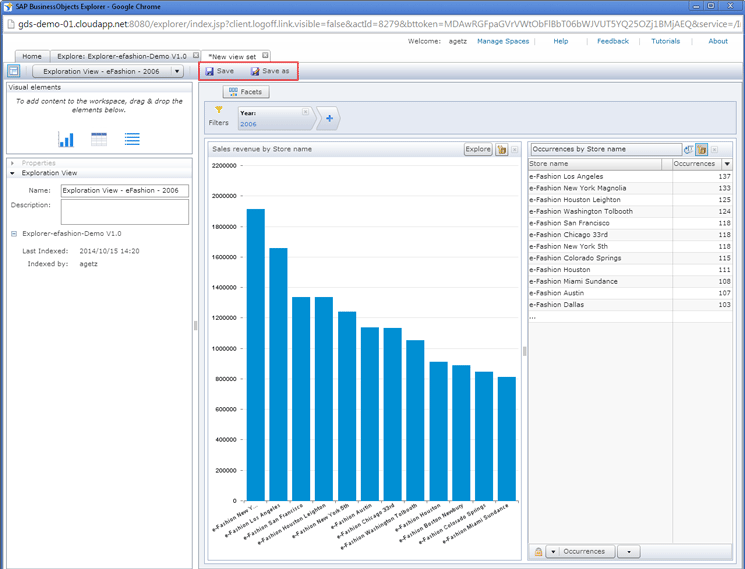
Figure 21
Exploration View with table visual element added
The Properties pane on the left allows for the name and description of the Exploration View to be entered. In addition, three read-only Exploration View properties can be viewed (Information Space, Last Indexed, and Indexed By). After you’ve finished making your changes to the Exploration View, save your new Exploration View Set by clicking either Save or Save as (boxed in Figure 21).
This opens the Save dialog window (Figure 22) that allows the user to enter several properties for the new Exploration View Set (e.g., Name, Description, Keywords, and Folder [location]). Then click the OK button to save your new Exploration View Set.
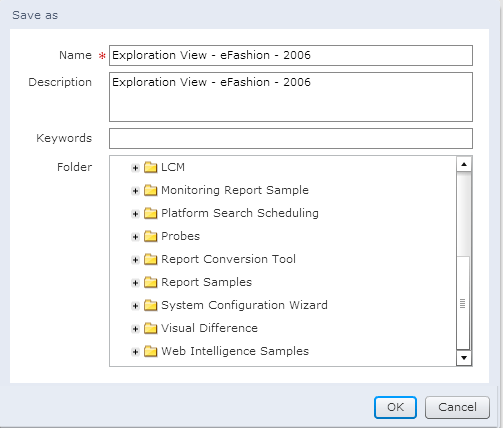
Figure 22
Save the new Exploration View Set properties
To then see a list of all of the Exploration View Sets, return to the Home tab of the BusinessObjects Explorer Management screen and click the Exploration View Sets link (Figure 23). A list of the existing Exploration View Sets appears, but without your new View Set listed. Click the Refresh List button to get the new list of Exploration View Sets.

Figure 23
The Home tab of the BusinessObjects Explorer Management screen with the Exploration View Sets selected
Another way to create Exploration Views and Exploration View Sets is to return to the BusinessObjects Explorer Management screen and select Information Spaces as shown in Figure 17. Then select Show Properties button (on the top right of Figure 23). This opens the pane on the right of Figure 24 that shows the properties for the selected Information Space.
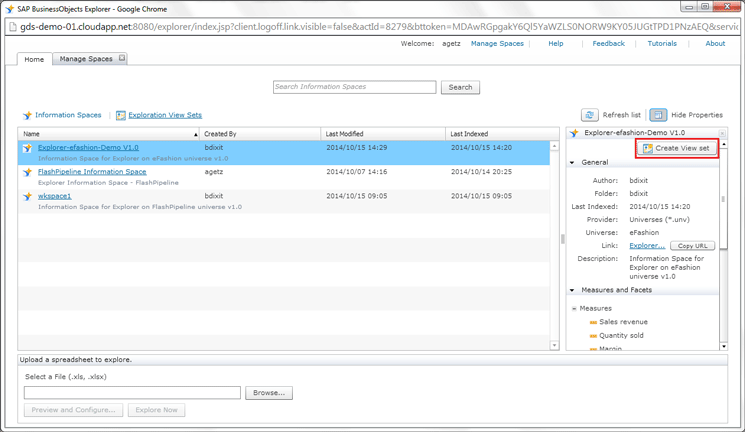
Figure 24
The Home tab of the BusinessObjects Explorer Management Page with Show Properties Selected
From this pane, you can view properties related to the Information Space in three categories: General, Measures and Facets, and Exploration View Sets. General properties include Author, Folder, Last Indexed, Provider, Universe, Link, and Description. Measures and Facets include a list of the measures and facets included within the selected Information Space. Exploration View Sets includes the names of all the Exploration View Sets associated with the selected Information Space.
At the top of the Show Properties pane is a Create View Set button. This button provides another way to create an Exploration View Set from a selected Information Space. Click this button and a blank New view set window opens (Figure 25). Here you can drag-and-drop visual elements from the Visual elements pane on the left over to the right-side Details pane to create an Exploration View. Save and Save as work the same as before, and the Properties pane on the left side works the same as above as well.
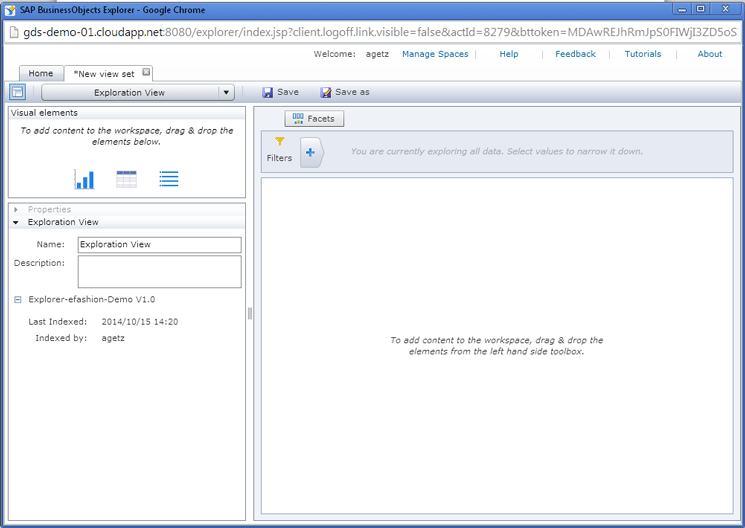
Figure 25
The new Exploration View Set screen
Adam Getz
Adam Getz currently serves as a Manager, Business Intelligence for CGI Federal. In this position, he is leading a large business intelligence and data warehousing implementation for a federal client. He is a thought leader in the field of information technology and an expert in the deployment of leading business intelligence, database management, and data integration products. He has presented at a variety of local, national, and international events, including the 2006 BusinessObjects International Conference, 2007 Oracle BIWA Summit, 2008 Oracle Open World, and 2010 and 2011 ASUG SAP BusinessObjects User Conferences. In addition, Adam is the creator and main author of bi-insider.com, a website, portfolio, and blog that provides rich technical and functional content to business intelligence and data warehousing professionals. He has also published numerous technology white papers that have focused on various topics within business intelligence and data warehousing. Adam currently serves as the chairperson of the Washington DC Business Objects User Group.
You may contact the author at adagetz@yahoo.com.
If you have comments about this article or publication, or would like to submit an article idea, please contact the editor.




 Premium