When used correctly, aggregates can optimize the performance of your BW system. The author demonstrates how to create base and lower-level aggregates that enhance system performance and he provides pre- and post-implementation tips to make the most of your aggregates.
Aggregates are an integral part of BW that, when implemented correctly, can optimize your system’s performance. I have worked on international BW implementations for five years, and perhaps the biggest area of frustration I have encountered has been in areas relating to aggregate use and management. My experience is not unique, and the headaches I’ve endured are common to most BW professionals, which is strange because aggregates are so important to a smoothly running system.
An aggregate is a subset of InfoCube data collected and stored into the InfoCube’s structure. Its purpose is to accelerate query response times by reducing the amount of data in the database for a query navigation step. Be aware, however, that aggregates have a down side. They are stored separately and can take up a lot of storage space. In addition, the more aggregates on the system, the longer the attribute change run takes after master data loads, especially if navigational attributes are used. SAP has created a “Know How” presentation1 on aggregates, which is available at https://service.sap.com/BW. It provides background information on aggregates and how they work technically but not much detailed information about how to set them up and maintain them properly.
My article complements much of the existing technical information like the SAP “Know How” presentation and provides you with a series of steps to help create aggregates for any BW system. Using readily available BW tools and background information, I will show you how to set up and optimize a base aggregate that can be used to build others that improve query run time without unnecessary system overhead for fills.
Note
The steps are based on a BW 2.x system but should be appropriate for any BW system. With the 3.x release, there are some new features that allow BW to use aggregates in more situations. I have included comments and directions for more information where relevant.
Tips for Preparation
You need to know a few essential best practices before you create your base aggregate — the first aggregate built and tested that gets hit when running a query. Here are five tips to assist you before you begin your project:
- Work on one InfoCube only. Develop a successful formula and then repeat it across the other InfoCubes in your system where aggregates are required.
- Adhere to the Kimball/SAP 10 percent rule of aggregate sizing, which states that aggregates should be deleted if they are greater than 10 percent of the size of the fact table.
- Build multiple, small aggregates rather than one big one. A big aggregate defeats its own purpose.
- Interview key InfoCube users to determine their most common filter and drill-down paths and ask them for frequently used report examples for your testing. Determine the key characteristics for your aggregates from these reports. If power users are frequently drilling down to a particular level or saving and executing workbooks at a certain level, this may be a good starting point for building your base aggregate.
- Review queries for frequently used filters to include in all aggregates. If all queries, for example, have a hard-coded controlling area and chart of accounts, then aggregates without these will not be hit. Your review will provide useful troubleshooting information for debugging.
Remember, as an aggregate builder, you may think, “I want to aggregate by company code, so I only need to include company code in the aggregate.” Instead you should think, “I want to aggregate by company code, so I need to include company code in the aggregate along with all the other necessary objects.”
Create Aggregates Using BW Proposal Tools
There are two methods to create aggregates — using BW proposal tools and creating them manually. I will demonstrate both, beginning with proposal tools. While the two approaches are not mutually exclusive, I prefer to manually build aggregates because it allows for finer tuning. I’ll also explain how to tweak the performance of aggregates and what you should do once they’ve been deployed.
The standard functionality in BW provides tools to suggest various aggregates for you to build based on queries or statistics. The BW proposal tools often generate far more aggregates than are needed. These tools are still useful, however, because they provide an idea of what finished aggregates should look like, and help dispel any preconceived ideas you may have about aggregates.
Use transaction code RSA1 to access the Administrator Workbench. Right-click on the InfoCube to be aggregated and select Maintain Aggregates. From this screen, you can access the Propose menu (Figure 1).

Figure 1
BW aggregate proposal tools
The options for query proposals in this menu include:
- Propose (statistics, usually query) for suggestions based on BW Statistics or query definitions with BW choosing the most appropriate offerings.
- Propose from query provides suggestions based on query definitions and allows users to select individual or multiple queries from the InfoCube.
- Propose from last navigation offers suggestions based on the last entry of the database tables RSDDSTAT/RSDDSTATAGGRDEF for the current user.
- Propose from BW statistics (tables) for suggestions based on the database table RSDDSTATAGGRDEF. This option is always available.
- Propose from BW statistics (InfoCube) provides suggestions based on the BW Statistics InfoCube if it has been activated.
- Optimize reduces the number of proposed aggregates and can only be selected after proposals have been suggested.
Allow me to offer a few words about the first two options. In the first, which is shown in Figure 1, BW Statistics is used only if it is activated for your system; otherwise it will use query definitions. Keep in mind that the broader the selection, the longer the proposal will take to run and a larger number of aggregates will be proposed. As a starting point try a long run time (say over 30 seconds). After clicking on the green check mark, the system analyzes the statistics stored and generates the proposals.
Note
For large selection criteria, the proposal may take several minutes and generate dozens of proposed aggregates. There is no need to save them all, but you should review them to get an idea of what BW thinks will make a useful aggregate.
The second option, Propose from query, lists all the available queries for the InfoCube in a pop-up window from which single or multiple queries can be selected. A good basis for selecting queries is to find the ones that users say run most frequently. If in doubt, select them all. Note that BW proposals often break the Kimball/SAP 10 percent rule.
After BW makes its proposals, I suggest reviewing the objects contained in some of the aggregates to get an idea of which will best meet your requirements. Do not activate the proposed aggregates because you can create more specifically tailored ones yourself. If not, you can always activate the proposed aggregates later.
Create Aggregates Manually
Again, I prefer the manual method because aggregates can be finely tuned to meet your needs. Here’s my approach.
- Create the aggregate. To build the base aggregate manually, right-click on your chosen InfoCube and select maintain aggregates. Select Aggregate>Create (Figure 2) from the menu or click the create icon.
- Name the aggregate. Enter suitable descriptions for the aggregate in screen shown in Figure 3. In my example, I entered the short description
Aggr1 — Keys and the long description Aggregate 1 — Keys.
Note
A screen will pop up to alert you if no aggregates exist for an InfoCube. To access the screen in Figure 1 on the previous page, click on the Create by Yourself button in the pop-up alert.
- Save the aggregate. Now, click on the save icon at the top of the screen.
- Add characteristics. To add the appropriate characteristics, you must rely on the findings from your prior analysis, which should include a review of proposals to see which objects the system uses, a query review, and end-user interviews. For example, important characteristics to keep in mind when working with financial InfoCubes include:
• Controlling area
• Chart of accounts
• Fiscal year variant (and all other time characteristics)
• Currency type
• Value type
• Version
All the above characteristics should be dragged and dropped from the dimensions on the left of the screen in Figure 4 into the aggregate and set as All characteristic values when prompted. This is the usual default setting but it can be set manually by right-clicking on the object along with the other options Hierarchy Level, Fixed Value, and Remove Components. BW provides these options so you can tailor specific aggregates for critical queries or reports that may run for specific characteristics. I will discuss these options in more detail later.
Tip
If all the characteristics within a dimension are needed (e.g., Time), then the entire dimension can be dragged across.
- Activate the aggregate. Click on the activate icon to activate the aggregate.
- Fill the aggregate. Click on the green check mark shown in Figure 5 and fill your aggregate. Follow the pop-up window and select Now or Later, depending on whether you want an immediate load to fill the aggregate later as a batch job in the background.
Figure 6 shows the status of the filled aggregate. The Valuation column indicates how well the aggregate is performing. Five minuses are the worst and five pluses are the best.
The next two columns in Figure 6 show the number of records in the aggregate and the average number of record that have been compressed to make one record in the aggregate, respectively. In this example, the number of records in the aggregate is 304 and 352 indicates that, on average, 352 records from the fact table are rolled into one aggregate record.
Here’s a good rule of thumb to keep in mind: An aggregate complies with the Kimball/SAP 10 percent rule when the number of records in the fact table divided by the average number of records rolled into one aggregate record results in a quotient that is 10 or greater. If this condition is true, then a “compression” ratio of sorts exists that is at least 10:1. In my system, the fact table consists of approximately 107,000 records, so 107,000 / 352 = 304, which is well with in the 10:1 ratio.
Note that although an aggregate may appear to be performing well, the numbers can be misleading. Aggregates can be made up of an aggregation of a more detailed aggregate rather than the fact table.
- Test the aggregate. Run some queries and check for hits on the aggregate at the appropriate level of drill down or filtering. The Usage column in Figure 7 shows that after running a very high-level query and refreshing it for different selections, the aggregate has been hit three times.
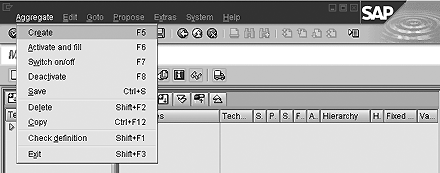
Figure 2
Create your own aggregate

Figure 3
Enter names of the aggregate

Figure 4
Add characteristics to the aggregate

Figure 5
Use this screen for filling the aggregate

Figure 6
The aggregate’s status

Figure 7
Testing the aggregate
If no hits are received, you must troubleshoot the aggregate. See the sidebar “Aggregate Troubleshooting” below. Check to determine if there is anything wrong or if the query is an exception that will not hit the aggregate. Repeat steps 1 through 7 until step 7 shows that the query hits the aggregate. When it does, you have successfully created a base-level aggregate!
Additional aggregates can be built using this one as a template. Make sure not to add more characteristics to this aggregate because that will just make the aggregate’s record count larger.
Build Lower-Level Aggregates
Best practices demand using many small aggregates to cover multiple reporting views. Begin manually building these lower-level aggregates for the same InfoCube using the following steps:
1. Copy the base aggregate to create two new aggregates. Copy the base aggregate twice and add one further level of detail to each new copy. To do this place the cursor on the first aggregate and then click the copy with template icon or press Ctrl+F12. Enter the name and description for the new aggregate.
Add another level of detail from different dimensions to each new aggregate. One can be more detailed in the profit center dimension with company code data, for example. The other can provide additional analysis from the account dimension with account number information. This then provides two more aggregates that can be hit by the user when drilling down or filtering rather than having to go directly to the fact table.
2. Test the new aggregates. Repeat steps 1 through 7 from the Create Aggregates Manually section to ensure that the query hits the new aggregates you just made.
Your results should look similar to those in Figure 8. Queries hit all three of the active aggregates. Note that the Valuation column displays fewer plus signs as the aggregate record count increases. In this case, there are more accounts than company codes in the InfoCube. Remember that as long as the record count stays above ten, the best-practice rule for aggregate size is observed. Also, once the number of aggregates increases, Aggregate A may become the source for Aggregate B, in which case the performance numbers will need to be scrutinized more closely.

Figure 8
Results for the three successful aggregates
As I noted earlier, some of your more important queries or reports may run for specific characteristic values such as a company code. It is possible to tailor a specific aggregate for these types of queries using a fixed value selection for the characteristics rather than the generic types of aggregates I have been discussing. While only a single-value selection is possible, it is also possible to create an aggregate for a particular level in a characteristic’s hierarchy.
To create an aggregate based on a hierarchy level or fixed value, right-click on the characteristic in the aggregate and then make the appropriate selection from the menu by double-clicking either Hierarchy Level or Fixed Value and following steps 4 through 7 in the Creating Aggregates Manually section.
Note
Navigational attributes can also be used interchangeably with characteristics within aggregates.
Feedback
Monitor the usage of the new aggregates over a few days and engage users to determine if they have noticed any performance improvement. Also, check the fill times for the aggregates to ensure that they are not excessive. If aggregate fills are encroaching on the time users are on the system, it could negatively impact performance. I will cover related points more fully in the Post-Implementation Procedures section below.
Repeat the above steps on lower-level aggregates to build as many aggregates as necessary for a particular InfoCube. Then, proceed to the next InfoCube and build a new aggregate following the same procedure. There should now be a working set of aggregates for all the required InfoCubes. As always, make sure to keep the 10 percent rule in mind for the size of aggregates.
After a few weeks of successful aggregate use, talk to key InfoCube users to determine if they have noticed improvements in its performance. This can also be an opportunity to determine if any performance issues remain on certain drill-downs or filters.
Post-Implementation Procedures
Once you have successfully built aggregates that are frequently hit by queries and improve the performance of those queries, regular filling or roll-up must be built into the load process. Every time a new load is added to the InfoCube (e.g., at month end), it sits above the aggregates and is not available for reporting. Just as a delta load can be automated, your InfoCube can be set to roll up automatically. The system then processes the new load and adds the new data into the existing aggregates.
For InfoCubes with a delta process (or full loads that only happen once and never overlap existing data in the InfoCube), roll-up is a simple procedure. New InfoPackages can be set to roll up automatically within the management of the InfoCube. From the Administrator Workbench, select the InfoProvider tab. Right click on the InfoCube and select Manage, then follow the menu path Environment>Automatic request processing. Once the appropriate flags are set in the Automatic processing box (Figure 9) the request turns green in the InfoCube and it is automatically rolled up into the aggregates.

Figure 9
Set the flags to automatically roll up InfoPackages
Tip
Consider dropping your aggregates from the load process and re-building them after the change run has completed, because the more aggregates on the system, the longer the change run will take after master data loads. Tests should be preformed on each individual system to determine if dropping an aggregate provides the optimal results.
To get the most accurate information for those InfoCubes where full data loads are regularly repeated, it is necessary to use some BW content programs to drop the aggregates before loading and then rebuild the aggregates. Use transaction SA38 and run SAP_AGGREGATES_DEACTIVATE. Enter the technical name for the InfoCube on which the aggregates must be deactivated or use the drop-down menu to select it.
After all data loads are complete, program SAP_AGGREGATES_ACTIVATE_FILL can be used to refill the aggregates for the same InfoCube. These processes could be included as steps in a batch job triggered by events and included in the regular load process for the BW system.
Aggregate Estimating
Using the techniques in this article, you should be able successfully build aggregates. However, as all BW practitioners know, when it comes to working with aggregates, problems arise. Here are some ideas on how to fix the glitches that can — and will — pop up.
1. Check for objects used as filters based on authorizations. These characteristics must be in the aggregate.
2. An object included in the free characteristics of a query does not need to be in the aggregate, but it should be included if it has a variable input or a restricted value.
3. Check in row and column structures for frequently used restrictions on key figures. These must be in the aggregate to get a hit.
4. If you use defined restricted key figures, check the definitions to ensure that the restricting characteristics are in the InfoCube.
5. After changing aggregates during tuning, remember to refresh the query with new selections or disconnect and reconnect to avoid using cached data.
6. Be patient! Even though the aggregate maintenance screen gives the green light, it may not get a hit for several minutes. This suggests some processing may still be finishing in the background.
7. An obvious statement: Make sure that when tuning the aggregates, the queries executed are on the correct InfoCube!
8. Don’t let the Records Summarized (Mean Value) column confuse you. It is counting the summarization from higher-level objects. This may be the fact table or another aggregate.
9. If the dimension includes a compounding object, e.g., Controlling Area for Profit Center or Chart of Accounts for Account, ensure that the compounding object is always included in the aggregate with all characteristic values.
10. If you use navigational attributes in the aggregate, be sure to exclude the characteristic to which they belong.
11. Include all time objects from the InfoCube in the aggregate.
12. Don’t build unnecessary aggregates. If users rarely drill down to the lowest level of detail, these objects should be the last to be included in any aggregates.
13. Note that neither time-dependent navigational attributes nor time-dependent hierarchies can be included in aggregates in BW 2.x because it is not possible to specify a key date. BW 3.x, which uses a key date in a properties header for the aggregate, will allow their inclusion.
14. Check the read mode for the InfoCube. If it is set to Query should import data all in one go, then the aggregates may not get hit. It is worth experimenting with the other options such as Query should read during navigation. Use transaction RSRT to change settings for an individual query, and to change the settings for the InfoCube use transaction RDMD.
15. If a hierarchy-level aggregate is used, it may be necessary to set the query read mode to Query should select data on demand in nav./expanding hier.
Robert Oliver
Robert Oliver is an SAP BI developer working for an investment bank in London. He has been working with SAP R/3 since 1994 and SAP NetWeaver BW since 1999. Since 2005 he has been working with the planning and consolidation systems provided by SAP. Prior to his current role he was an end user and a consultant.
If you have comments about this article or BI Expert, or would like to submit an article idea, contact the BI Expert editor.
You may contact the author at Robert_Oliver@Hotmail.com.
If you have comments about this article or publication, or would like to submit an article idea, please contact the editor.


 Premium

