Manager
Enhance your custom document attributes by creating your own custom Data Dictionary objects. With custom document attributes, you can control entry values, provide search lists, and link to other data in the system. Custom Data Dictionary objects give you more flexibility in defining your custom document attributes.
Key Concept
The real power of the custom table and field setup comes in the definition of the domain. The domain controls the data type, the length, and the data entry rules for the custom attribute. Becoming proficient in the use of domains extends your ability to create robust custom attributes for your solution documentation.
Sometimes, your project requirements for custom attributes include the need to control input to a specific list of values or to an input help. For example, the project may be deployed in waves or phases, and you’d like to have the wave or phase be a required attribute on your documents. Furthermore, you may wish to control the values that are available for the attribute so you can ensure consistency of entry. For this, you need to create your own custom data table and fields — Data Dictionary objects — for use with your attributes.
Remember, the Data Dictionary elements are used to describe the type of data and the behavior for input of the attributes. They are not the location in which the attribute data is physically stored in the database. To build these custom Data Dictionary elements, you need to request a developer key from your technical team. You also need developer access rights in your SAP Solution Manager system. Make sure you follow all your project standards for creating custom Data Dictionary objects.
For more information about custom document attributes, see my SAPexperts article, “Improve SAP Solution Manager Reporting Capabilities by Using Your Own Custom Document Attributes.” You should read that article before proceeding with this one.
Now I’ll show you how to create custom Data Dictionary objects. I’ll start by creating a document attribute, and then explain how to create an example table ZDOCTABLE and some associated fields.
Create a Document Attribute
For this example, I’m creating a table called ZDOCTABLE to hold all the custom attributes you need for the project. As you find the need to create new attributes, you can simply add new fields to ZDOCTABLE and use them in information object (IO) attributes maintenance in the Document Modeling Workbench (DMWB).
To build a table, you first have to build the field. Tables are built with fields, fields are built with data elements, and data elements are built with domains. The Data Dictionary allows you to build all of these together, starting from the table.
Create a Table and Field
Use transaction SE11 to launch the Data Dictionary initial screen (Figure 1). Enter the table name ZDOCTABLE and click the Create button from the main screen.
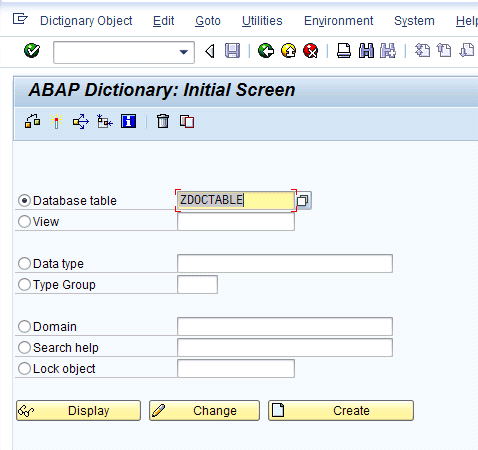
Figure 1
Create the custom table
If you have not registered your developer key, the system prompts you for it now (Figure 2). Enter it and click the Continue button to call up the screen in Figure 3. Enter a short description and set the Delivery Class to A.
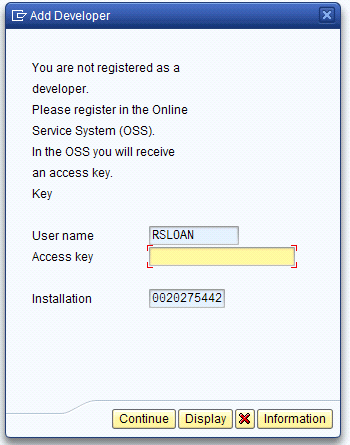
Figure 2
Prompt for developer’s access key
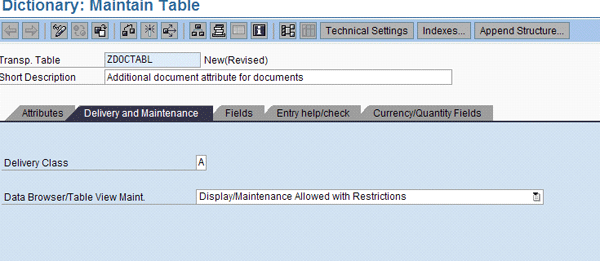
Figure 3
Setting initial attributes of custom table ZDOCTABL
In the Fields tab, enter the field CLIENT with the data element MANDT (Figure 4). You use this setting if you want your table to be client dependent. This is not very common in SAP Solution Manager because most of what you do is client independent. There is no need to make your data tables client dependent because you’re not actually storing data in the tables. Enter the name of the document attribute you want to use. The data element doesn’t need to exist; the system allows you to create it from here. Enter ZDOCATTR in the Field and Data element columns and then double-click the data element.
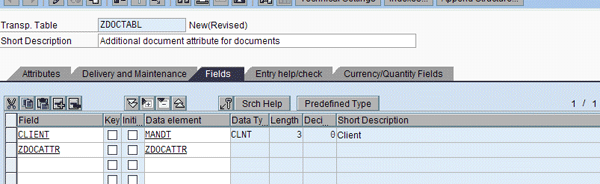
Figure 4
Enter the fields in the custom table and create the data element ZDOCATTR
The system prompts you to save before moving on to create the data element. When you save, the prompt in Figure 5 appears. Click the Yes button. Then transport the request and you see the pop-up screen in Figure 6. Enter $TMP in the Package field of the transport request prompt if you don’t want the data element to be transportable. Then click the save icon.
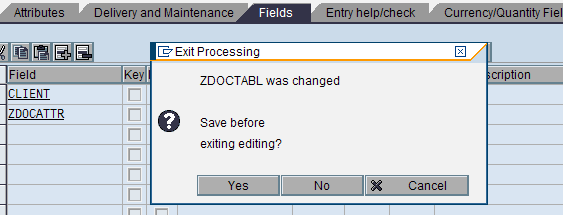
Figure 5
The save prompt
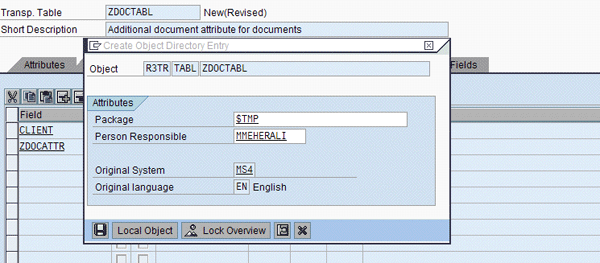
Figure 6
The transport request prompt
The system produces the error that the data element you’re trying to use for your table does not exist (Figure 7). Click the Yes button to delay saving the table while you create the element.
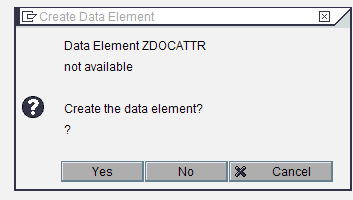
Figure 7
Delay the saving of the table
The system launches the editor for maintaining data elements (Figure 8). The system has already created the data element and pre-populated the name from the table maintenance screen you just left.
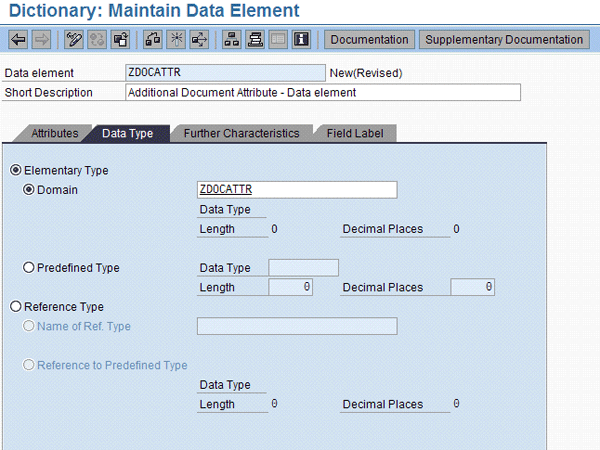
Figure 8
Maintenance for data element ZDOCATTR
Enter text in the Short Description field and a Domain name to be able to save the data element. In Figure 8, I’ve entered ZDOCATTR for the domain name. If this does not exist, the system gives you the chance to delay creating the data element while you create the domain. In the pop-up screen in Figure 9, click Yes to save.
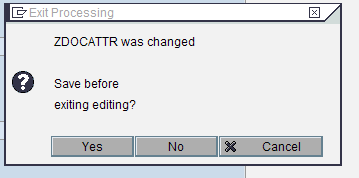
Figure 9
Save the data table and add to transport as required by your project standards
In this example, I do not transport this table to another SAP Solution Manager system, so in the resulting screen I set the Package to $TMP, for not transportable (Figure 10). If you need to transport the table to another SAP Solution Manager system, enter the package based on your project’s SAP Change and Transport System (CTS) standards.
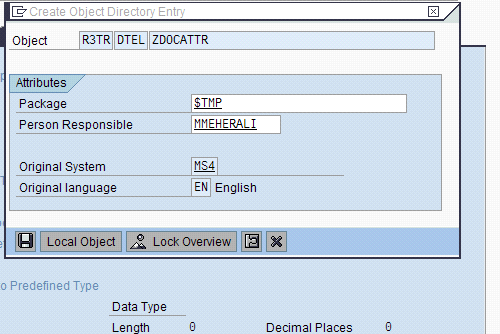
Figure 10
Transport request for the data element
The system then requests that you create the Domain. In the screen in Figure 11, click the Yes button to activate the Create Domain screen.
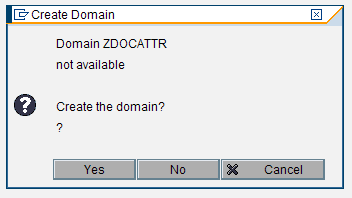
Figure 11
Create the domain
When you get to the screen to maintain the domain, enter the data type and the length (Figure 12). The data type has implications on how the custom attribute behaves. For example, if you put in a date-related data type, the system applies date entry rules to the field based on the user’s date settings. Likewise, the system automatically provides a calendar help pop-up when prompting the entry in date fields. You do not need to do anything further to the domain definition. Make sure you conform to your project development standards when defining domains and other Data Dictionary elements.
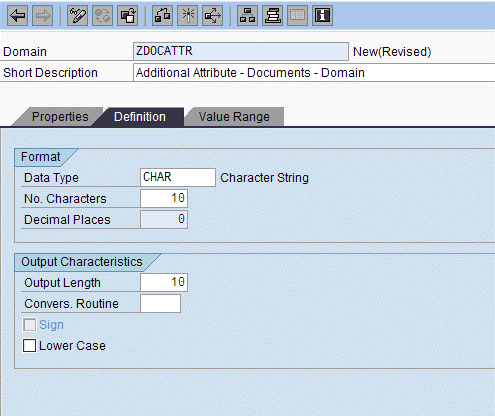
Figure 12
Enter the data type and length
If you require a specific list of values to be available on the entry screen, enter a Value Range. For example, you could use red, yellow, and green as values for a custom status field. In the Value Range tab in Figure 13, you see the named releases entered. Be sure to save your work.
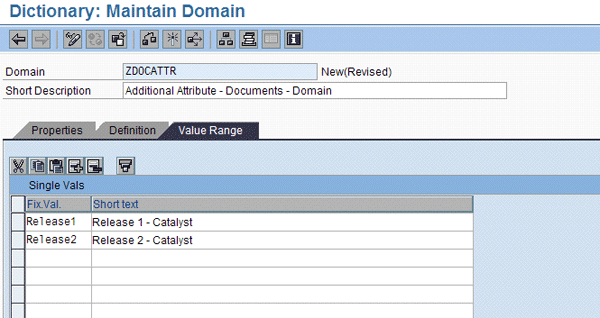
Figure 13
Value range for custom attribute
Now I’ll work backward through the object chain to the table. When you click the green back arrow  icon, you move back a screen. Here you see the domain you just created (Figure 14).
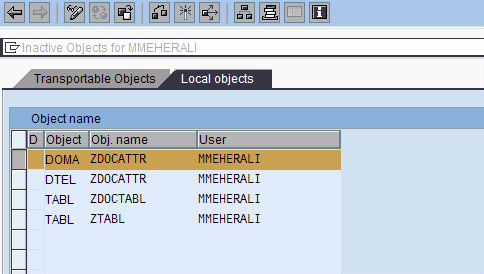
Figure 14
Activate the domains
Highlight the domain and click the activate  icon to activate the domains. The screen shown in Figure 15 indicates that the domain is now active.

Figure 15
The domain is active
Now click the activate icon to activate the data element (Figure 16). The screen shown in Figure 17 indicates that the data element is now active.
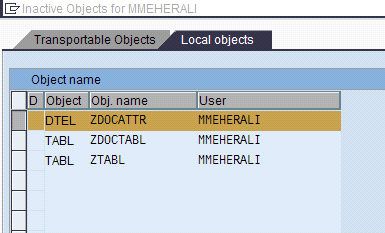
Figure 16
Activate the data element

Figure 17
The data element is active
Repeat these steps using the green back arrow icon to move back through the elements and activate each one as you go. Last, but not least, activate ZDOCTABL. From the Table Maintenance screen, click the Technical Settings button (Figure 18).
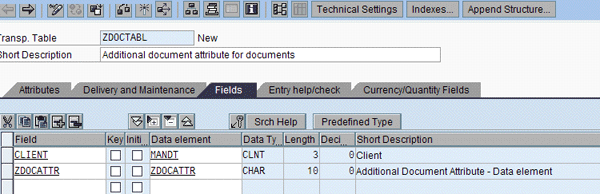
Figure 18
Activate ZDOCTABL
This takes you to the screen in Figure 19. Set the Data class value to APPL0, which represents Master data, transparent tables. This setting allows you to enter values into the table without activating the CTS. Because these tables do not have any entries, set the Size category value to 0. Setting the size category to any other setting causes the database to reserve space unnecessarily.
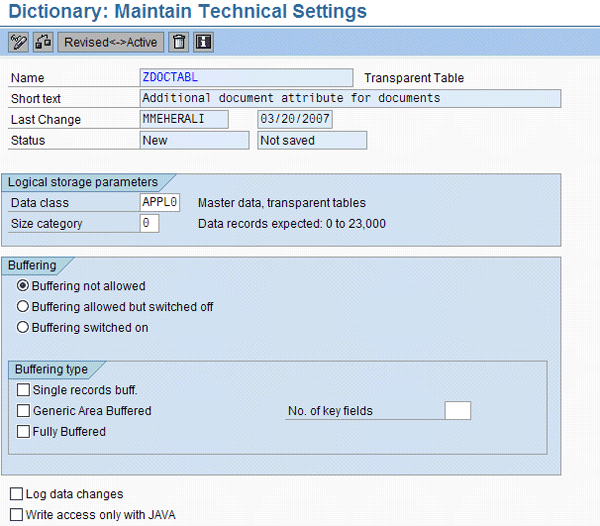
Figure 19
Set the data class
Again, the number of entries in these tables is 0, so there is no need to activate buffering. Activating buffering on a table that is empty may cause subtle performance issues when using the custom attributes.
Save the technical settings and click the back icon to return to the main table edit screen (Figure 20). Set one or more values as keys to meet the requirements for a transparent table and click the activate icon to make the table usable in the Data Dictionary. Setting the key is merely a technical requirement. These tables house no data, so there is no index data contained in the database.
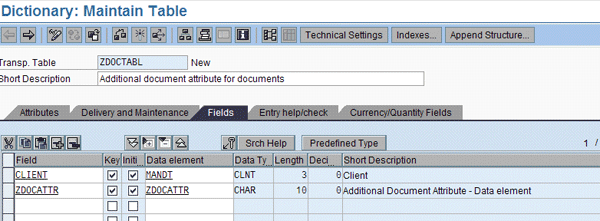
Figure 20
The table edit screen
The activation function generates an activation log (Figure 21). You should not see any errors listed in this log. If you do see errors, you can typically ignore them because they are informational in nature and typically do not affect the behavior of the Data Dictionary objects. Review the log and make sure that any warnings are not in conflict with your project Data Dictionary standards.
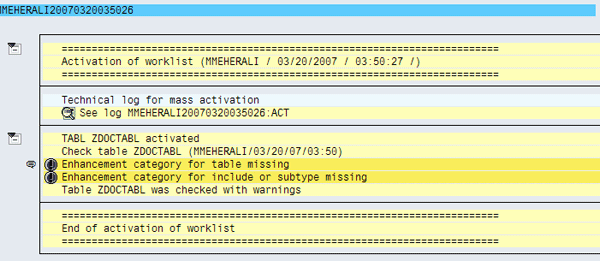
Figure 21
Warnings occurred, but there are no errors
Click the green back arrow icon to return to the table edit screen. Figure 22 shows that the new table ZDOCTABL is active. The new field is ZDOCATTR.

Figure 22
The new table is now active
Now your new table and field are ready for use in the DMWB as custom attributes for your documents.
Keep in mind that creating your own custom Data Dictionary objects allows you to take more control over the custom attributes that you use for your documents. These Data Dictionary objects do not house any data, but merely define the behavior of the attributes to be stored in the KW.
As always, do not experiment with this technique in your production SAP Solution Manager system. These capabilities should be built in a development system, thoroughly tested, and then transported to a production SAP Solution Manager environment as a best practice.
D. Russell Sloan
D. Russell Sloan is a specialist in project and program governance for IBM. He focuses on the use of SAP Solution Manager for global rollout projects for IBM’s largest customers, having worked with SAP software since 1996. Russell has degrees in accounting and information systems and has been a team and project leader for SAP projects for more than 14 years. He has been developing and deploying software systems for over 30 years.
You may contact the author at solmanruss@gmail.com.
If you have comments about this article or publication, or would like to submit an article idea, please contact the editor.




 Premium