Manager
Learn how to control the status change of a request for change based on the status of the lower-level documents — the related change documents included in the request for change scope.
Key Concept
A request for change is a formal proposal for a change in one or more configuration items, or to services, procedures, and items associated with the infrastructure, represented by Installed Base (IBase) components. The request for change is categorized, prioritized, and has a scope defined in which the change manager specifies which types of changes are implemented. Depending on the scope, the system creates one or more change documents linked to this request for change after its approval, and the implementation part of the change flow starts.
The goal of Change Request Management (ChaRM) in Solution Manager is to efficiently implement changes to SAP applications with minimal risks using standardized methods and procedures. ChaRM controls the process documentation and the processing of transports on the change level. It offers functions for managing, executing, and documenting all changes, requirements, and requests for change, which are proposals for changes made in the system (formerly called change requests).
Some companies can use the standard ChaRM processes without the need to develop or configure anything out of the box, but other companies may need to create their own procedures and methods, implementing new fields, status, and actions. For example, one company I worked with needed to include more approval levels in an urgent correction before the request went to production, and some statuses depended on the request for change status. Although there is a lot of documentation already available for standard ChaRM, it’s still a little bit difficult to find information on how to configure your own ChaRM system. I’ll show you one of the things you can do with ChaRM out of standard functionality.
Specify Status Attributes for Status Control
In some cases, you may need to control the status of the change documents based on the current status of the request for change that created them. Alternatively, you may need to control the status of the request for change based on the status of its successor change documents. This might be particularly necessary when configuring ChaRM out of the standard system, with new actions and new statuses created to adjust the standard process to the company’s needs. You may have a requirement to create one or more status values in the request for change and in the change documents, and configure those statuses in such a way that a status of one document depends on a status of another document.
In the standard ChaRM process, you can configure some status controls so that a preceding document (a predecessor) can have its status automatically changed when the successor reaches a specific status. For instance, when an urgent change that was created from a request for change reaches the status Confirmed, the preceding request for change can have its status changed to Implemented automatically. There is also the possibility to control that the status of a preceding document, also called a higher-level procedure, of the type maintenance cycle, can only be set without errors if a minimum status of the successors have been reached.
You can assign the change documents to be checked and their minimum status to a status value of the higher-level transaction type. For instance, in the standard configuration there is a setting to control that all urgent changes (transaction type SMHF) must be ready to go to production before a maintenance cycle (transaction type SMMN) can reach the phase Going Live.
Using this standard configuration, you can solve some of your status control requirements, but not all of them. The first problem is that when more than one change document is created from one request for change, which is allowed in Solution Manager 7.1, you might not want to have the request for change status changed by one of the change documents when others haven’t reached the minimum status yet. Because of that, you may need to avoid configuring the predecessor status settings and prefer to set the status of the request for change manually.
Another problem, which I’ll solve in this article, is that the configuration of the minimum status of a successor document is not available for a request for change as it is for the maintenance cycle. Even if you do the settings for the request for change document (transaction type SMCR or its copy, ZMCR), and define the minimum status for each of successor change documents, nothing happens and your configuration is skipped. The reason it does not work is that the routine to implement this functionality is not included in the standard codes for the request for change, but only in the maintenance cycle. Because of that your settings are never considered during the consistency checks that are executed during a status change.
To be able to control the request for change status value depending on a specific status value of one or more successors, it is necessary to create a new condition in the customer namespace (starting with Z or Y), implement a Business Add-In (BAdI), and create a new status check action in the request for change action profile. I’ll show you how to create the new condition and new action, all the necessary configuration, and an example of the BAdI implementation to make this new condition work.
Note
This article is based on SAP Solution Manager 7.1 Support Package 04. As a prerequisite for the procedures described here to work, the status of the request for change and the change documents that are used must be already configured.
Create Your Own Condition for Status Change
In my example, I created a new Z condition named ZSUB_ITEMS. It’s important to create your new condition starting with Z or Y because this is a prerequisite for the BAdI to be called by the standard routines.
Follow IMG menu path SAP Solution Manager > Capabilities > Change Management > Standard Configuration > Change Request Management Framework > Consistency Checks > Define Conditions to include the new condition ZSUB_ITEMS for a status value of the request for change (transaction type SMCR or ZMCR if you use a copy). That ensures that the request for change status is only set if the subitem (successor change document) has the minimum status. I show you later how to define this minimum status for successor change documents. In the Class field you should enter the name of the class that implements the BAdI SOCM_CHECK_CONDITION (Figure 1). Initially, you can leave this field blank and update it after you create your implementation class. I also show you how to implement it in the next step.
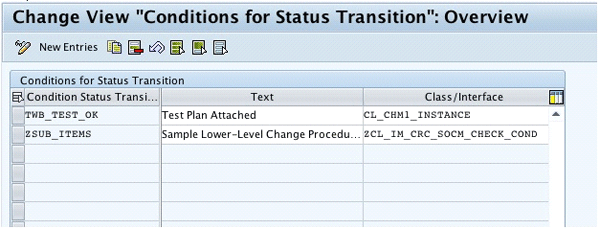
Figure 1
Create a new condition for status transition
Implement BAdI SOCM_CHECK_CONDITION
In transaction SE19, select Classic BAdI SOCM_CHECK_CONDITION and an implementation name (Figure 2). One BAdI can have more than one implementation. Either assign a new name or reuse an implementation that you have already created. If it’s the first time, the system creates a new Z class for this implementation (Figure 3).
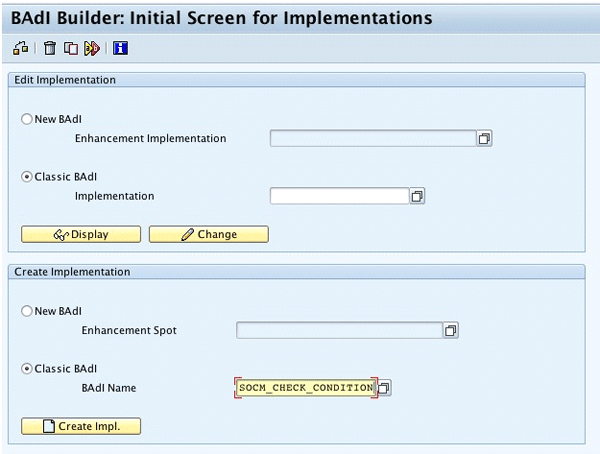
Figure 2
BAdI builder
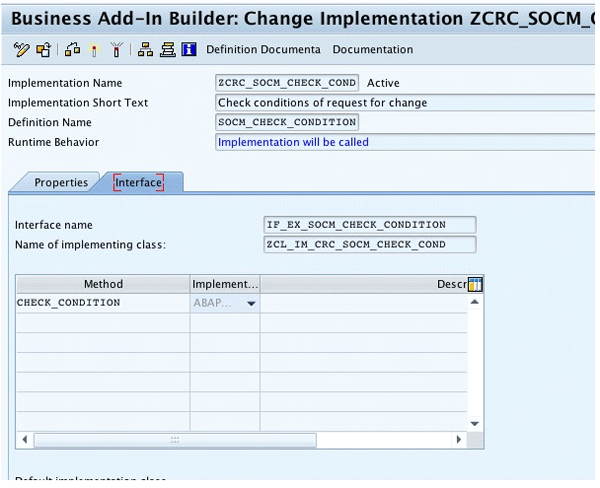
Figure 3
Create a new BAdI implementation
Enter the filter value (the Z condition ID) as the parameter FLT_VAL (Figure 4). Implement the method CHECK_CONDITION. The standard proxy instance is transmitted with the interface IF_SOCM_INSTANCE_ATTRIBUTES. You have to use the parameter CONDITIONS_OK to inform the caller whether the condition is met. Double-click method CHECK_CONDITION to see the ABAP code (which I’ll show you in a minute).
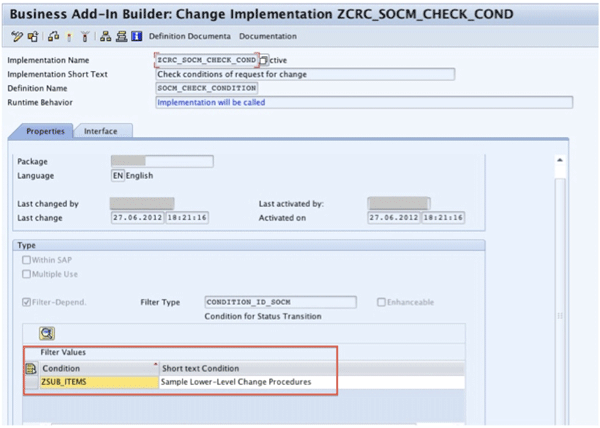
Figure 4
Include a filter value for the BAdI implementation
Let’s look at an example of the implemented method. The code shown in Figure 5 is an example and was created by being copied from the standard method IF_EX_SOCM_CHECK_CONDITION~CHECK_CONDITION of class CL_CHM1_MAINTENANCE_INSTANCE, with some adjustments. You can adapt it to your needs.
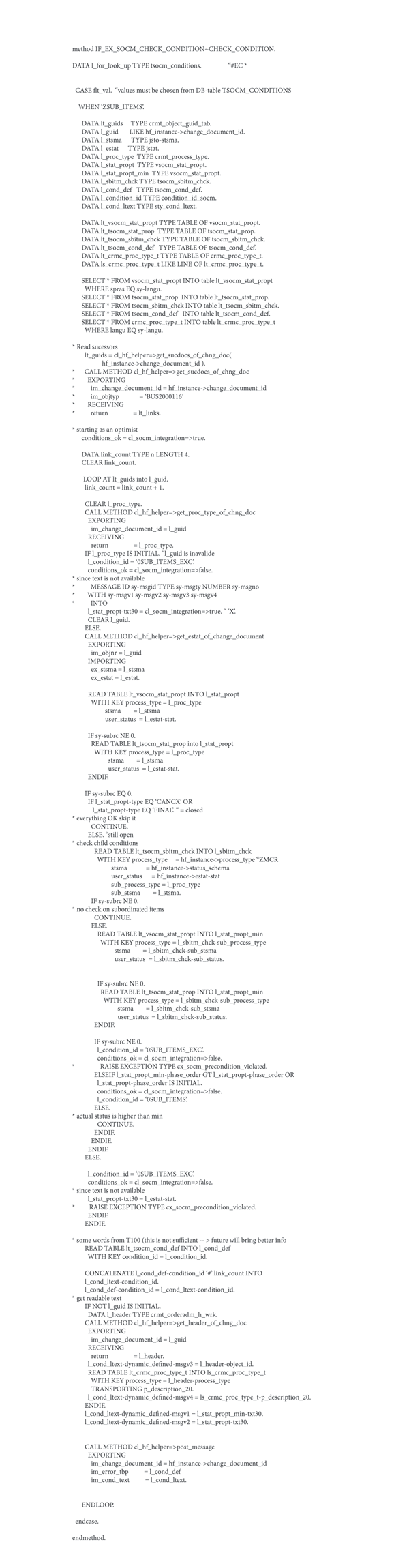
Figure 5
Code example for method CHECK_CONDITION
You can download this code here.
Assign Conditions to Status Values
Follow IMG menu path SAP Solution Manager > Capabilities > Change Management > Standard Configuration > Change Request Management Framework > Consistency Checks > Assign Conditions to Status Values and copy the entry SMMN E0009 SUB_ITEMS. Replace the transaction type with SMCR (or ZMCR), the status value E0009 with the status for which you want the condition to be checked, and the standard SUB_ITEMS by your new condition, ZSUB_ITEMS (Figure 6).
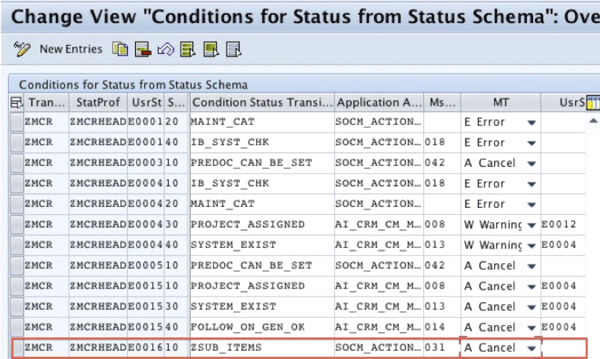
Figure 6
Conditions for status values
Follow IMG menu path SAP Solution Manager > Capabilities > Change Management > Standard Configuration > Change Request Management Framework > Consistency Checks > Define Basic Settings. Click New Entries and create a new entry for ZSUB_ITEMS (Figure 7).
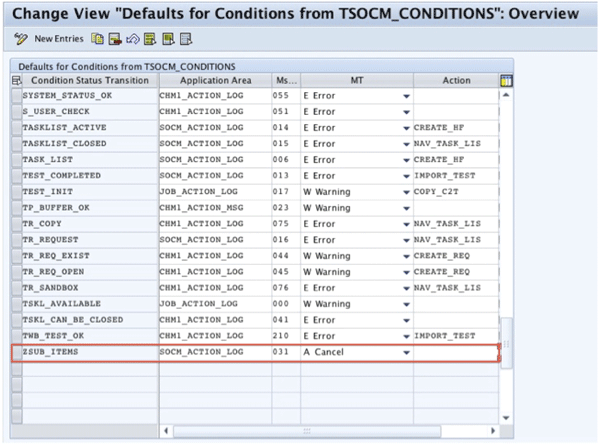
Figure 7
Default settings for conditions
Follow IMG menu path SAP Solution Manager > Capabilities > Change Management > Standard Configuration > Change Request Management Framework > Define Status Attributes and select the procedure type related to the request for change (SMCR or ZMCR). Click Specify Status Attribute and select the status for which you want the new condition to be checked. Click Specify Required Status and enter the transaction types and the minimum status values of all the successors mapped to be created from your request for change (Figure 8). Before the status of the request for change can be set, all the successor change documents entered in this list must have reached the corresponding minimum status. Otherwise the system raises an error and the status of the request for change is not changed.
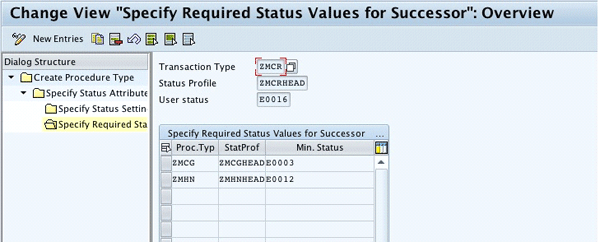
Figure 8
Minimum status values required for successor
Create Status Check Action
For your new method to be executed, it is also necessary to have a new action created in the request for change action profile (SMCRHEAD or ZMCRHEAD). This action makes the system perform a status check, which means cause a condition to be called implicitly when a status is saved. If the saved status is included in the action parameter, then the BAdI method is called.
To do so, you have to use as the action processing type the post-processing framework (PPF) method HF_CHECK_STATUS. The PPF is a component that provides SAP applications with a standard interface for the condition-dependent generation of actions. When you use actions from ChaRM action profiles, defined in transaction type CRMC_ACTION_DEF, you are using PPF actions assigned to application object CRM_ORDER. Now let’s go into how to create the new action.
Use transaction CRMC_ACTION_DEF or follow IMG menu path SAP Solution Manager > Capabilities > Change Management > Standard Configuration > Transaction Types > Action Profile > Define Action Profile and Actions. Select the transaction type related to your request for change and click Action Definition (Figure 9).
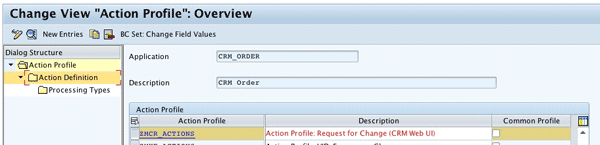
Figure 9
Action profile for a request for change
In the Action Definition area, create a new entry with Processing Time set as Processing When Saving Document, Processing Times Not Permitted set as No Restrictions, and select the indicators Schedule Automatically and Delete After Processing (Figure 10). You don’t need to enter a Sort Order For Display for this action. Keep the Partner-Dependent indicator not set. For the action Determination Technology, use Determination Using Conditions that Can Be Transported, and Rule Type as Workflow Conditions. You can set the Action Merging value as Max. 1 Unprocessed Action for Each Action Definition.
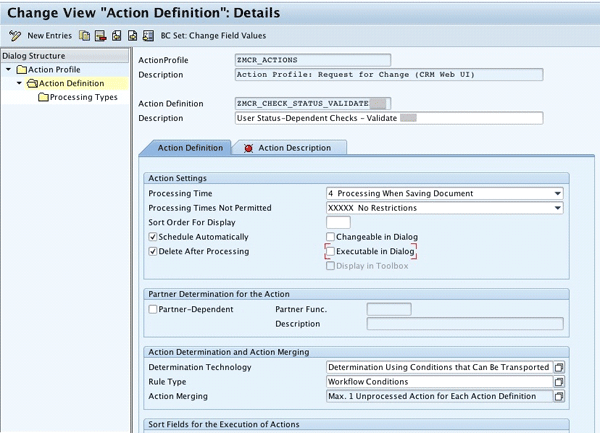
Figure 10
Create a new action
Enter a description for your action. It helps in the future when someone needs to understand the purpose of the action. After saving, the Action Description icon becomes green (Figure 11).
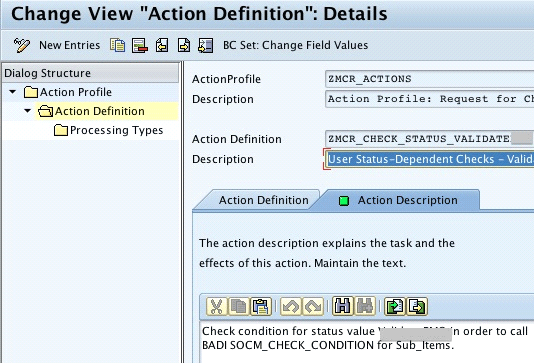
Figure 11
Action description
Click the Processing Types folder and include the Method Call. Click the search help to select it (Figure 12). Enter HF_CHECK_STATUS as the Method.
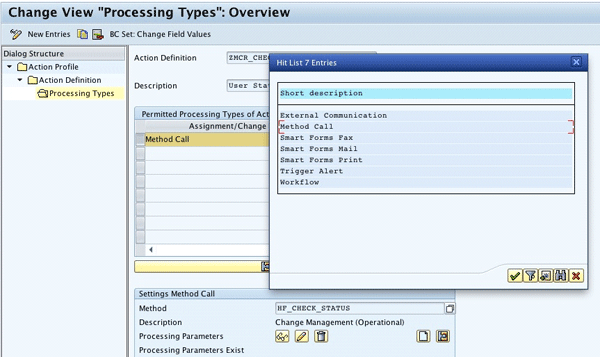
Figure 12
Enter the processing type for action
In the processing parameter, click the change definition and include the container element USER_STATUS (Figure 13). In the same dialog box, go to Initial Value and include the status value of the request for change that you want the action to check (Figure 14). Save your action.
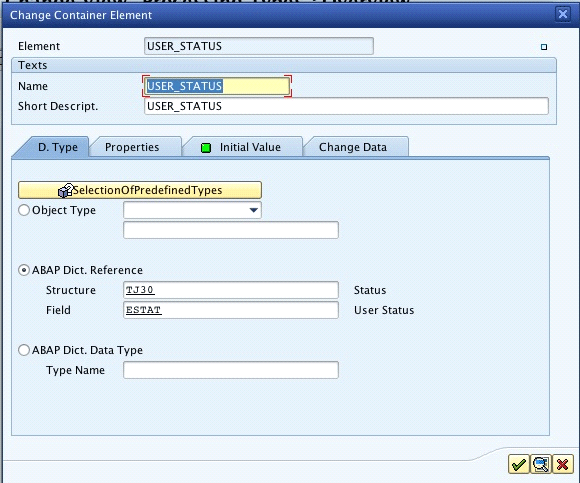
Figure 13
Include the container element for the status value
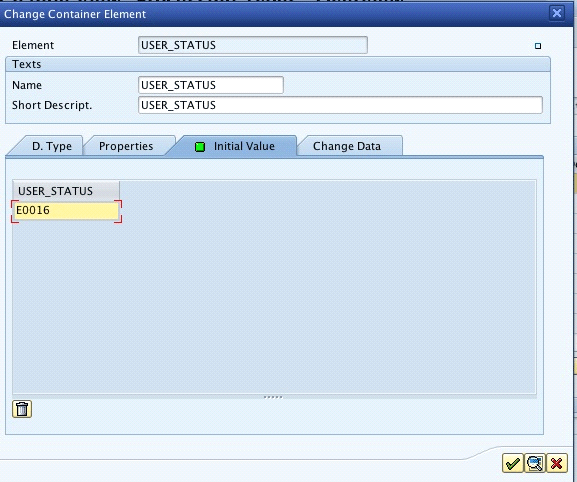
Figure 14
User status value for the container element
Use transaction CRMC_ACTION_CONF or go to IMG activity Define Conditions. In this transaction, define conditions for your action to be scheduled. As shown in Figure 15, select the new action you just created and include it in the actions list.
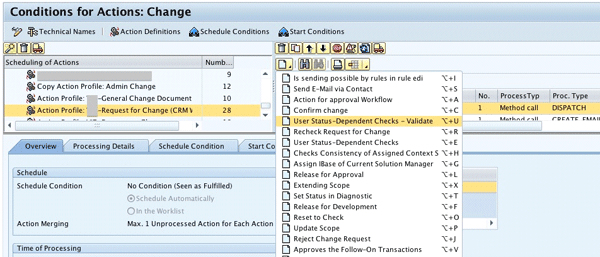
Figure 15
Include the new action
In the Schedule Condition tab, select the existing condition Product maintenance procedure is to be rechecked (Figure 16). Save.
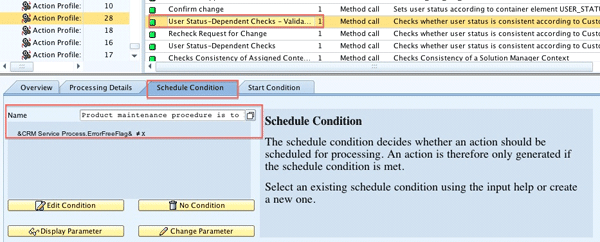
Figure 16
Schedule condition for action
You are now ready to test your new action and condition check. Run your ChaRM process, creating a request for change with one or more change documents in the change request scope. Test if you can set for the request for change the status for which you configured your new condition ZSUB_ITEMS. Try to do the same thing when the successors are not yet set with the minimum status value. You should receive warnings and the status change should be canceled (Figure 17).
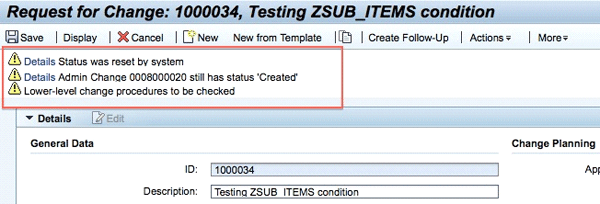
Figure 17
Error messages when trying to change status of a request for change
Raquel Cunha
Raquel Cunha is an independent consultant who has worked with SAP solutions in Latin America and Europe since 1998. She started as an ABAP developer and has also worked as an ABAP team leader and HR application consultant. Raquel has a bachelor’s degree in computer science and is certified on ABAP and ITIL V2 and V3. She changed her focus to SAP Solution Manager, with particular emphasis on Service Desk and ChaRM, and has been implementing Solution Manager in four different countries since 2005. Raquel is currently an SAP Mentor.
If you have comments about this article or publication, or would like to submit an article idea, please contact the editor.




