Manager
SAP Solution Manager 7.1 IT Service Management has a new transaction type, SMPR, for configuring the Problem Management process to find out the real cause of incidents occurring due to the same problem. Problem messages assist in quick, easy ticket resolution during support. You can create a customer-specific transaction type for Problem Management via a standard wizard available in SAP Solution Manager 7.1, which reduces time to implement customized problem management for any specific customer. Learn how to customize SMPR as ZMPR so you can have custom-defined status values and other settings, and enable the support team to create a problem message as a follow-up activity to correct the underlying problem.
Key Concept
The new transaction type SMPR in SAP Solution Manager 7.1 can be used to configure Problem Management. Problem Management focuses on finding out the real issue for why one or more incidents occurred. An incident can be created manually or automatically via different ways specifying different issues, but behind all these issues can be a single problem for which you only have one problem message. This saves lot of effort and energy for support teams because instead of multiple teams working on several incidents, they work on a single problem ticket.
Problem Management is a central service point that enables centralized issue and problem resolution processing in multiple organization levels. Problem Management is tightly integrated via the Incident Management process of SAP Solution Manager, which is a centralized support channel with which all relevant stakeholders (e.g., end users, business users, key users, managers) of an incident are connected.
Solution Manager 7.1 offers several new features in IT Service Management (ITSM), including Problem Management, which is used to correct the source of issues. Typically in ITSM whenever there is an issue a user posts a message that goes to the central service desk for resolution, where a central support team processes it. This is the Solution Manager Incident Management functionality. For example, a user facing an authorization problem in SAP ERP Central Component (SAP ECC) posts an incident that is routed to Solution Manager automatically and the support team is assigned for the issue resolution.
If several issues are reported that correspond to the same problem for which further detailed analysis is required, and you don’t use Problem Management, you have to resolve all the tickets one by one. This requires more time and resource investment for resolution. If you have Problem Management in place, a problem message is created out of an incident and the related incidents will be linked and locked for further processing.
An incident initially has the status New, which the support team changes to In Process after receiving it. If the team thinks a deeper analysis is required, it forwards the incident to the problem, which can be a level 2 or level 3 team per the ITSM process, which in turn creates a ticket called a problem message with the status New. The analysis is done on the problem message and further resolution is provided to the incident. See Figure 1 for a diagram of this process.

Figure 1
The Incident and Problem Management process integration
The additional transaction type for problem messages gives you flexibility in configuring Solution Manager ITSM in a better manner, mapping the complex incident and problem management process.
Note
It is also possible to start a change request process from a problem message, but this is not covered in this article
Configuration
In Solution Manager 7.1, SAP provides a wizard that allows you to configure or create a Z* or Y* transaction type so you can have work center-based customized transaction types based on your requirements in a faster, safer way than modifying the standard. The transaction type comprises various subcomponents such as a user status profile, number range settings, partner determination, action profile, or text determination procedure.
From the configuration perspective, if you want to enhance the subcomponent based on a specific need, you need to follow the naming convention of Z* or Y* (e.g., ZMPR or YMPR). I am assuming the other basic settings for running Incident Management and Problem Management are done based on the ITSM configuration guide.
Step 1. Use transaction SOLMAN_SETUP. Alternatively, you can go to transaction SOLMAN_WORKCENTER and click the Solution Manager Configuration tab.
Step 2. The initial screen for the wizard opens up in the browser (Figure 2). Click IT Service Management on the left side.
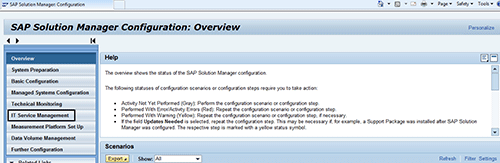
Figure 2
Initial SAP Solution Manager setup screen in a Web browser
Step 3. Click Perform Standard Configuration (Figure 3). Since I’m assuming you’ve already finished setup, I’m skipping the Check Prerequisites step 1 in the wizard. In this screen, go through the help text. If there is documentation attached to any step, click the Display link to open it and read any step details.
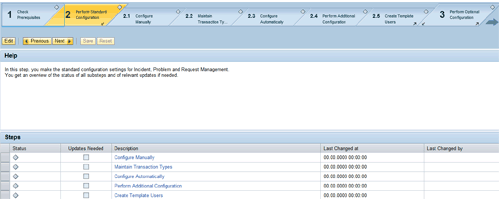
Figure 3
Problem Management copying step
Step 4. Click the Next button in Figure 3 and step 2.1, Configure Manually, appears (Figure 4). This screen has several substeps that need to be executed based on your requirements. Click the Start Transaction link for the Copy Transaction Types option.
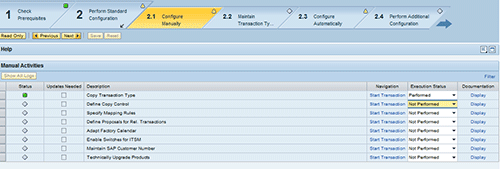
Figure 4
Display screen with manual activities
Step 5. Start to copy the transaction type (Figure 5). Press F4 to select transaction type SMPR, which is the SAP standard for Problem Management.
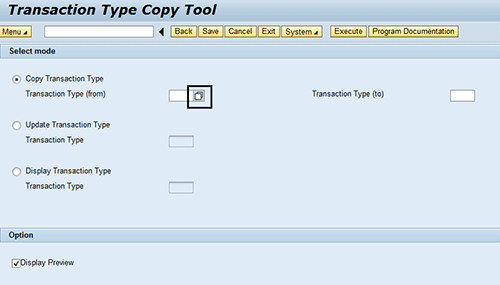
Figure 5
Copying the Transaction Type Web-based tool initial screen
Step 6. Choose SMPR as the source so that all the dependent configuration (e.g., status profile, action profile) is copied to the target transaction type that you want to use for Problem Management. Provide SMPR in the Transaction type (from) value and ZMPR or YMPR in the Transaction Type (to) value and click the Execute button (Figure 6). Don’t forget to remove the check from Display Preview. This preview is mainly for testing purposes. It is also possible to update or display an existing transaction type instead of copying one.

Figure 6
Source and target transaction type value
As shown in Figure 6, you have an update option. To use update transaction types, select a transaction type and execute. The system automatically adds new attributes to the transaction type. Attributes that were added manually (for example, actions and status values) are not changed. The system resets changes to copied attributes to the standard.
Step 7. The next screen pops up showing the various subcomponents of transaction type SMPR (Figure 7). You can copy these based on your requirements. Remember to use Z* or Y* for creating subcomponents as well. In addition to the transaction type description, you can add names and descriptions for each subcomponent. You can later modify or enhance the descriptions, but not the names, in IMG activities.

Figure 7
Customizing description for target parameters
Step 8. Proceed further with creation of ZMPR by confirming the pop-up screen and the custom transaction type is created with all the subcomponents. You get the confirmation message or a log is generated with the date and timestamp along with the user ID (Figure 8). If it shows a green status, it means everything is correctly created. If not, click or expand nodes to see what went wrong. This log is for your confirmation and in display mode only.

Figure 8
Views/Table detailed entry screen
Since you can have a three-tier or two-tier system landscape for Solution Manager, you have the option of saving this new transaction type and other subcomponents in a transport request. The advantage of saving it in a transport helps you perform initial configuration or development in your Solution Manager 7.1 development system and later move or transport it to the quality assurance or production system after testing completion and sign-off.
Step 9. Click Start Transaction for the Define Copy Control activity (Figure 9) or in transaction SPRO choose the Define Copy Control activity under Follow-up Document Creation.
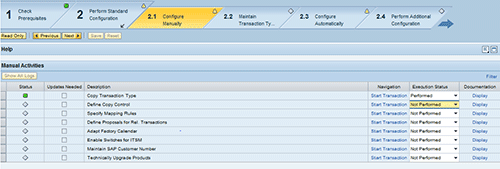
Figure 9
Wizard Define Copy Control step
Step 10. Maintain the setting from the source Incident Management transaction type (e.g., ZMIN or YMIN) to a newly created problem message transaction type (e.g., ZMPR or YMPR) as shown in Figure 10. Then save it in a transport request. Close the browser and go back to the screen in Figure 9. Select the status as Performed (Figure 11).
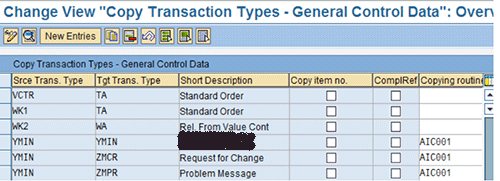
Figure 10
Copy transaction type configuration

Figure 11
Status change for the Define Copy Control activity
Step 11. Repeat that step for the Specify Mapping Rules option. Set the settings based on your requirements. In the example in Figure 12, the requirements including Priority Category and Date are copied from the incident message to the problem message.

Figure 12
Specify Mapping Rules configuration
Step 12. Go to the 2.2 Maintain Transaction Types substep (Figure 13). Click the Maintain Number Ranges button and maintain the ranges based on what you need for your Z* problem transaction type.
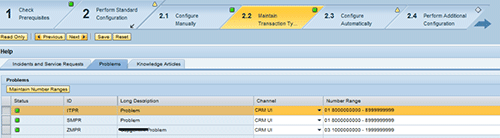
Figure 13
Maintain the transaction type
Step 13. Go to the 2.3 Configure Automatically substep and execute all requirements, or only those that you need (Figure 14). What requirements you need depends on your specific scenario, and SAP’s documentation for each activity is a good reference for these tasks. You can skip the 2.4 Perform Additional Configuration step as everything should be properly set up via your incident management setup.
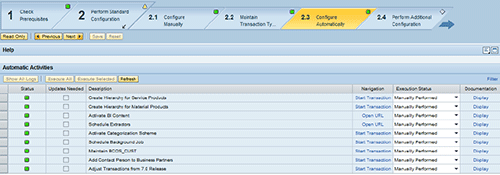
Figure 14
Configure Automatically step
Step 14 (optional). It is sometimes useful to restrict the list of follow-up activities instead of getting all the transaction types available. For example, if you want to list only the activities or transaction types that are required based on the process of a company, you can activate copy control for activities. Follow IMG menu path SAP Solution Manager > Capabilities (Optional) > IT Service Management > Follow-up Document Creation > Activate Copying Control for Activities. In the screen in Figure 15, choose the Switch On check box and save it in a transport request.
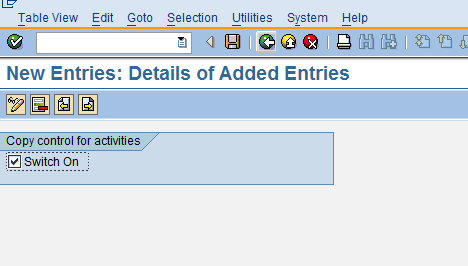
Figure 15
Activate copy control
Enhance the Custom Transaction Type
Now that you have created the new custom transaction type you can further enhance it. To do so, use transaction code SPRO and follow IMG menu path SAP Solution Manager > Capabilities (Optional) > IT Service Management > Status Profile > Define Status Profile for User Status. Click Status Profile, which you created using the above steps and enhanced based on your requirements (Figure 16).
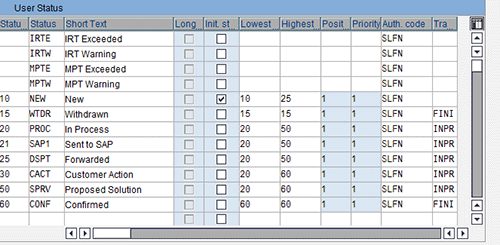
Figure 16
Standard status profile for a problem message
You can now create new status values, actions, or subcomponents based on your requirements. This eases the entire customization process for Problem Management and you can quickly perform the configuration with the wizard.
Usage
Users post incident messages from satellite or managed SAP systems through the menu Create > Help Support Message or via the work center interface or CRM Web UI. The support team operates from the centralized Solution Manager system that is linked to all the satellite or managed systems. To process a ticket, they enter transaction SOLMAN_WORKCENTER and access the Incident Management work center (Figure 17). All the incident and problem messages existing in the system are filtered by status values as shown in the work center.
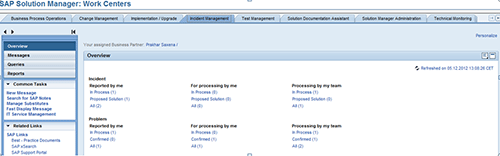
Figure 17
Incident Management work center
To start working on the incident, click the new status incident by setting its status from New to In Process. Further, the support team member might identify the message requires deeper analysis or research by second-level support people. To send the incident for finding the real issue or to create a problem message, click the Create Follow-Up button and choose Problem (Figure 18).

Figure 18
Problem message creation out of the incident message processing interface
The customer-specific transaction type is created and a unique number is generated for it with other details copied based on the settings I maintained in the copy control from the incident to the problem (Figure 19). The problem message status is updated or changed once the level 2 or level 3 team members started working on the problem message.
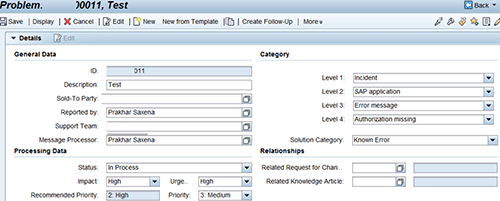
Figure 19
New problem message creation
The processing of a problem message is similar to an incident message as far as the interface, but a problem message has additional features (e.g., the locking of an incident). Note that the problem message is automatically attached to the incident (Figure 20).

Figure 20
Incident message with a related problem message number
You can link other incidents to a new incident or problem message. You can lock all the related incidents while processing a problem message, which saves time and effort. To do this, click the Related Incidents block in the problem message and choose the incident to lock or unlock it in edit mode (Figure 21).

Figure 21
Locking a related incident
The support team can now fully concentrate on the issue, performing the relevant analysis, providing resolution, and closing the problem message, which in turn helps to get the solution for attached incidents.
The purpose of creating a customer transaction type is that you don’t have to modify the standard transaction type. It helps a lot during a Solution Manager upgrade because apart from technical testing, you also need to perform functional testing for ITSM, which means to check the configured functionality with an end-to-end test cycle. Not modifying the standard functionality helps make the upgrade safer and ease the testing efforts for ITSM.
Prakhar Saxena
Prakhar Saxena is an SAP Solution Manager-certified consultant with more than six years of experience. He currently works with Capgemini India Pvt Ltd as an SAP Solution Manager SME and is involved with SAP Solution Manager Implementations and upgrades across the world for various clients. He has worked extensively with Project Management, Test Management, Solution Documentation Assistant, Service Desk, and Change Request Management. He has also built proof of concepts (POCs) and demos for various companies around the world.
You may contact the author at prakhar_alld@yahoo.co.in.
If you have comments about this article or publication, or would like to submit an article idea, please contact the editor.


 Premium