With a few steps you can simplify process chain maintenance by combining two processes into one process chain. The system determines which process to carry out based on conditional execution. Learn the four steps you need to take to use conditional execution with a process chain.
Key Concept
Conditional execution of a process chain using Business Add- Ins eliminates manual loads when you have data providers that you load periodically (e.g., monthly or quarterly). This allows you to set up one process chain with multiple branches. The system uses a formula that you enter in Formula Builder to determine which path the process chain should follow.
Using Business Add-Ins (BAdIs), user-defined functions, and the Decision Between Multiple Alternatives process type you can set your process chains to execute conditionally. For example, you can set up the process chain to select between alternative paths, stop execution based on certain criteria, or prevent further transactional data loads until master data is fixed.
In most implementations, the system posts monthly snapshots to separate InfoCubes for reporting changes in key figures and key performance indicators (KPIs) as a function of time (time trends). This requires that you create monthly and daily process chains. For example, say you have a process chain that loads data daily into an InfoCube. The business requires that you load a snapshot InfoCube on the last Saturday of every month with records stamped with the system date. Instead of creating two process chains, one for monthly loads and one for daily loads, the same process chain can accomplish the job using conditional execution.
In part 1, I’ll show you the four steps to facilitate conditional process chain execution using a BAdI implementation with a user-defined function in the Formula Builder transformation. This method applies to SAP NetWeaver BI 7.0.
In part 2, I’ll show you another scenario that requires halting additional transactional data loads in process chains if master data is not up to date. In this case, you can set up the process chain to check for the existence of records in the error stack and stop further execution until the master data management (MDM) team fixes the master data. You subsequently execute the error data transfer process (DTP) to load the records from the error stack. Part 2 also applies to SAP NetWeaver BI 7.0.
Process Overview
The process chain in my example executes one set of transactional data loads daily and another set of loads on the last Saturday of the month as shown in Figure 1. In this method, you add a formula in Formula Builder that checks the date and then runs one of two options, depending on the date. If the date is the last Saturday of the month, the system runs option 1. Otherwise the system runs option 2, which branches to a dummy ABAP program that doesn't do anything except end the chain in the green (successful) status.

Figure 1
Process chain setup for conditional execution
Note
Although Formula Builder can cause system slowdowns, in this process the system accesses Formula Builder only once before the process chain runs the data load. Therefore, you do not need to be concerned about Formula Builder slowing your system.
You incorporate user-defined functions into the Formula Builder transformation library by using the BAdI RSAR_CONNECTOR. In my example I created the user-defined function called C_GET_LAST_SATURDAY (Figure 2). Note that the technical name of a user-defined function cannot be empty, must begin with C_, and can only contain letters, numbers, and underscores. The name can have a maximum of 61 characters (upper case). I use this function in the process chain to determine if it is the last Saturday of the month.
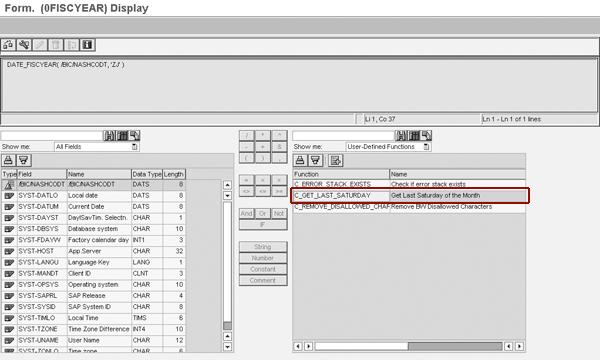
Figure 2
User-defined function C_GET_LAST_SATURDAY in Formula Builder
Four-Step Process for Conditional Execution
Step 1. Define an implementation of RSAR_CONNECTOR. Go to transaction SE18 and select Enhancement Implementation>Create. In the screen that appears, enter an implementation name (in my example, ZRSAR_CONNECTOR) and click on the enter icon (green check mark). In the screen that appears, enter the Implementation Short Text, in my example Cleanse Data. Next, click on the Interface tab. For the GET method, select ABAP Code from the drop-down menu in the Implementation field (Figure 3).
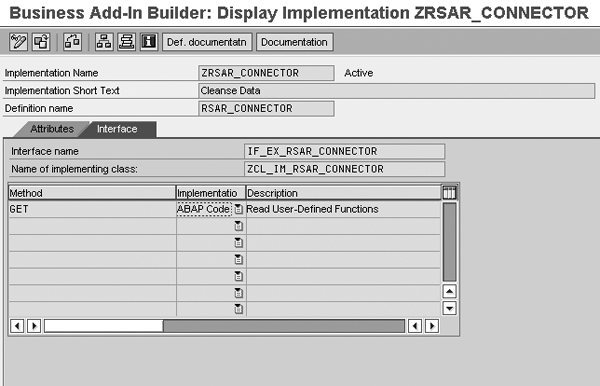
Figure 3
Enter the Implementation Short Text and select ABAP Code as the implementation
Step 2. Enter the ABAP code so the system recognizes the user-defined function in Formula Builder. To enter the code, double-click on GET in Figure 3. In the Class Builder screen that appears, enter the code shown in Figure 4. You can download this code by clicking this link.
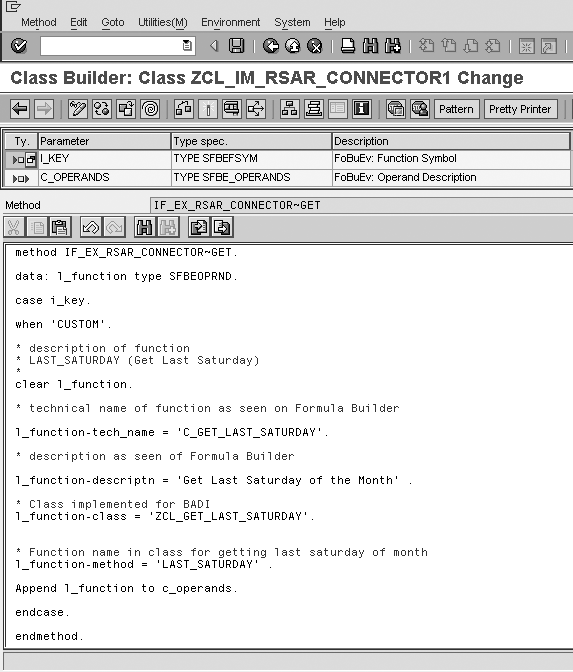
Figure 4
Code to define the GET function in Formula Builder
Step 3. Create the class ZCL_GET_LAST_SATURDAY with a method LAST_SATURDAY. Use transaction SE24 to create a class ZCL_GET_LAST_SATURDAY. Figure 5 shows the Class Builder screen with the method entered. Select Static Method for the Level, set the Visibility to Public, and enter a Description for the method.
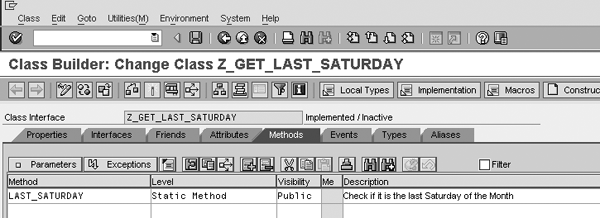
Figure 5
Define the LAST_SATURDAY method
Next, enter the parameters for the method. Each method belonging to the class can have input and output parameters depending on the functionality required. To create the input and output parameters, place your cursor on the method LAST_SATURDAY in Figure 5 and click on the Parameters button. In the screen that appears, you can see two parameters: IN_DATE and OUT_DATE (Figure 6).
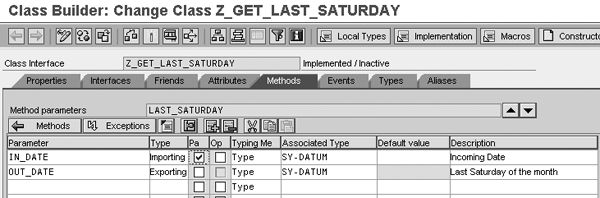
Figure 6
Input and output parameters for the LAST_SATURDAY method
In my example, I need to calculate the date of the last Saturday of the month. The input parameter IN_DATE is the current system date. Set this to type Importing and select the pass by value (Pa) option to pass the parameter by the system date. The Associated Type field indicates the data type — in this case, both parameters hold a date value. The method LAST_SATURDAY returns the last Saturday of the month in the output parameter OUT_DATE.
Click on the Methods tab to return to the screen in Figure 5. Double-click on LAST_SATURDAY. In the screen that appears, enter the code that determines the last Saturday of the month, which you can download by clicking this link. Enter the downloaded code between the lines method LAST_SATURDAY and endmethod (Figure 7).
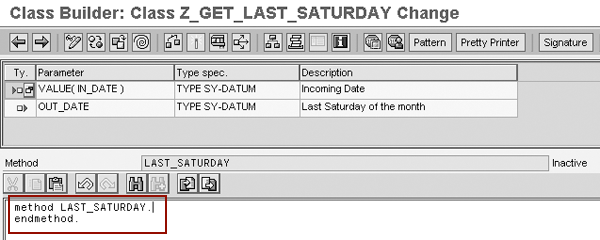
Figure 7
Enter the downloaded code to compute the last Saturday of the month
In the downloaded code, I created the SAP NetWeaver BI function module ZRP_LAST_DAY_OF_MONTHS as a copy of the SAP ERP Central Component (ECC) function module RP_LAST_DAY_OF_MONTHS. ZRP_LAST_DAY_OF_MONTHS calculates the last day of the month based on the incoming date.
Next, activate the class by clicking on the activate icon in Figure 7. You can see the function C_GET_LAST_SATURDAY on the Formula Builder screen shown in Figure 2.
Step 4. Use C_GET_LAST_SATURDAY in the process chain. Use transaction RSPC to revert to the process chain that you want to execute conditionally. In Figure 1, the right side of the branch runs daily. From the General Services section on the left side of the screen, select the Decision Between Multiple Alternatives process type and drag it into the right window. In the window that opens up, create the variant name CHECK_LAST_SATURDAY and click on the create icon, as shown in Figure 8.

Figure 8
Create a decision alternative in your process chain
In the Process Maintenance screen that appears enter Run Monthly Chain in the first row (Figure 9). Choose Option 01 for the Event and then click on the create icon in the Formula column.

Figure 9
Set up the process chain options
In the screen that appears, enter the following formula in the box at the top of the screen, as shown in Figure 10:
Current Date - C_GET_LAST_SATURDAY( Current Date ) = 0
This formula returns a Boolean value (true or false). If the value is true, the system executes option 1 (last Saturday of the month) in Figure 1. Now let’s configure the second option.
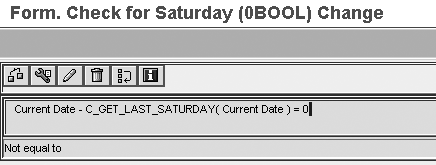
Figure 10
Formula checks if the current date equals the last Saturday of the month
Click on the back icon to return to the screen in Figure 9. In the second line, choose Option 02 for the Event and enter the text Skip Monthly Chain for the description. Save the decision process type and create the rest of the process chain to execute the data loads in the two branches as shown in Figure 1.
Note
For more information, consider attending SAP Education class BW360: SAP BI Performance & Administration (for SAP NetWeaver BI 7.0) or BW360: BW Performance and Administration (for SAP BW 3.5).
Rajiv Kalra
Rajiv Kalra is an independent SAP consultant with more than 11 years of SAP experience. With more than five years of BI experience in data modeling, design, configuration, and performance tuning of BI systems, he has helped develop many out-of-the-box solutions to resolve complicated reporting requirements at various client sites. Besides SAP NetWeaver BI, Rajiv has worked on the ERP side for more than seven years and is an SAP-certified ABAP consultant.
You may contact the author at kalrar_99@yahoo.com.
If you have comments about this article or publication, or would like to submit an article idea, please contact the editor.