In most organizations, strategic management and risk management are completely separate processes. As a result, it’s often difficult to track strategic goals over time while assessing the risks that might affect strategic initiatives. With an integrated approach to strategy and risk management, you can ensure that business owners are focusing on the right initiatives both to drive execution of strategy and manage risk.
Key Concept
SAP Strategy Management (SSM) is delivered as part of SAP’s Financial Performance Management (FPM) portfolio. It helps organizations align resources quickly to carry out corporate strategy by communicating strategic plans clearly, translating them into priorities and tasks, and rapidly monitoring and reporting on their progress. SSM has replaced the SAP Balanced Scorecard application of SAP Strategic Enterprise Management (SAP SEM) for scorecarding and strategy management.
SAP GRC Risk Management, delivered with SAP solutions for GRC, helps you to identify risk and conduct risk analysis, response, monitoring, and reporting within a best-practice framework. With GRC Risk Management, a company can balance business opportunities with financial, legal, and operational exposure to minimize the market penalties from high-impact events.
Many of today’s businesses have a common theme: leveraging knowledge of enterprise risks and their own risk tolerance to guide strategic execution and measurement of performance in their executing strategy. The practice of handling enterprise strategy management and risk management often clouds the natural, theoretical tie between these two business processes, which companies frequently handle separately. This leads to organizations using inefficient and error-prone means — such as manual, spreadsheet-based matching, merging, and aggregation of data from the strategy and risk silos — to identify the strategic objectives at risk and to effectively introduce and monitor risk-mitigating measures. I’ll show you how to integrate SAP Strategy Management (SSM) and SAP GRC Risk Management, helping you to understand the relationship between the strategic objectives and the associated risks.
Consider this example: A car producer makes the profitable growth of its SUV product line the cornerstone of an aggressive growth strategy. Based on revenue figures from the recent past, which are shown in a strategy scorecard, the SUV product line seems predestined to hit the ambitious revenue and profitability numbers. Simultaneously, however, the forward-looking risk assessment data in a risk management system indicates a surprisingly increased aggregated risk exposure for the SUV line. The line is suffering from internally discovered production quality gaps, increased regulatory risks, and a changing market perception for this type of vehicle. Without having the ability to match both the performance and risk insights from the two data silos, the producer might bet on the SUV’s seemingly solid growth objective and put its entire strategy at risk, missing its targets or even suffering significant financial losses.
SAP’s concept of risk-intelligent strategic execution provides a greater ability to understand and manage business performance by integrating SSM and GRC Risk Management. By managing risks across corporate strategy and key business initiatives and providing risk-related reporting on these initiatives, your organization’s managers can focus their attention on the initiatives that risks affect. This can avert further costs or identify opportunities for the company. The car producer from my example now has the visibility to an objective’s past performance and to future risk exposure. It might be able to adjust its corporate strategy, switching to other lower-risk product lines to deliver on a profitable growth objective.
Note
If your company already uses SSM and GRC Risk Management, you can set up the integration scenario by connecting these two applications via a Web service. SSM uses the Web service to retrieve aggregated risk data from GRC Risk Management, visualizing the risk exposure for strategic objectives that you manage in SSM. The integration scenario also includes a risk heat map, which SSM’s home page displays. The heat map matrix shows the total numbers of individual risks for the selected SSM context, clustered by impact and probability. You can maintain a link to an analytical report in GRC Risk Management as part of SSM’s objective detail and heat map screens to provide drill-down to GRC Risk Management for more detail on the individual risks.
You can find some basic information on risk-intelligent strategic execution in the standard documentation of both GRC Risk Management and SSM; however, documentation of a detailed, cross-application scenario has been missing before now. A GRC expert with GRC Risk Management knowledge, as well as basic SSM and SAP NetWeaver knowledge, could drive the setup with assistance from SSM and SAP NetWeaver experts. For more about prerequisites, see Table 1.
|
Prerequisites
|
These include SSM 7.0 Service Pack (SP) 02 and GRC Risk Management 2.0 SP 07 (or SP 06 + SAP Note 1152025).
|
Supporting SAP
technology |
You can achieve the data integration via Web services in GRC Risk Management for risk- intelligent strategy execution, available since GRC Risk Management 2.0 SP 06. |
| Implementation time |
The actual application setup depends on the project scope and data readiness. It might range from days to several weeks. |
| Project staffing needs |
You’ll need a GRC expert with GRC Risk Management knowledge and basic SSM and SAP NetWeaver administration skills, as well as support via an SSM administration expert. I recommend you also include an SAP NetWeaver system administrator on the staff. |
|
| Table 1 |
Prerequisites for integration between SSM and GRC Risk Management |
I’ll break up the instructions concern- ing how to set up the integration into three sections.
- Maintain the Web service and authorization settings in GRC Risk Management
- Configure SSM to use the GRC Risk Management interface
- Perform risk-intelligent strategy execution
Note
The term risk exposure, or expected loss, gives a numeric value to a risk, enabling different risks that you can then compare. You calculate risk exposure as the probability of risk occurring multiplied by the total loss if risk occurs. For the purposes of this integration scenario, the risk exposure represents the expected loss after mitigation values as stored in GRC Risk Management.
To learn more about SSM and GRC Risk Management, go to
www.sap.com/solutions/grc/riskmanagement/index.epx and
www.sap.com/solutions/performancemanagement/strategy/index.epx.
Maintain the Web Service and Authorization Settings in GRC Risk Management
As a first step, you need to maintain the Web service and authorization settings in GRC Risk Management to enable the transfer of aggregated GRC Risk Management risk data to SSM. The Web service settings activate the Web service that SAP delivers with GRC Risk Management.
You also need to grant the data read access authorization to a specific user ID. SSM uses this user ID and the respective password for remote logon in GRC Risk Management to retrieve the risk data as a regular data load batch via the Web service. To accomplish this, log on to GRC Risk Management as system administrator and perform the following steps.
Step 1. Activate the Web service configuration. To support risk-intelligent strategy execution, GRC Risk Management delivers the necessary source code of the application programming interface (API), enabling the extraction of aggregated risk data. In addition, GRC Risk Management contains a predefined Web service configuration as a Web service envelope for this particular API. This allows remote, Web-based access by SSM to the risk data in GRC Risk Management. You need to activate this delivered Web service configuration. Start transaction wsconfig. Enter GRRM_WEBSERVICE_API in the Service Definition field. Next, enter GRRM_WEBSERVICE_API in the Variant field. Select Enter and then click on the create icon. The system automatically creates a Web service configuration that you need to activate. Reviewing the configuration, you can see that the Operations tab contains the two Web service operations you need for the integration with SSM: GrrmXmiiApiAggregation and GrrmXmiiApiHeatMap (Figure 1). Click on the save icon.
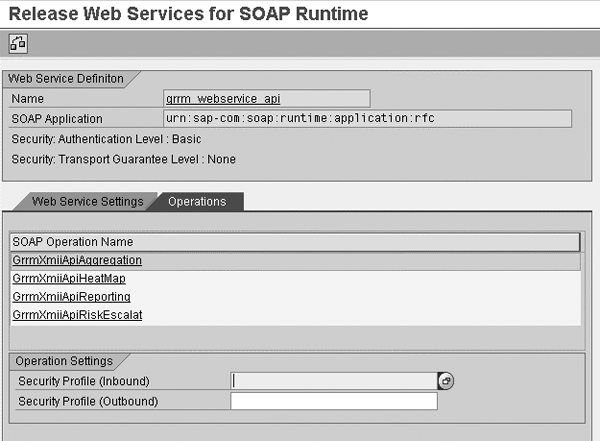
Figure 1
Activate Web service configuration
Step 2. Determine the Web Services Description Language (WSDL) location. Now that you have activated the delivered Web service configuration, you can determine the Web service location. You maintain the Web service location in SSM later on as a URL address, allowing SSM to locate and log on to GRC Risk Management’s Web service. WSDL, as an XML-based language providing a standard model for Web services, enables the communication between GRC Risk Management and SSM. Start transaction wsadmin. Locate and select the Web service configuration you activated in the previous step by following menu path SOAP Application for RFC-Compliant FMs>GRRM_WEBSERVICE_API>Web Service GRRM_WEBSERVICE_API. Click on the WSDL icon (circled in Figure 2) to bring up a pop-up screen and then click on Continue. Enter the user ID and password that SSM will use to log on remotely to GRC Risk Management (see also step 3 of this section on reporting authorizations in GRC Risk Management). A new Web browser window opens (Figure 2). Highlight the link in the navigation field of your Web browser. The link has the following syntax:

Figure 2
Copy WSDL location URL link from your Web browser
https://<your GRC Risk Management server address>:>/sap/bc/srt/rfc/sap/ GRRM_WEBSERVICE_API?sap-client =100&wsdl=1.1
Copy the link and paste it to a local text file (or just write it down). You need the link information when configuring SSM to use the GRC Risk Management interface.
Step 3. Grant reporting authorizations to a SSM user ID for remote data access. GRC Risk Management uses its own built-in access control transaction, structured by organizational units, to restrict user access to the sensitive risk data based on user roles. SSM logs on to GRC Risk Management in a similar way as a person would, using a user ID and password when the system launches the Web service. This is why you must assign the user ID that SSM uses for remote access to GRC Risk Management to the respective user role for the organizational units for which SSM retrieves risk data.
Log on to GRC Risk Management as a GRC Risk Management administrator using the SAP NetWeaver Business Client access. Select Risk Structure from the menu; then click on Organizations. Select the GRC Risk Management organizational unit that corresponds with the top node of your context hierarchy in SSM. Click on the Open button and select the Risk Manager tab. Make sure that the respective user ID, which SSM uses for remote log on, is assigned to the Risk Manager user role here (Figure 3). If the Risk Manager list does not contain the user ID that you need, insert it by clicking on the New button and selecting the respective user ID. Click on the Save button to make sure that the changes have been made.
Note
If a user ID is listed as having the Risk Manager authorization for an organizational unit in GRC Risk Manager, the user will be allowed to see risk data for the selected unit and for all subordinated units.

Figure 3
User ID assigned to the Risk Manager user role in GRC Risk Management
Configure SSM to Use the GRC Risk Management Interface
You have just maintained the Web service and authorization settings in GRC Risk Management, making it the application that provides risk data. You can now enable SSM to consume the risk data that GRC Risk Management provides. To accomplish this, perform the following steps in SSM:
Step 1. Load performance-related metrics. For the purposes of describing the integration scenario with GRC Risk Management, I’m assuming that SSM is up and running at your company and is used for strategy management or scorecarding purposes, leveraging performance metrics data, including target and actual values as well as virtual or calculated ones, such as score and trend. This is why it is not necessary to describe this step in more detail. You must contain the performance metrics data described above in SSM prior to loading risk data. The risk data needs a dimensional structure with which it can merge while being loaded.
Step 2. Set global Java system properties in SAP NetWeaver. In your SSM system, you need to set global Java system properties to activate the GRC Risk Management integration scenario. You must have SAP NetWeaver administration authorization to perform this step. You also should know your SSM SAP NetWeaver application server’s address and port number.
Start SAP NetWeaver Administrator using the URL: https://<your nwce server>:<your nwce server port>/webdynpro/dispatcher/sap.com/ tc~lm~itsam~ui~mainframe~wd/FloorPlanApp? isLocal=true&application ID=com.sap.itsam.soa.wsadmin. Log on as administrator with the administrator password. Click on Configuration Management, select Infrastructure, and then click on Java System Properties. Select CE_java_EE_production_full. Click on the Applications tab and select xapps~cpm~sm~strategymanagement (Figure 4). On the Properties tab, select the GRCFlag property. Select Modify and specify the Custom Value as YES. Click on Set. Select the GRCSystemURL property. Select Modify and specify the URL address of an analytical report in GRC Risk Management (e.g., a dashboard) to be provided as part of the heat map on the home page in SSM’s end user interface. Click on Set.

Figure 4
Maintaining integration relevant Java system properties
Step 3. Set GRC Risk Management authentication and the Web service endpoint (WS endpoint) URL for a batch load. You can follow the steps below in SSM to maintain the authentication and batch load and the Web service’s URL link. You must have SAP NetWeaver administration authorization and know your SSM’s SAP NetWeaver application server address and port number to perform this step.
These settings enable SSM to find the Web service of GRC Risk Management on the Internet (i.e., the WS endpoint URL) and to log on to GRC Risk Management using a user ID and password (i.e., the authentication settings) to retrieve risk data.
First, open the Web service administrator using the URL:
https://<your nwce server>:<your nwce server port>/webdynpro/dispatcher/ sap.com/tc~lm~itsam~ui~mainframe~wd/ FloorPlanApp?isLocal=true&application ID=com.sap.itsam.soa.wsadmin
Next, from the Search by drop-down list, select Proxy Definition. Select Go. In the list, select grrm_webservice_api. Then go to the Configuration tab and in the Logical Ports list, select grrm_webservice_apiSoapBinding.
Select the Details tab and then click on Edit. Find the WS Endpoint URL property and specify the WSDL location of the Web service of your GRC Risk Management system, which you have determined in one of the previous steps.
Select the Security tab (Figure 5). From the Authentication drop-down list, select HTTP Authentication, and then select User ID/Password (Basic). Click on the Details tab and find the username property. Specify the user ID from GRC Risk Management, which SSM uses to log on to GRC Risk Management to retrieve risk data. Specify a valid password for this user ID. Click on Save to save the change.

Figure 5
Configuring authentication for a batch load
Step 4. Set up a schedule for acquiring GRC data via a batch data load. You need this step to populate tables in SSM’s relational database with GRC Risk Management metadata (e.g., member values for organizational units, goals, and risk categories) and transactional data (including aggregated risk exposure and expected loss). You use the risk management batch schedule in SSM Administrator’s user interface to schedule when to acquire data from GRC Risk Management.
First, start the SSM Administrator’s user interface and log on as the administrator using the following URL in a browser’s address box: https://<nwce_server>:<port>/strategy/administration. Next, go to Scheduler>Configure Scheduler. Click on Add Task to enable the task. You only need to do this once. Click on Edit in the Risk Management Batch row. The lower part of the window displays fields for entering the schedule (Figure 6). From the Set to run drop-down list, select the frequency at which you want the Scheduler to acquire GRC Risk Management data. From the hour and minute drop-down lists, select the time of day you want to run the task. Make sure that you have selected the Enabled option and click on the Save button.
Tip!
To proceed with the rest of the integration scenario setup, you need to have risk data loaded in SSM’s relational database. Thus, when running the Scheduler for the first time, you might want to load the data instantly instead of waiting for a regular run. In this case, you can set the run frequency to Daily and specify the current time. Click on the Save button and wait for the system to load the data. Once you acquire risk data, you can change the setting to enable a regular batch load (e.g., weekly) and save your settings.
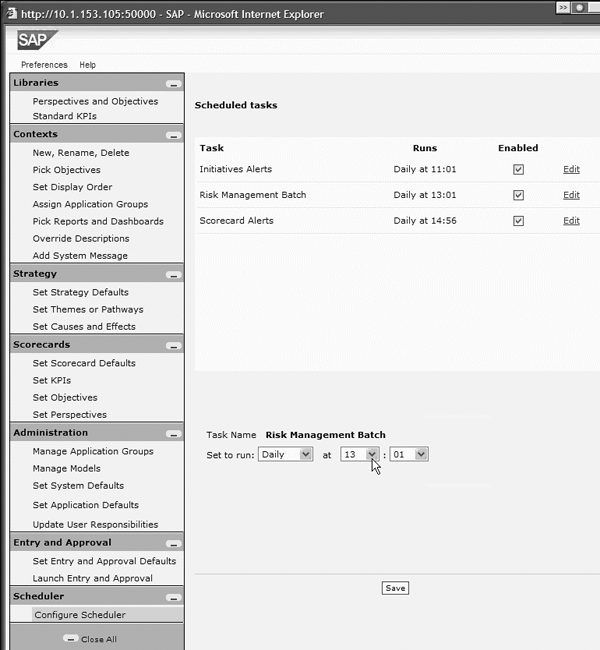
Figure 6
Batch load Scheduler in SSM
Step 5. Perform data mapping and create risk exposure metrics via the GRC tool transaction. In SSM, you use the GRC tool transaction to map the dimension members of SSM’s context and other dimensions with GRC Risk Management organizational units. The context entity in SSM represents a combination of one scorecard, one strategy plan, associated initiatives and objectives, one dashboard, and one set of reports. The GRC tool transaction also helps you to create metrics sets for risk exposure indicators that you assign to strategic objectives in SSM.
To launch the GRC tool transaction in SSM, open a browser window and type the following to log on to SSM’s Interactive Publisher Administrator’s user interface:
https://<nwce_server>:<port>/strategy/pipadmin/grc.htm. Log on as the administrator using the user name and password that you created when installing SSM according to SSM’s installation guide.
Tip!
For information about using the GRC tool transaction in SSM, click on the Help link in the GRC Tools page to review the online help.
Select GRC Heat Map Admin from a link in the GRC tool transaction to map GRC organizational units to each SSM context. From the drop-down list next to each SSM context, select the GRC organizational unit for that context and then click on Save. This setting enables end users in SSM to see correct risk counts in the heat map (Figure 7).

Figure 7
End user view of the risk heat map in SSM’s home page
Select GRC Integration Admin from a link in the GRC tool transaction to merge GRC Risk Management data with SSM’s performance metrics data stored in SSM’s Application Server (PAS) models. A model is a structure in SSM’s database that is optimized for analytical reporting across multiple dimensions and times. Models serve as the data storage for performance metrics, including actual, target, score, and trend, visualized in SSM’s scorecards as key performance indicators (KPIs). The integration scenario adds a dedicated type of indicator for objectives’ risk exposure that you create using SSM’s standard KPI modeling, with metrics retrieved from GRC Risk Management.
From the Select a PAS model connection drop-down list in the GRC Integration Admin screen of the GRC tool transaction, select the model with which you want to merge risk data. Specify the model already containing performance-related metrics. Select the dimension from the Select a PAS Dimension drop-down list that matches best with the GRC Risk Management organization unit’s dimension. Select the dimension member for the GRC organization unit by clicking the Select link next to an organization unit. The Dimensional Selector dialog box appears. Select a dimension member and click on OK. The screen refreshes to show all the GRC organization units and goal titles. This enables each organization unit that has an association with a PAS dimension member. Next, select Create KPI to create a Risk Exposure indicator for any enabled objective row. Select the calculation method from the Score Calculation drop-down list.
Tip!
You can initially select Zero Target as the default Score Calculation method. This means any risk exposure higher than zero changes the Risk Exposure indicator’s score for the respective objective and thus triggers a yellow or red status. In a more advanced installation, you might experiment with creating a dedicated Target metric for the Risk Exposure indicators, representing your company’s risk appetite for each combination of a context value and an objective. You can enter the values for the risk appetite targets using SSM’s entry and approval transaction or upload them (e.g., from a flat file). In that case, you would be using another score calculation method from the drop-down list to compare actual and target risk exposure.
Enter the name of the Risk Exposure indicator to use for the KPI in the PAS Metric Name box. I recommend using an abbreviated objective title and a suffix indicating risk exposure. Save the changes and create the PAS metrics in the model by clicking Save and Update PAS model. This loads risk data from the relational database to PAS and makes the risk data visible for use in SSM’s scorecards and reports. You can also schedule the data load from the relational database to PAS as a regular task called Risk Management Metrics in SSM Scheduler.
Perform Risk-Intelligent Strategy Execution
The main innovation that the risk-intelligent strategic execution approach introduces is the ability to roll up the expected loss metrics of individual risks associated with a strategic objective into an aggregated Risk Exposure indicator (Figure 8). Instead of linking large numbers of individual risks with a strategic objective, business managers can see the appropriate level of detail regarding the risk exposure of the strategic objectives.
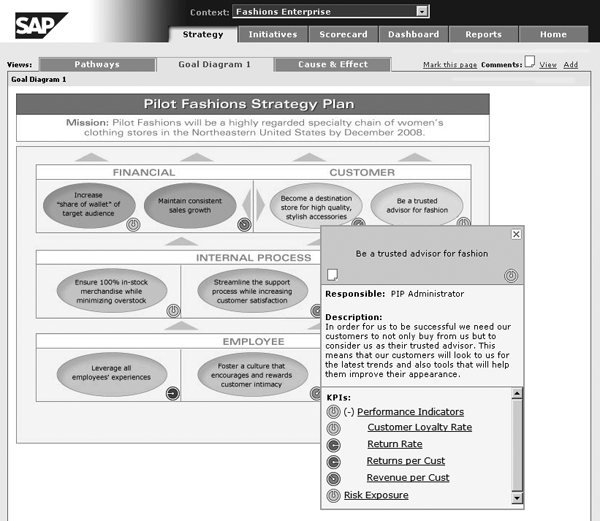
Figure 8
Risk Exposure indicator at the objective level
The aggregation logic of the GRC Risk Management Web service calculates a simple set of Risk Exposure indicators for each objective, including the total risk exposure and the exposure by the highest-level risk categories. SSM thus does not retrieve the individual risks that you store in GRC Risk Management. Risk category examples include market risk, operating risk, and legal risk as typically defined by risk managers. Managers or risk professionals assigned the individual risks in GRC Risk Management to these categories during a risk identification phase. You can add the risk exposure of all risks belonging to a risk category to calculate the risk exposure at the risk category level. If you define the risk category entity as a hierarchical structure in GRC Risk Management, the system only uses the highest hierarchy level for aggregation for integration scenario purposes.
When combined with the performance-related KPIs at the objective level, the Risk Exposure indicator co-determines the objective performance index (e.g., red, yellow, and green traffic lights) based on predefined rules (e.g., worst case, average, and weighted average). This dual perspective provides the SSM end user with a balanced view of the objective, considering past performance — operational KPIs including actual versus target comparison — as well as any potential risks in the future — the forward-looking Risk Exposure indicator.
Now that I’ve shown you how to upload the risk data and map it against SSM contexts and objectives, I’ll go through two final steps in SSM’s administrator’s interface, completing the integration set up.
Step 1. Create Risk Exposure indicators at the objective level. The administration user creates the Risk Exposure indicator manually in SSM for each risk-sensitive objective. The creation of the Risk Exposure indicator reuses SSM’s standard capability to model KPIs. Start the SSM Administrator’s user interface and log on as the administrator. Click on Set KPI’s. Specify the context associated with the PAS model containing the merged performance and risk data. Select New. Enter the title (e.g., Risk Exposure for Objective XY) and description (e.g., Risk Exposure equals Aggregated Expected Loss After Mitigation). In Models&Metrics, specify the respective metrics including actual, target, score, and trend, that you created when you updated the PAS model (see step 5 of the previous section). Using Index Values, specify how the score metric of this particular indicator determines the indicator’s index value (i.e., red, yellow, or green) and select additional settings, such as the indicator type or owner. Save the changes. Select Set Objectives. You might now assign the individual Risk Exposure indicators created to the respective objectives. Save the changes.
Tip!
You may use the capability of SSM 7.0 to create KPI templates in the Central KPI Library to reduce manual administration effort. You can create one central template for the Risk Exposure indicator and copy it to the respective objectives within SSM’s contexts. You can also configure the KPI Type attribute in your SSM system to distinguish between operational KPIs and risk-related indicators at the objective level.
Step 2. Perform risk-intelligent objective performance analysis. Now that you have configured the integration scenario, you may test it using SSM’s end-user interface. An end user who has logged on to SSM can now analyze the objectives’ overall performance indicator (e.g., red, yellow, and green traffic lights). Operational KPIs and the impact of the Risk Exposure indicator determine the objective’s performance. If the risk exposure shows a negative, increasing trend, the end user might analyze the root causes in SSM by drilling down by Risk Category. You can also maintain a link to GRC Risk Management as a jump target, linking over to the appropriate report or transaction in GRC Risk Management. The link opens GRC Risk Management in a new window, giving managers a possibility of quickly reviewing detailed risk data. In addition, the managers can consequently trigger risk mitigation in GRC Risk Management to lower the risk exposure. The lowered exposure results in improved objective performance, closing the risk- intelligent strategy execution loop.
Dr. Karol Bliznak
Dr. Karol Bliznak is vice president of the Rapid Innovation Group (RIG) within the mobility division at SAP. He focuses on converging SAP’s strategic innovation categories, such as mobile solutions, SAP HANA, business analytics, and the cloud. He works at the SAP AG headquarters in Walldorf, Germany. He has more than 14 years of SAP experience in business intelligence, mobility and in-memory technologies, enterprise performance management, financial accounting, controlling, governance, risk, and compliance.
You may contact the author at karol.bliznak@sap.com.
If you have comments about this article or publication, or would like to submit an article idea, please contact the editor.



 Premium