Get a detailed, step-by-step configuration of the interactive voice response functionality available in SAP Business Communications Management to collect customer data. Then, by using computer telephony integration, SAP CRM can automatically identify a customer who is calling, which reduces the average wait and handling times and improves the customer’s experience when contacting an interaction center.
Key Concept
A prehandling service automatically collects customer data and sends it to SAP CRM, which allows agents to see customer identification information on the screen as they answer a call.
Until the release of SAP Business Communications Management, professionals involved with implementing SAP CRM interaction center and computer telephony integration (CTI) needed only to worry about the required customizing to consume the data sent by a third-party interactive voice response (IVR) and other communication management software (CMS).
Now with SAP Business Communications Management, SAP provides an end-to-end solution. However, you need to possess know-how for customizing an IVR in areas managed previously by telecom professionals in order to gather the necessary data from the customer, compile it, and send it to SAP CRM using CMS. I describe a step-by-step process to configure an IVR in SAP Business Communications Management to collect customer information and send it to SAP CRM based on information and standards described in SAP Note 707104.
SAP Business Communications Management is not an SAP connector for integration of SAP CRM with different third-party contact center solutions, but is a complete platform for interaction centers allowing customer contacts through various channels (e.g., chat, email, and IVR) integrated end-to-end to SAP CRM.
Note
This article assumes a company uses SAP Business Communications Management 6.0 and SAP CRM 5.0 or later with an integrated communication interface. It is helpful for readers to be familiar with SAP CRM interaction center, IVR, contact-attached data, and Python language concepts.
Through the IVR feature you can create menus of options for segment calls in different queues, provide electronic services, and verbalize numeric values or dates of queries performed via Open Database Connectivity (ODBC) or SOAP. You can still collect customer data for automatic identification in the interaction center when an agent answers a customer call. By default, automatic caller identification in SAP CRM is based on the caller’s telephone number. This may not be efficient because of the large number of phones that can be used by customers when contacting interaction centers and because a customer’s master data may not be up-to-date. For more reliable and efficient automatic customer identification, it is necessary to configure a prehandling service in which customer data is collected and then sent to SAP CRM. Then, when an agent answers the call, the system automatically identifies the customer based on accurately collected information.
Let me show you how to do this. Using the IVR administrator, let’s create a Python script with the help of a graphical user interface, adding steps (hereafter referred to as states) to build a flow that a customer’s call goes through before the transfer to an agent. The IVR administrator is an optional component that must be installed if you need to configure prehandling with electronic answering. If you don’t have it installed, refer to installation documentation “Business Communications Management IVR Administrator – Administration Guide,” which is available at https://service.sap.com.
To provide data collected by the IVR to SAP CRM (in an ItemAttachedData tag) along with the contact, based on consulting information in SAP Note707104, you need to use a special CUSTOM state in which you can develop pure Python code to enhance standard features offered by the IVR. By formatting the data received in the right XML tags being sent to SAP CRM, no additional ABAP development on the SAP CRM side is necessary because you use a standard scenario to CTI integration. A standard XSL transformation provided by SAP is enough to extract this data and process it (CRM_IC_BPIDENT_EXT_IAD_TO_ABAP).
Figure 1 shows a flowchart of a proposed IVR script, which is configured on the IVR administrator and used for prehandling. The script requests and stores data entered by customers.

Figure 1
IVR flowchart
Each state in this flowchart represents an action in the IVR and it is identified by state numbers, which reference the configuration script as follows:
- State 100 PLAY plays a welcome message to a customer who calls
- State 110 GET DIGITS plays a message asking for a business partner number and stores this data into a variable. It also defines the number of the alternative state to go to if GET DIGITS fails, the defined maximum number of repeats is achieved, or the received dual-tone multifrequency digit string is invalid.
- State 120 CUSTOM assigns a special vector with data stored in a variable set by state 110 before. It also defines the alternative state to go to if a state timeout occurs.
- State 130 EXTERNAL DATA checks to see if the vector has a value assigned to it and if it is valid (i.e., a numeric value). It also defines the alternative state to go to when external data requirements are not met or data does not exist.
- State 140 FORWARD forwards the call to an agent and includes the business partner number (call-attached data)
- State 150 DATA WRITE closes the IVR session and stores database-related information about this prehandling
To begin, click the IVR administrator icon. If you not have done so already, refer to the installation documentation, “Business Communications Management IVR Administrator – Administration Guide, cap. 3.3.”
Set the following main parameters as shown in Figure 2:
- Name. This is the name of your IVR application. The application will be added to the contact event manager (CEM) database. You can manage this application later in the SAP Business Communications Management system administrator.
- Default B-number. Sets the number that customers will call. This information will be added to the CEM database as telephony channel number (e.g., number 2000).
- Type. Set to IVR
- ODBC data source name and CEM database name. Set the name of your CEM database and the available ODBC to access it. If you don’t know these values check with your system administrator.
- Message root path. Set the path at which you will record the prompts to state 100 PLAY and state 110 GET DIGITS
- Customizer filename. Set the name of your customized Python code file that you will use for this application. In my example, this customized file will be used for state CUSTOM 120. For sample Python code, refer to the Downloads section at the end of this article.
- The other fields you can leave with default values
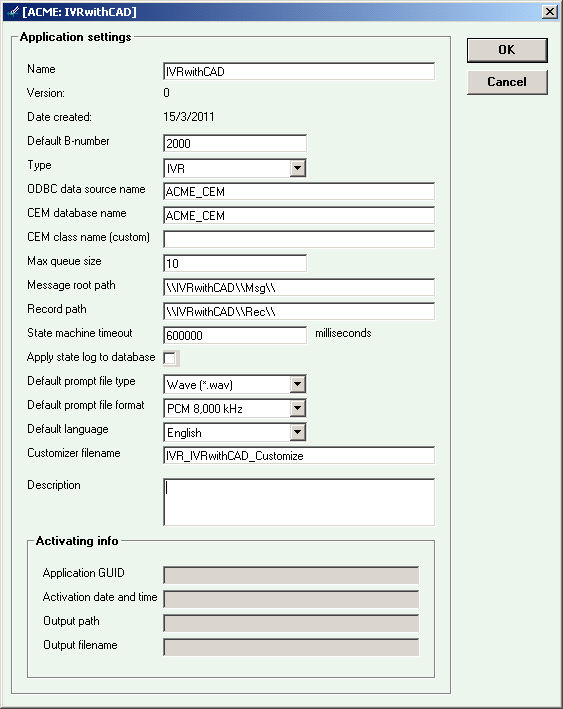
Figure 2
Parameters screen for a new IVR application
After creating the application, add states based on the proposed flowchart in Figure 1, using the various types of states available. In the IVR administrator, follow menu path Edit > Insert new state > Play… (Figure 3).

Figure 3
Accessing the IVR Play… function
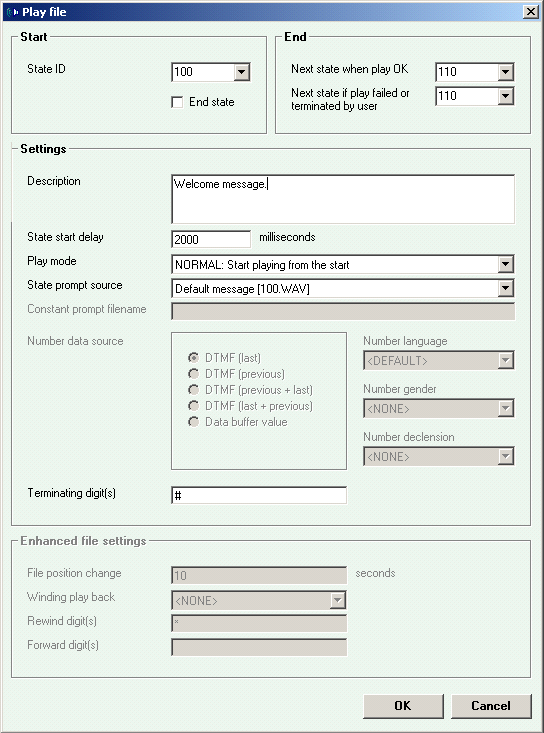
Set the state start delay with the desired time that you want the first message to play, which is useful to avoid the initial message starting too soon while the call is being connected. Usually two or three seconds is long enough (i.e., 2,000 or 3,000 milliseconds, the time unit shown on the screen). Set the Play mode to NORMAL: Start playing from the start (Figure 4). Record and store a welcome message in the path indicated in the application screen, and name it as indicated in the State prompt source field (e.g., 100.WAV). Click OK to add this first state.
Next, in the IVR administrator, follow menu path Edit > Insert new state > Get digits… (Figure 5). Set Timeout for initial and inter-digit entries from customer (i.e., how long, in milliseconds, the IVR will wait for digits—30,000 milliseconds in my example, or 30 seconds), set Valid digits with the digits that are considered valid (numbers from 0 to 9), set Digit count to a specific number length that are valid and directly related to the number length and range used by CRM business partners, and set Repeat for how many times the customer is asked to enter a business partner number. If there is no digit or invalid length after the timeout the call goes to the next state (e.g., 150). Click OK.
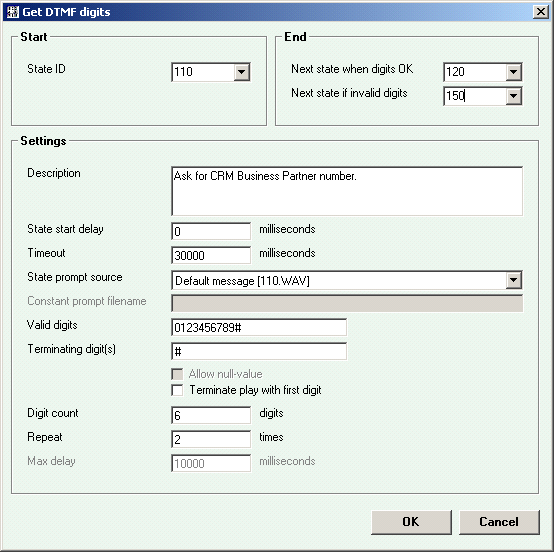
Figure 5
Set Get digits state parameters
Now in the IVR administrator, follow menu path Edit > Insert new state > Custom to add a state that will execute an external method developed in Python. This new state enhances the standard features and other states provided by the IVR administrator GUI, all of which you use to meet several requirements. Set the Method name parameter with the name of your customized method (Figure 6). In my example, I name it SetExternalDataArray, which stores the business partner number entered by customers in state 110 (GET DIGITS) to an array with index PARTNER that later sends the data to SAP CRM. Click OK.
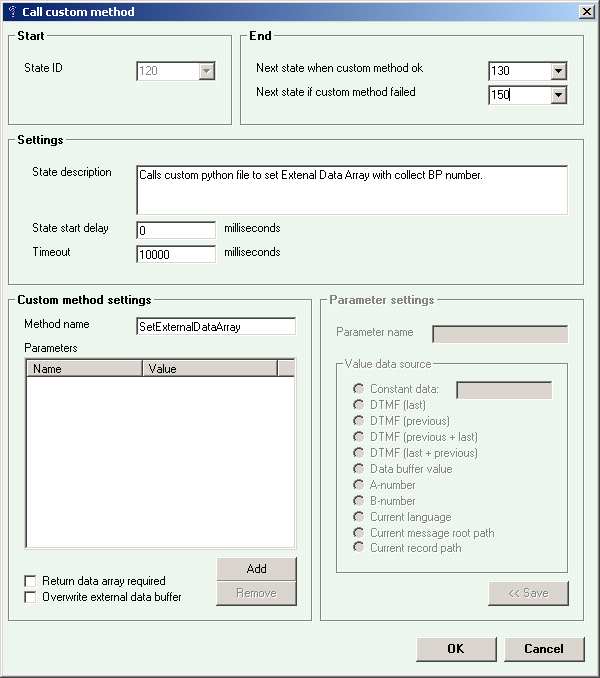
Figure 6
Set the Method name for the customized method (SetExternalDataArray)
Next, in the IVR administrator, follow menu path Edit > Insert new state > Check external data (Figure 7). This state is responsible for checking if an index PARTNER and a numeric Value are set to External Data Array correctly. Fill in field Name with the value PARTNER, set Value validity to Required, and select the Numeric value box to check if the assignment of the business partner to External Data Array was successful (this is an optional state). Click Save (the field name appears on left side inside External data fields area), and then click OK.
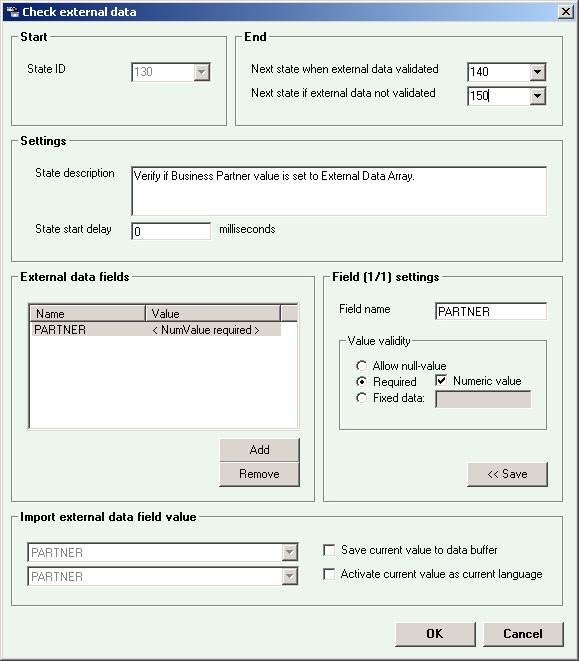
Figure 7
Set Check external data state parameters
In the IVR administrator follow menu path Edit > Insert new state > Forward call. This state forwards the call to a queue for human handling, along with the data collected from the customer so far, which will be used by SAP CRM for automatic customer identification. Set the Destination data source to Constant data and enter the queue number (channel) in which agents are logged in and are waiting for customer calls. Check the Enable extra parameter box and set Parameter data source to External data buffer to send contact-attached data (CAD) with the call (Figure 8). Click OK.
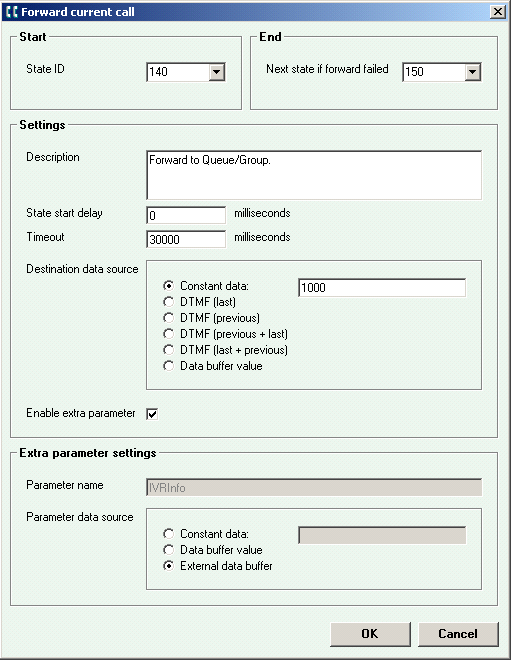
Figure 8
Set Forward current call parameters
Next, in the IVR administrator, follow menu path Edit > Insert new state > Write CEM data. This state is responsible for updating SAP Business Communications Management databases, and disconnects the current session from the IVR after forwarding it. Set Category to COMMON and select the Name Disconnect current call to end the IVR session (Figure 9). Click OK.
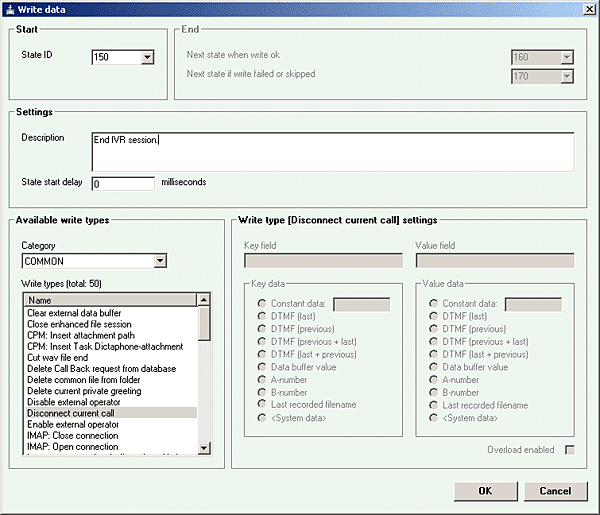
Figure 9
Set Write data parameters
After creating all necessary states, verify and activate your application to the SAP Business Communications Management database. Follow menu path File > Verify, and if no errors are displayed, follow menu path File > Activate. (For more help in this area, refer to the installation documentation, “Business Communications Management IVR Administrator – Administration Guide, cap. 3.6.”) The main Python script output file is automatically generated and recorded at your Python directory, where you also must record the customized Python file used by custom state 120 (e.g., C:Program FilesSAPBusiness Communications ManagementVUACME_COREPython) as shown in Figure 10.
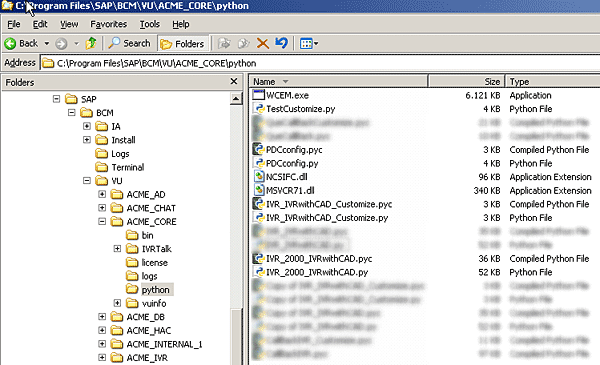
Figure 10
Example of a customized Python file path
Access the SAP Business Communications Management system administrator and check to see if the system created a new application, queue, and channel number by clicking on Queues in the side menu bar. The customizing file parameter already indicates the customized Python file that is used in the custom state (Figure 11).

Figure 11
Confirm the new application via the Queues tab
Click the parameters tab halfway down the screen (Figure 12). You need to add the following extra parameters to the application type CALLCENTER, in which queues and agents are added indicating whether additional data is sent to an agent when a call is connected from the IVR. Set the values PARTNER (related to the index set in External Data Array), XML (the format used), and FirstBName and FirstBNumber (name and number of queue in SAP Business Communications Management that call was forwarded to, which is an optional parameter).
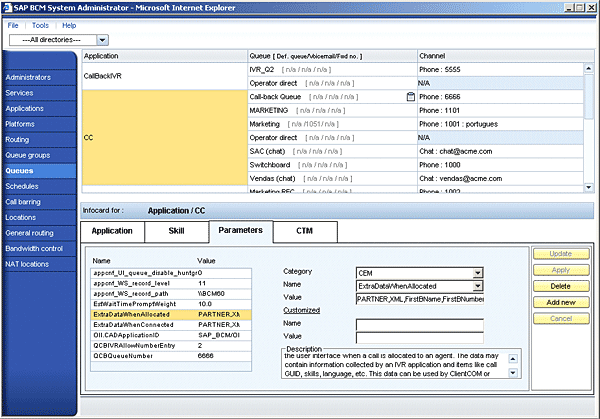
Figure 12
Add extra parameters
These extra parameters are responsible for selecting the values inside the external data array from the IVR and for preparing the XML structure for sending data to SAP CRM via the integrated communication interface, known as the online integration interface (OII) on the SAP Business Communications Management side.
Finally, in SAP CRM it is necessary configure the account identification profile associated with the business role used by interaction center agents to extract the data sent in the ItemAttachedData tag in XML using an XSL transformation and perform the automatic account identification.
To configure the account identification profile, follow IMG menu path Customer Relationship Management > Interaction Center WebClient > Master Data > Define Account Identification Profiles or use transaction CRMC_IC_BPPROFX.
In the CAD Application ID field, as shown in Figure 13, enter the value SAP_BCM/OII (the standard application ID used by SAP Business Communications Management), and in the XSLT File field, enter the value CRM_IC_BPIDENT_EXT_IAD_TO_ABAP (the standard XSLT transformation provided by SAP).
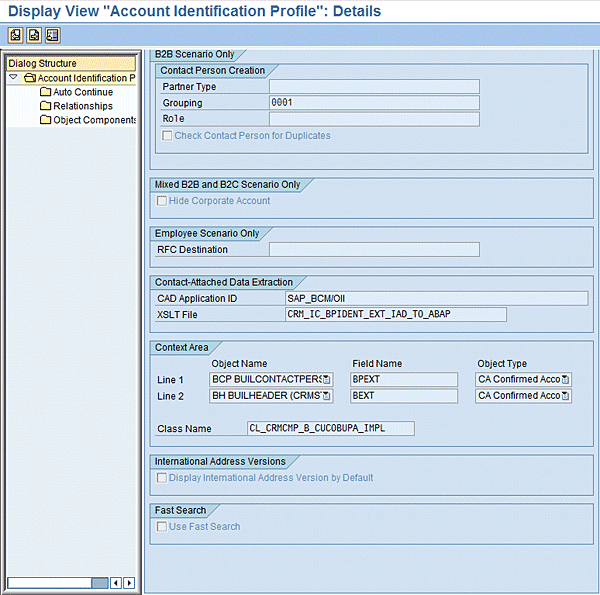
Figure 13
Account Identification Profile screen
This concludes my step-by-step guide for setting up an IVR to collect business partner numbers from customers, and automatically identifying the customers in SAP CRM with this information. The concept of setting up an IVR is useful as a model to suit varied requirements demanded by companies that need to improve and achieve a high level of efficiency in doing business with their customers.
Heber Olivar Silva
Heber Olivar Silva is an SAP CRM/BCM Consultant and VoIP technology specialist who has been working with telephony systems, voice-over IP, and contact center solutions since 2001, and SAP CRM and SAP Business Communications Management since 2009. Apart from his interest in business areas addressed by SAP CRM, he loves the technology behind telecommunications networks.
You may contact the author at heber.olivar@gmail.com.
If you have comments about this article or publication, or would like to submit an article idea, please contact the editor.