Learn how to use ABAP ANALYZE_RSZ_TABLES to perform consistency checks on SAP Business Explorer tables.
Key Concept
| The importance of analyzing SAP Business Explorer (BEx) query database tables is to ensure that the BEx query definition that is stored in multiple tables is consistent. That ensures that queries are correct, that all their elements are available to end users, and that the execution is undertaken in an optimum run time. |
It is essential to have underlying SAP Business Explorer (BEx) query database tables in sync because different parts of queries are stored in different tables. ABAP ANALYZE_RSZ_TABLES is a useful tool to detect and solve different types of inconsistencies in the main query definition database tables.
Using ABAP ANALYZE_RSZ_TABLES, which is available in SAP NetWeaver BW 7.0, you can analyze your BEx tables in a single step. This ABAP tool reviews and corrects the query definition/elements stored in following BEx tables:
- RSZCOMPDIR – Directory of reporting components
- RSZELTDIR – Directory of the reporting component elements
- RSZELTTXT – Texts of reporting component elements
- RSZELTXREF – Directory of query element references
- RSZOPRATXT – Texts of the formula operators
- RSRREPDIR – Directory of all reports
- RSZCOMPIC – Assignment reusable component to InfoCube
- RSZSELECT – Selection properties of an element
- RSZCALC – Definition of a formula element
- RSZGLOBV – Global variables in reporting
- RSZELTPROP – Element properties (settings)
Following are general corrections that are made in all the tables:
- Corrections with inconsistent definition
- Corrections with technical names
- Corrections due to table checks
- Corrections due to missing elements
More specific corrections are also undertaken within each table. You can obtain further information by looking at SAP Note 792779.
Starting Your BEx Table Analysis
Let’s look at how to check BEx query database tables using the ABAP tool. Go to transaction SE38, which brings up the ABAP Editor screen. In the Program field, enter ANALYZE_RSZ_TABLES, and then hit execute or F8 (Figure 1).

Figure 1
Transaction SE38 opens the ABAP screen for ANALYZE_RSZ_TABLES
After executing the ABAP report in Figure 1 you see the selection criteria screen shown in Figure 2. Check the boxes of the tables you want to analyze under the Select Database Tables heading. In this example, I analyze all the tables. Then, under Special Checks/Information, check the boxes for translation and property errors for analysis. Select the Object Version to be either A – Active or D – Delivered. Active means actively available within the SAP NetWeaver BW system; Delivered means standard business content delivered by SAP. Under Background Mode, you can select the check box if all the results are required to be provided on a single page. In the example below, I do not select this option, so the results will be on multiple pages.

Figure 2
Selection criteria for ANALYZE_RSZ_TABLES
After your selection, execute the report using the execute icon in top left corner or press F8. You then see the output in Figures 3 to 6.
As shown in Figure 3 the SAP NetWeaver BW system shows the summary information on which the report is executed. This section shows the user the General Information, System Settings, and the number of different types of query element objects.
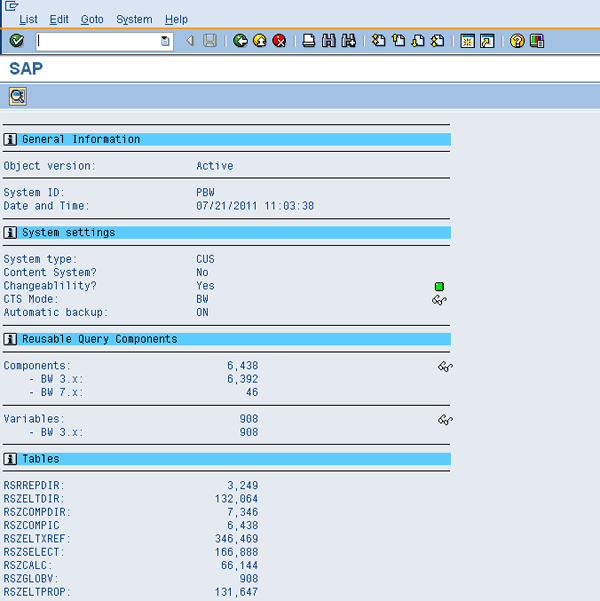
Figure 3
Summary information about the system and tables analyzed
Figure 4 provides detailed information on the output of an analysis of various tables. As shown by the Evaluation of Results section, any tables with a red traffic light need to be analyzed and corrected, tables with a yellow traffic light are non-critical and can be ignored, and tables with green traffic lights don’t have any issues. An Error alert indicator means the error cannot be corrected from within this section, but has to be corrected manually. Anything with an I indicator is for information purposes only.
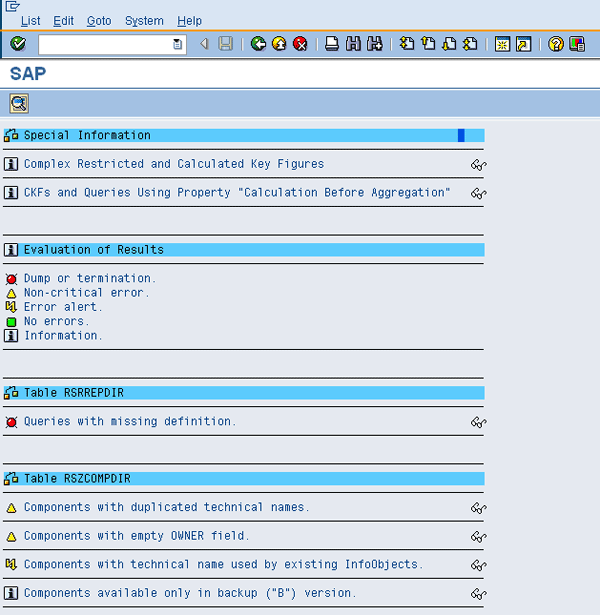
Figure 4
Details about the output
Figure 5 outlines the various indicators for each of the tables. In Figures 3 to 5, you can click the eyeglasses icon along the right to receive further information about various lines in the report. For example, Figure 6 shows further information about the Variables line in Figure 3.
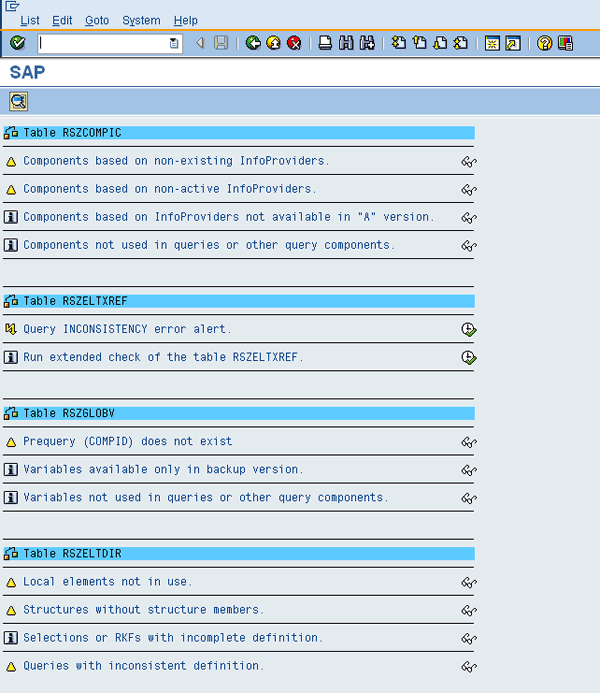
Figure 5
Analysis details for chosen tables
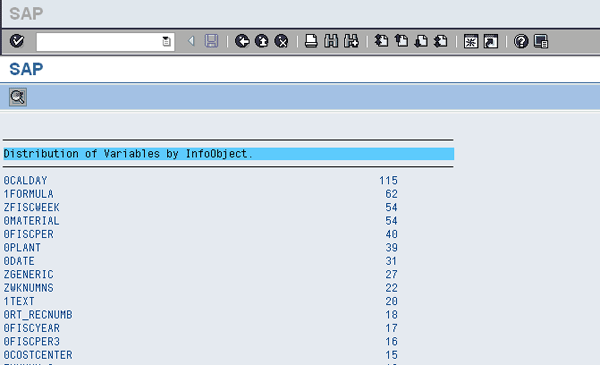
Figure 6
More details about variables
Reviewing and Correcting Problems in a Report
You now can review the report for all the tables designated by red traffic light icons along the left. For example, in Figure 4 under table RSRREPDIR, click the eyeglasses icon for Queries with missing definition, which has a red traffic light next to it. A detailed view opens up that provides information regarding problems that exist within the table (Figure 7).
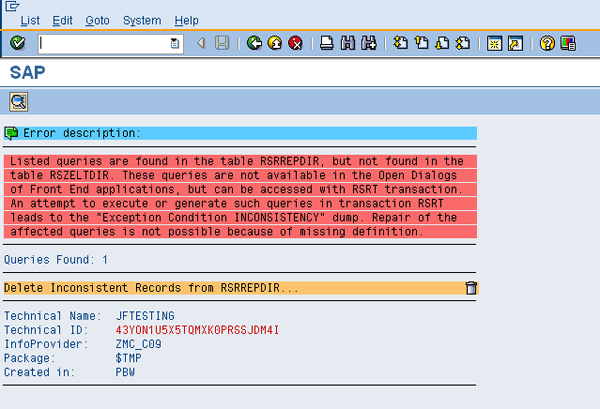
Figure 7
Error description for table RSRREPDIR
To correct the issue, click the trash can icon next to Delete Inconsistent Records from RSRREPDIR.... You then receive a confirmation message (Figure 8). Click the Yes button to continue. A note of caution: Be sure to have a backup before proceeding in case of an unexpected outcome when you are deleting or fixing problems.
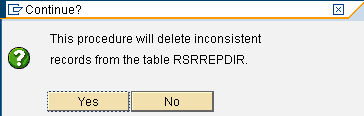
Figure 8
Confirmation screen to delete records
After deleting the inconsistent records, a green check mark appears in the prior detail screen to indicate your action was successful (Figure 9).
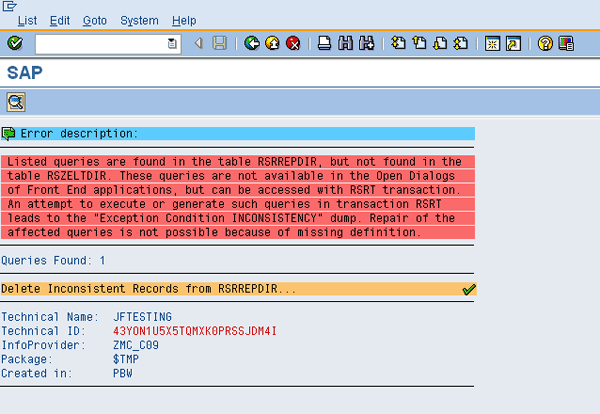
Figure 9
The green check mark indicates the error was corrected
As you exit to the main screen by clicking the green back arrow, notice the green check box appears in the earlier main details screen (Figure 10).
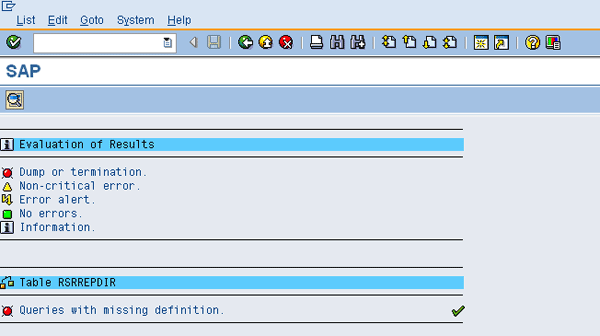
Figure 10
Evaluation after table correction
If you rerun the report, table RSRREPDIR no longer shows a red traffic light icon (Figure 11).
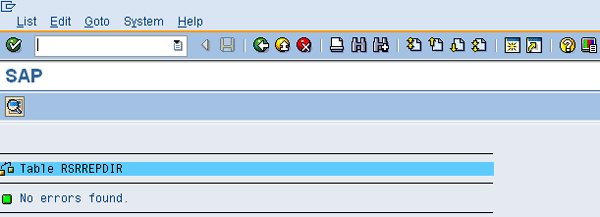
Figure 11
Rerun report with no errors for Table RSRREPDIR
You should work toward removing as many errors as possible when reviewing your analyzed tables. In my experience, I have not come across a situation in which I could not remove an error. If you come across an error you cannot remove, I suggest that you create an OSS message.
You can use ABAP ANALYZE_RSZ_TABLES during an upgrade of the SAP NetWeaver BW system, during clean-up of the system, or when removing duplicates of queries.

Uday Gupta
Uday Gupta has more than eight years of experience with SAP, including SAP NetWeaver BW, SAP BusinessObjects Planning and Consolidation, SAP R/3, and system analysis. He is also knowledgeable in software design and implementation methodologies, including SAP’s ASAP methodology. He has completed more than eight full life cycle SAP R/3, SAP NetWeaver BW, and SAP BusinessObjects Planning and Consolidation implementations. He has worked with PricewaterhouseCoopers and IBM in North America and Australia. Uday has worked in various industry sectors including media, pharmaceutical, consumer packaged goods, high tech, utilities, public sector, banking, telecommunications, and advertising. He is currently working with one of the largest retail organizations as a business intelligence lead responsible for the SAP NetWeaver BW system.
You may contact the author at editor@BI-expertOnline.com.
If you have comments about this article or publication, or would like to submit an article idea, please contact the editor.

 Premium

