While implementing SAP CRM sales and service functionalities, process owners always want to capture the main milestone dates in which a process is executed. Typically, these dates are integrated with a change of business transaction status. SAP CRM offers both date and status configuration; however, it does not offer a functionality that allows a date determination based on a status change. Find out how to capture the current date on a specific date type for a business transaction based on a status change. Using this technique, you can capture important process milestones in customer service and other activities.
Key Concept
The SAP CRM event handler is a standard tool in the processing of business transactions. The event handler is used to call function modules when a specific event is triggered (e.g., a business transaction status change). Although the event handler is not a well-known tool, it offers a great opportunity to enhance system behavior during business transactions maintenance.
In interaction scenarios that involve customer support, it is important for companies to capture milestones of the process. For instance, it is interesting to know when the first customer contact happens, when a second level of support is involved, when the solution is given, and when the support interaction concludes. These milestones are usually related to the status assigned to a process. For example, in a customer support process you may have the following statuses: Open, Transferred to 2nd Level, Solution provided to customer, and Completed.
If companies gather the dates on which each status occurs, they can analyze how much time they spend giving a customer an answer, verify whether agents are accomplishing service level agreements, discover in which step of the process bottlenecks arise, and explore how much time a customer support process takes.
To ensure accuracy on these dates, SAP CRM can set them automatically based on status changes and optionally prevent manual modifications by users. Some companies forbid users to change the dates to ensure no one manipulates the dates. SAP CRM provides date profile and status profile configurations for business transactions that accomplish a part of this requirement, but SAP does not have any standard solution to automatically determine a date based on a business transaction’s changed status. I explain how you can do this on your own.
Steps to Create a Date Determination
My solution is valid for all SAP CRM releases and consists of three basic steps:
- Step 1. Define business transaction date type as display only (optional)
- Step 2. Create a function module to set the date automatically
- Step 3. Assign a function module to the event of status change
Note
This article assumes readers have knowledge about business transactions' basic functions and configuration.
Step 1. Define a Business Transaction Date Type as Display Only
As an example, let’s say I have the ZCSSUPPORT date profile assigned to my business document. You can see this assignment by following menu path Customer Relationship Management > Transactions > Basic Settings > Define Transaction Types.
This date profile has, among others, the following date types: Z2NDLVL (transfer to second-level date), ZRESOLUT (resolution date), and ZCONCLUSION (conclusion date). These dates correspond to the time in which the user changes the business transaction status to Transfer to 2nd level, to Solution provided to customer, and to Completed, respectively.
To prevent users from changing these dates manually, you can configure the entries as display only. Use transaction SPRO and follow menu path Customer Relationship Management > Basic Functions > Date Management > Define Date Profile. In the Dialog Structure on the left, follow Date Profile > Date Types > Screen Areas: Dates (Figure 1). Check the box in the Only Disp.Field column (Figure 1). Repeat these steps for the other date types.

Figure 1
Date type Transfer to 2nd Level defined as display only
I have assigned to my business document the ZCSSUP status schema with the following statuses: Open, Transfer to 2nd Level date, Solution provided to cust., and Completed. To configure this, use transaction SPRO and follow menu path Customer Relationship Management > Transactions > Basic Settings > Status Management > Change Status Profile for User Status. You can also use the direct transaction CRMBS02. Choose Create a new entry and provide a code and a description to your status profile (e.g., ZCSSUP Customer Service Support). Press Enter and the system opens a new window in which you set your user status profile. Maintain the individual status entries as displayed in Figure 2.
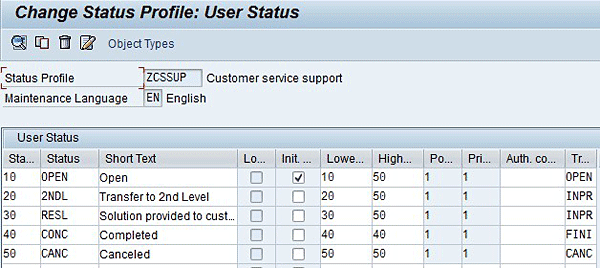
Figure 2
The business document’s status profile (values in the Status column are used in the function module)
Step 2. Create a Function Module to Set the Date Automatically
Having completed the date profile and status profile customizing activities, it is time to create the function module that sets the dates automatically based on status. To create a function module, you first need to create a function group. Use transaction SE80 to create a new function group for this new function module. Give a code and a description for your function group, and select a Z package to save these changes in a transport request. In my example, I create the function group code ZCRMDATE and description Dates Control, and assign the code to a Z package.
Then use transaction SE37 to create a new function module for this function group with ABAP code. I show an excerpt of this code in Figure 3, and the full sample of the code is available in the Downloads section at the bottom of this article. Name your function module ZSET_DATE_BY_STATUS and click the Create button. Insert the function module description as Set Dates Based on Status and press Enter. Use the ABAP code from the Downloads section. Click the Save button and then activate your function module by pressing the Activate button and leaving the transaction.

Figure 3
ABAP code excerpt
The function module ZSET_DATE_BY_STATUS:
- Checks the business transaction type. In my example, it is only executed for business documents of type ZCS (i.e., customer support).
- Defines the rule TODAYTIME (i.e., current date and time) to set the date type
- Reads the new business document status and, based on the status, defines the date type that should be set automatically as outlined in Table 1
- Sets the date automatically with the current date and time

Table 1
Date types based on business document status
Step 3. Assign the Function Module to the Event of Status Change
SAP CRM event handler can call function modules when a specific event is triggered. To use a function module in the event handler, you must first assign it to the object that controls the event you need. In my case, I have interest in control status changes, so I assign my function module for view CRMV_FUNC_ASSIGN. Use transaction SM30, insert view CRMV_FUNC_ASSIGN, and choose Maintain. On the next screen, click New Entries and insert a new line for ZSET_DATE_BY_STATUS as shown in Figure 4.
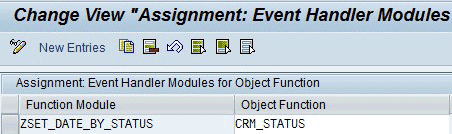
Figure 4
CRMV_FUNC_ASSIGN view maintenance
Now you can use your customized function module in the event handler. Use transaction CRMV_EVENT and create an entry for the event in which you want the function module to be executed. In my example, I want the system to execute my function module as soon as I change the status of a service business transaction, so I must insert an entry as shown in Figure 5 and fill in the fields. Save your selection and leave the transaction.
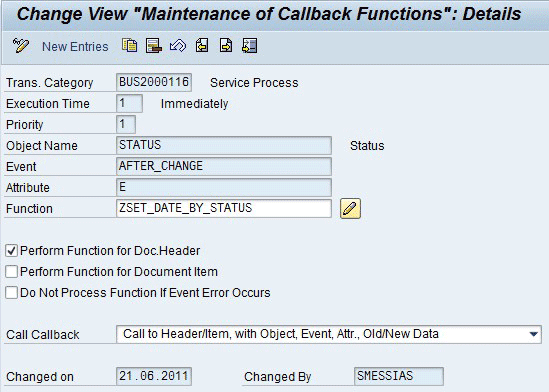
Figure 5
SAP CRM event handler Maintenance of Callback Functions view
In Figure 5, the function module ZSET_DATE_BY_STATUS (Function field) is called on every business document with a category of Service Process (Trans. Category field) immediately (Execution Time field) after a status change (Object Name field and Event field) in the business document header (Perform Function for Doc.Header check box). The E entry in the Attribute field stands for changes in user status and not system status. The Priority field determines the order of execution, in case more than one function module is called on the same event.
With this solution you set the dates as display only, but as soon as the user changes the document status to Transfer to 2nd Level, Solution provided to customer, or Completed, the system sets the current date and time in the Transfer to 2nd level date, in the Resolution date, and in Conclusion date, respectively.
Beyond customer service, other scenarios in which it is useful have date determination based on a status change include service activity management and sales opportunity management.
Susana Messias
Susana Messias has an administration academic background and has been a CRM business consultant since 2002. She has participated in several CRM projects implementing interaction center solutions with sales, service, and marketing functionalities, and she is certified in these solutions.
You may contact the author at Susana.messias@gmail.com.
If you have comments about this article or publication, or would like to submit an article idea, please contact the editor.



 Premium