BW developers spend most of their time in the development system, often the least suitable environment for testing due to the lack of solid production-class data. Explore creative ways to populate your development system with real production data.
Key Concept
When you load data from your production source system into the Persistent Staging Area (PSA) in your BW production system, a PSA table stores the data. This PSA table holds all of the raw data from your source system’s DataSource, including full loads or initial/delta loads. A request identifier identifies each individual load in the PSA table. When you decide to load this PSA data from your BW production system to your BW development system, you should consider using the request identifier or some other InfoPackage selection to control which sets of PSA data to load. If you don’t specify any development selections, then you get all the PSA data, which is often more than what you need.
Note that the data in the PSA is an exact copy of the data from the original source system with no manipulation by transfer rules or update rules. Because this is untouched data, you must manually recreate any custom transfer rules for the data flowing into the BW development system.
One of the best ways to ensure a high-quality product is to test and prototype extensively before moving to your production environment. However, many development systems lack the live, diverse data necessary for comprehensive testing and quality assurance.
Wouldn’t it be great if you could thoroughly test your extraction, transformation, and loading (ETL) with more realistic data? I am sure that your users would appreciate seeing their prototype reports with recognizable data. I’m going to give you several tips to show you how to populate your BW development system with a sample of BW master data and transactional data from your production system. This includes back-end objects (DataSources, transfer rules, update rules, InfoProviders, and MultiProviders) as well as front-end objects (queries, workbooks, and Web reports). Note that BW does not continuously update this data, so it becomes stagnant test data as soon as it enters the BW development system. I’ll provide three scenarios of increasing complexity that allow you to transfer master data, InfoProvider data, and PSA table data.
Transfer Master Data Loads
The first and easiest scenario is transferring master data such as attributes, texts, and hierarchies from BW QA to BW development. Figure 1 illustrates the flow of data from the original source system into BW production and then into BW development.
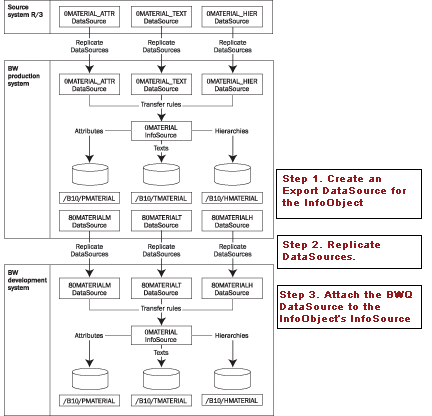
Figure 1
Data flow from the original source system into BW production and then into BW development
Before you begin, make sure to connect the BW development system to the BW QA system. Because your BW systems act as both data consumers and data suppliers, you can connect them and move data from one system to another. Refer to SAP’s online documentation for further instructions: https://help.sap.com/saphelp_nw04/ helpdata/en/80/1a61e5e07211d2acb80000e829fbfe/content.htm.
Tip!
It’s important that the same authorizations and segregation of duties that exist in the BW production system are also present in the BW development system. Any user authorizations that restrict access to data (either from a BW developer or end user) need to be present in the BW development system to ensure the security and confidentiality of data. This means you must maintain and apply the same user roles in the BW development system.
Note
This article uses SAP’s BW demo content for illustration. My company installed this content on the BW development (technical name BWD) and BW QA (technical name BWQ) systems. For this reason, the examples in this article can move data from the BW QA system to the BW development system. In the real world, you most likely will move data from your production system to development, but the steps and procedures are the same.
The red boxes in Figure 1 illustrate the three major steps to make the BW production data available for extraction in the BW development system. The illustration uses the popular InfoObject 0MATERIAL. My example uses the 0D_MATERIAL InfoObject from SAP’s demo content.
Note
This scenario extracts data from the BW QA master data tables. The data in the BW QA master data tables has passed through transfer rules (and possibly update rules) on its journey into the BW QA system. In most cases, no additional manipulation needs to take place as the data moves into the BW development system. Therefore, the transfer rules in the BW development system simply move from the source field to the target field.
Your BW development system usually has less available storage space than your BW production system. Therefore, you should be selective when pulling data into your BW development system. Consider adding selections to the InfoPackages you create to load data from your BW production system to your BW development system. This allows you to pull only certain subsets of the data (for example, several fiscal periods, instead of several years of data).
Tip!
While I don’t discuss specific methods of testing, I want to mention one limitation of this solution. If a source system DataSource is modified, then you can’t test your new source system fields by loading data from the BW production system to the BW development system. You could instead test that activity on the source system using transaction RSA3.
Step 1. Create an Export DataSource for the InfoObject. In your BW QA system, go to Administrator Workbench (transaction RSA1). Switch to the InfoSources tab. Locate your InfoObject’s InfoSource, right-click, and choose Generate Export DataSource as shown in Figure 2.
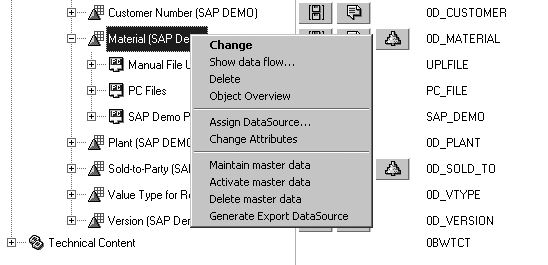
Figure 2
Generate a master data Export DataSource
The system generates separate DataSources for the attributes, texts, and hierarchies automatically. In my example, the system created three DataSources: a DataSource for master data attributes (80D_MATERIALM), a DataSource for master data texts (80D_MATERIALT), and a DataSource for master data hierarchies (80D_MATERIALH).
The technical names of these DataSources begin with the number 8, which indicates that they are DataSources from an InfoProvider in the BW system itself (and not from another source system). To make sure these system-generated DataSources are visible in the InfoSources tab of Administrator Workbench, check the menu option Settings>Display Generated Objects>Show Generated ODS Objects.
Step 2. Replicate DataSources. In your BW development system, go to the Source Systems section of Administrator Workbench. Right-click on the system that provides master data (in my example BWQ) and choose Replicate DataSources. This makes the master data DataSources visible to the BW development system.
Step 3. Attach the BWQ DataSource to the InfoObject’s InfoSource. Attaching the new DataSource from BW QA to the InfoSource in BW development allows you to load data from one system to the other. From Administrator Workbench in the BW development system, go to the InfoSources tab. Locate the 0D_ MATERIAL InfoSource. Right-click and choose Assign DataSource…. Select the source system that supplies the data. In this example it’s my BW QA system (bwq:010), but in your scenario it is most likely to be your BW production system (Figure 3). The system then displays a list of available DataSources. Select the appropriate DataSource for the type of master data you intend to load (attributes, texts, or hierarchies). Figure 4 illustrates loading master data attributes, so select the 80D_MATERIALM DataSource. The system then asks you to save this DataSource assignment, so click on the Yes button.
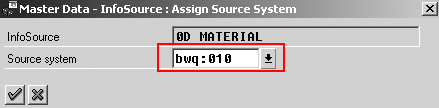
Figure 3
Select your Source system (in most cases, your BW production system)
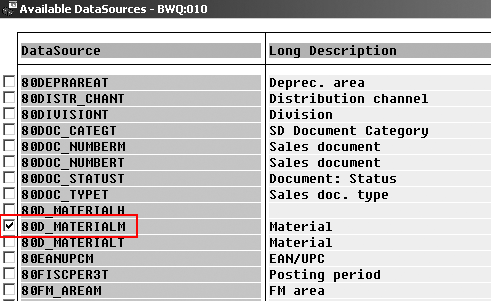
Figure 4
Select master data attribute DataSource
Now you should have a source system connection from the BW QA system to the 0D_MATERIAL InfoSource in BW development. The system then proposes a set of transfer rules. Since BW extracts the master data from the master data InfoObject tables in the BW QA system, any necessary manipulation of this master data occurred when it entered the BW QA system. Therefore, you typically don’t need to perform additional manipulation when copying it to the BW development system. Accept the default transfer rules, which simply move data from the source field to the destination InfoObject as shown in Figure 5. Lastly, click on the activate icon.

Figure 5
Accept the default transfer rules and activate
Note
The InfoSource only supports data transfer using the IDoc transfer method
Step 4. Create InfoPackage and Load Master Data Attributes. In Administrator Workbench, right-click on the bwq:010 source system and choose Create InfoPackage…. Once you have created your InfoPackage, you can load the master data attributes into your BW development system. Check the monitor in Administrator Workbench to ensure that your master data attributes loaded successfully (Figure 6).
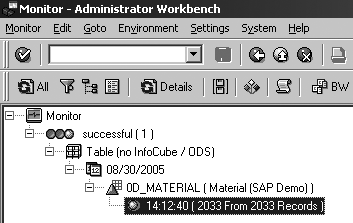
Figure 6
Monitor shows successful master data attribute load
Next, follow the same steps to load master data texts and hierarchies to your BW development system. To create a connection to load texts, choose the 80D_ MATERIALT DataSource; for hierarchies, choose the 80D_MATERIALH DataSource (from step 3).
Transfer InfoProvider Loads
Now I’ll explain how to transfer data from an InfoProvider (ODS or InfoCube) in your BW production system to an InfoProvider in your development system. This is helpful in a data mart scenario, in which you load data from one InfoProvider (typically an ODS) into another (typically an InfoCube).
For this scenario I’ll again use SAP’s demo content, this time from the 0D_SD_ O01 ODS into the 0D_SD_C03 InfoCube. The data flow is shown in Figure 7.
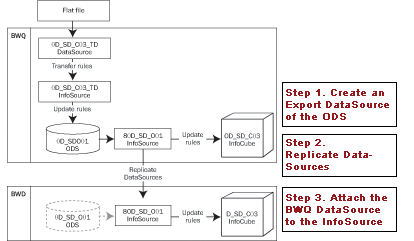
Figure 7
Data flow to transfer data from an InfoProvider in your BW production system to an InfoProvider in your development system
Step 1. Create an Export DataSource of the ODS. In most data mart scenarios, the InfoProvider that provides the data already has an export DataSource to supply that data. The same is true in this example; the export DataSource from the 0D_SD_O01 ODS object already exists, so you do not need to recreate it. If the export DataSource does not yet exist, go to your QA system and follow the instructions in step 1 in the “Transfer Master Data Loads” section.
Step 2. Replicate DataSources. This step is the same as step 2 in the “Transfer Master Data Loads” section.
Step 3. Attach the BWQ DataSource to the InfoSource. In your development system, connect the BWQ DataSource and the BWD InfoSource. In the InfoSources tab of Administrator Workbench, locate the 80D_SD_O01 InfoSource and right-click on it. Choose Assign DataSource… (Figure 8).
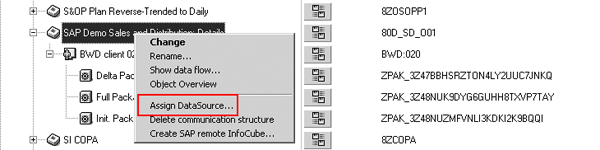
Figure 8
Assign BWQ DataSource to BWD InfoSource
Select the source system that supplies the data. In my example it’s my BW QA system (bwq:010 as shown in Figure 3), but in your scenario it is probably your BW production system. Select the one available DataSource on the source system that has an acceptable match to the InfoSource (Figure 9). The system asks for confirmation, so click on the Yes button.
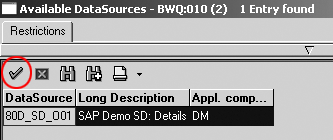
Figure 9
Select the DataSource from BWQ
The system then proposes a set of transfer rules. Since BW generates the InfoSource from the ODS automatically, it’s best not to have any custom transfer rules here. BW overwrites them if you ever regenerate the InfoSource from the ODS object. Accept the system’s proposal for the default transfer rules and activate by clicking on the activate icon.
Right-click on your BW QA system and select Create InfoPackage… to create a new InfoPackage to load the data from the BW QA system to your BW development InfoCube. In my example (from an ODS to an InfoCube), the load could be a full load or an initial/delta load. Check the monitor in Administrator Workbench to ensure that the initial load completed successfully.
Transfer PSA to InfoProvider Loads
This is the most complicated of the three scenarios because you need to manually recreate any transfer rules that manipulate the raw PSA data. Figure 10 illustrates the flow of data from the original source system into BW production and then into BW development. This example also uses SAP demo content for the illustration, this time from the 0D_SD_C03_TD PSA into the 0D_SD_C03 InfoCube.
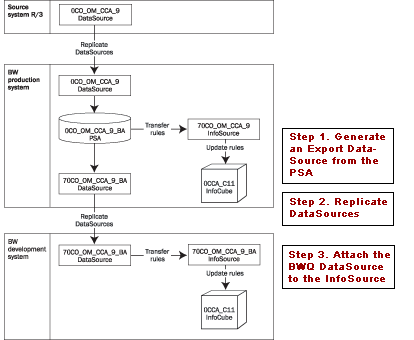
Figure 10
Data flow from the original source system into BW production and then into BW development
Step 1. Generate an Export DataSource from the PSA. In your QA system, open Administrator Workbench and go to the PSA tab. Right-click on the PSA for 0SD_C03_TD_AE and choose Generate Export DataSource.
Step 2. Replicate DataSources. Refer to step 2 in the “Transfer Master Data Loads” section.
Step 3. Attach the BWQ DataSource to the InfoSource. In your development system, connect the BW QA DataSource and the BW development InfoSource. In the InfoSources tab of Administrator Workbench, locate the 0D_SD_C03_TD InfoSource and right-click on it. Choose Assign DataSource and select the source system that supplies the data. In this example, it’s the BW QA system (bwq:010).
Next, select the DataSource to attach to the InfoSource. In Figure 11, the DataSource is 70D_SD_C03_TD_AE (the extract DataSource for the 0D_SD_ C03_TD_AE PSA). The system then asks for confirmation, so click on the Yes button.
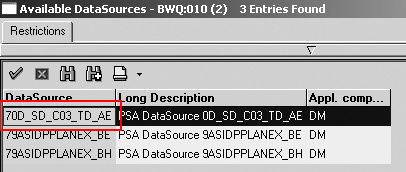
Figure 11
Select DataSource from BWQ
The system then proposes a set of transfer rules. If you have custom rules on the BW QA system, you need to manually recreate these transfer rules in the development system. Once you’ve done that, activate the transfer rules (Figure 12).

Figure 12
Modify and activate transfer rules
Step 4. Create an InfoPackage to load the data from the BWQ PSA to the BW development system. In your development system, right-click on the BWQ system and select Create InfoPackage…. Finally, check the monitor in Administrator Workbench to make sure that your data loaded successfully.
David Eady
David Eady is the reporting team lead of the SI Corporation MIS team headquartered in Chattanooga, TN. The reporting team is responsible for all aspects of SAP information delivery. David has been with SI Corporation for six years and has been involved with BW for the last four years. He has a BS degree in industrial engineering from Mercer University and lives with his wife and two daughters in the foothills of northwest Georgia.
You may contact the author at eadydd@comcast.net.
If you have comments about this article or publication, or would like to submit an article idea, please contact the editor.




 Premium