The Balanced Scorecard is a helpful and integral part of the Strategic Enterprise Management (SEM) module, but sometimes your data requires a specific functional focus that is unavailable with this tool. For example, if you need easy access to financial information, then using a financial scorecard can greatly benefit your organization. The author takes you through the steps necessary to create a financial scorecard.
Since its earliest days, SAP's Strategic Enterprise Management (SEM) module has included something known as a Balanced Scorecard. This Balanced Scorecard was developed with the expectation that users were interested in viewing a balanced set of their organization's key performance indicators (financials, logistics, HR, customer relationships, etc.). While SEM's Balanced Scorecard does an excellent job of looking at a balanced set of measures, objectives, and strategies, several organizations have broken away from the teachings of the creators of Balanced Scorecard theory (Drs. Robert Kaplan and David Norton). These organizations have found benefits in focusing their scorecards in a functional manner, concentrating each scorecard on a single area such as financials or customer relationship management (CRM) or brand management, to name just a few. This article shows how to set up such a financials-based scorecard.
Difference between a Financial Scorecard and the Balanced Scorecard
While it was originally part of SEM's Corporate Performance Monitor (SEM-CPM), today's SAP Balanced Scorecard is delivered within SEM's Strategy Management (SEM-SM) component. Introduced to SAP users in 1999, SEM's Balanced Scorecard has seen considerable use by those wishing to report on their enterprise's overall performance. The product gives users the ability to monitor and track both quantitative and qualitative factors that measure successes within the organization. However, while a broad scope of measures may be exactly what an executive is looking for, a balanced scorecard may not provide the kind of detail and specificity that functional leaders need to manage their areas.
A good example of why a financial scorecard is needed can be found when comparing the reporting needs of a CFO versus those of a financial operations manager. A CFO, while often thoroughly immersed in the finances of an enterprise, is also an executive officer of the company who is concerned with the overall financial health of the entire organization. This kind of user is often interested in looking at a balanced set of goals and objectives and often wants to see a true balanced scorecard. On the other hand, a financial operations manager whose major concern is monitoring a specific business unit's finances may not be interested in finances outside of that business unit (and may not even be allowed to see this additional data). This user would benefit greatly from a financial scorecard that includes the financial detail that a balanced scorecard would not.
Differences between R/3 and SEM Scorecards
To create this financial scorecard, users have the option of configuring SEM or R/3. As R/3 does not have functionality specifically designed for scorecarding, a financial scorecard could be achieved via Report Painter (Figure 1). Using Report Painter, an R/3 report can be configured so that rows consist of financial measures such as revenues, costs, margins, etc., while columns consist of monthly, quarterly, or annual values.

Figure 1
Example of Report Painter repor
The main benefit of scorecarding in this fashion is that you do not need SAP Business Information Warehouse (BW) and SEM (in case you do not already own these two products). The downside to this type of scorecard is that it is merely a report, meaning there is nothing that differentiates this report from any other report except for its content. Most users already have this type of data available in Report Painter in the form of income statements, balance sheets, and cash flow statements, so adding a financial "scorecard" of this nature would do little more than organize already existing measures.
By configuring a financial scorecard using SEM, end users are able to see the same data as in Report Painter while also using additional functionality that does not exist in R/3. This additional functionality includes the following:
- Traffic lights (red, yellow, and green icons that display whether a measure or objective is out of tolerance)
- Side-by-side comparison of multiple scorecards
- Scorecard hierarchy drill-down from one organizational level to another
- Ability to write, save, and email comments that explain the results of a measure
- Online view of definitions of measures (allows everyone to know how measures are defined/calculated)
- Monitoring of qualitative objectives
A scorecard configuration timesaver that is delivered with all versions of SEM 2.0B and higher can be found in SEM's measure catalog. This equivalent of BW's business content is known as SEM content, and it can significantly decrease the amount of time it takes to configure a financial scorecard. The following are some of the financial measures that are included in SEM content:
- Balance Sheet: Current assets (net receivables, inventories), fixed assets (land, machinery, and equipment), intangible assets, liabilities (short-term liabilities, trade payables), equity (common stock, annual net income)
- Profit & Loss: Operating income (net sales, cost of sales), operating expenses (selling expenses, depreciation), interest income, sales (sales growth, net sales from new customers, net sales from new products), costs (production costs, average production costs per unit)
- Cash Flow: Flow of funds, direct and indirect methods
To view all of the measures (financial and non-financial) delivered in the measure catalog, go to transaction code UMK_MB in your SEM system and click on the blue SAP icon (Figure 2).
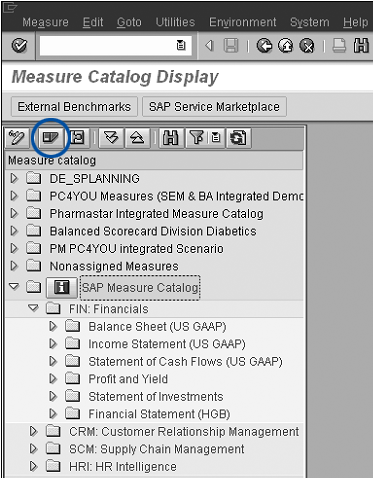
Figure 2
SEM’s measure catalog
To use SEM to create financial scorecards, you must implement both BW and SEM. A second requirement for using SEM for scorecarding is the purchase of the additional servers needed for BW/SEM. SEM is installed on BW, which acts as SEM's database. (Figure 3.)
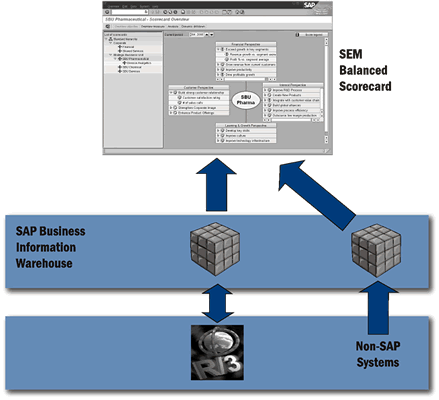
Figure 3
Integration of BW and SEM Balanced Scorecard
Configuring the Financial Scorecard (SEM 3.0 to 3.2)
I'm going to describe how to configure your financial scorecard using the SEM Versions 3.0 to 3.2 Balanced Scorecard and financial measures delivered in SEM content. Should you require the use of custom measures in your scorecard, you can add them via the measure catalog at a later time. I've used some configuration shortcuts in the instructions. Therefore, you may want to make different configuration choices if you plan to use this scorecard in a production environment. When possible, I have pointed out places where you may want to make different choices.
To configure a scorecard in SEM, four high-level steps have to occur in the following order:
- Build BW InfoObjects
- Build BW queries
- Create measures in SEM's measure catalog
- Configure the scorecard in SEM
Use of SEM content (as I have done in this article) means that most of the first three steps have been done for you. However, to use the SEM content, you must first activate BW InfoObjects, BW queries, and SEM content (in that order).
You first must complete the first two bullet points above by activating BW Business Content. When you activate this content, the BW/SEM system builds the SAP-delivered BW InfoObjects and queries for you. To activate BW InfoObjects and queries for use by SEM, follow this process:
- In the BW system where you want to store your scorecard data, enter Administrator Workbench via trans-action code RSA1.
- In the bottom left of the screen, click on Business Content.
- Click on the find button and search for InfoProvider 0SEM, Strategic Enterprise Management.
- Once you've found 0SEM, drag and drop it onto the right side of the screen. Although there is considerably more content in 0SEM than you need for this financial scorecard, I have chosen this step for ease of configuration. For your productive use of the scorecard, SAP recommends that you review your business content needs and only activate the elements that are needed.
- On the right side of the screen, click on the grouping button and choose In Dataflow Before and Afterwards. Once an element in business content has been activated, it cannot be re-activated. SAP recommends that users activate business content elements once, then make a copy of that content for their own use.
- Click on the install button and choose to simulate the install (activation). You can install it in the foreground or background. This process may take a few minutes, so you may want to install in the background.
Now that you have activated BW Business Content, you need to create measures in SEM's measure catalog (to complete the third high-level step listed above). To create these measures, you follow the process of activating measures that SAP has delivered with the software. To activate an SAP-delivered measure in the measure catalog, follow this process:
- Enter the measure catalog (transaction code UMK_MB) in your SEM system and click on the switch to the change mode button.
- Click on the right side of the create button and choose Measure Catalog. Enter a technical name and description of your custom measure catalog (example: Financial Scorecard).
- Click on the SAP icon (Figure 2), and open the SAP measure catalog that has just appeared.
- Click on the FIN: Financials catalog. From here, continue opening folders until you find a measure you want to use in your financial scorecard. (See Figure 4.)
- Once you find a measure that you'd like to use for your scorecard, drag and drop it onto a catalog (folder) that you have created. In the resulting pop-up window, enter the location of the BW system that will be supplying the scorecard with data (Local BW means the BW system that SEM is installed on. RFC destination allows you to link to a different BW system).
- Once you have added the measure to your catalog, you are able to use it in your scorecard configuration.
- Repeat these steps until you have activated all the financial measures that you would like to see in your financial scorecard.

Figure 4
Locate the measures you want in the FIN: Financials catalog
Note!
Many SAP-delivered measures in the catalog are not delivered with supporting BW content. In cases such as these, users need to develop their own BW key figures and queries to support these measures. Because this article emphasizes the most basic configuration steps, I have not discussed the configuration needed to do this. If this is something that you would like to do in your productive scorecard, I recommend learning about those steps by reading SAP's SEM Balanced Scorecard help documentation in
help.sap.com.
You have now completed the third high-level configuration task. Your final task is to configure the scorecard in SEM. To accomplish this, you need to create all of the scorecard elements, configure the BW default system for the scorecard, and assemble the elements into your scorecard.
Create Scorecard Elements
Now that you have the BW and measure catalog configuration complete, you need to create your scorecard elements and assemble them in the Balanced Scorecard software. (Another benefit to having these measures configured in the catalog is that they can be used in a Management Cockpit as well.) To do this, log on to your SEM system and enter transaction code UG00 (main SEM user screen).
Next, configure the following elements (in the order listed):
- Perspective
- Strategy category
- Strategy
- Objectives
To configure these elements, follow the path Strategic Enterprise Management> Strategy Management>Design> Strategy Design and double-click on each of the previous elements to configure that element. After double-clicking on each element, press the change button, then the create or new entries button to create a new element. For each element, enter a technical name and description and click on save. Description recommendations for your financial scorecard are below.
- Perspective: measures
- Strategy category: financial scorecard
- Strategy: financial scorecard
- Objectives: measures
Tip!
When you are configuring objectives and strategies, assign the elements to the newly created perspectives and strategy categories.
After completing the steps above, your final element creation task is to configure value fields via menu path Strategic Enterprise Management>Strategy Management>Design>Various>Value Fields. Once you are on the value fields' configuration page, click on the change button, then the new entries button. Enter two rows, one with a value field name of Actual, the other with Plan (both with a width of 15). Click on save.
Configure Default BW System
Now that value fields have been configured, you need to configure the default system for SEM-CPM. You can set this default system by going to Strategic Enterprise Management>Strategy Management>Design>Various>Standard RFC Destination for BW. Click on the appropriate button for your BW/SEM landscape. If your scorecard will use data from the same BW system on which SEM is installed, choose Local. If your scorecard uses data from a different BW system, select Remote, and choose the location of the remote system in the drop-down box.
Assemble Scorecard Elements
After configuring the default BW system, you need to assemble the financial scorecard using the elements you just created and the SEM content you previously activated. To begin the process of assembling elements, go to Strategic Enterprise Management>Strategy Management>Design> Scorecard Design>Scorecards, click on the create button, and complete the following fields:
- Scorecard type: Scorecard
- Scorecard: Enter a technical name
- Fiscal year variant: Select the fiscal year variant that your data uses
- Data version: Only read from BW (for production, you want to consider other selections to improve scorecard performance)
- Text: Financial scorecard
- Responsible person: Enter a user ID of the scorecard owner
- Overview: Select Measure
- Analysis view: Select Perspective/Measure
- Initial period: Previous period
- Initial target period: Next period
For all other fields, select the default values. Click on save.
To further assemble the scorecard, select the financial scorecard in the right frame of the configuration window and click on the change button on the toolbar. Next, click on the element assignment button. Open the Elements and Measure catalog folders (Figure 5) and drag and drop all elements you created in earlier steps onto the left frame. Click on save, and then on the back button.
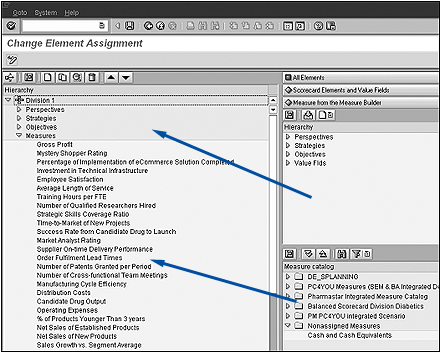
Figure 5
Element assignment screen
The next step in the process is to configure the measures that you previously created in the measure catalog. In the left frame, open the Measures folder and double-click on one of your measures (Figure 6). Click on the create button and enter a user ID for the person who is most responsible for the performance of this specific measure. Next, click on save.

Figure 6
Measure configuration
In the right frame, click on the Status tab and select Set Manually. For use in production, you may choose to configure these elements differently. You have the option to have the system automatically determine the status of the element and the additional option of being able to manually change an automatically determined status. For configuration ease, I have selected manual. See SAP's SEM Balanced Scorecard documentation on how to have statuses set automatically. In the multiple configuration steps that follow, this same advice is given. In each instance where "set manually" is recommended, consider using other options for your scorecard's use in production.
Next, click on the Value Fields tab and the create button. In the resulting drop-down box, select Actual and click on enter. Click on the Refresh Data Sources button and double-click on the measure that pops up in the window below. Enter values in the resulting pop-up fields that represent your data and click on enter. Next, repeat the previous steps for the Plan value field and click on the save button. Repeat the same process for each measure in the left frame.
After configuring your scorecard's measures, you'll need to configure its objectives. To do this, open the Objectives folder in the left frame and double-click on the objective. In the right frame, click on the create button and enter a user ID for the person who is most responsible for the performance of the overall scorecard. Click on save. In the right frame, click on the Measures tab. Drag and drop each of the measures in the left frame onto the window in the right frame. Do not release your mouse until the "+" symbol appears near your cursor.
Click on the Status tab and select Set Manually.
To configure your scorecard's strategies, open the Strategies folder in the left frame and double-click on the strategy. In the right frame, click on the create button and enter a user ID for the person who is most responsible for the performance of the overall scorecard. Click on save.
In the right frame, click on the Objectives tab. Drag and drop the objective in the left frame onto the window in the right frame, and hold it until the "+" sign appears near your cursor. Click on the Status tab and select Set Manually.
Configure your scorecard's perspectives by opening the Perspectives folder in the left frame and double-clicking on the perspective you created earlier. In the right frame, click on the create button and enter a user ID for the person who is most responsible for the performance of the overall scorecard. Click on save. Click on the Status tab and select Set Manually.
Next, configure a scorecard hierarchy for your scorecard. (See Figure 7.) While still in the scorecard configuration screen, press the back button to enter the screen titled Scorecard: Initial Screen. Click on the switch to change mode button (with glasses) and click on the insert nodes button (looks like the create button). Select Hierarchy. Enter Financial Scorecard in the resulting pop-up window and click on save. Select the newly created Financial Scorecard hierarchy in the left frame, click on the insert nodes button, and choose Scorecard on same level. In the resulting pop-up window, enter Financial Scorecard and the technical name of your financial scorecard. Click on save.
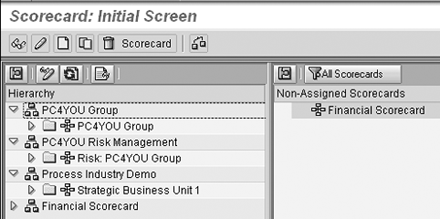
Figure 7
Scorecard hierarchy configuration
Your financial scorecard is now ready to use. To see it, go to the main SEM screen (transaction code UG00), and follow menu path Strategic Enterprise Management>Strategy Management> Balanced Scorecard. Double-click on the Financial Scorecard in the hierarchy and your scorecard appears in the right frame (Figure 8). When viewing the data in your new scorecard, any values that show up in error or do not show up at all are most likely the result of nonexistent supporting BW business content. In this case, build custom key figures and queries and attach them to the scorecard measures in the measure catalog.

Figure 8
Example of completed scorecard
Paul Halley
Paul Halley is director of Strategic Enterprise Management (SEM) for Business Information Solutions, LLC (BIS). Prior to joining BIS, Paul was SAP America's and SAP Public Sector's leading expert on SEM. As the SEM product manager and lead solutions engineer, Paul was responsible for some of the first US SEM implementations and the subsequent rollout of SEM throughout North and South America. He has a BA degree in economics from Illinois Wesleyan University and an MBA from the Owen School of Management at Vanderbilt University.
You may contact the author at paul.halley@bisamerica.com.
If you have comments about this article or publication, or would like to submit an article idea, please contact the editor.