Take a look at a set of common best practices that you should follow when you integrate SAP BusinessObjects Web Intelligence with SAP NetWeaver BW. The best practices are grouped into the areas of universe, BW query, and report design.
Key Concept
SAP BusinessObjects Web Intelligence provides you with the opportunity to create and change reports without the need to involve your IT team. SAP BusinessObjects Web Intelligence delivers a self-service reporting environment. With SAP and SAP BusinessObjects combined now, you can use SAP BusinessObjects Web Intelligence on top of your SAP NetWeaver BW landscape by following a set of best practices.
| At the SAP BusinessObjects Innovation Center,
you can download a project called SAP BusinessObjects Web Intelligence
reporting for SAP ERP that allows you to connect a universe to your SAP
ERP system (ABAP functions, SAP queries, and InfoSets). This project is
planned to be integrated into the standard product roadmap. |
With the introduction of SAP BusinessObjects applications as part of the BI offerings from SAP, many people have expressed a desire to combine the SAP BusinessObjects applications with SAP NetWeaver BW. SAP BusinessObjects Web Intelligence is an ideal application to use data from SAP NetWeaver BW because it allows for self-service reporting. However, you need to be cautious when combining the two applications to avoid complications.
Before I go into the best practices for this process, let’s take a look at the overall connectivity that is available to SAP BusinessObjects Web Intelligence in your overall SAP landscape. As you can see in Figure 1, you can create an OLAP universe or a relational universe when connecting to your SAP NetWeaver BW system. I focus on the OLAP universe approach in this article. If you are interested in the approach using relational universes on top of your SAP NetWeaver BW system, you can find more details in my article in the IT hub “Use Data Federator for Relational Universes on Top of SAP NetWeaver BW.”

Figure 1
Data connectivity for SAP BusinessObjects Web Intelligence
Note
At the
SAP BusinessObjects Innovation Center, you can download a project called SAP BusinessObjects Web Intelligence reporting for SAP ERP that allows you to connect a universe to your SAP ERP system (ABAP functions, SAP queries, and InfoSets). This project is planned to be integrated into the standard product roadmap.
BW Query Design
First, I start with a set of tips on SAP NetWeaver BW query design. You use the query for a universe to create an SAP BusinessObjects Web Intelligence report.
BW Query vs. InfoCube
Often companies plan to connect the OLAP universe directly on top of the InfoProvider (InfoCube or MultiProvider) instead of using the BW query. Table 1 shows a comparison of supported BW elements — it should convince you to use the BW query as the source for your OLAP universes, as otherwise you have to rebuild several elements in the OLAP universe. In addition to the unsupported metadata, you also need to consider how SAP NetWeaver BW authorizations work. These authorizations do not automatically filter the data as it is retrieved. You can address this by using authorization variables in the BW query, which is another strong argument for using the BW query as the source of your OLAP universe.

Table 1
SAP NetWeaver BW metadata support
Time-Based Restrictions or Filter
In addition to the elements explained above, companies also often use the BW query — in particular, exit variables — to limit the result set of the BW query to a specific time frame based on the current data. A practical example is a cost center report showing the last rolling 12 months based on the system date when the report was started. Such functionality is not possible as of the current release of SAP BusinessObjects Web Intelligence (XI 3.1 SP2) in the OLAP universe. Therefore, the recommendation is to use the BW query in combination with exit variables for such requirements.
Additional BW Query Settings
When using BW queries for OLAP universes, you must ensure that you configure two main settings for those BW queries. The first setting is the property Allow External Access to this Query, which has to be set in the Advanced Properties in the BW query designer for each BW query that you want to use with SAP BusinessObjects Web Intelligence (Figure 2). Otherwise, the BW query is not listed when you configure the connection to SAP NetWeaver BW for your OLAP universe.

Figure 2
Set the Allow External Access to this Query check box in the query properties
The second important setting can be configured in transaction RSRT (Query Monitor). This setting — similar to the previous setting — needs to be set for each BW query. In the Properties tab, ensure that the Use Selection of Structure Elements check box is selected (Figure 3). By setting this property for the BW query, you are ensuring that all elements of your BW query are sent to the database for processing. This is especially helpful when you are connecting to BW queries with several restricted or calculated key figures.

Figure 3
Select the Use Selection of Structure Elements check box
Default Area
The last topic for the area of the BW query design is the default section in the BW query designer (Figure 4). For the BEx toolset, this default area in the BW query is used for the initial run of the actual report. For example, you could create a BW query that shows the data for your financial cost center hierarchy, but if you’d rather see the data based on a profit center hierarchy, you can do so.
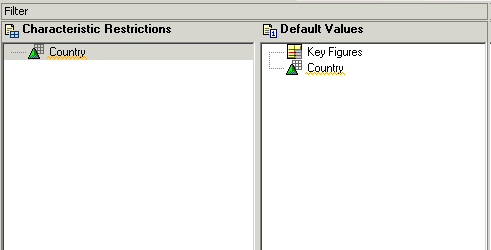
Figure 4
The BEx Query Designer default area
However, the SAP BusinessObjects toolset does not use the default section in the BW query. Often users place variables with default values in the default section of the BW Query, which then leads to a situation in which the variable does not properly work in the SAP BusinessObjects toolset.
Large BW Query vs. Dedicated BW Query
Frequently, companies starting a new project with SAP BusinessObjects BI tools on top of SAP NetWeaver BW make a common mistake. They create a single BW query on top of an InfoCube or MultiProvider and then use this very large BW query with lots of characteristics and key figures for reporting.
It is correct that all the SAP BusinessObjects BI tools are technically capable of using such a large BW query. For example, Crystal Reports, using five characteristics out of a BW query with 50 characteristics, only receives the data for these five characteristics. However, such a large BW query will have a negative impact on the overall system performance. For such situations there is no generic rule on how many objects you can or should include in your BW query and how many is too much. This part can really only be decided by using the Query Monitor (transaction RSRT) to check the technical information and query design statistics and to test the performance effect after changing the query.
In the next section, I take a look at a set of best practices for the universe design when connecting to SAP NetWeaver BW.
Universes on Top of SAP NetWeaver BW
As mentioned earlier, the recommendations made in this section assume that you are using an OLAP universe on top of an SAP NetWeaver BW query. I will take a look at comparing an OLAP universe with a relational universe created on top of an InfoProvider later in this section.
SAP Variables vs. SAP BusinessObjects Web Intelligence Filter
In general, the best practice for creating filters or prompts is to use the variables from the BW query as much as possible. Technically, you can create your own prompts and your own predefined filter in the universe, but the variable offers benefits over manually created filters:
Detail Objects
When you create the universe based on a BW query, the syntax for the Detail objects representing the key and the description for each characteristic by default points to those elements by pointing to the display attributes of the object. For example, for characteristic 0COUNTRY, the default syntax for the detail object representing the key value would look like:
[0COUNTRY].[LEVEL01].[[20COUNTRY]].[Value]
In a situation in which only the key and the description of the object are necessary, you should change the syntax of the object definition to leverage the caption or the name. To do so:
- Open the universe in the Universe Designer
- Double-click the object that you would like to change
- Select the Definition tab and in the Select box you can change the definition
By default, the definition for the key looks like the one below, assuming the characteristic is 0COUNTRY:
[0COUNTRY].[LEVEL01].[[20COUNTRY]].[Value]
You can change it to:
[0COUNTRY].[LEVEL01].[NAME]
By default, the definition for the description looks like the one below, assuming the characteristic is 0COUNTRY:
[0COUNTRY].[LEVEL01].[[10COUNTRY]].[Value]
You can change it to:
[0COUNTRY].[LEVEL01].[DESCRIPTION]
By making this change, you improve the overall performance of the data retrieval for this universe.
Delegated Search for List of Values
Universe Designer provides useful functionality when your list of values for a prompt returns a large list of members. In such a situation, you should consider activating the Delegate search option (Figure 5). You can activate this option by opening the properties for both elements of the corresponding list of values in the universe. Remember that a list of values generated based on an SAP variable has two elements — one for the key and one for the description. Therefore, you need to configure this property for both elements.

Figure 5
Activate the Delegate search option for the key and for the description
After you activate this property, you can open or create an SAP BusinessObjects Web Intelligence report. If the user is prompted for a value, you will notice two major changes:
- The list of values is not being loaded anymore, even in a case where the prompt is mandatory
- The user has to use the search capability to first narrow down the list of values and select a value (Figure 6)

Figure 6
SAP BusinessObjects Web Intelligence prompt with delegated search
OLAP Universe vs. Relational Universe
As part of the SAP BusinessObjects XI 3.1 release combined with SAP NetWeaver BW 7.0 Enhancement Package 01 (SP05), you can now create a universe in a multidimensional way or by using SAP BusinessObjects Data Federator in a relational way. It is important to understand the benefits and drawbacks of the approach to build a relational universe. SAP BusinessObjects Data Federator can be an interesting option, but it comes with some limitations (Table 2).

Table 2
Support for MDX and SQL
In the overview, you can see that most of the typical OLAP features — such as restricted key figures or calculated key figures — are not available when using SAP BusinessObjects Data Federator to build a relational universe on top of SAP NetWeaver BW. However, you have options to create similar functionality with the standard Universe Designer capabilities (Table 3).

Table 3
Workarounds when using SAP BusinessObjects Data Federator
So who should consider using SAP BusinessObjects Data Federator for a relational universe on top of SAP NetWeaver BW?
OLAP universes should be considered by companies that:
- Are invested in InfoCube design and elements such as hierarchies, variables, and calculated/restricted key figures
- Define many BEx Queries
- Require advanced analytics
- Require Single-Sign On (SSO)
Relational universes should be considered by companies that:
-
- Are not familiar with OLAP concepts (InfoCube design, MDX query, and object definition)
- Want to combine SAP NetWeaver BW with other sources (SAP or non-SAP)
- Want to access DSO (fined-grained reporting)
- Can wait for SSO — planned for latter half of 2010
OLAP Universe Change Management
Starting with Service Pack 02 of SAP BusinessObjects XI 3.1, you can configure several options for the behavior of the Universe Designer when creating or updating a Universe. In the Universe Designer menu path Tools > Options you can configure these options on the OLAP tab (Figure 7).

Figure 7
OLAP universe options
Two items are especially interesting; depending on the use you are planning for the universe. The option Generate level 00 can be unchecked. As a result, Universe Designer does not generate a level 00 object anymore for any of the characteristics. Level 00 for a hierarchy represents the top level node and you might want to keep level 00 objects that should have a hierarchy.
The second option of interest is the option to Generate technical names as details. This option allows you to generate a detail object representing the technical name (sometimes referred to as the member unique name) in addition to the standard objects. Such an object can be very helpful when you are planning to use the universe for an Xcelsius dashboard because you can then use the technical name as part of a selector and ensure that the unique technical name is sent to the SAP NetWeaver BW system as part of the MDX statement.
Web Intelligence Report Design on Top of SAP NetWeaver BW
When creating an SAP BusinessObjects Web Intelligence report on top of SAP NetWeaver BW, it is important to recognize that as of release XI 3.1 Service Pack 02, SAP BusinessObjects Web Intelligence does not have the notion of a free characteristic as it is known in the BEx Analyzer or BEx Query Designer world. This means that each element that is included in the Result Objects panel of the SAP BusinessObjects Web Intelligence Query Panel is used as part of the overall data retrieval and in every refresh of the report as well (Figure 8).

Figure 8
SAP BusinessObjects Web Intelligence query panel
It is important to understand the difference between BEx Analyzer, which uses free characteristics, and SAP BusinessObjects Web Intelligence, which does not offer a similar concept as of XI Release 3.1 Service Pack 02. This capability is planned to be part of the XI 3.1 Release with Service Pack 03.
Note
Product roadmap disclaimer: The above descriptions of future functionality are the author’s interpretation of the publicly available product integration roadmap. These items are subject to change at any time without any notice and the author is not providing any warranty on these statements.
Master Data Reports
When creating reports with a large amount of master data — such as customer address fields, customer phone numbers, or other information that is repeated by customer or other characteristics — it might improve the overall performance by breaking up the report into two Web Intelligence reports, which then use the merge dimension capability. The request of cells travels from SAP BusinessObjects Web Intelligence toward the back-end SAP NetWeaver BW system. In this scenario, the master data information can lead to a dramatic increase in the number of cells.
For example, assume you create a report with the following master data information:
- Customer Name
- Customer Address Field 1
- Customer Address Field 2
- Customer Postal Code
- Customer City
- Customer Country
The report also has the following transactional information:
- Order ID
- Order Data
- Order Revenue
In this example, you have six fields from the customer that are being retrieved for every line item, even though they repeat themselves. Overall, in this example each row contains nine cells. If a customer has 100 order IDs, this results in 900 cells.
If you break up the single SAP BusinessObjects Web Intelligence report into two SAP BusinessObjects Web Intelligence reports in which you use all the master data fields in one report and the transactional information with the customer name in the second report, you create one report with six cells and another report with 400 cells (four fields with 100 rows). Such an approach would then overall lead to a more than 50% reduction in the number of cells.

Ingo Hilgefort
Ingo Hilgefort started his career in 1999 with Seagate Software/Crystal Decisions as a trainer and consultant. He moved to Walldorf for Crystal Decisions at the end of 2000, and worked with the SAP NetWeaver BW development team integrating Crystal Reports with SAP NetWeaver BW. He then relocated to Vancouver in 2004, and worked as a product manager/program manager (in engineering) on the integration of BusinessObjects products with SAP products. Ingo's focus is now on the integration of the SAP BusinessObjects BI suite with SAP landscapes, such as SAP BW and SAP BW on SAP HANA, focusing on end-to-end integration scenarios. In addition to his experience as a product manager and in his engineering roles, Ingo has been involved in architecting and delivering deployments of SAP BusinessObjects software in combination with SAP software for a number of global customers, and has been recognized by the SAP Community as an SAP Mentor for SAP BusinessObjects- and SAP integration-related topics. Currently, Ingo is the Vice President of Product Management and Product Strategy at Visual BI Solutions, working on extensions to SAP’s product offering such as SAP BusinessObjects Design Studio and SAP Lumira. You may follow him on Twitter at @ihilgefort.
You may contact the author at Ingo@visualbi.com.
If you have comments about this article or publication, or would like to submit an article idea, please contact the editor.





 Premium