Manager
Learn how to configure the Solution Documentation Assistant in SAP Solution Manager to analyze your entire system landscape and provide a detailed report. This functionality is useful if an upgrade needs to be executed in a short span of time, because you can create an SAP Solution Manager project from that report.
Key Concept
The Solution Documentation Assistant, a new feature in SAP Solution Manager Enterprise Edition (Service Pack 18), is SAP’s approach to help you analyze your solution landscapes and business processes using the SAP Solution Manager infrastructure. The Solution Documentation Assistant provides a full-scale system usage report and generates core business process models in SAP Solution Manager. This functionality decreases the time to prepare for an upgrade project and acts as a jump-start for business improvements.
The most challenging part of planning a system analysis is the identification of core business processes. The Solution Documentation Assistant draws on the existing SAP Solution Manager infrastructure (i.e., systems) used by the EarlyWatch Alert and built by the system administrator using the System Landscape Directory. Therefore, the Solution Documentation Assistant can help you easily overcome the challenge of planning a system analysis by offering the following features:
- System landscape documentation
- Automatic mapping of recognized processes, including transactions and customizing objects
- Automatic identification of core business processes
- Usage analysis of custom developments
- Identification of potentially obsolete objects
- Business Blueprint creation
You can access Solution Documentation Assistant via the Work Centers in SAP Solution Manager (transaction SOLMAN_WORKCENTER). The Work Centers provide easy navigation through central role-based points of access, user environments, inboxes, work lists, and status reporting to simplify work.
In addition to reviewing the configuration items for Solution Documentation Assistant, I’ll walk you through the main sections of its Work Center. For more information on the technical prerequisites you must have in place before you use the Work Center, refer to the sidebar “Work Center Requirements.”
Note
Before configuring the Solution Documentation Assistant, you must check for some authorizations. The most important authorization object for the Solution Documentation Assistant is D_SOL_RBE. This object is contained in two roles for SAP Solution Manager: SAP_SDA_ALL (full authorization) and SAP_SDA_DIS (display authorization). If a user has full authorization for the Solution Documentation Assistant (role SAP_SDA_ALL), the user must have the SAP_SOL_PROJ_ADMIN_ALL role. Remember to always adjust roles per your requirements by copying standard roles to Z roles.
Configuration Process
To activate the Solution Documentation Assistant in Enterprise Edition, log on to SAP Solution Manager and follow these steps.
Step 1. Enter transaction SPRO and click the SAP Reference IMG button in the screen that appears. Then, follow IMG menu path SAP Solution Manager Implementation Guide > SAP Solution Manager > Scenario-Specific Settings > Solution Documentation Assistant > Activate SAP Solution Manager Services. The screen in Figure 1 appears.
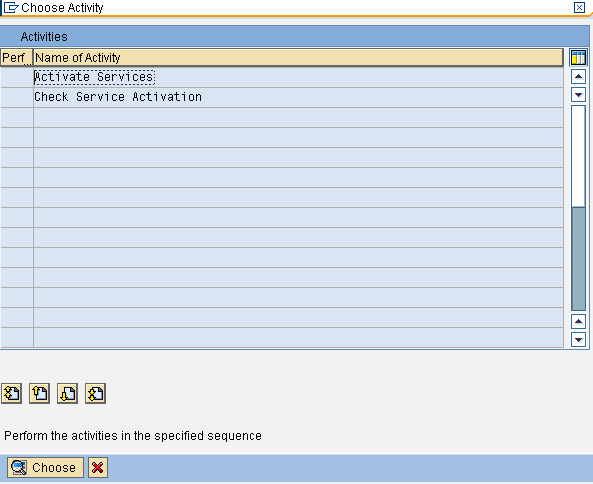
Figure 1
Activate the services required for Solution Documentation Assistant
Step 2. Double-click Activate Services. In the Technical Name field, enter SM_SDA and click the execute icon at the top left (Figure 2). SM_SDA is a technical object comprised of all the relevant services, so when you enter this name it allows you to activate all the services associated with it.

Figure 2
Figure 2 Enter the technical name
Step 3. Review the screen that appears with green traffic light buttons next to the name you have just entered (SM_SDA) to confirm the activation (Figure 3). As you can see, you’ve activated a variety of associated services.
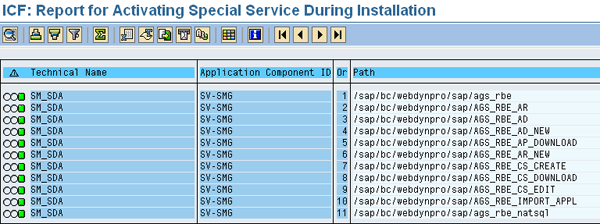
Figure 3
Confirmation of activation
Step 4. Click the back icon and return to the screen in Figure 1. Note that Activate Services now has a green checkmark beside it.
Step 5. Double-click Check Service Activation. In the screen that appears, click the execute icon to display the default screen for maintaining services (Figure 4).
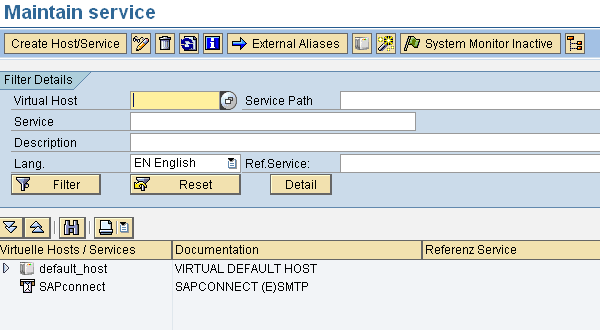
Figure 4
Maintain services
Step 6. Expand the nodes under default_host until you reach the node for webdynpro (Web Dynpro [WD] Runtime). Right-click webdynpro and click Test Service. This tests the service and confirms that it is running. If the test shows that webdynpro it is not running, find out if the SAP Web Application Server is operating properly. If it is not, you need to contact the Basis team.
Step 7. Expand the webdynpro node and repeat Step 6 for the following services: AGS_RBE_AD, AGS_RBE_AR, and AGSTWB_CE.
Step 8. Click the back button until you are back at the main IMG. Open the node for Solution Documentation Assistant and double-click the execute icon next to Set Up Work Center for Solution Documentation Assistant.
Step 9. Copy the standard role SAP_SMWORK_SDA to ZSAP_SMWORK_SDA, as shown in Figure 5. These roles are assigned to the users who are going to use the Solution Documentation Assistant.
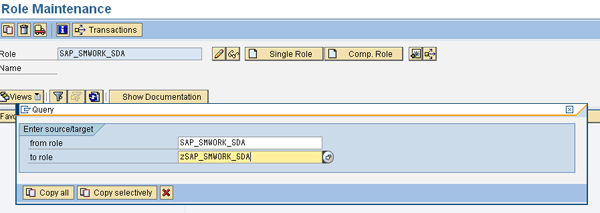
Figure 5
Copy role
In the same way, copy the standard role SAP_SMWORK_BASIC to ZSAP_SMWORK_BASIC. Finally, assign the roles ZSAP_SMWORK_BASIC and ZSAP_SMWORK_SDA to any users that need to use the Solution Documentation Assistant. Now, the Solution Documentation Assistant can be accessed via the Work Center.
Note
To enable the user to use the Solution Documentation Assistant Work Center, only one Work Center navigation role is relevant per Work Center. The user needs the authorization role SAP_SMWORK_BASIC, which contains all authorization objects required for the Work Center. In addition, several Work Center roles can be combined in a composite role.
After Configuration
You can generate a Solution Documentation Assistant report directly on SAP Solution Manager Projects and solutions. Several analyses are possible for an SAP Solution Manager project or a solution. You can create or update analysis projects with data from a solution or an SAP Solution Manager project. Existing structures and object data are copied to analysis projects. The analysis maps results by structure, and you can copy the structure of the analysis projects from various sources. The analysis results format is suitable for high-level business perspectives and detailed consideration of analyzed objects (e.g., transactions or reports).
You can download or upload analysis projects or individual check rules via the content interface and exchange them between different implementations of the Solution Documentation Assistant. Conversely, you can also transfer the analysis results from the Solution Documentation Assistant to an SAP Solution Manager project and thus create or update this project.
The Work Center Interface
In SAP Solution Manager, the Solution Documentation Assistant can be accessed via transaction SOLMAN_WORKCENTER. It is the same transaction used to access other Work Centers, such as Incident Management or Change Request Management. In the screen that appears, click the Solution Documentation Assistant tab (Figure 6).
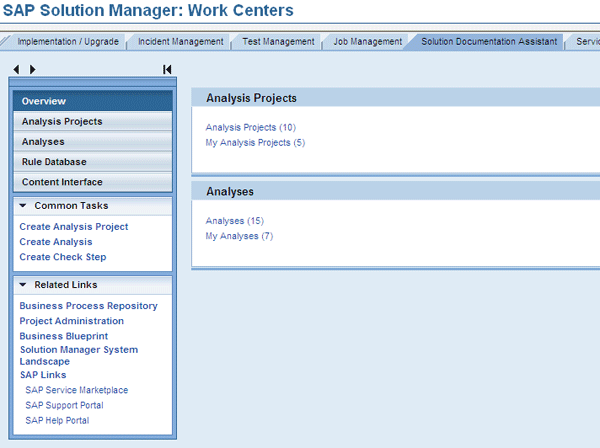
Figure 6
Access the Solution Documentation Assistant Work Center
The Solution Documentation Assistant Work Center provides several views that you can use to manage Analysis Projects, edit Analyses and their results, and edit check steps in the Rule Database. These features, located on the left side of the screen shown in Figure 6, are:
Overview: For quick access to current projects and analyses. This is an overview of the current status of analysis projects, statuses, and analyses. You can open views of Analysis Projects (list of all analysis projects), My Analysis Projects (list of analysis projects created by you), Analyses (list of all analyses), or My Analyses (list of analyses created by you).
Analysis Projects: For a detailed view of all analysis projects and the analyses created for a project. You can also open a view of one analysis project. Use the overview to filter analysis projects, display all analyses that are scheduled for a project, or open a specific analysis project or analysis. You can also use the overview to create a new analysis project. The Analysis Projects view has the following areas: Table of Analysis Projects, Table of Analyses Based on a Specific Analysis Project, and Details of Analysis.
Within the Analysis Projects section, you can navigate to the analysis projects view to see the analysis structure and check rules of an analysis project. You can also edit an analysis project here; for example, you can assign check steps to a check item.
Analyses: For a detailed view of all analyses. You can search for analyses and view the results of any individual analysis. You can also filter the analyses search results table by status. Detailed information is available for each analysis.
The analyses table is located in the Analyses area. For each analysis, the standard view of the table displays:
- Name given when the analysis was created
- Scheduled start time (date and time) of the analysis creation
- Analysis status. The analyses can have the following statuses: Initial, Created, Planned, Running, Saving, Finished, and Failed.
- Time at which the analysis reached the status displayed
- User who created the analysis
- Name of analysis project to which this analysis belongs
Rule Database: Allows you to view, create, delete, or edit check steps. Check steps are used to check whether one or more of the following objects are used actively in the source (i.e., SAP solution or SAP Solution Manager project): transaction, report, Business Add-In (BAdI), and database table.
The Rule Database provides you with an overview of all available step checks, including those that are not assigned to any analysis project. You can also:
- Search for check steps and display relevant details
- Edit, copy, and create new check steps
- Download check steps as a file to reuse them in another implementation of the Solution Documentation Assistant (e.g., for another client or organization)
Another function of the Rule Database is the ability to search for check steps (Figure 7). You have the following options when creating the search:
- Search for the name of the check step
- Search for check steps of a transaction or report type by entering the name of the affected transaction or report in the Object Name field
- Search for check steps of the BAdI or SQL table by entering the name of the respective BAdI or table in the Object Name or Sub-Object Name fields
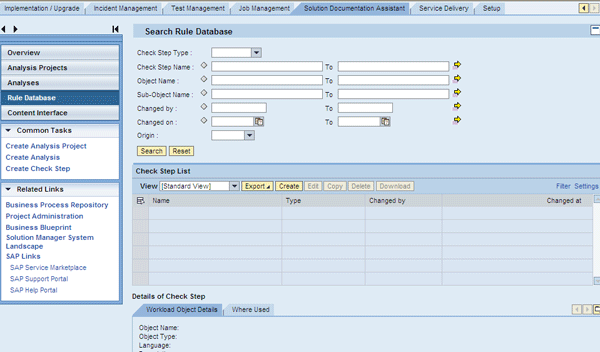
Figure 7
Rule Database search view
The search results display all check steps in the Rule Database that meet your search criteria. For each check step, the standard view of the results table displays:
- Name of the check step. By default, this is made up of the name and description of the referenced object in a transaction (e.g., SE16 – Data Browser).
- Type of check step (e.g., transaction)
- User who last changed the check step
- Time of last change
Content Interface: A view of interfaces for uploading or downloading contents of the Solution Documentation Assistant (Figure 8). Use the content interface for downloading and uploading rule or analysis projects. When you have a download, the system generates a compressed XML file (a .zip file). You can then save analysis projects or individual check rules on data media or import them from data media. This is useful if you want to download information onto hard disks or CD-ROMs and copy it into another SAP Solution Manager system. Copying the files creates a new implementation of Solution Documentation Assistant, where you can modify the analysis per your new system’s requirements and reduce a lot of effort.
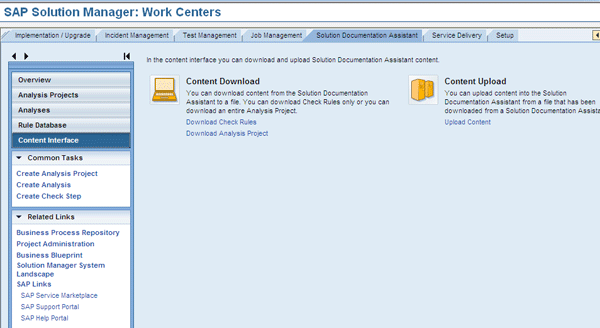
Figure 8
Content Interface view
Using the Solution Documentation Assistant
The Solution Documentation Assistant extracts business process data and enables system consolidation and documentation with automatic system comparison. There can be several reports generated for the same source, which is either an SAP solution or SAP Solution Manager Project.
The results of that analysis are then mapped to the Business Process Repository. From there, you can load them into an SAP Solution Manager project using a standard SAP interface. Then you can see which business processes and which transactions are in use. The standard SAP business process documentation automatically loads, as do all the customizing objects that you need to document in the project template.
The Solution Documentation Assistant evaluates SAP Solution Manager business processes automatically. It prepares upgrade projects, evaluates new functionality, and analyzes client developments. You can, for example, determine the business processes that are used in production systems and display this use graphically. This type of functionality creates the potential to optimize your business processes and saves an enormous amount of time, effort, and cost for your organization.
For more, see the quick tip "Solution Documentation Assistant Work Center Requirements."
Prakhar Saxena
Prakhar Saxena is an SAP Solution Manager-certified consultant with more than six years of experience. He currently works with Capgemini India Pvt Ltd as an SAP Solution Manager SME and is involved with SAP Solution Manager Implementations and upgrades across the world for various clients. He has worked extensively with Project Management, Test Management, Solution Documentation Assistant, Service Desk, and Change Request Management. He has also built proof of concepts (POCs) and demos for various companies around the world.
You may contact the author at prakhar_alld@yahoo.co.in.
If you have comments about this article or publication, or would like to submit an article idea, please contact the editor.



 Premium

