With S/4HANA learn how to use new transaction codes to complete asset migration either manually via transaction code ABLDT or automatically using a Business Application Programming Interface (BAPI).
Key Concept
A new design in SAP S/4HANA Finance enables reconciliation between Asset Accounting (FI-AA) and the SAP General Ledger. To reinforce this, SAP has changed the existing process for asset migration. The changed process updates both the FI-AA sub-ledger and the SAP General Ledger at the same time. Therefore, with S/4HANA Finance, as soon as the takeover values are updated in the FI-AA sub-ledger, a financial entry to that effect occurs in the SAP General Ledger automatically
With S/4HANA Finance, sub-ledger-specific Asset Accounting (FI-AA) tables have been abolished. It is no longer possible to handle the general ledger and the asset subledger separately during the legacy data transfer. While the takeover values for each fixed asset were, in the past were written directly to the subledger-specific tables (e.g., ANLC) with no direct integration with the general ledger (G/L), you must now post the takeover values against a transfer G/L account as a transfer document.
Before SAP S/4HANA Finance, asset migration consisted of two steps:
- Upload asset master and balances in the Fi-AA sub-ledger via transaction code AS91.
- Upload a journal entry to the SAP General Ledger.
From a process point of view, the SAP S/4HANA Finance process for cutover is similar to the original process.
In this article, I focus specifically on the manual and automatic approach of uploading asset data. I also cover the relevant transaction, process, and necessary configuration for legacy asset data transfer.
Manual and Automatic Asset Migration with SAP S/4HANA Finance
With SAP S/4HANA Finance, the process of asset migration is as follows (
Figure 1):
- Manually: Create an asset master via transaction code AS91 and then upload the takeover values via a new transaction code, ABLDT
- Automatically: Via a Business Application Programming Interface (BAPI)
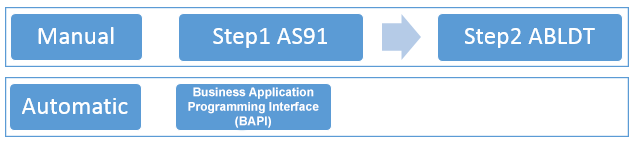
Figure 1
Asset data upload options
Note
The BAPI can be called in three different ways: via Legacy System Migration Workbench (LSMW), via transaction code AS100, or via a custom program.
Detailed Manual Process
Before SAP S/4HANA Finance, when you executed transaction code AS91, the screen that the system displayed had a takeover values tab in which we entered the takeover values while creating the legacy assets (
Figure 2).
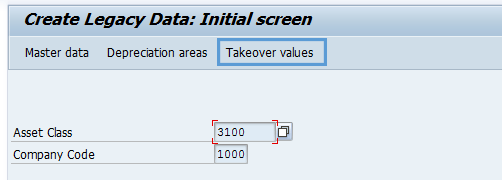
Figure 2
The Create Legacy Data screen (before SAP S/4HANA Finance)
With S/4HANA Finance, however, when you execute transaction code AS91, the screen does not have a Takeover value tab (
Figure 3), so AS91 can be used only to create legacy asset master data.
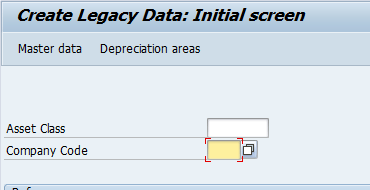
Figure 3
The Create Legacy Data screen (with SAP S/4HANA Finance)
After the legacy asset is created, the next step is to enter the take-over values. SAP S/4HANA Finance provides a new transaction code ABLDT, you can use to update the takeover values. After you execute transaction code ABLDT, the screen in
Figure 4 appears.
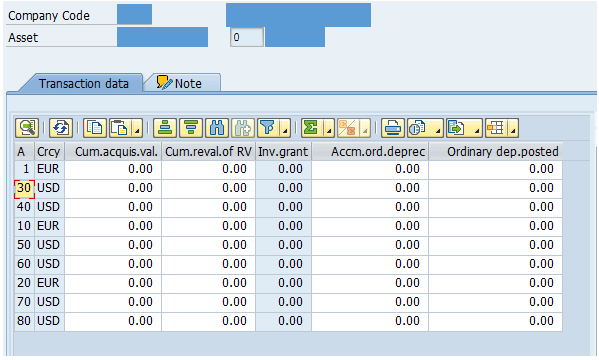
Figure 4
The ABLDT screen
You can also display the screen shown in
Figure 4 by executing transaction code AS92 and then clicking the Takeover values button in the screen that appears (
Figure 5).

Figure 5
Click the Takeover values button
ABLDT cannot be used with LSMW as the transaction code does not support batch input. If a huge amount of data is to be uploaded, you can use the automatic option explained (later in the document).
Changes to the Takeover Values of Fixed Assets
In the past, it was possible to change values already entered directly by using transaction AS92. Unfortunately, this option was also frequently misused outside the legacy data transfer, which resulted in reconciliation errors.
For greater transparency, and due to the fact that transfer documents are posted in the new solution, the only way to change takeover values is to reverse the posted transfer document and any subsequent transaction on the asset using transaction AB08 (preferably in reverse sequence ) then repost the new values with transaction code ABLDT.
The Automatic Option
For the automatic option you can use BAPI_FIXEDASSET_OVRTAKE_ CREATE for taking over the asset data. This BAPI existed before SAP S/4HANA Finance and has been fully adjusted with new logic. The BAPI creates an asset and also is used to post takeover values. As highlighted in
Figure 6, the CUMULATEDVALUES table can be used to take over values.
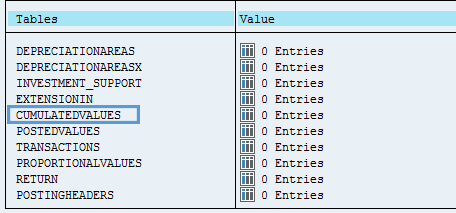
Figure 6
Tables available in the BAPI
As mentioned before, the BAPI can be called in LSMW or with a custom program. You can also use transaction code AS100 to upload the asset data. As the transaction internally calls the same BAPI, it is automatically compliant with SAP S/4HANA’s new logic.
The details about loading asset data with a BAPI are out of scope for this article as the process is similar to any other BAPI used for data loading.
New Configuration
To go to the necessary configuration to post journal entries at the time of uploading takeover values follow menu path SPRO > Financial accounting (new) > Asset accounting (New) > Asset Data transfer > parameter for data transfer > Define offsetting account for legacy data transfer.
This path takes you to the screen shown in
Figure 7. This is where you assign the offsetting account for asset legacy data transfer.
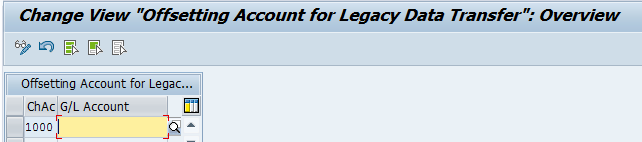
Figure 7
Define an offsetting account
The G/L account defined here should be a balance-sheet account. You should ensure that this legacy data transfer not be used for any other reasons as a good housekeeping measure.
To define the document type for legacy data transfer, follow menu path SPRO > Financial accounting (new) > Asset accounting (New) > Asset Data transfer > parameter for data transfer > Define document type for legacy data transfer.
This takes you to the screen shown in
Figure 8. This is where you assign the document type for the asset legacy data transfer.
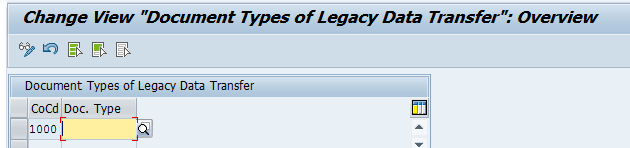
Figure 8
Document type for legacy asset transfer
The document type must be defined in such a way that it allows postings on the account types Assets and G/L accounts.
Mid-Year Takeover
While the underlying logic during the mid-year takeover remains the same as before, there is a slight change in the process.
In addition to whatever has been discussed above, any assets movement (such as acquisition or retirement) during the year of go-live needs to be loaded through:
- Transaction code AB01: Transaction code AB01 can be used either manually or via LSMW along with choosing the correct transaction type. This can be used when an acquisition, sale, or addition to an existing asset needs to be recorded.
- BAPI: BAPI_FIXEDASSET_OVRTAKE_ CREATE can be used if a new asset acquisition needs to be recorded for the current year. You can use the table highlighted in Figure 9 to enter values with transaction types.

Figure 9
Table (in the BAPI) to be used for current year transfer
Relevant SAP Notes and SAP Links
For more information, refer to these SAP Notes:
- 2252940: ABLDT/BAPI_FIXEDASSET_OVRTAKE_CREATE: Transfer of open items for assets under construction
- 2208321: FAQ for legacy data transfer in SAP_FIN 720 and subsequent releases
- 2235848: General steps for mid-year legacy asset transfer in S/4HANA Finance
- 2014219: Legacy asset transfer in the S/4HANA Finance system
Noorul Q. Khan
Noorul Q. Khan is a chartered accountant and an SAP certified professional with more than 12 years of total experience, including eight years of consulting experience in SAP FI/CO.
He has been a part of many full-cycle implementations, SAP S/4HANA, audit review, and expert consulting projects as FI/CO lead. He also holds FI/CO expertise in IS-Retail and IS-Auto.
He is a regular SAP education trainer on SA S4HANA Finance and SAP S/4HANA migration projects and also has trained Fortune 500 companies. He is an accomplished FI and CO consultant with expertise on integration with other modules.
He works as a consultant at SAP India (SDC) and lives in Bangalore with his wife and two children.
You may contact the author at
noorulqamarkhan@gmail.com.
If you have comments about this article or publication, or would like to submit an article idea, please contact the
editor.




 Premium