Management
Most SAP project managers are already familiar with Microsoft's top-selling project management software. However, many project managers either use the software incorrectly or don't know about certain features that can improve their project management efforts. In this article, 3Pro consultant Vikas Pathak shares insider tips for building and managing SAP initiatives with Microsoft Project.
As the world's most popular project management software, Microsoft Project is a fixture in the daily lives of most SAP project managers. The software allows project managers to track project staffing, budgets, and tasks — and to report on the project's overall progress.
However, despite the ubiquity of Microsoft Project, many SAP project managers aren't getting the most out of the tool. SAP projects are often large and complicated, and so project plans built within the software can become needlessly long and confusing. It is up to the project manager to keep the project team focused.
"If the project team loses focus, they tend to stray a bit. The senior leadership has to set a style and a focus for the project," says Vikas Pathak, SAP practice director at 3Pro.
There are several barriers to setting a focus when using Microsoft Project, says Pathak. Some project managers are unaware of helpful functionalities within Microsoft Project — some research indicates that 80% of users employ only about 20% of the functionality. Other project managers are using functionality they don't need, or overusing the software and distracting the project team unnecessarily.
When used correctly, Microsoft Project can be a powerful tool to help move your SAP projects forward, says Pathak. He highlights several questions project managers should ask themselves when working with Microsoft Project in order to determine whether they are using it to its full potential.
Am I Using a Dynamic Model — Or a Static Chart?
The more complicated a project is, the less likely it is that every task, subtask, approval, budget request, test, and resource schedule falls in place without a hitch. If your project plan is simply a static chart based on assumptions of everything going perfectly, you will quickly find yourself hopelessly off-track.
The key, says Pathak, is to create a dynamic model that can be adjusted easily to handle unforeseen circumstances. Rather than mapping out an entire project end-to-end in a rigid structure, Pathak says project managers should use the features of Microsoft Project to create a flexible model that can be altered quickly.
"Microsoft Project allows you to model your project's deliverables and work packages into a schedule, complete with resource time. That becomes your model. The key is that it needs to by dynamic, because there are things that are changing every day. And there will be things you meant to accomplish last week but did not. You may be ahead in other areas. How do I react to those changes? Unless you make your model flexible and dynamic, you're going to spend a lot of time updating your schedule. Very soon that will become a tedious and onerous task," he says.
A dynamic plan, on the other hand, will automatically update tasks and projections based on the reality of the project's progress thus far. Pathak recommends using this concept when building your initial project framework in Microsoft Project.
Is My Work Breakdown Structure (WBS) Deliverable-Oriented?
Microsoft Project includes tools for designing a WBS that maps all tasks and subtasks necessary for completing a section of the project. Choosing the relative size of the work to be broken down into tasks is up to the project manager.
Pathak says many project managers err by choosing too many relatively small amounts of work to be broken down into tasks, creating a confusing snarl of tasks and subtasks along the WBS. Others may choose only a few very large amounts of work to be broken down, leaving the progress of that work difficult to predict. The key, Pathak says, is to enact a rigorous discipline of mapping the entire WBS to project deliverables.
"For example, at the end of project planning phase, the ASAP methodology says I need to have a project plan, a project charter, stakeholders, a communication plan — all of these are tangible deliverables. At the end of the blueprint phase, I need to have my strategy and design documents and business process procedure documents completed and approved. These are all tangible deliverables identified by SAP, so the level of breaking down I need to do should be focused around those deliverables," says Pathak. "You need to remember that you're looking at the forest and not the trees."
Figure 1 uses the process of moving from one house to another house to illustrate the difference between a phase-oriented WBS and a deliverable-oriented WBS. In the deliverable-oriented WBS, each block of work is defined by the deliverable required at the end of the work — rather than by the process of completing the deliverable.
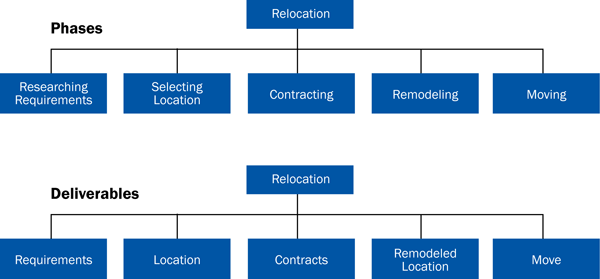
Figure 1
The deliverable-oriented WBS helps focus the project team on results, rather than phases of work
Do I Have the Right Level of Detail in My Model?
When building a project model in Microsoft Project, it is all too easy for project managers to become confused about the level of granularity needed when assigning tasks, says Pathak.
Almost every task in Microsoft Project can be broken down into dozens or even hundreds of smaller detail tasks. With too many detail tasks you will find yourself tracking insignificant progress. With too few detail tasks you won’t have a complete understanding of where things are.
The key, according to Pathak, is to follow the 1-10% rule. This rule stipulates that the duration of any detail task should be between 1% and 10% of the total project time. So if the project is expected to be completed in 60 working days, an appropriately sized detail task should require no less than .6 days (1%) and no more than 6 days (10%).
“If you have a task that’s going to take 14 days, that’s too large. You should break that task down further. If you have a task that will take one hour, that’s way too much detail,” says Pathak.
For large projects such as rollouts and global implementations, project managers should map detail tasks as appropriate to the frequency of their reporting requirements, says Pathak. So if the project manager needs to report weekly, detail tasks should require about a week’s work. If the project manager reports monthly, the detail tasks should require a month’s work.
Do I Have the Correct Task Types to Match My Estimates?
You have three options when creating tasks in Microsoft Project. A task can be of the fixed duration, fixed work, or fixed unit variety. Selecting the right task to match your estimates is an important key to success, according to Pathak.
For example, a four-hour workshop is a fixed duration task. No matter what, that task will take four hours to complete, whether there are two, three, or nine project team members in attendance. Fixed work tasks may be completed faster if more team members are working on them. Fixed units include the budget for a particular task and other non-changeable numbers.
“Don’t mix up fixed work tasks with fixed duration tasks, because you’re going to run into some issues,” says Pathak.
To illustrate this point, imagine the relocation scenario mentioned earlier. A move from California to New York may take five total days, including three days of driving. This duration will not change no matter how many workers help pack and unpack the trucks. So the estimate of five days is based on duration, and not the total work involved.
SAP projects are filled with tasks of both types. Entering the right type is critical for keeping estimates in line and moving the entire project forward.
Are Your Dependencies Correct?
Many project tasks are dependent on other tasks — for example, you cannot test a particular configuration until that configuration has been completed. Microsoft Project allows you to map these dependencies when creating tasks; however, many project managers do not understand how to use dependencies properly.
For example, consider the tasks illustrated in Figures 2 and 3. If you wish to prepare for an exam for one week and then take the exam, the task of taking the exam could be created as a successor (S) while preparing for the exam would be a predecessor (F). The type of dependency shown in Figure 2 (FS) seems correct at first, since most people take exams only after preparing for them.
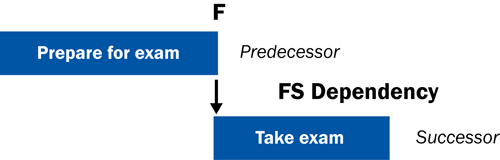
Figure 2
An incorrect use of dependencies
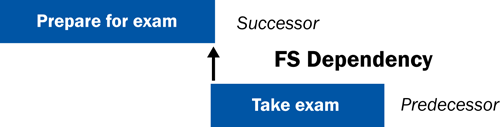
Figure 3
The correct dependency, pegged to the actual exam date
However, if the person decides to take an extra week to prepare for the exam, that could create issues if the exam is only given on a certain date. The exam date is fixed, while test preparation is open-ended. Therefore the preparation must be dependent on the actual start date of the exam, and not the reverse. This type of dependency (SF) is illustrated in Figure 3.
Understanding how to create appropriate dependencies between tasks will help prevent problems during the project, says Pathak.
“You have to consider which task is the driver. That’s what we mean when we say to make sure your dependencies are correct,” he says.
Have I Selected An Appropriate Tracking Method?
Tracking the progress of your project is critical to the overall success of the project. However, Microsoft Project offers several ways to track progress. Which is right for your project?
Pathak says too many project managers rely heavily on percentages when tracking the progress of a given task. This is often an inappropriate tracking method because the person performing the task may have different ways of assessing its completeness. For example, a team member may have rated a task 80% complete because he has finished eight out of the 10 required subtasks. However, the final two tasks may take longer than the first eight combined. As a project manager, the 80% figure tells you next to nothing, according to Pathak.
“You really can’t have any confidence in that number, because your 80% may be different from someone else’s 80%,” says Pathak.
A better method may be to track the number of subtasks completed for a given task, and to ask the person working on them for an estimate of how much work is involved in completing the final subtasks. Another option is to track progress based on finite time estimates in Microsoft Project. You may estimate that a given task should take five days. You may eventually learn that it will take seven days, and adjust your project model accordingly.
The key, according to Pathak, is to implement a consistent tracking method that is centered on the project’s deliverables.
“You have to have a quantifiable metric by which to measure,” he says.
Is My Schedule Optimized?
As the project continues to move forward, you may find that a final push is necessary to meet your targeted go-live date. Microsoft Project offers three options for optimizing your project schedule in this situation. You can choose to optimize by time, by time and resources, or by time, resources, and cost.
Optimizing your schedule by time means ensuring that you have sequenced your work effort in such a way as to avoid overlapping tasks, says Pathak. Optimizing by time and resources is more critical, says Pathak, because of the nature of project staffing on SAP projects.
“You may have one task assigned over a four-week period and three people assigned to that task. But if those three people are all going to be pulled in different directions during that time, it’s not realistic to expect them to complete the task in that four-week time frame,” he says. “You have to optimize your resources as well.”
Schedule optimization is a key feature of Microsoft Project, according to Pathak, because it helps project managers avoid faulty projections.
“If you have not optimized your schedule by both time and resources, you may end up with an unrealistic schedule, which is often the case for projects that fall behind,” he says.
Davin Wilfrid
Davin Wilfrid was a writer and editor for SAPinsider and SAP Experts. He contributed case studies and research projects aimed at helping the SAP ecosystem get the most out of their existing technology investments.
If you have comments about this article or publication, or would like to submit an article idea, please contact the editor.



 Premium