Learn about the reporting features available in SAP Business Planning and Consolidation, including how to use existing report templates and how to build your own.
Key Concept
Organizations use a mix of business intelligence (BI) and analytic applications. Business intelligence refers to underlying technology and tools used to analyze, transform, store, and report on data. Analytic applications are the use of those BI tools for a specific business use case. SAP classifies analytic applications into three further categories: vertical analytic applications, horizontal analytic applications, and embedded analytics. Vertical analytic applications are designed for a single industry, such as retail, manufacturing, or banking. Horizontal analytic applications are targeted for different lines of business in an organization, such as finance, purchasing, or sales. Embedded analytics refers to insight that is embedded directly into the transactional products found in the SAP Business Suite, including SAP ERP, Customer Relationship Management (CRM), and Supply Chain Management (SCM).
SAP Enterprise Performance Management (EPM) for Finance is a horizontal analytic application targeted largely toward finance. As finance is a shared department that directly affects all other business units in an organization, so too do the EPM applications. That is, despite being designed largely for finance, the applications in the EPM suite are regularly used at the senior executive level and across all other departments. For information on market consolidation related to EPM, see the sidebar, “EPM Acquisitions."
Note
EPM is also known in the industry by many other acronyms, including “Corporate Performance Management” (CPM) and “Business Performance Management” (BPM). No matter which acronym you use, a fairly consistent definition of the business applications encompassing this topic includes planning, budgeting, forecasting, financial consolidation, profitability management, scorecarding, and reporting and dashboarding. Not all vendors will necessarily have an offering for each individual component.
We’ll introduce you to SAP Business Planning and Consolidation (BPC), which is designed to deal with planning (including budgeting and forecasting) and consolidation (both legal and management) requirements. In addition, BPC also solves reporting (particularly financial reporting) requirements. Technically, there are two separate versions of BPC — one for Microsoft technology and one for SAP NetWeaver technology. In this article, we’ll specifically focus on the reporting capabilities common between the two, and in our next article, we’ll look at planning and consolidation features. For more on the different versions of BPC, see the sidebar “BPC Versions.”
Reporting and Analysis
You can build extensive reporting applications within BPC. These activities are primarily run by business users, and generally, finance business users for financial planning and reporting. Most users in the financial community are comfortable with Microsoft Office products such as Word, Excel, and PowerPoint. Therefore, while BPC has Web planning and reporting capabilities, the primary focus and most activities for BPC are Office based. BPC integrates seamlessly with Excel, which means you can apply a lot of Excel’s capabilities to BPC reports and input schedules. Let’s jump into an overview of the Excel capabilities of BPC. You can see a list of important BPC terms in Table 1.
|
Term
|
Function
|
|
Dimension
|
This is a field describing a particular object (e.g., account, time, cost center).
|
|
Dimension members
|
Dimensions contain members that describe the allowed values for the dimension. For example, for the time dimension, the members would be 2008.JAN, 2008.FEB, and so on.
|
|
Application
|
An application in BPC terms is comprised of a cube that stores data in addition to some other objects in the system. Dimensions are assigned to a cube to determine its structure. For example, I might have a Cost Center expenses application or a Sales Planning application.
|
|
Report
|
An Excel workbook used to for reporting on data stored inside a BPC application.
|
|
Input schedule
|
An Excel workbook that has planning enabled to be able to write back data to the BPC application.
|
Table 1 Important BPC terms
One of the most common activities when people report is to set filter values on dimensions so they are looking at just the data in which they are interested. For example, I might want to filter to my individual cost center for the year 2008. In addition to setting filters, it is important that while users are working within the application, they maintain these filters when navigating throughout the application. To do this, BPC uses the concept of the current view (CV or CVW). The CV allows you to pick the application with which you want to work, and then it also allows you to set filter values for all the dimensions within this application.
When you navigate across different reports or input schedules within BPC for Excel, you always maintain this CV context. Therefore, users can work on a certain segment of the business and don’t have to worry about resetting this context each time they open a new report or navigate to a different activity in the system. Technically behind the scenes, the CV is actually pulling dimension members from a local dimension cache stored on the user’s PC. This makes the lookup of dimension members quick because the system has already cached the dimension members that the user is authorized to see.
After the CV is set, users may then want to use reports within the system to look at their financial numbers. To do so within BPC, the user launches the BPC Excel client, and in the first screen, enters the Reporting & Analysis section within the BPC action pane (Figure 1).
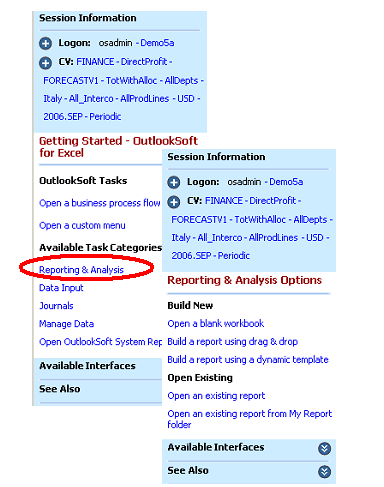
Figure 1
Go to the Reporting & Analysis section
From here, the user can then either build a new report or use an existing report. Here, most financial users would likely use existing reports that have been pre-built for them, for specific analysis they want to perform. For example, customer- or brand-specific P&L statements are common in the consumer products industry, and would be a likely candidate for a pre-built report for end users. However, more advanced users (such as power users) may want to build their own reports to perform more ad hoc analysis of the data, or they may even want to build a new report that end users can reuse. We’ll go over each situation next.
Using Existing Report
To use an existing report, you can open shared reports or personal reports. When you choose Open an existing report, the system displays the shared report list as shown in Figure 2.
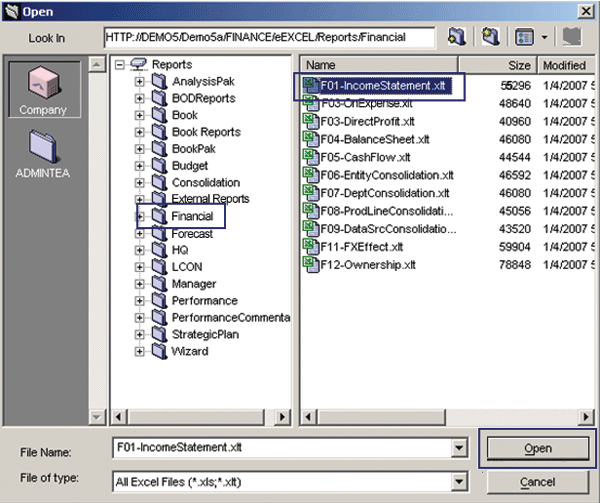
Figure 2
Example list of shared reports
Let’s say the user wants to open an income statement to review. The system organizes the reports in folders, allowing users to quickly find the appropriate report. You can see in Figure 2 that we first selected Company-wide reports, then chose Financial reports, and then chose the IncomeStatement report.
The ability to store reports in your personal area or in the shared area provides the right balance and flexibility between sharing information as well as allowing users to store local calculations, notes, and so on that are just applicable for their own needs. It is also important to note that even for shared reports, users can only see this report with their own security applied.
After you select and open a report, you can navigate and drill down within this report to perform detailed analysis on your data. To navigate, you can use the context menu (which is merged with the Excel context menu) by right-clicking, or you can double-click on a dimension to drill down to the next level of detail in the hierarchy. There are also various options available in the menu bar and in the action pane, and you can change your CV filters at any point to see a different region of data. You can always save the new analysis you have performed in your personal area, or even share this report with other users by saving it to a shared folder.
Building New Reports
If there are no suitable reports covering the type of analysis you want to perform (or your end users are requesting a new pre-built report they want), you have a few options to build a new report. To build a new report from scratch, click on Open a blank workbook as shown in Figure 1.
There are three primary ways to begin building a report from scratch, as shown in Figure 1:
1. Through new, BPC-specific Excel formulas and the BPC control panel. You can see more details on these in the sidebar, “BPC Formulas.”
2. Using drag-and-drop
3. Using dynamic report templates
It is also worth nothing that while we focus on reporting in this article, you can use these same options for building inputschedules as well as reports.
After you have included the appropriate formula (or formulas) in your report, you can use the BPC control panel to alter the formatting and expansion behavior of the report (Figure 3).
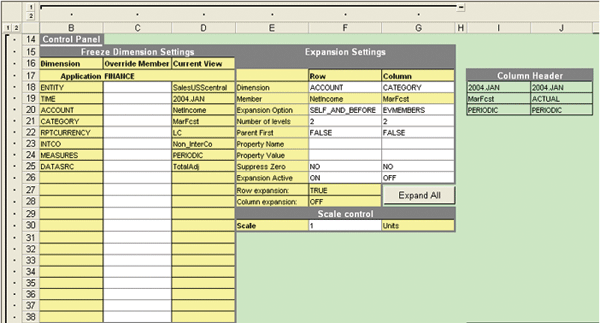
The BPC control panel allows you to define the following formatting options:
- Configure the layout, such as where the headings go or where the data is located on the sheet
- Specify expansion options, including which dimensions should be on the rows and columns of your report, and how hierarchies should behave
- Freeze dimension settings, which you can use to override any filters a user chooses in the current view
- Set other formatting options, such as scaling and zero suppression
The second way users can build reports is using the drag-and-drop functionality. This option specifically leverages the EVDRE formula. It provides a graphical interface from which you can choose fields and decide whether they appear on the rows and columns, and where the grid should appear in the worksheet, rather than having to use the Excel formula itself (Figure 4). When you have decided how you want your report to look and click OK, it builds a grid for you, retrieving the data from the BPC application. After you create the report with drag-and-drop, you can continue to modify it using the BPC control panel if you wish. Using the EVDRE formula directly or using the drag-and-drop function, is simply a matter of personal preference.
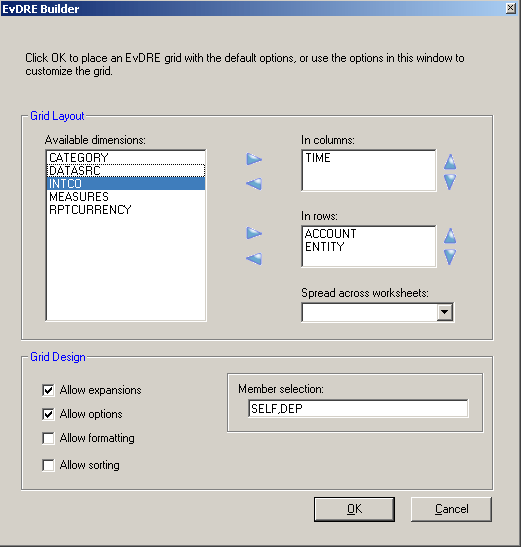
Figure 4
Using drag-and-drop functionality to build BPC reports
The third and final way to build a new report is to use a dynamic template. A dynamic template is an Excel workbook template that already has all the properties set for the control panel for formatting, has already included the BPC formulas for how to retrieve the data, and so on. When you select a dynamic template, the system builds a report with all these formulas and settings automatically applied to your new report. Therefore, a dynamic template is the quickest way to build a new BPC report.
A dynamic report template within BPC is an Excel workbook (i.e., an XLT file) that contains metadata about your report, including how the report should look and which dimensions are expanded on the rows and columns. However, what makes these templates dynamic is that they do not hard-code any values in the control panel or BPC formulas, so you can use the template on almost any application. For example, rather than specifying the dimension with the name GLACCOUNT on the rows, you might specify that the account type dimension should be on the rows in your report. You can store all this metadata within the report template itself. This should also include all the formatting the end users would like to apply to their financial reports. For example, a common template might be a trend template, which might contain time in the columns, so this way you can see how the specific data is trending over time. Within the action pane shown in Figure 1, you can choose Build a Report using a dynamic template to bring up the template selection wizard (Figure 5).
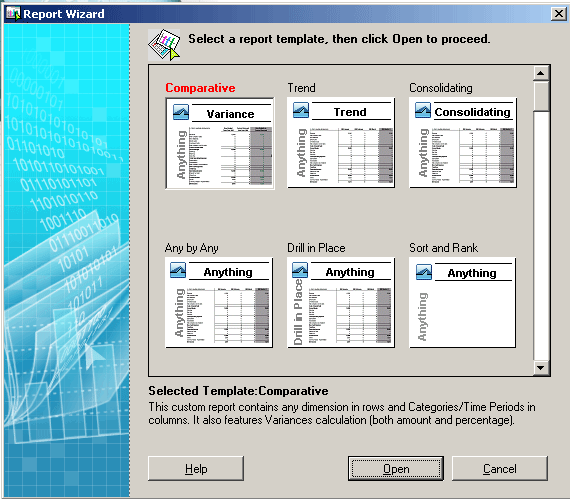
Figure 5
Select a BPC report template
As an example, if you open the Comparative report template in BPC, the system builds a report based on the application you have set in your current view (Figure 6). This report shows a plan vs. actual comparison and calculates the variances. To do further analysis, users can drill down into more details.
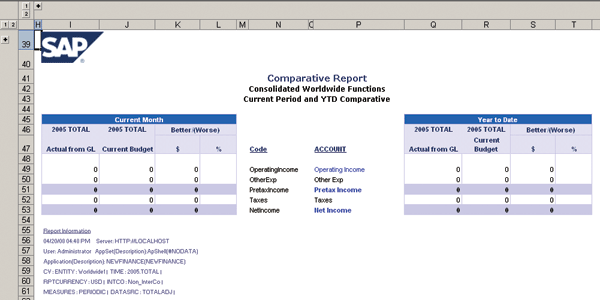
Figure 6
A variance report built from the Comparative Report template
Building New Report Templates
SAP delivers a number of report templates already, but it is also possible to build new report templates yourself. You may want to do this if you want to have different logos, formatting styles, or just different types of templates available. Report templates are actually built the same way as a normal report — using the BPC formulas and the control panel. It is important to make sure that no values (e.g., dimension names, members) are hard-coded in the template. Otherwise it would prevent the template from being used across different applications or potentially even different systems.
After you have created a new template, you need to save it to a specific folder in the file system (or “file service” in BPC 7.0 NW). Under the application-specific folder, follow path eExcel > Reports > Wizard, which you can see in Figure 2. In addition, you simply upload a picture file and text file with your report template so that the system displays these images and descriptions when the user selects the report template. For example, in Figure 5 you can see that the image displays the small preview of the report and the text description of the template appears at the bottom of the window. Typically, only more advanced users (e.g., power users) would build these new report templates and end users would simply use them to have their new reports built automatically for them.
EPM Acquisitions
Readers who are already familiar with EPM would have observed a lot of market consolidation taking place. That is, practically all the major EPM vendors have made one or more acquisitions, and SAP has been no exception, with the acquisitions of Pilot Software (February 2007), OutlookSoft Corporation (May 2007), and Business Objects SA (October 2007). The result of these acquisitions was that SAP often had more than one product capable of delivering on the same business requirement. Therefore, SAP made some difficult decisions around product rationalization, and the following are the applications that will comprise the SAP EPM suite going forward:
-
SAP Business Planning and Consolidation (BPC) – from the OutlookSoft acquisition
-
SAP Strategy Management (SSM) – from the Pilot Software acquisition
-
Business Objects Profitability and Cost Management application (PCM) – from the ALG acquisition performed by Business Objects
-
Business Objects Financial Consolidation application – from the Cartesis acquisition performed by Business Objects
BPC Version
When SAP acquired OutlookSoft, BPC ran entirely on Microsoft’s BI platform (i.e., MS SQL Server, MS Analysis Services, MS Reporting Services, MS SQL Server Integration Services [SSIS/DTS]), a Windows operating system, a .NET application server, and Internet Information Server (IIS) as the Web server. SAP is continuing to invest strategically in the Microsoft-based version of BPC, with the official name of the product being SAP Business Planning and Consolidation, version for the Microsoft platform. It is sometimes unofficially referred to simply with an M suffixed after the release name (e.g., BPC 7.0 M). The currently available version is BPC 5.1 M, with BPC 7.0 M planned to enter Ramp-Up in August 2008.
Since the acquisition of OutlookSoft, SAP has been working on integrating BPC to the SAP NetWeaver BI platform. The official name for this product is SAP Business Planning and Consolidation, version for SAP NetWeaver. It is sometimes unofficially referred to with an NW suffix to indicate the SAP NetWeaver-based version of BPC (e.g., BPC 7.0 NW). There is no generally available version of BPC on SAP NetWeaver, but BPC 7.0 NW is planned to enter Ramp-Up in September 2008.
BPC Formula
The BPC formulas are Excel functions that are installed with the BPC add-on. You can use these formulas the same way you would use any other Excel formula such as “=SUM (B1:B3)”. An example of a simple BPC formula is “=EVAPP()”, which returns the value of the current BPC application. You can categorize the different formulas into four high-level groupings:
- Actionable functions: Within reports or input schedules, drill down to other reports or input schedules, show the current view settings for dimensions, use in custom command buttons and custom menu links, and link to BPC Web content and documents. For example, EVCVW returns the current view filter for the dimension specified in the formula. Double-clicking the cell containing the formula brings up the BPC member selector to allow users to change their current view filter value.
- Exchange or value functions: Retrieve or send values to the back-end system. For example, you can use EVDRE to define a grid of data that supports both read and write-back. We’ll describe EVDRE in more detail later. Expansion functions: Functions that allow dynamic expansion of dimensional data in your reports and input schedules. For example, EVEXP allows you to define an expansion of a specific dimension and custom filter values across the rows or columns of a report.
- Text functions: Functions that return text strings. You can use these text strings to display information or as parameters in other functions. For example, EVAPD returns the text description of the current BPC application.
To see a complete list of possible formulas, when you have a report open in the BPC Excel client, select eTools > Function Wizard. Also note that you can use the standard Excel formula builder to help complete BPC Excel formulas as well.
Ryan Leask
Ryan Leask currently runs the SAP BusinessObjects Planning and Consolidation solution management team for SAP, based out of Palo Alto, CA. Prior to this position, he led the EPM solution architecture team with a main focus on the design of SAP BusinessObjects Planning and Consolidation 7.0, version for SAP NetWeaver. Ryan has also worked on SAP xApp Analytics, SAP NetWeaver Visual Composer, SAP NetWeaver BW, SAP SEM, ABAP, SAP CRM, analytics/data mining, and whatever else seemed interesting. He has also co-authored SAP xApp Analytics (SAP PRESS, 2006), written many articles, and presented at numerous conferences.
You may contact the author at ryan.leask@sap.com.
If you have comments about this article or publication, or would like to submit an article idea, please contact the editor.

Prakash Darji
Prakash Darji is an experienced professional with more than 10 years of end-to-end experience in enterprise software. He has a broad depth of experience including corporate strategy, sales, product management, architecture, and development. He has experience in product launch activities, including positioning, packaging, and pricing. He has delivered numerous product releases in a variety of capacities through his career. He thrives on building high-performing, scalable teams to achieve strategic deliverables, whether they close strategic sales deals, roll in product features, or roll out new releases. He is a recurring author for several publications and a speaker at SAP conferences around the world. Prakash is on LinkedIn at https://www.linkedin.com/in/prakashdarji.
You may contact the author at editor@BIexpertOnline.com.
If you have comments about this article or publication, or would like to submit an article idea, please contact the editor.