Manager
Using the approval workflow of STMS_QA with Solution Manager as the domain controller enables organizations to establish approval workflows without the complexity of setting up Change Request Management (ChaRM). Explore how the STMS_QA process works and how it can help coordinate the activities of developers, leads, and business owners to deliver changes in a managed, documented way.
Key Concept
Setting up Change and Request Management (ChaRM) can be complex and too rigid for some organizations. A workflow-based extension of the SAP Correction and Transport System (CTS), STMS_QA offers an alternative to implementing ChaRM that provides a workflow to manage approval activities and generates an audit trail that meets most organizations’ requirements. STMS_QA uses standard Transport Management System (TMS) functionality with an added workflow that communicates tasks to participants via the SAP Business Workplace Inbox functionality.
Change and Request Management (ChaRM) is a robust, comprehensive solution. However, it is sometimes too complex and restrictive for organizations that need to move quickly or need to manage multiple teams at different stages in the application life cycle. Many companies have opted to manage transports via spreadsheets. While this provides for the ultimate in flexibility, it leaves a great deal to be desired in the areas of audit, approvals, and historical record keeping.
How do you get to a process that is controlled, provides high flexibility, and can offer work management with approvals and audit trails? By taking a chapter from the playbook of the past. STMS_QA is an old-school capability that you can use to set up an auditable, controlled transport release process managed by Solution Manager that is better than managing by spreadsheets and is easier to set up and use than ChaRM functionality.
STMS_QA is a workflow and approval engine that you can configure on top of the standard Transport Management System (TMS) to help enforce approval processes, track transports through the landscape, and provide standardized audit trails. Conceptually, the use of STMS_QA is the same as when doing transports manually with a few exceptions. You still set up the transport paths, create and release transports, and execute imports into target systems.
The difference is that STMS_QA adds the ability to approve and document the approval of each movement through the landscape and reduce errors by automating the import process when a transport is approved. While I’ve yet to test this in Solution Manager 7.1, I know from first-hand experience it works in Solution Manager 7.0 as late as Support Package 19.
The Mechanics
In addition to the standard transport paths, you need to add virtual systems to act as holding zones while transports are being approved. The transports reside in the virtual systems while awaiting approval to be imported into the next target (e.g., quality assurance or production).
To activate STMS_QA, you must switch on the Delivery after confirmation option in the systems attributes on the Domain Controller. Use transaction STMS_PATH and switch to change mode. Double-click the QA system and check the Delivery after confirmation box in the Quality assurance section of the pop-up (Figure 1).
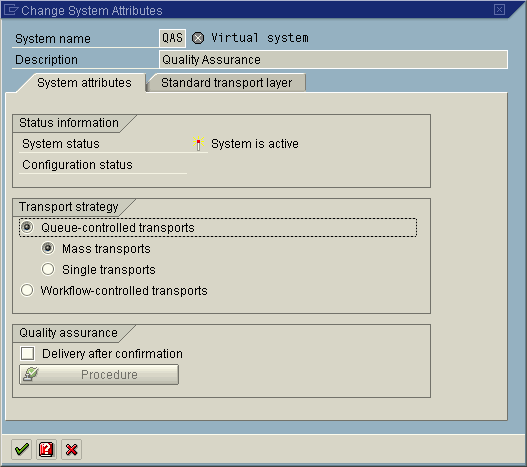
Figure 1
Activate delivery after confirmation
This brings up the Change TMS Approval Procedure window (Figure 2). Make the changes that are required for your circumstances and accept.
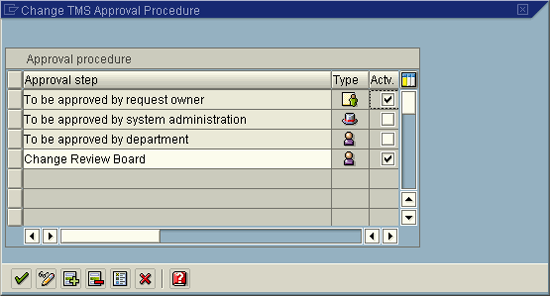
Figure 2
Accept the approval procedure
Another key element for using STMS_QA is the concept of a transport proposal. You can think of a transport proposal as a guided permission slip. Based on your configuration, the proposal establishes that one or more approvers must authorize a transport for migration to the next environment in the system.
The proposal generates SAP Mail inbox messages to alert approvers of work tasks (i.e., transport approval requests) they have been requested to perform. When an approver approves a transport proposal, the proposal performs the defined migration step (i.e., import to QA) and sends an alert to the next approver in the workflow. If the approver rejects the proposal, the transport stays in its current location and the transport owner is notified of the rejected status.
Note
The term transport owner is used synonymously with proposal owner. These two roles may not be the same person in your organization. The transport owner is the person who is authorized to create the transport request. The proposal owner is the person who is authorized to create transport proposals and is notified of any changes in the status of the transport proposal.
The Process
For the purpose of this article, I’ll use a simple landscape: a development (DEV), a quality assurance (QA), and a production (PRD) system. The process is the same if your environment also contains other systems such as training, pre-production, and so on.
The process is as follows:
- Create the transport request
- Release the request and create a transport proposal
- Identified approvers review and approve (or reject) the transport proposal
- Approved proposals move to the next environment and rejected proposals return to the transport owner
- The transport owner modifies the proposal to move it to QA
- Another approval or rejection is performed to authorize or reject the change
- The transport owner modifies the proposal to move it to PRD
- Approve or reject the request and move it to PRD
- The developer is notified to confirm the request
Step 1. Create the Transport Request
Use transaction SE10 and click the create icon  to create the transport request in the source system (Figure 3). In this case it is the DEV environment for SAP ERP Central Component (SAP ECC). Select the transport type you wish to create and click the green check mark icon to bring up the project assignment pop-up.
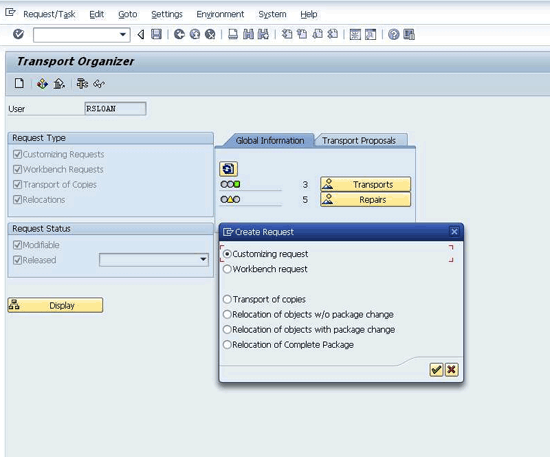
Figure 3
Create a transport
In Figure 4, you see the assignment of the project to the transport. Enter a description for the transport and assign it to a project. The project serves as a bundling tool to group transports together for related business requirements and provide a link to the approval workflow for the STMS_QA approval life cycle.
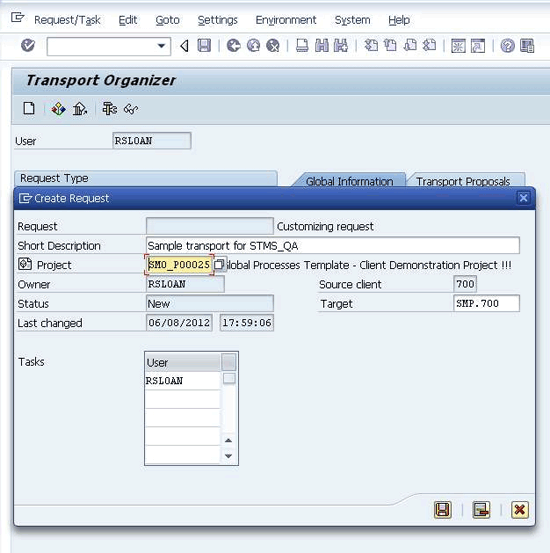
Figure 4
Assign a project to a transport
Step 2. Release the Request and Create a Transport Proposal
When the required changes have been made and unit tested in the development environment, the developers (either coders or configuration personnel) release the tasks in the transport. Then a person in a lead role (e.g., a team lead or release manager) releases the transport and is prompted to create the transport proposal. Figure 5 shows the release of the tasks and the transport request.
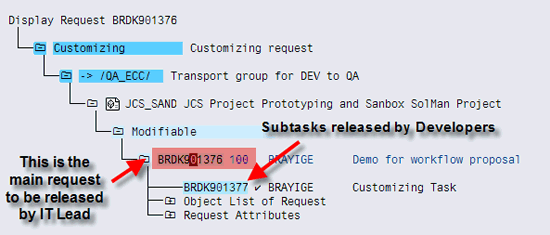
Figure 5
Tasks released in transaction SE10
When the lead releases the request, a prompt to create a transport proposal is presented (Figure 6). Click the new icon indicated in the figure.
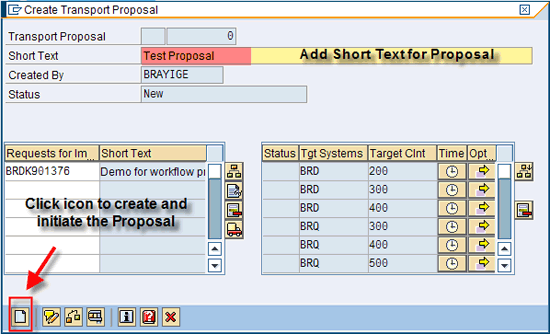
Figure 6
Create a transport proposal
The proposal can contain one or more transport requests and shows the target systems and clients for the transport migration. When the proposal is created, a notification is sent to the first approver’s Business Workplace Inbox.
Step 3. Identified Approvers Review and Approve (or Reject) the Transport Proposal
The approver logs into the domain controller (Solution Manager) and executes transaction SBWP. This opens the SAP Business Workplace. The transport proposal is in the approver’s inbox. Multiple proposals appear as a worklist (Figure 7).
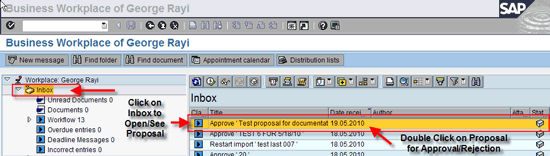
Figure 7
Approver’s worklist in the Business Workplace
Double-click the proposal from the inbox. The lead can review the content of the proposal, add documents and notes, and execute the approval or rejection of the transport proposal. Figure 8 shows the approval window. Here the proposal can be approved to migrate to the QA environment or rejected if the lead is not satisfied that it meets the requirements for QA readiness.
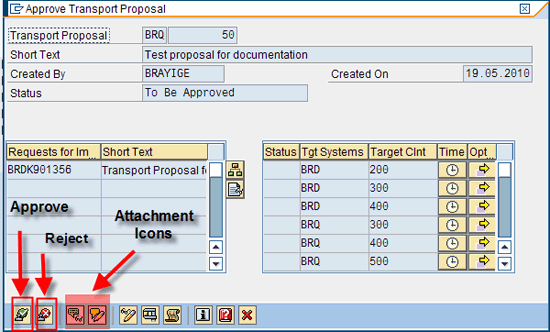
Figure 8
The attachment icons allow the approver to add notes and attachments as needed
Step 4. Approved Proposals Move to the Next Environment and Rejected Proposals Return to the Transport Owner
The transport owner is notified. Approved proposals move to the next environment.
Whether the proposal is approved or rejected, the creator is notified via the Business Workplace. When a proposal is rejected, the approver sees the message in Figure 9. The transport proposal creator gets the notification as shown in Figure 10.

Figure 9
Notification to the approver when the reject icon is clicked

Figure 10
Notification to the transport proposal creator for a rejected proposal
Step 5. The Transport Owner Modifies the Proposal to Move It to QA
The proposal creator opens the proposal, makes appropriate changes, and resubmits the proposal (Figure 11). The save icon resubmits the proposal. Other options include the withdraw proposal icon, which ends the process and means the proposal is done. The view attachment and create attachment icons allow you to review any documentation that has been attached or add documents that may be needed to provide additional information to support your proposal through the approval life cycle.
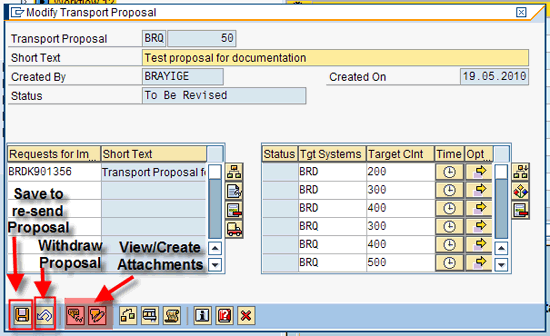
Figure 11
Adjust and resend the proposal for approval
Step 6. Another Approval or Rejection Is Performed to Authorize or Reject the Change
As with the previous steps, the resend action taken by the proposal creator triggers a notification for the approver in the Business Workplace Inbox of the approver. This time, the approver approves the proposal for import into the QA environment (Figure 12).
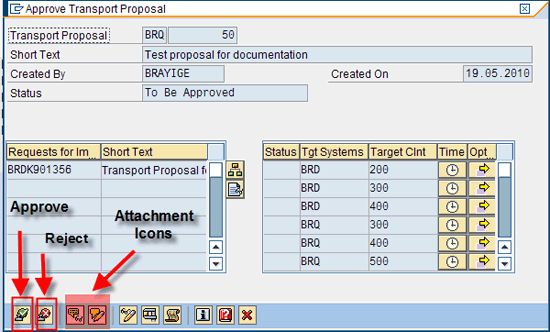
Figure 12
Review of proposal for approval to release to QA. Note the target clients and systems are listed in the right side of the approval window.
Once the proposal is approved, the system executes the import of the transports into the listed target systems and clients. A notification is sent to the proposal creator that the import has been approved and they are to confirm that the transports were successfully imported into the target environment (Figure 13).

Figure 13
Notice to the proposal creator that action is to be taken to confirm the successful import into the QA environment
The proposal owner opens the proposal to confirm all transports are completed successfully (Figure 14).

Figure 14
All transports successfully imported into the QA environment
Step 7. The Transport Owner Modifies the Proposal to Move It to PRD
Once the transports have been confirmed as completed successfully in the QA environment, QA testing can begin. When QA testing is completed successfully, the proposal owner modifies the proposal to request approval for the move to production. The proposal owner opens the transport proposal and modifies it to trigger the request for approval to move to PRD. By double-clicking the notification, the proposal owner can open the Confirm Proposal dialog window (Figure 15). Within the window, the proposal owner prompts for destination systems to add to the proposal by pressing F4. Then the owner adds the target group for the production destination of the transport and saves the changes by pressing Enter.
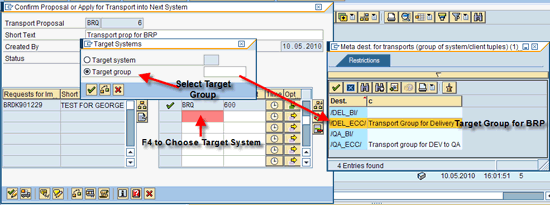
Figure 15
Adding production target group to the proposal
After the target group is assigned, the proposal owner clicks the transport icon to release the transports from QA and triggers the request for approval to migrate to production (Figure 16).
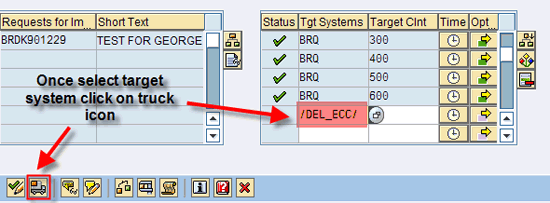
Figure 16
Activate the request for approval to move transports to production
Step 8. Approve or Reject the Request and Move It to PRD
Again the approvers are notified that the proposal is in need of approval before the transports can be imported into the production environment. As with the request to approve for QA, the approvers review the proposal and either approve or reject the proposal. The approver sees the request in the Business Workplace Inbox (Figure 17).

Figure 17
Approval request for the transport proposal
Next the approver approves the request (Figure 18). This triggers the import into production and notifies the proposal owner to confirm (Figure 19).
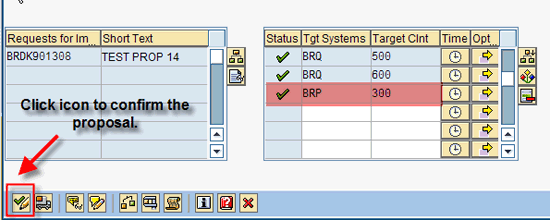
Figure 18
Confirm the proposal
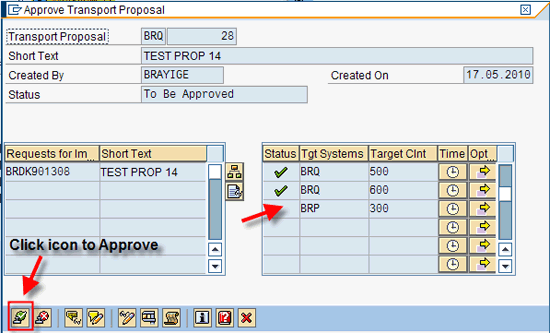
Figure 19
Approve the proposal to migrate to production
Step 9. The Developer Is Notified to Confirm the Request
The proposal owner sees the confirmation request in the Business Workplace Inbox (Figure 20). At this time, the proposal owner (working with the release manager, business owners, and others) performs the steps necessary to confirm that all transports have been successfully imported into production. Before the final closure of the proposal, confirmation from the business the change has been fully deployed and meets business requirements should be obtained.

Figure 20
Confirm the request
Once these activities are complete, the proposal owner double-clicks the confirmation message to open the proposal for final closure. Figure 21 shows the pop-up that is displayed, allowing the proposal owner to close or confirm the proposal is complete.
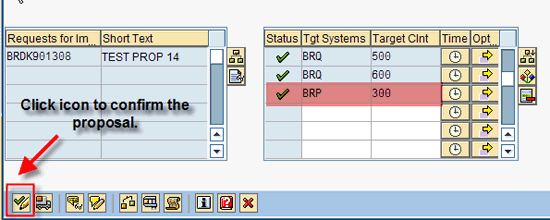
Figure 21
Confirming the transport proposal. Note the status next to the target systems identified.
This completes the STMS_QA life cycle. The STMS_QA functionality has kept a record of all participants in the process and has recorded their user IDs and the date and time for each event in the process. This provides you with a complete audit trail of the activities and provides for ITIL minimum documentation. Your organization can supplement the standard functionality by requiring the attachment of approval forms and other documentation at virtually every step of the STMS_QA life cycle as required by your internal audit and record keeping policies.
In addition to the life cycle described above, STMS has other features and tools to help manage transports. One of the key features is the import queue manager. To access the import queue, you use transaction STMS. The first screen shows you the primary system ID and the transport domain. It also has an indication if you are logged into the domain controller (Figure 22).
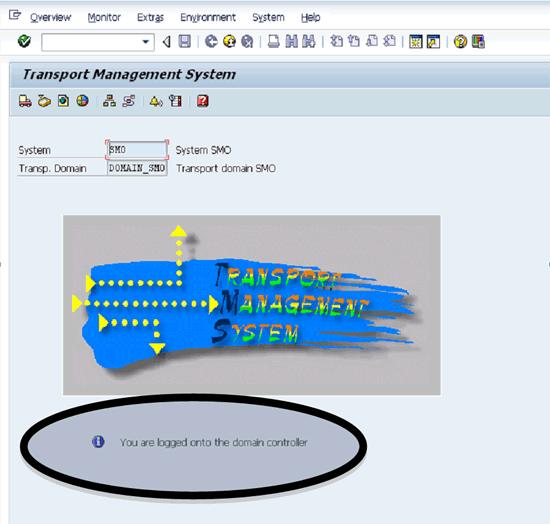
Figure 22
STMS main screen
By clicking the transport icon  , you open the import overview of the domain. This shows you the systems in the current domain (Figure 23). By double-clicking the system of interest (e.g., SMO in this example) you see a list of transports in the import queue for that system (Figure 24). This is where you, as the administrator, can track all the inbound transports for a particular system. This helps you understand the context of a particular transport relative to other transports slated to go into the target system. With this information, you can prevent errors related to importing transports out of sequence and other troublesome issues by being aware of the collection of changes (e.g., transports) en route to the target system.

Figure 23
Systems in the current domain
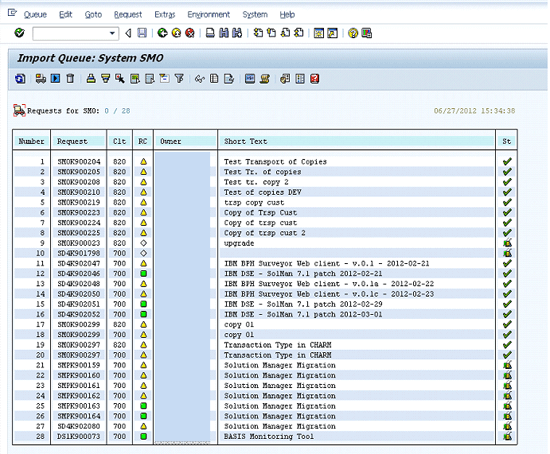
Figure 24
Transports in the import queue of system SMO
From the list in the screen in Figure 24, you can select individual transports for import by using the import request icon  . This is a direct import that is independent of the STMS_QA process. You can view this as a sort of manual override should the need arise. The other features of STMS are beyond the scope of this article.
What I’ve covered here is a basic approval life cycle for a simple landscape. For your organization, you’ll most likely have many additional detailed steps to meet your approval and audit requirements. Also, there are many points along this process at which there could be exceptions and rejections. Each of these points needs to be carefully considered as you design and deploy you environment-specific process for transport approvals.
I recommend (as always) that you start small. Set up the STMS_QA in a Solution Manager sandbox environment. You can simulate the DEV, QA, and PRD environments by setting up multiple clients in the sandbox and then test with customizing requests. This gives you the opportunity to understand how the different configuration settings behave and how you want to establish the approval life cycle.
D. Russell Sloan
D. Russell Sloan is a specialist in project and program governance for IBM. He focuses on the use of SAP Solution Manager for global rollout projects for IBM’s largest customers, having worked with SAP software since 1996. Russell has degrees in accounting and information systems and has been a team and project leader for SAP projects for more than 14 years. He has been developing and deploying software systems for over 30 years.
You may contact the author at solmanruss@gmail.com.
If you have comments about this article or publication, or would like to submit an article idea, please contact the editor.




 Premium